- Dashboard
- Widgets
- AI Diary
- AI Humanizer
- AI Image
- Audio Editor
- Base64 / URL Encoder
- Calendar
- Canvas
- Collection
- Color Picker
- Container
- Countdown Timer
- Currency Converter
- Daily Quiz
- Daily Quote
- Daily Riddle
- Date & Time
- Embed
- GitHub Releases
- Google Calendar
- Habit Tracker
- Hacker News
- Image Compression
- IP Info
- JSON Formatter
- Links
- Markdown Editor
- News
- News Summary
- Notes
- Photo Frame
- Podcast
- Pomodoro Timer
- Product Hunt
- QR Code Generator
- Quick Answer
- Quick Note
- Regex Tester
- RSS Feed
- Search
- Spacer
- Stopwatch
- Story Snippet
- Stripe Sales
- Subreddit
- Substack
- t0ggles Focus
- t0ggles My Boards
- t0ggles My Tasks
- Tasks
- Text Diff
- Todo
- TradingView Advanced Chart
- TradingView Market Summary
- TradingView Mini Chart
- TradingView Symbol Overview
- TradingView Ticker Tape
- Translation
- Unit Converter
- Uptime Monitor
- Weather
- What If
- World Clock
- YouTube Channel
Weather Widget
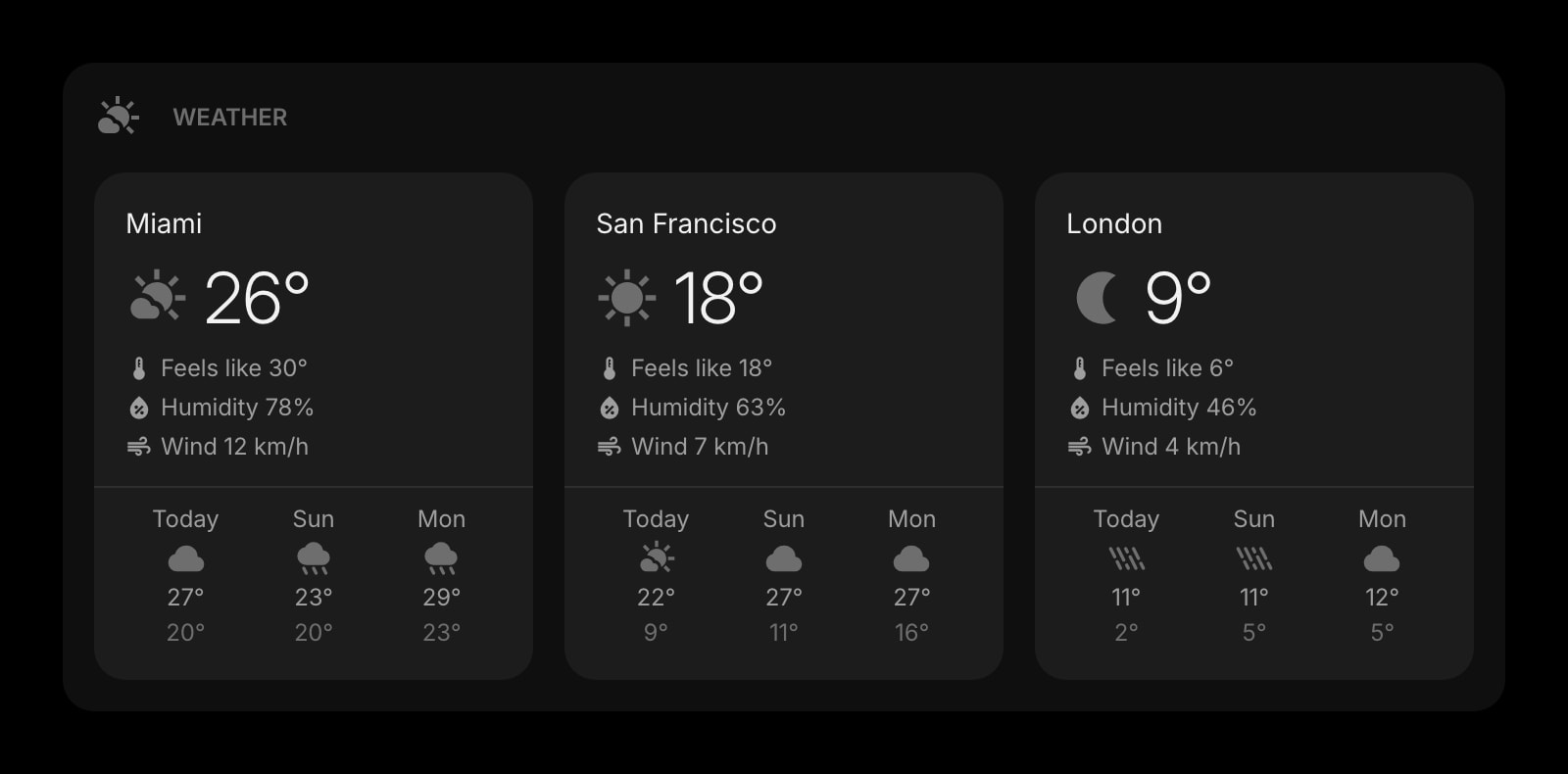
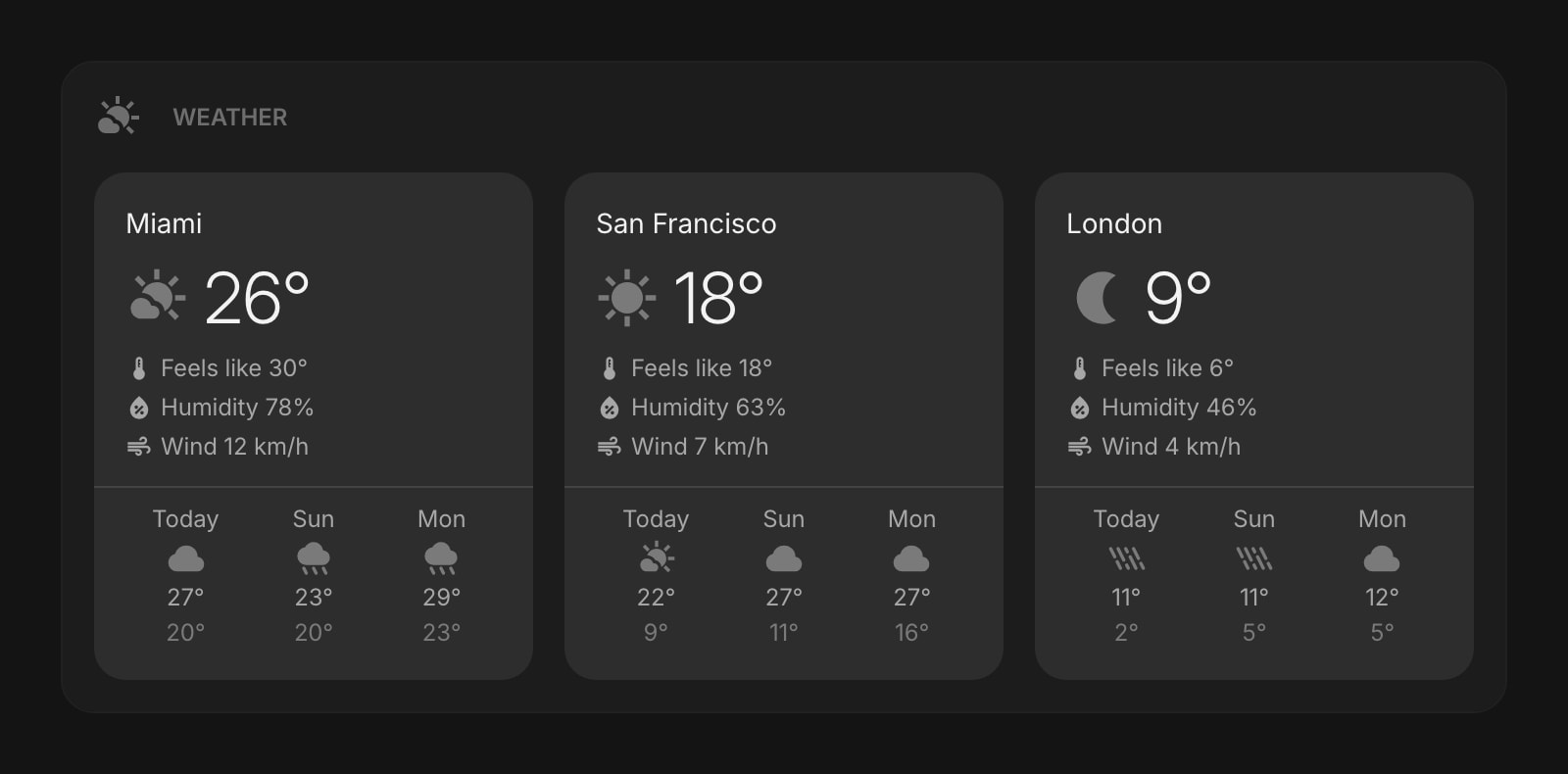
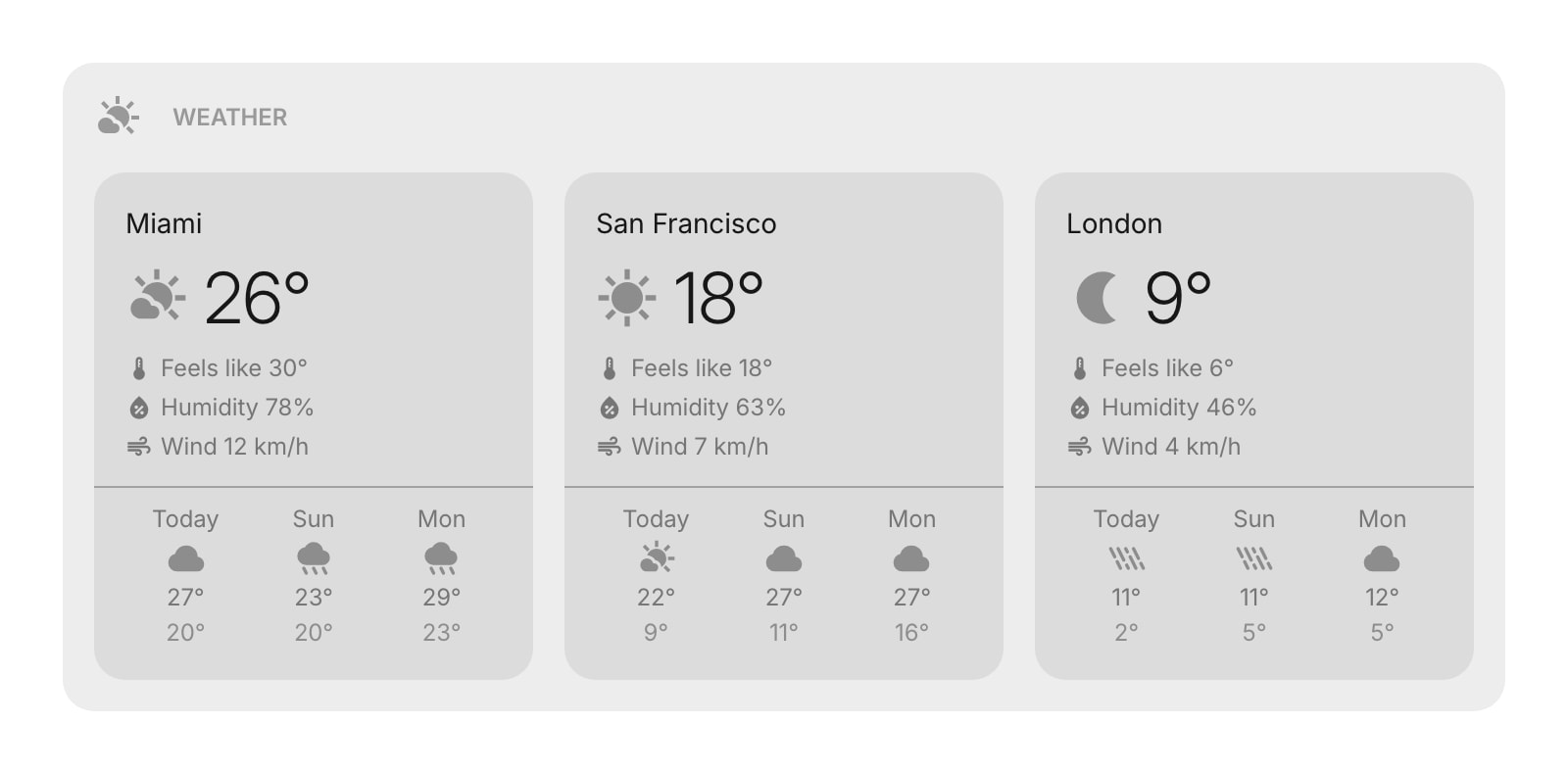
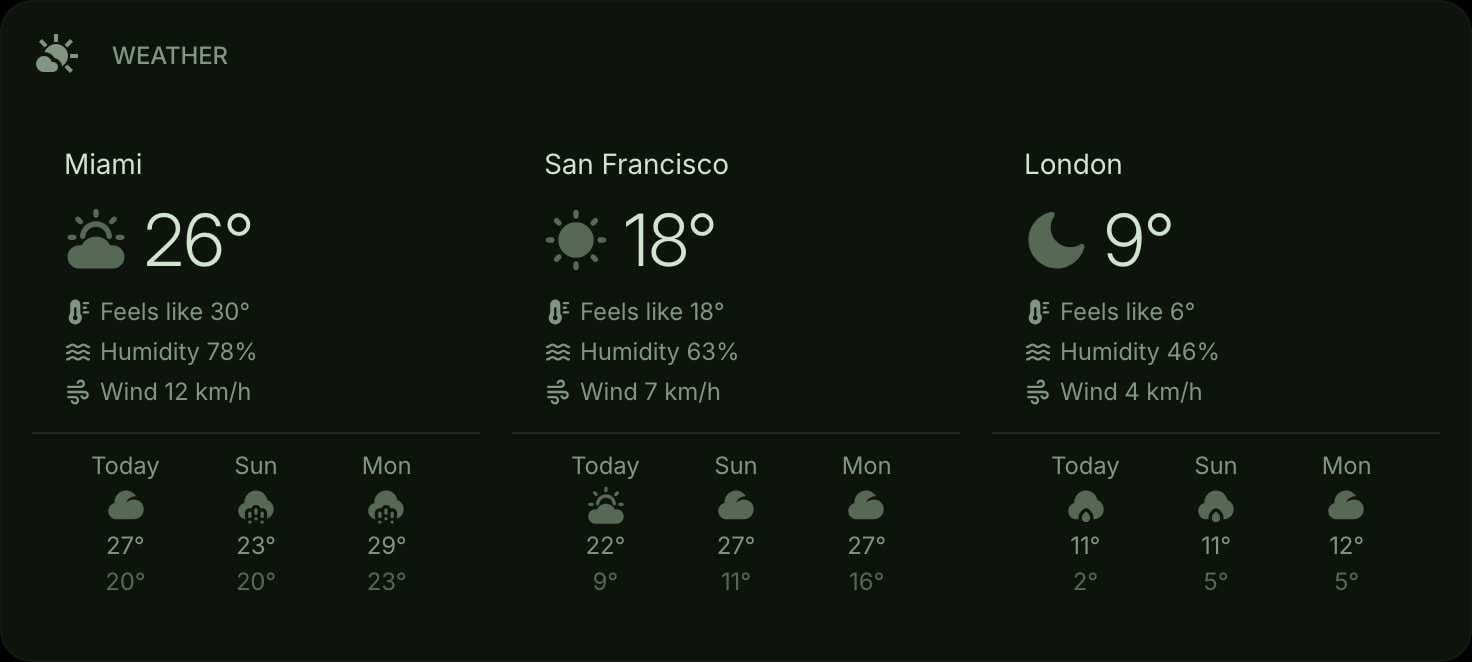
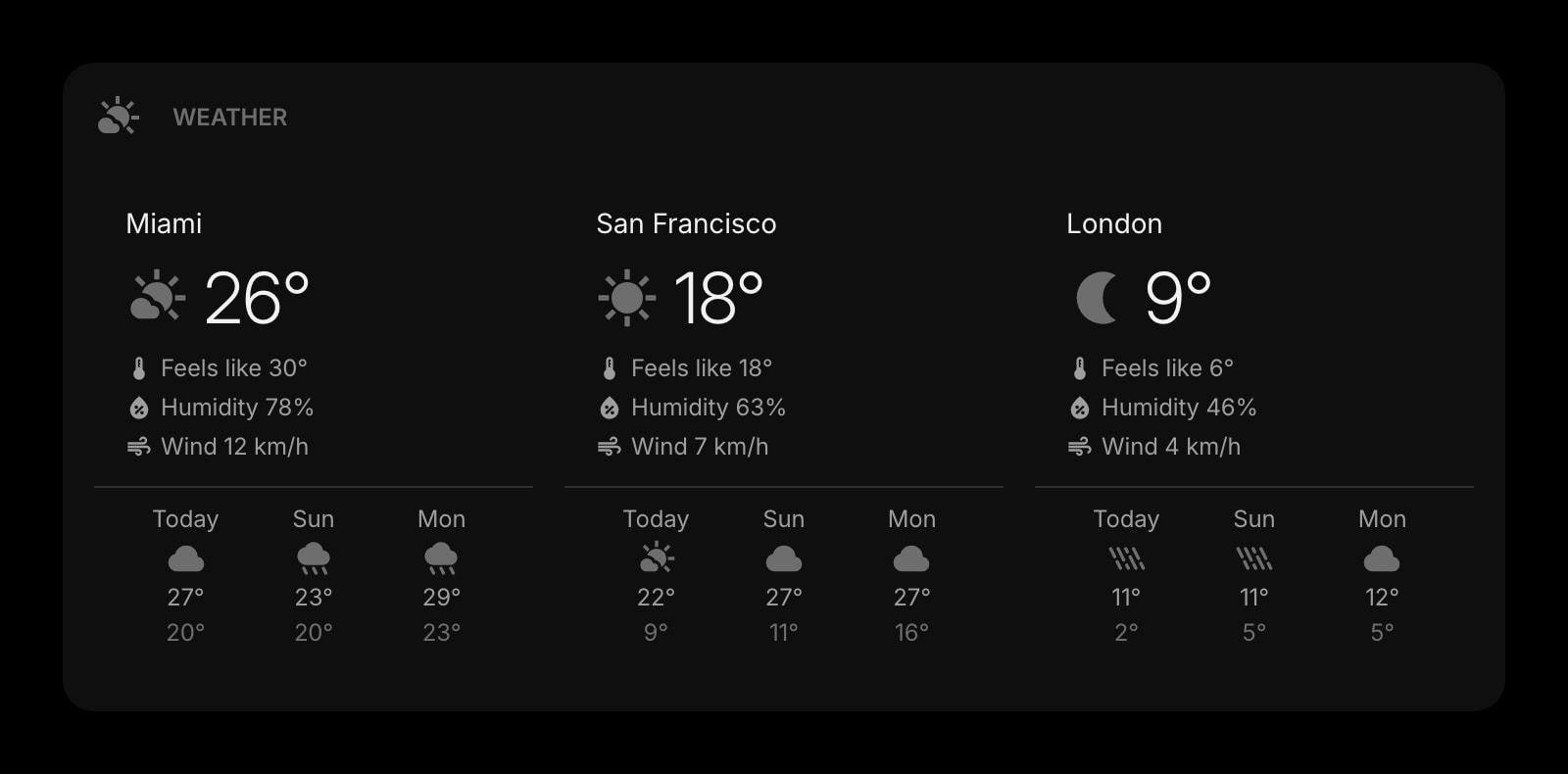
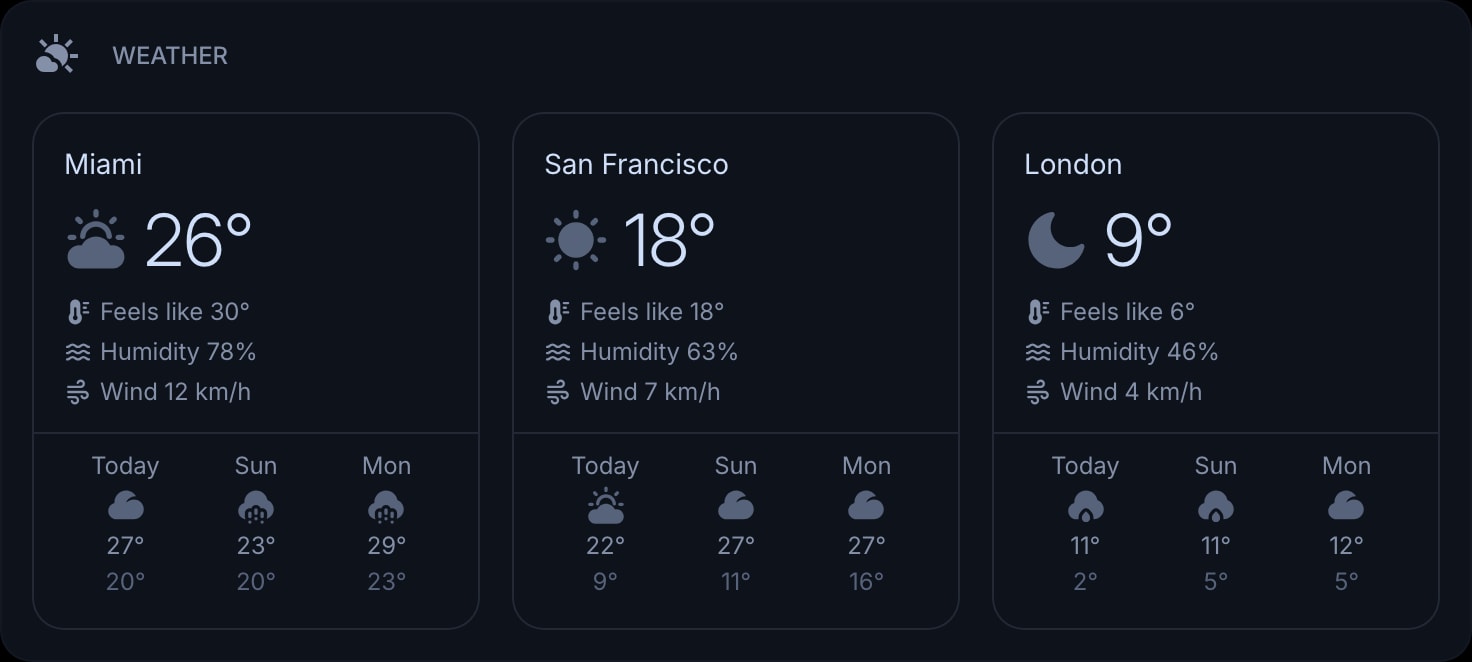
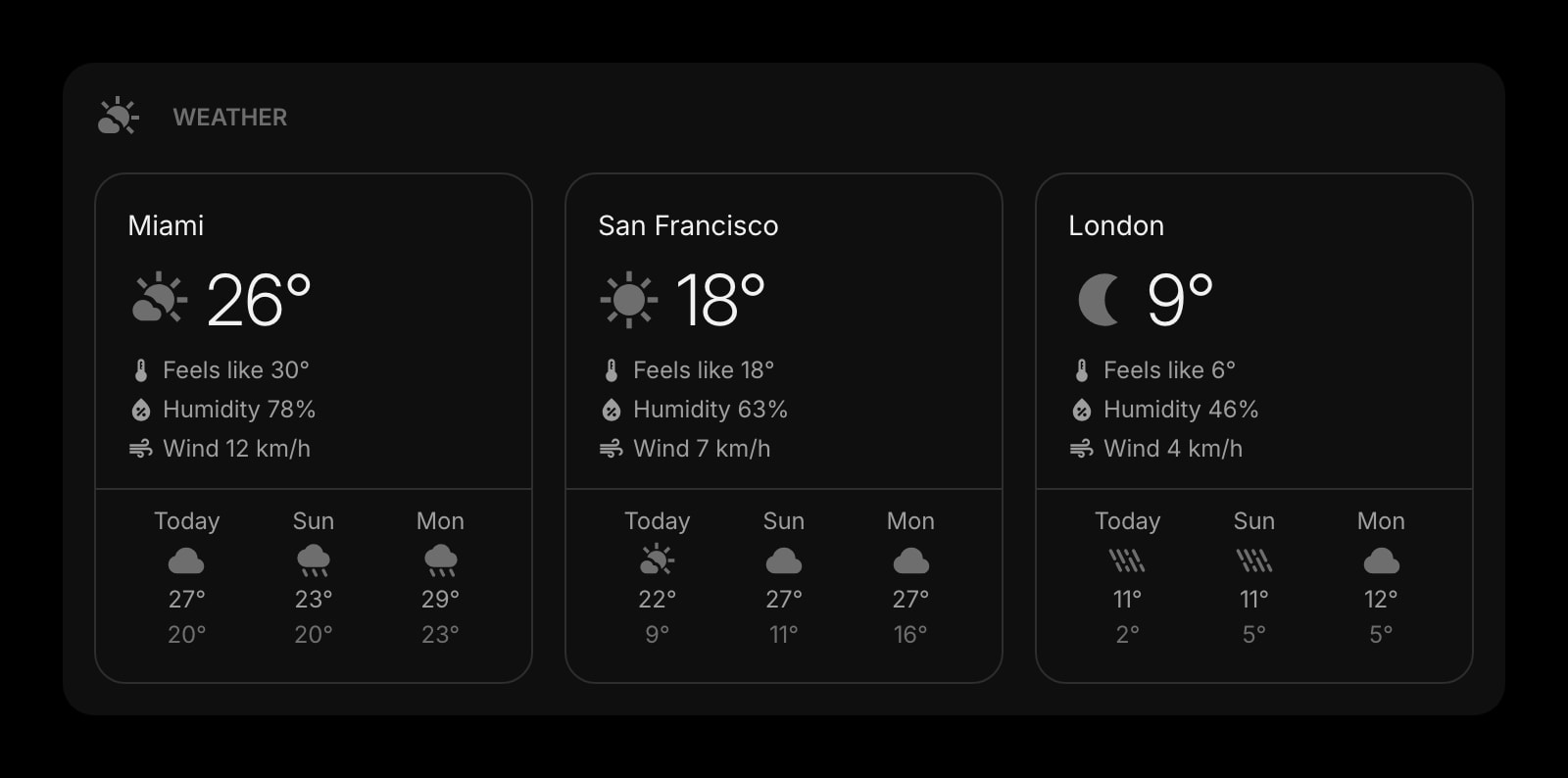
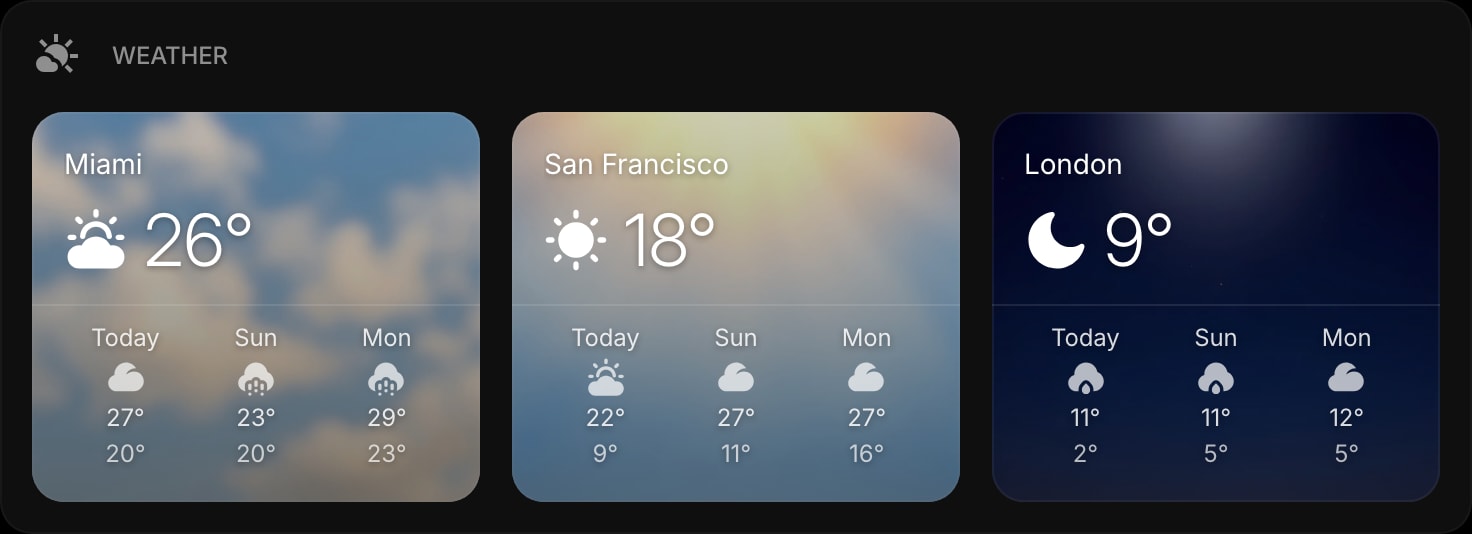
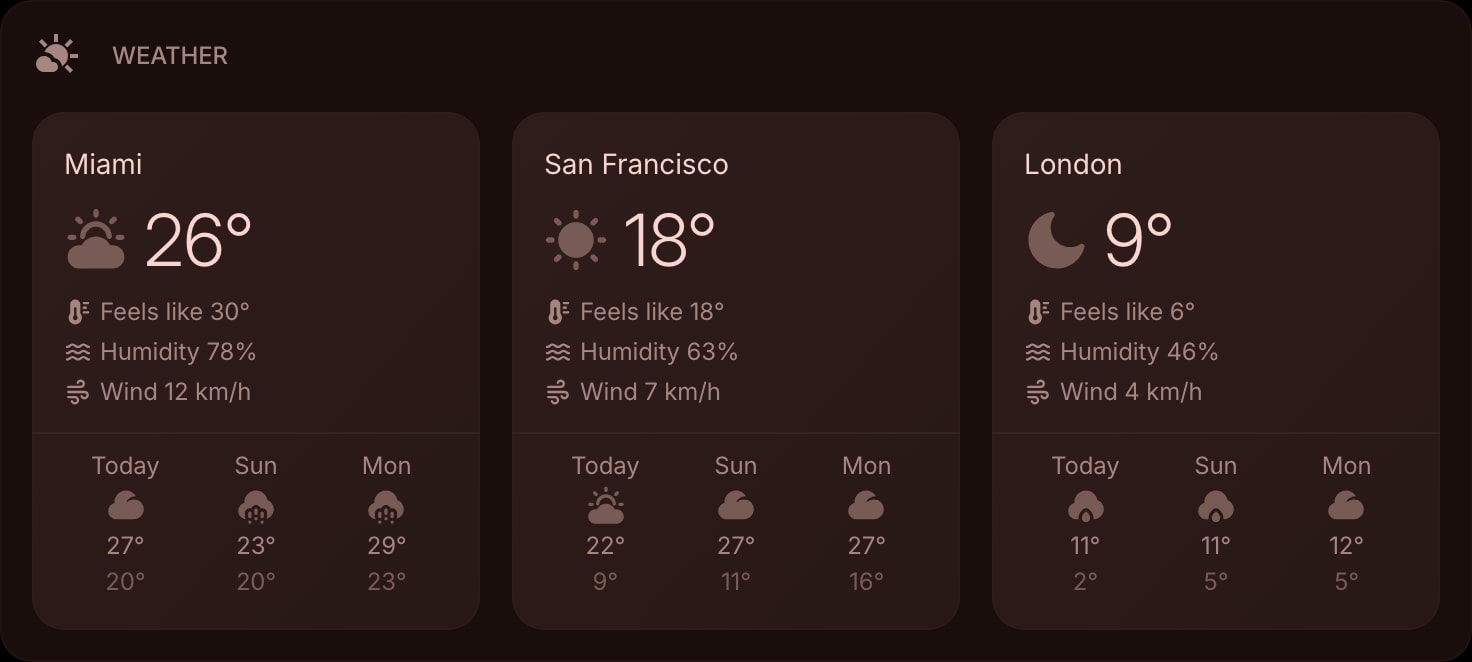
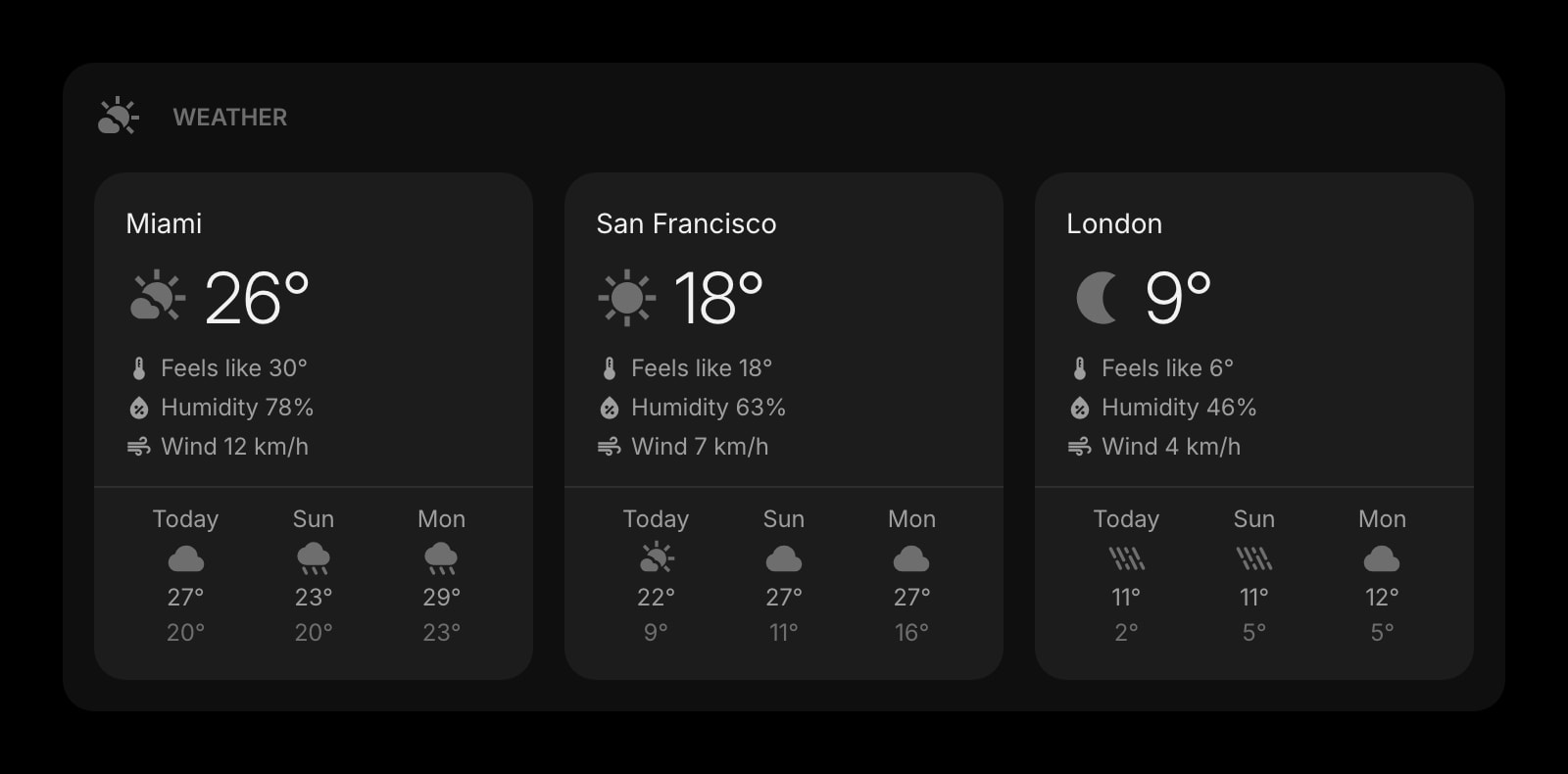
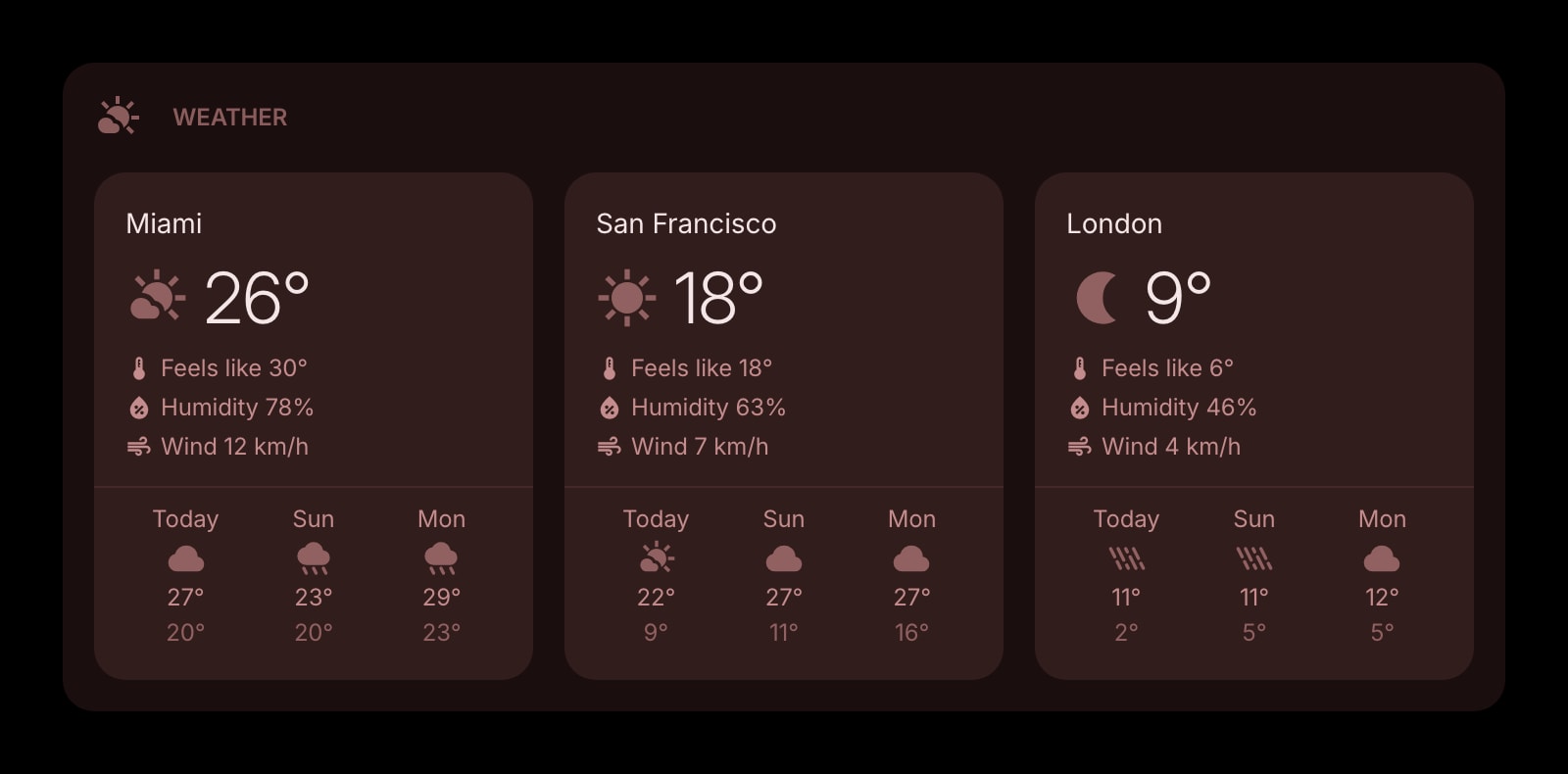
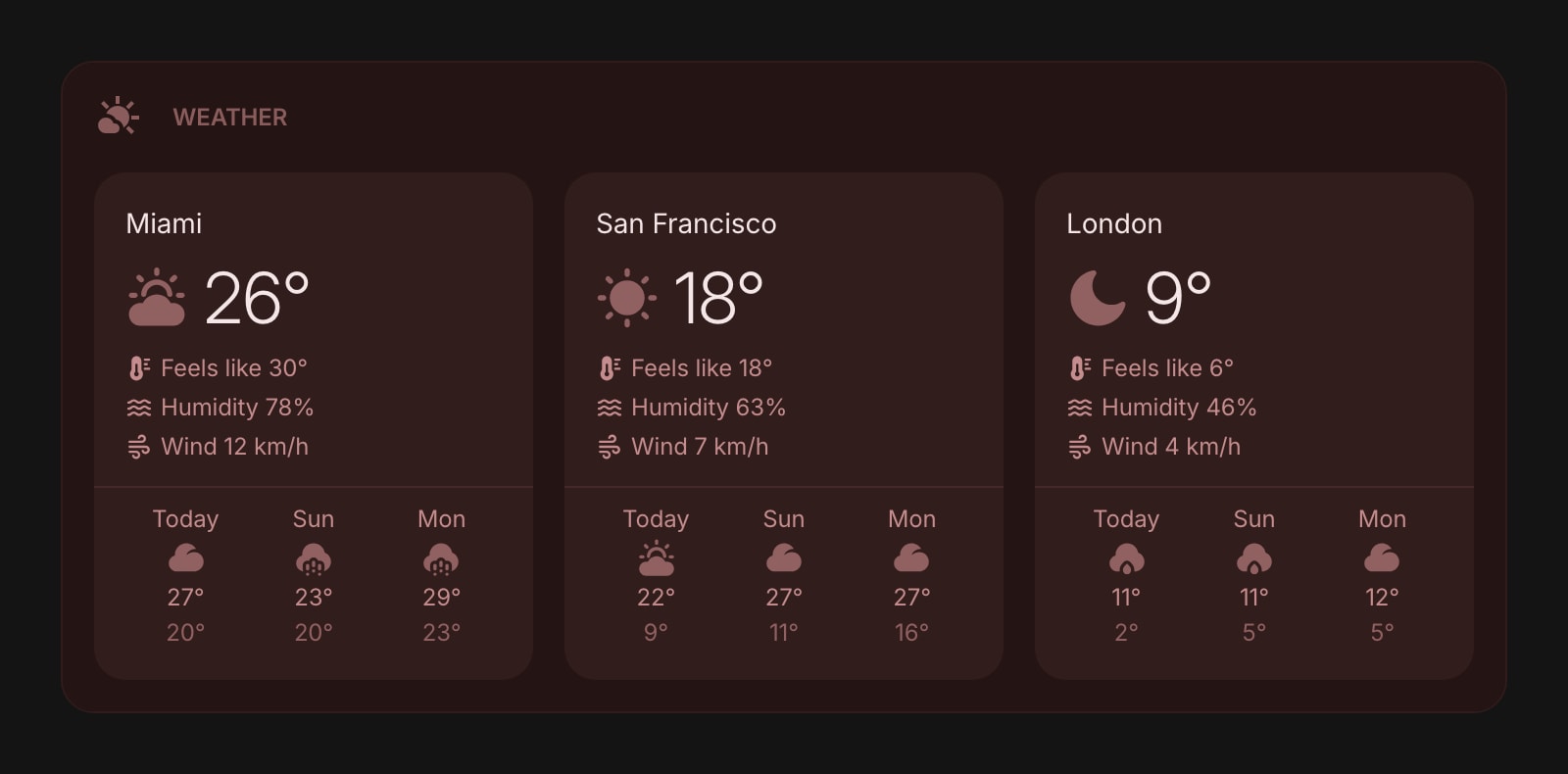
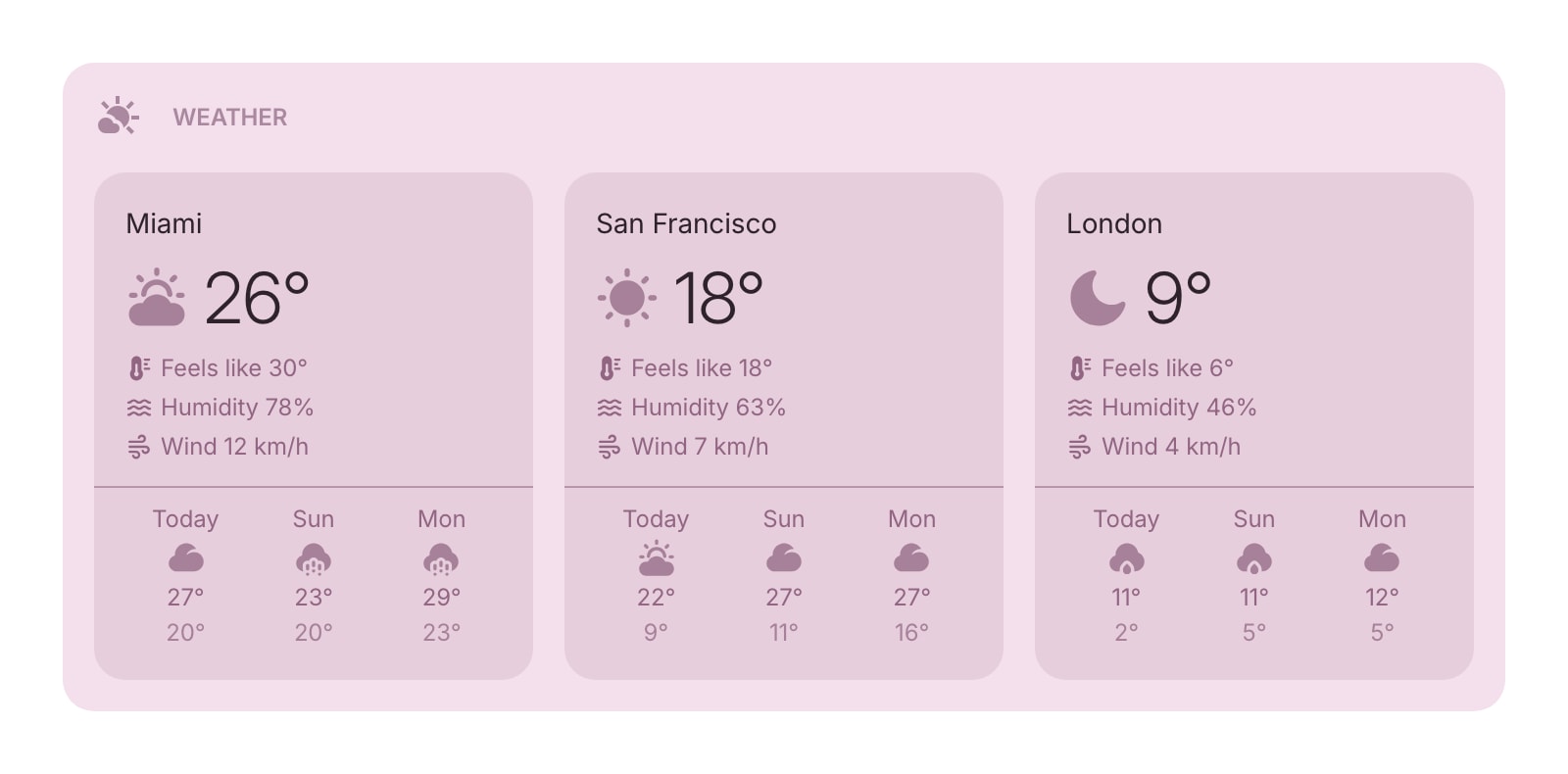
The Weather widget shows current conditions and a multi-day forecast for your favorite locations. Add cities around the world, and see temperature, humidity, wind speed, and a daily forecast - all right on your dashboard.
Installing on a specific browser? See the step-by-step guides: Weather widget for Chrome, Weather widget for Firefox, Weather widget for Safari, or Weather widget for Edge.
#How to Use
#Adding a Location
Click Add Location to get started. You can find a city in two ways:
- Search - type a city name (at least 2 characters) and pick from the results. Each result shows the city name, state or region, and country.
- Use Current Location - click the location button to use your device's GPS. The widget detects your coordinates and fills in the city name automatically.
Select a location and click Save. The widget fetches the current weather and forecast right away.
#Reading the Weather Card
Each location card shows:
- Location name - the city you added
- Weather icon - an animated icon representing current conditions (sun, clouds, rain, snow, and more), with day and night variations
- Current temperature - shown in a large display
- Details (optional) - feels-like temperature, humidity percentage, and wind speed
- Forecast (optional) - daily forecast cards showing the day, weather icon, and high/low temperatures
#Managing Locations
#Adding Locations
Click Add Location in the widget toolbar (in edit mode) or right-click the widget and choose Add Location.
#Editing Locations
Right-click (or tap and hold) a location and choose Edit Location to change it to a different city.
#Reordering Locations
On desktop, drag and drop location cards to rearrange them. You can also drag locations between multiple Weather widgets on the same page.
#Duplicating Locations
Right-click (or tap and hold) a location and choose Duplicate Location to create a copy.
#Deleting Locations
Right-click (or tap and hold) a location and choose Delete Location. You'll be asked to confirm before it's removed.
#Widget Settings
- Temperature - choose between Celsius (default) and Fahrenheit.
- Wind Speed - choose between km/h (default) and mph.
- Show Details - show or hide the feels-like temperature, humidity, and wind speed. Turned on by default.
- Show Forecast - show or hide the daily forecast section. Turned on by default.
- Forecast Days - choose how many days to show in the forecast: 3 (default), 5, or 7.
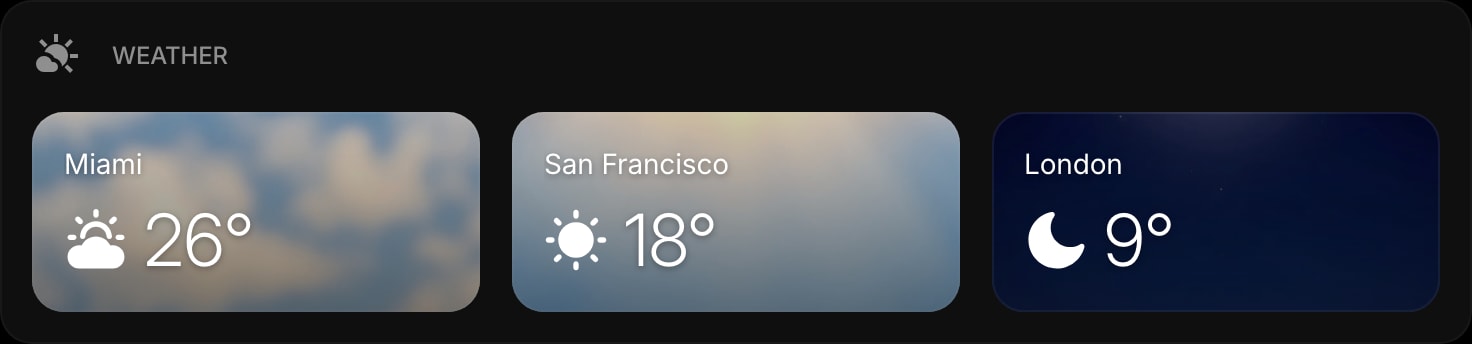
- Item Style - set the look of location cards: Clear, Outline, Solid, or Rich (default). The Rich style gives each card an atmospheric background image that matches the current conditions - a golden glow for clear skies, falling rain streaks, drifting snow, or a stormy night - with separate day and night variations.
#Tips
- Weather data updates every 30 minutes automatically, so you're always seeing fresh conditions.
- The context menu shows when the weather was last updated - right-click any location to check.
- Add multiple locations to track weather in different cities at a glance - great for remote teams or planning trips.
- The forecast scrolls horizontally if your widget isn't wide enough to show all days, so you can swipe through them.