- Dashboard
- Widgets
- AI Diary
- AI Humanizer
- AI Image
- Audio Editor
- Base64 / URL Encoder
- Calendar
- Canvas
- Collection
- Color Picker
- Container
- Countdown Timer
- Currency Converter
- Daily Quiz
- Daily Quote
- Daily Riddle
- Date & Time
- Embed
- GitHub Releases
- Google Calendar
- Habit Tracker
- Hacker News
- Image Compression
- IP Info
- JSON Formatter
- Links
- Markdown Editor
- News
- News Summary
- Notes
- Photo Frame
- Podcast
- Pomodoro Timer
- Product Hunt
- QR Code Generator
- Quick Answer
- Quick Note
- Regex Tester
- RSS Feed
- Search
- Spacer
- Stopwatch
- Story Snippet
- Stripe Sales
- Subreddit
- Substack
- t0ggles Focus
- t0ggles My Boards
- t0ggles My Tasks
- Tasks
- Text Diff
- Todo
- TradingView Advanced Chart
- TradingView Market Summary
- TradingView Mini Chart
- TradingView Symbol Overview
- TradingView Ticker Tape
- Translation
- Unit Converter
- Uptime Monitor
- Weather
- What If
- World Clock
- YouTube Channel
Container Widget
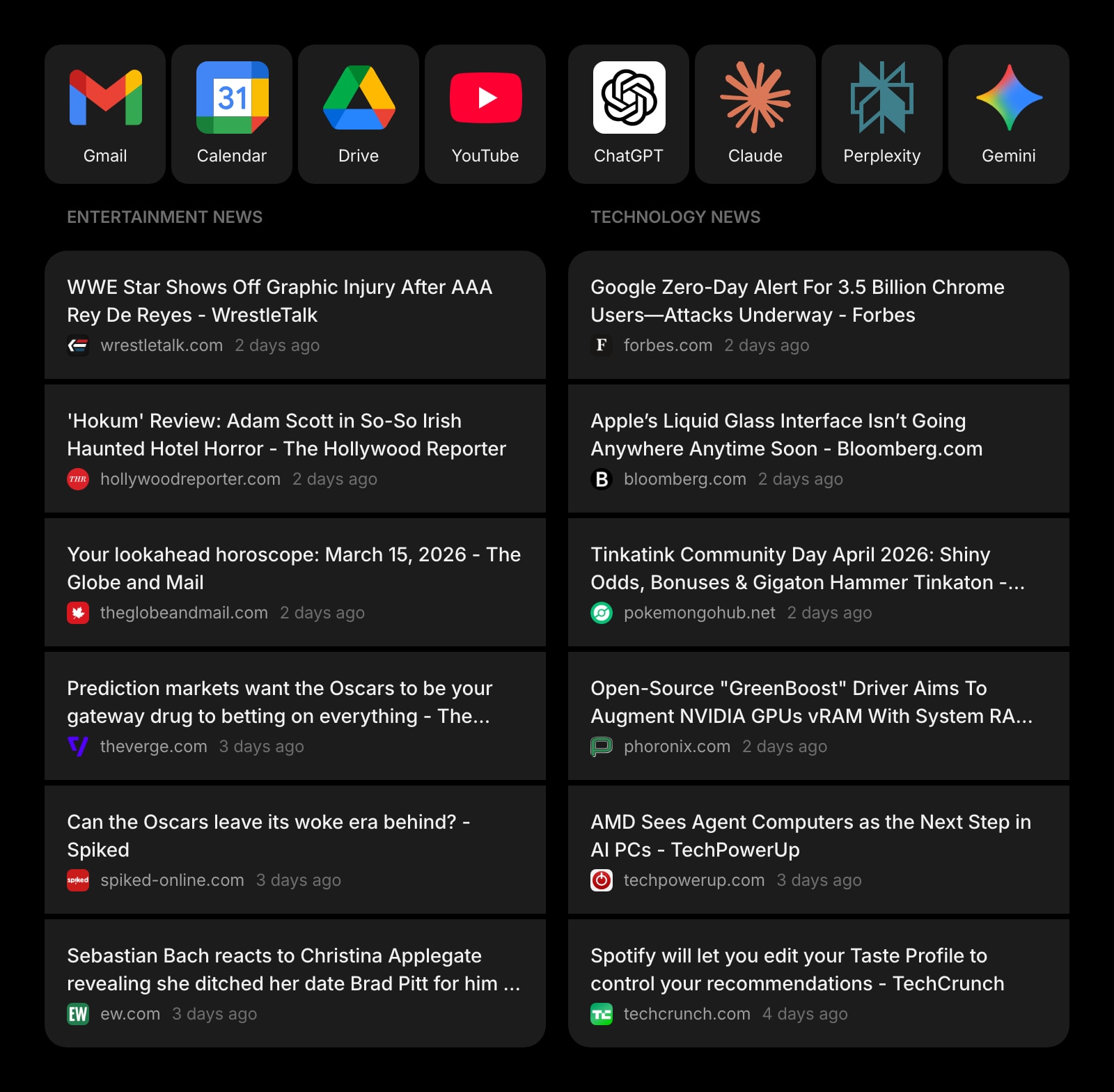
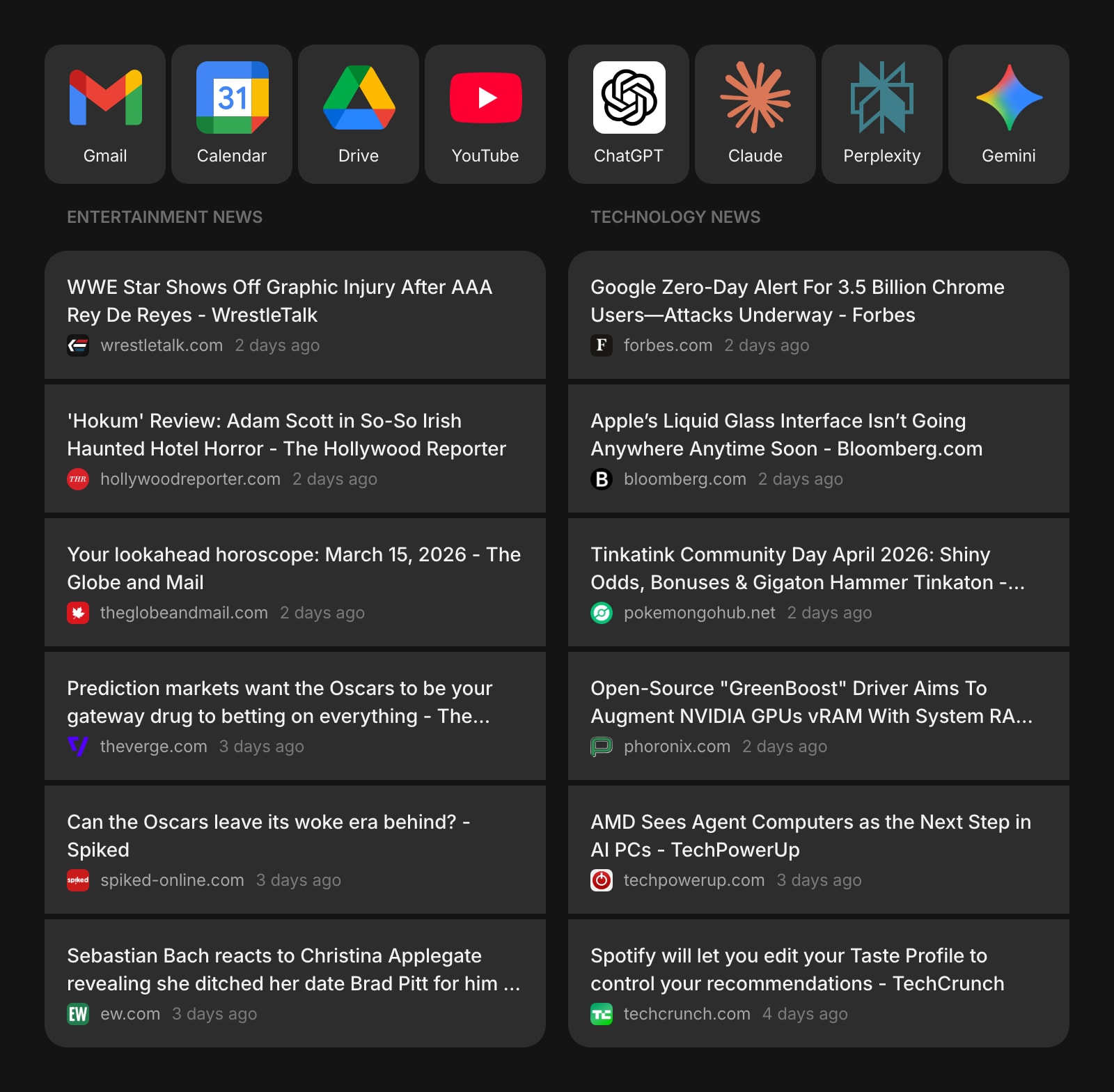
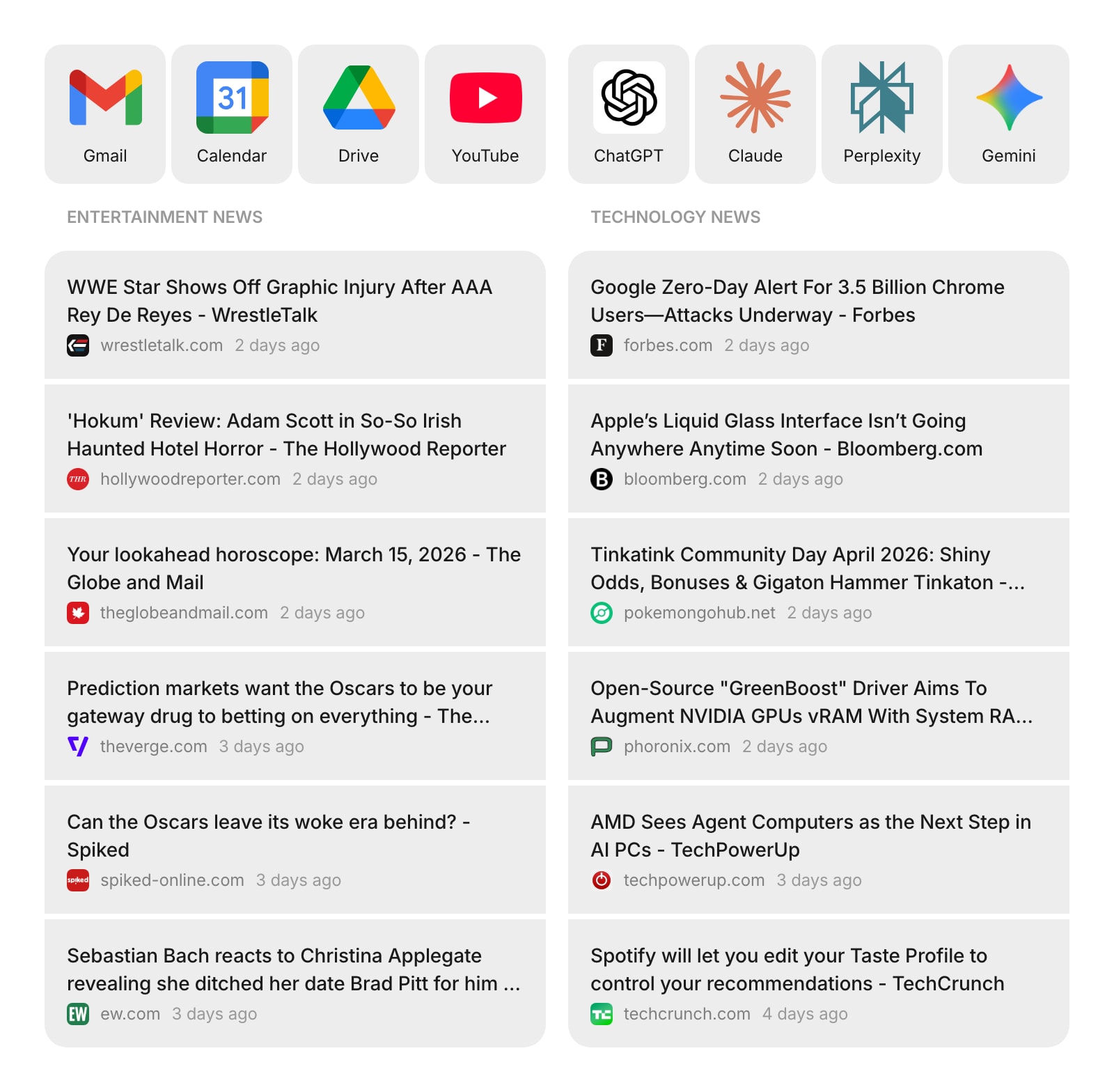
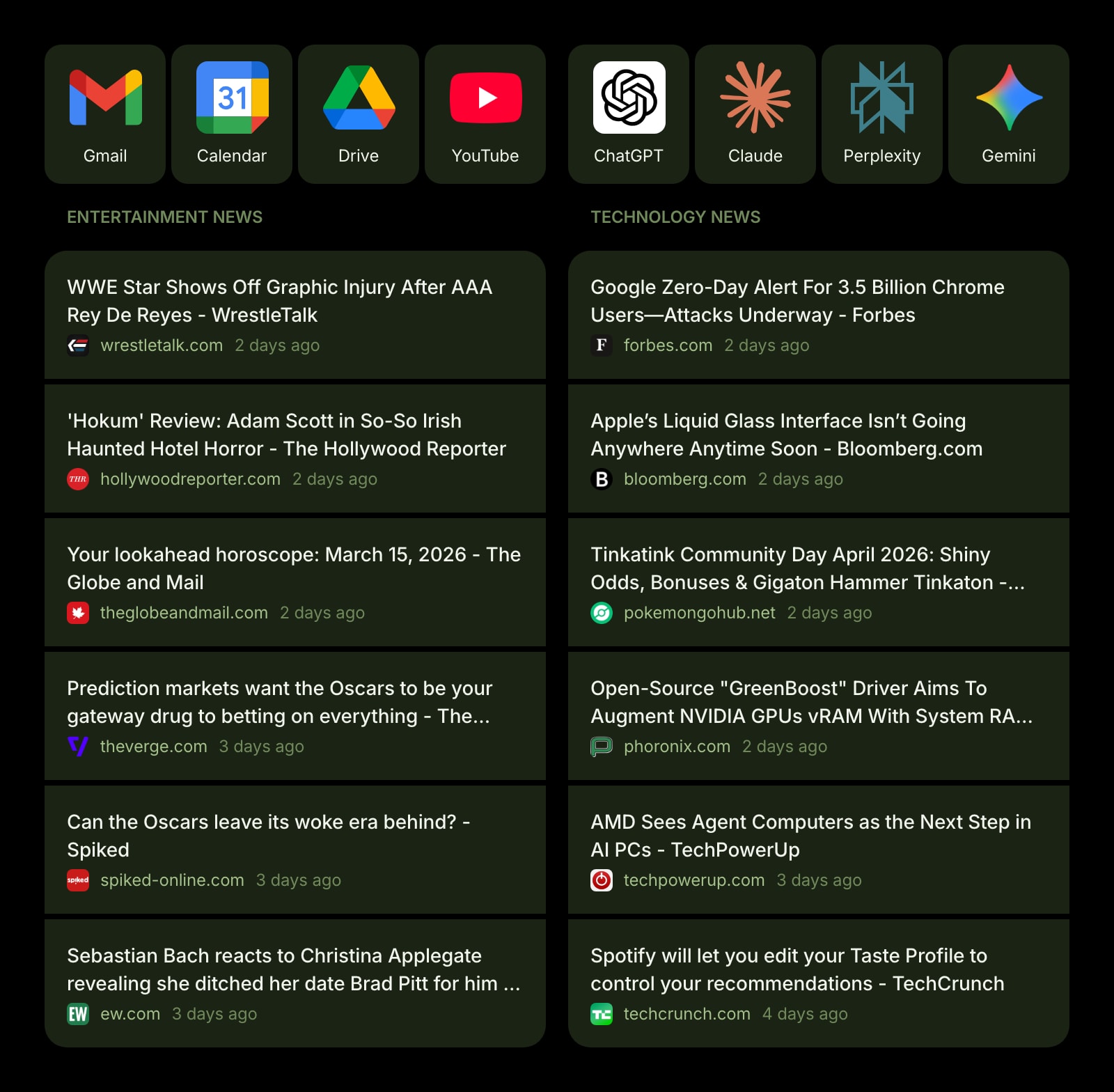


The Container widget lets you group multiple widgets together in a compact 2-column grid. It's perfect for organizing related widgets side by side - for example, pairing a weather widget with a world clock, or placing several small widgets in a tidy block.
#How to Use
Add a Container widget to your page, then add other widgets inside it. The Container arranges its children in a 2-column grid that adapts to the available space - two columns on wider screens and a single column on smaller screens.
#Adding Widgets Inside a Container
In edit mode, click the + Add Widget button inside the Container. A widget picker opens showing all widgets that can be placed inside a Container. Choose a widget and it will appear in the grid.
#Removing Widgets from a Container
In edit mode, use the widget toolbar controls on any child widget to delete or rearrange it within the Container.
#Reordering Widgets Inside a Container
In edit mode, use the move up and move down buttons in each child widget's toolbar to change the order.
#Good to Know
- Most widgets can be added to a Container. A few larger widgets - like Canvas, AI Image, Audio Editor, Tasks, and Spacer - are not available inside Containers.
- You cannot nest a Container inside another Container.
- The Container itself has no extra settings - it simply provides a 2-column layout for the widgets inside it.
#Tips
- Use Containers to create compact dashboard sections - for example, group a Links widget and a Quick Note side by side.
- Containers work well for small utility widgets like Date & Time, Stopwatch, or Currency Converter that don't need a full-width row.