- Dashboard
- Widgets
- AI Diary
- AI Humanizer
- AI Image
- Audio Editor
- Base64 / URL Encoder
- Calendar
- Canvas
- Collection
- Color Picker
- Container
- Countdown Timer
- Currency Converter
- Daily Quiz
- Daily Quote
- Daily Riddle
- Date & Time
- Embed
- GitHub Releases
- Google Calendar
- Habit Tracker
- Hacker News
- Image Compression
- IP Info
- JSON Formatter
- Links
- Markdown Editor
- News
- News Summary
- Notes
- Photo Frame
- Podcast
- Pomodoro Timer
- Product Hunt
- QR Code Generator
- Quick Answer
- Quick Note
- Regex Tester
- RSS Feed
- Search
- Spacer
- Stopwatch
- Story Snippet
- Stripe Sales
- Subreddit
- Substack
- t0ggles Focus
- t0ggles My Boards
- t0ggles My Tasks
- Tasks
- Text Diff
- Todo
- TradingView Advanced Chart
- TradingView Market Summary
- TradingView Mini Chart
- TradingView Symbol Overview
- TradingView Ticker Tape
- Translation
- Unit Converter
- Uptime Monitor
- Weather
- What If
- World Clock
- YouTube Channel
AI Humanizer Widget
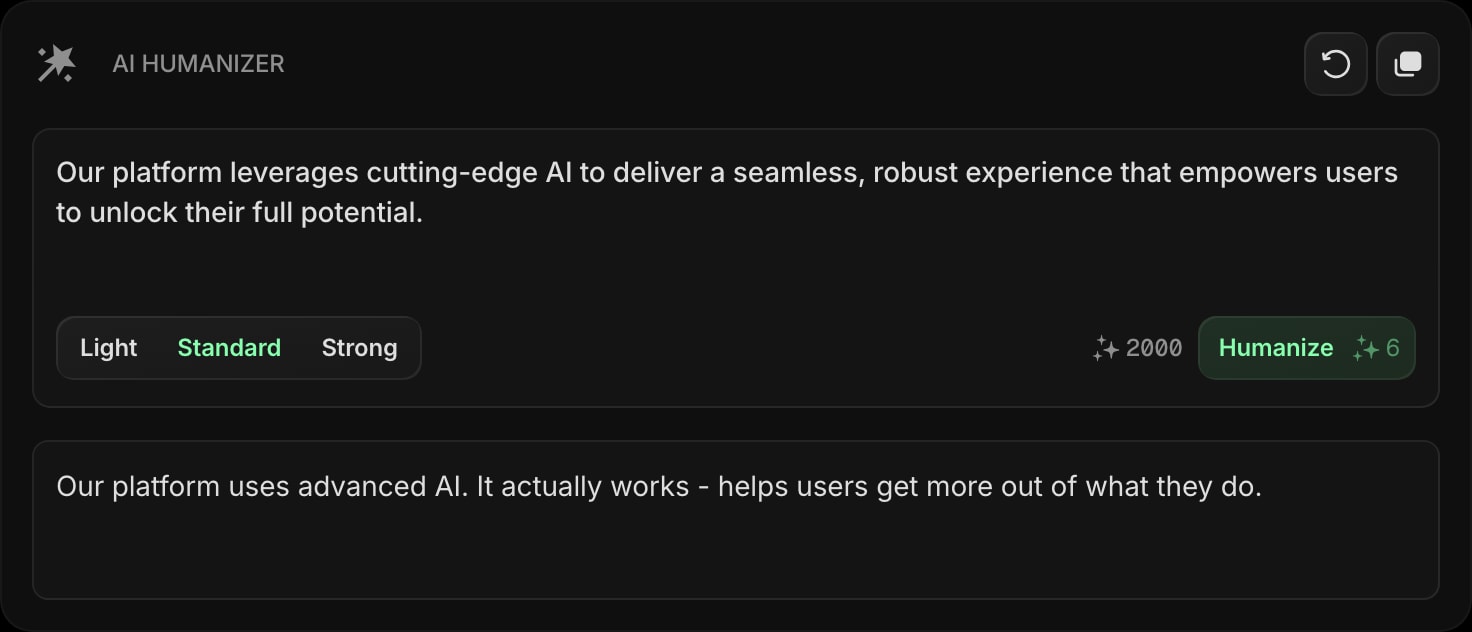
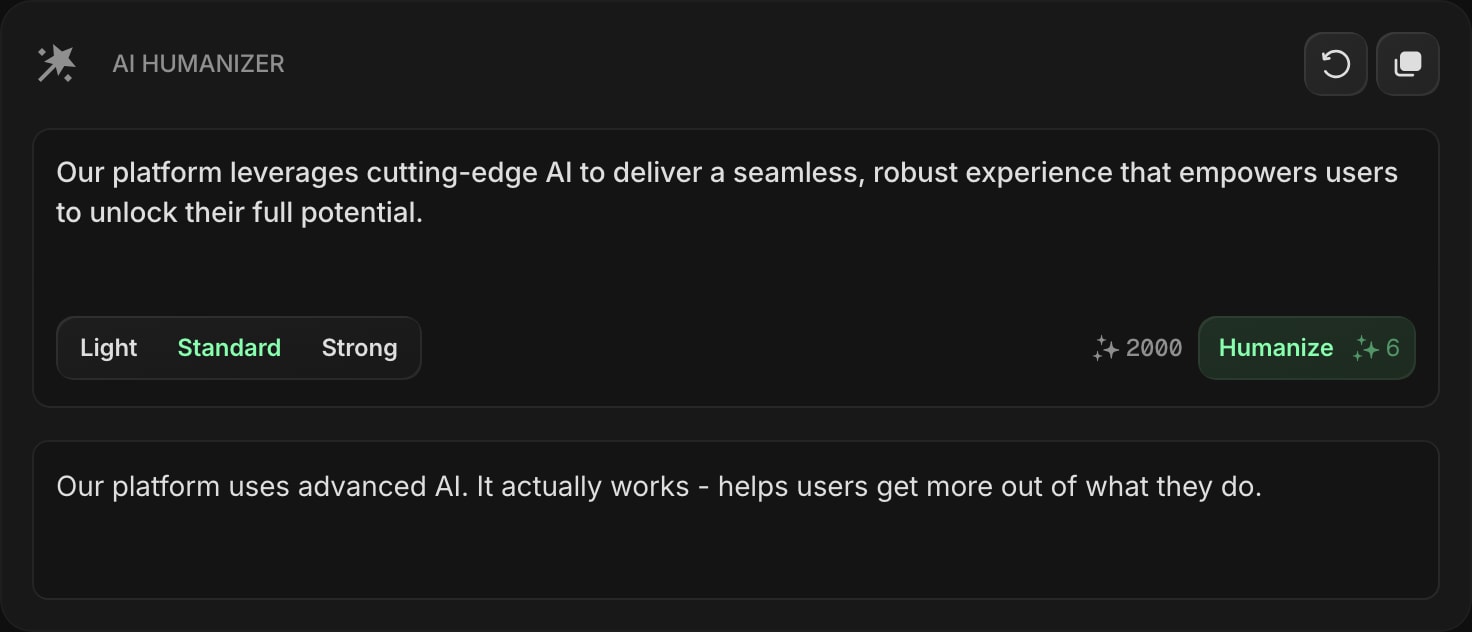
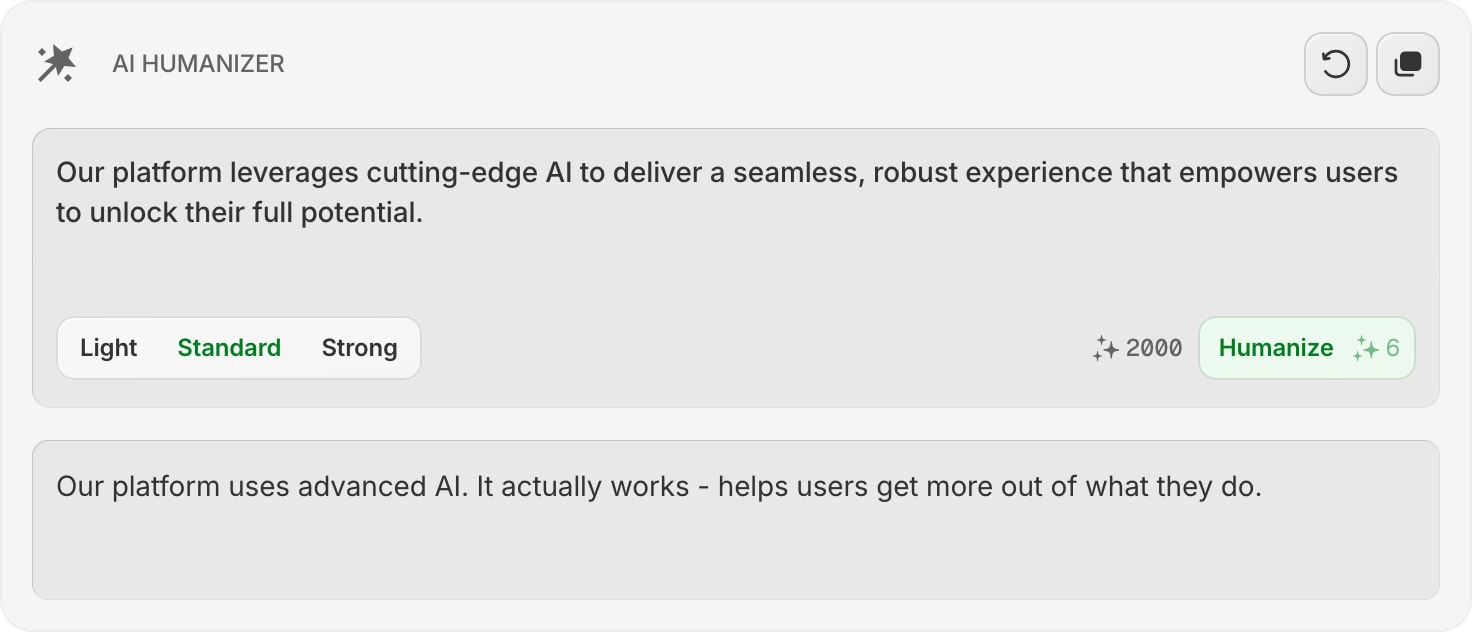
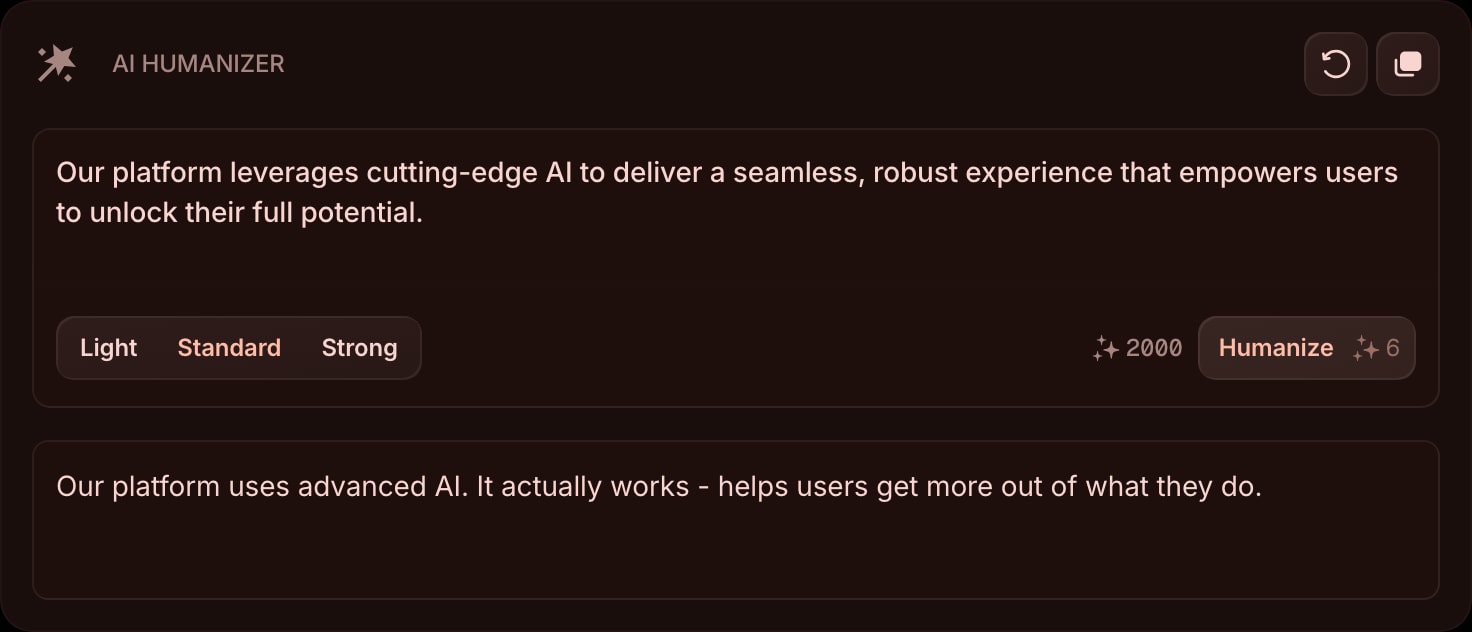
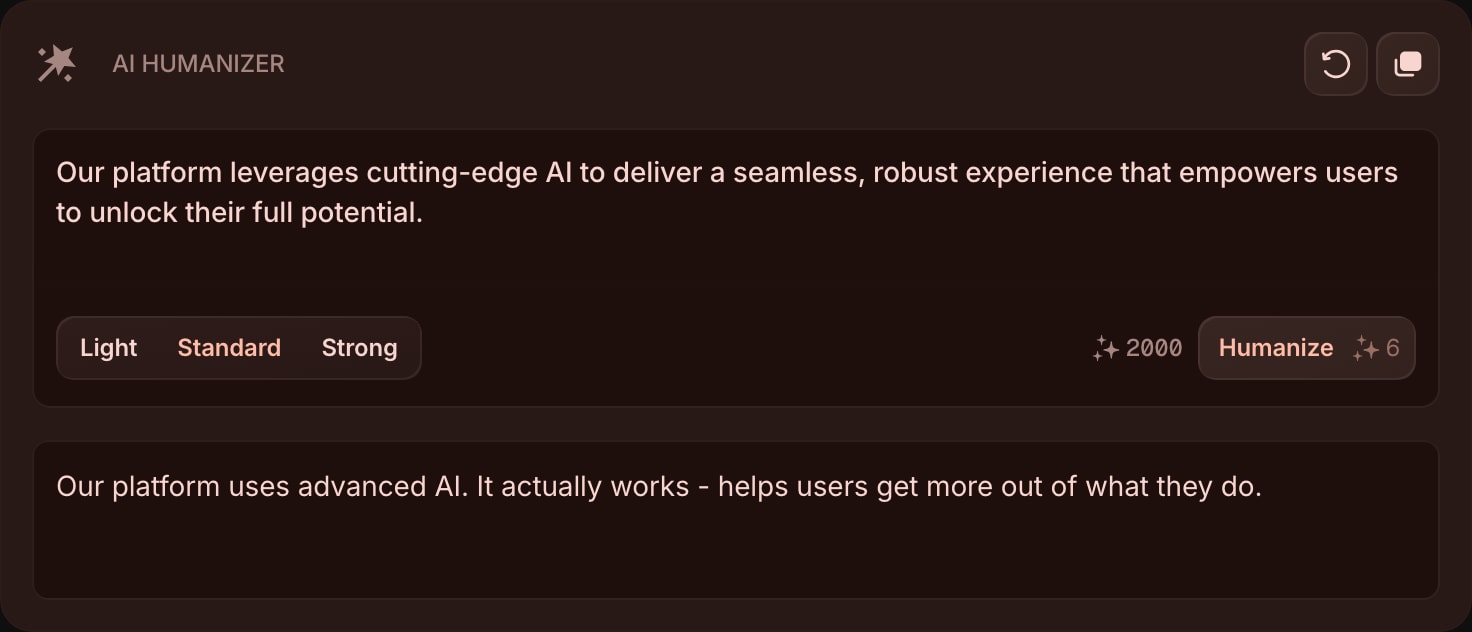
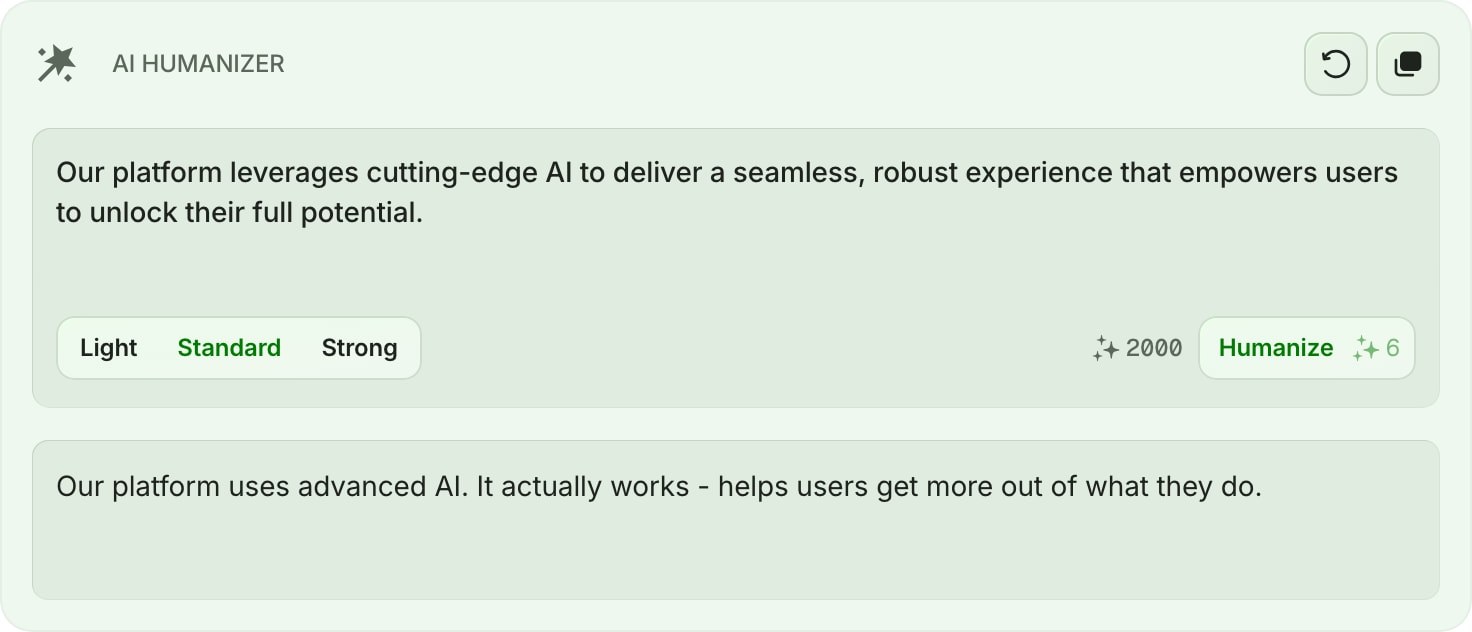
The AI Humanizer widget rewrites AI-generated or stiff-sounding text so it reads more like something a person wrote. Paste a draft, choose how aggressively you want it reworked, and get a cleaner, more natural version right on your dashboard - no separate tab or tool needed.
#How to Use
- Paste the text you want to rework into the input field. You can humanize up to 5,000 characters at a time.
- Pick a strength: Light, Standard, or Strong.
- Click Humanize. The reworked text appears below the input in a few seconds.
- Use the copy button in the toolbar to copy the result, or the reset button to clear both fields and start over.
Your input, output, and chosen strength are saved with the widget, so your last result is still there when you reopen your dashboard.
#Strength
The strength setting controls how far the rewrite moves from your original text:
- Light - small touch-ups that smooth out the most obvious AI phrasing while staying close to your wording.
- Standard - a balanced rewrite that varies sentence rhythm and word choice for a natural read. This is the default.
- Strong - a more thorough rework that reshapes phrasing and structure for the most human-sounding result.
#Credits
Each humanize uses AI credits, and the cost is shown right on the Humanize button before you run it. The same cost applies across all three strengths. Your remaining credit balance is shown next to the button so you always know where you stand.
#Tips
- Start with Standard for most text, then switch to Strong if the result still reads too mechanically.
- Humanize one section at a time for long documents - it keeps each pass focused and within the 5,000-character limit.
- Pair it with Quick Answer for drafting and AI Image for visuals to keep your whole writing workflow on one page.