- Dashboard
- Widgets
- AI Diary
- AI Humanizer
- AI Image
- Audio Editor
- Base64 / URL Encoder
- Calendar
- Canvas
- Collection
- Color Picker
- Container
- Countdown Timer
- Currency Converter
- Daily Quiz
- Daily Quote
- Daily Riddle
- Date & Time
- Embed
- GitHub Releases
- Google Calendar
- Habit Tracker
- Hacker News
- Image Compression
- IP Info
- JSON Formatter
- Links
- Markdown Editor
- News
- News Summary
- Notes
- Photo Frame
- Podcast
- Pomodoro Timer
- Product Hunt
- QR Code Generator
- Quick Answer
- Quick Note
- Regex Tester
- RSS Feed
- Search
- Spacer
- Stopwatch
- Story Snippet
- Stripe Sales
- Subreddit
- Substack
- t0ggles Focus
- t0ggles My Boards
- t0ggles My Tasks
- Tasks
- Text Diff
- Todo
- TradingView Advanced Chart
- TradingView Market Summary
- TradingView Mini Chart
- TradingView Symbol Overview
- TradingView Ticker Tape
- Translation
- Unit Converter
- Uptime Monitor
- Weather
- What If
- World Clock
- YouTube Channel
Collection Widget
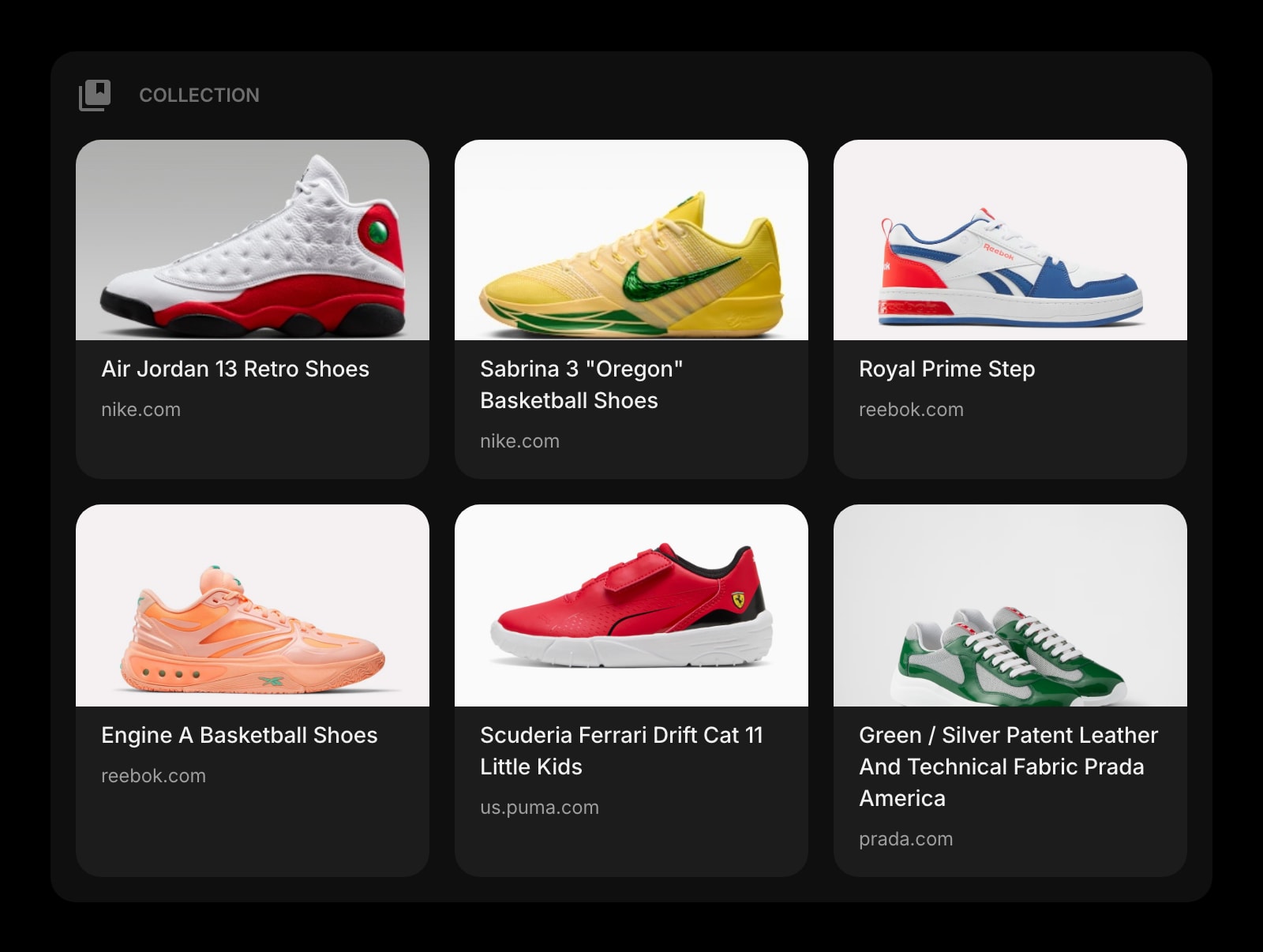
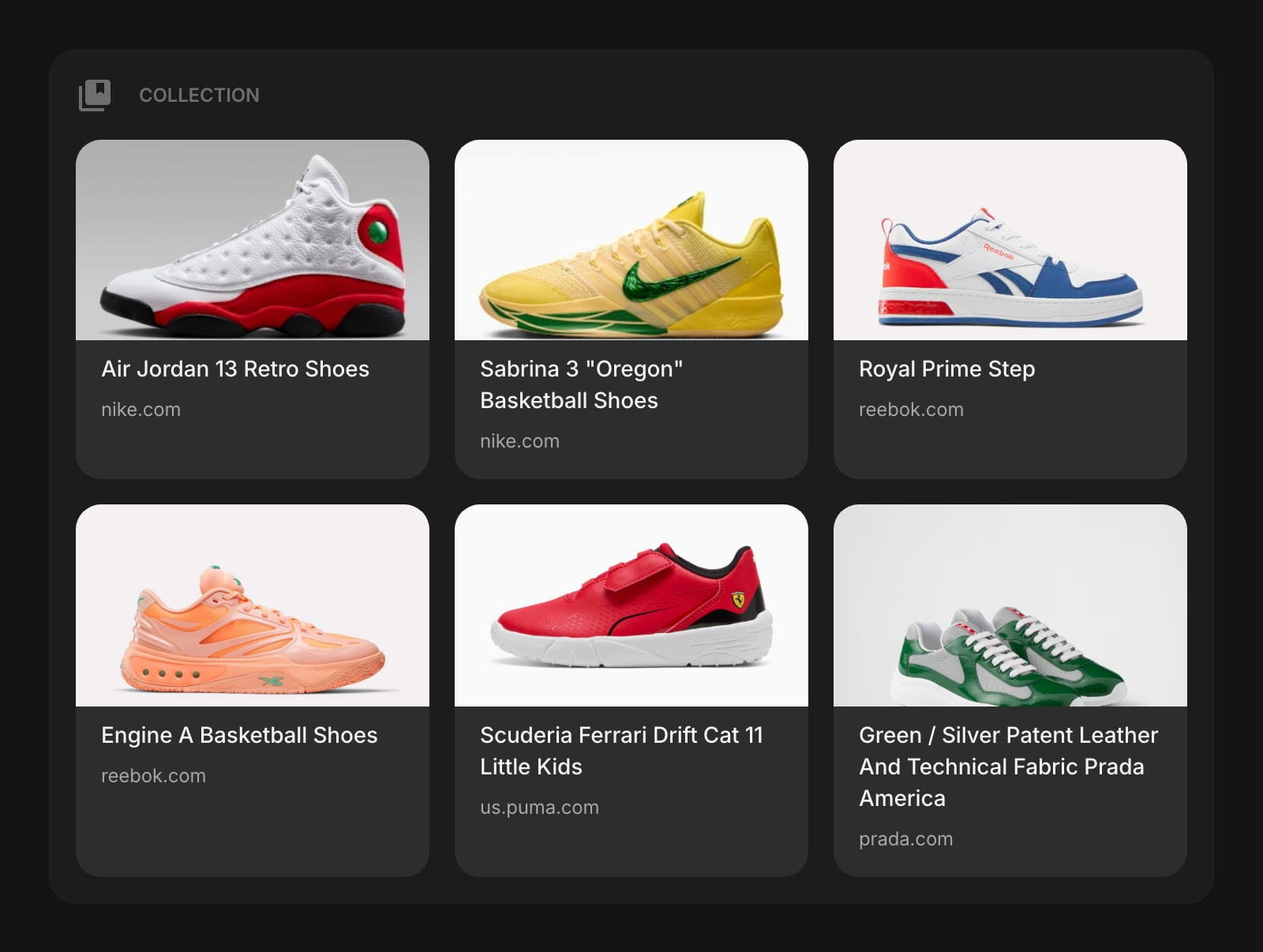
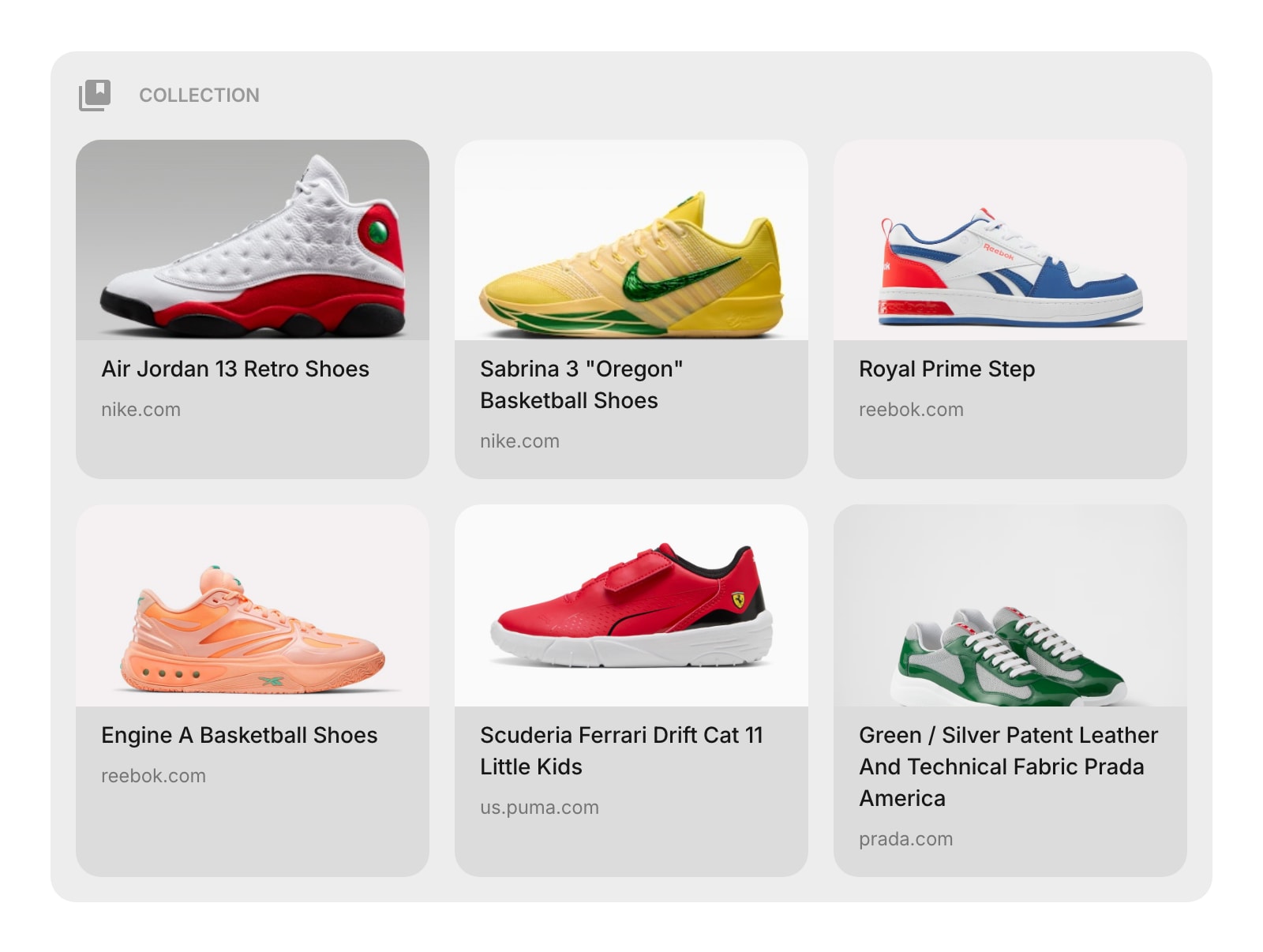
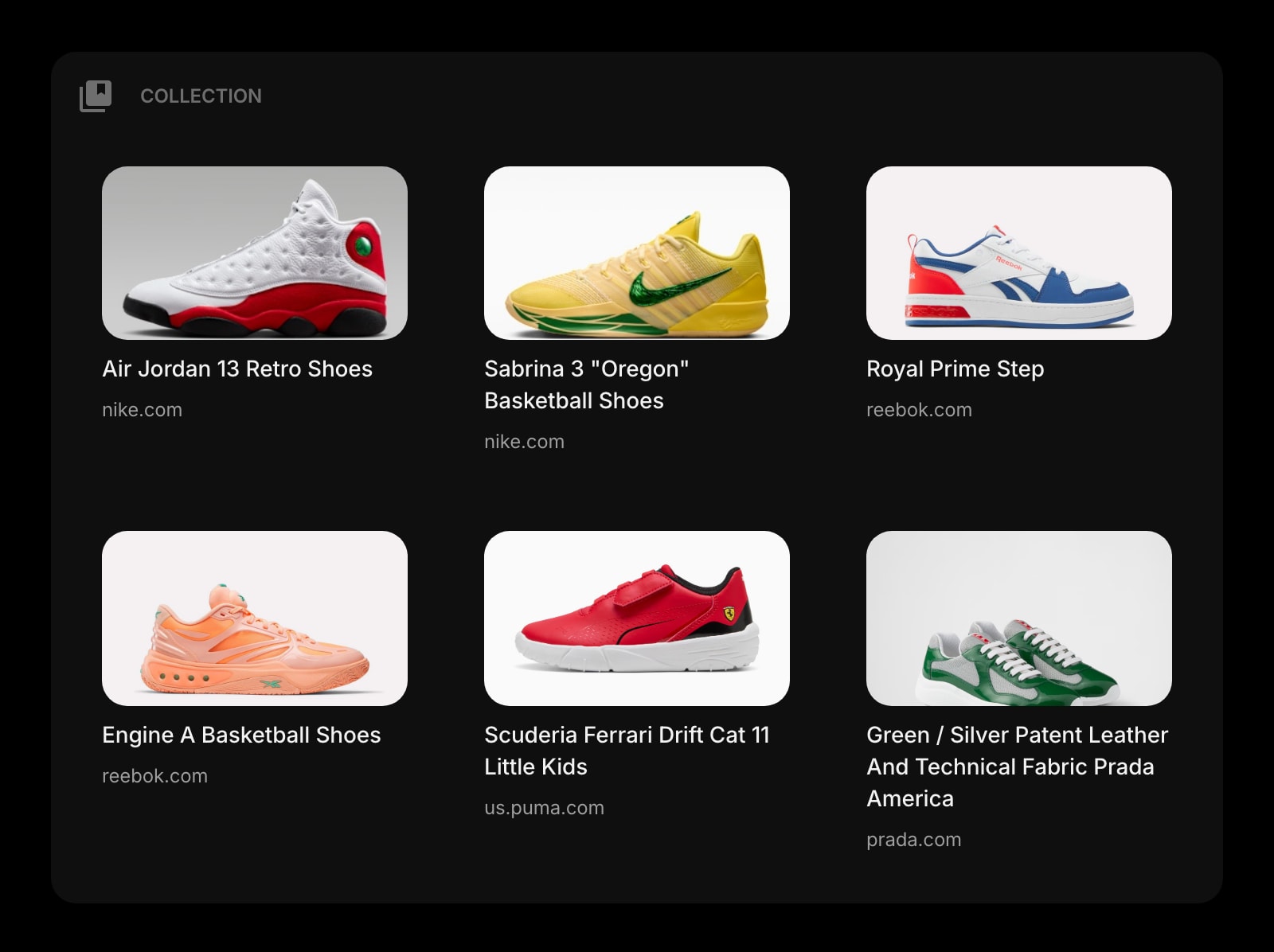
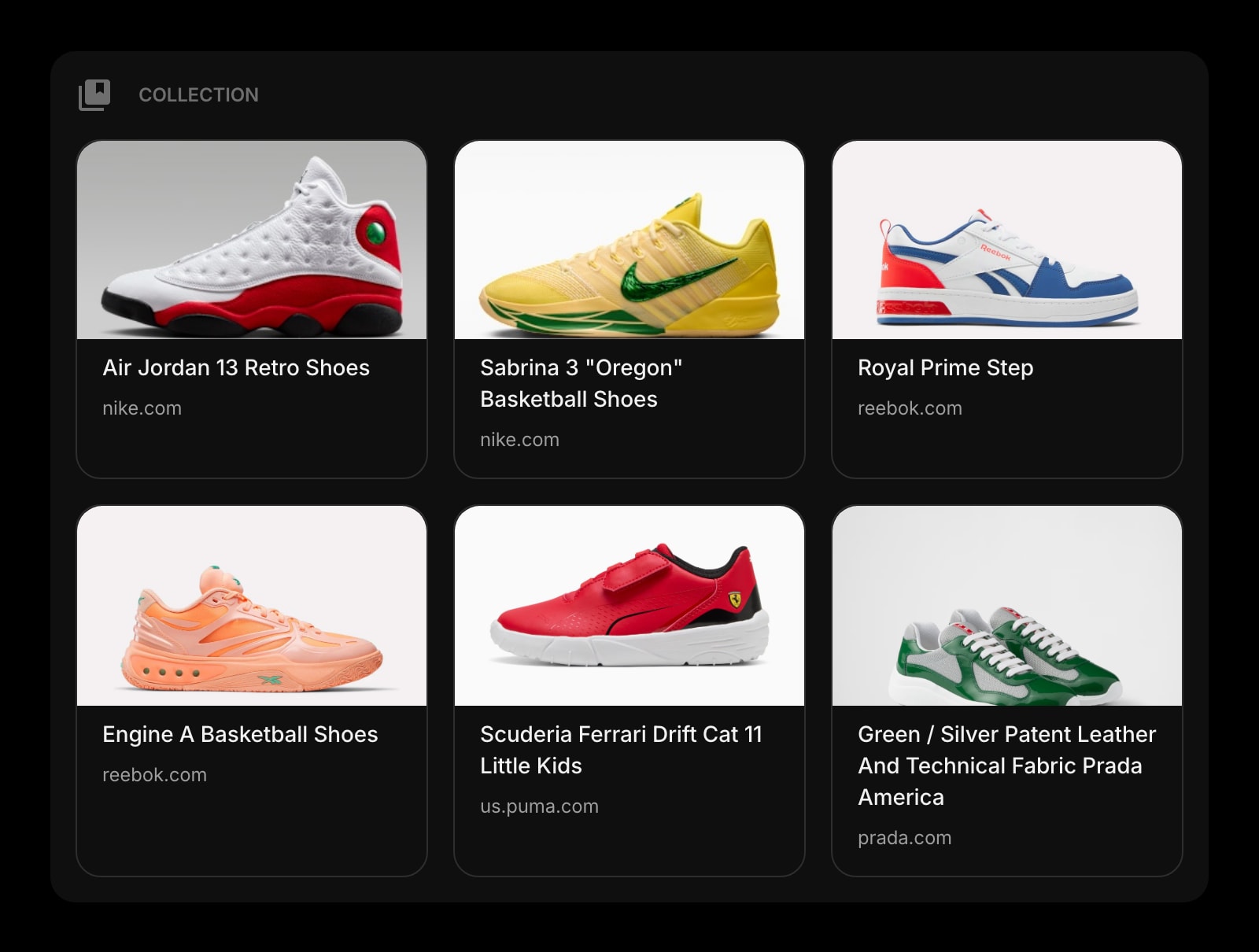
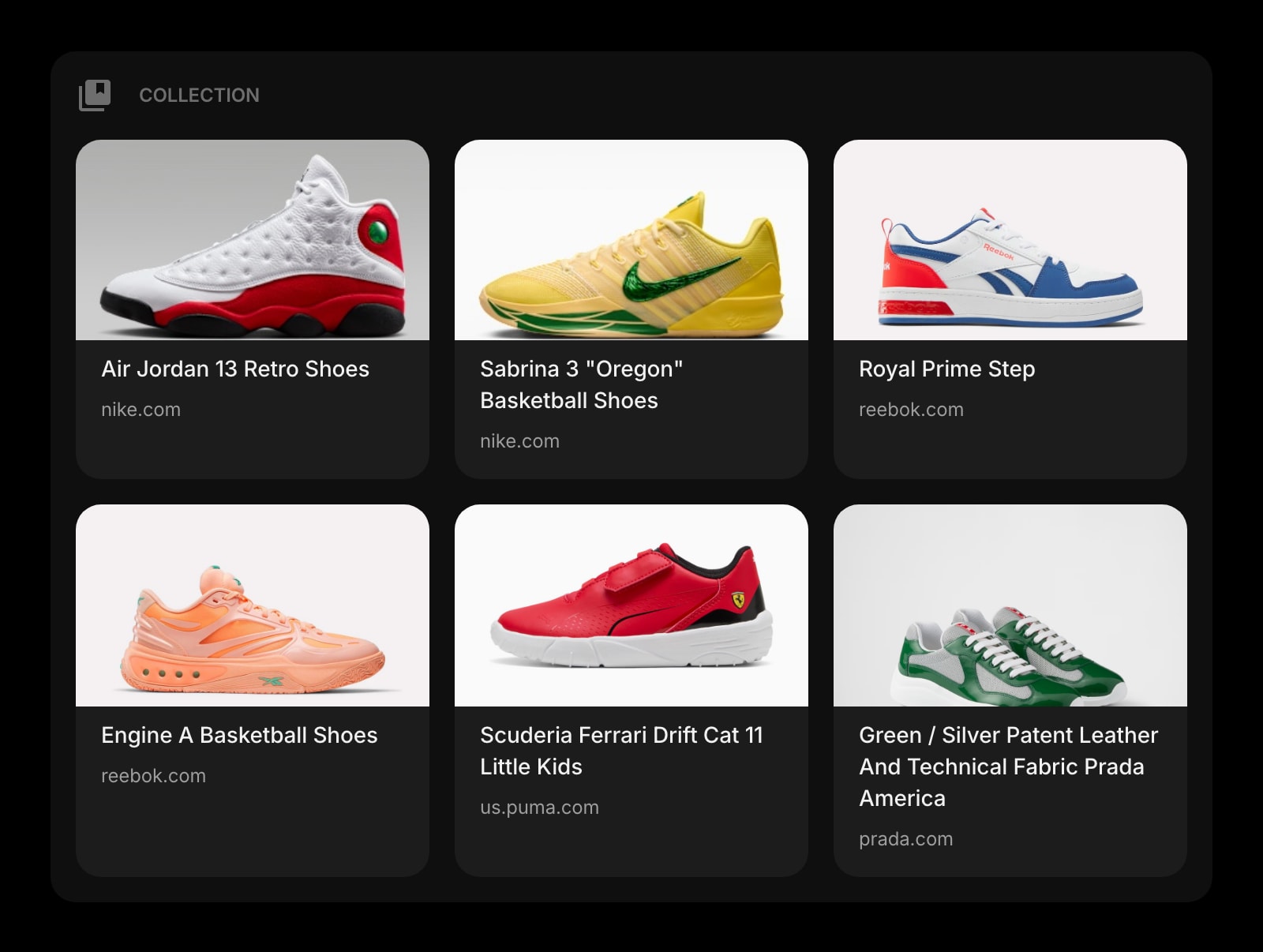
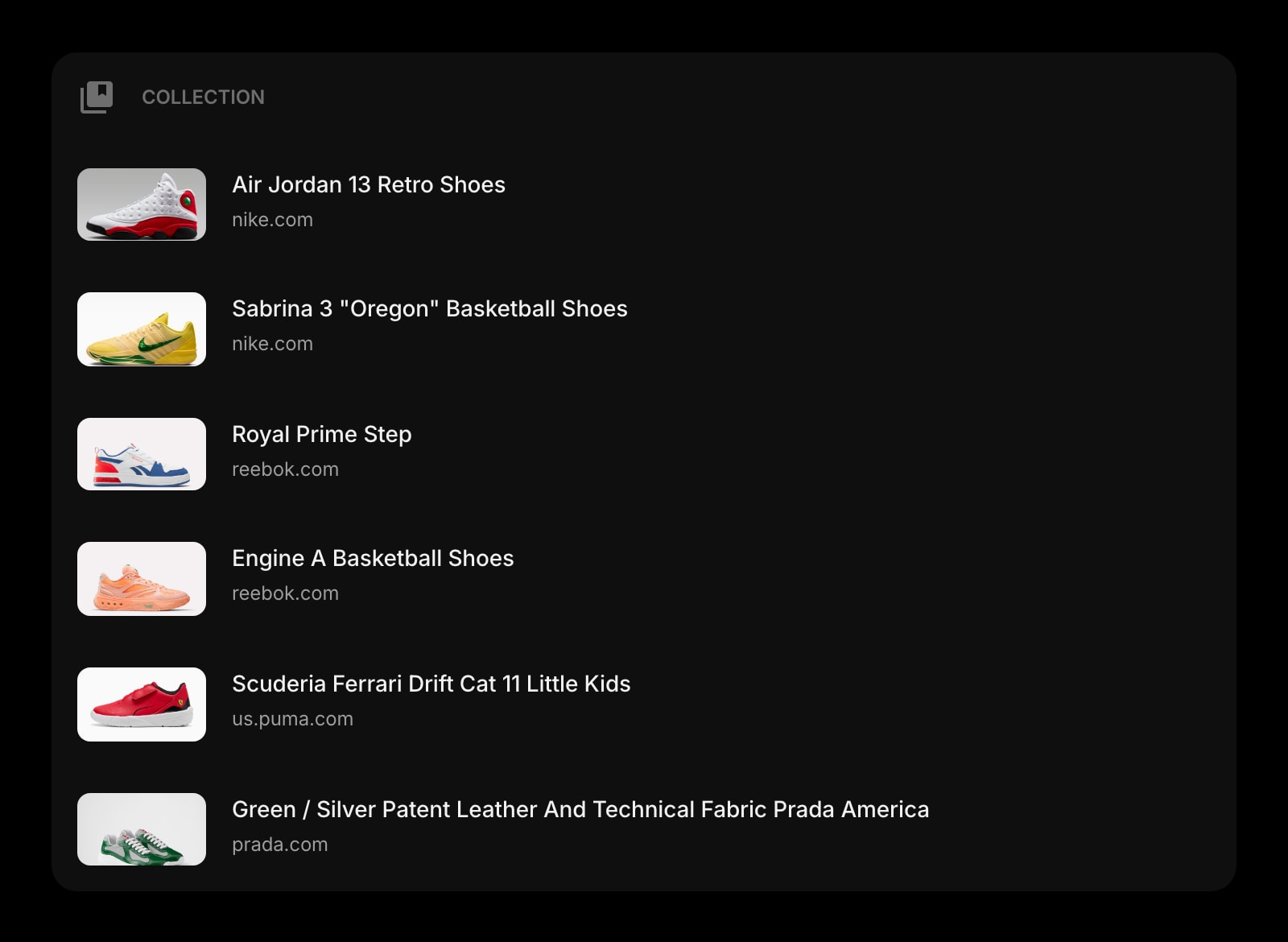
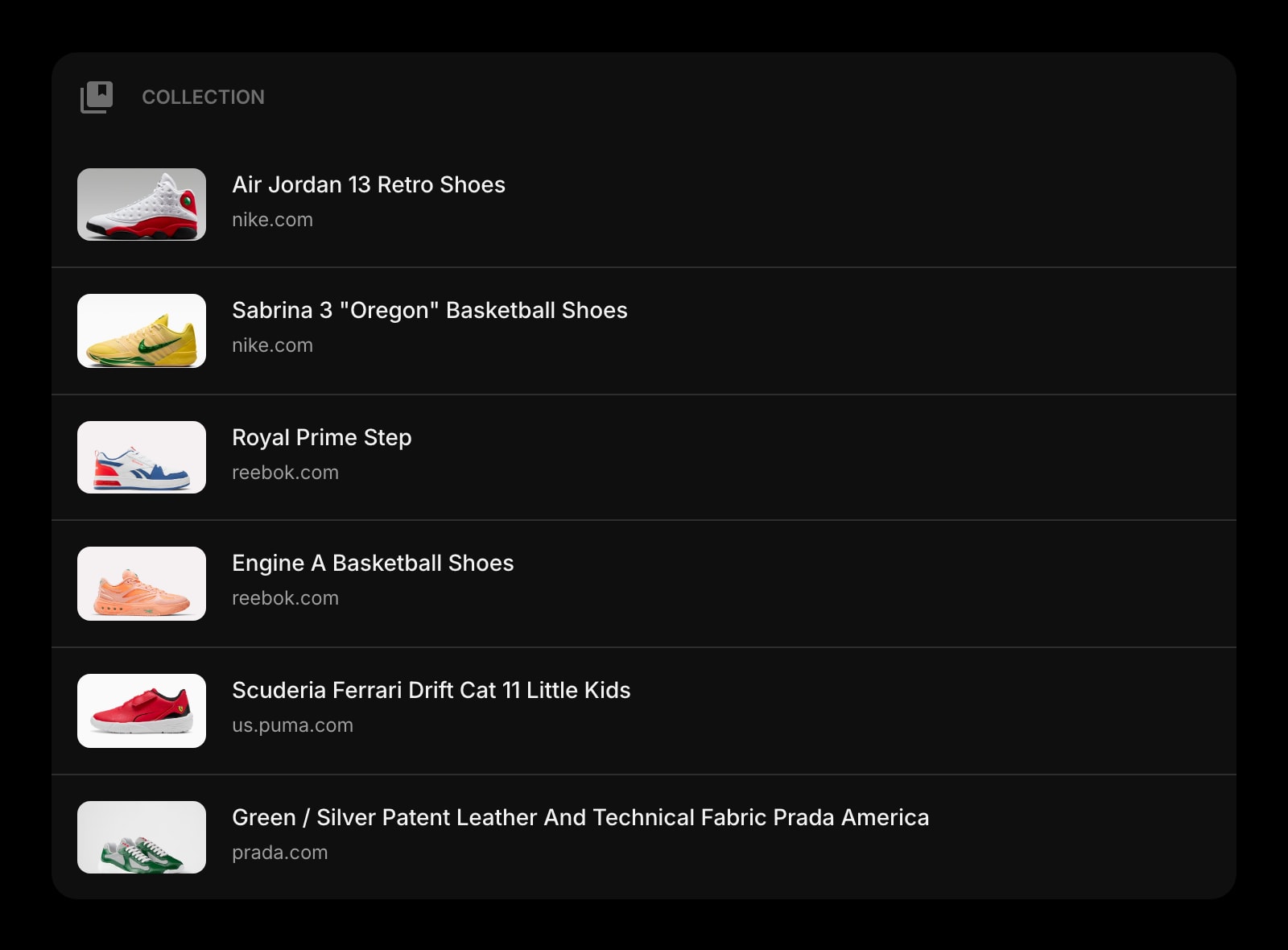
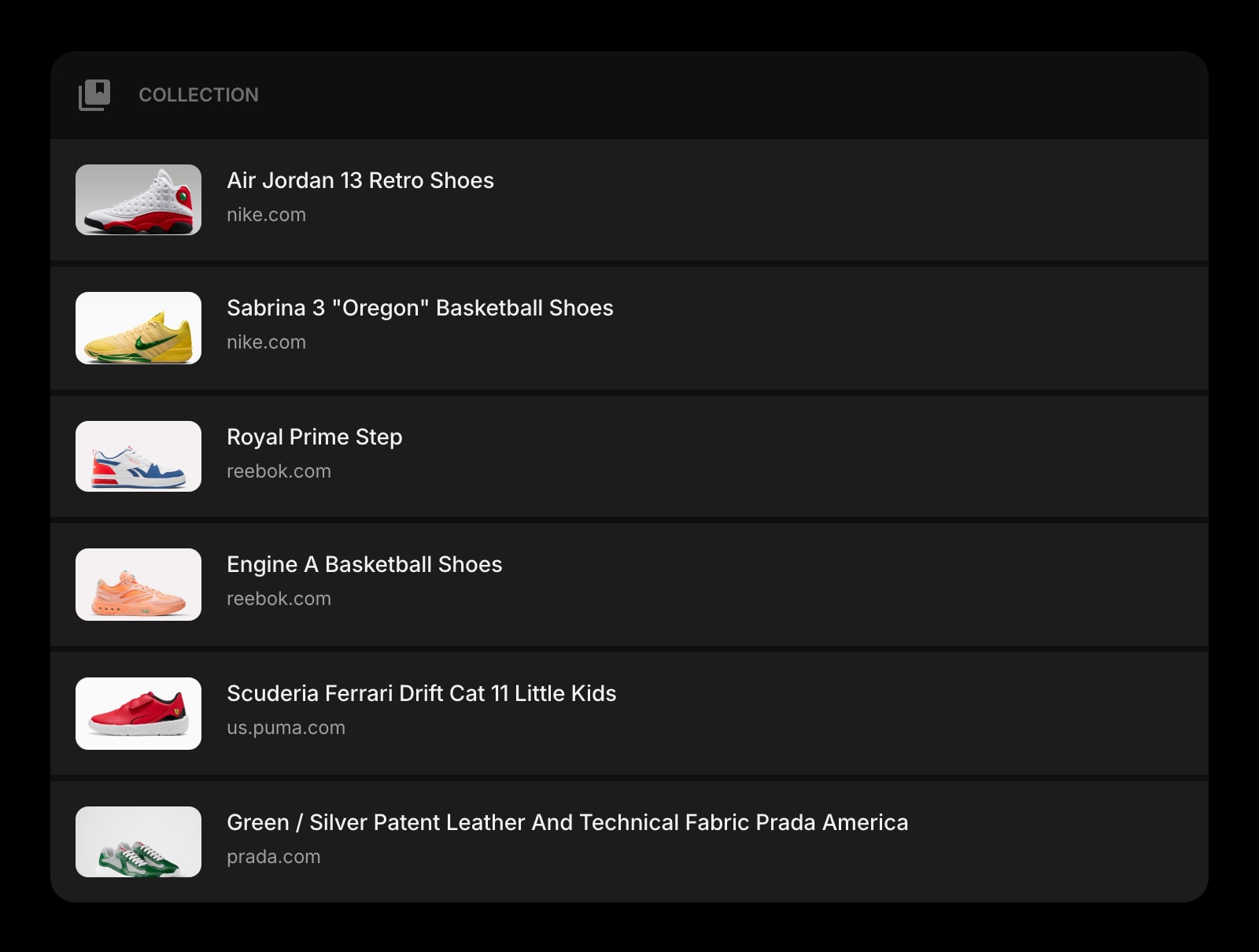
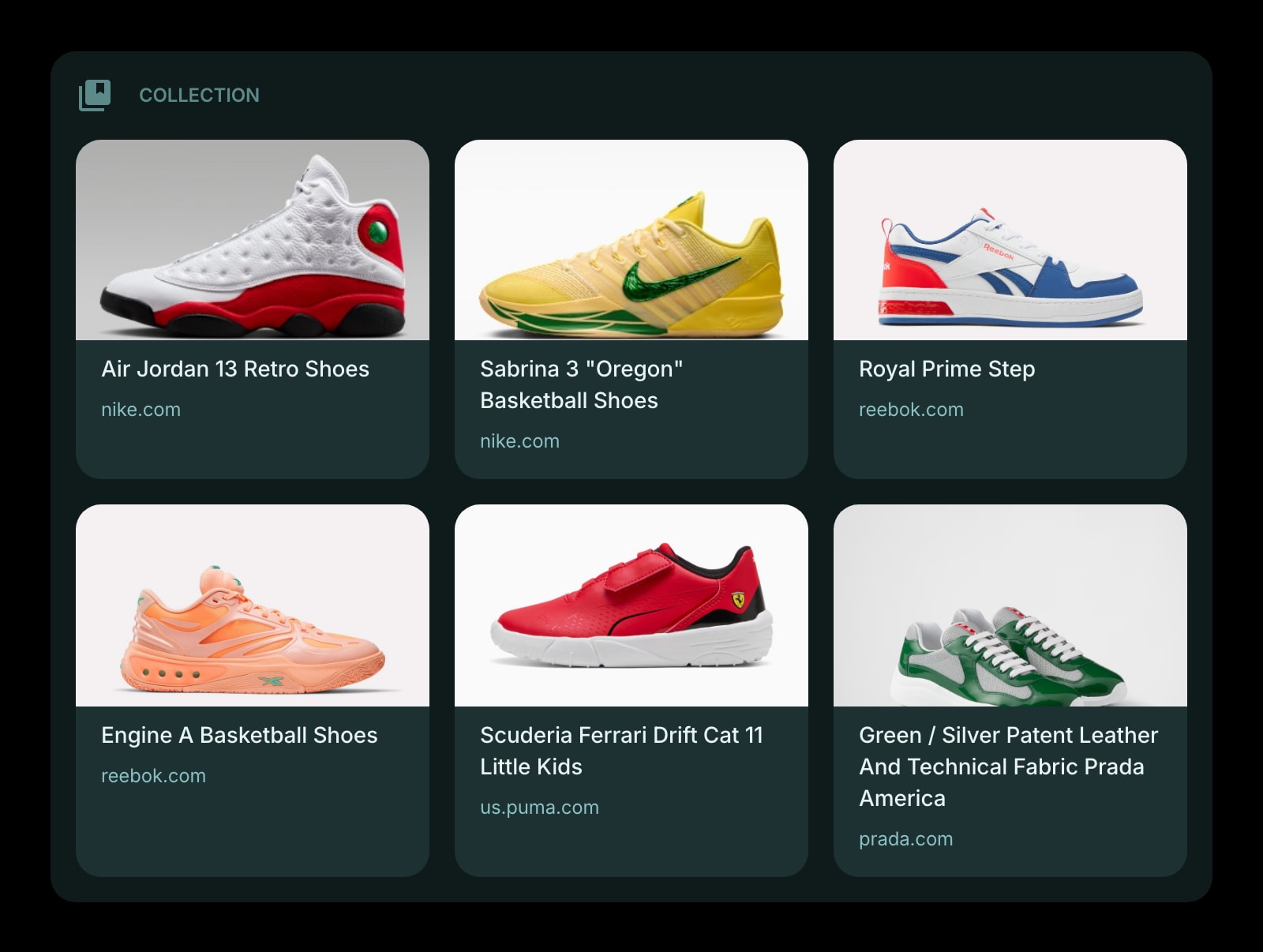
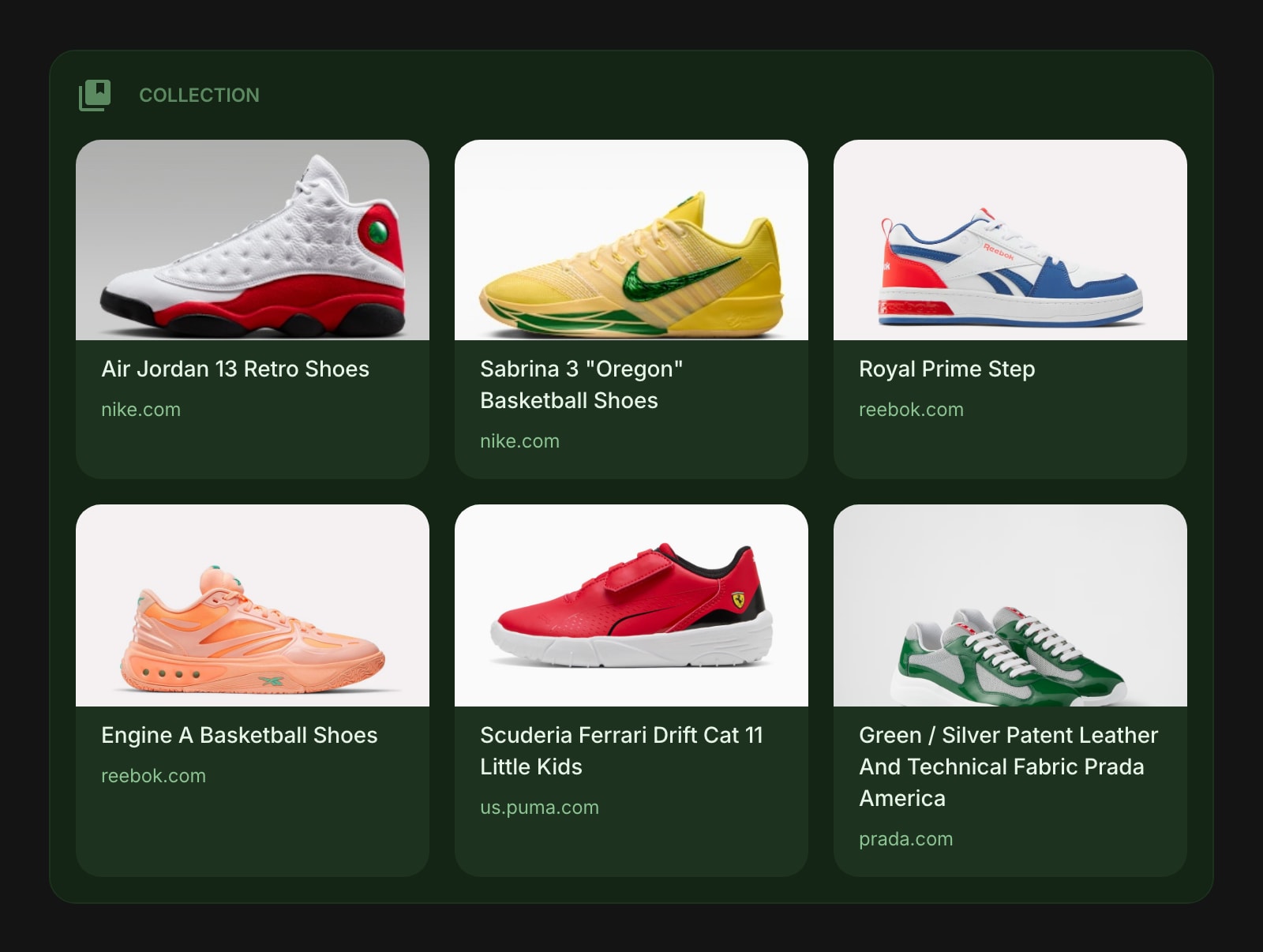
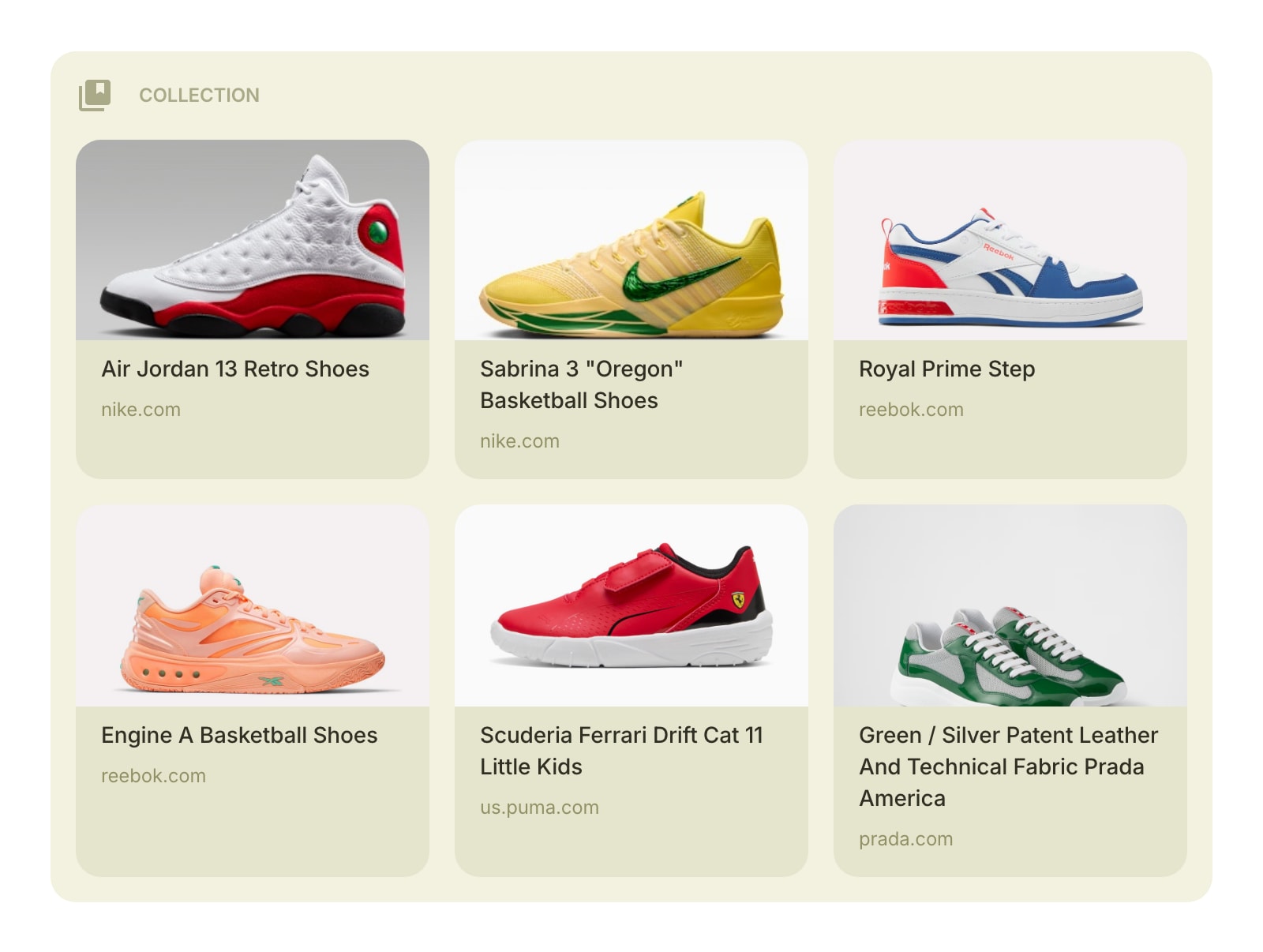
The Collection widget lets you save URLs and images in one place. Use it as a wish list, a read-later list, an image gallery, a project backlog, or anything else you can think of. Each item can have a title, a link, an image, and a note.
#How to Use
Click the + Add Item button to add your first item. Paste a URL and the widget will automatically fetch the page title and image for you. You can also add image-only items without a link.
Once you have items saved, click any item to open its link in a new tab.
#Managing Items
#Adding Items
- In edit mode, click the + Add Item button in the widget toolbar
- Or right-click (or tap and hold) an existing item and choose Add Item to insert a new item after it
- When you paste a URL, the widget automatically fetches the page title and preview image. You can change the title or image at any time.
- You can also add an image-only item - just skip the URL and add an image instead
#Editing Items
Right-click (or tap and hold) an item and choose Edit Item. A panel opens where you can update the URL, title, image, and note. You can also click Refresh to re-fetch the page title and image from the URL.
#Reordering Items
On desktop, drag and drop items to rearrange them. You can also drag items between multiple Collection widgets on the same page.
#Duplicating Items
Right-click (or tap and hold) an item and choose Duplicate Item to create a copy right next to the original.
#Deleting Items
Right-click (or tap and hold) an item and choose Delete Item. You'll be asked to confirm before the item is removed.
#Widget Settings
- Show Image - show or hide item images. Turned on by default.
- Items Layout - choose between Grid (items arranged in columns) and List (items stacked vertically with images on the left).
- Item Style - choose the look of each item: Clear (minimal), Outline (bordered), or Solid (filled background).
#Tips
- Paste any URL and the widget does the rest - title and image are fetched automatically.
- Use the Grid layout for visual collections like wish lists, and the List layout for reading lists or backlogs.
- Drag items between Collection widgets to organize across different groups.