- Dashboard
- Widgets
- AI Diary
- AI Humanizer
- AI Image
- Audio Editor
- Base64 / URL Encoder
- Calendar
- Canvas
- Collection
- Color Picker
- Container
- Countdown Timer
- Currency Converter
- Daily Quiz
- Daily Quote
- Daily Riddle
- Date & Time
- Embed
- GitHub Releases
- Google Calendar
- Habit Tracker
- Hacker News
- Image Compression
- IP Info
- JSON Formatter
- Links
- Markdown Editor
- News
- News Summary
- Notes
- Photo Frame
- Podcast
- Pomodoro Timer
- Product Hunt
- QR Code Generator
- Quick Answer
- Quick Note
- Regex Tester
- RSS Feed
- Search
- Spacer
- Stopwatch
- Story Snippet
- Stripe Sales
- Subreddit
- Substack
- t0ggles Focus
- t0ggles My Boards
- t0ggles My Tasks
- Tasks
- Text Diff
- Todo
- TradingView Advanced Chart
- TradingView Market Summary
- TradingView Mini Chart
- TradingView Symbol Overview
- TradingView Ticker Tape
- Translation
- Unit Converter
- Uptime Monitor
- Weather
- What If
- World Clock
- YouTube Channel
Tasks Widget
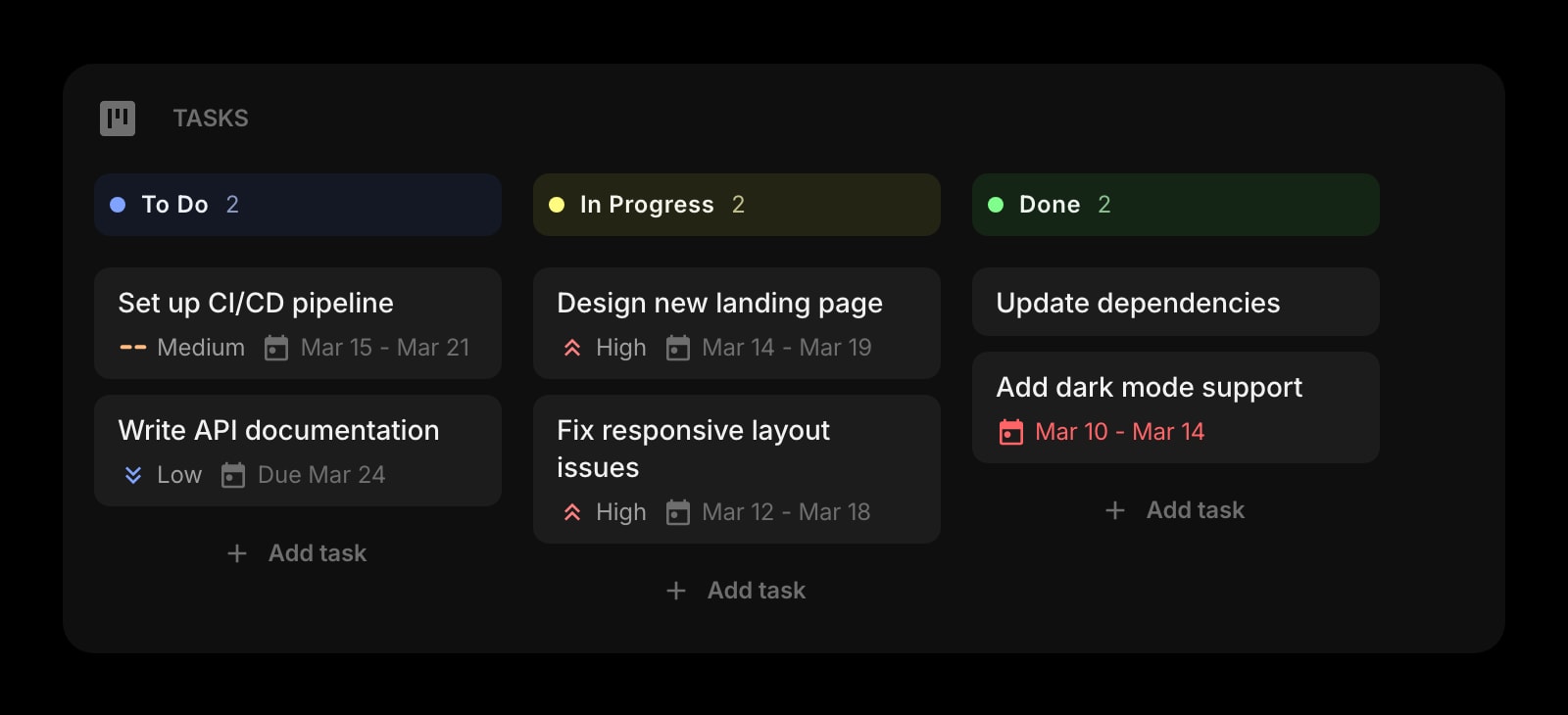
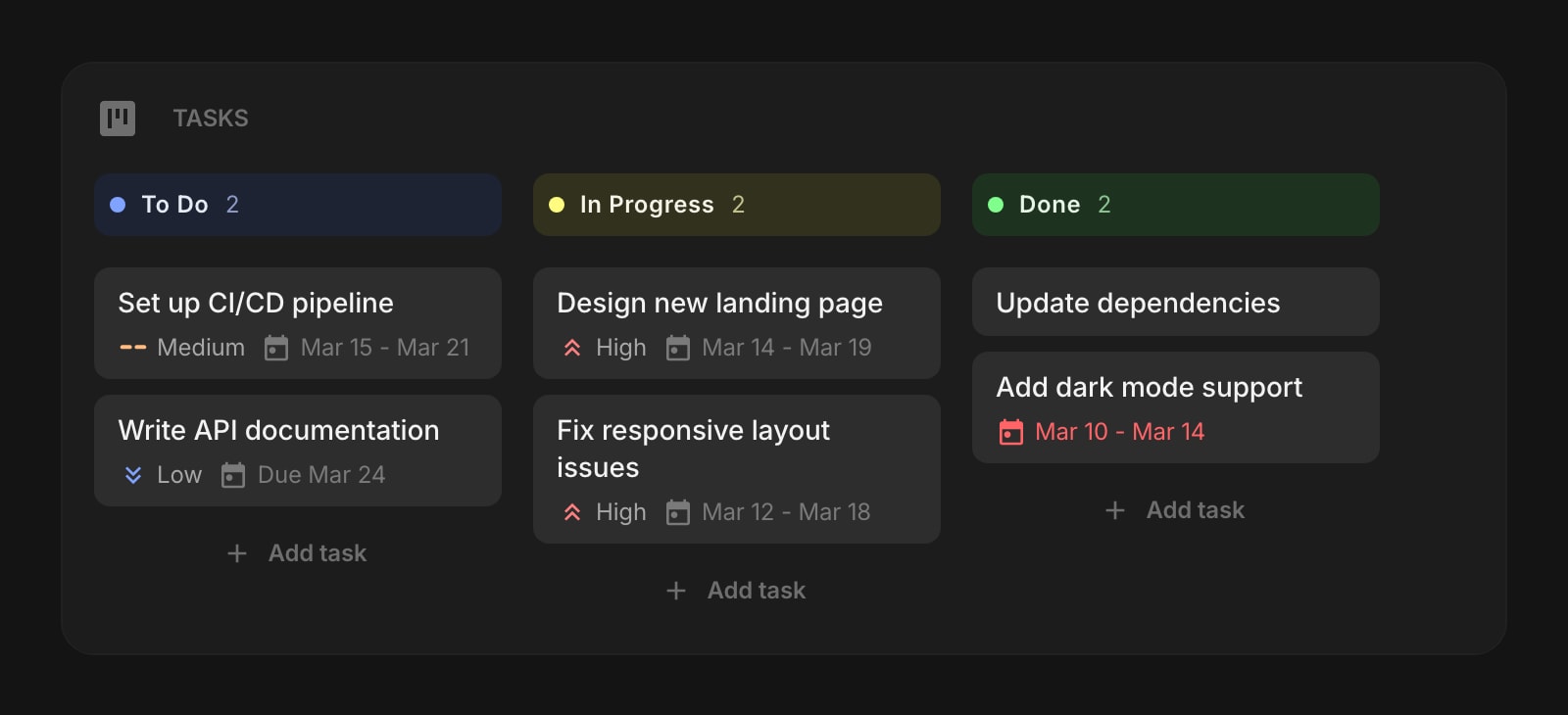
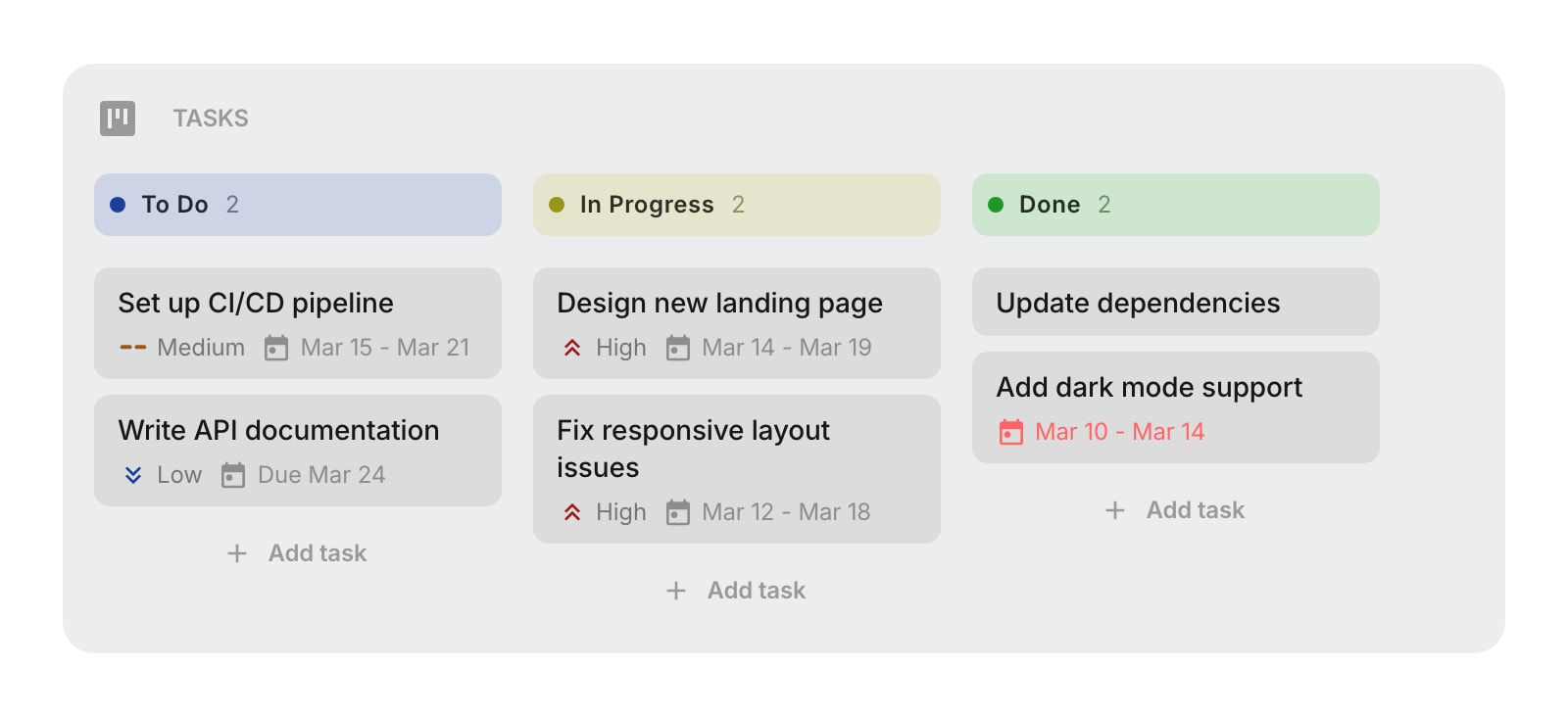
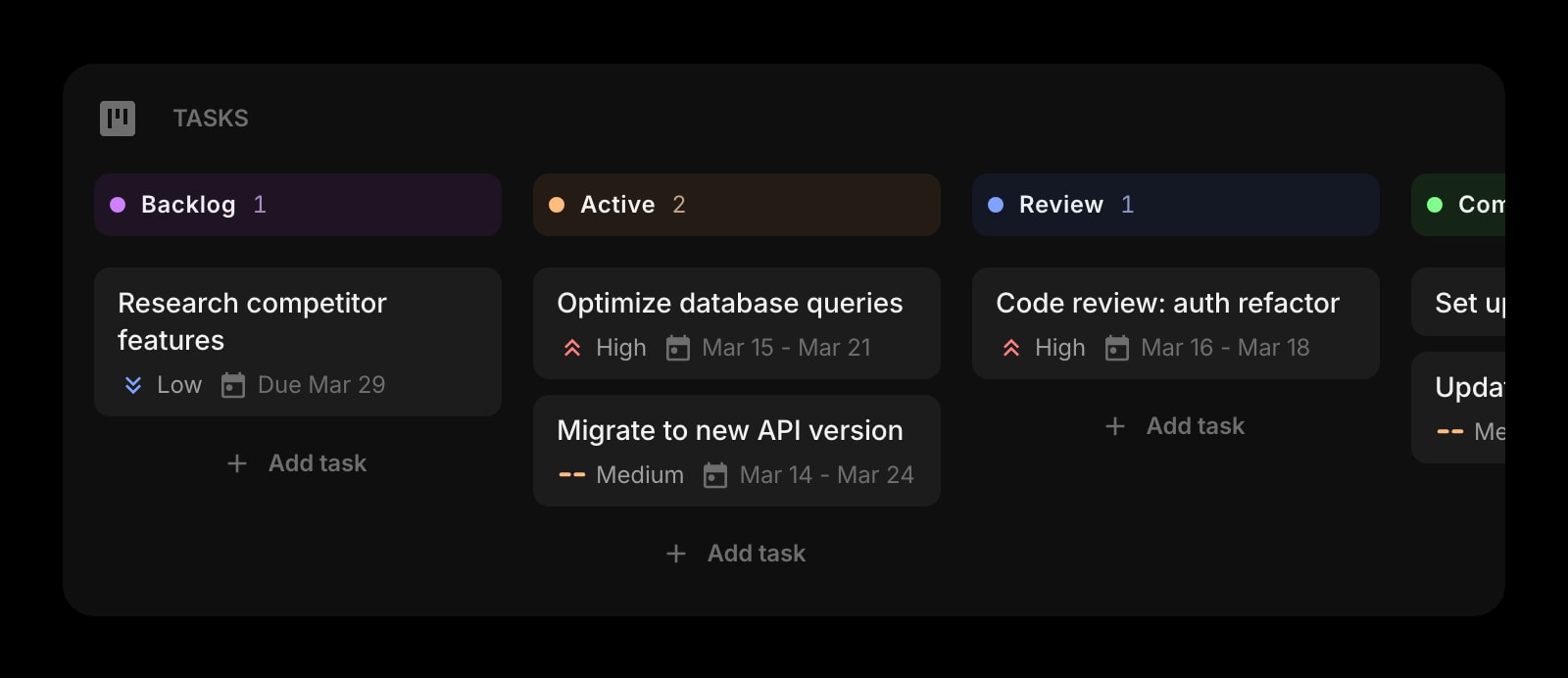
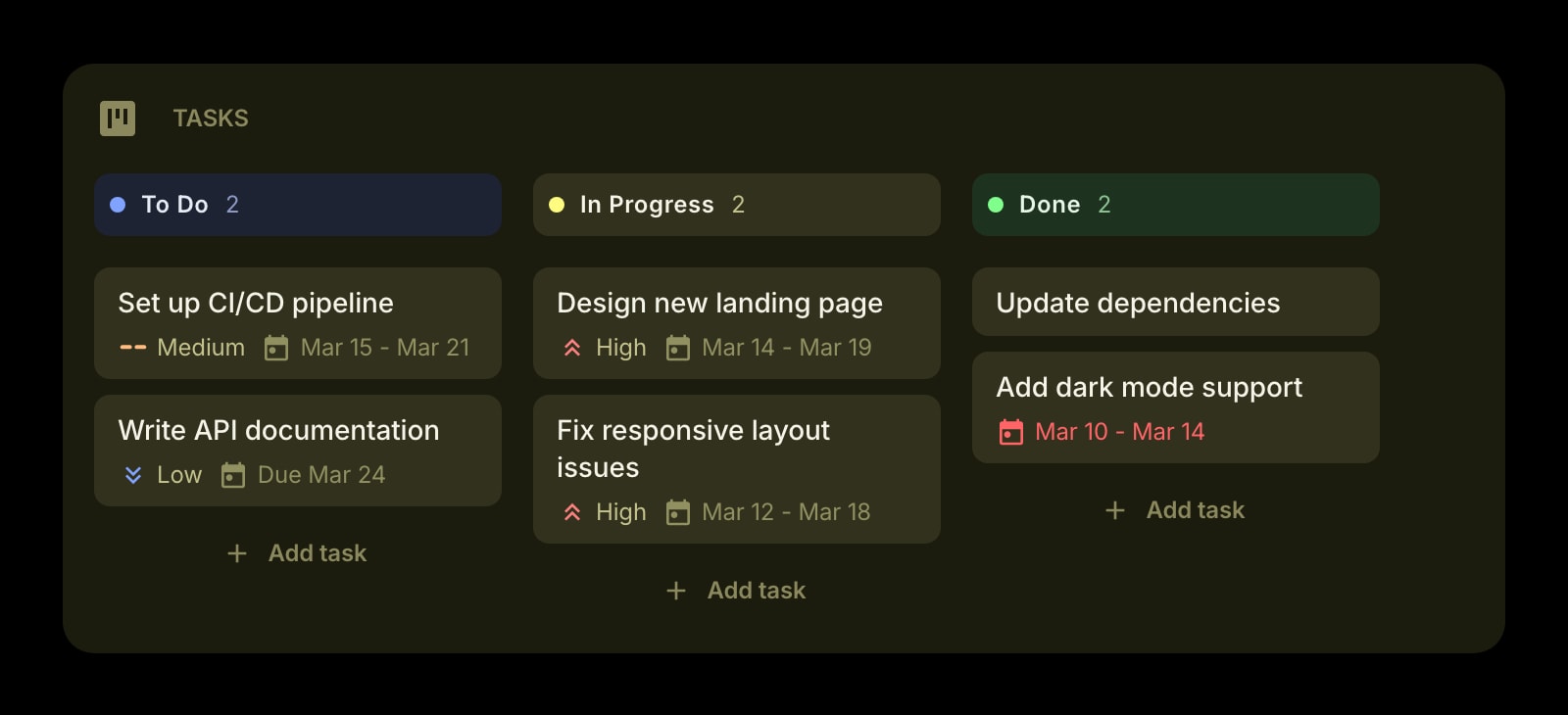


The Tasks widget is a kanban board for organizing and tracking your work. Create columns like "To Do", "In Progress", and "Done", then add tasks and drag them between columns as you make progress. Each task can have a priority level, start and due dates, and a rich text description.
#How to Use
The widget comes with three columns by default: Todo, In Progress, and Done. Click the Add task button at the bottom of any column, type a task title, and press Enter. Your task appears as a card in that column. Press Enter again to keep adding more tasks, or press Escape to stop.
Click on any task card to open its details. From there you can set a priority, add start and due dates, move it to a different column, or write a longer description using the rich text editor. Changes are saved automatically when you close the details panel.
#Managing Tasks
#Adding Tasks
Click Add task at the bottom of any column. Type a title and press Enter. The input stays focused so you can quickly add several tasks in a row.
#Editing Tasks
Click a task card to open its details. You can update the title, change the column, set the priority, adjust dates, and write or edit the description. Everything saves automatically when you close.
#Moving Tasks Between Columns
Drag a task card from one column and drop it into another. You can also right-click (or tap and hold) a task and choose Move to followed by the column name.
#Reordering Tasks
Drag tasks up or down within a column to change their order. You can also drag tasks between Tasks widgets on the same page.
#Duplicating Tasks
Right-click (or tap and hold) a task and choose Duplicate Task to create a copy in the same column.
#Deleting Tasks
Right-click (or tap and hold) a task and choose Delete Task. You'll be asked to confirm before the task is removed.
#Task Details
Each task card can show:
- Title - the task name (required)
- Priority - None, Low, Medium, or High, shown as a colored indicator
- Dates - a start date, due date, or both. Overdue tasks are highlighted in red.
- Description - a rich text note with formatting support
#Columns
#Managing Columns
Open the widget settings to customize your columns. You can:
- Add a column - click the add button at the bottom of the column list
- Rename a column - click on its title and type a new name
- Change a column's color - pick from 10 color options (brand, red, pink, purple, blue, cyan, lime, green, yellow, orange)
- Reorder columns - use the arrow buttons to move columns left or right
- Delete a column - click the delete button (at least one column must remain). Any tasks in a deleted column are moved to the first remaining column.
#Widget Settings
- Show Priority - show or hide priority indicators on task cards. Turned on by default.
- Show Dates - show or hide start and due dates on task cards. Turned on by default.
- Show Description - show or hide a preview of the task description on each card. Turned off by default.
- Columns - add, remove, rename, reorder, and color-code your kanban columns.
#Tips
- Use column colors to visually group stages of your workflow - for example, blue for "To Do", yellow for "In Progress", and green for "Done".
- Turn on "Show Description" when you need more context on cards, or leave it off for a cleaner board.
- Drag tasks between multiple Tasks widgets to organize different projects on the same page.
- Overdue tasks stand out in red, so you can spot what needs attention at a glance.