- Dashboard
- Widgets
- AI Diary
- AI Humanizer
- AI Image
- Audio Editor
- Base64 / URL Encoder
- Calendar
- Canvas
- Collection
- Color Picker
- Container
- Countdown Timer
- Currency Converter
- Daily Quiz
- Daily Quote
- Daily Riddle
- Date & Time
- Embed
- GitHub Releases
- Google Calendar
- Habit Tracker
- Hacker News
- Image Compression
- IP Info
- JSON Formatter
- Links
- Markdown Editor
- News
- News Summary
- Notes
- Photo Frame
- Podcast
- Pomodoro Timer
- Product Hunt
- QR Code Generator
- Quick Answer
- Quick Note
- Regex Tester
- RSS Feed
- Search
- Spacer
- Stopwatch
- Story Snippet
- Stripe Sales
- Subreddit
- Substack
- t0ggles Focus
- t0ggles My Boards
- t0ggles My Tasks
- Tasks
- Text Diff
- Todo
- TradingView Advanced Chart
- TradingView Market Summary
- TradingView Mini Chart
- TradingView Symbol Overview
- TradingView Ticker Tape
- Translation
- Unit Converter
- Uptime Monitor
- Weather
- What If
- World Clock
- YouTube Channel
Links Widget
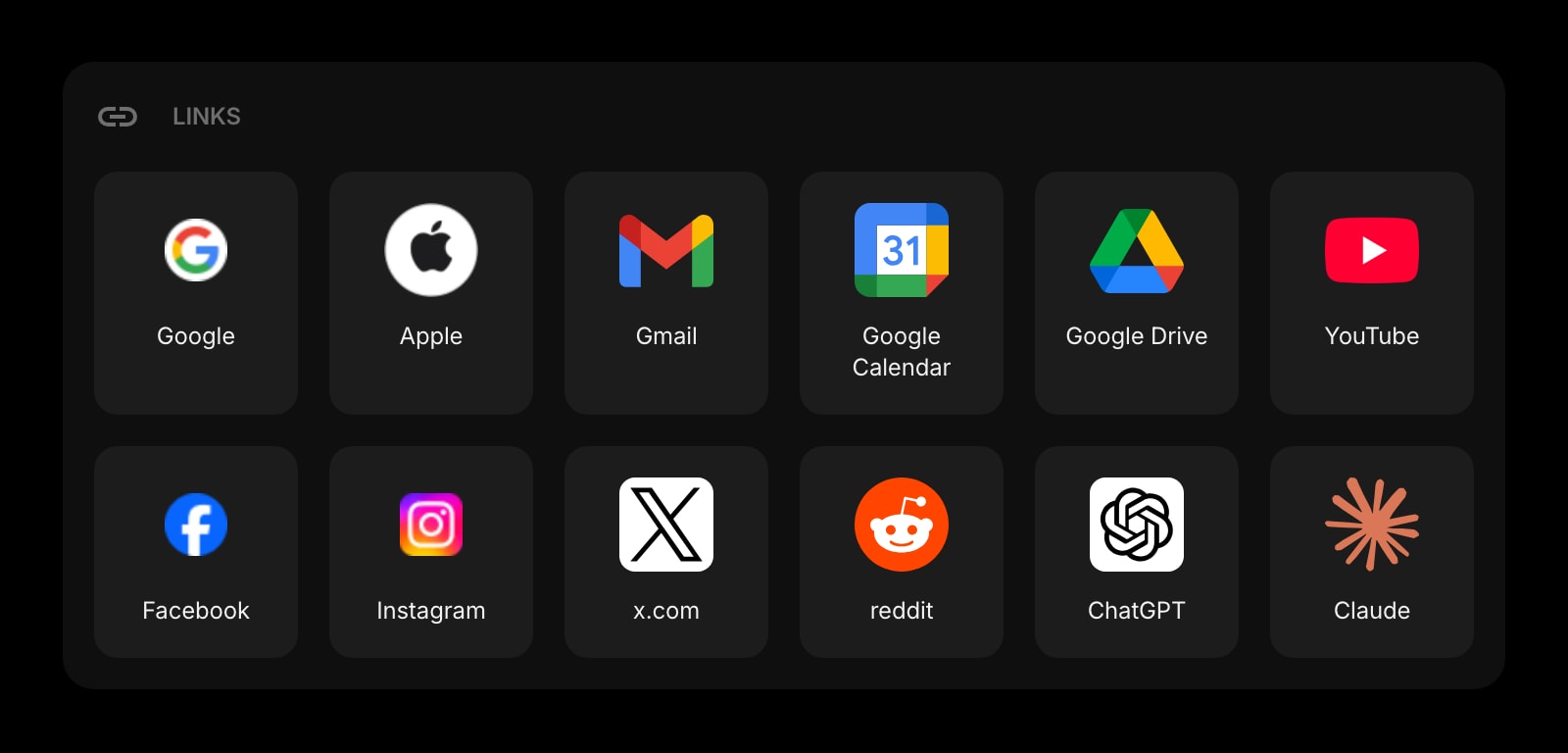
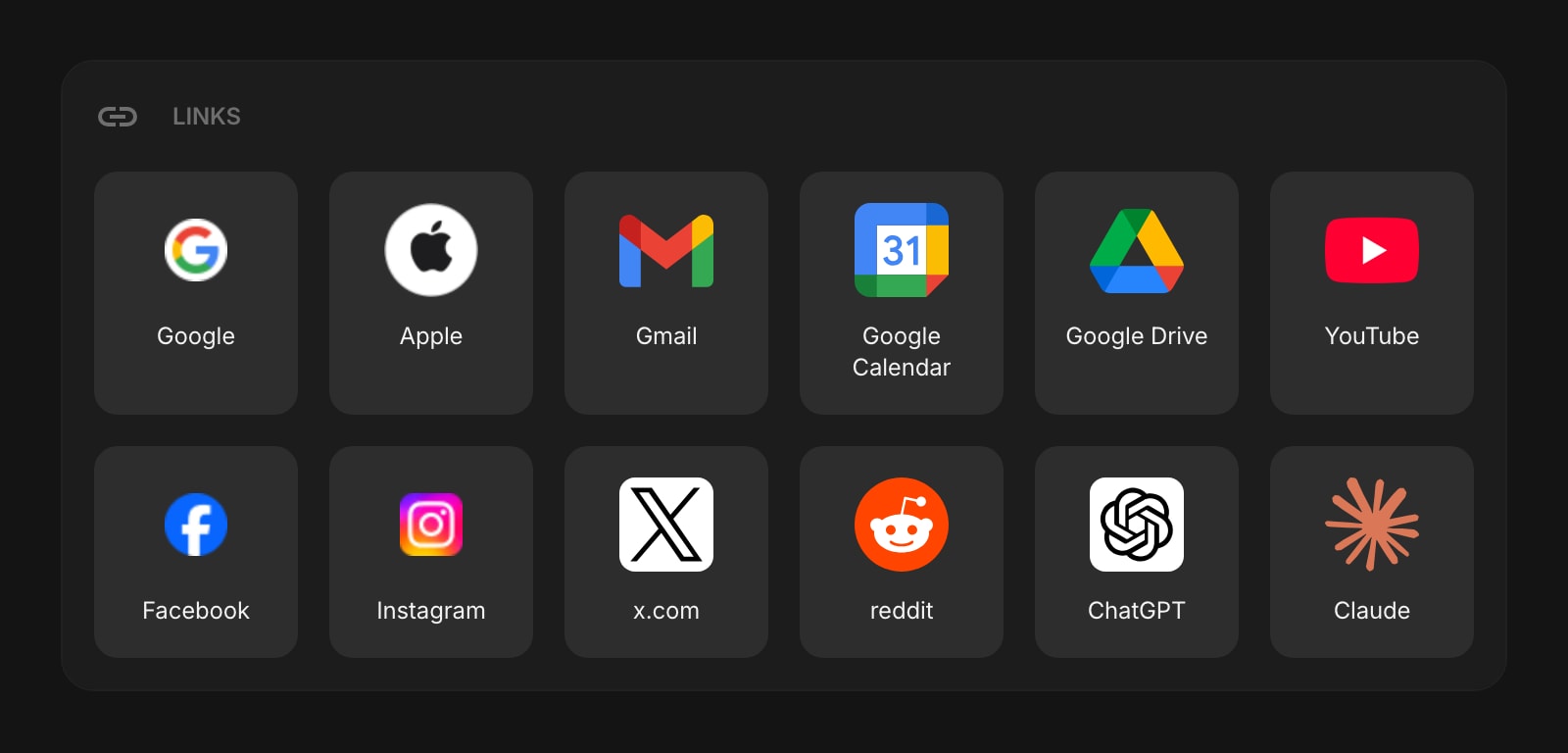
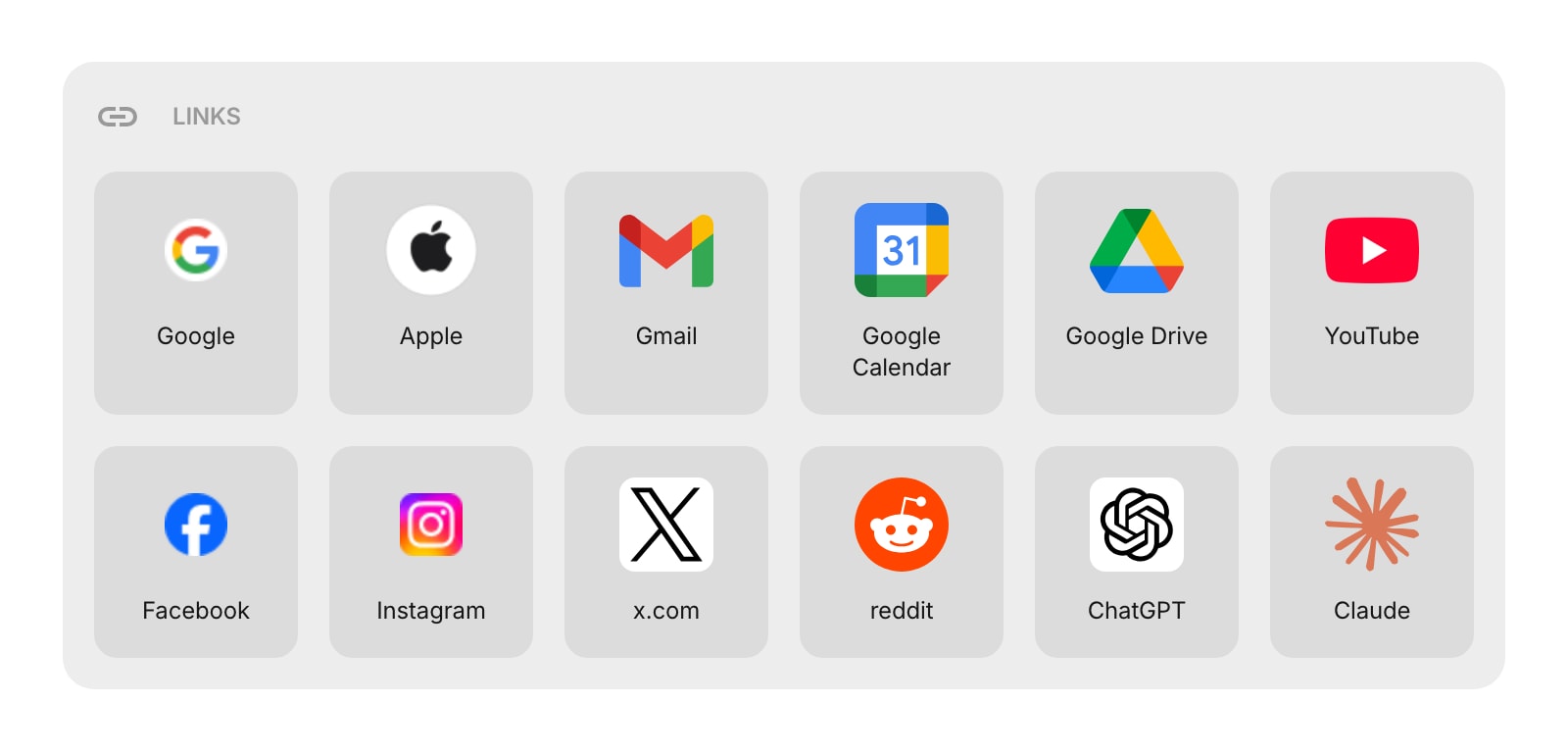
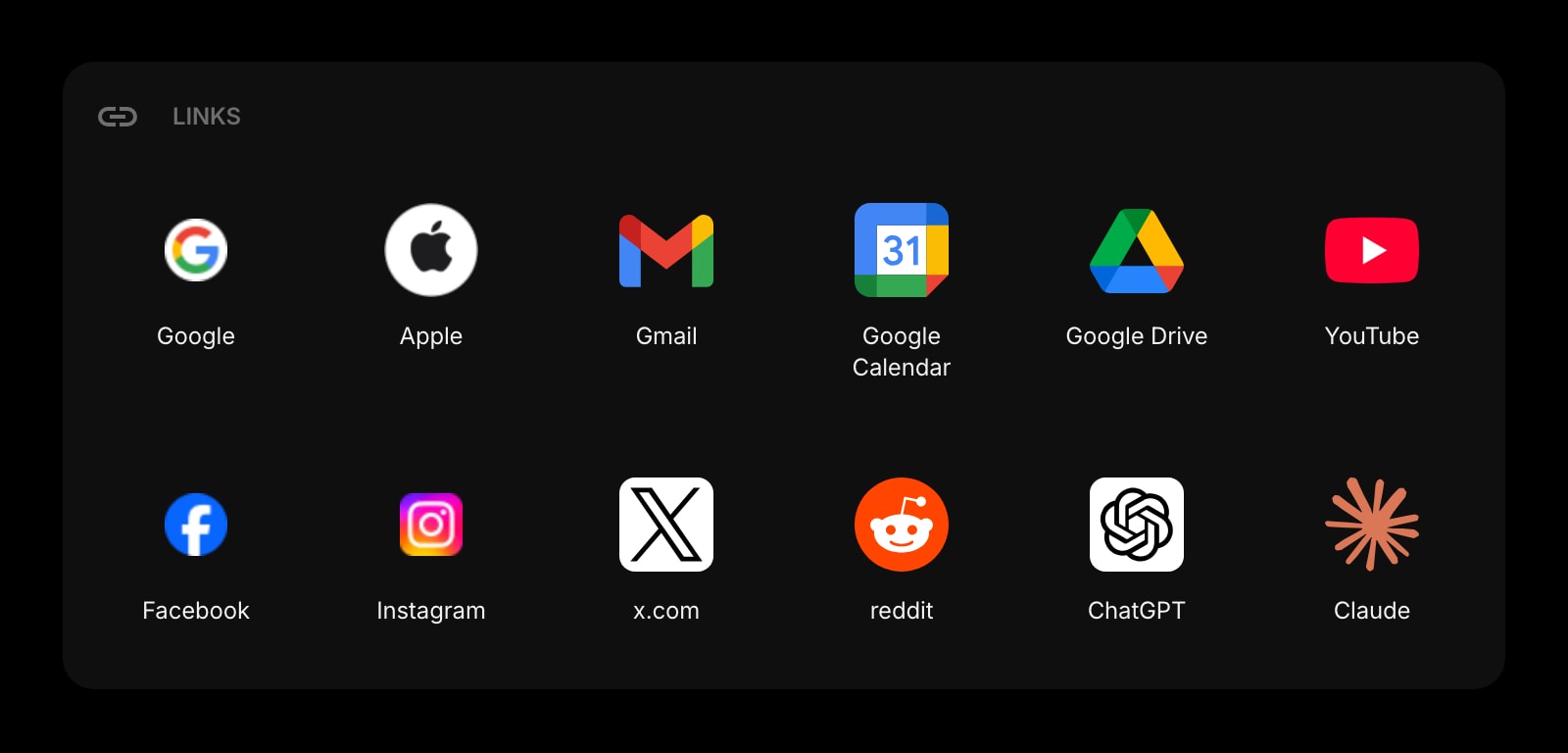
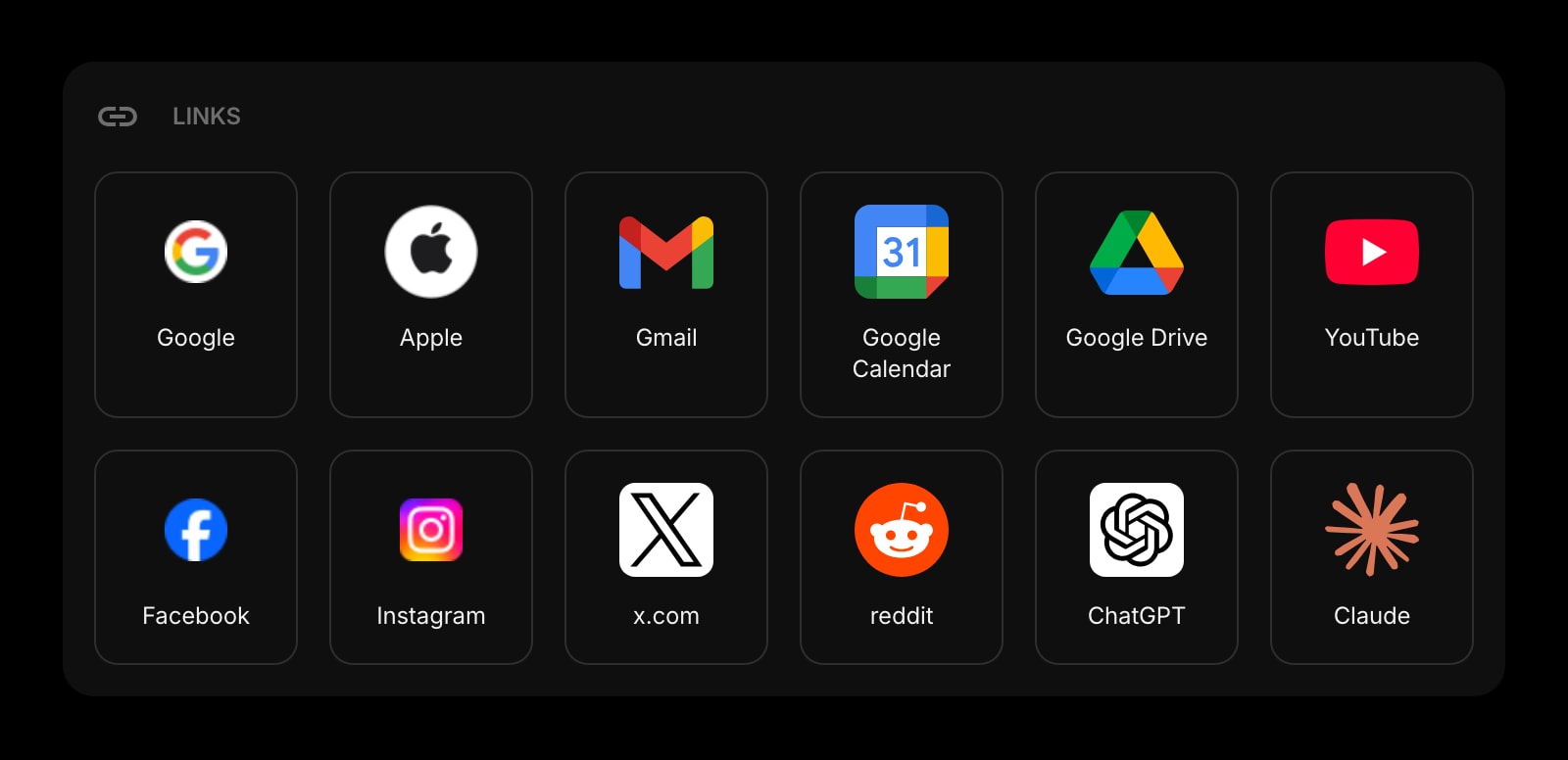
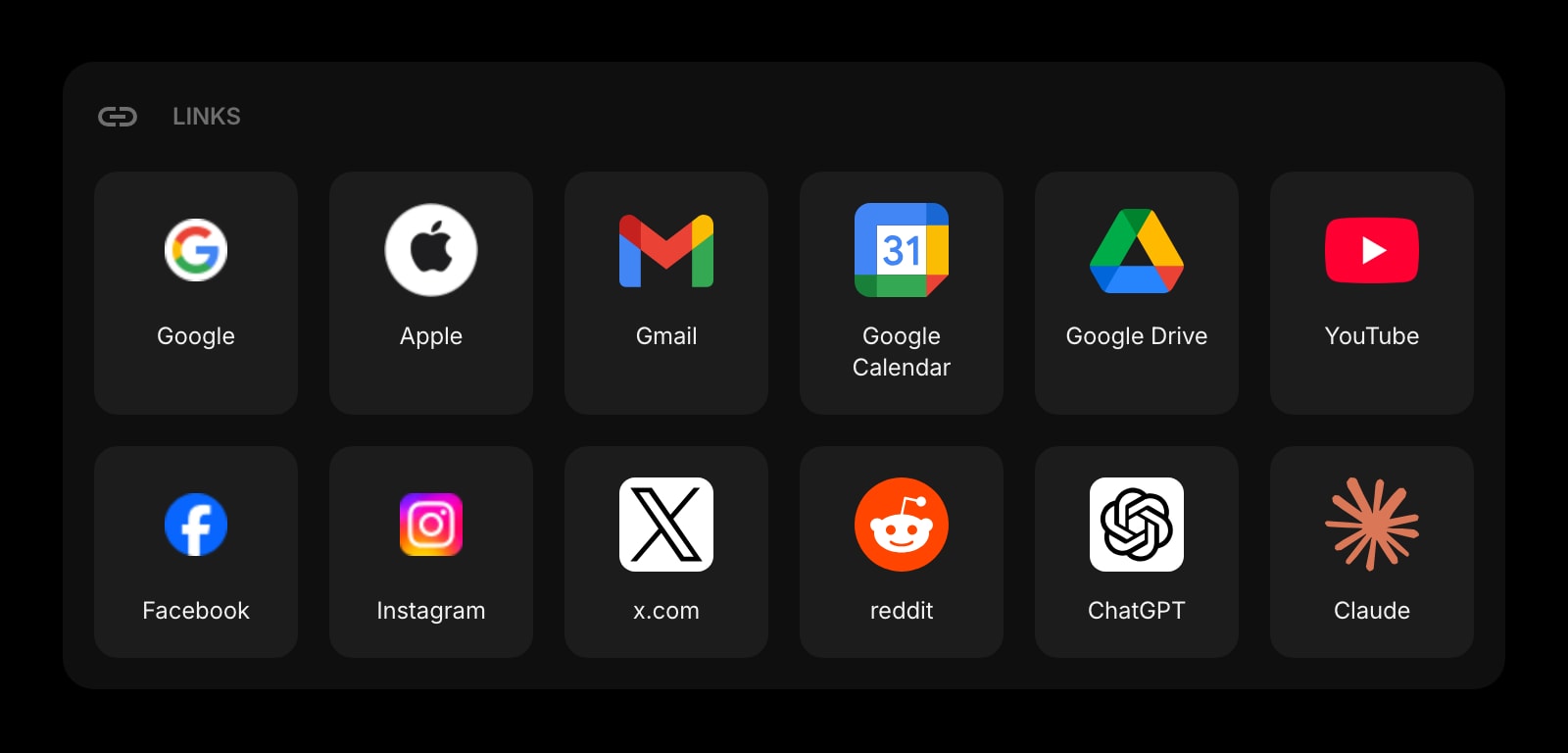
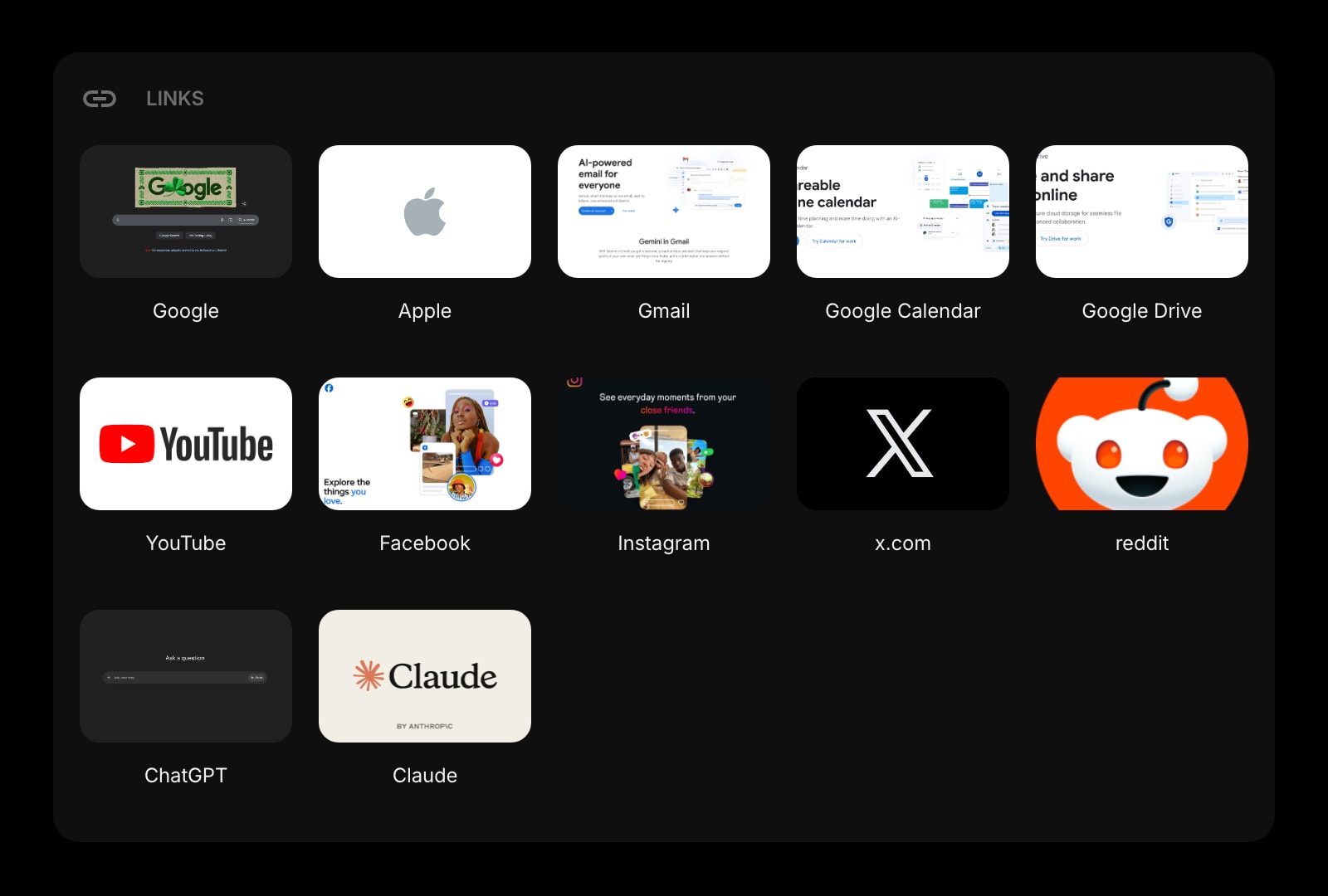
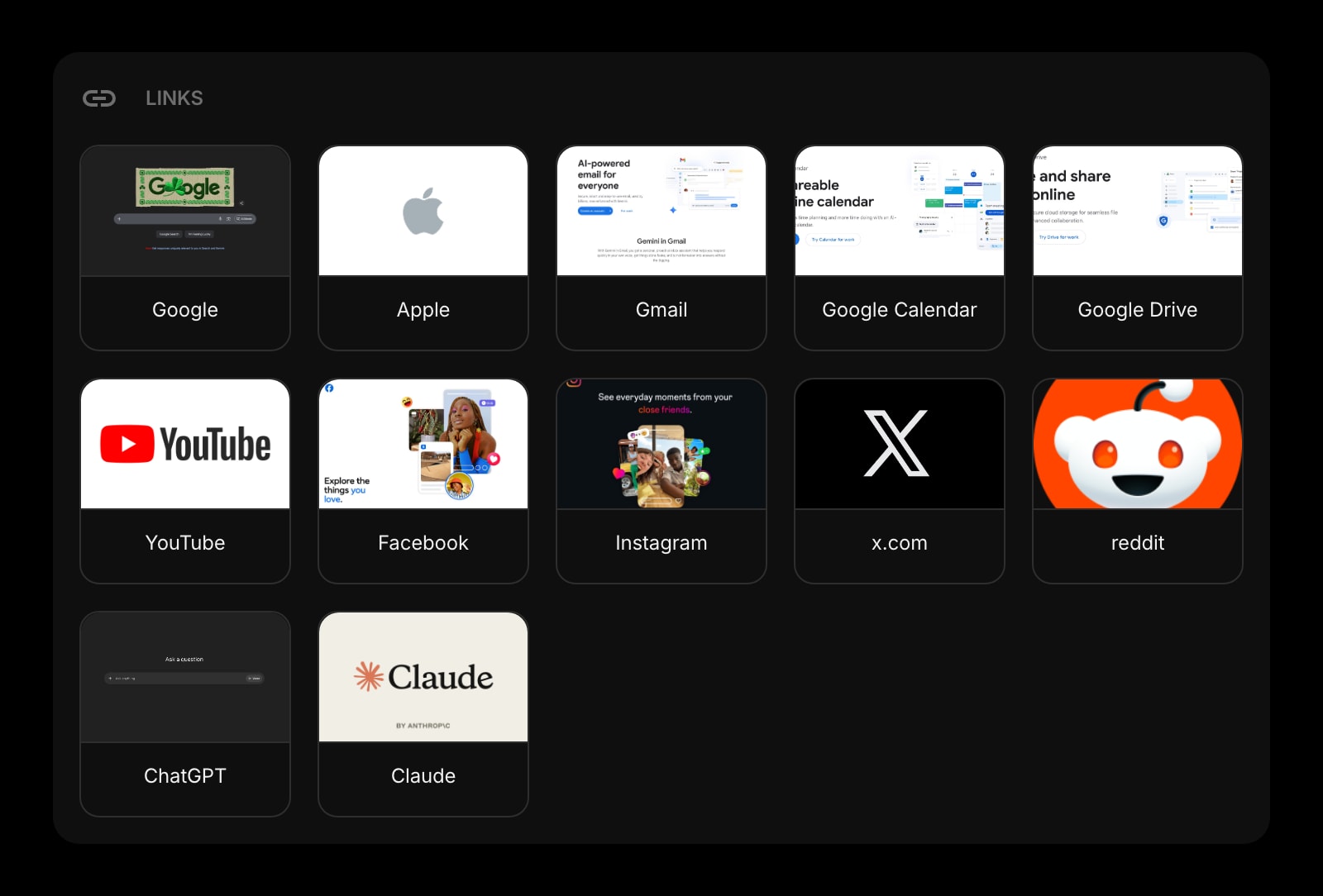
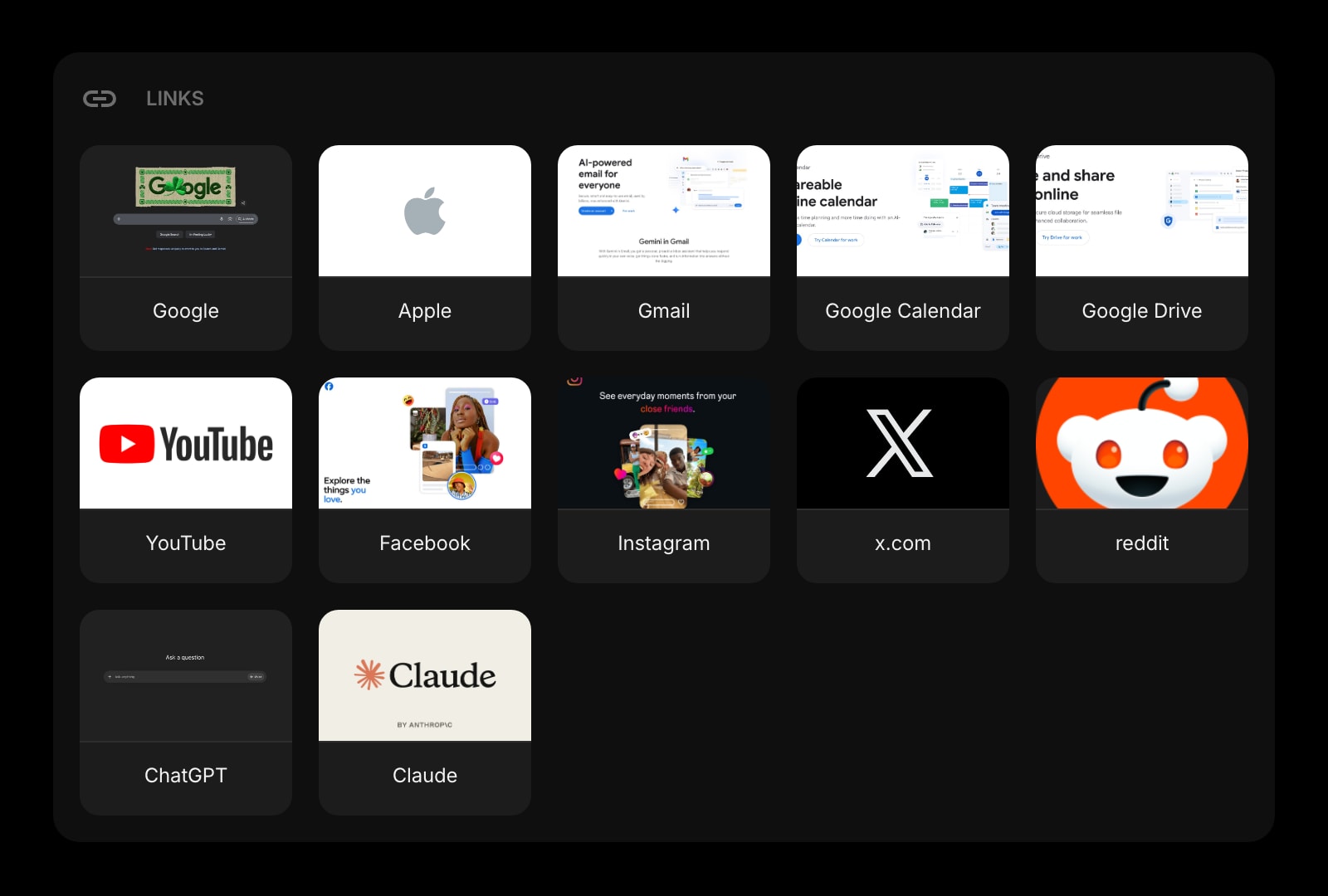
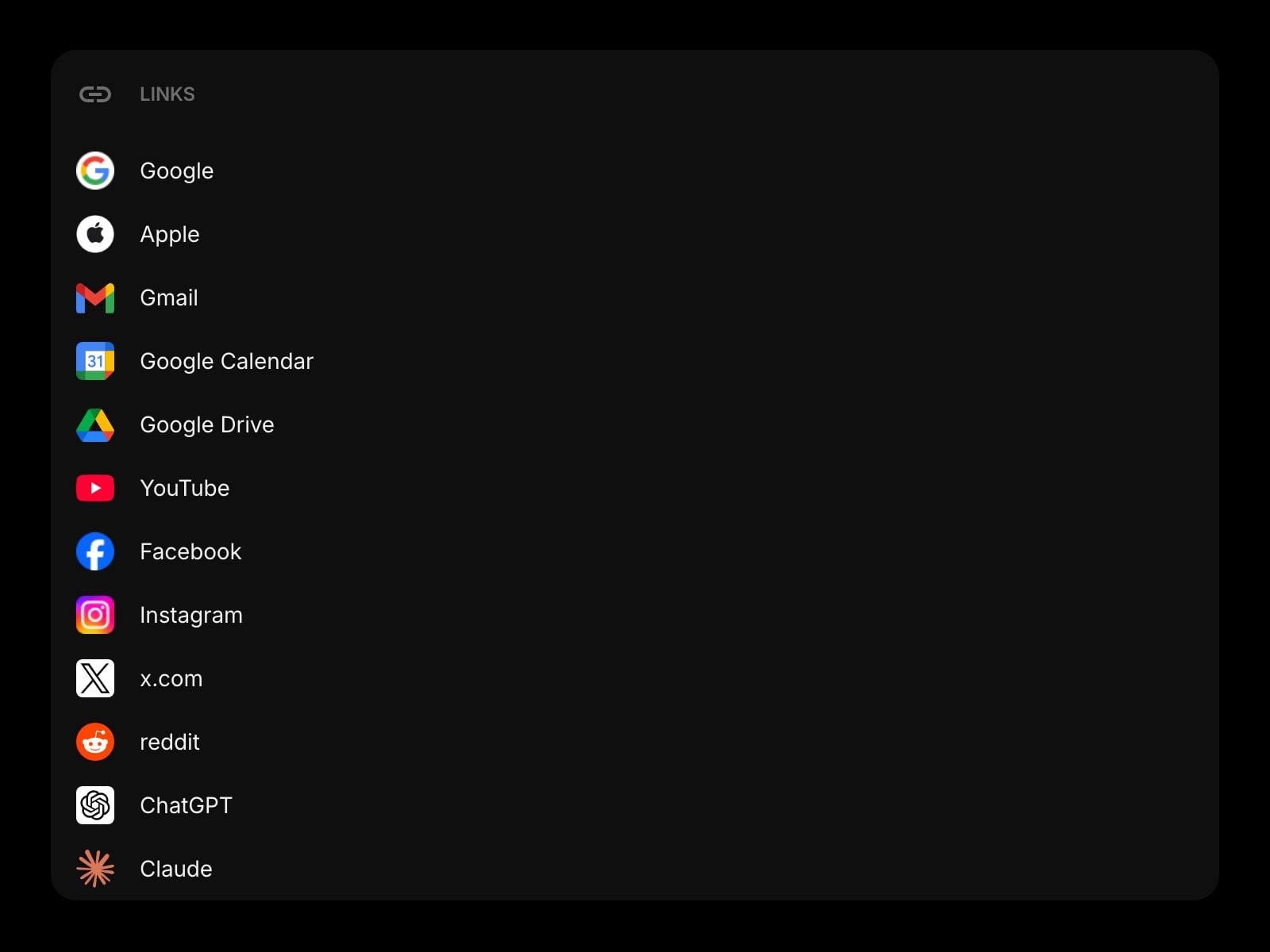
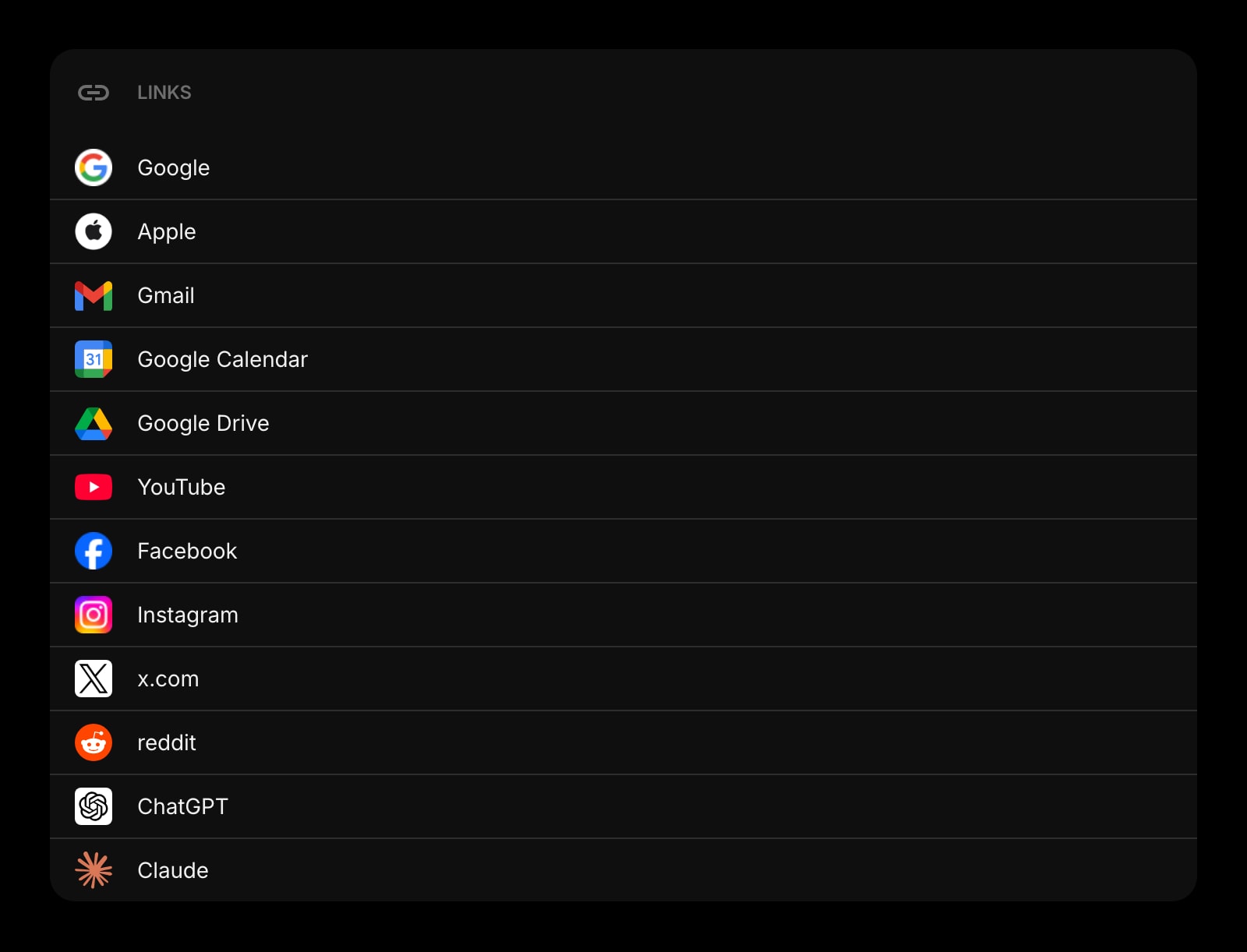
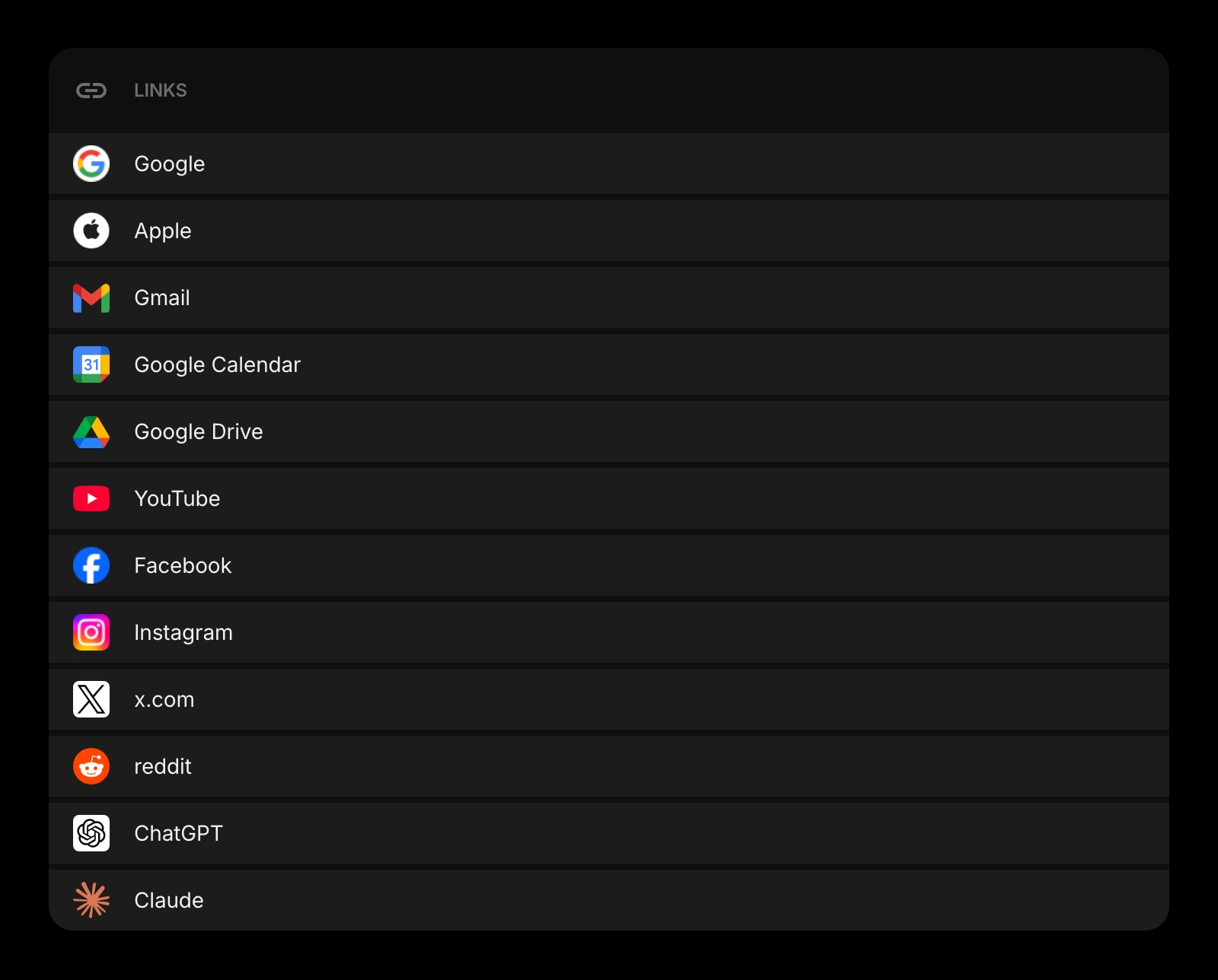
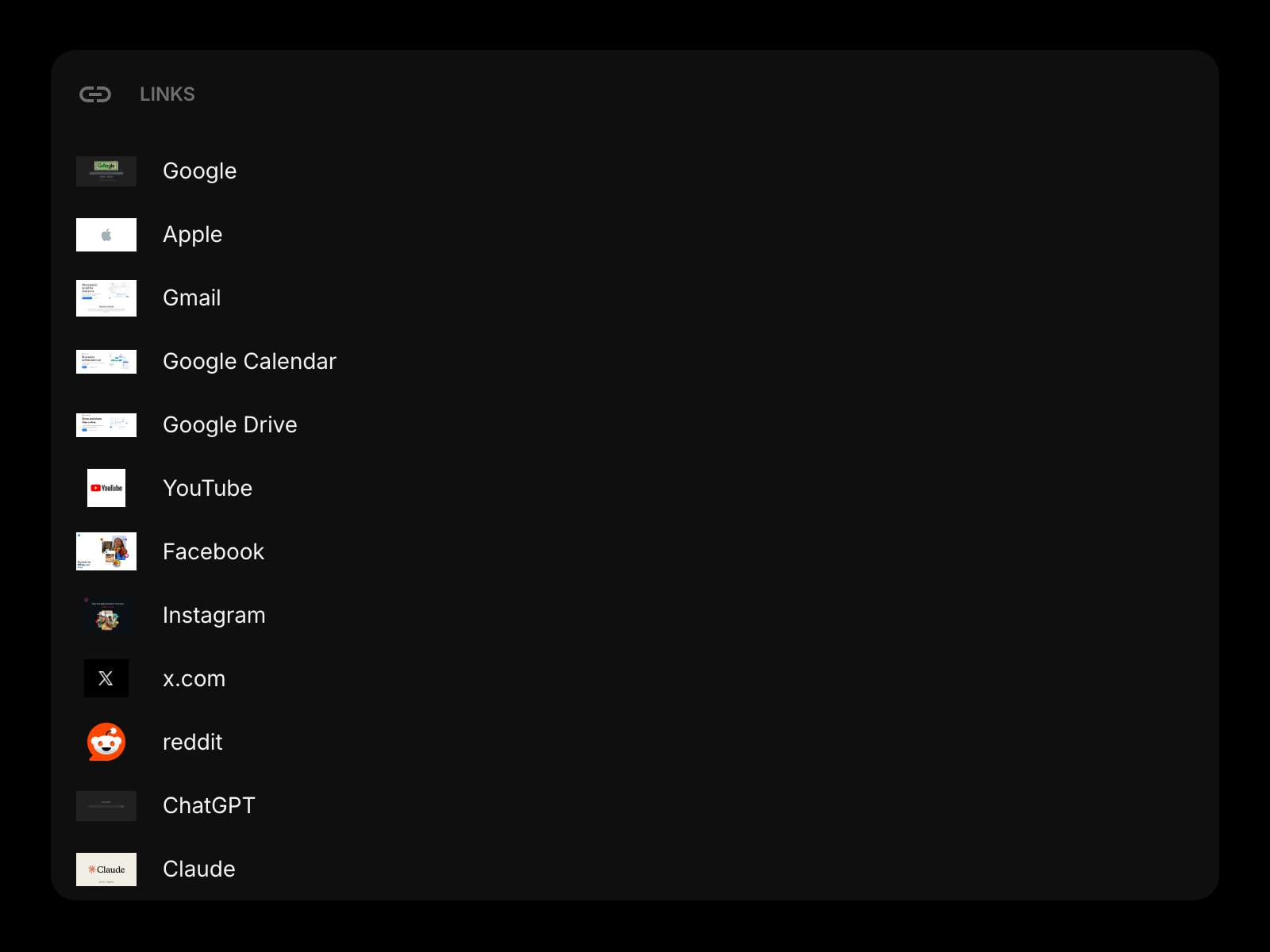
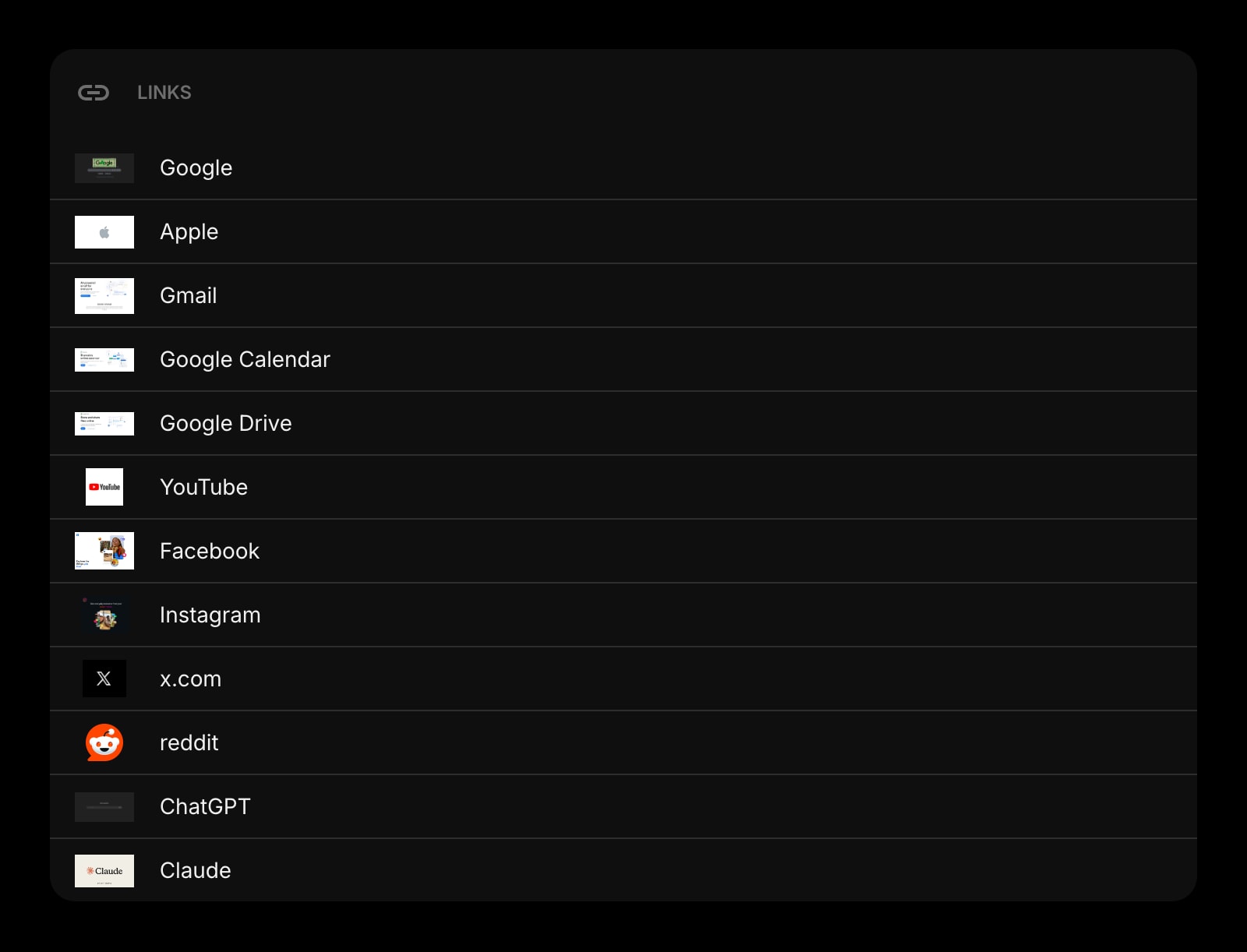
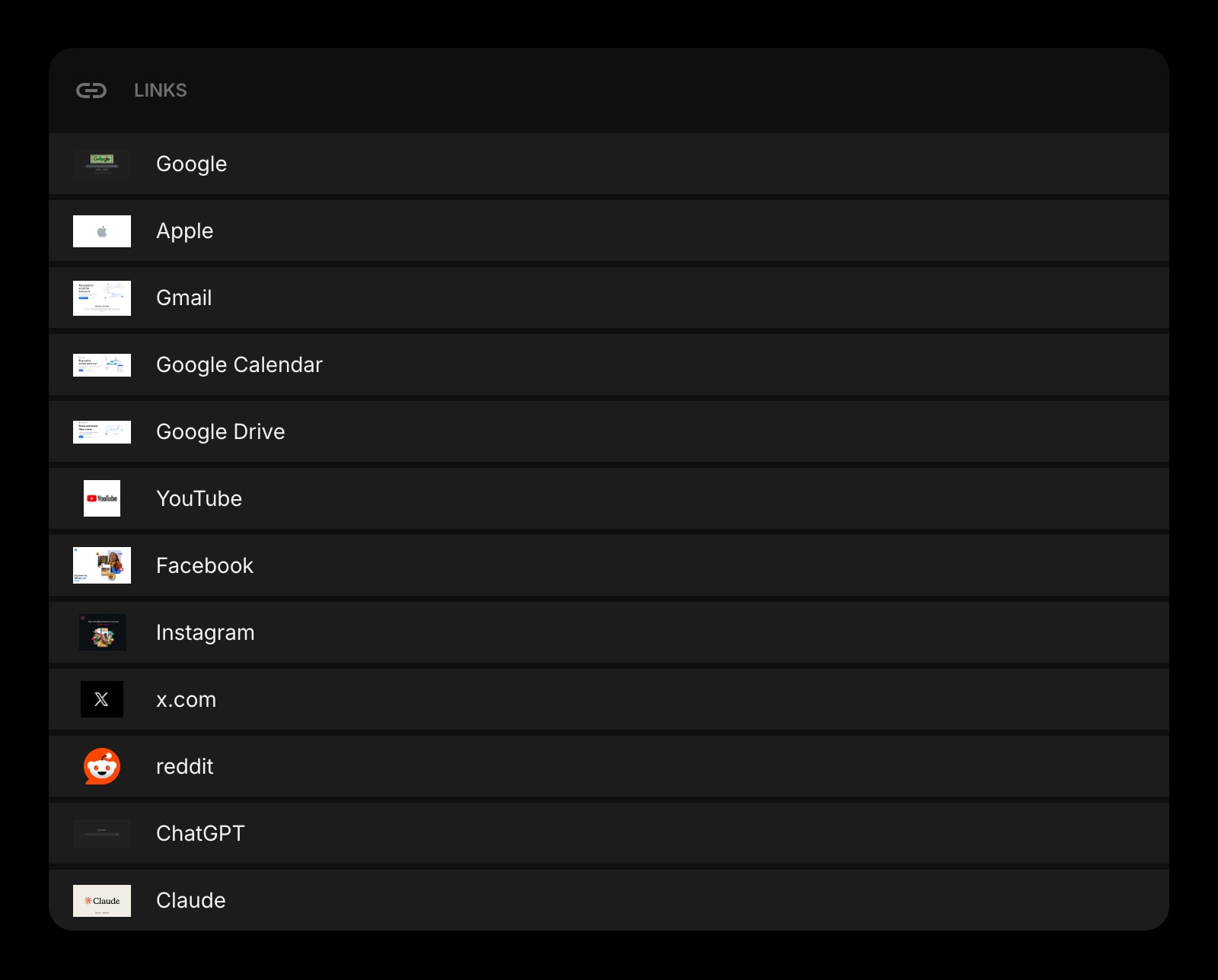
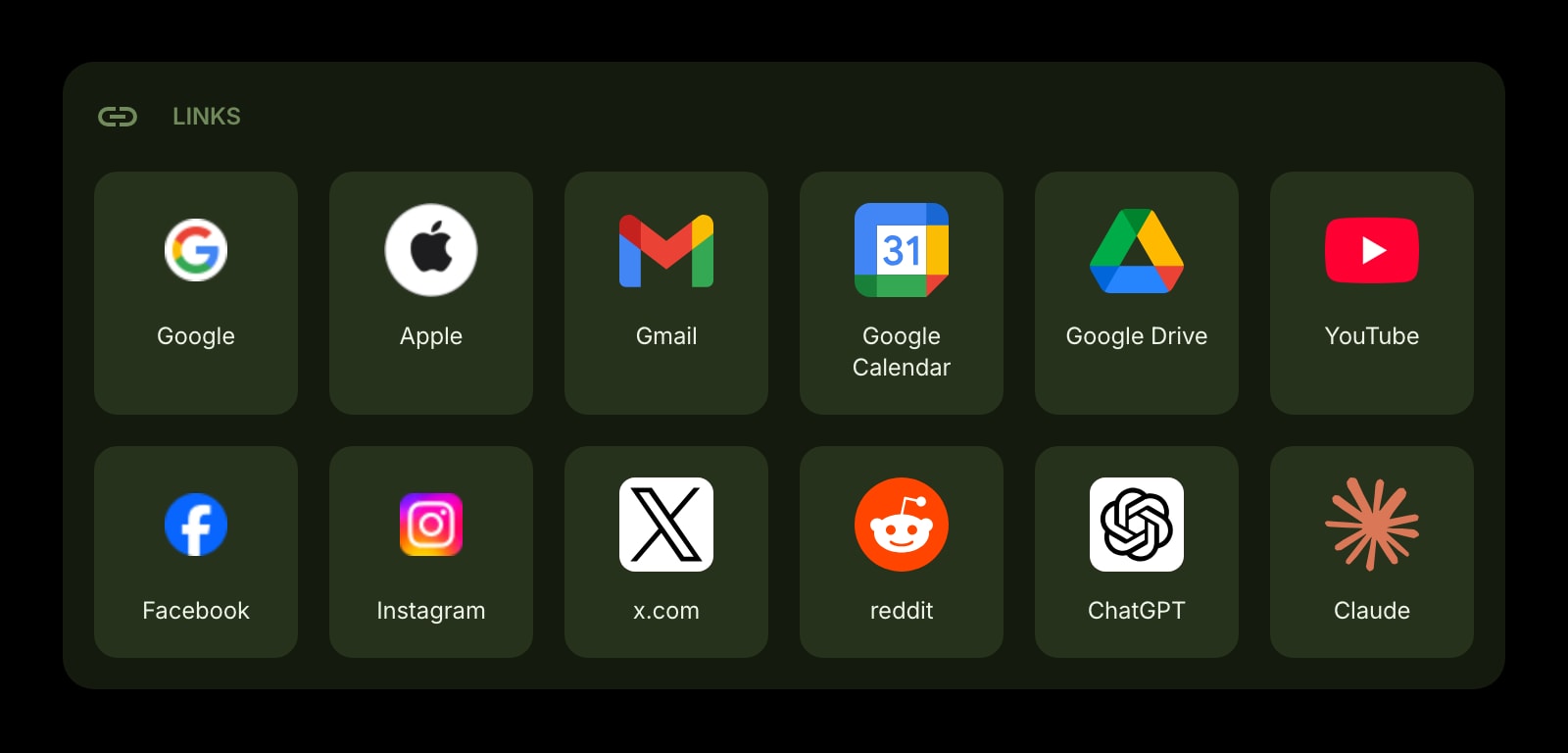


The Links widget lets you organize your favorite websites into clean, customizable groups for quick access. Each link shows an icon or image so you can find what you need at a glance.
#How to Use
Click any link to open it in a new tab. In edit mode, click the + Add Link button to start adding your bookmarks.
#Managing Links
#Adding Links
- In edit mode, click the + Add Link button.
- Enter the website URL and press Enter or click Next.
- The widget automatically fetches the page title, favicon, and preview image.
- Adjust the icon, corner badge, or banner image if you like, then click Save.
You can also right-click an existing link and choose Add Link to insert a new link right after it.
#Editing Links
Right-click (or tap and hold) a link and choose Edit Link. You can update the URL, title, icon, corner badge, and banner image.
Click the refresh button in the edit dialog to re-fetch the page title and images from the website.
#Link Icons and Images
Each link supports three visual elements:
- Icon - the main icon shown on the link. Automatically fetched from the website's favicon, or you can pick a Material Symbols icon or enter a custom URL. Choose a background color (transparent, white, or black) and style (default or color).
- Corner Badge - an optional small icon in the top-right corner, useful for visual labels.
- Banner Image - a preview image shown when using image media mode. Automatically fetched from the website's Open Graph image.
#Reordering Links
In edit mode, drag and drop links to rearrange them. You can also drag links between multiple Links widgets on the same page.
#Duplicating Links
Right-click (or tap and hold) a link and choose Duplicate Link to create a copy.
#Deleting Links
Right-click (or tap and hold) a link and choose Delete Link. You'll be asked to confirm before the link is removed.
#Context Menu
Right-click (or tap and hold) a link to see quick actions:
- Open in New Tab - open the link in a new browser tab
- Copy Link URL - copy the web address
- Share Link - share the link using your device's share menu
- Edit Link - edit the link details
- Duplicate Link - create a copy of the link
- Delete Link - remove the link
#Widget Settings
- Links Layout - choose between Grid (default) and List view.
- Link Style - set the look of link cards: Clear, Outline, or Solid (default).
- Link Media - choose what to show on each link: Icon (default) for favicons and icons, or Image for banner images with an icon overlay.
#Tips
- You don't need to type "https://" - the widget adds it automatically if you enter just the domain.
- Use image media mode to create a more visual bookmarks bar with website preview images.
- Add multiple Links widgets to organize bookmarks into categories like "Work", "Social", or "News".
- Drag links between widgets to reorganize them across groups.