
Weather Widget for Chrome
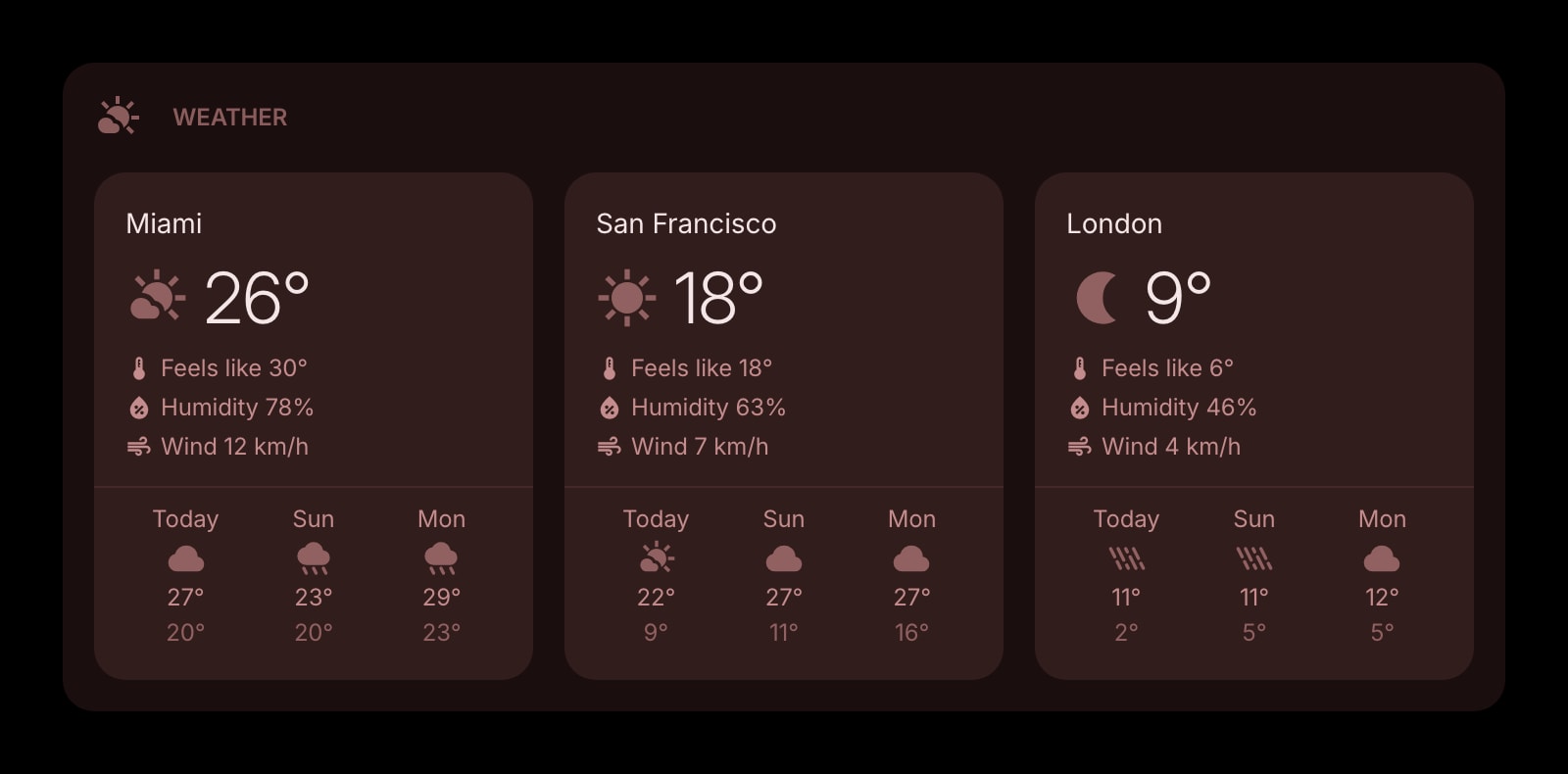
A live weather widget on every Chrome new tab — your saved cities, current conditions, and a multi-day forecast, syncing across every Chrome profile you sign into.
Install on Chrome
The Chrome-specific flow, start to finish.
- 1Open the Start Page HQ listing in the Chrome Web Store and click "Add to Chrome". Confirm the permission prompt that lists "Replace the page you see when opening a new tab."
- 2Open a new tab. The Start Page HQ dashboard loads in place of Chrome's default new tab page — no extra setup needed to take over the slot.
- 3Click the gear icon in the bottom right of the dashboard and choose Add Widget → Weather.
- 4In the widget, type a city name and pick from the dropdown. Add as many cities as you want — they render side by side, with the current condition and a 3-, 5-, or 7-day forecast.
- 5(Optional) Pin the Start Page HQ extension to the Chrome toolbar by clicking the puzzle-piece icon and the pin next to Start Page HQ — handy for jumping to settings without opening a new tab.
What Weather Does
A short tour of the widget. Already sold? Skip ahead.
- Multiple saved cities side by side, each with its own forecast.
- Switch between Celsius and Fahrenheit, km/h and mph, in one click.
- Choose 3-, 5-, or 7-day forecast windows per widget instance.
- Auto-refreshes in the background using Open-Meteo (no API key, no signup).
- Three visual styles — clear, outline, solid — to match the rest of your dashboard.
Notes for Chrome Users
On Chrome, your saved Weather locations sync via Start Page HQ's account sync, not Chrome's profile sync. That matters in two ways: signing into a fresh Chrome installation pulls your cities back even if you sign in with a different Google account, and using a guest Chrome profile keeps your weather list isolated from your main one.
The Weather widget doesn't need Chrome's geolocation permission — cities are saved by name, not by browser-reported coordinates, and the only thing that triggers a location prompt is the optional "Current Location" button inside the widget. If you previously dismissed a location prompt from another new-tab extension, this one will still work.
Other Widgets You Might Add
Pair the Weather widget with these. One install gets you all of them.
Date & Time
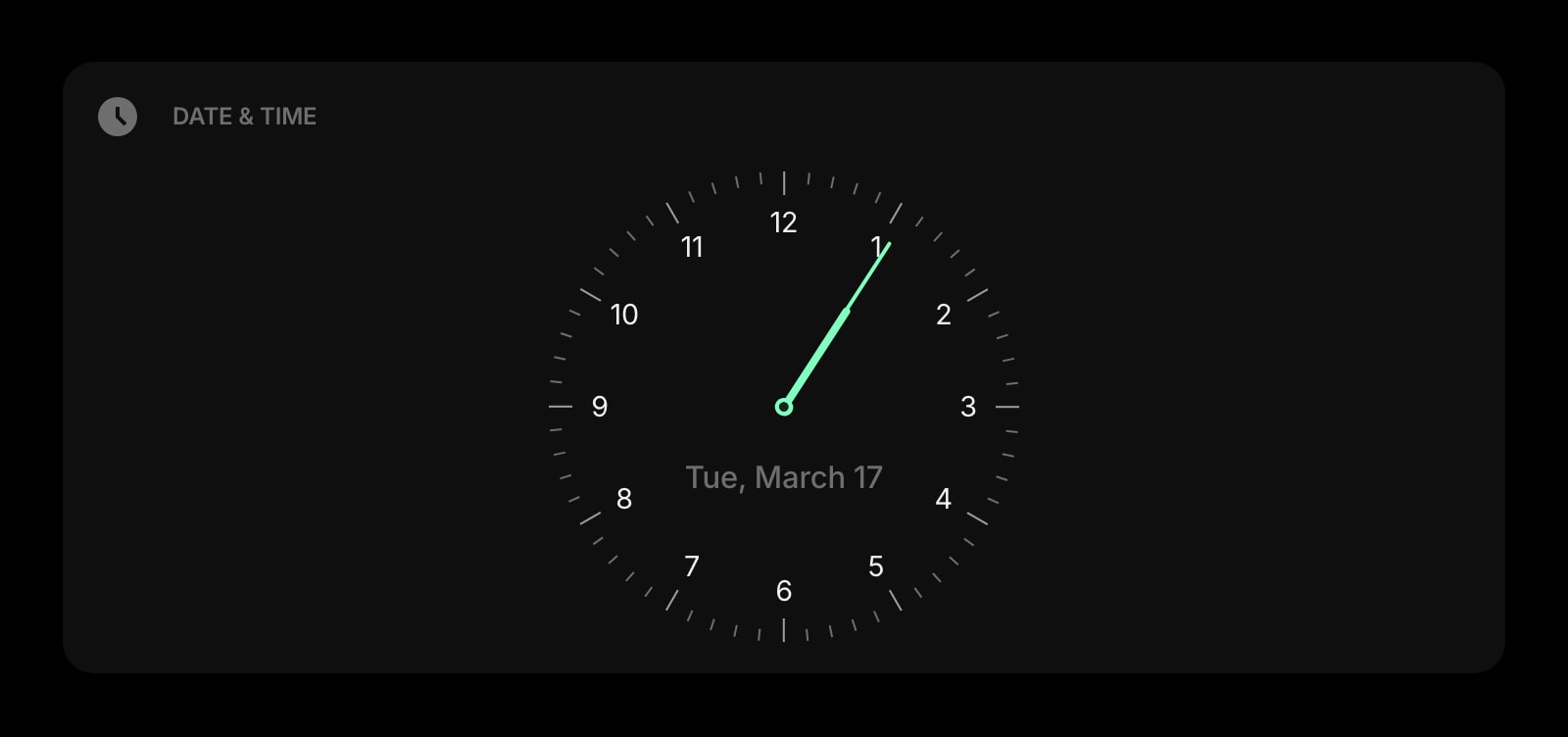
A clean clock and date that fits next to a Weather widget without fighting it for attention.
World Clock
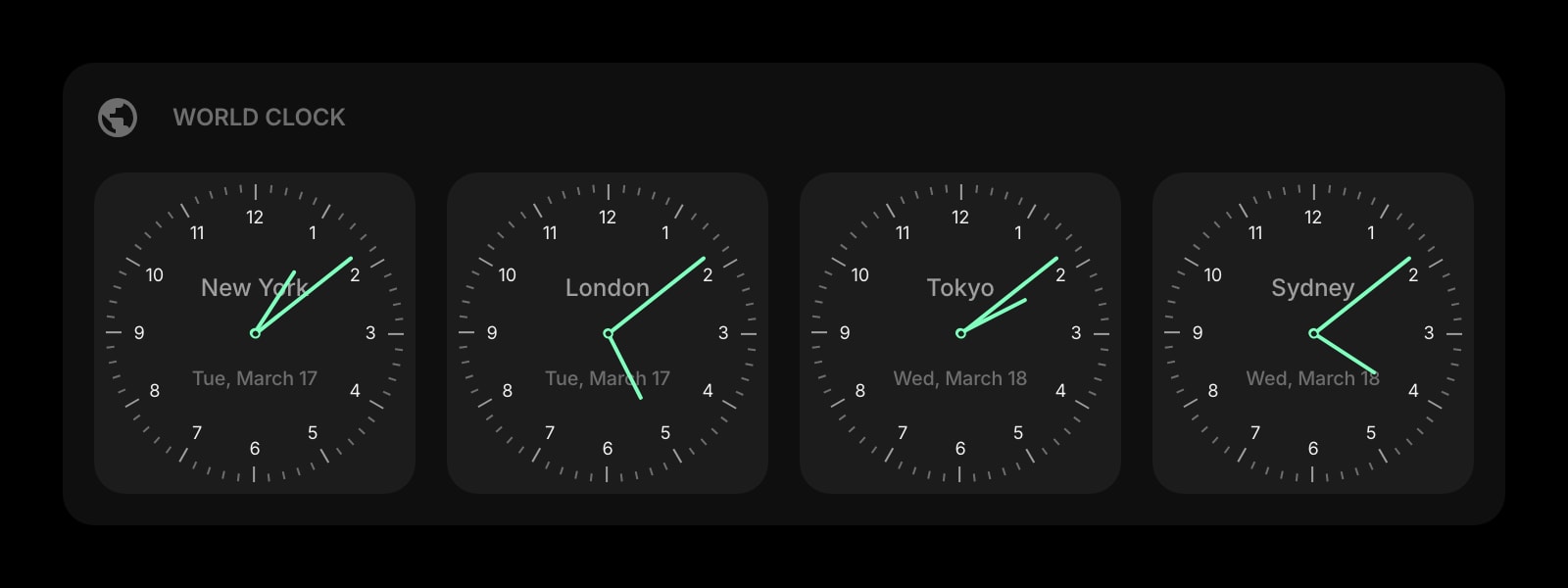
Track time in every city you also track weather for — same row, different timezone.
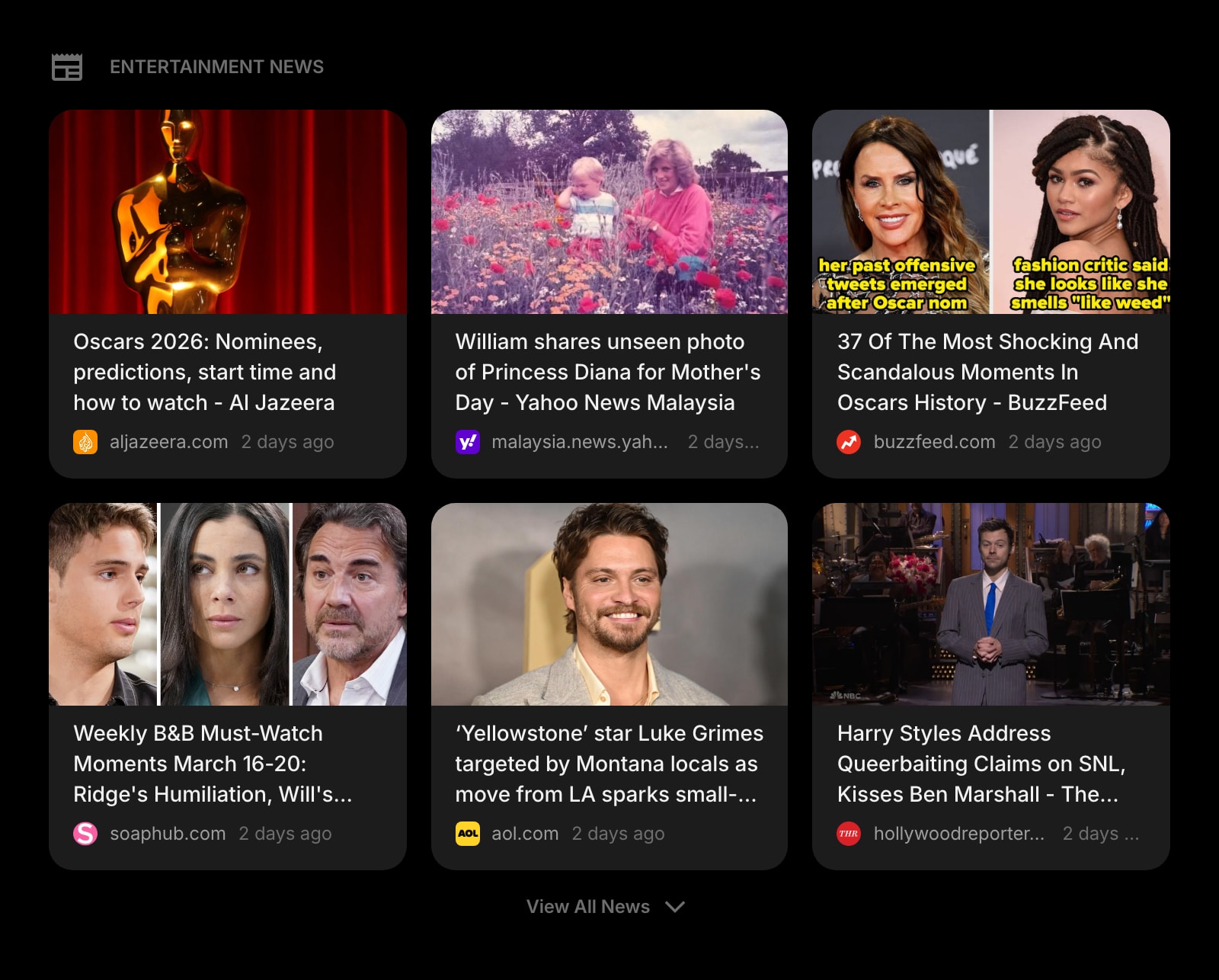
News
Local headlines per region. Pair with weather for a complete morning glance.
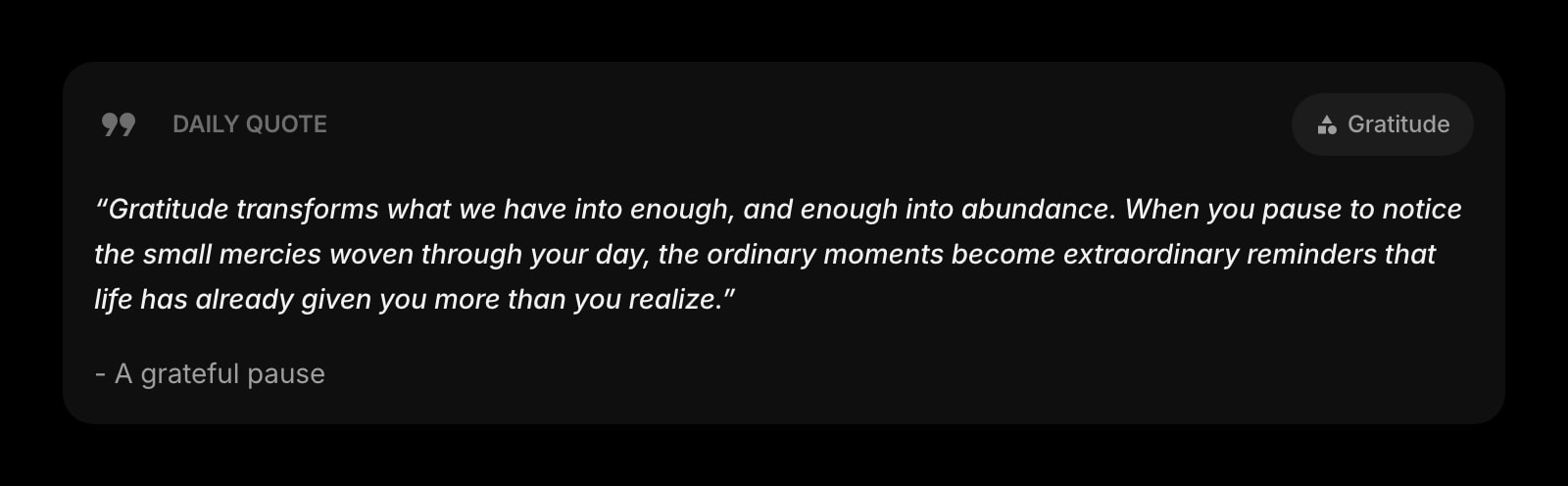
Daily Quote
A small text card that breaks up an otherwise-numeric weather row.
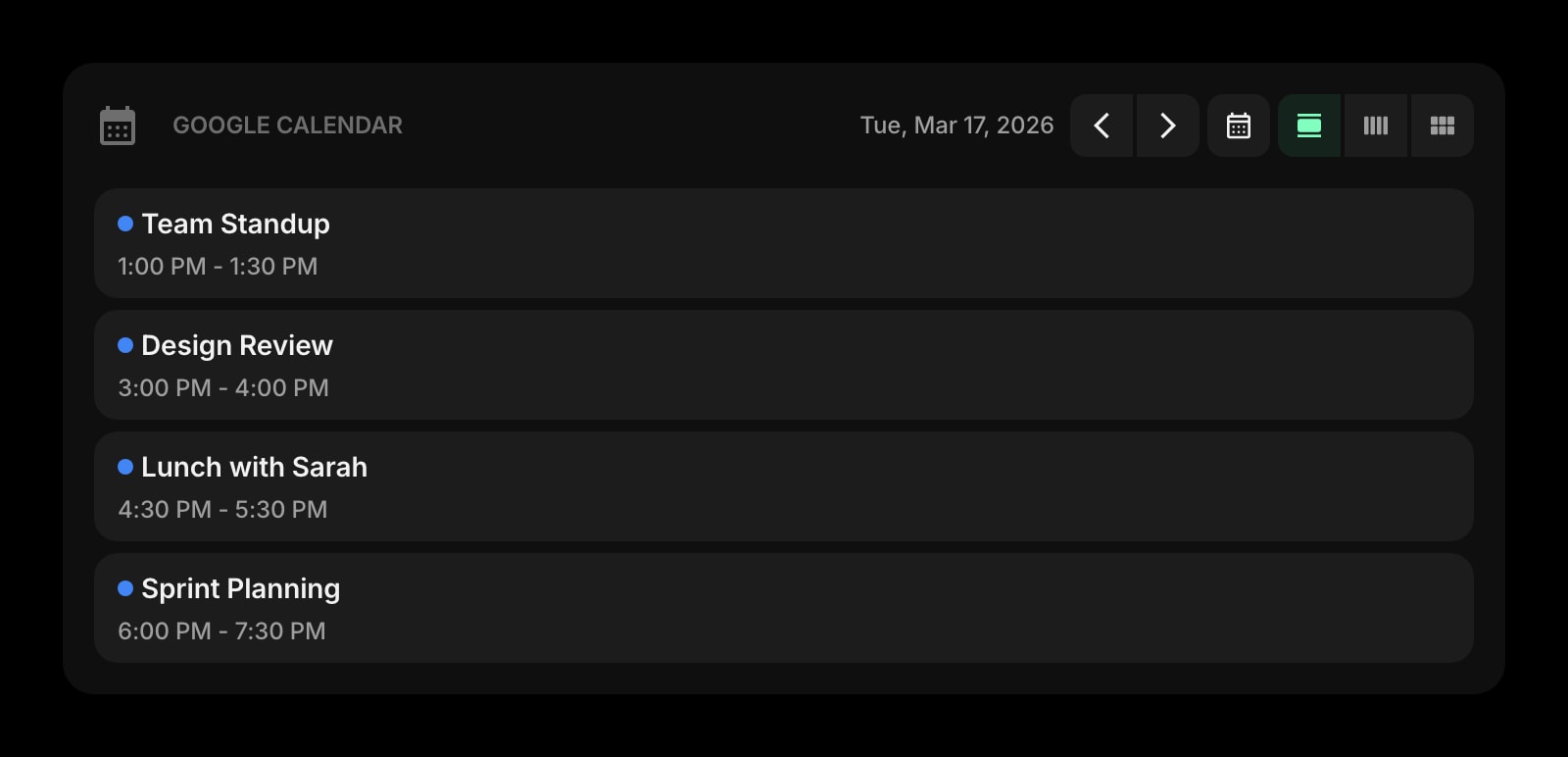
Google Calendar
See today's schedule next to today's forecast on the same tab.
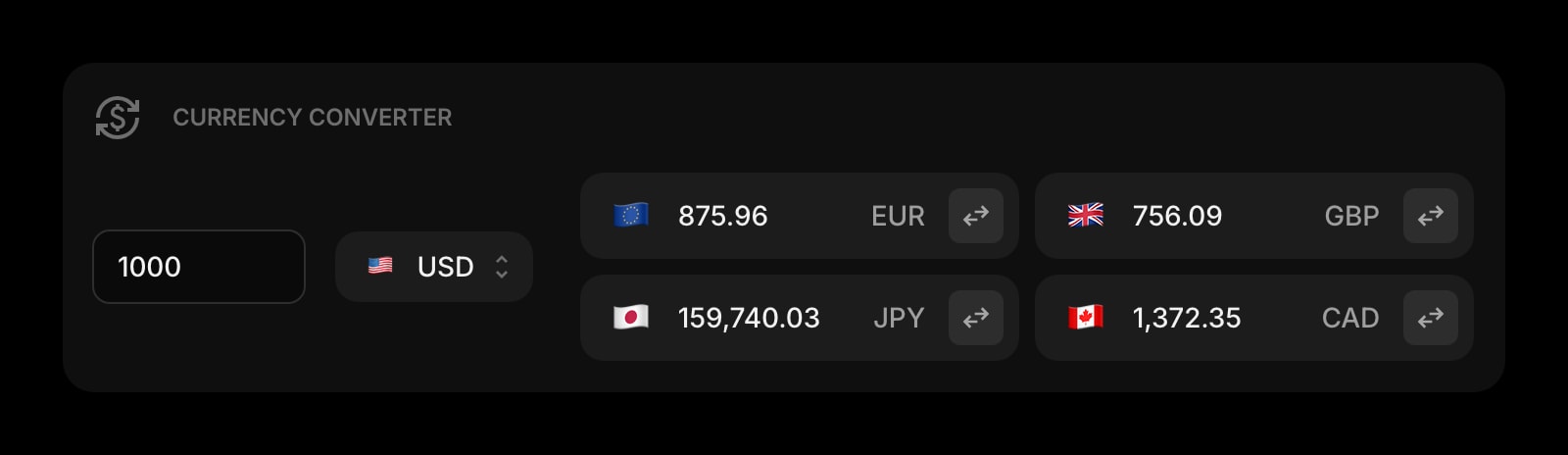
Currency Converter
For travel mornings — weather and exchange rate side by side.
The Weather widget is one of 50+ in Start Page HQ. Tasks, notes, RSS, AI tools, dev utilities — the same install gives you all of them. Start free with 8 widgets on a page, or lift every limit at $4/month, $24/year, or $48 lifetime.
Frequently Asked Questions
Adding the extension from the Chrome Web Store does it automatically. Chrome only allows one new-tab override at a time, so if you have another new-tab extension installed you may see a prompt asking which one to keep — pick Start Page HQ. To revert later, disable or remove the extension at chrome://extensions.
No. You add cities by name from a search box, and the forecast is fetched from a public weather API by city. Chrome will not show a location-permission prompt, and the widget works on Chrome profiles where geolocation is blocked entirely.
Yes. The extension installs from the Chrome Web Store on ChromeOS the same way as on desktop Chrome. Cities sync across your laptop, desktop, and Chromebook via your Start Page HQ account.
Yes — sign into Start Page HQ once on each Chrome installation and your saved cities, units, and forecast windows follow you. No need to re-add anything when you switch machines or reinstall Chrome.
Add the Weather Widget to Chrome
Free plan, no credit card — see plans or try the demo without installing.