- Dashboard
- Widgets
- AI Diary
- AI Humanizer
- AI Image
- Audio Editor
- Base64 / URL Encoder
- Calendar
- Canvas
- Collection
- Color Picker
- Container
- Countdown Timer
- Currency Converter
- Daily Quiz
- Daily Quote
- Daily Riddle
- Date & Time
- Embed
- GitHub Releases
- Google Calendar
- Habit Tracker
- Hacker News
- Image Compression
- IP Info
- JSON Formatter
- Links
- Markdown Editor
- News
- News Summary
- Notes
- Photo Frame
- Podcast
- Pomodoro Timer
- Product Hunt
- QR Code Generator
- Quick Answer
- Quick Note
- Regex Tester
- RSS Feed
- Search
- Spacer
- Stopwatch
- Story Snippet
- Stripe Sales
- Subreddit
- Substack
- t0ggles Focus
- t0ggles My Boards
- t0ggles My Tasks
- Tasks
- Text Diff
- Todo
- TradingView Advanced Chart
- TradingView Market Summary
- TradingView Mini Chart
- TradingView Symbol Overview
- TradingView Ticker Tape
- Translation
- Unit Converter
- Uptime Monitor
- Weather
- What If
- World Clock
- YouTube Channel
Color Picker Widget
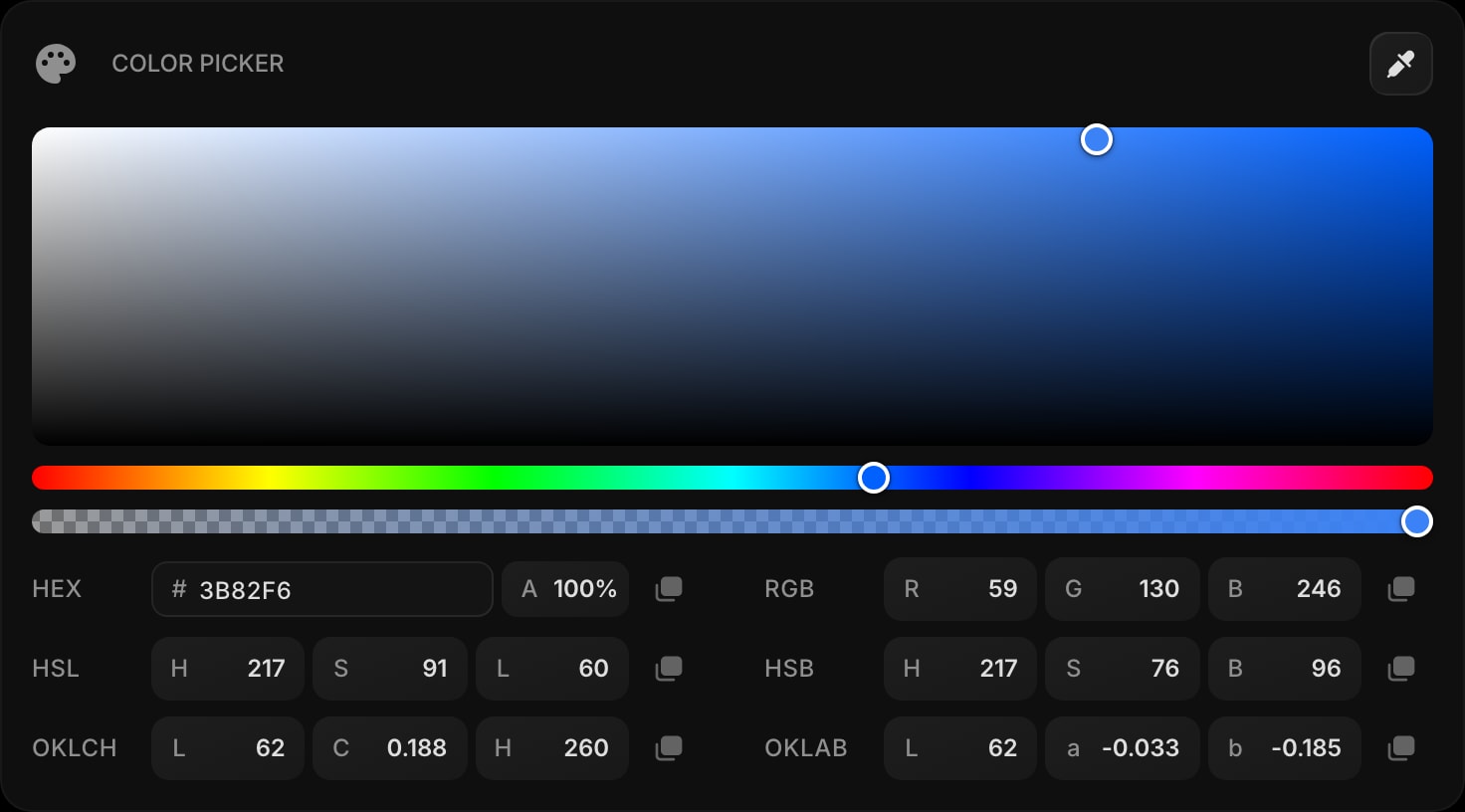
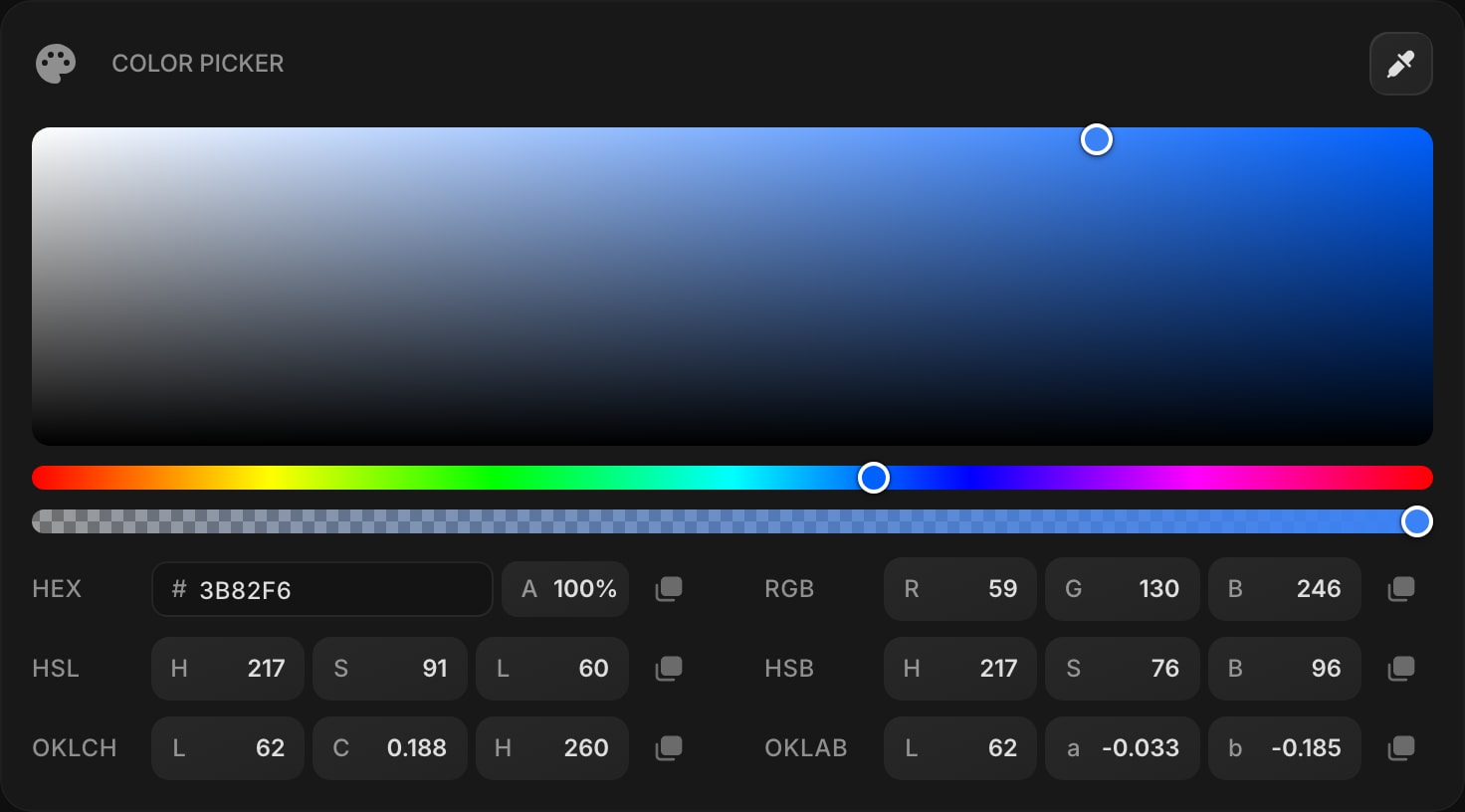
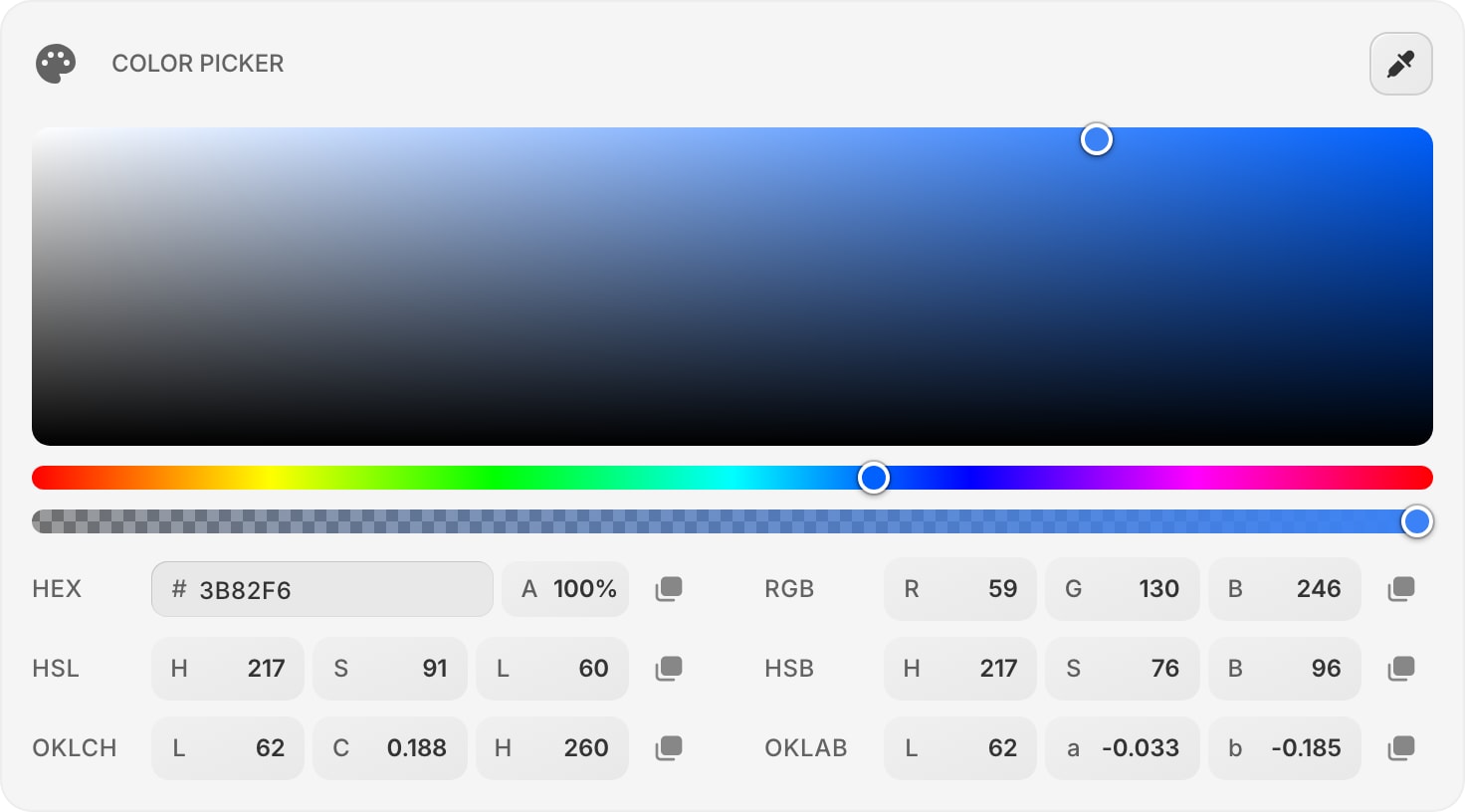
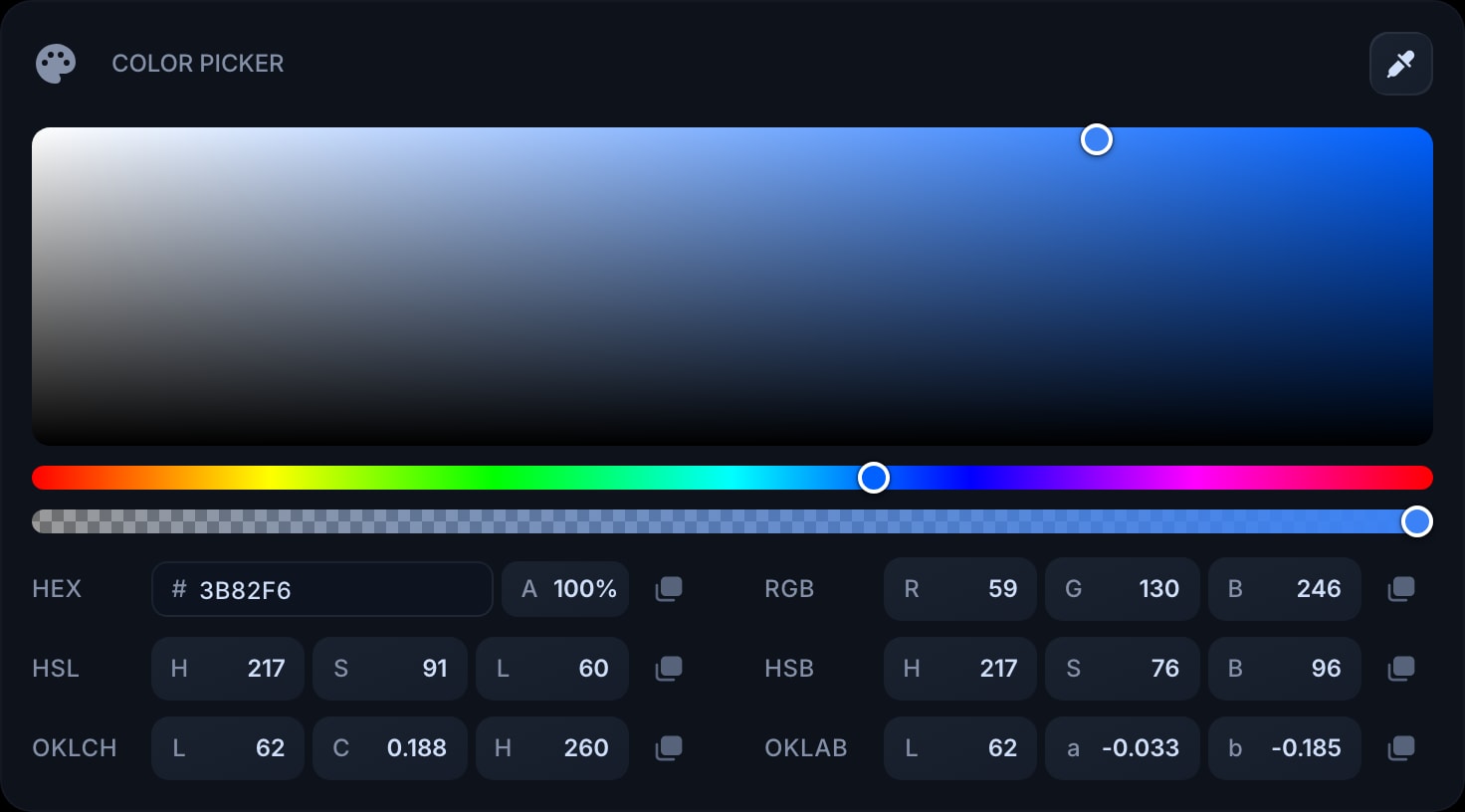
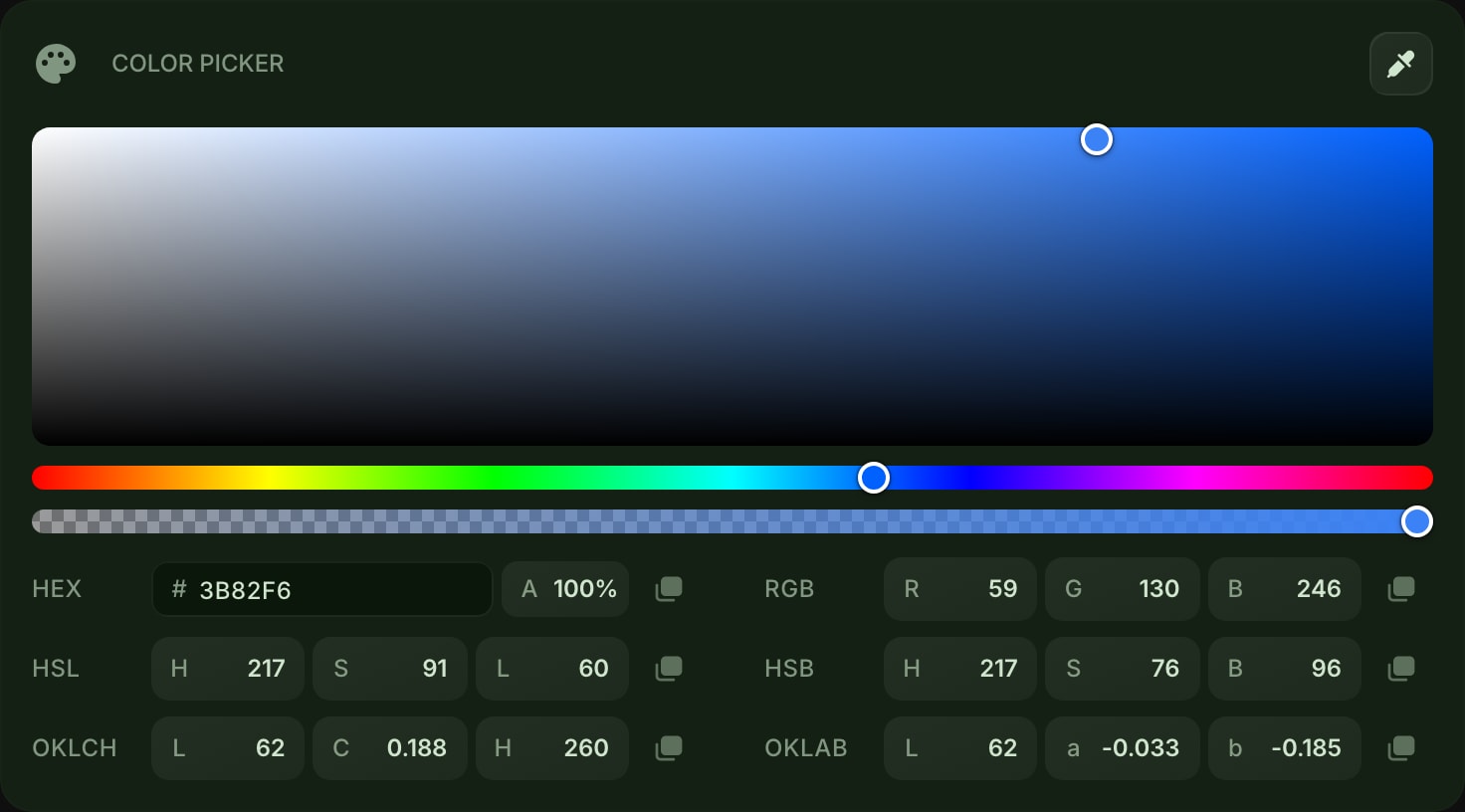
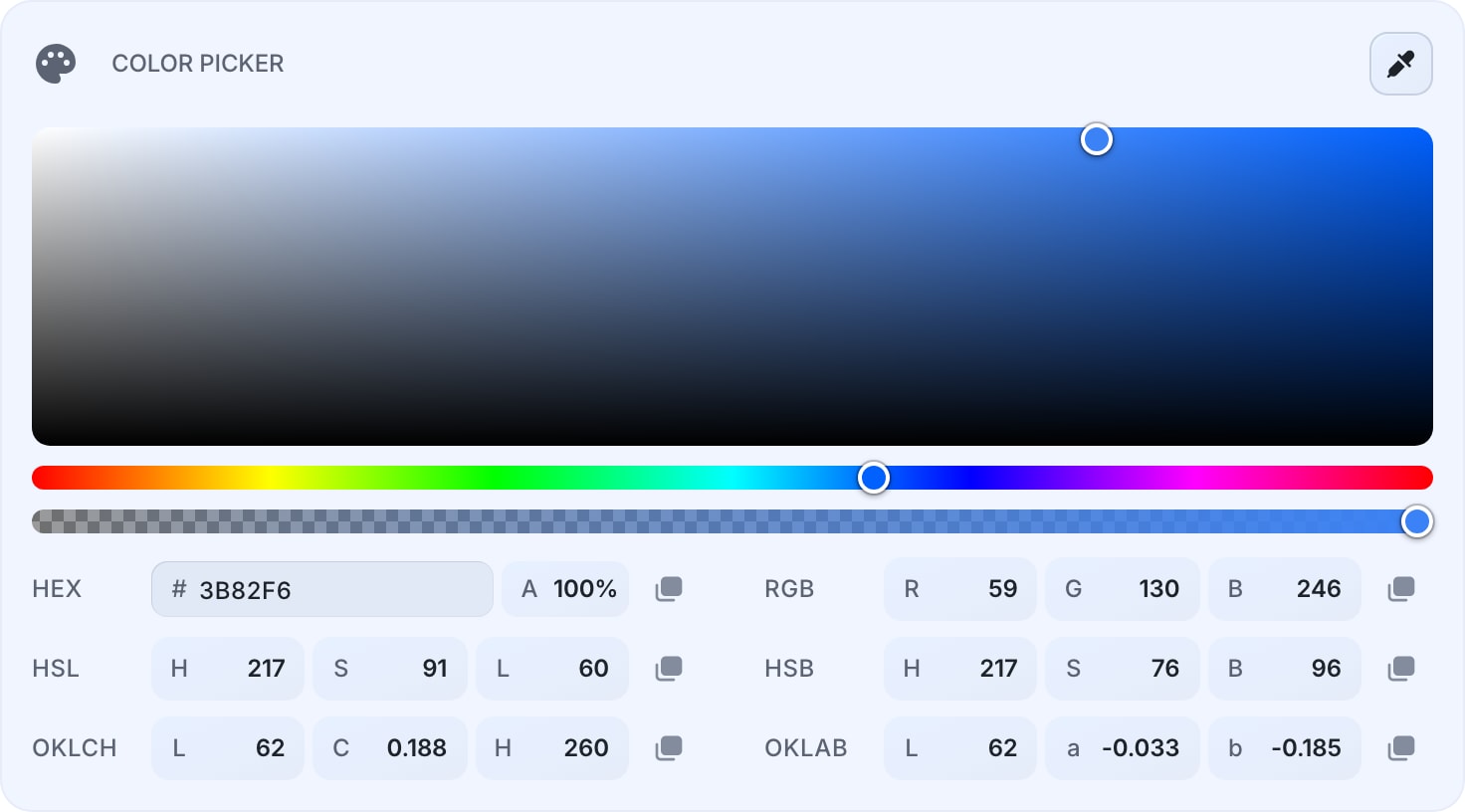
The Color Picker widget is a full color tool right on your dashboard. Pick a color visually, fine-tune it in any color space, and copy the value in the format you need. It is built for designers and developers who want a quick, reliable color reference without opening a separate app.
#How to Use
- Drag inside the color area to set saturation and brightness, and use the hue slider to choose the base color.
- Or type a value directly into the HEX field, or scrub any channel in the format rows below.
- Click the copy button next to any row to copy that color in its format.
Every input stays in sync: change the color in one place and all the other formats update instantly. Your last color is saved with the widget, so it's still there when you reopen your dashboard.
#Color Formats
The widget shows the current color in six formats at once, each with its own copy button:
- HEX - the hex code, with an optional alpha channel.
- RGB - red, green, and blue from 0 to 255.
- HSL - hue, saturation, and lightness.
- HSB - hue, saturation, and brightness.
- OKLCH - a perceptually uniform space (lightness, chroma, hue) that's great for consistent, modern palettes.
- OKLAB - the perceptual lightness/a/b space behind OKLCH.
Each channel is a scrubber: click and drag the value left or right to adjust it, or type an exact number. The HEX row also includes an A (alpha) field for transparency.
#Out-of-Gamut Colors
OKLCH and OKLAB can describe colors that don't exist in standard sRGB. When you enter one, the widget maps it back to the nearest displayable color and flags that row, so the value you copy always renders correctly on screen.
#Eyedropper
In supported browsers, an eyedropper button appears in the widget toolbar. Click it to sample any pixel on your screen, and the picked color loads into the widget across every format. (The eyedropper relies on a browser feature that isn't available everywhere, so the button only shows when your browser supports it.)
#Tips
- Use OKLCH when building palettes - adjusting lightness or chroma keeps colors looking consistent in a way HEX and RGB can't.
- Copy straight into your code in whatever format your stylesheet uses, from HEX to modern OKLCH.
- Pair it with the JSON Formatter, Regex Tester, and Base64 / URL Encoder widgets for a handy developer-tools page.