- Dashboard
- Widgets
- AI Diary
- AI Humanizer
- AI Image
- Audio Editor
- Base64 / URL Encoder
- Calendar
- Canvas
- Collection
- Color Picker
- Container
- Countdown Timer
- Currency Converter
- Daily Quiz
- Daily Quote
- Daily Riddle
- Date & Time
- Embed
- GitHub Releases
- Google Calendar
- Habit Tracker
- Hacker News
- Image Compression
- IP Info
- JSON Formatter
- Links
- Markdown Editor
- News
- News Summary
- Notes
- Photo Frame
- Podcast
- Pomodoro Timer
- Product Hunt
- QR Code Generator
- Quick Answer
- Quick Note
- Regex Tester
- RSS Feed
- Search
- Spacer
- Stopwatch
- Story Snippet
- Stripe Sales
- Subreddit
- Substack
- t0ggles Focus
- t0ggles My Boards
- t0ggles My Tasks
- Tasks
- Text Diff
- Todo
- TradingView Advanced Chart
- TradingView Market Summary
- TradingView Mini Chart
- TradingView Symbol Overview
- TradingView Ticker Tape
- Translation
- Unit Converter
- Uptime Monitor
- Weather
- What If
- World Clock
- YouTube Channel
World Clock Widget
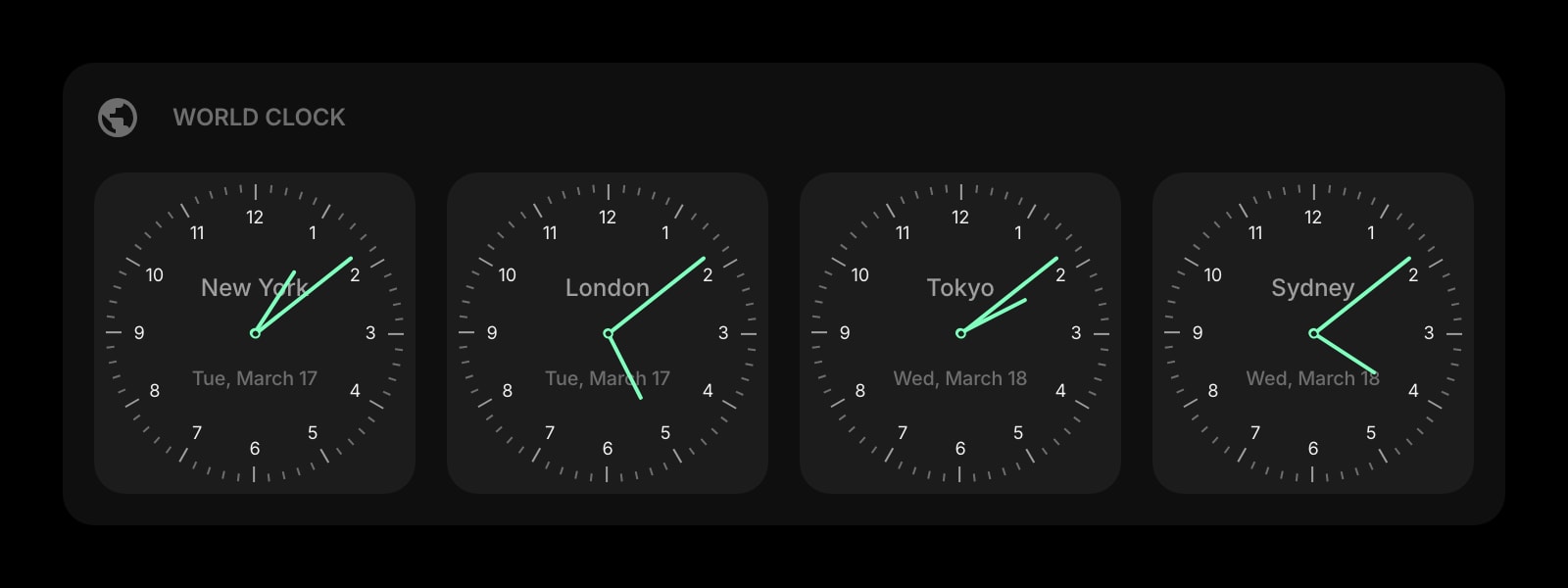
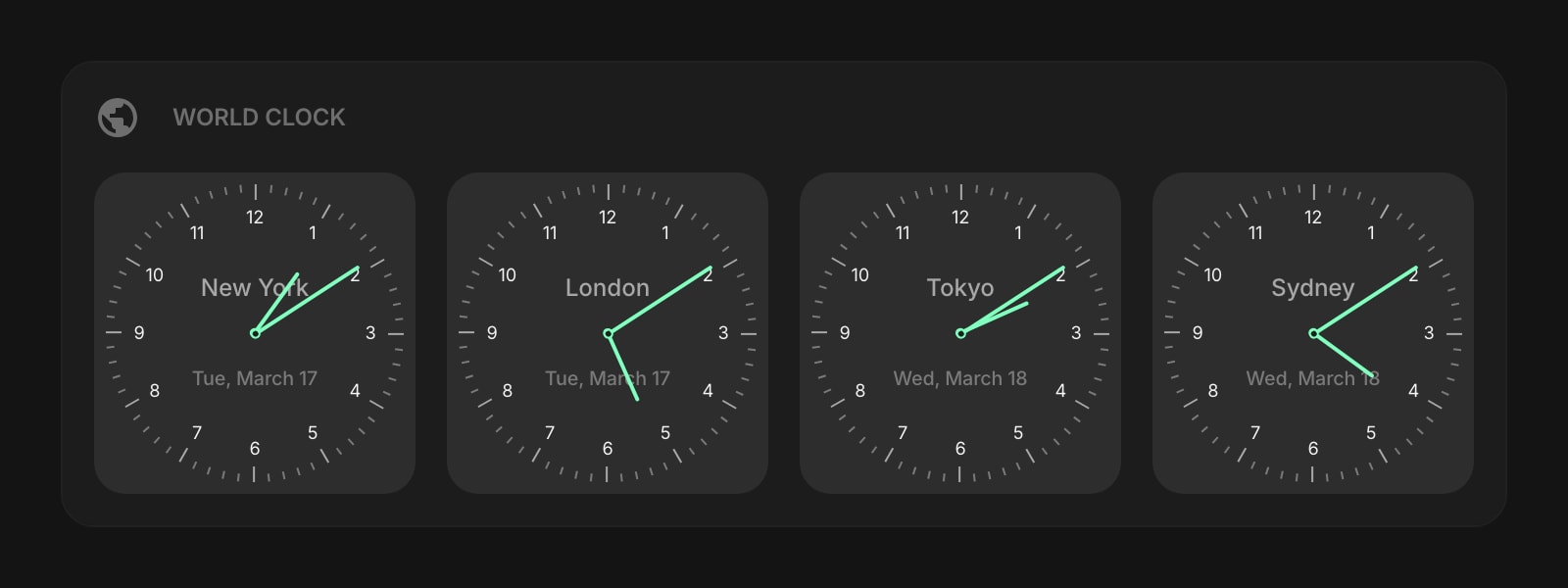
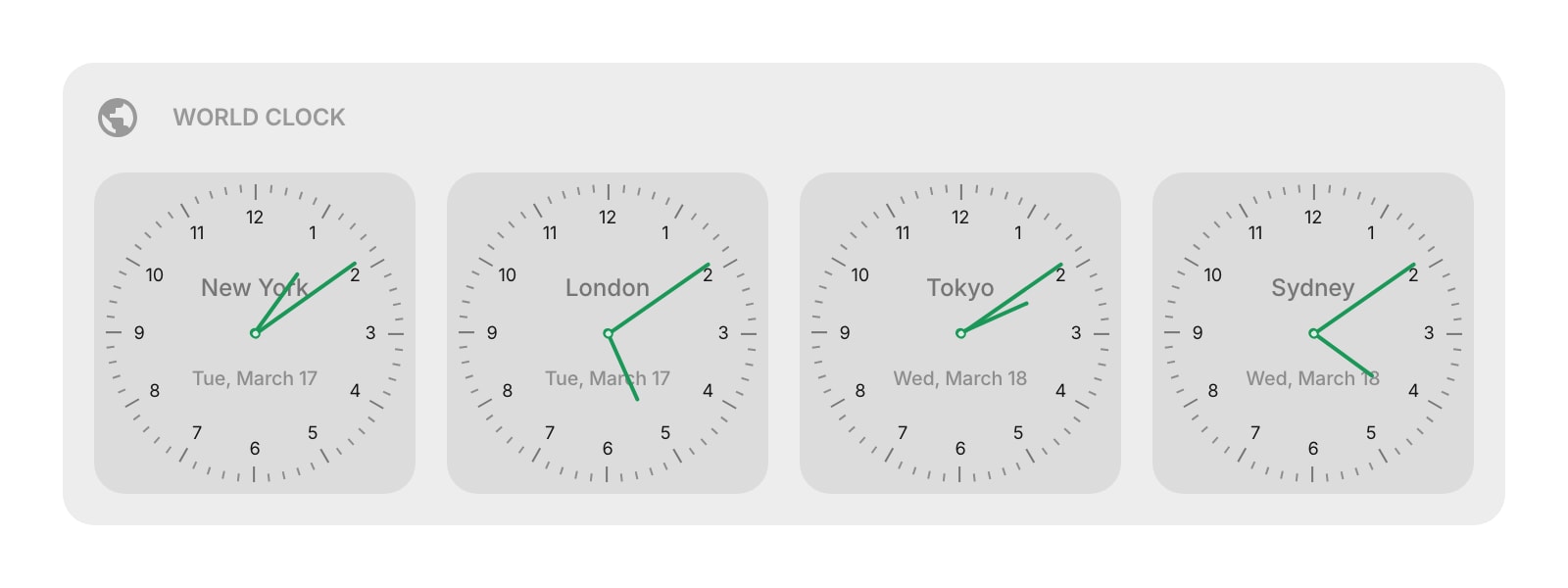
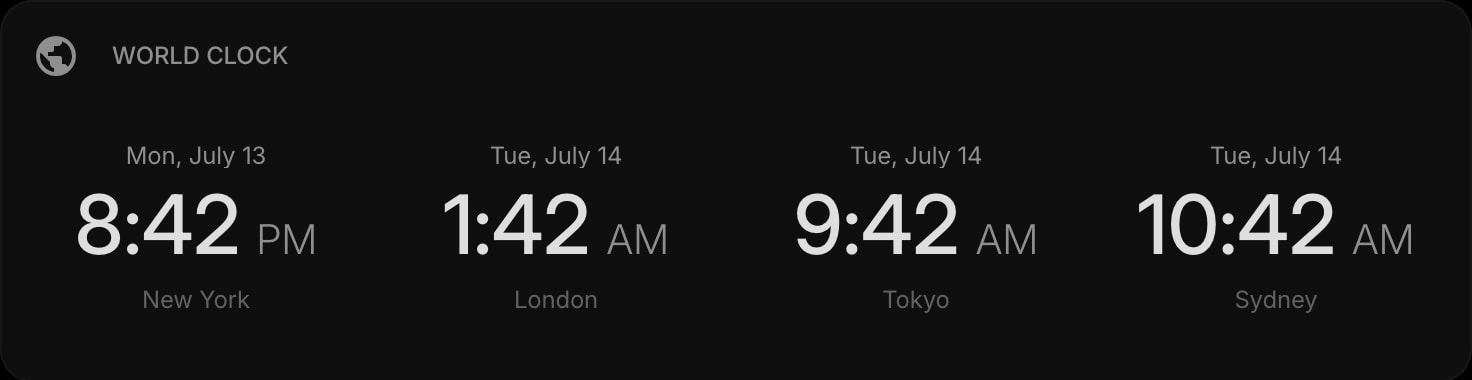
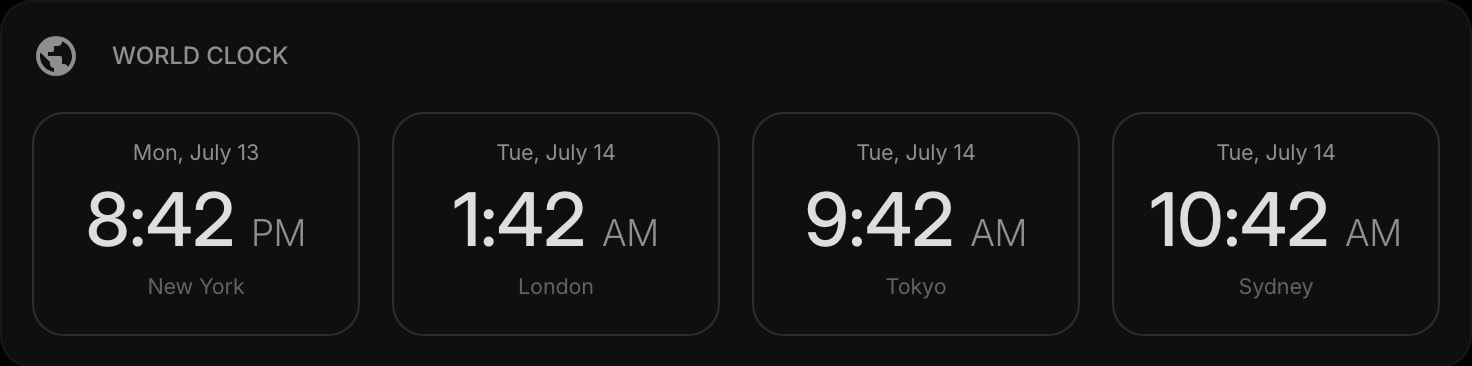
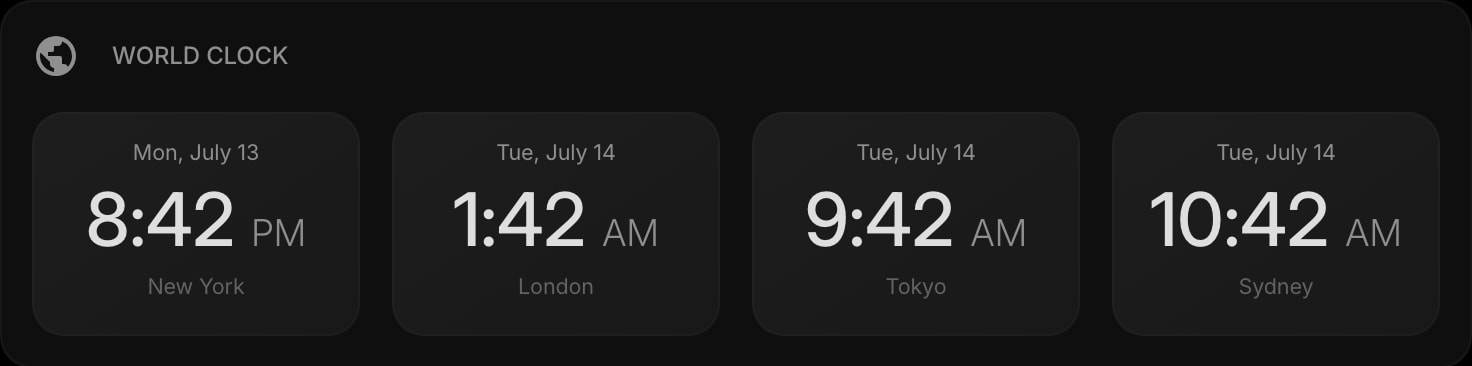
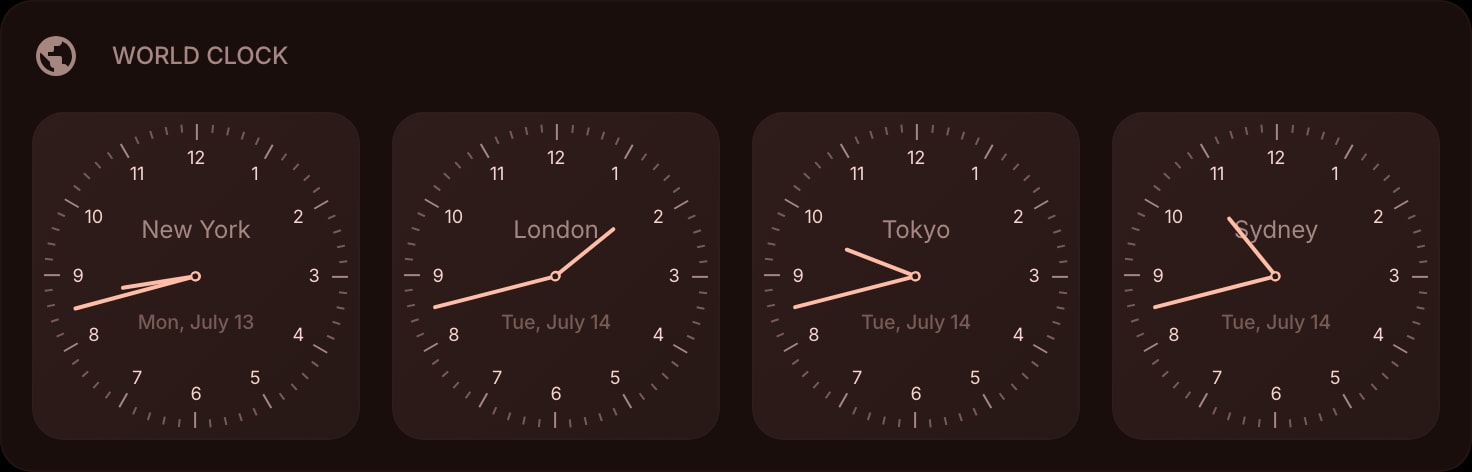
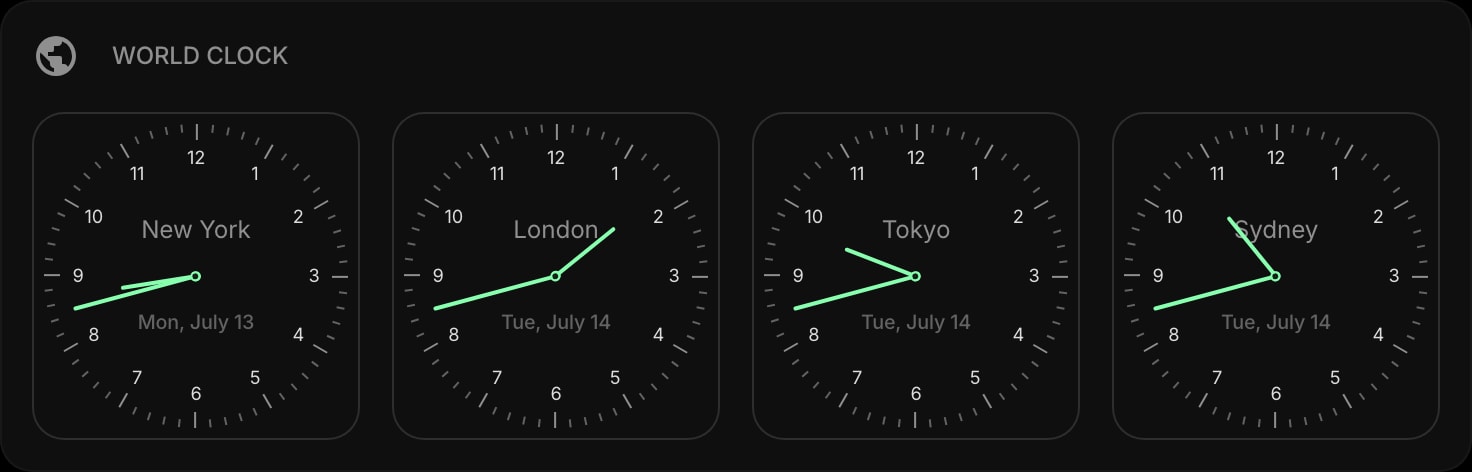
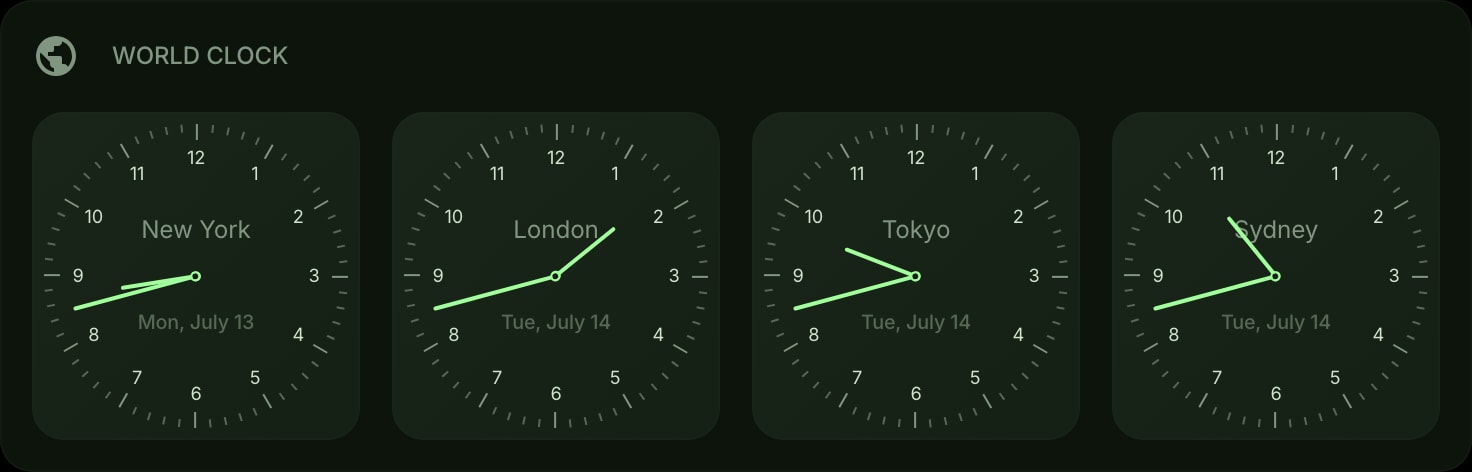
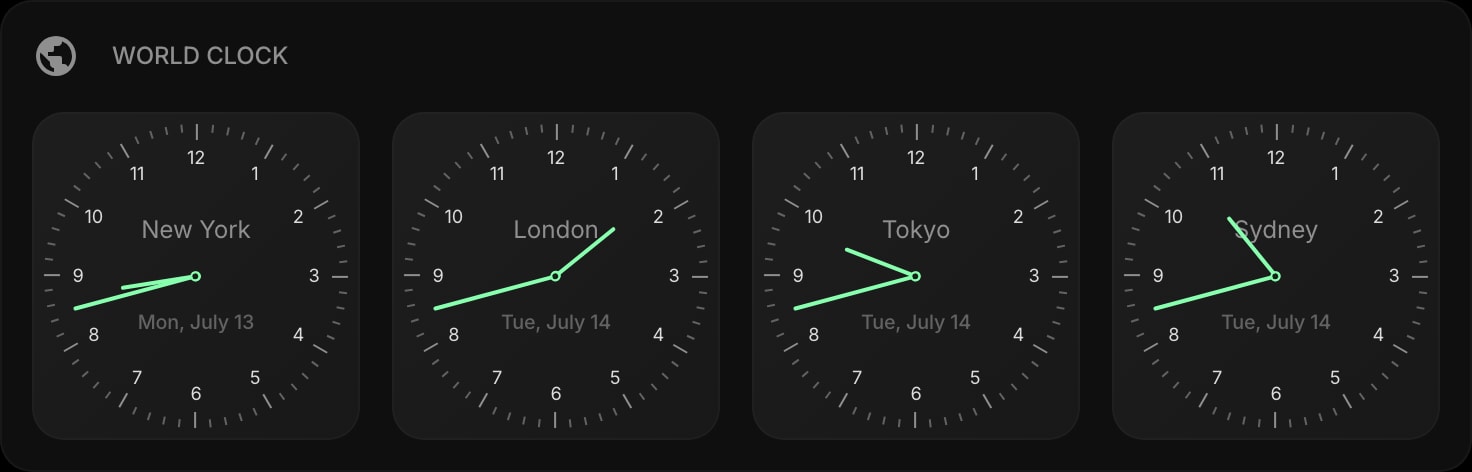
Looking to use this tool right now? See the World Clock online tool. The page below covers settings and advanced usage for the widget inside Start Page HQ.
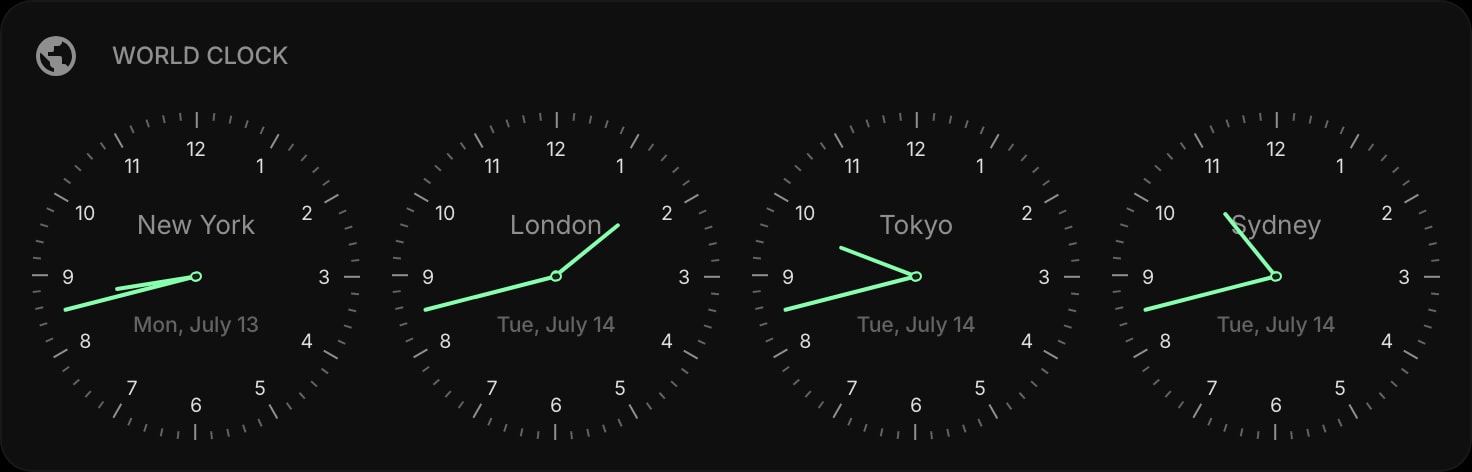
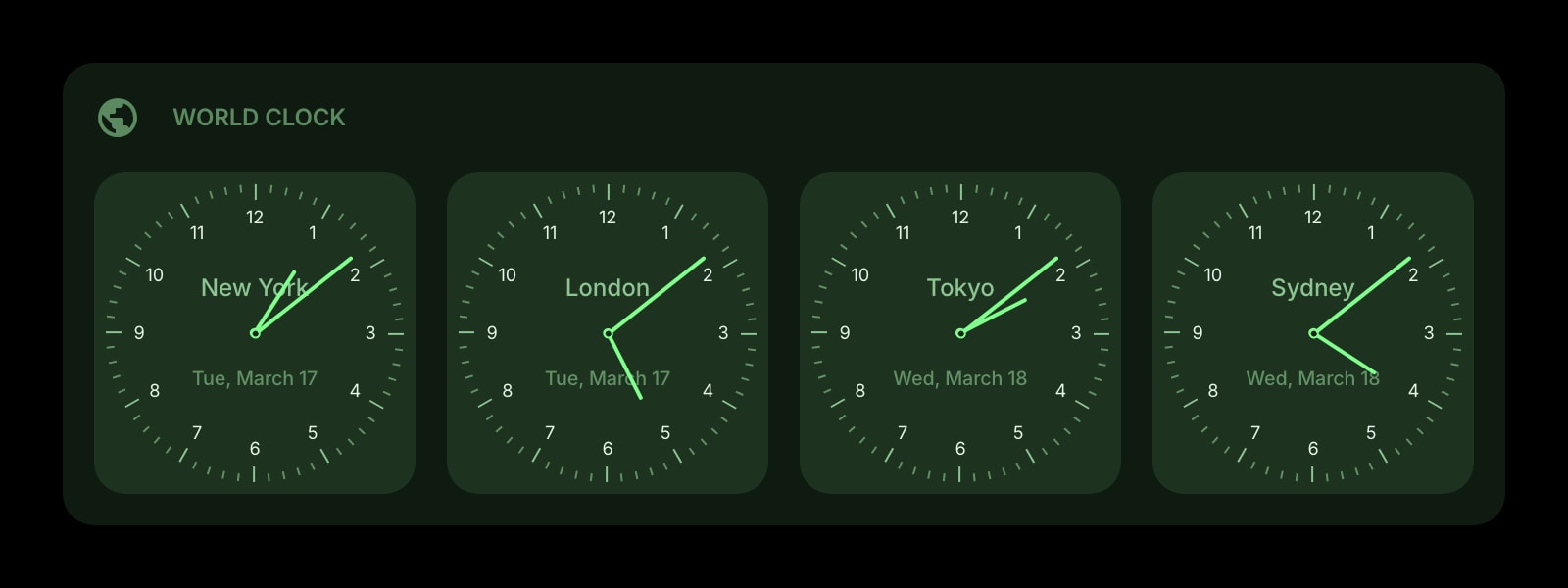
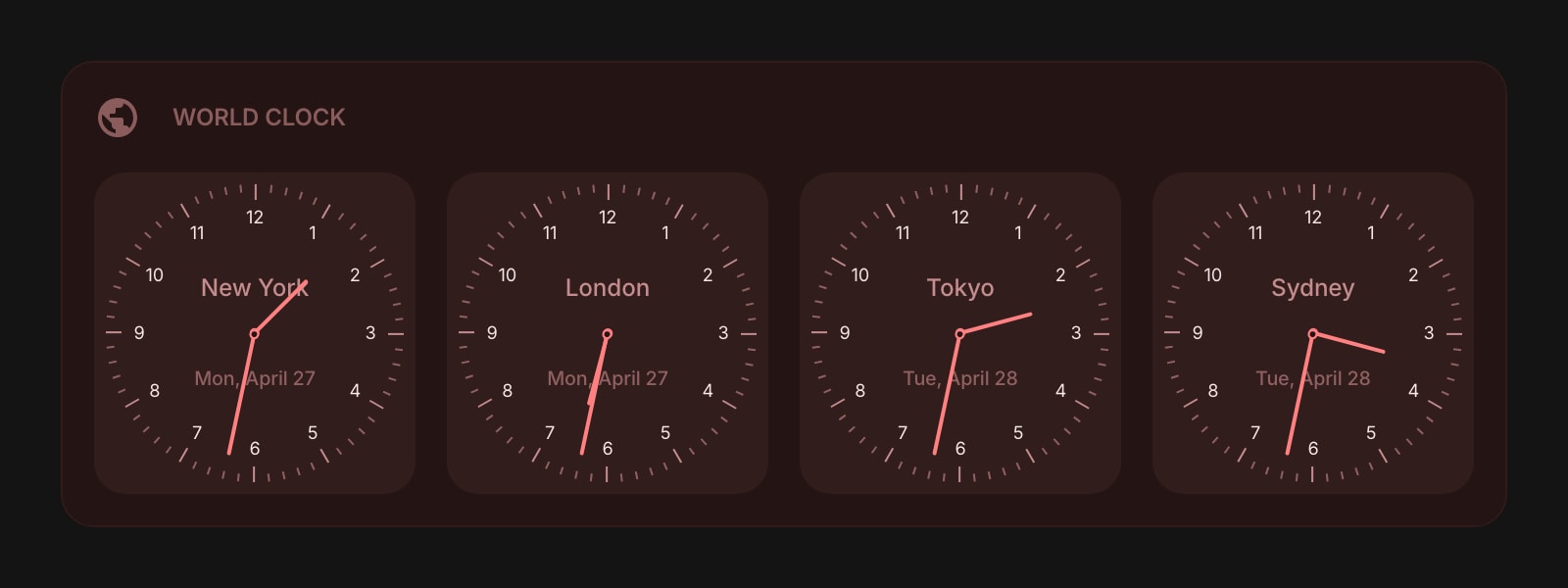
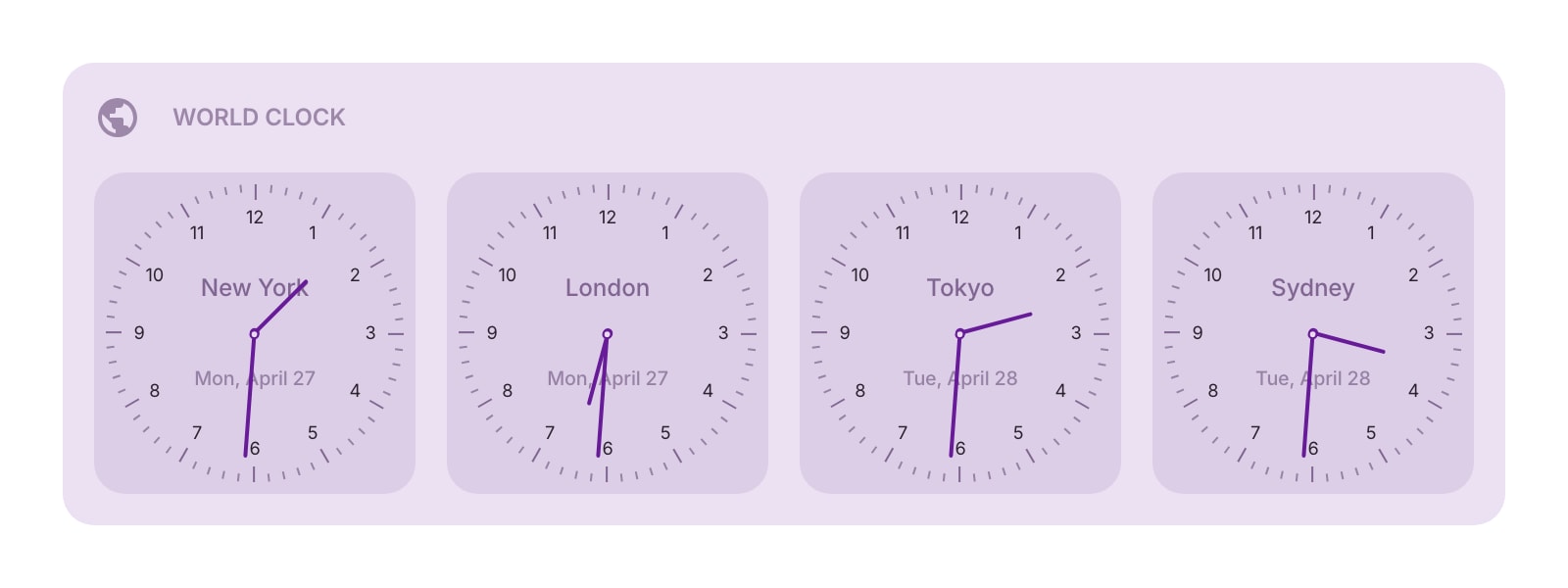
The World Clock widget lets you keep track of the time in multiple cities at once. Add clocks for different time zones, choose between a digital readout or an analog watchface, and see the current time, date, and day of the week for each location - all updating in real time.
#How to Use
Click Add Clock to get started. Give it a name (like "New York" or "Tokyo") and pick a time zone from the searchable dropdown. Click Save, and the clock appears on your widget. Add as many clocks as you need.
Each clock shows:
- Time - the current time in that zone, updating live
- Date - today's date in that location
- Day of week - the current day (optional)
- Timezone - the name and offset of the time zone
#Managing Clocks
#Adding Clocks
Click Add Clock in the widget toolbar (in edit mode) or right-click the widget and choose Add Clock. Enter a name and pick a time zone, then click Save.
#Editing Clocks
Right-click (or tap and hold) a clock and choose Edit Clock to change its name or time zone.
#Reordering Clocks
On desktop, drag and drop clocks to rearrange them. You can also drag clocks between multiple World Clock widgets on the same page.
#Duplicating Clocks
Right-click (or tap and hold) a clock and choose Duplicate Clock to create a copy.
#Deleting Clocks
Right-click (or tap and hold) a clock and choose Delete Clock. You'll be asked to confirm before it's removed.
#Widget Settings
- Watch Style - choose between Digital and Watchface (default). Digital shows the time as numbers. Watchface shows an analog clock face with hour and minute hands.
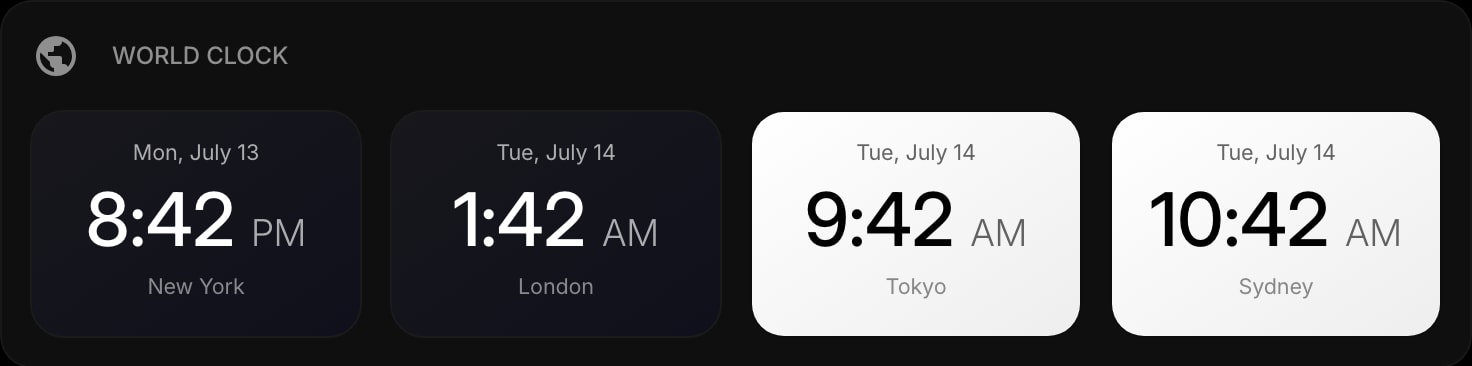
- Item Style - set the look of clock cards: Clear, Outline, Solid, or Rich (default). The Rich style works like a real watch: a white dial with black numbers and hands while it's daytime in that location (6:00 to 18:00 local time), inverted to a dark dial with white hands at night - so one glance tells you where in the world it's day and where it's night.
- Show - choose what to display: Both date and time (default), Date only, or Time only.
- Time Format - choose between Auto (default, based on your locale), 12h, or 24h.
- Day of Week - show or hide the day of the week alongside the date. Turned on by default.
#Tips
- The time zone search lets you find zones by name, city, or region - just start typing.
- Use digital style when you need quick, precise time readings, or watchface style for a classic analog look.
- Add clocks for your team members' locations if you work across time zones - you'll always know if it's a good time to reach out.
- The clocks update in real time, so you can leave the widget open and always see the current time everywhere.