- Dashboard
- Widgets
- AI Diary
- AI Humanizer
- AI Image
- Audio Editor
- Base64 / URL Encoder
- Calendar
- Canvas
- Collection
- Color Picker
- Container
- Countdown Timer
- Currency Converter
- Daily Quiz
- Daily Quote
- Daily Riddle
- Date & Time
- Embed
- GitHub Releases
- Google Calendar
- Habit Tracker
- Hacker News
- Image Compression
- IP Info
- JSON Formatter
- Links
- Markdown Editor
- News
- News Summary
- Notes
- Photo Frame
- Podcast
- Pomodoro Timer
- Product Hunt
- QR Code Generator
- Quick Answer
- Quick Note
- Regex Tester
- RSS Feed
- Search
- Spacer
- Stopwatch
- Story Snippet
- Stripe Sales
- Subreddit
- Substack
- t0ggles Focus
- t0ggles My Boards
- t0ggles My Tasks
- Tasks
- Text Diff
- Todo
- TradingView Advanced Chart
- TradingView Market Summary
- TradingView Mini Chart
- TradingView Symbol Overview
- TradingView Ticker Tape
- Translation
- Unit Converter
- Uptime Monitor
- Weather
- What If
- World Clock
- YouTube Channel
Text Diff Widget
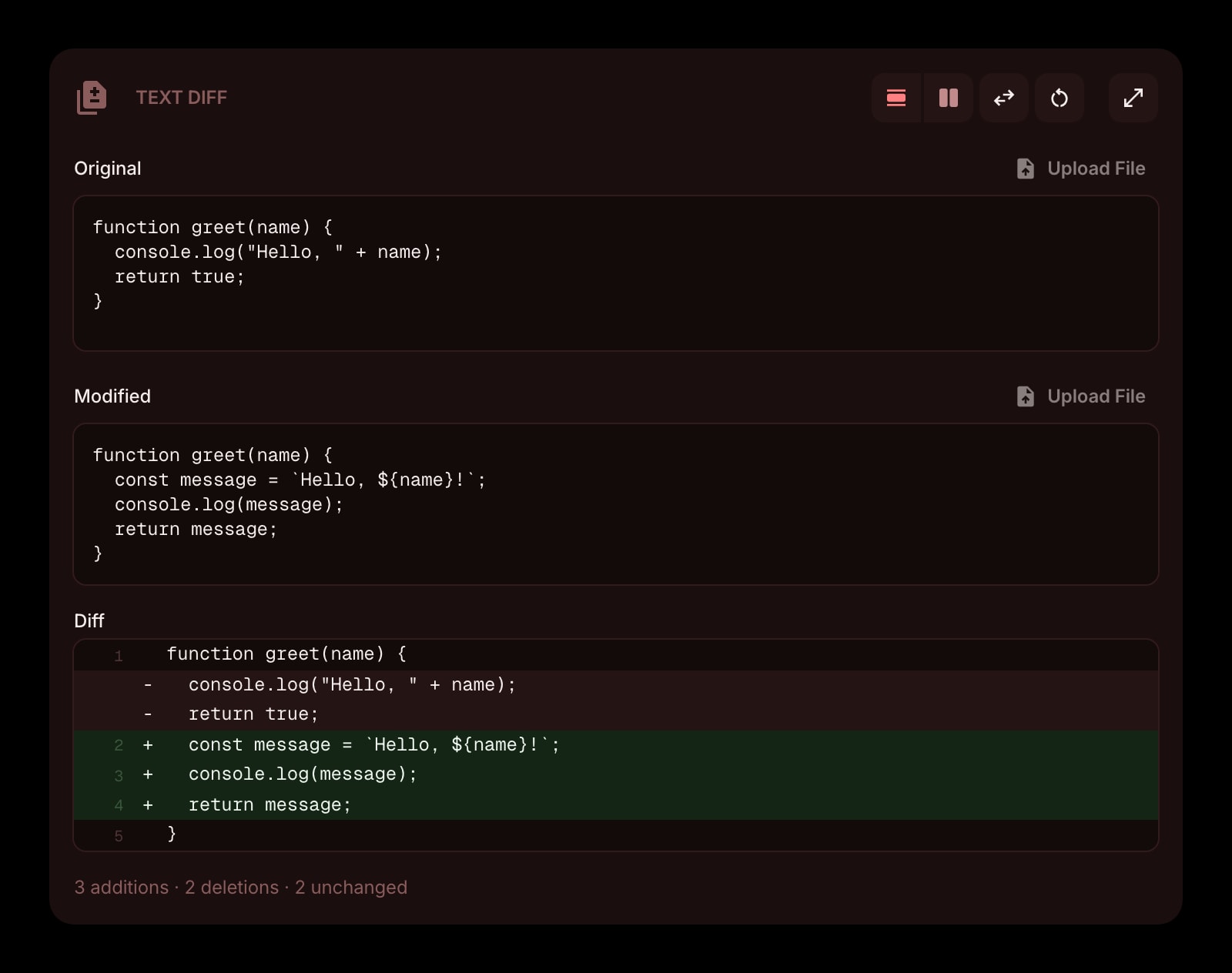


Looking to use this tool right now? See the Text Diff online tool. The page below covers settings and advanced usage for the widget inside Start Page HQ.
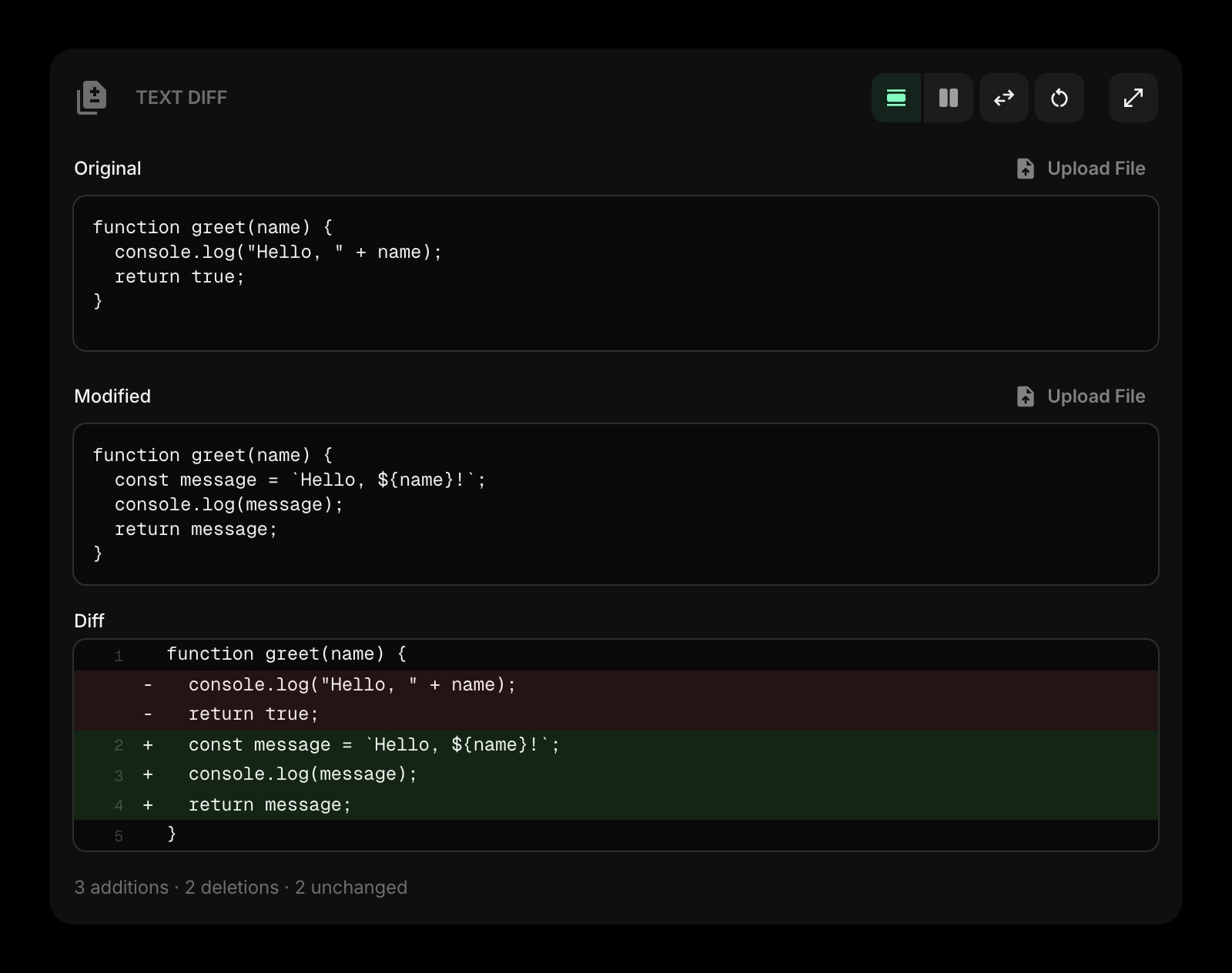
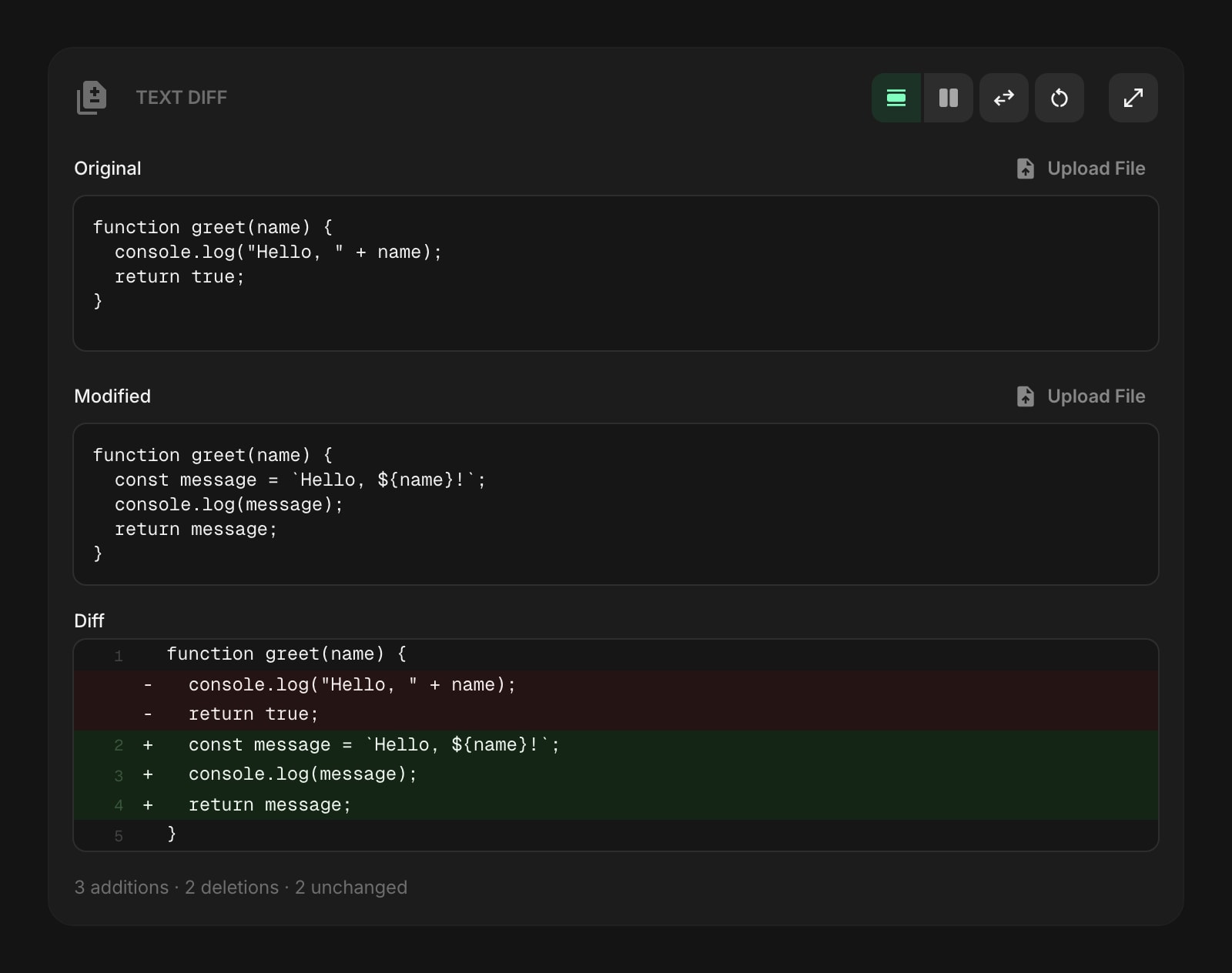
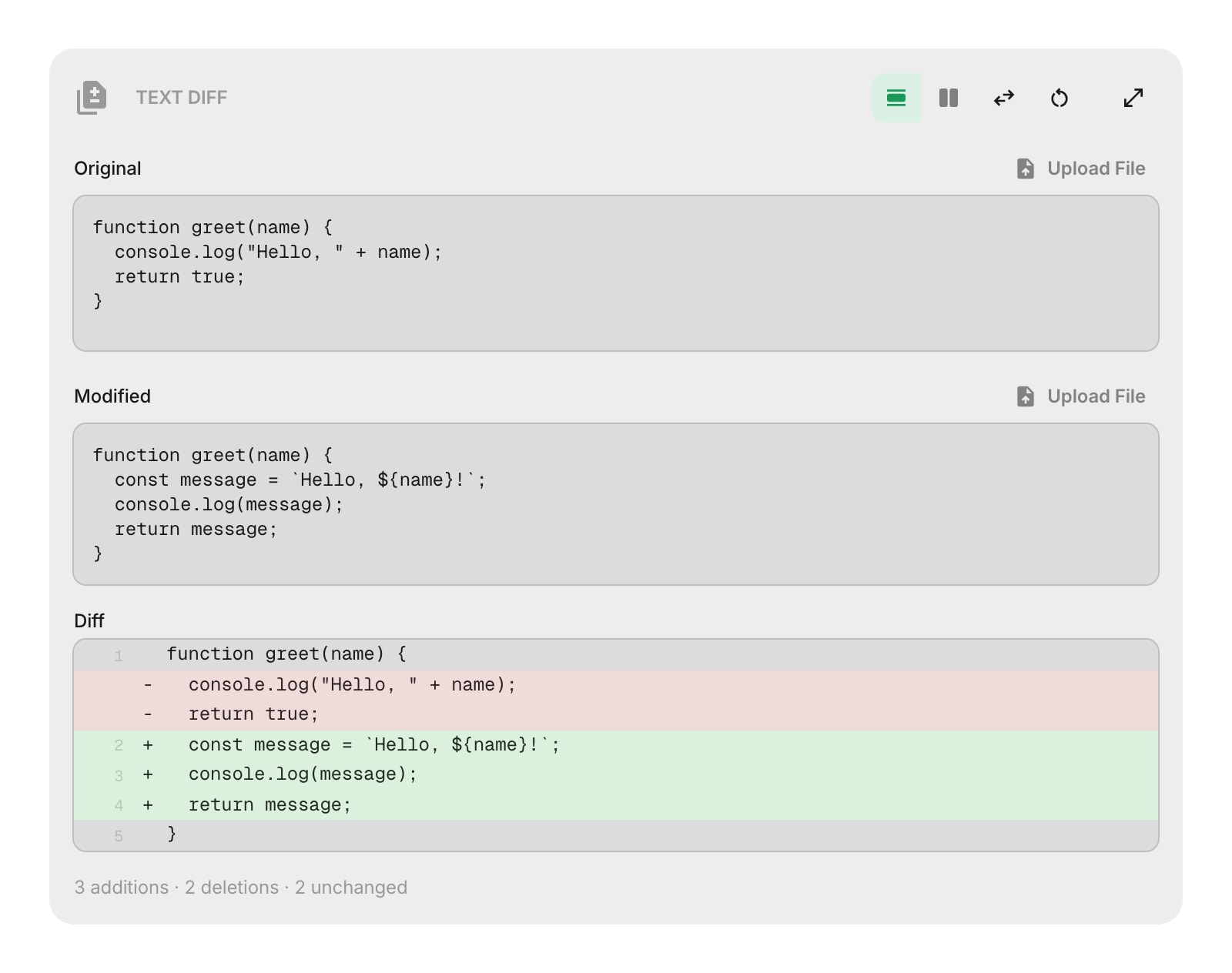
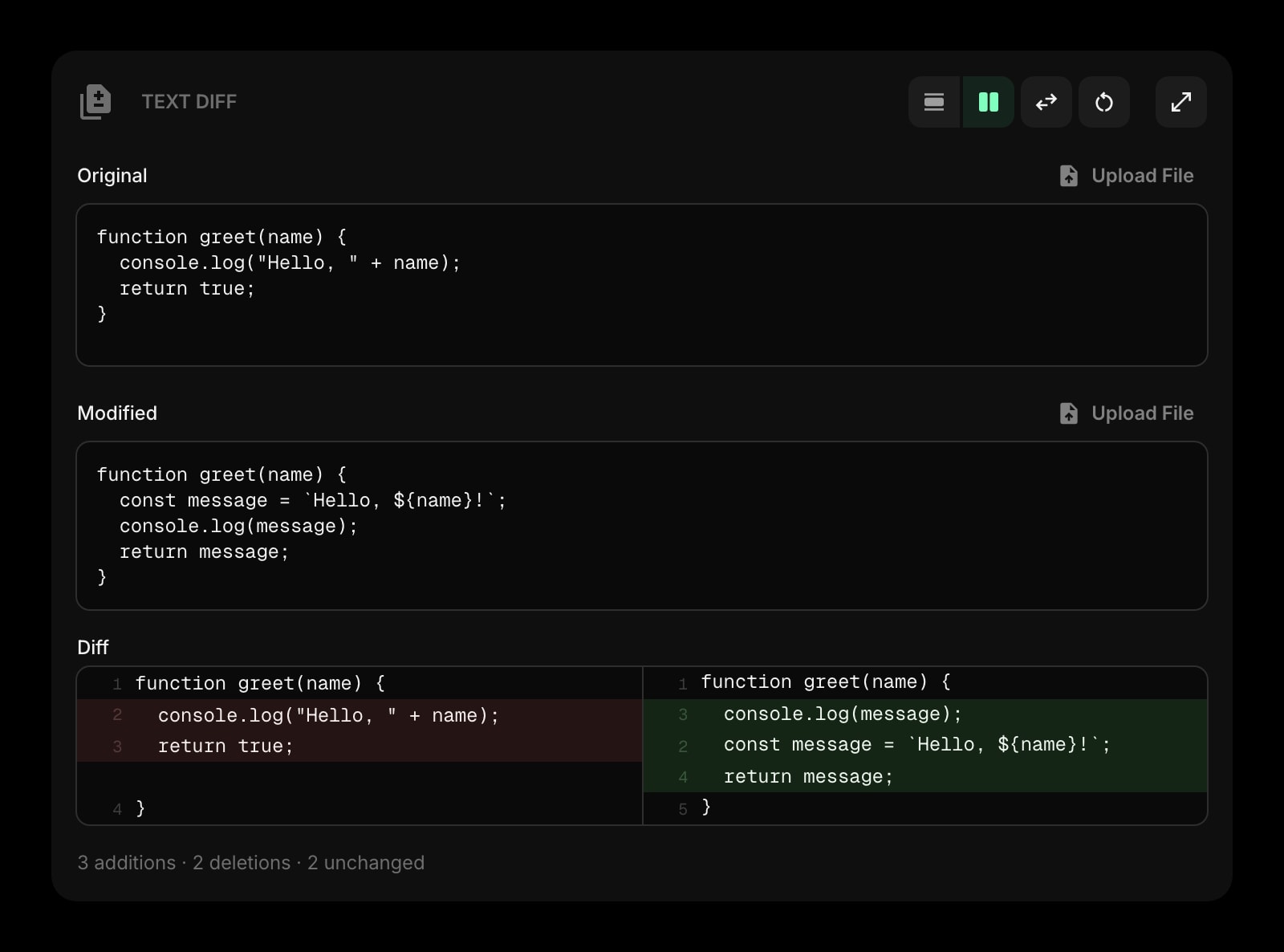
The Text Diff widget lets you compare two pieces of text and instantly see what changed. Additions are highlighted in green, deletions in red, and unchanged lines stay as-is. Switch between inline and side-by-side views, upload files directly, and control how much context is shown around changes.
#How to Use
Type or paste text into the Original and Modified fields. The diff appears automatically below, showing every addition, deletion, and unchanged line. A summary at the bottom tells you the total number of additions, deletions, and unchanged lines.
You can also load text from files - click the upload button next to either field, or drag and drop a file directly onto it. The widget supports over 60 file types including code, config, markup, and plain text files (up to 1 MB each).
#Display Modes
#Inline
The default view. All changes are shown in a single column with line numbers. Added lines are marked with a + and highlighted in green. Removed lines are marked with a - and highlighted in red.
#Side by Side
The original text appears on the left and the modified text on the right, separated by a vertical divider. Each side has its own line numbers. Removed lines show on the left in red, added lines show on the right in green, and matching changes are aligned so you can compare them easily.
Switch between views using the Inline and Side by Side buttons in the toolbar.
#Toolbar Actions
- Inline / Side by Side - toggle between the two display modes
- Swap - exchange the original and modified texts
- Clear - empty both text fields
- Expand - open a fullscreen view with side-by-side input fields and a larger diff output (desktop only)
#Widget Settings
- Context Lines - control how many unchanged lines are shown around each change: 0, 3, 5, or All (default). Lower values hide unchanged sections and show a "lines hidden" indicator, which helps you focus on what actually changed in longer texts.
- Ignore Whitespace - when turned on, whitespace-only changes (like extra spaces or trailing blanks) are ignored in the comparison. Turned off by default.
#Tips
- Use "Context Lines: 0" when comparing long files to jump straight to the differences.
- Drag and drop two different versions of a config file to quickly spot what changed.
- The expanded fullscreen view gives you more room to work with large files - inputs sit side by side with the full diff below.
- If the texts are identical, you'll see a "No differences found" message.