- Dashboard
- Widgets
- AI Diary
- AI Humanizer
- AI Image
- Audio Editor
- Base64 / URL Encoder
- Calendar
- Canvas
- Collection
- Color Picker
- Container
- Countdown Timer
- Currency Converter
- Daily Quiz
- Daily Quote
- Daily Riddle
- Date & Time
- Embed
- GitHub Releases
- Google Calendar
- Habit Tracker
- Hacker News
- Image Compression
- IP Info
- JSON Formatter
- Links
- Markdown Editor
- News
- News Summary
- Notes
- Photo Frame
- Podcast
- Pomodoro Timer
- Product Hunt
- QR Code Generator
- Quick Answer
- Quick Note
- Regex Tester
- RSS Feed
- Search
- Spacer
- Stopwatch
- Story Snippet
- Stripe Sales
- Subreddit
- Substack
- t0ggles Focus
- t0ggles My Boards
- t0ggles My Tasks
- Tasks
- Text Diff
- Todo
- TradingView Advanced Chart
- TradingView Market Summary
- TradingView Mini Chart
- TradingView Symbol Overview
- TradingView Ticker Tape
- Translation
- Unit Converter
- Uptime Monitor
- Weather
- What If
- World Clock
- YouTube Channel
- Teams
Sharing a Widget
Share a single widget as a live, read-only view. Anyone with the link can open it in their browser and see it update, without signing in or installing an extension.
#Using the Context Menu
- Right-click the widget you want to share (on mobile, long-press it).
- Click Share Widget.
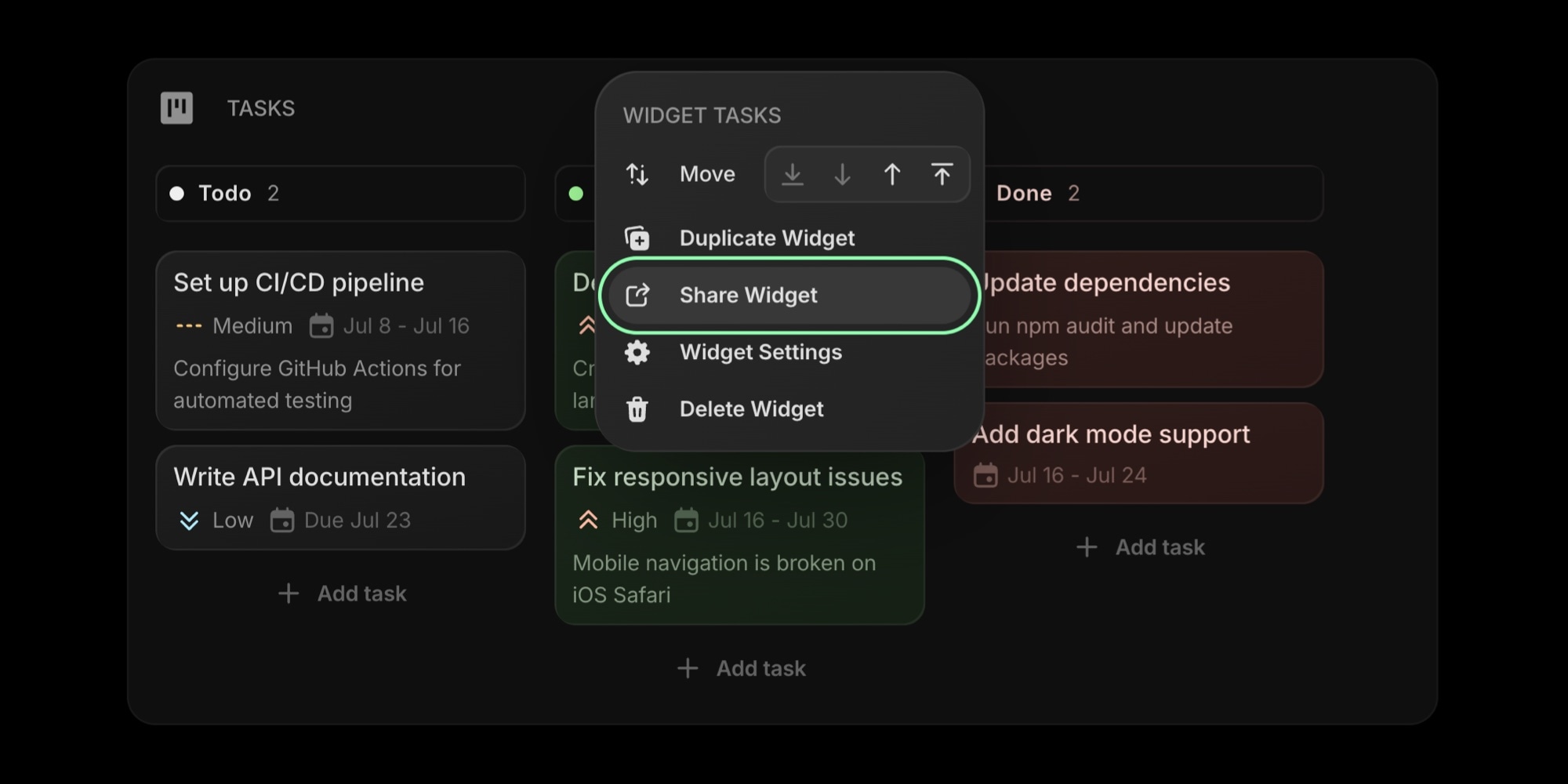
Widget context menu with the Share Widget option highlighted
- A share link is created automatically. Click the copy button next to the link, then paste it anywhere you like.
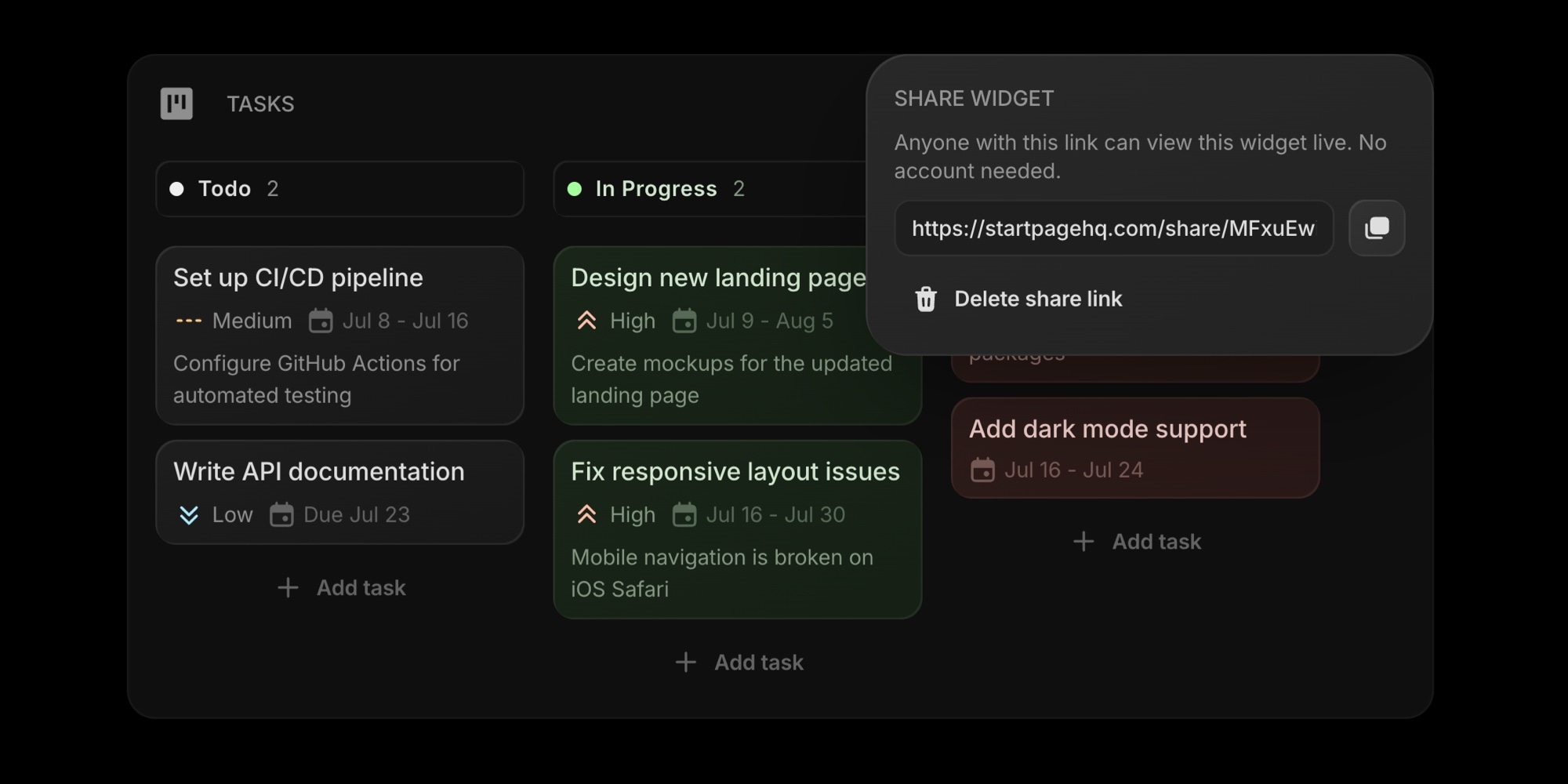
Share Widget popover showing the generated public link and a copy button
#Using Widget Settings
- Turn on Edit Mode and click the settings icon on the widget.
- Click the share icon at the top of the settings panel.
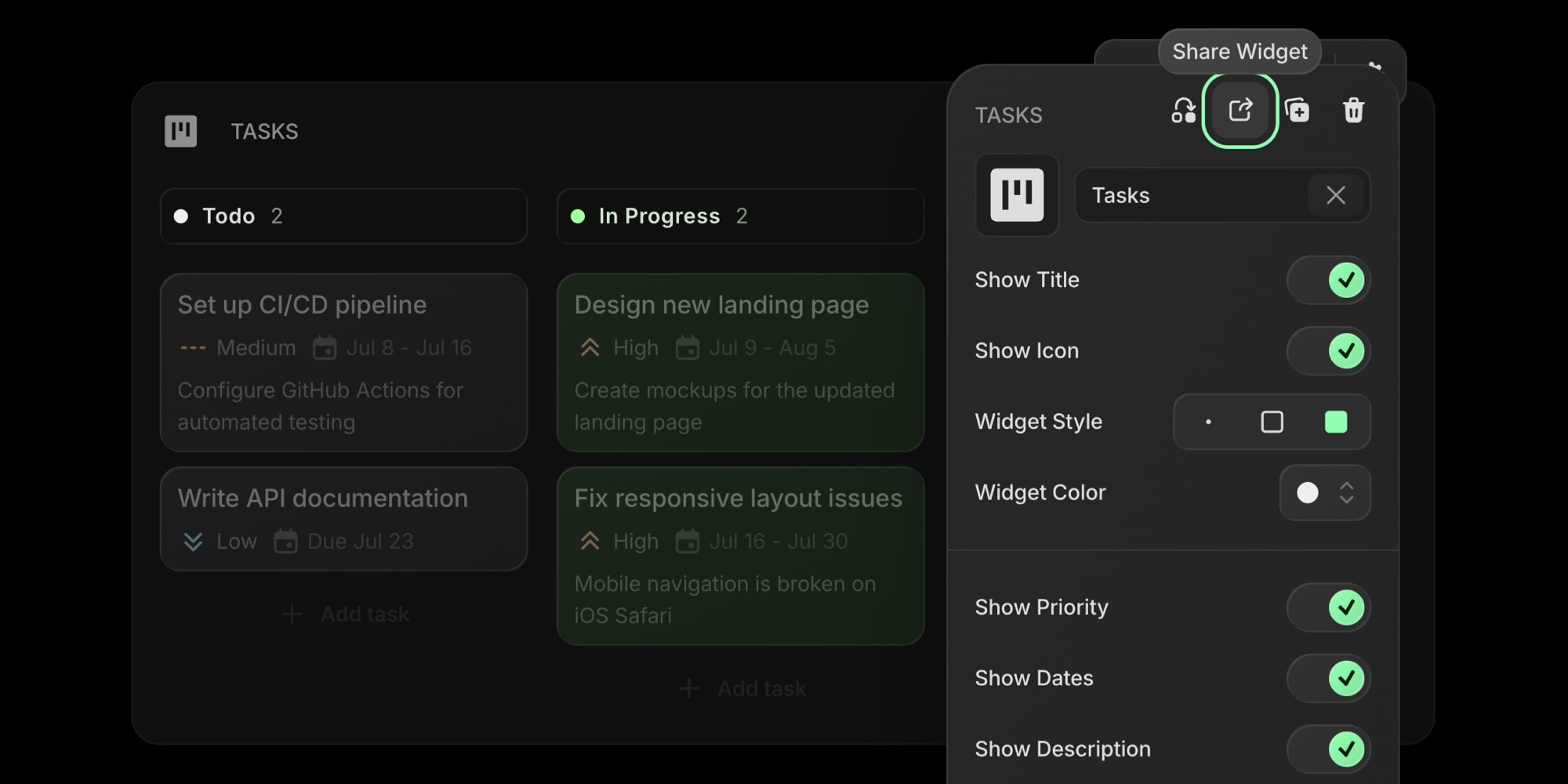
Widget settings panel with the Share Widget option highlighted
The same share popover opens, with the link ready to copy.
#What People See
- The widget opens as a live, read-only view. No account, sign-in, or extension is required.
- It always reflects your latest content. Anyone who opens the link sees the widget as it looks right now.
- Your theme and accent color carry over, so the shared widget looks just like yours.
- Viewers can't edit anything, and your account details stay private.
#Deleting a Share Link
- Open the Share Widget menu again (right-click the widget, then Share Widget).
- Click Delete share link.
The old link stops working right away. If you share the widget again later, a brand-new link is created - the previous URL won't come back.
To share every widget on a page at once, see Share a Page.
#Plans
Public sharing is a paid feature. On the free plan the Share Widget option opens an upgrade panel instead of creating a link - see Plans.