- Dashboard
- Widgets
- AI Diary
- AI Humanizer
- AI Image
- Audio Editor
- Base64 / URL Encoder
- Calendar
- Canvas
- Collection
- Color Picker
- Container
- Countdown Timer
- Currency Converter
- Daily Quiz
- Daily Quote
- Daily Riddle
- Date & Time
- Embed
- GitHub Releases
- Google Calendar
- Habit Tracker
- Hacker News
- Image Compression
- IP Info
- JSON Formatter
- Links
- Markdown Editor
- News
- News Summary
- Notes
- Photo Frame
- Podcast
- Pomodoro Timer
- Product Hunt
- QR Code Generator
- Quick Answer
- Quick Note
- Regex Tester
- RSS Feed
- Search
- Spacer
- Stopwatch
- Story Snippet
- Stripe Sales
- Subreddit
- Substack
- t0ggles Focus
- t0ggles My Boards
- t0ggles My Tasks
- Tasks
- Text Diff
- Todo
- TradingView Advanced Chart
- TradingView Market Summary
- TradingView Mini Chart
- TradingView Symbol Overview
- TradingView Ticker Tape
- Translation
- Unit Converter
- Uptime Monitor
- Weather
- What If
- World Clock
- YouTube Channel
t0ggles My Boards Widget
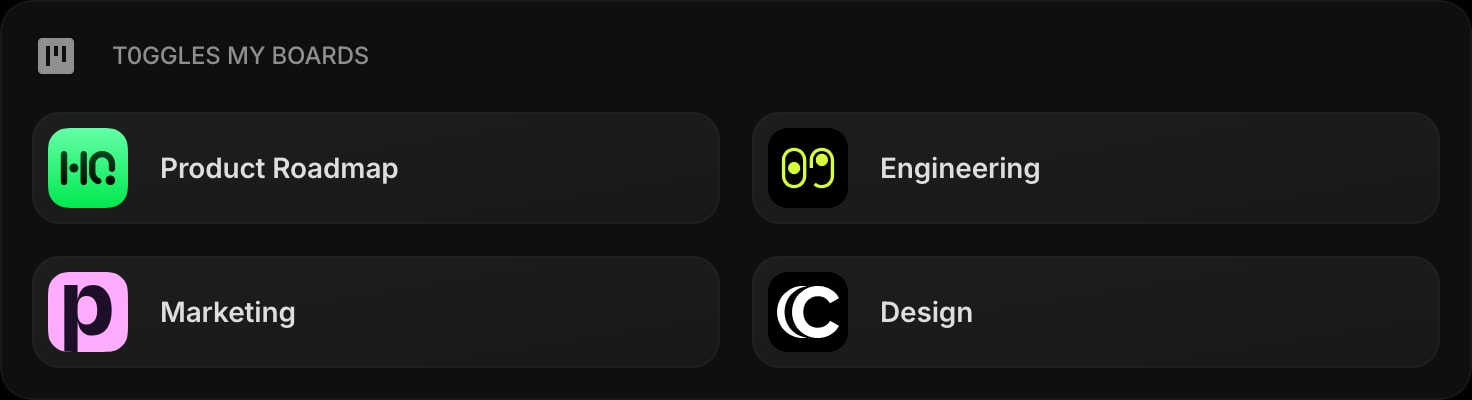
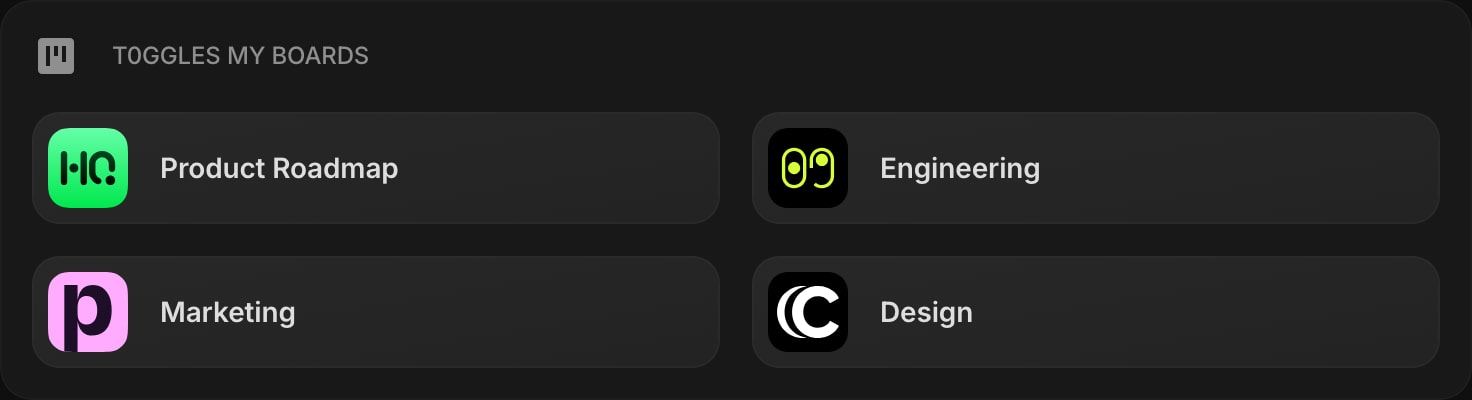
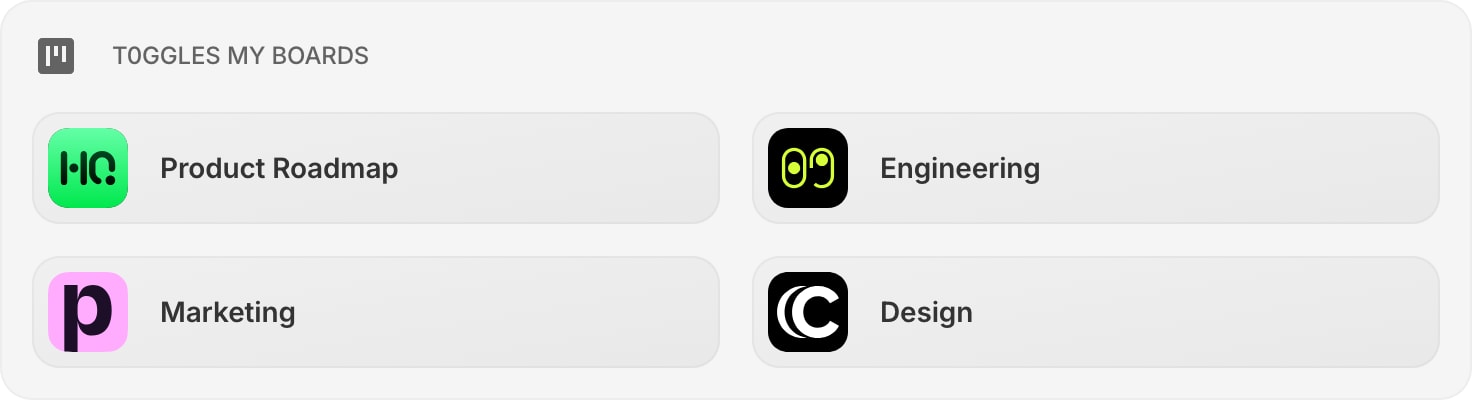
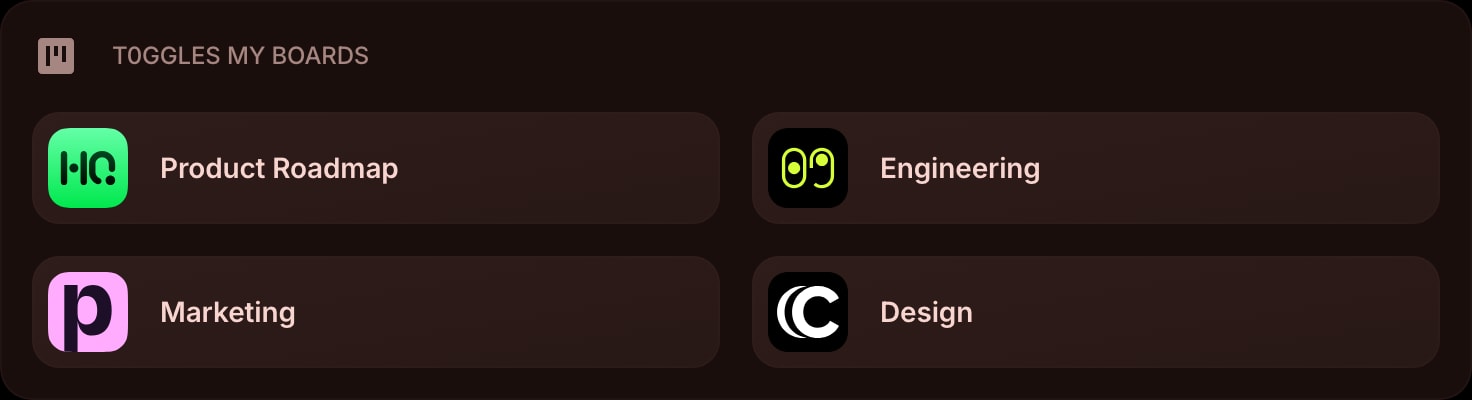
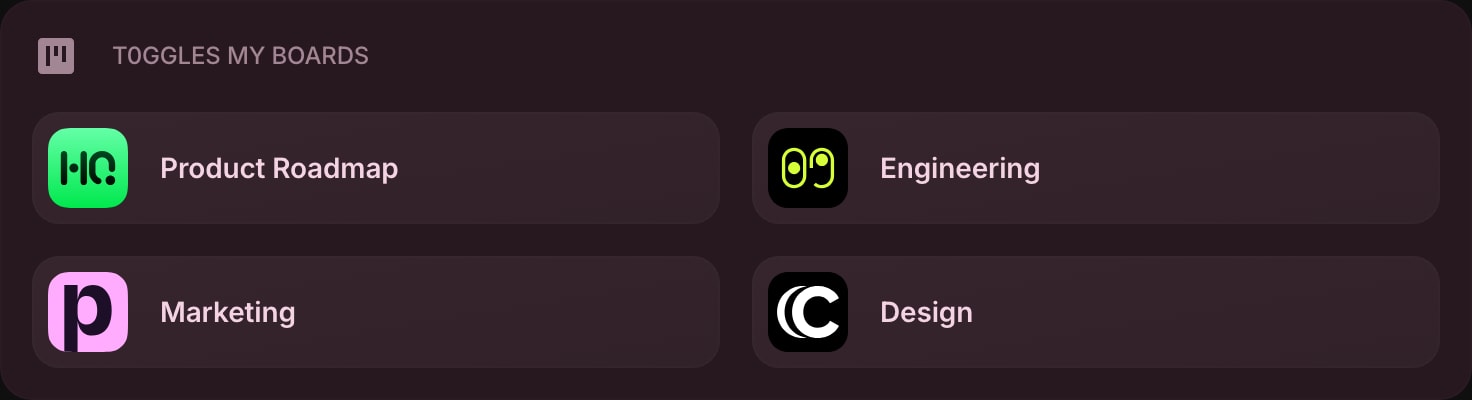
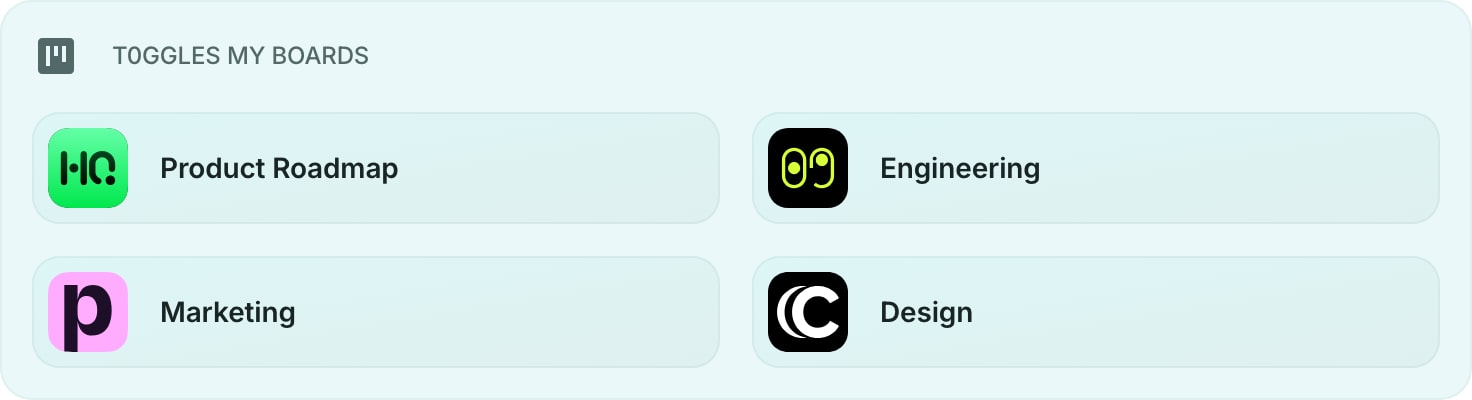
The t0ggles My Boards widget lists the boards you own or are a member of, giving you a quick launcher for every project on your new tab page. Each board opens directly in t0ggles, so you can jump into the right board without digging through navigation.
#How to Use
#Connecting Your Account
- Click the Connect t0ggles button on the widget.
- Sign in to t0ggles and approve access for Start Page HQ.
- Once connected, your boards load automatically.
You link each t0ggles account once. Every t0ggles widget - My Boards, Focus, and My Tasks - reads from the same connection, so there is no extra setup when you add more.
#Reading the Widget
Each row shows a board's logo and title. Click a board to open it in t0ggles. The widget is intentionally simple - it is a fast launcher, not a project dashboard.
#Widget Settings
- Account - choose which connected t0ggles account this widget shows. This selector appears only when you have linked two or more accounts.
#Tips
- Add My Boards next to t0ggles My Tasks and t0ggles Focus for a complete t0ggles command center on your dashboard.
- Link a second t0ggles account - for example a work account and a personal one - and switch between them per widget using the Account selector.
- Your boards refresh when you open your dashboard and when you return to the tab.