- Dashboard
- Widgets
- AI Diary
- AI Humanizer
- AI Image
- Audio Editor
- Base64 / URL Encoder
- Calendar
- Canvas
- Collection
- Color Picker
- Container
- Countdown Timer
- Currency Converter
- Daily Quiz
- Daily Quote
- Daily Riddle
- Date & Time
- Embed
- GitHub Releases
- Google Calendar
- Habit Tracker
- Hacker News
- Image Compression
- IP Info
- JSON Formatter
- Links
- Markdown Editor
- News
- News Summary
- Notes
- Photo Frame
- Podcast
- Pomodoro Timer
- Product Hunt
- QR Code Generator
- Quick Answer
- Quick Note
- Regex Tester
- RSS Feed
- Search
- Spacer
- Stopwatch
- Story Snippet
- Stripe Sales
- Subreddit
- Substack
- t0ggles Focus
- t0ggles My Boards
- t0ggles My Tasks
- Tasks
- Text Diff
- Todo
- TradingView Advanced Chart
- TradingView Market Summary
- TradingView Mini Chart
- TradingView Symbol Overview
- TradingView Ticker Tape
- Translation
- Unit Converter
- Uptime Monitor
- Weather
- What If
- World Clock
- YouTube Channel
Pomodoro Timer Widget
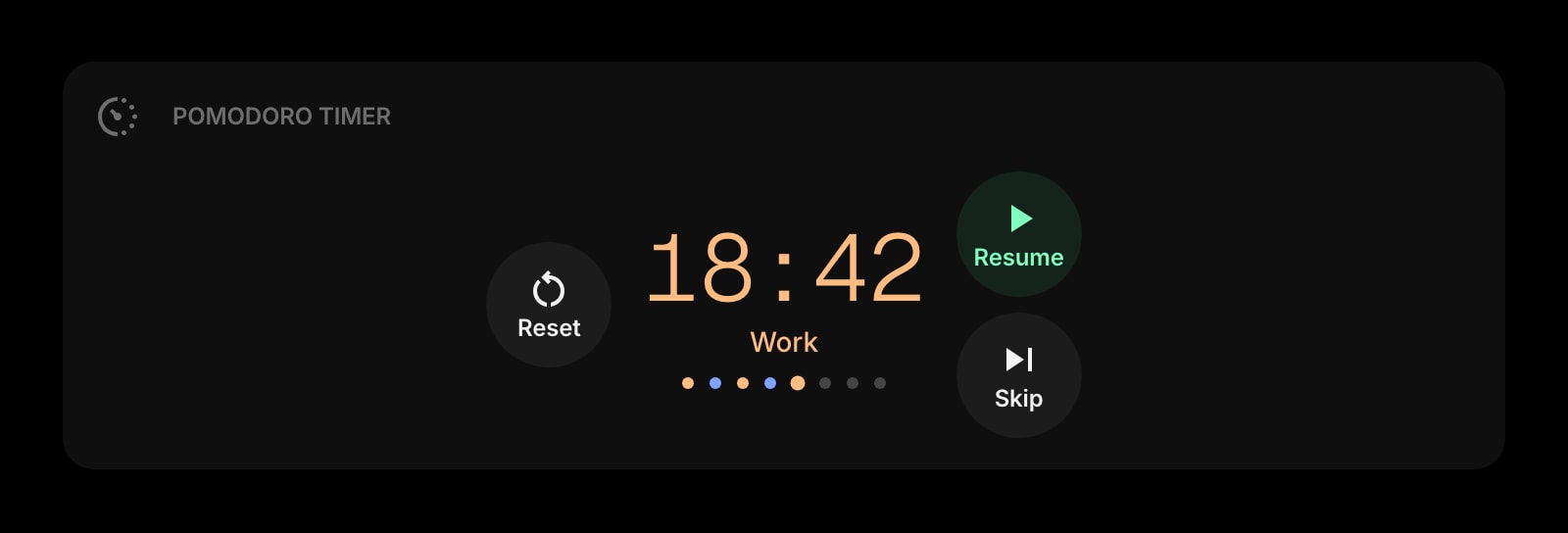
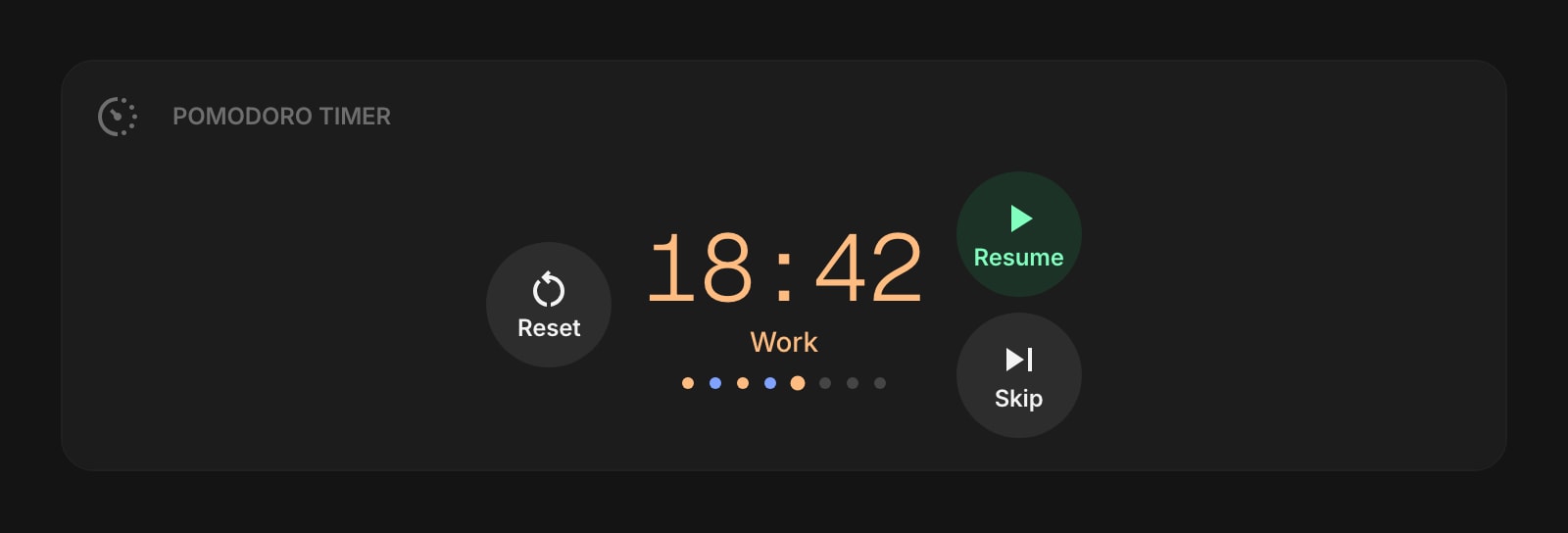
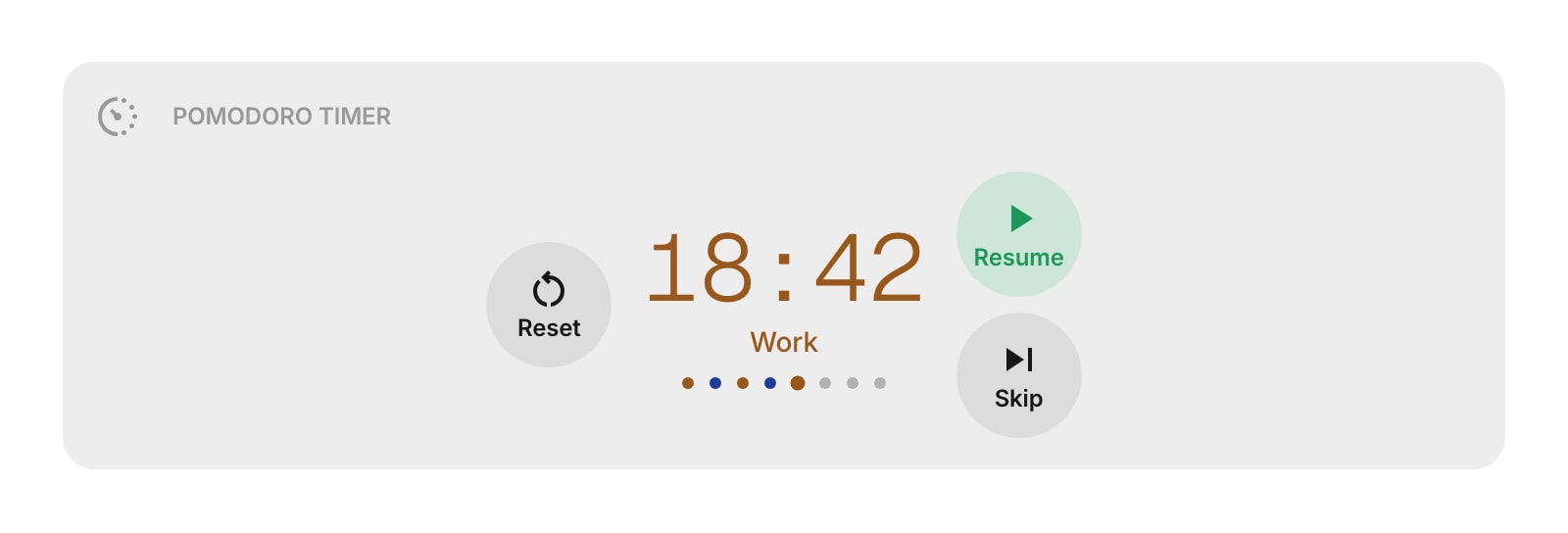
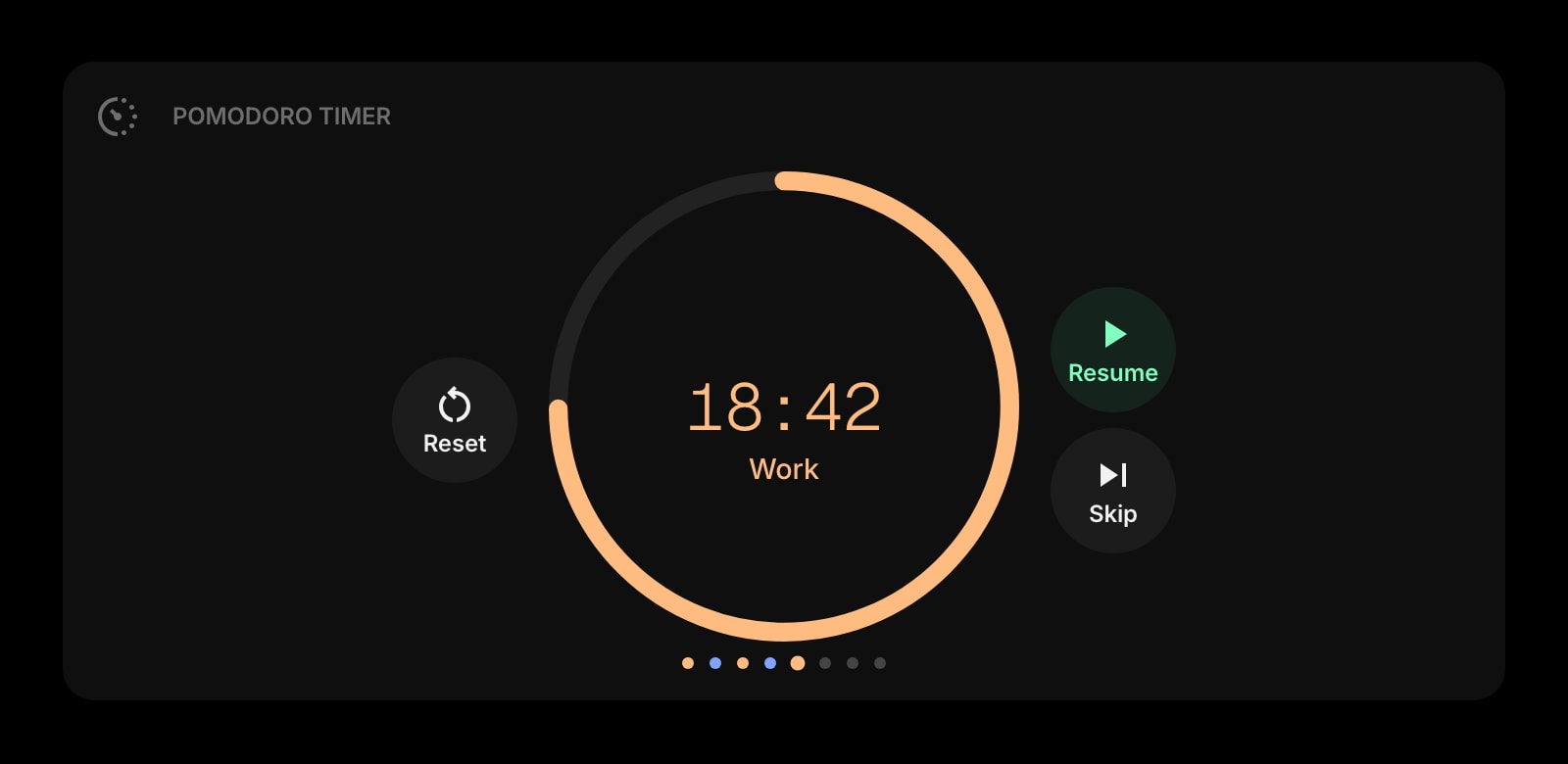
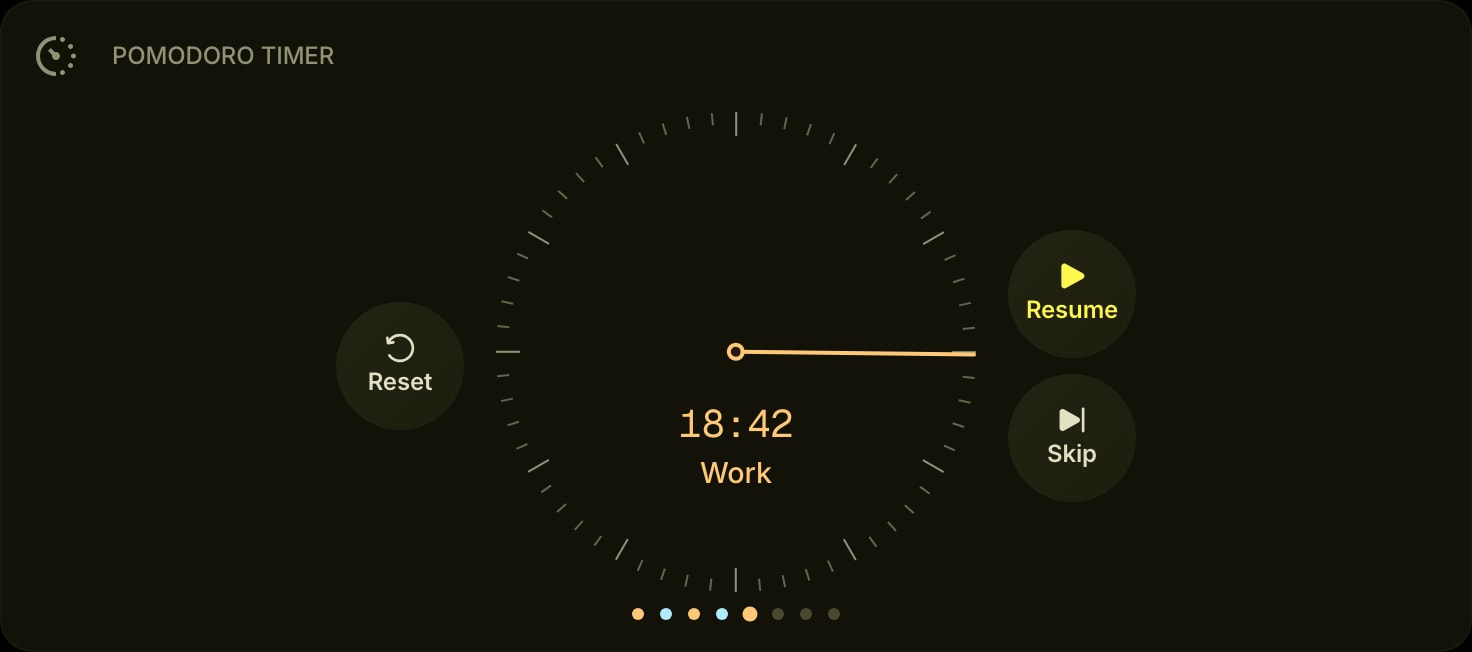
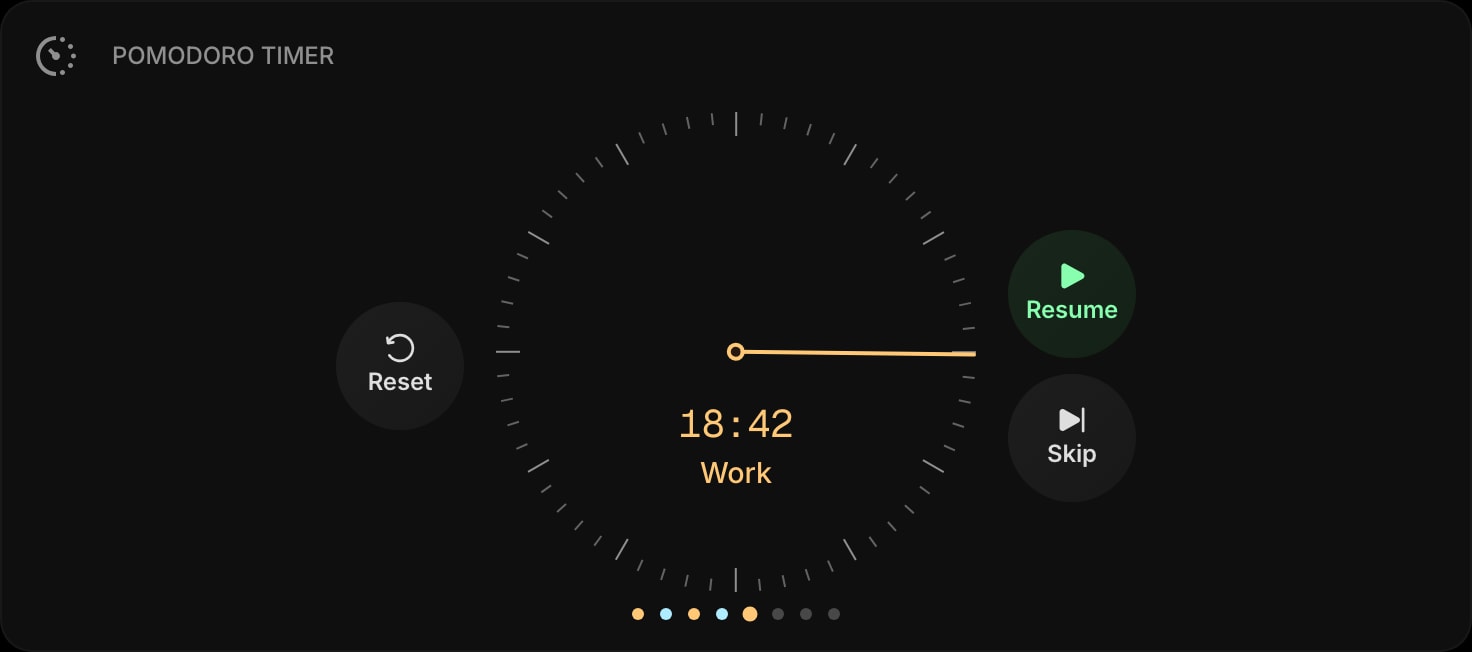
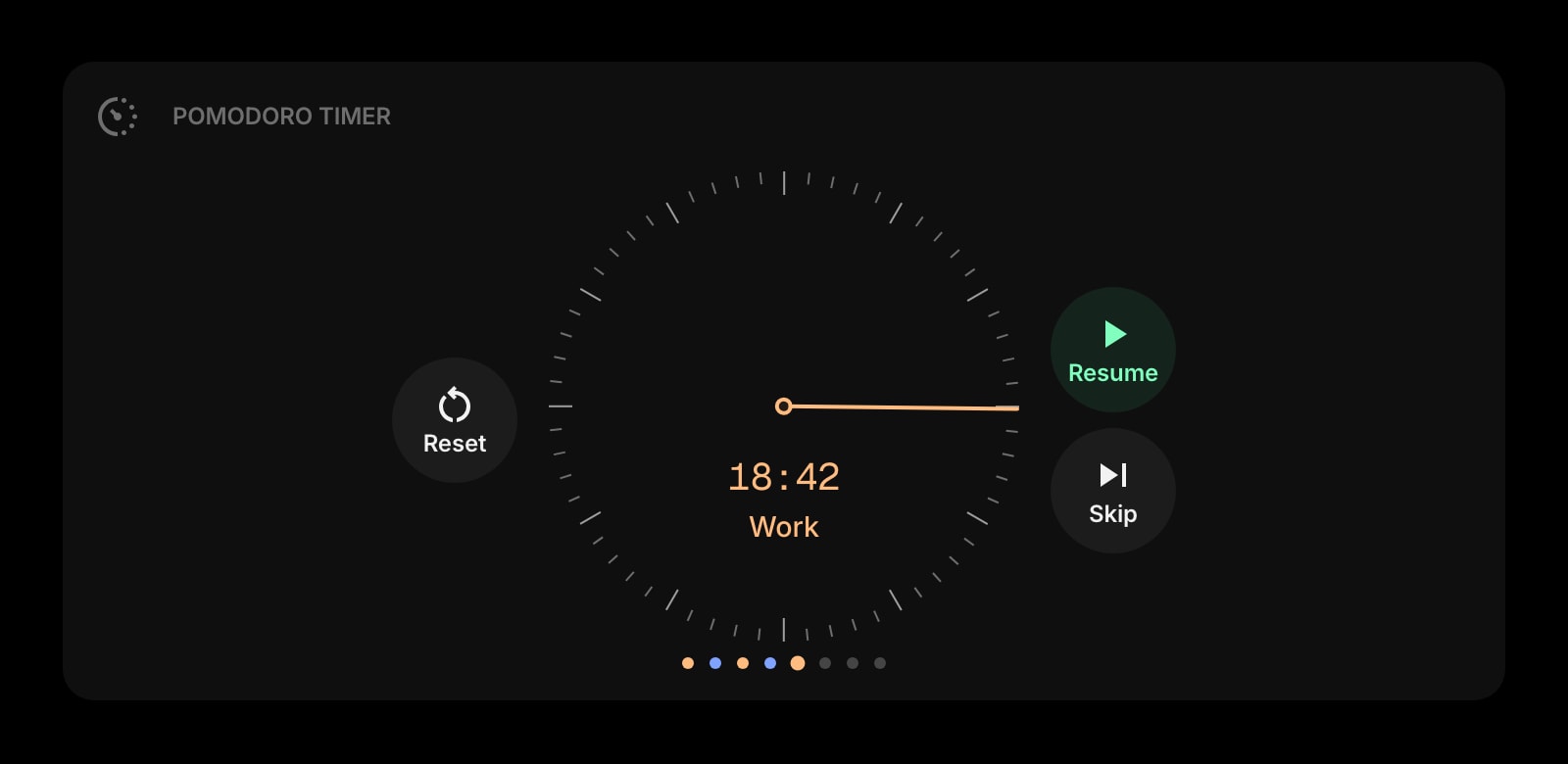
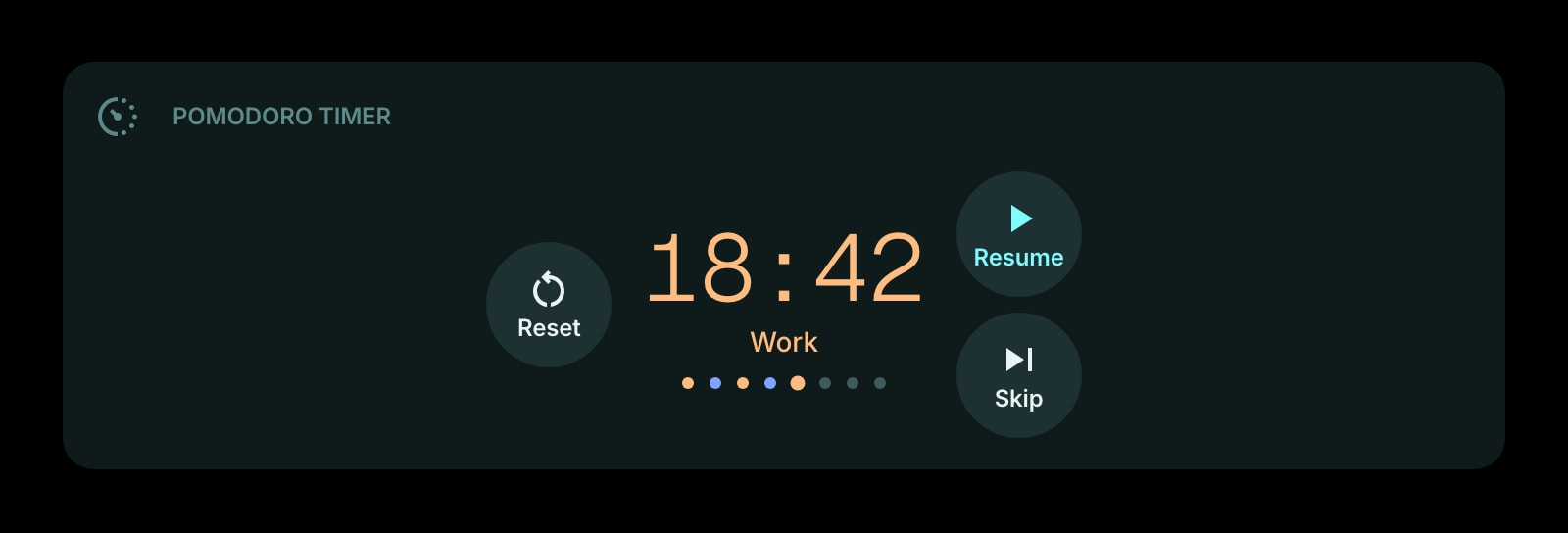
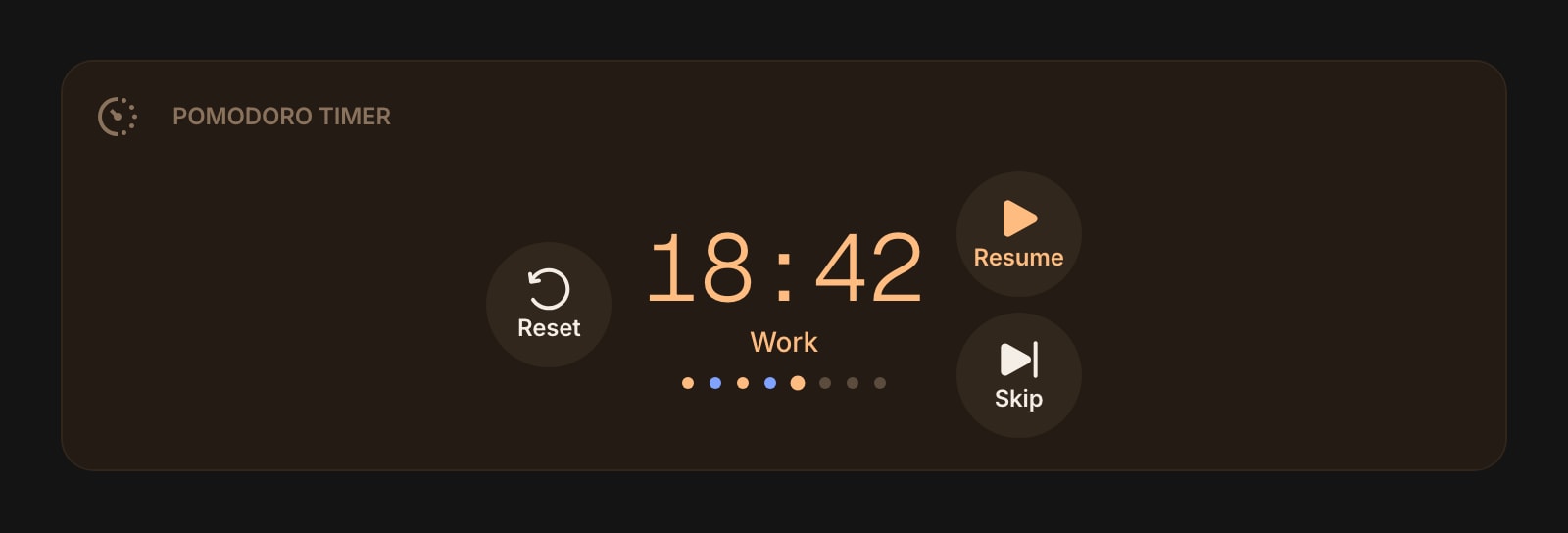
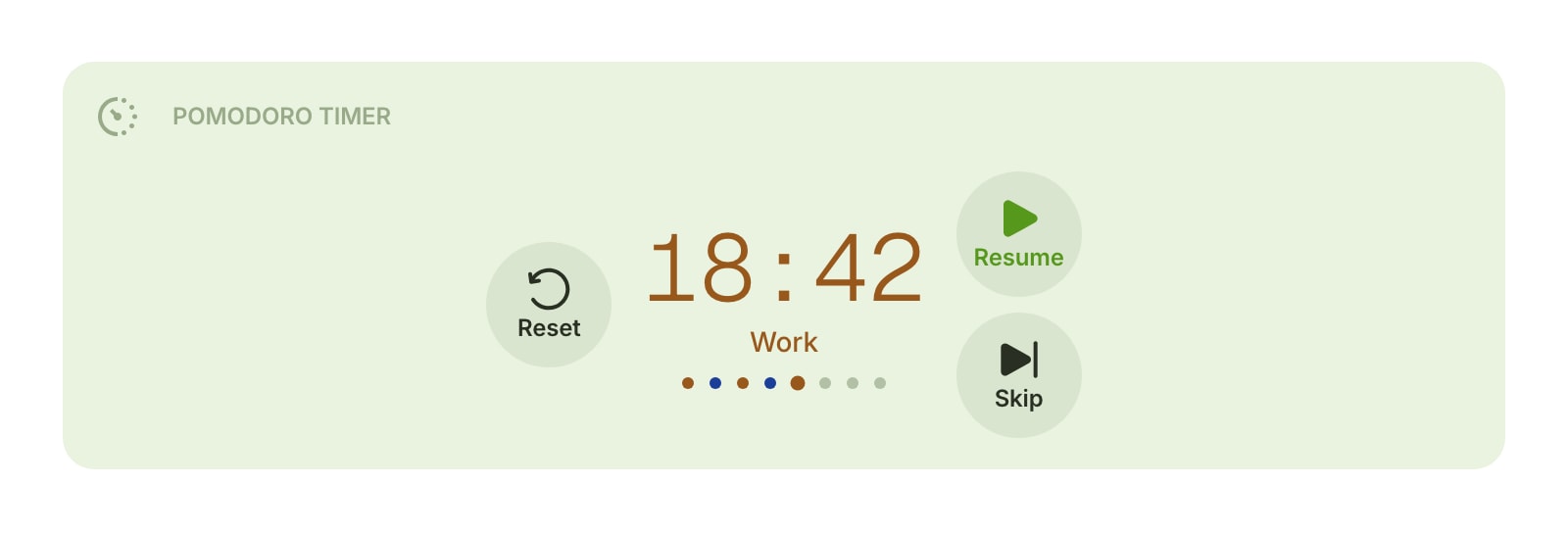
The Pomodoro Timer widget helps you stay focused using the Pomodoro Technique - work in timed sessions with short breaks in between, and take a longer break after several rounds. Customize durations, choose from three display styles, and let the timer guide your workflow.
Installing on a specific browser? See the step-by-step guides: Pomodoro Timer for Chrome, Pomodoro Timer for Firefox, Pomodoro Timer for Safari, or Pomodoro Timer for Edge.
#How to Use
#Starting a Session
Click Start to begin a work session. The timer counts down from your set work duration (25 minutes by default). When the session ends, a sound plays to let you know it's time for a break.
#Work and Break Cycle
The timer cycles through phases automatically:
- Work - focused work time (default: 25 minutes)
- Short Break - a quick rest (default: 5 minutes)
- Repeat work and short break...
- Long Break - a longer rest after completing several work sessions (default: 15 minutes after 4 sessions)
After the long break, the cycle starts over.
#Controls
- Start - begin the current phase
- Pause - pause the timer (can be disabled in settings)
- Resume - continue from where you paused
- Skip - jump to the next phase
- Reset - stop the timer and return to the beginning
#Notifications
When a phase ends, the widget plays a completion sound. If you're on a different tab, the browser tab title flashes to get your attention (for example, "Work Complete!").
#Display Styles
Choose from three ways to show the timer:
- Digital (default) - a large countdown display showing minutes and seconds
- Watchface - an analog clock face with a rotating hand that tracks your progress
- Circular - a progress ring that fills as time passes
Below the clock, colored dots show your progress through the work-break cycle. The current phase is highlighted and completed phases are filled in.
#Widget Settings
#Duration
- Work Duration - length of each work session (1–120 minutes, default: 25).
- Short Break Duration - length of short breaks (1–30 minutes, default: 5).
- Long Break Duration - length of the long break (1–60 minutes, default: 15).
- Pomodoros Until Long Break - how many work sessions before a long break (2–10, default: 4).
#Behavior
- Auto Start Breaks - automatically start break timers when a work session ends. Turned on by default.
- Auto Start Work - automatically start work timers when a break ends. Turned off by default.
- Allow Pause - let you pause the timer during a session. Turned on by default. Turn this off for stricter focus sessions.
#Display
- Watch Style - choose Digital (default), Watchface, or Circular.
- Rich Dial - give the watchface a real-watch look with a filled dial: Day is a white dial with dark ticks, Night is a dark dial with light ticks, Auto (default) picks one to match your color theme, and Off keeps the regular flat dial. Phase colors stay visible on the dial. This setting appears only when the Watchface style is selected.
- Show Phase Label - display the current phase name (Work, Short Break, Long Break). Turned on by default.
- Show Session Count - show progress dots for the current cycle. Turned on by default.
- Buttons Style - choose how control buttons appear: Text, Icon, or Both (default).
#Sound
- Sound Enabled - play a sound when a phase completes. Turned on by default.
#Tips
- Turn off "Allow Pause" if you want to commit fully to each session without the temptation to pause.
- Use the Watchface or Circular style for a more visual sense of how much time is left.
- The progress dots below the timer help you see at a glance how many sessions you've completed in the current cycle.