- Dashboard
- Widgets
- AI Diary
- AI Humanizer
- AI Image
- Audio Editor
- Base64 / URL Encoder
- Calendar
- Canvas
- Collection
- Color Picker
- Container
- Countdown Timer
- Currency Converter
- Daily Quiz
- Daily Quote
- Daily Riddle
- Date & Time
- Embed
- GitHub Releases
- Google Calendar
- Habit Tracker
- Hacker News
- Image Compression
- IP Info
- JSON Formatter
- Links
- Markdown Editor
- News
- News Summary
- Notes
- Photo Frame
- Podcast
- Pomodoro Timer
- Product Hunt
- QR Code Generator
- Quick Answer
- Quick Note
- Regex Tester
- RSS Feed
- Search
- Spacer
- Stopwatch
- Story Snippet
- Stripe Sales
- Subreddit
- Substack
- t0ggles Focus
- t0ggles My Boards
- t0ggles My Tasks
- Tasks
- Text Diff
- Todo
- TradingView Advanced Chart
- TradingView Market Summary
- TradingView Mini Chart
- TradingView Symbol Overview
- TradingView Ticker Tape
- Translation
- Unit Converter
- Uptime Monitor
- Weather
- What If
- World Clock
- YouTube Channel
Customizing Appearance
Make your dashboard feel like your own by adjusting its appearance. Click the palette icon in the top navigation bar to open the appearance settings.
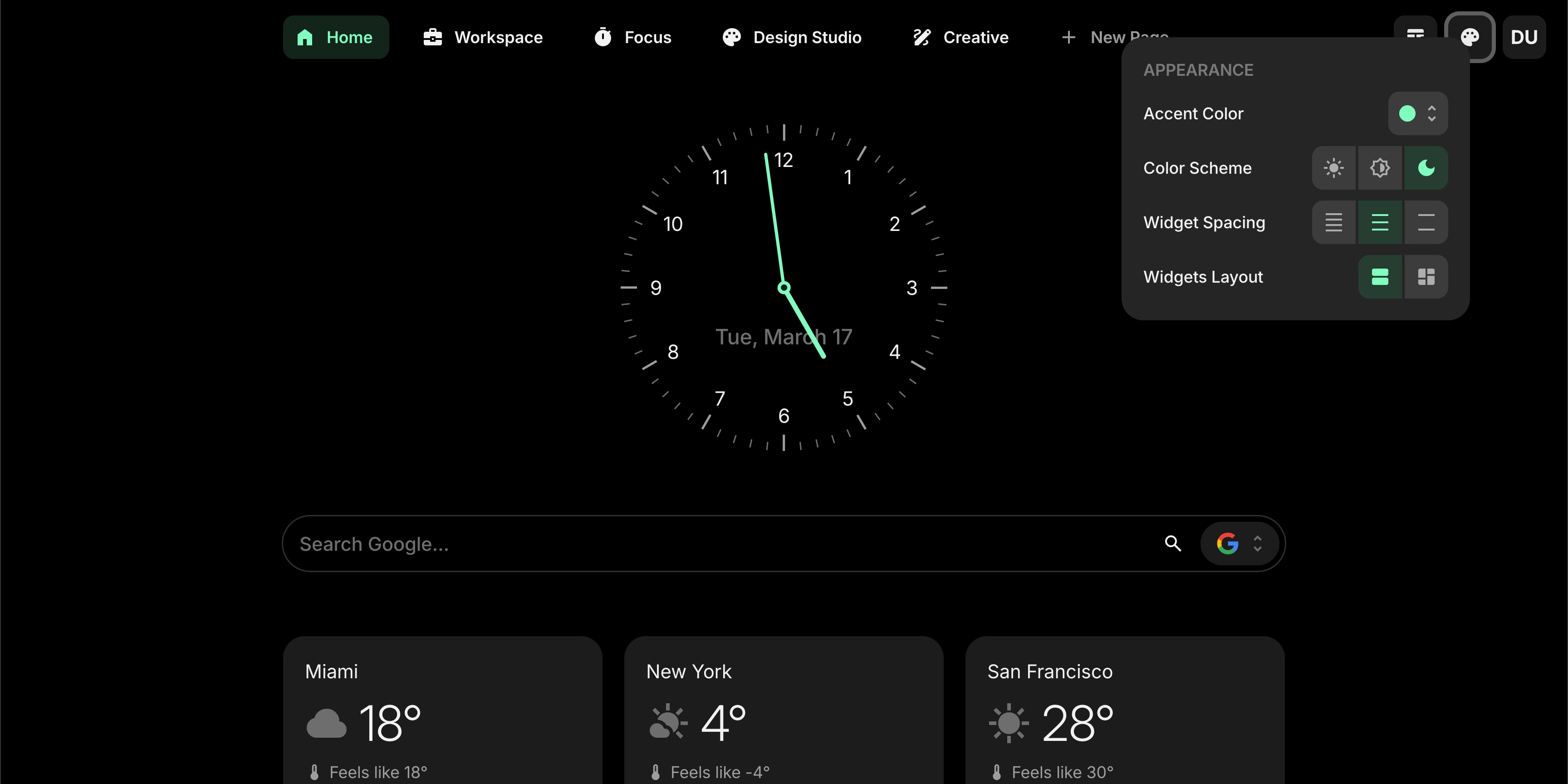
#Accent Color
The accent color is used for highlights, active tabs, buttons, and other interactive elements across your dashboard. Choose from 10 colors:
- Default (brand color)
- Red, Pink, Purple, Blue, Cyan, Lime, Green, Yellow, Orange
Click any color swatch to apply it instantly.
#Color Scheme
Pick the overall color scheme for your dashboard:
- Light - bright background with dark text
- Dim - a softer, muted dark theme
- Dark - full dark background
Your choice applies to the entire dashboard right away.
#Wallpaper
Turn on Wallpaper to put a background image behind your dashboard. It is off by default, so nothing changes until you enable it.
- Built-in wallpapers - 29 backgrounds to choose from: scenic photography (aurora, dunes, peaks, shore, glacier and more) and soft abstract gradients. Click a thumbnail to apply it instantly.
- Custom image - click the last tile in the grid, then Upload Image to use a photo of your own. Drag and drop works too. The image is resized and stored on your account, and Replace Image swaps it later.
Widgets adapt automatically when a wallpaper is active: they pick up a frosted-glass blur and a slightly see-through fill so the content stays readable, and a scrim keeps contrast right in both light and dark schemes.
Your wallpaper is part of your account settings, so it syncs to every browser and device you sign in on.
#Widget Spacing
Control how much space appears between widgets:
- Tight - minimal spacing between widgets
- Normal - balanced spacing (default)
- Loose - extra room between widgets
#Widgets Layout
Choose how widgets are arranged on the page:
- List - one widget per row, stacked vertically (default)
- Grid - two widgets side by side
The grid layout works on screens 640px and wider. On smaller screens, it automatically falls back to the list layout.