- Dashboard
- Widgets
- AI Diary
- AI Humanizer
- AI Image
- Audio Editor
- Base64 / URL Encoder
- Calendar
- Canvas
- Collection
- Color Picker
- Container
- Countdown Timer
- Currency Converter
- Daily Quiz
- Daily Quote
- Daily Riddle
- Date & Time
- Embed
- GitHub Releases
- Google Calendar
- Habit Tracker
- Hacker News
- Image Compression
- IP Info
- JSON Formatter
- Links
- Markdown Editor
- News
- News Summary
- Notes
- Photo Frame
- Podcast
- Pomodoro Timer
- Product Hunt
- QR Code Generator
- Quick Answer
- Quick Note
- Regex Tester
- RSS Feed
- Search
- Spacer
- Stopwatch
- Story Snippet
- Stripe Sales
- Subreddit
- Substack
- t0ggles Focus
- t0ggles My Boards
- t0ggles My Tasks
- Tasks
- Text Diff
- Todo
- TradingView Advanced Chart
- TradingView Market Summary
- TradingView Mini Chart
- TradingView Symbol Overview
- TradingView Ticker Tape
- Translation
- Unit Converter
- Uptime Monitor
- Weather
- What If
- World Clock
- YouTube Channel
AI Image Widget
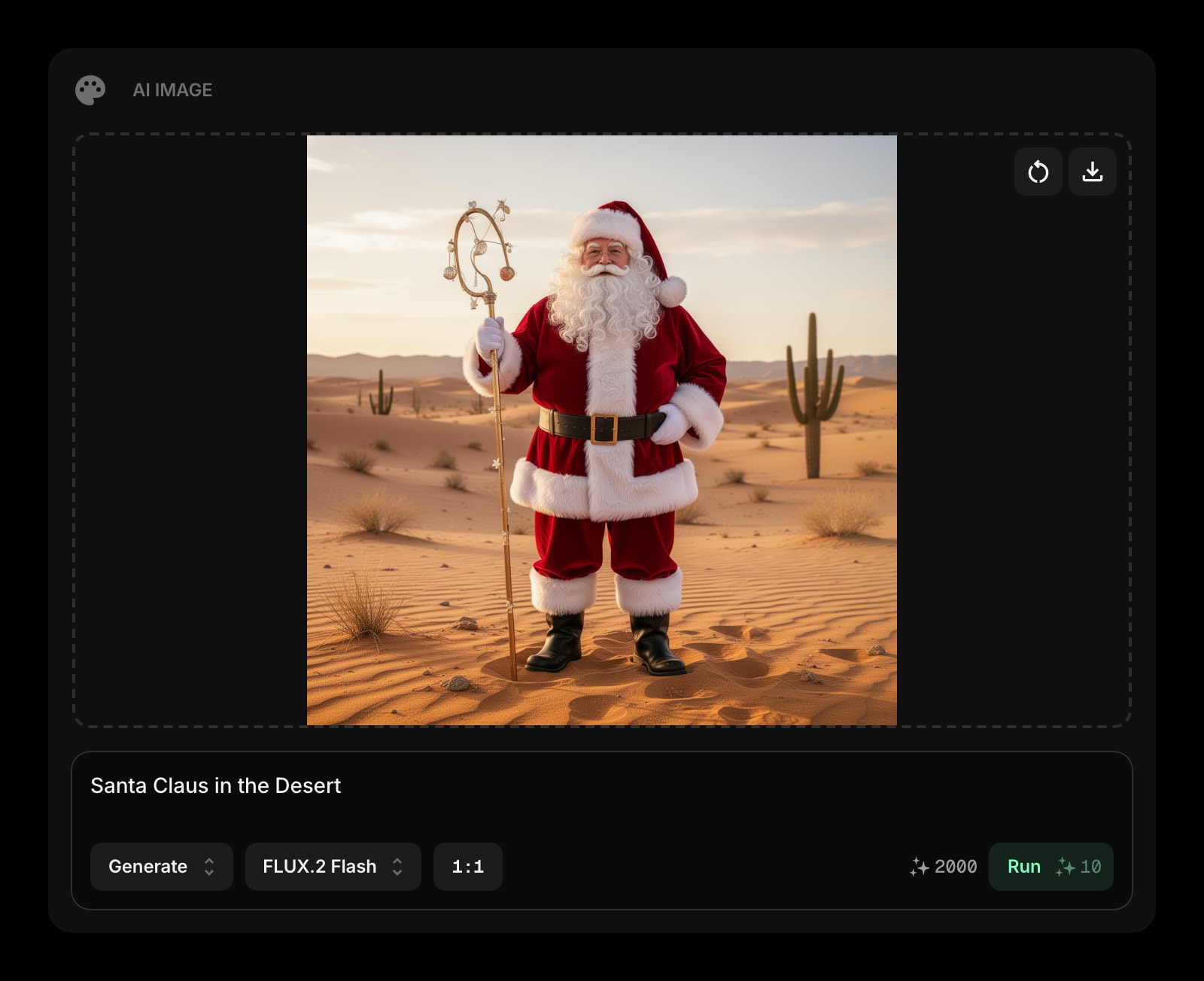
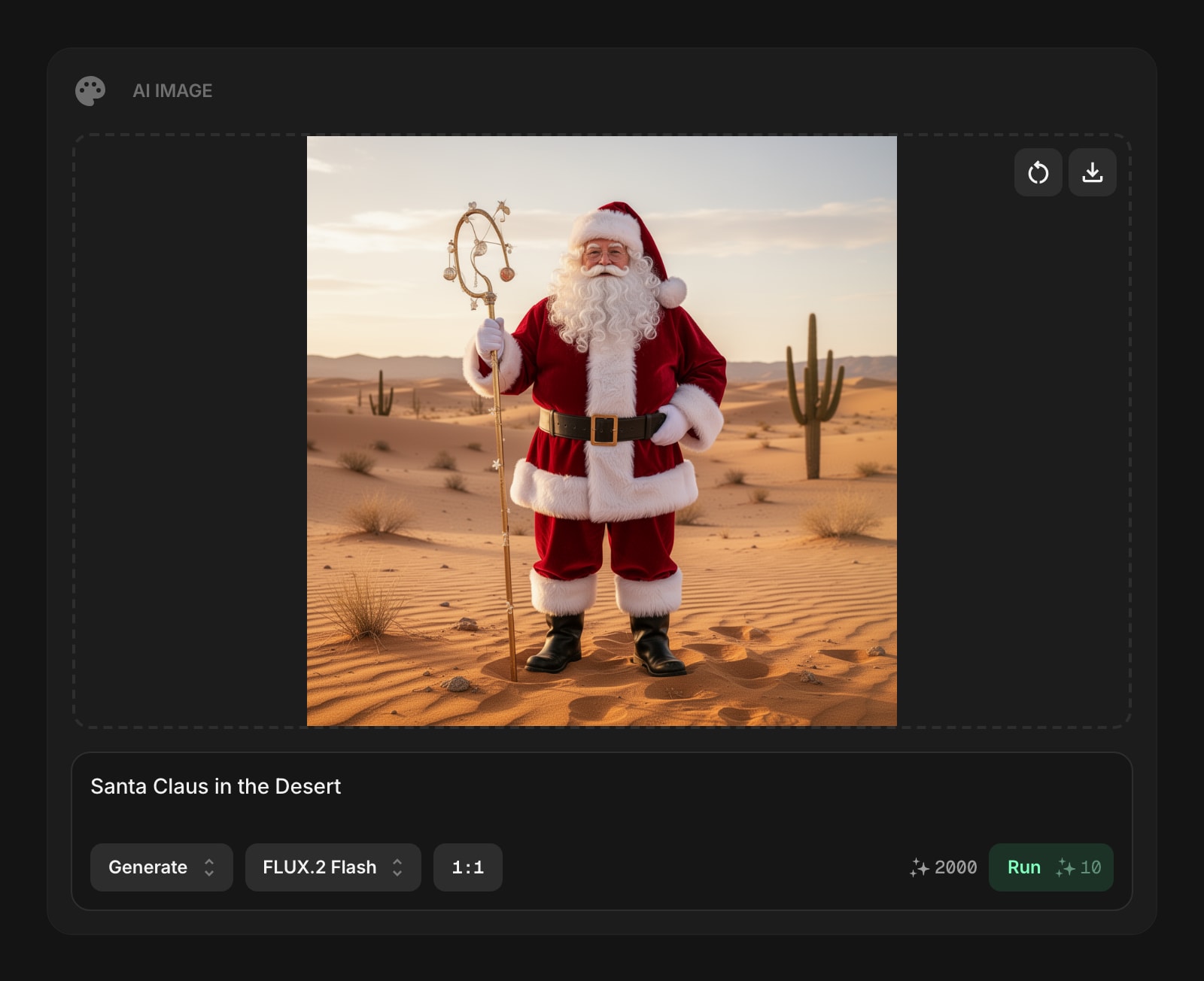
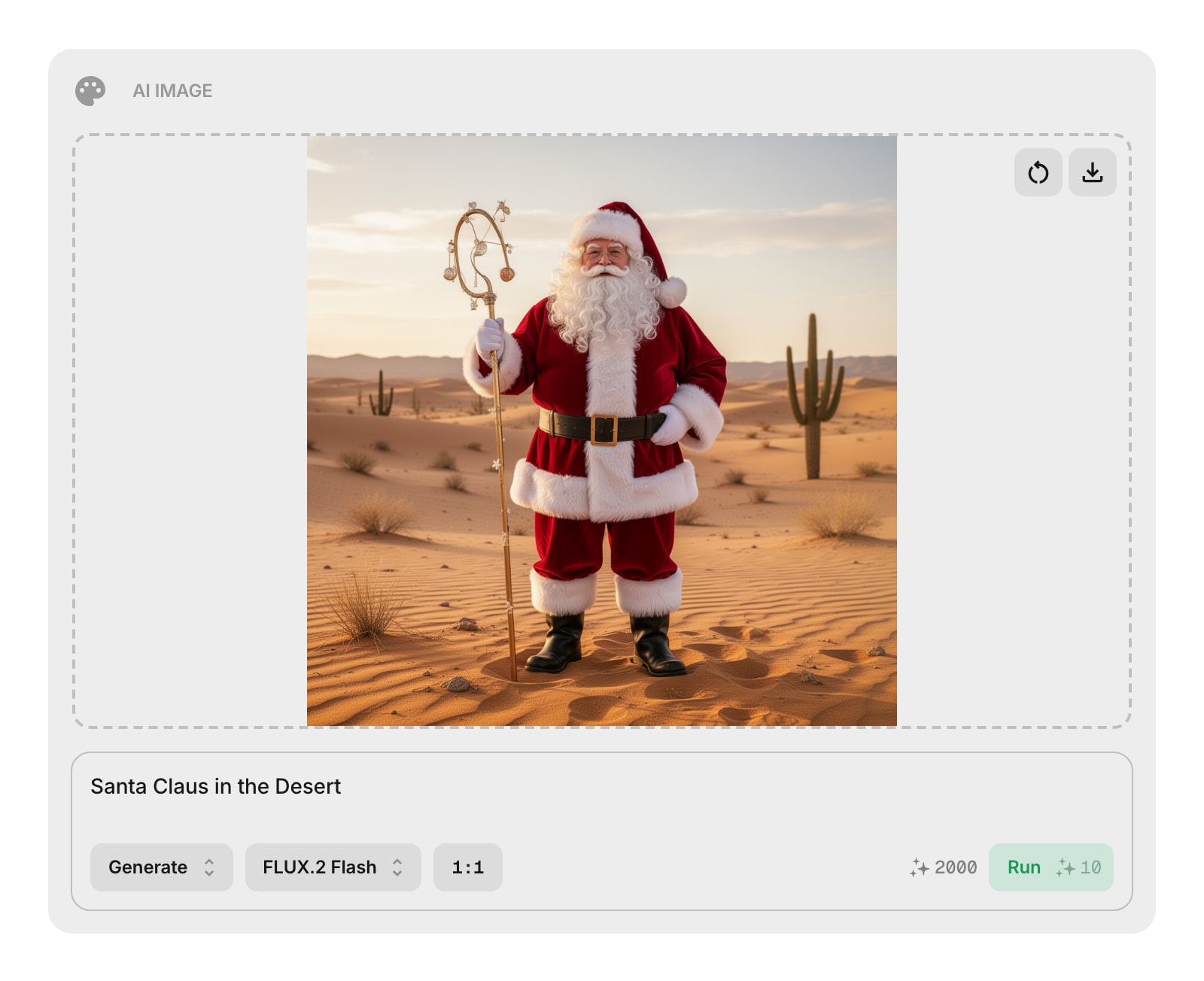
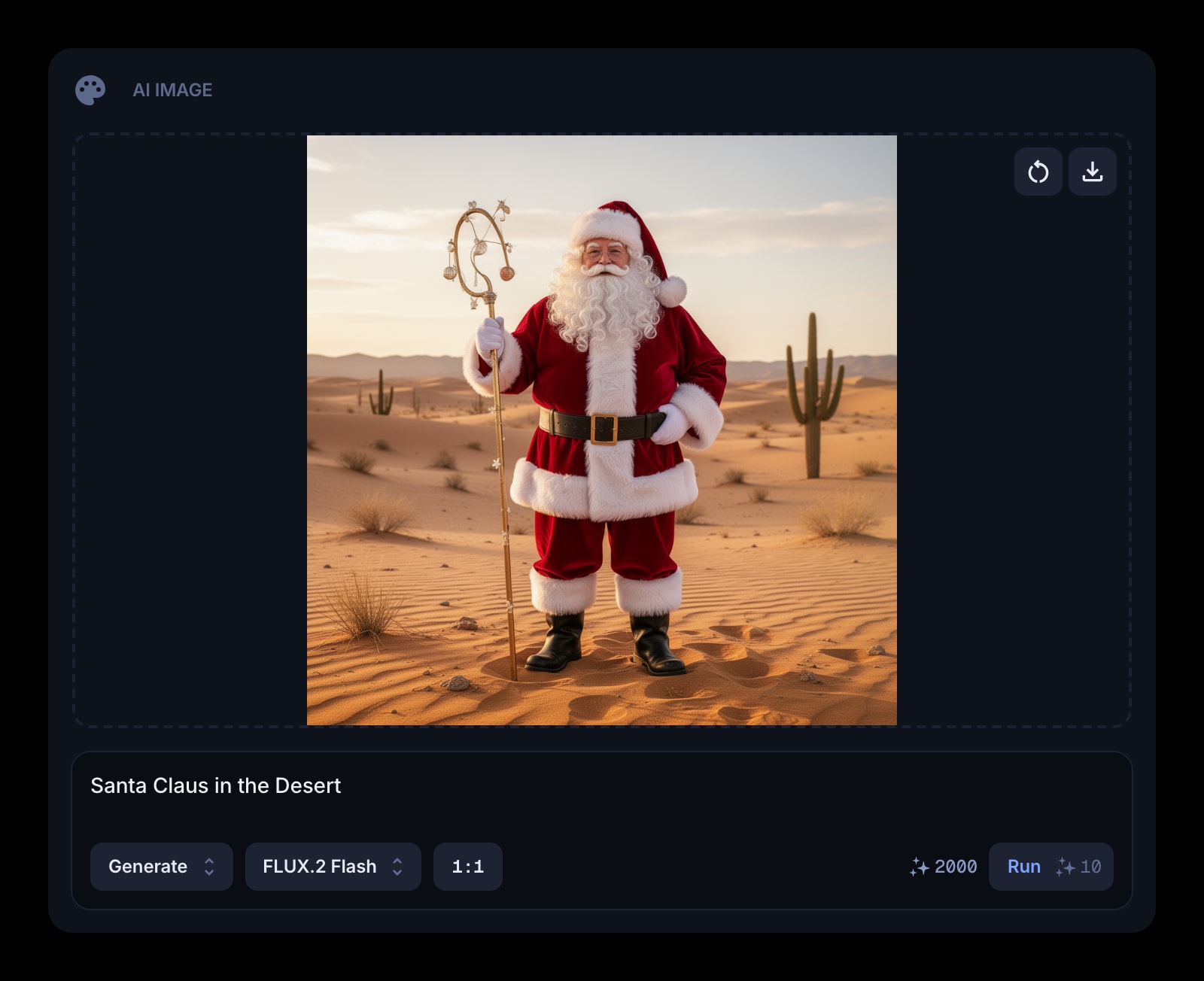
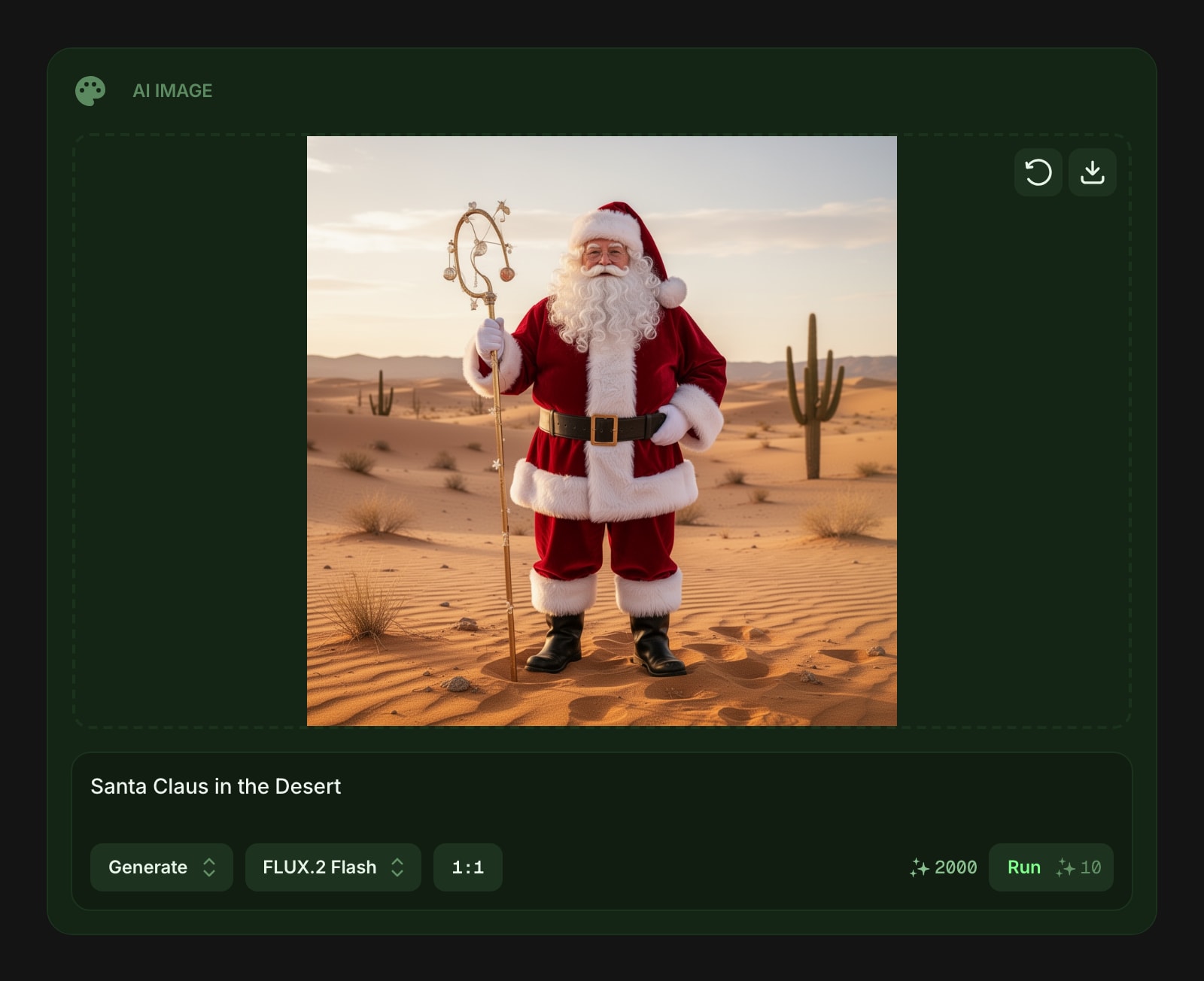
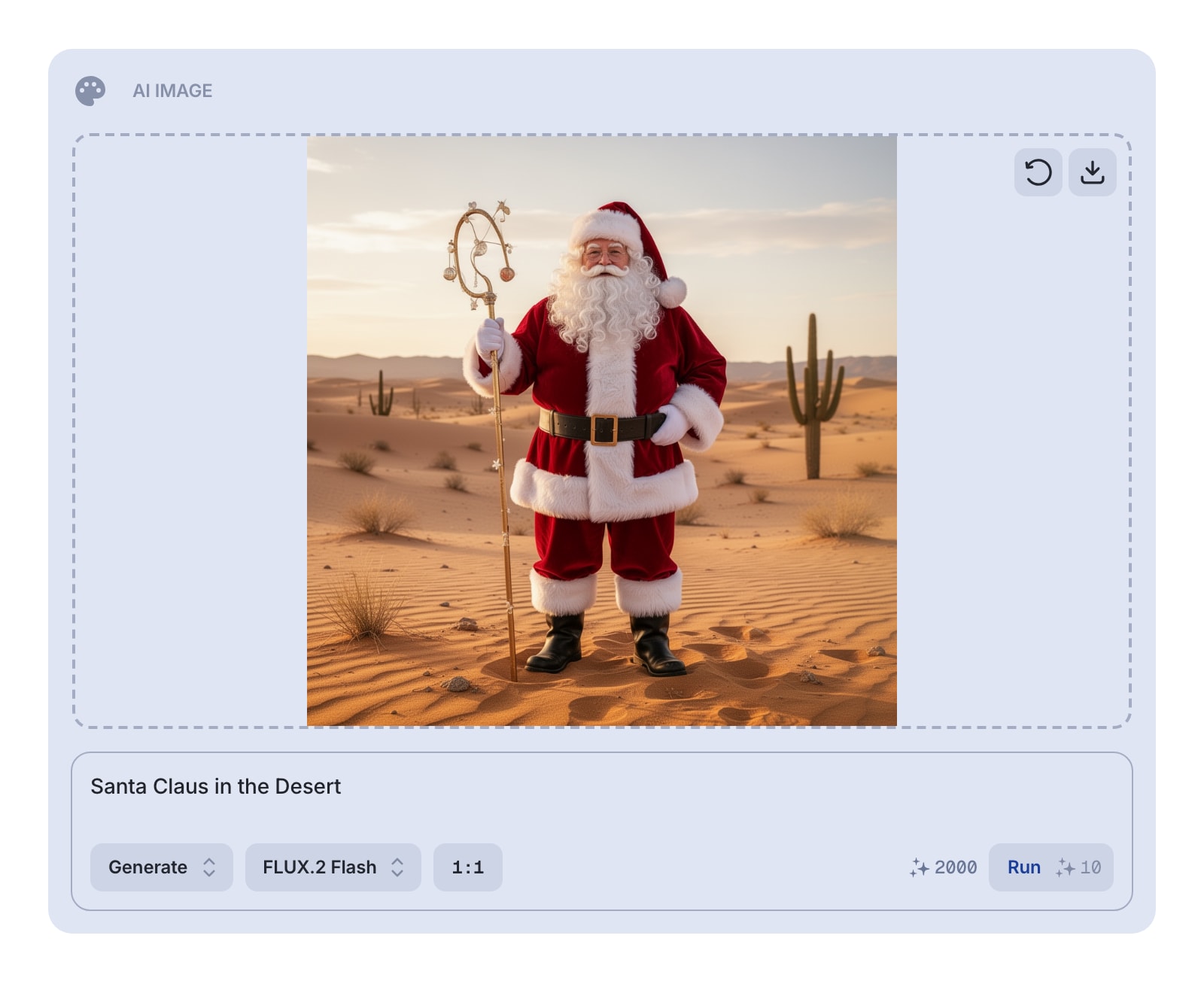
The AI Image widget lets you create and edit images using AI. Type a description of what you want, pick a model, and get an image in seconds. You can also upload an existing image to edit it, remove its background, or upscale it to a higher resolution.
#How to Use
#Generate a New Image
- Make sure the mode is set to Generate (the default).
- Type a description of the image you want in the prompt field - for example, "a cozy cabin in the snow."
- Choose an AI model from the model selector (each model has different strengths and costs).
- Pick an aspect ratio if you need a specific shape (landscape, portrait, or square).
- Click the Run button to generate your image.
#Edit an Existing Image
- Switch to Edit mode.
- Drag and drop an image into the widget, or click the drop zone to browse your files.
- Describe the changes you want in the prompt field - for example, "add a sunset in the background."
- Click Run to apply the edits.
If you drop an image while in Generate mode, the widget automatically switches to Edit mode.
#Remove a Background
- Switch to Remove BG mode.
- Upload the image you want to process.
- Click Run - no prompt is needed for this mode.
The widget will return your image with the background removed.
#Upscale an Image
- Switch to Upscale mode.
- Upload the image you want to enlarge.
- Pick an upscale factor - 2x, 3x, or 4x - using the factor button in the toolbar. The default is 2x.
- Click Run - no prompt is needed for this mode.
The widget returns a higher-resolution version of your image at the chosen factor.
#Models
The widget offers several AI models, each with different strengths:
- FLUX.2 Flash - fast and affordable, great for quick ideas (default)
- FLUX.2 - realistic textures and lighting
- FLUX.2 Pro - high resolution with precise colors
- Nano Banana - photorealistic with accurate text rendering
- Nano Banana 2 - enhanced version with more detail
- Nano Banana Pro - best quality, lighting, and details
- Seedream 4.5 - 4K resolution with great typography
- GPT Image 1.5 - complex scenes, signs, and infographics
- Grok Imagine - portraits, logos, and multiple styles
- Qwen Image - multi-line text in English and Chinese
- BiRefNet - dedicated background removal model
Each model shows its credit cost before you run it, so you always know what a generation will cost.
#Aspect Ratios
When generating a new image, you can cycle through five aspect ratios:
- 1:1 - square (default)
- 16:9 - wide landscape
- 9:16 - tall portrait
- 4:3 - standard landscape
- 3:4 - standard portrait
#Saving Your Image
After generating or editing an image, click the download button to save it to your device.