- Dashboard
- Widgets
- AI Diary
- AI Humanizer
- AI Image
- Audio Editor
- Base64 / URL Encoder
- Calendar
- Canvas
- Collection
- Color Picker
- Container
- Countdown Timer
- Currency Converter
- Daily Quiz
- Daily Quote
- Daily Riddle
- Date & Time
- Embed
- GitHub Releases
- Google Calendar
- Habit Tracker
- Hacker News
- Image Compression
- IP Info
- JSON Formatter
- Links
- Markdown Editor
- News
- News Summary
- Notes
- Photo Frame
- Podcast
- Pomodoro Timer
- Product Hunt
- QR Code Generator
- Quick Answer
- Quick Note
- Regex Tester
- RSS Feed
- Search
- Spacer
- Stopwatch
- Story Snippet
- Stripe Sales
- Subreddit
- Substack
- t0ggles Focus
- t0ggles My Boards
- t0ggles My Tasks
- Tasks
- Text Diff
- Todo
- TradingView Advanced Chart
- TradingView Market Summary
- TradingView Mini Chart
- TradingView Symbol Overview
- TradingView Ticker Tape
- Translation
- Unit Converter
- Uptime Monitor
- Weather
- What If
- World Clock
- YouTube Channel
Getting Started with Pages
Pages are the top-level way to organize your dashboard. Think of them as tabs - each one holds a separate set of widgets, and you can switch between them instantly.
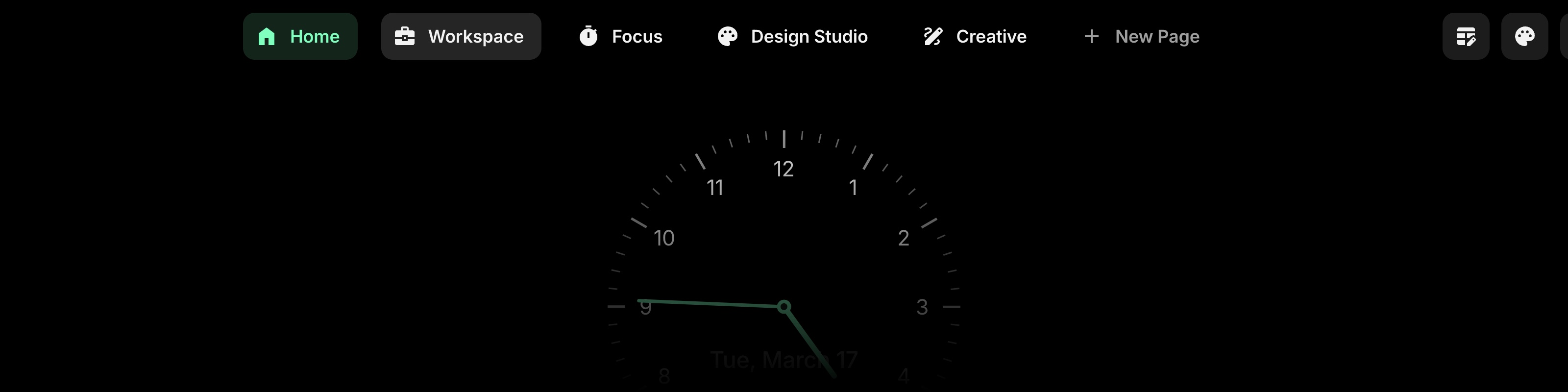
Page tabs at the top of the dashboard
#How Pages Work
Your pages appear as tabs at the top of the dashboard. Click any tab to switch to that page. Each page has its own collection of widgets that you can customize independently.
Every page has:
- A title that appears on the tab
- An optional icon or image that appears next to the title
#Navigating Pages
- Desktop: Click a page tab to switch to it. The active tab is highlighted in your accent color.
- Mobile: Tap a page tab to scroll to that page. Pages scroll horizontally with a snap effect so each page lines up cleanly.
#Managing Pages
Right-click (or long-press on mobile) on any page tab to open the page menu. From there you can edit, reorder, or delete the page. See the other guides in this section for step-by-step instructions.