- Dashboard
- Widgets
- AI Diary
- AI Humanizer
- AI Image
- Audio Editor
- Base64 / URL Encoder
- Calendar
- Canvas
- Collection
- Color Picker
- Container
- Countdown Timer
- Currency Converter
- Daily Quiz
- Daily Quote
- Daily Riddle
- Date & Time
- Embed
- GitHub Releases
- Google Calendar
- Habit Tracker
- Hacker News
- Image Compression
- IP Info
- JSON Formatter
- Links
- Markdown Editor
- News
- News Summary
- Notes
- Photo Frame
- Podcast
- Pomodoro Timer
- Product Hunt
- QR Code Generator
- Quick Answer
- Quick Note
- Regex Tester
- RSS Feed
- Search
- Spacer
- Stopwatch
- Story Snippet
- Stripe Sales
- Subreddit
- Substack
- t0ggles Focus
- t0ggles My Boards
- t0ggles My Tasks
- Tasks
- Text Diff
- Todo
- TradingView Advanced Chart
- TradingView Market Summary
- TradingView Mini Chart
- TradingView Symbol Overview
- TradingView Ticker Tape
- Translation
- Unit Converter
- Uptime Monitor
- Weather
- What If
- World Clock
- YouTube Channel
Stopwatch Widget
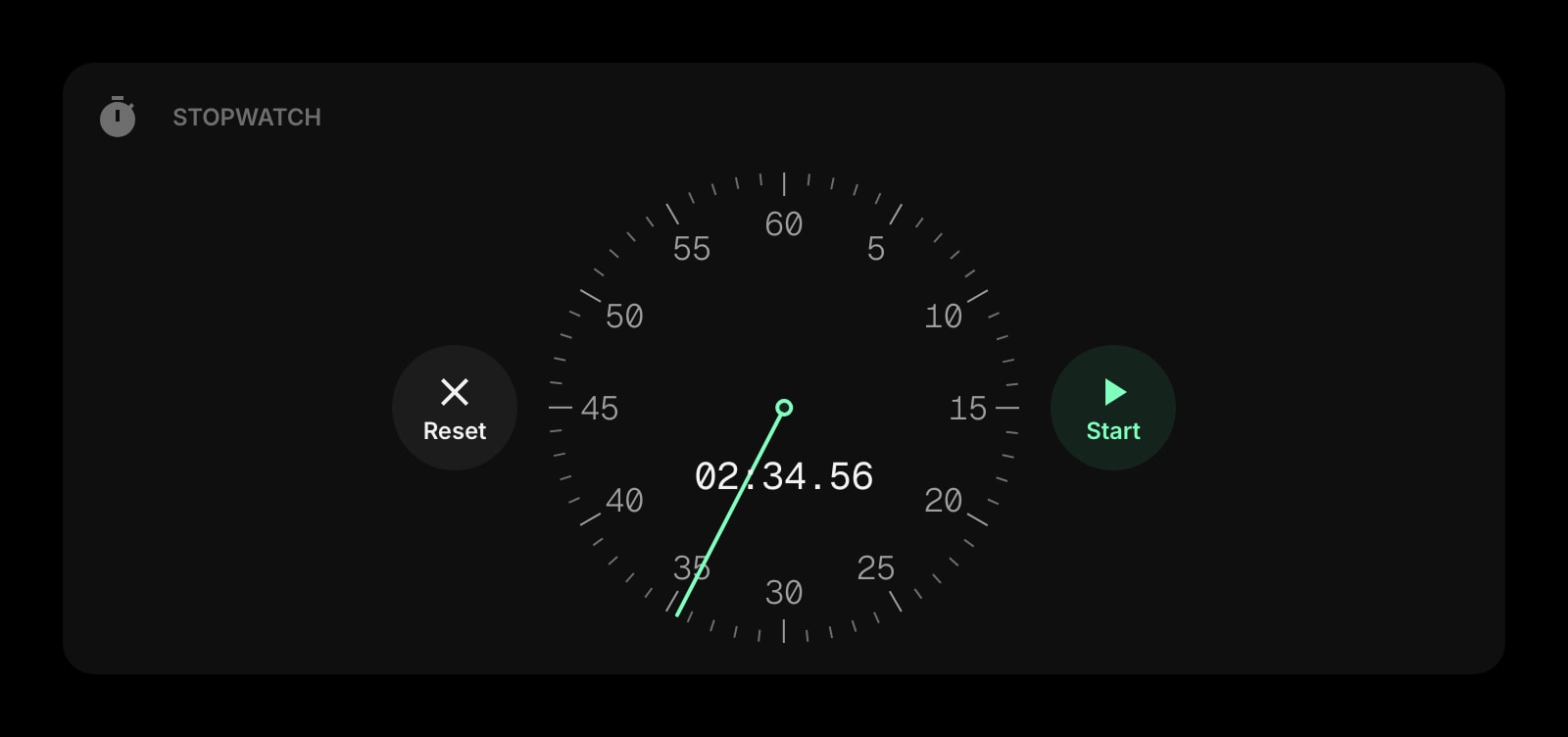
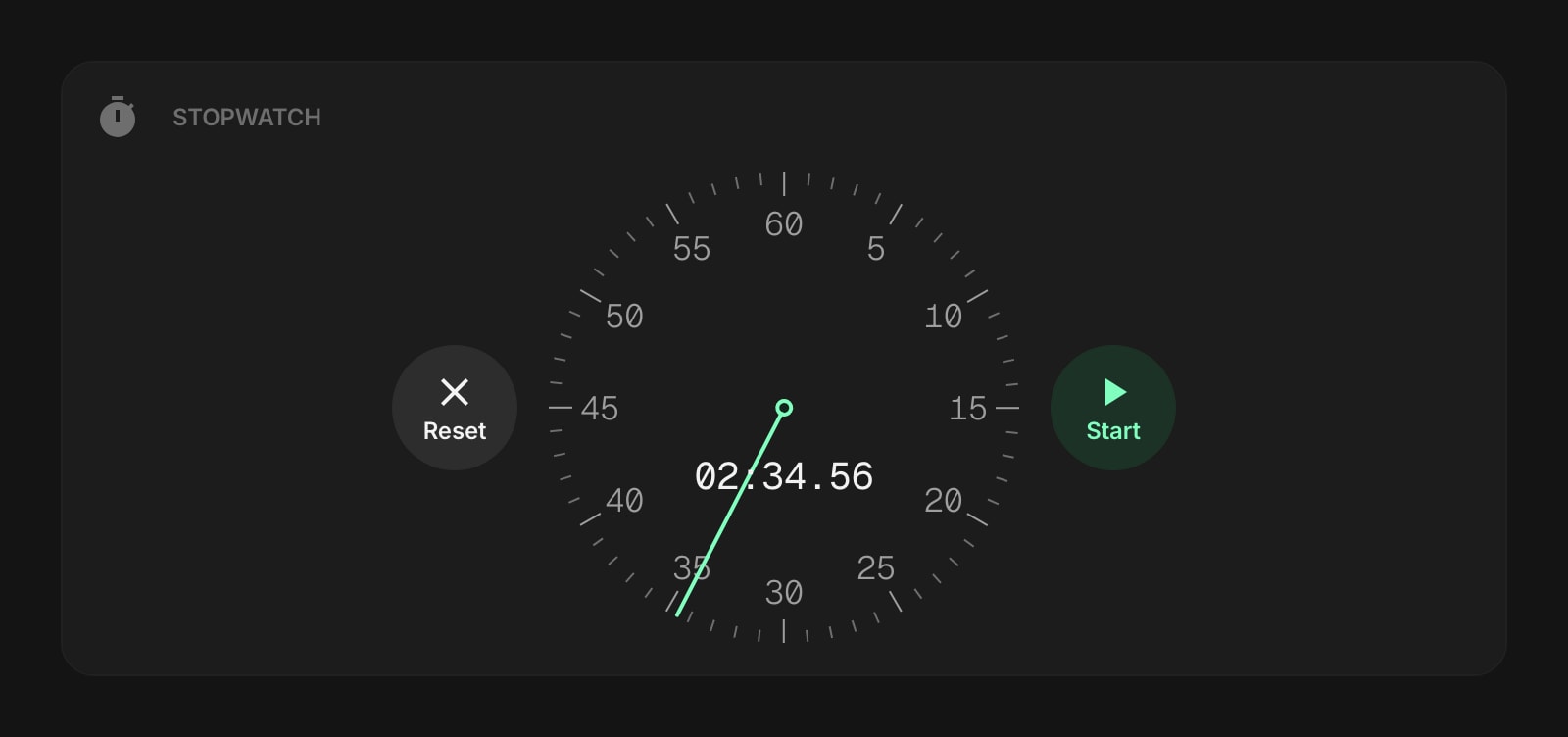
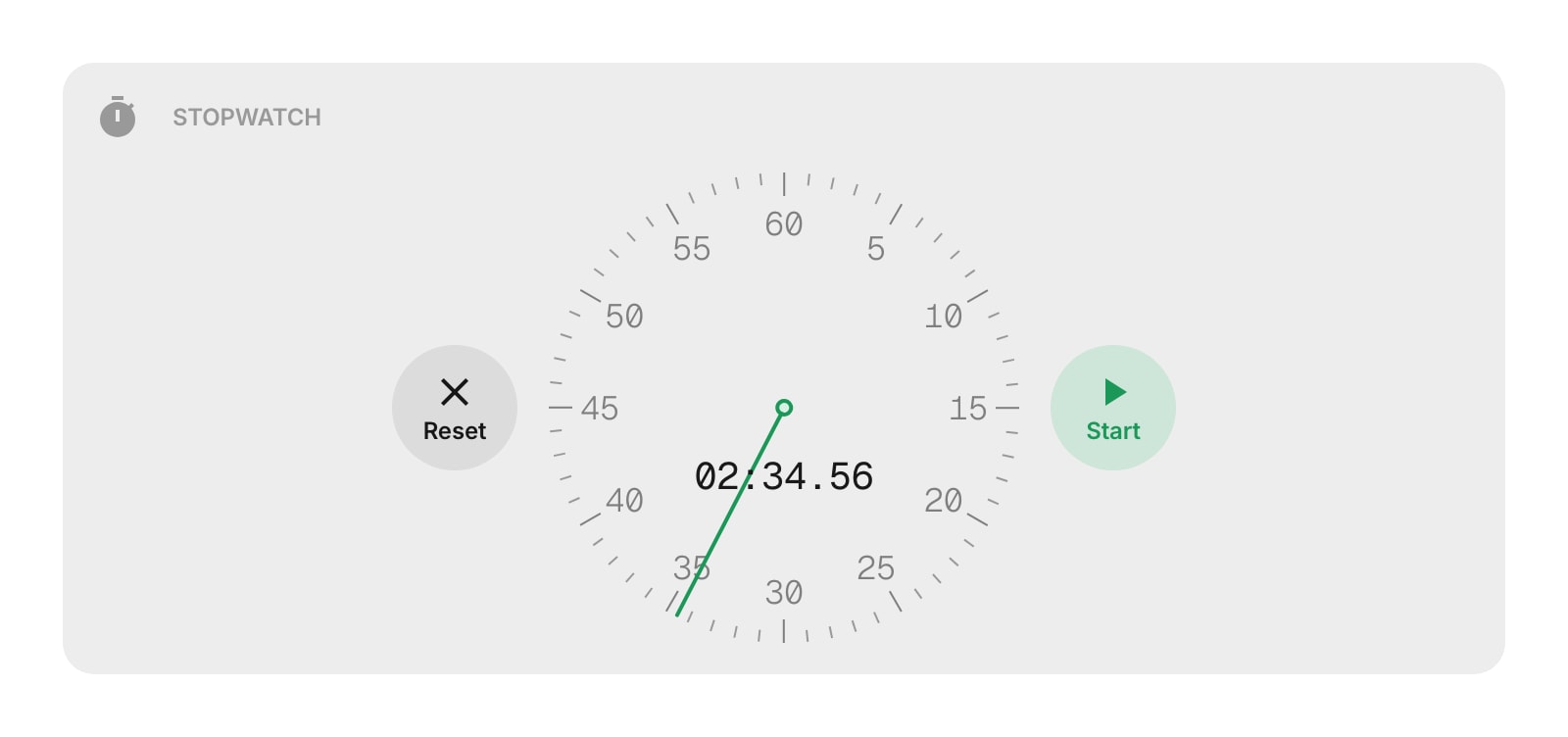
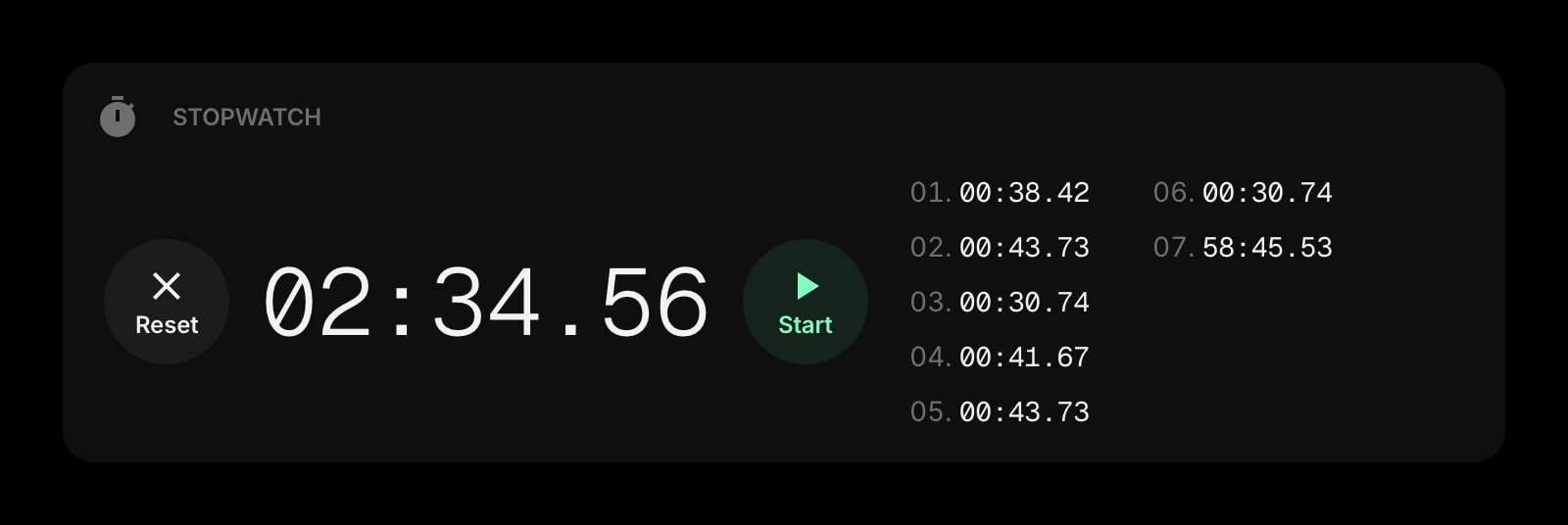
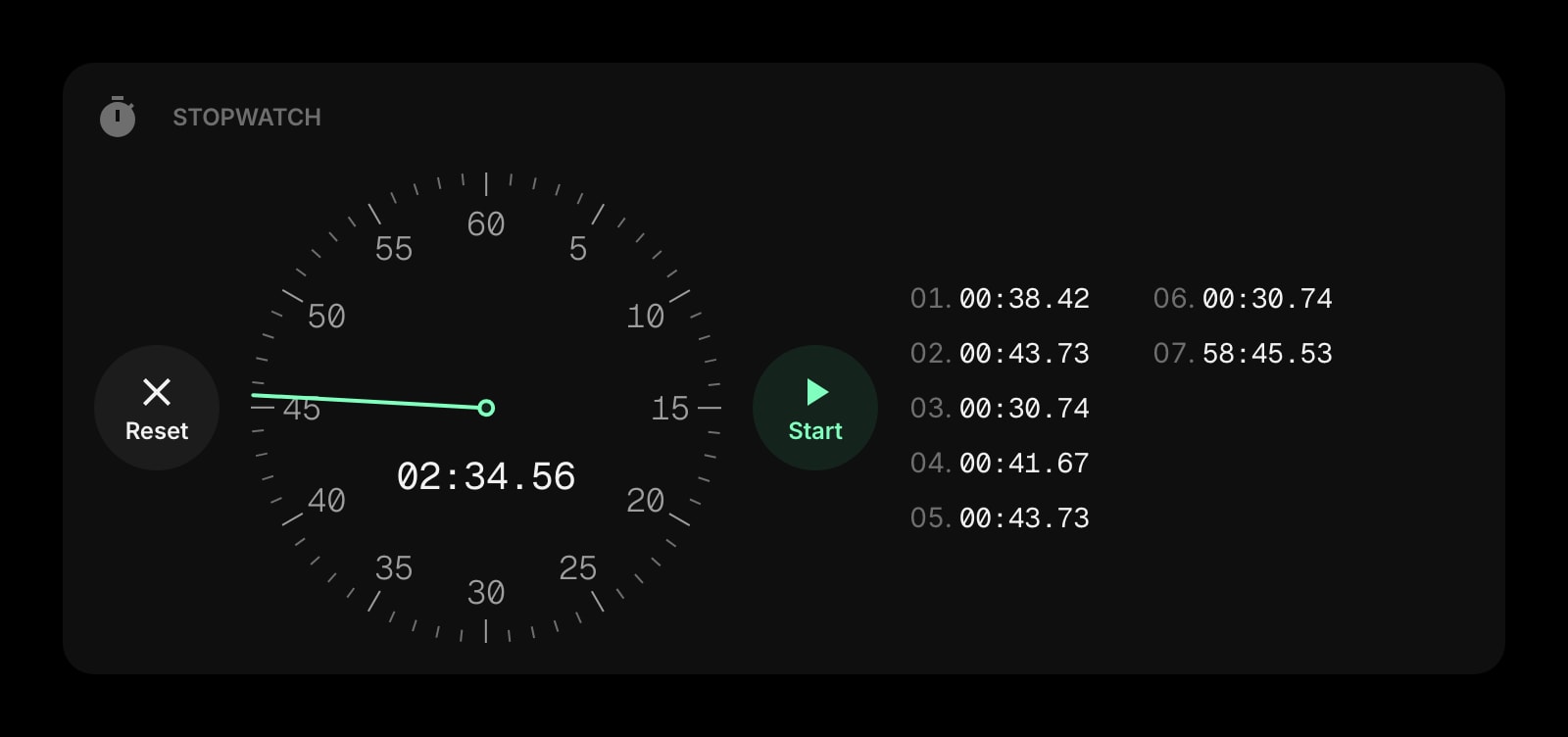
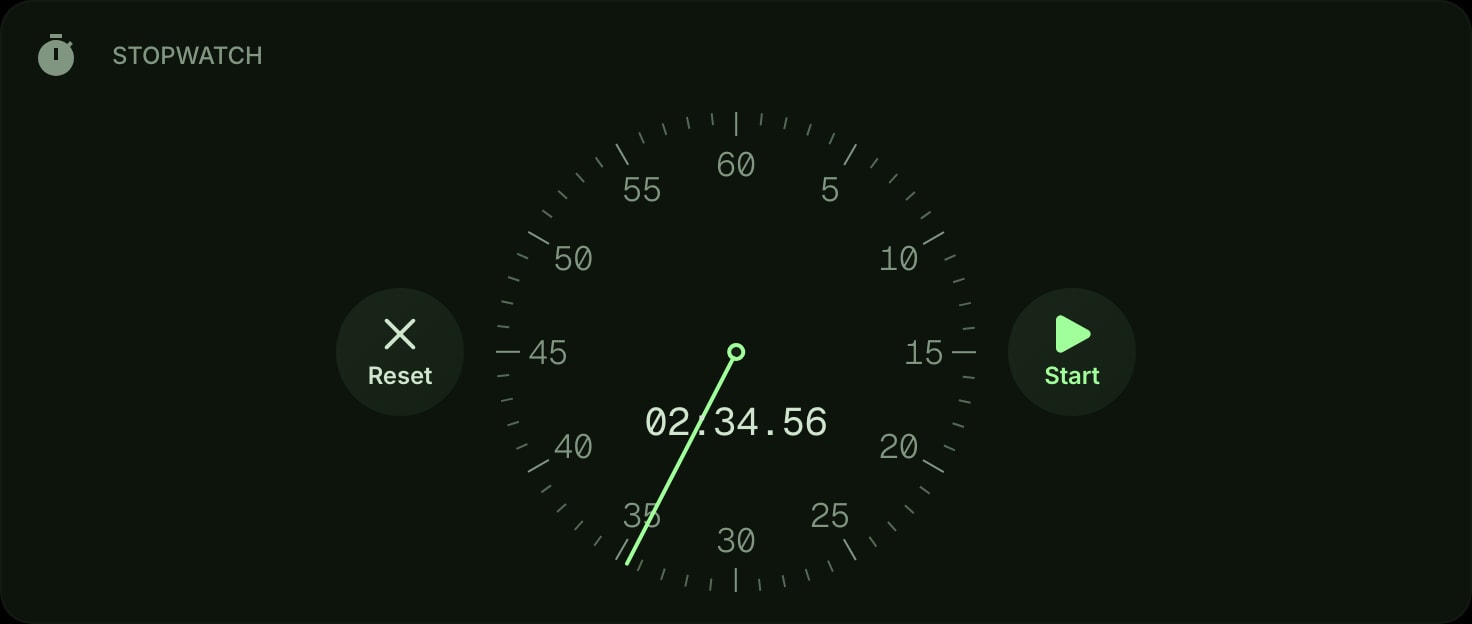
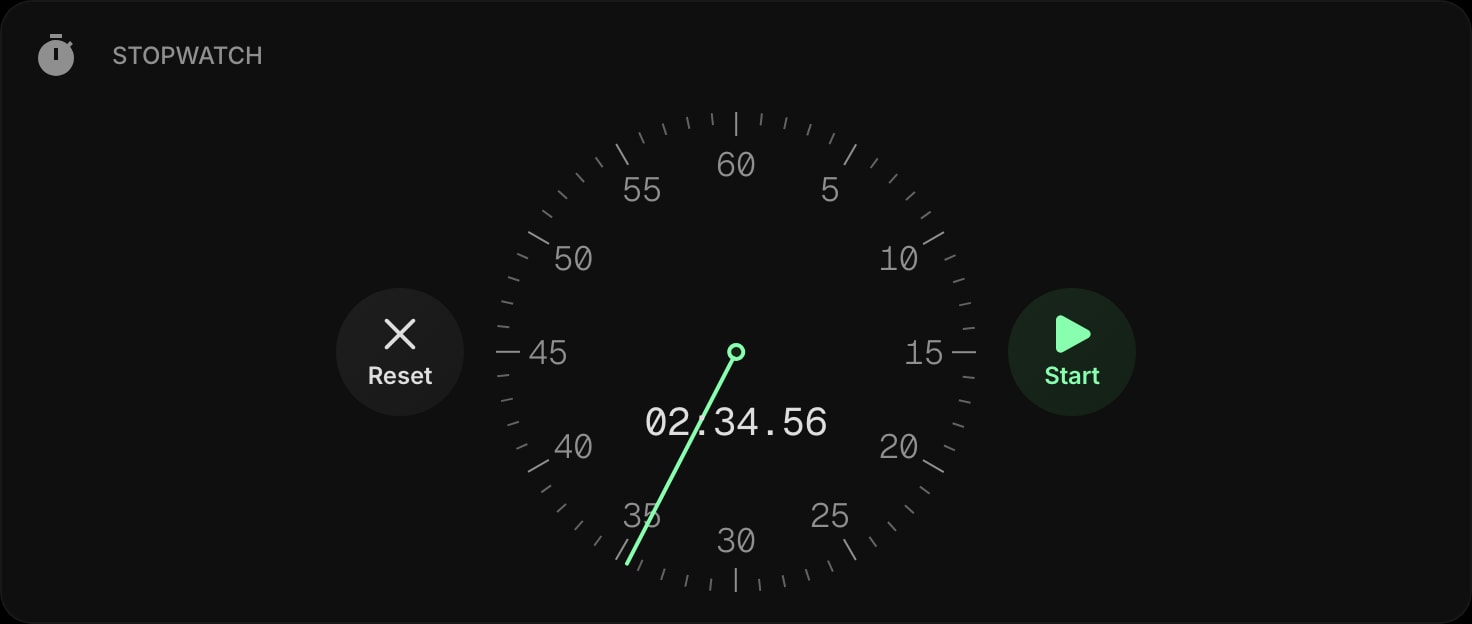
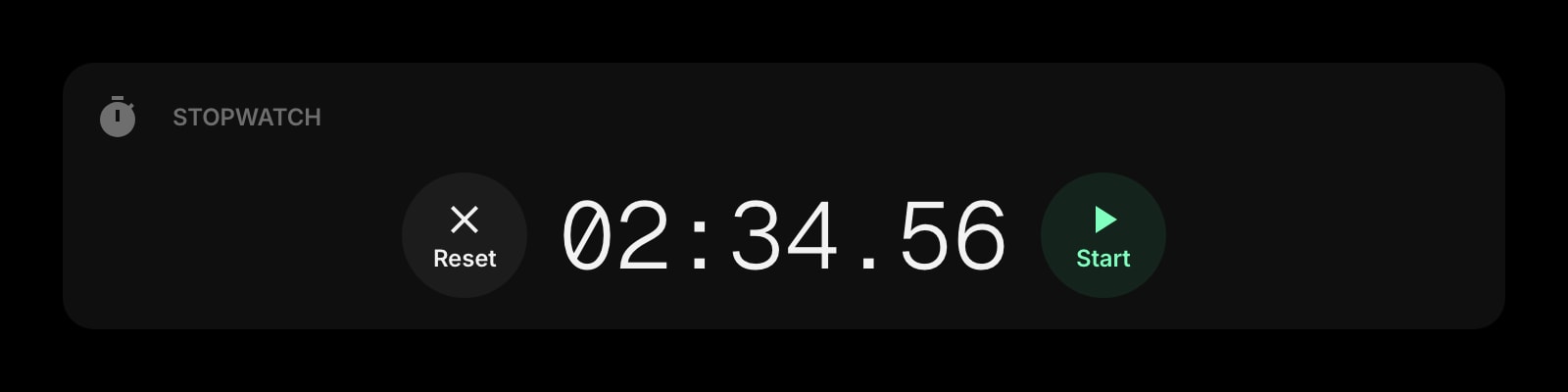
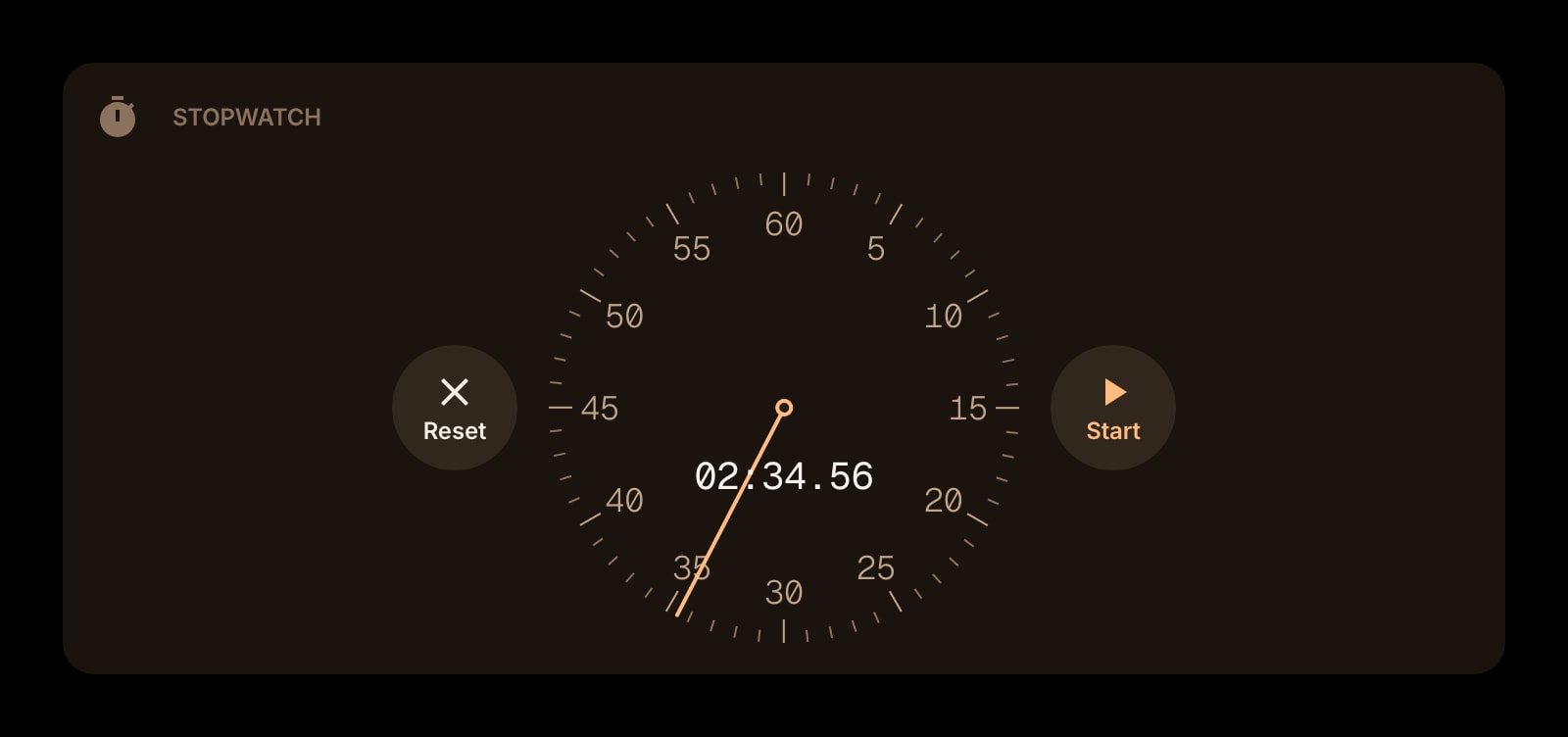
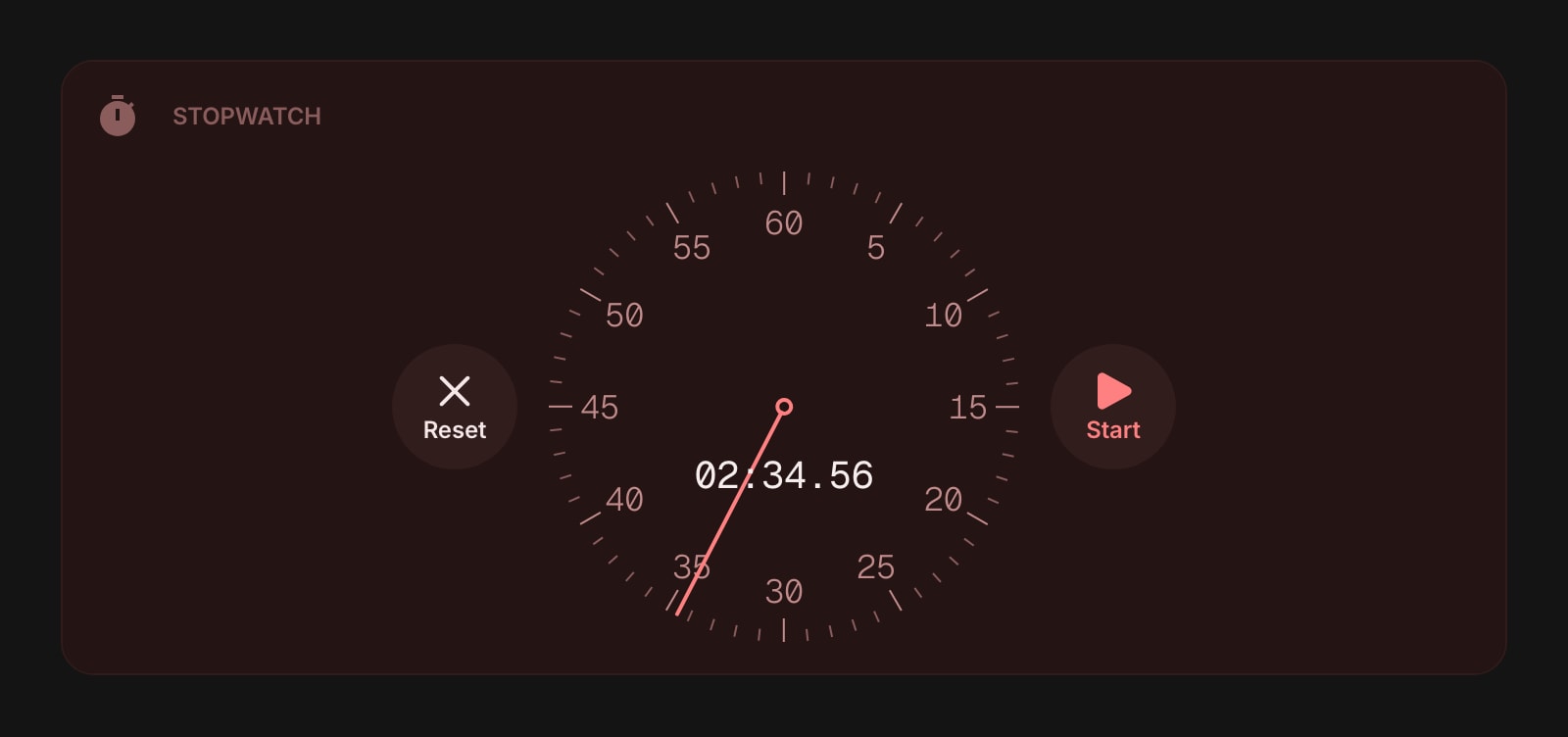
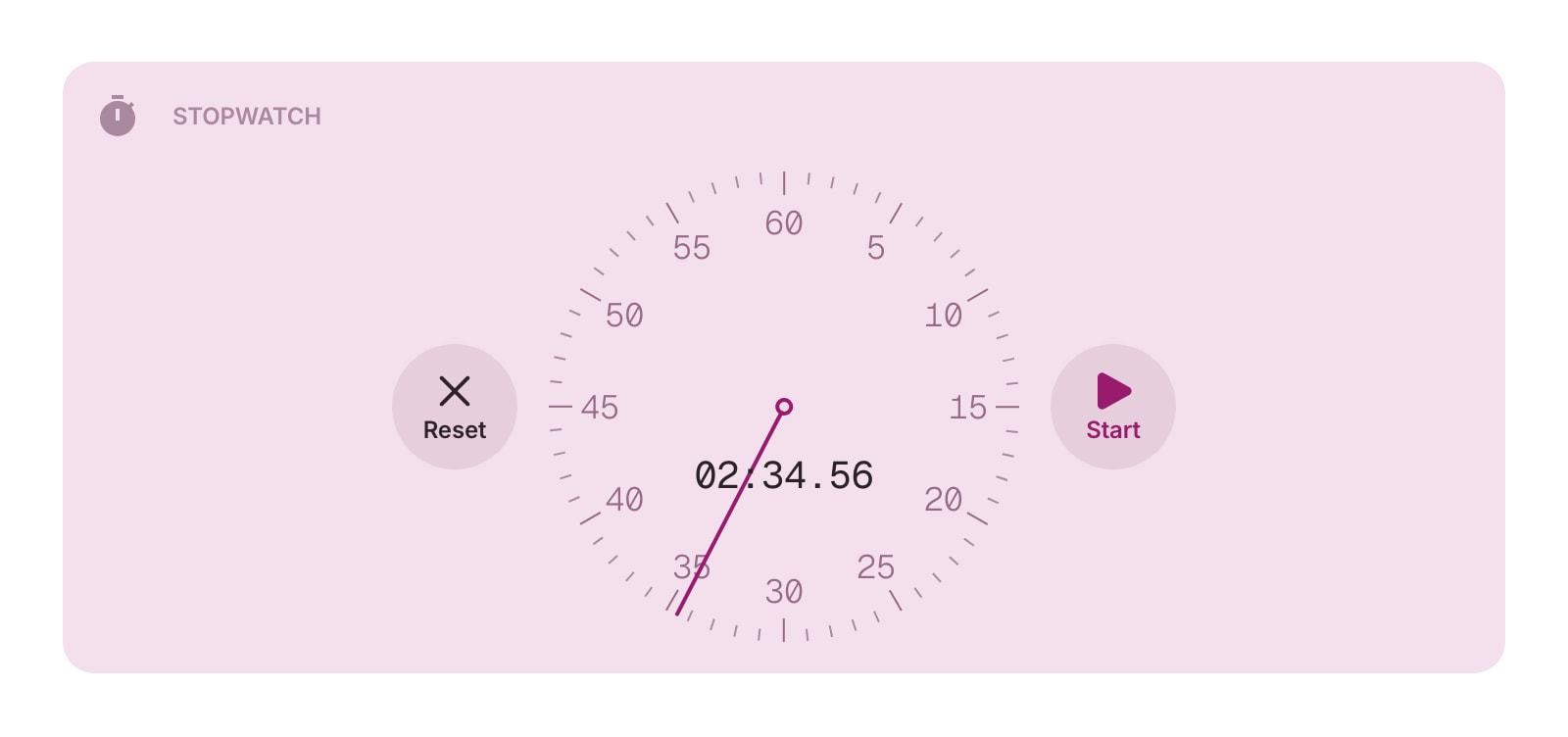
The Stopwatch widget lets you time activities right from your dashboard. Start, pause, and reset with a single click - no extra apps needed. Choose between a digital readout or an analog watchface display, and optionally track laps as you go.
#How to Use
#Starting and Stopping
Click Start to begin timing. The display counts up in real time, showing minutes, seconds, and hundredths of a second. When the timer runs past one hour, it switches to hours, minutes, and seconds.
Click Pause to freeze the timer. Click Start again to resume from where you left off. Click Reset to clear the timer and start fresh.
#Tracking Laps
When laps are enabled in the widget settings, the Reset button changes to a Lap button while the stopwatch is running. Click it to record a lap - the current time is saved and the lap counter moves on. All your laps appear in a numbered list beside the timer.
On desktop, laps are shown in a grid. On mobile, they scroll horizontally so you can swipe through them.
#Widget Settings
- Watch Style - choose between Digital and Watchface (default). Digital shows the time as numbers. Watchface shows an analog clock face with a rotating seconds hand.
- Rich Dial - give the watchface a real-watch look with a filled dial: Day is a white dial with black numbers and hands, Night is a dark dial with white hands, Auto (default) picks one to match your color theme, and Off keeps the regular flat dial. This setting appears only when the watchface is visible.
- Buttons Style - set how the control buttons look: Text, Icon, or Both (default). Choose text-only for a minimal look, or icons for a compact layout.
- Laps - turn lap tracking on or off. Off by default.
#Tips
- Your stopwatch state is saved automatically - if you close and reopen your dashboard, the timer picks up right where you left off.
- Use the watchface style for a classic analog look, or switch to digital when you need precision down to hundredths of a second.
- Add the widget to your main page for quick access to timing workouts, cooking, study sessions, or anything else.