- Dashboard
- Widgets
- AI Diary
- AI Humanizer
- AI Image
- Audio Editor
- Base64 / URL Encoder
- Calendar
- Canvas
- Collection
- Color Picker
- Container
- Countdown Timer
- Currency Converter
- Daily Quiz
- Daily Quote
- Daily Riddle
- Date & Time
- Embed
- GitHub Releases
- Google Calendar
- Habit Tracker
- Hacker News
- Image Compression
- IP Info
- JSON Formatter
- Links
- Markdown Editor
- News
- News Summary
- Notes
- Photo Frame
- Podcast
- Pomodoro Timer
- Product Hunt
- QR Code Generator
- Quick Answer
- Quick Note
- Regex Tester
- RSS Feed
- Search
- Spacer
- Stopwatch
- Story Snippet
- Stripe Sales
- Subreddit
- Substack
- t0ggles Focus
- t0ggles My Boards
- t0ggles My Tasks
- Tasks
- Text Diff
- Todo
- TradingView Advanced Chart
- TradingView Market Summary
- TradingView Mini Chart
- TradingView Symbol Overview
- TradingView Ticker Tape
- Translation
- Unit Converter
- Uptime Monitor
- Weather
- What If
- World Clock
- YouTube Channel
Google Calendar Widget
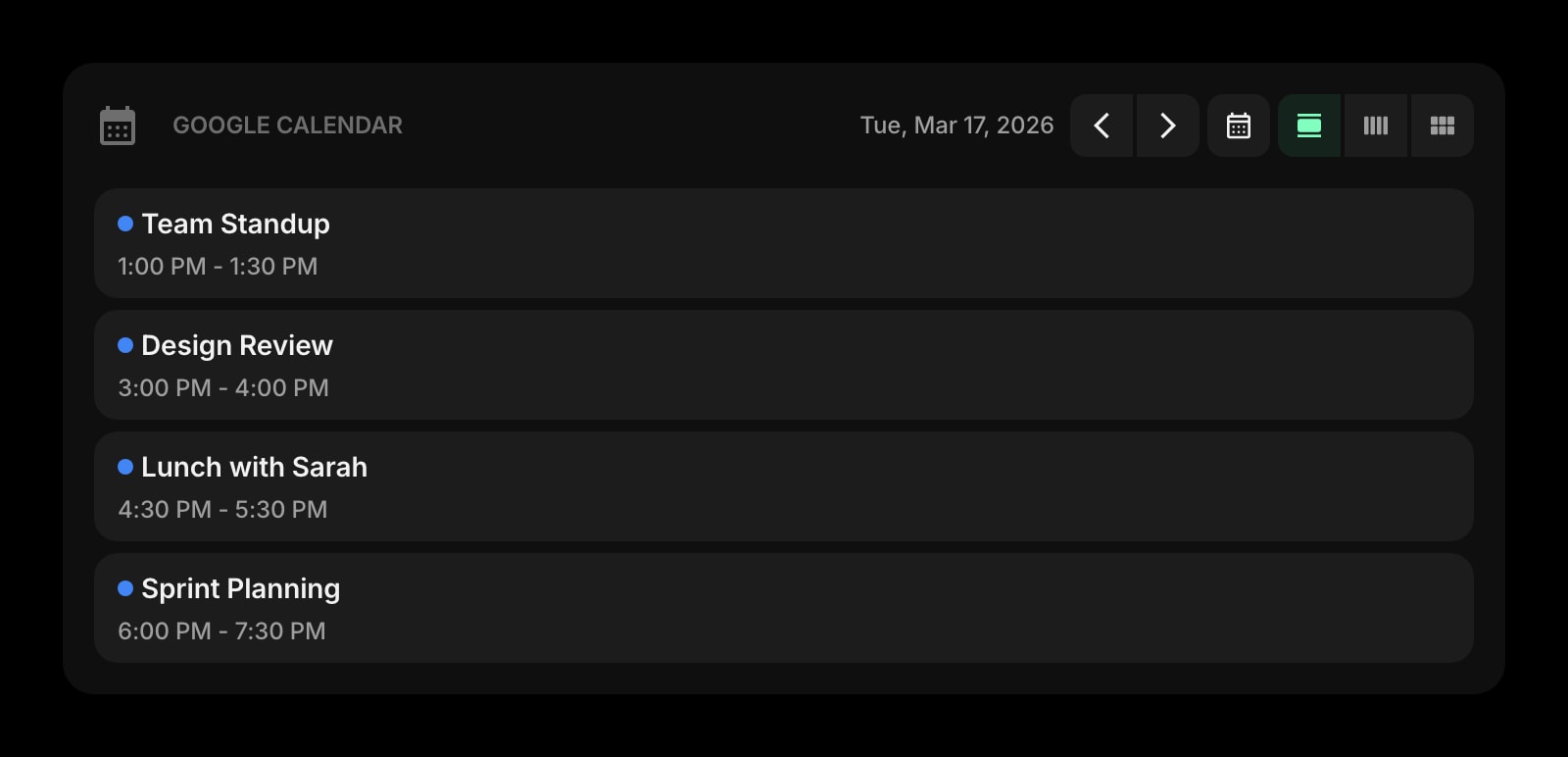
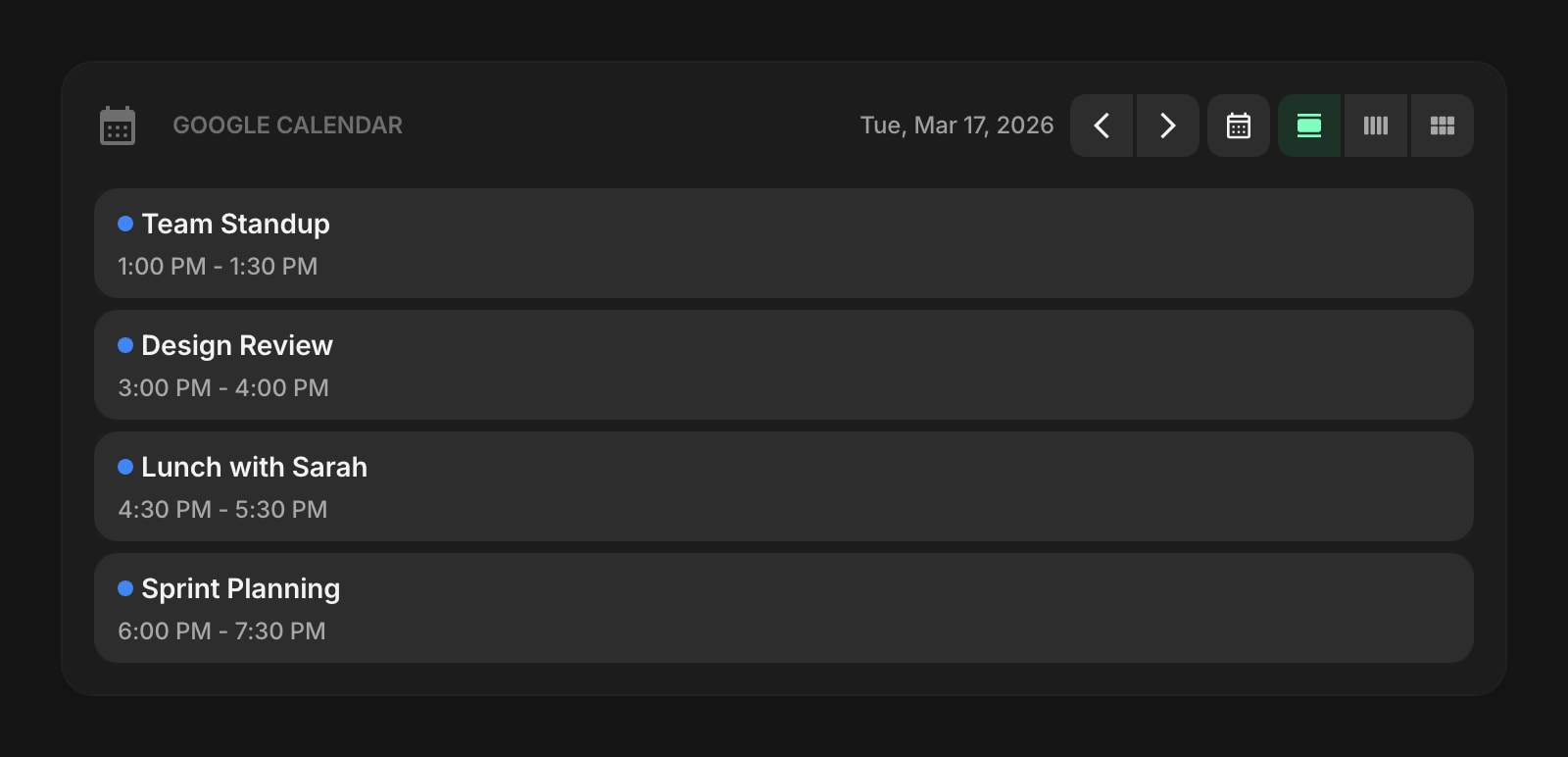
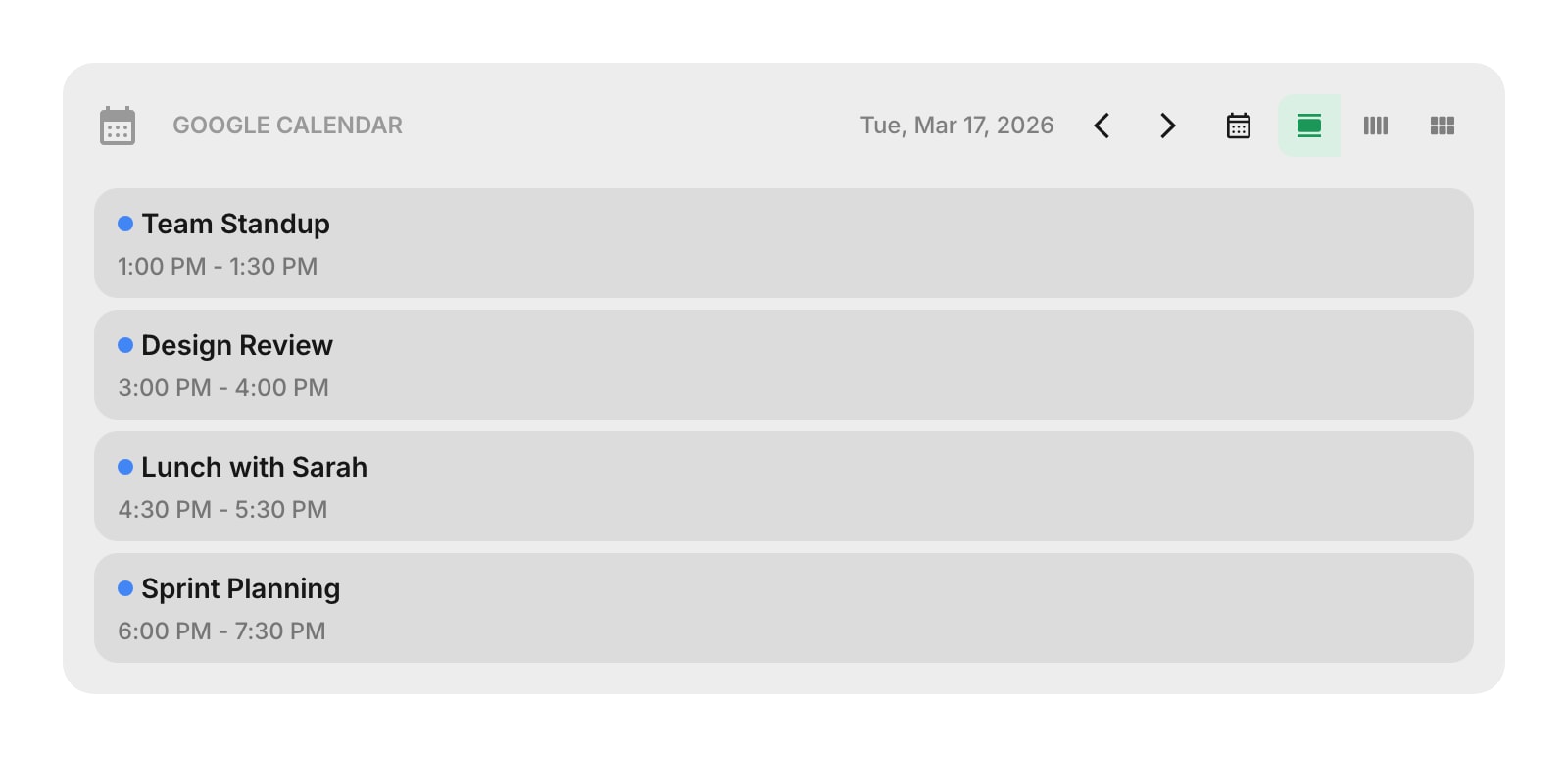
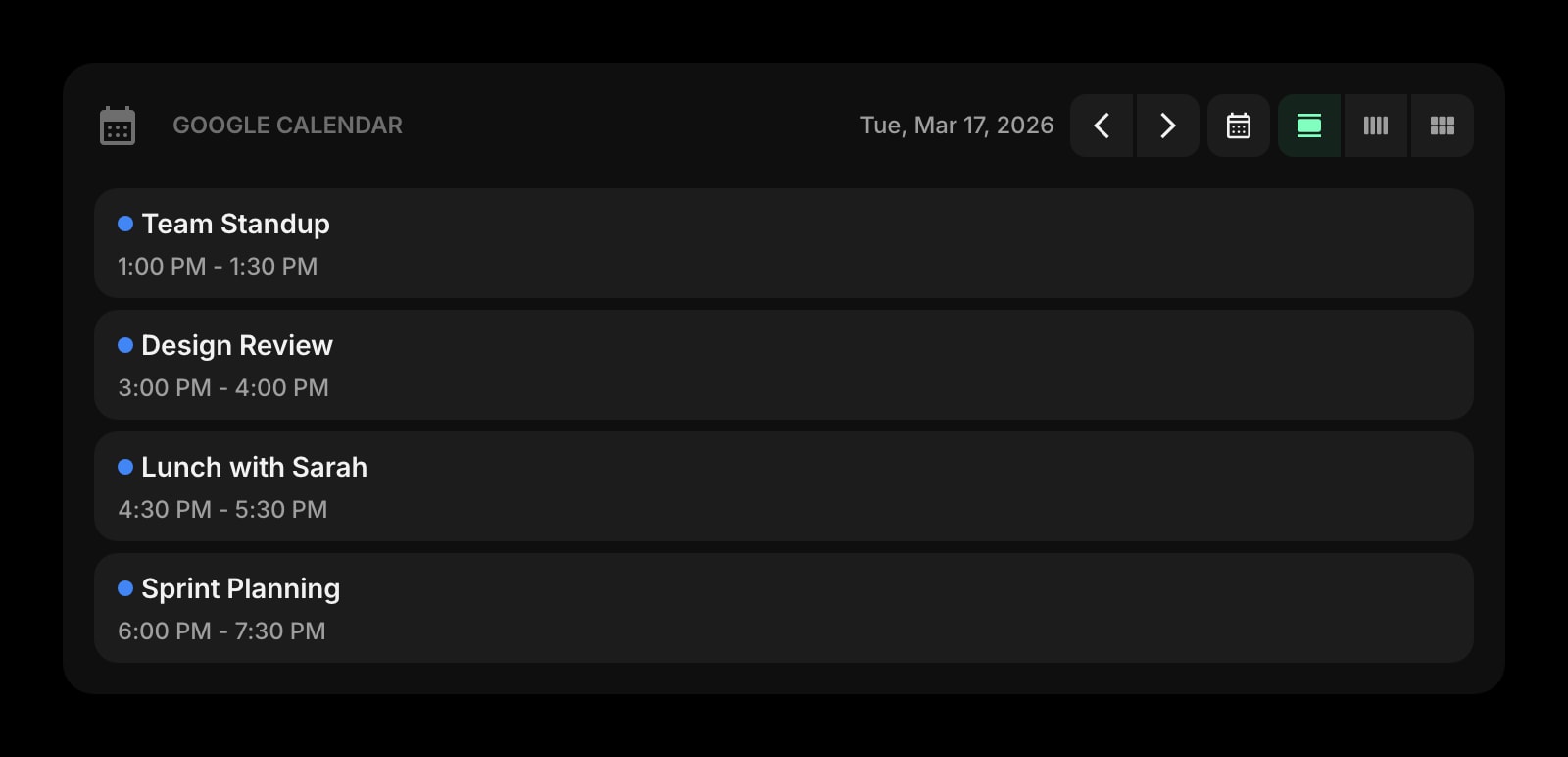
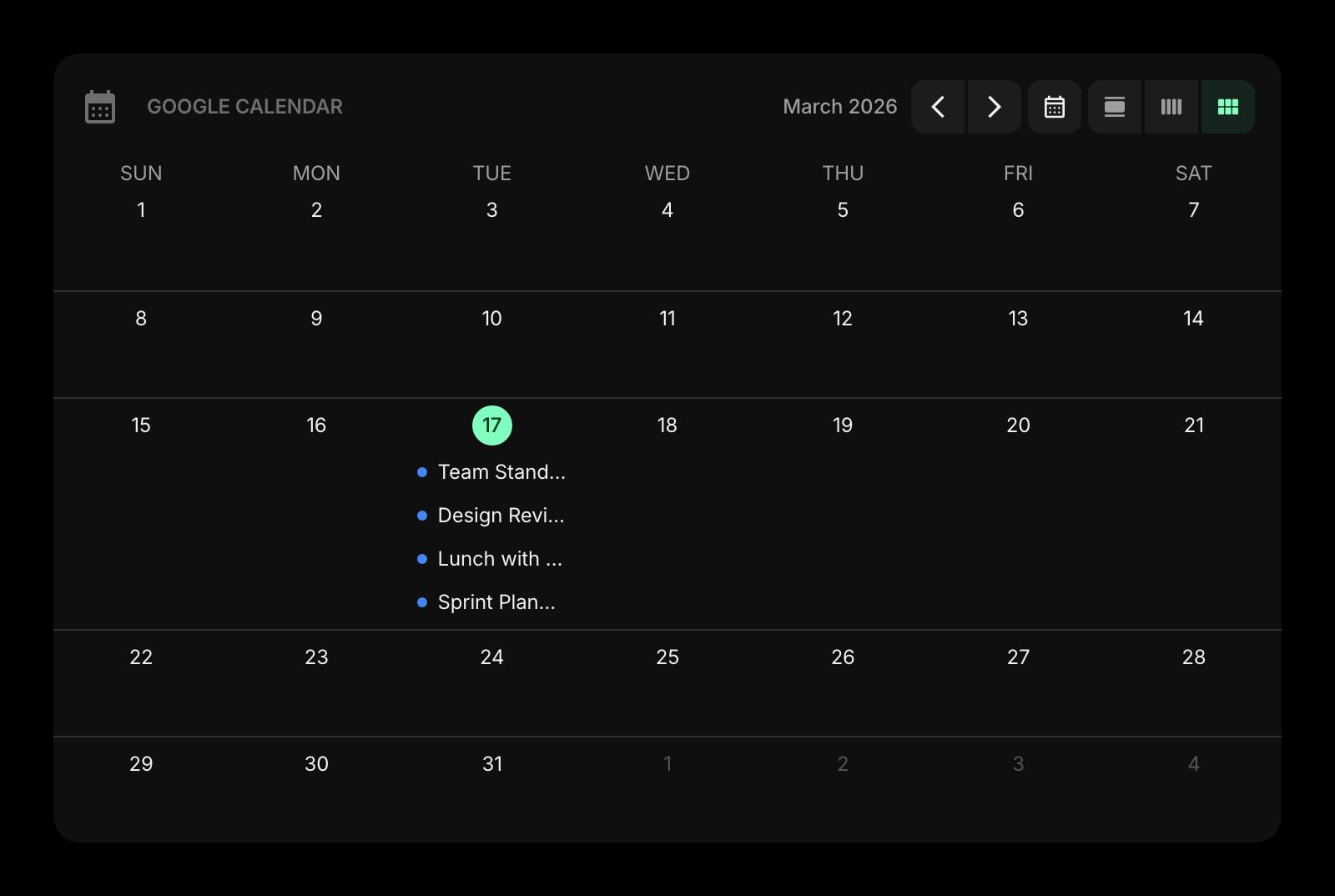
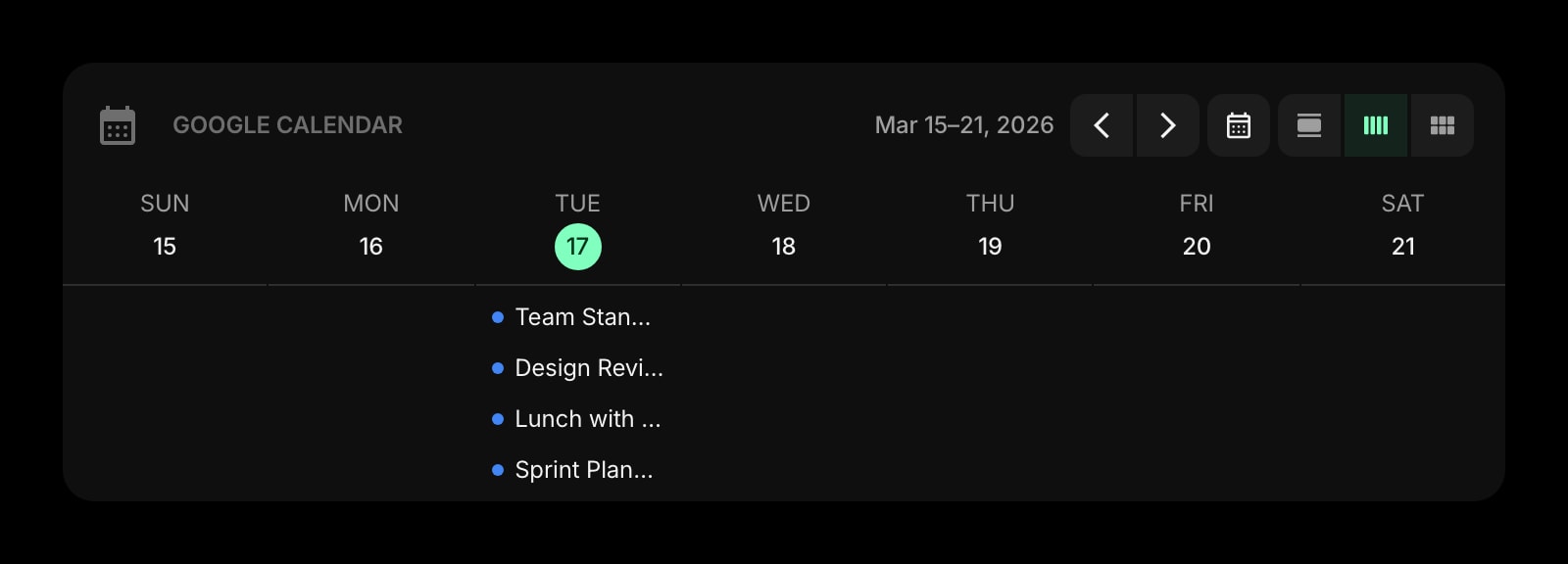
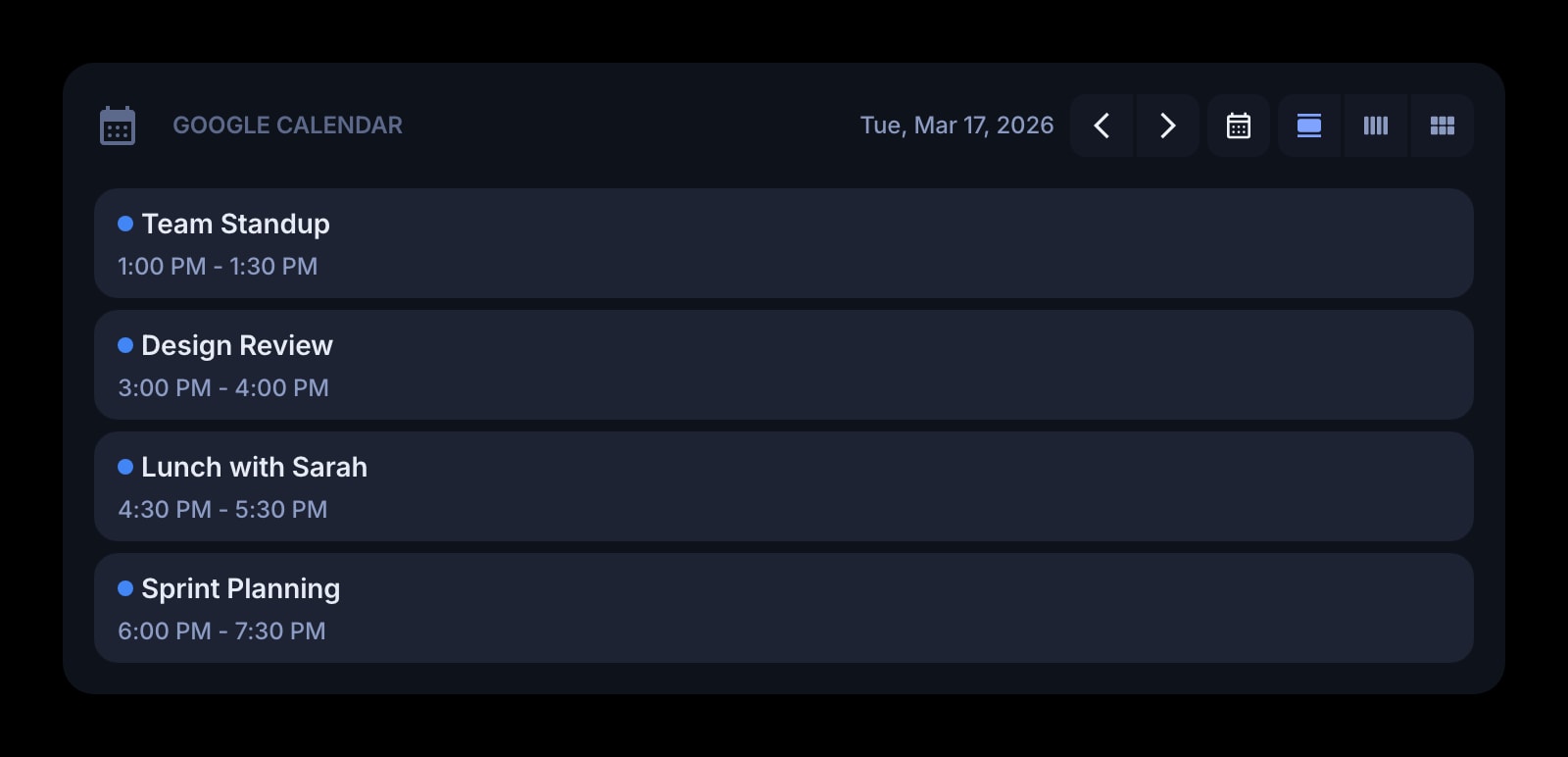
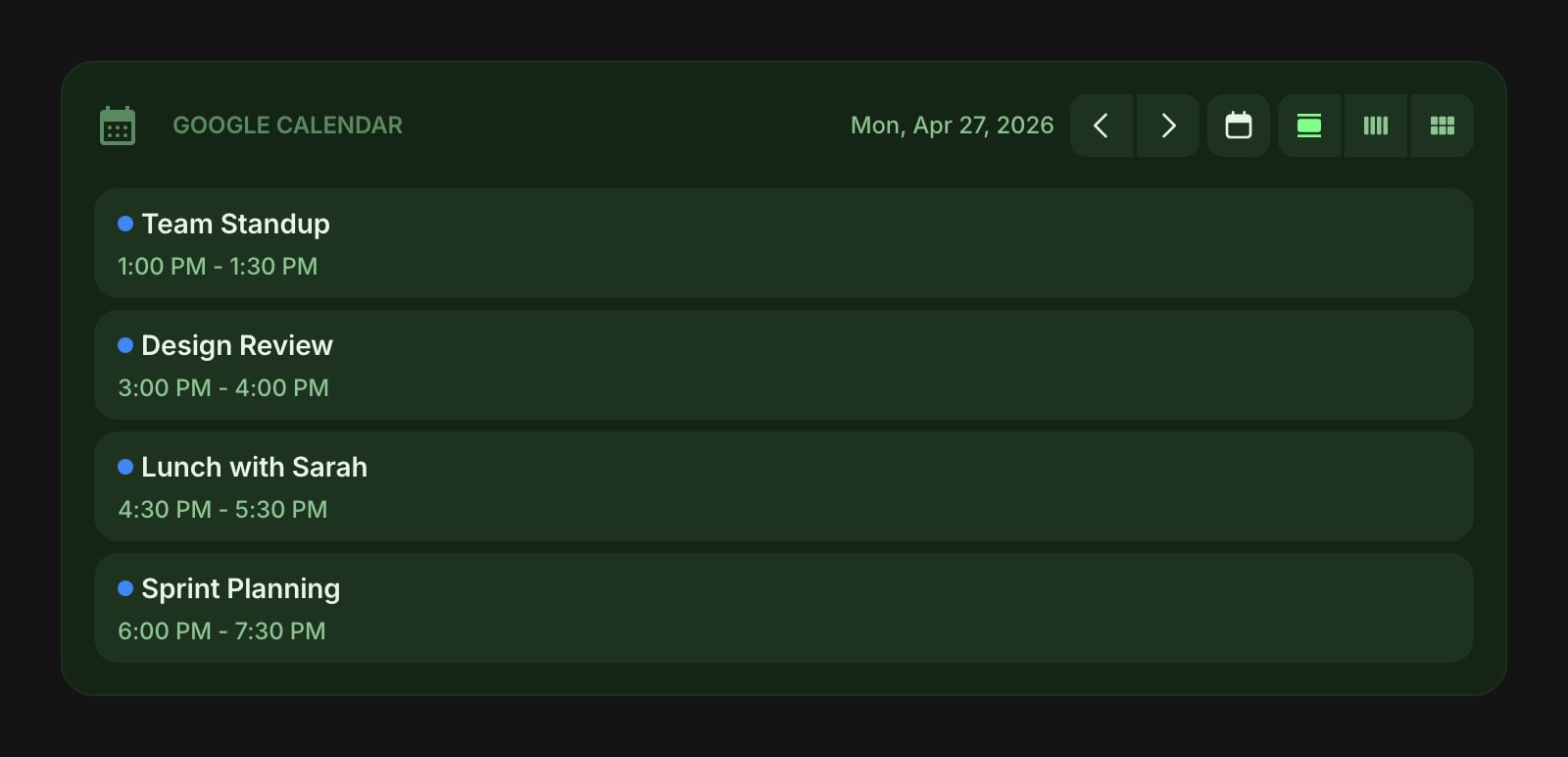
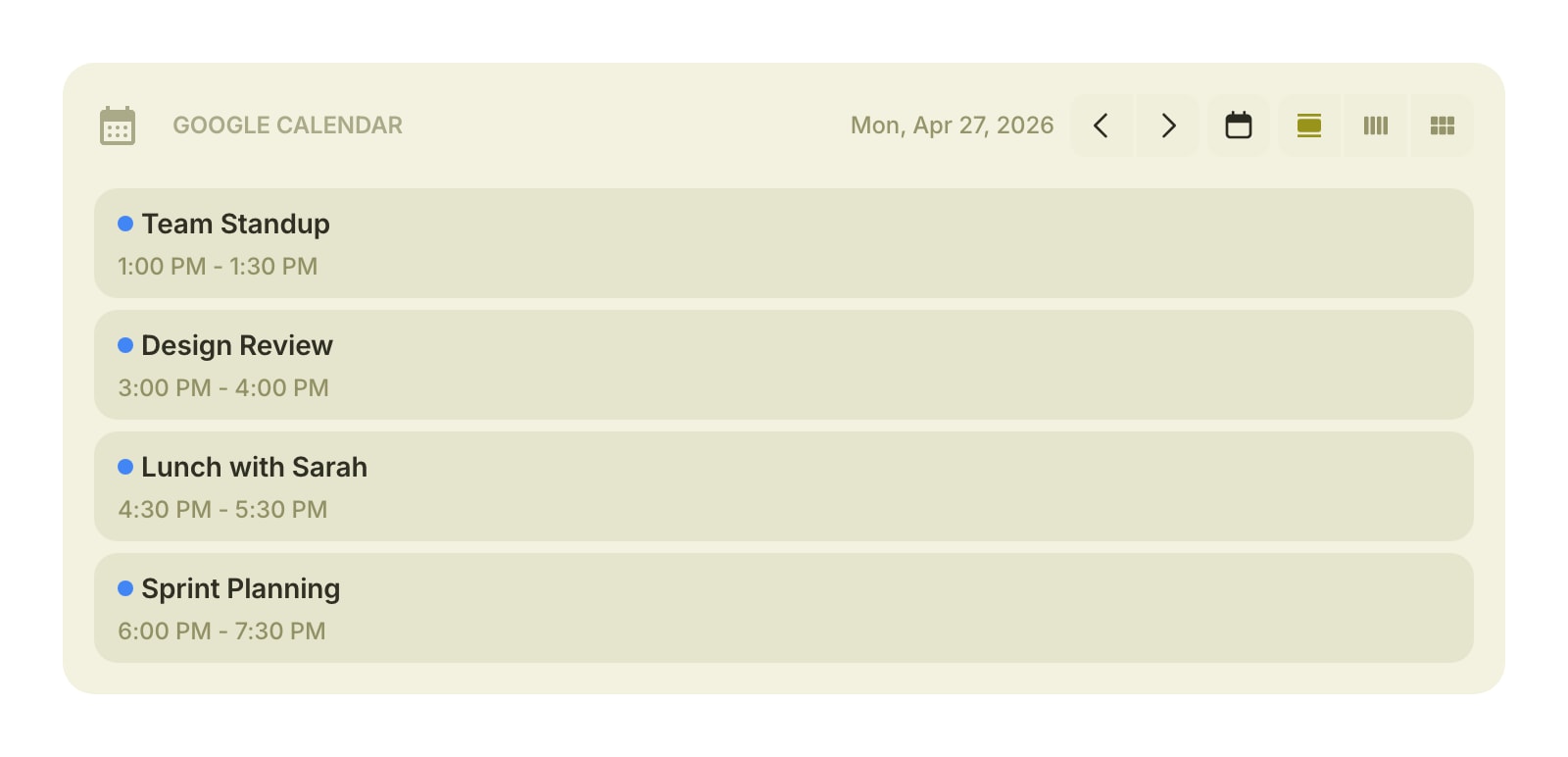
The Google Calendar widget shows your upcoming events right on your dashboard. Connect your Google account and see your schedule in a day, week, or month view - no need to open Google Calendar in a separate tab.
Installing on a specific browser? See the step-by-step guides: Calendar widget for Chrome, Calendar widget for Firefox, Calendar widget for Safari, or Calendar widget for Edge.
#How to Use
#Connecting Your Account
- Click the Connect Google Calendar button on the widget.
- Sign in to your Google account and allow access.
- Once connected, a list of your calendars appears - pick the one you want to display.
#Using Multiple Accounts
You can link more than one Google account and choose which one a widget shows.
- After connecting your first account, open the widget settings and use Connect another account to link an additional Google account.
- Once you have two or more linked accounts, the settings show an Account selector. Pick an account to switch the widget to its calendars - no need to sign in again.
- Switching accounts clears the selected calendar so you can choose one from the newly selected account.
Because the account is set per widget, you can show your work calendar in one Google Calendar widget and your personal calendar in another, side by side.
#Viewing Your Events
After choosing a calendar, your events appear in the selected view. Each event shows:
- Title - the event name
- Time - when the event starts and ends (if "Show Event Time" is turned on)
- Location - where the event takes place (if "Show Location" is turned on)
- Color indicator - a colored dot matching your calendar's color
All-day events are displayed separately at the top of the day.
Click any event to open it in Google Calendar for full details.
#Navigating Dates
Use the arrow buttons to move forward or backward:
- In day view, each click moves by one day
- In week view, each click moves by one week
- In month view, each click moves by one month
Click Today to jump back to the current date. Today's date is always highlighted.
#View Modes
#Day View
Shows all events for a single day in a simple list. Great for focusing on what's coming up today.
#Week View
Shows a 7-day grid with your events spread across the week. Each day column shows up to 4 events, with a "+N more" indicator if there are additional events.
#Month View
Shows a full calendar grid for the entire month. Days from the previous and next month are slightly faded. Each day shows your events in a compact format.
#Widget Settings
- Account - choose which linked Google account the widget shows. Appears once you've connected an account, and becomes a full account selector once you've linked two or more.
- View - choose between Day (default), Week, or Month view.
- Show Event Time - show or hide event start and end times. Turned on by default.
- Show Location - show or hide event locations. Turned off by default.
- Show All-Day Events - show or hide events that span the entire day. Turned on by default.
- Week Starts On - set the first day of the week to Sunday (default) or Monday.
#Tips
- Events are cached locally, so your schedule loads instantly when you open your dashboard. Fresh data is fetched in the background.
- You can add multiple Google Calendar widgets to display different calendars side by side.
- Use Day view for a focused daily agenda, Week view for planning ahead, and Month view for a big-picture overview.