- Dashboard
- Widgets
- AI Diary
- AI Humanizer
- AI Image
- Audio Editor
- Base64 / URL Encoder
- Calendar
- Canvas
- Collection
- Color Picker
- Container
- Countdown Timer
- Currency Converter
- Daily Quiz
- Daily Quote
- Daily Riddle
- Date & Time
- Embed
- GitHub Releases
- Google Calendar
- Habit Tracker
- Hacker News
- Image Compression
- IP Info
- JSON Formatter
- Links
- Markdown Editor
- News
- News Summary
- Notes
- Photo Frame
- Podcast
- Pomodoro Timer
- Product Hunt
- QR Code Generator
- Quick Answer
- Quick Note
- Regex Tester
- RSS Feed
- Search
- Spacer
- Stopwatch
- Story Snippet
- Stripe Sales
- Subreddit
- Substack
- t0ggles Focus
- t0ggles My Boards
- t0ggles My Tasks
- Tasks
- Text Diff
- Todo
- TradingView Advanced Chart
- TradingView Market Summary
- TradingView Mini Chart
- TradingView Symbol Overview
- TradingView Ticker Tape
- Translation
- Unit Converter
- Uptime Monitor
- Weather
- What If
- World Clock
- YouTube Channel
- Teams
Sharing a Page
Share a live, read-only view of a page with anyone. They open the link in any browser and see your page instantly, without signing in or installing an extension.
#Sharing a Page
- Right-click the page tab you want to share (on mobile, long-press the tab).
- In the menu, click Share Page.
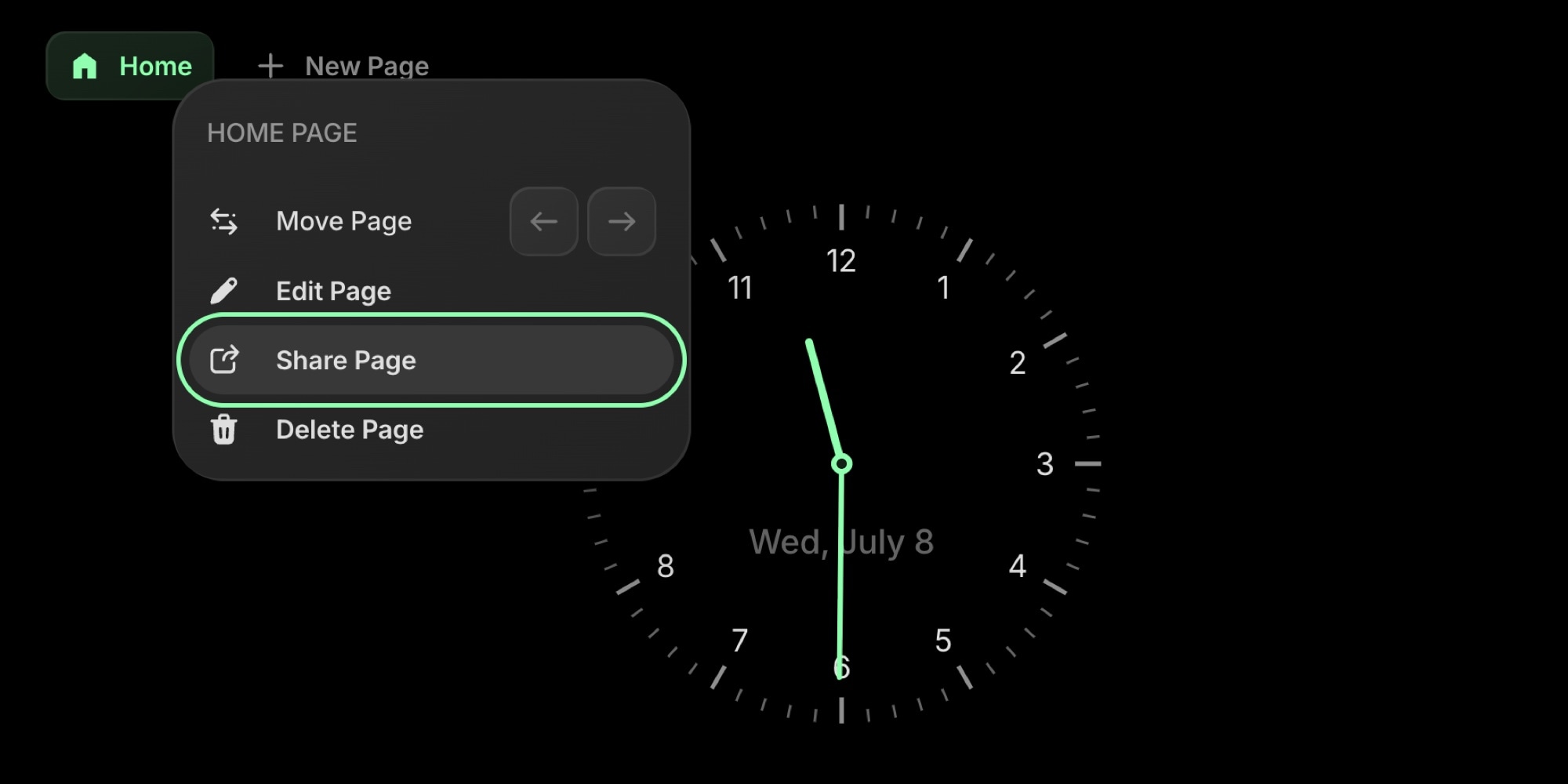
Page context menu with the Share Page option highlighted
- A share link is created automatically. Click the copy button next to the link, then paste it anywhere - a message, an email, or a doc.
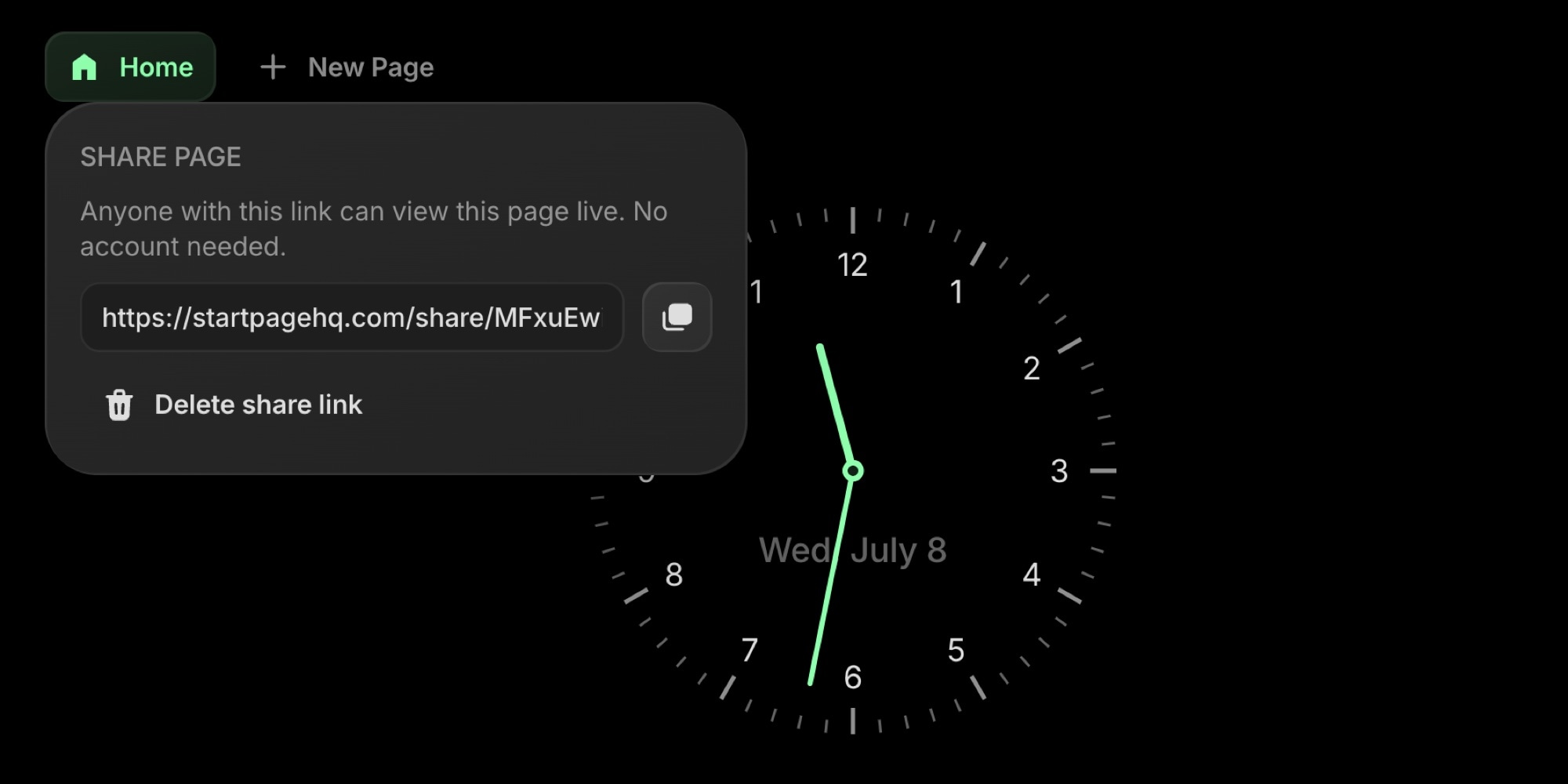
Share Page popover showing the generated public link and a copy button
#What People See
- The page opens as a live, read-only view. No account, sign-in, or extension is required.
- It always reflects your latest content. Anyone who opens the link sees the page as it looks right now.
- Your theme, layout, and accent color carry over, so the shared page looks just like yours.
- Viewers can't edit anything, and your account details stay private.
#Deleting a Share Link
- Open the Share Page menu again (right-click the tab, then Share Page).
- Click Delete share link.
The old link stops working right away. If you share the page again later, a brand-new link is created - the previous URL won't come back.
To share a single widget instead of a whole page, see Share a Widget.
#Plans
Public sharing is a paid feature. On the free plan the Share Page option opens an upgrade panel instead of creating a link - see Plans.