- Dashboard
- Widgets
- AI Diary
- AI Humanizer
- AI Image
- Audio Editor
- Base64 / URL Encoder
- Calendar
- Canvas
- Collection
- Color Picker
- Container
- Countdown Timer
- Currency Converter
- Daily Quiz
- Daily Quote
- Daily Riddle
- Date & Time
- Embed
- GitHub Releases
- Google Calendar
- Habit Tracker
- Hacker News
- Image Compression
- IP Info
- JSON Formatter
- Links
- Markdown Editor
- News
- News Summary
- Notes
- Photo Frame
- Podcast
- Pomodoro Timer
- Product Hunt
- QR Code Generator
- Quick Answer
- Quick Note
- Regex Tester
- RSS Feed
- Search
- Spacer
- Stopwatch
- Story Snippet
- Stripe Sales
- Subreddit
- Substack
- t0ggles Focus
- t0ggles My Boards
- t0ggles My Tasks
- Tasks
- Text Diff
- Todo
- TradingView Advanced Chart
- TradingView Market Summary
- TradingView Mini Chart
- TradingView Symbol Overview
- TradingView Ticker Tape
- Translation
- Unit Converter
- Uptime Monitor
- Weather
- What If
- World Clock
- YouTube Channel
Habit Tracker Widget
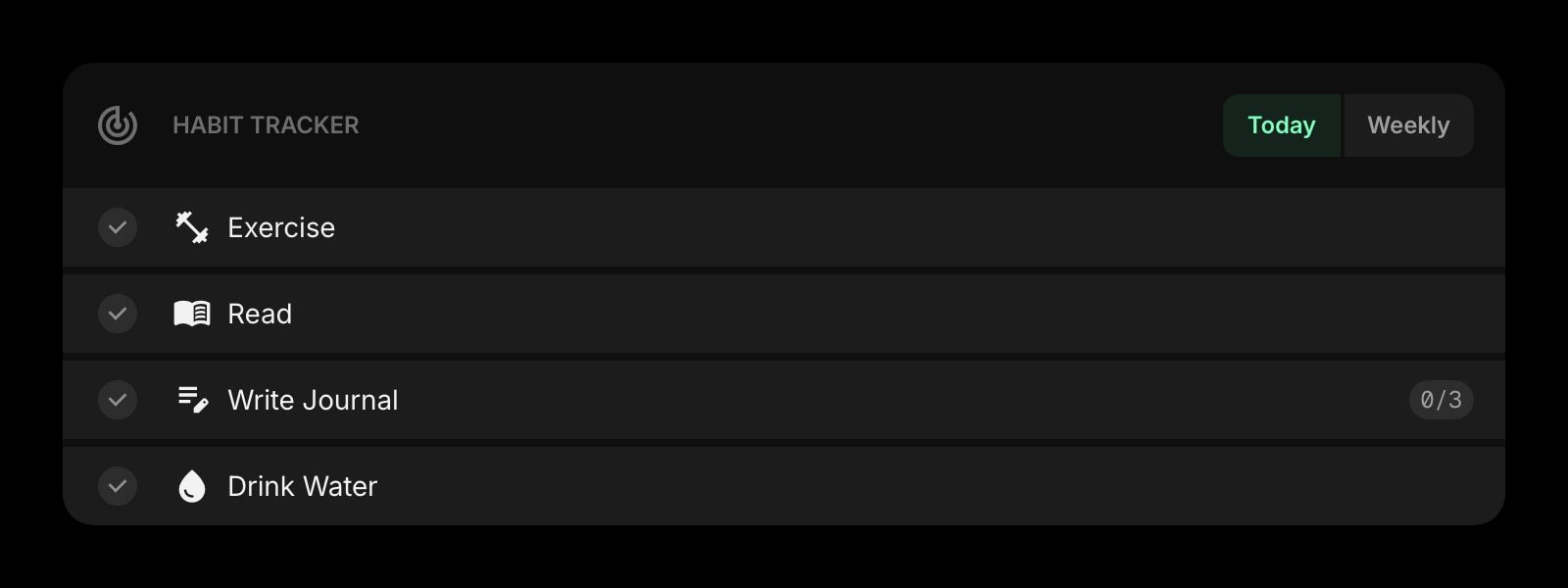
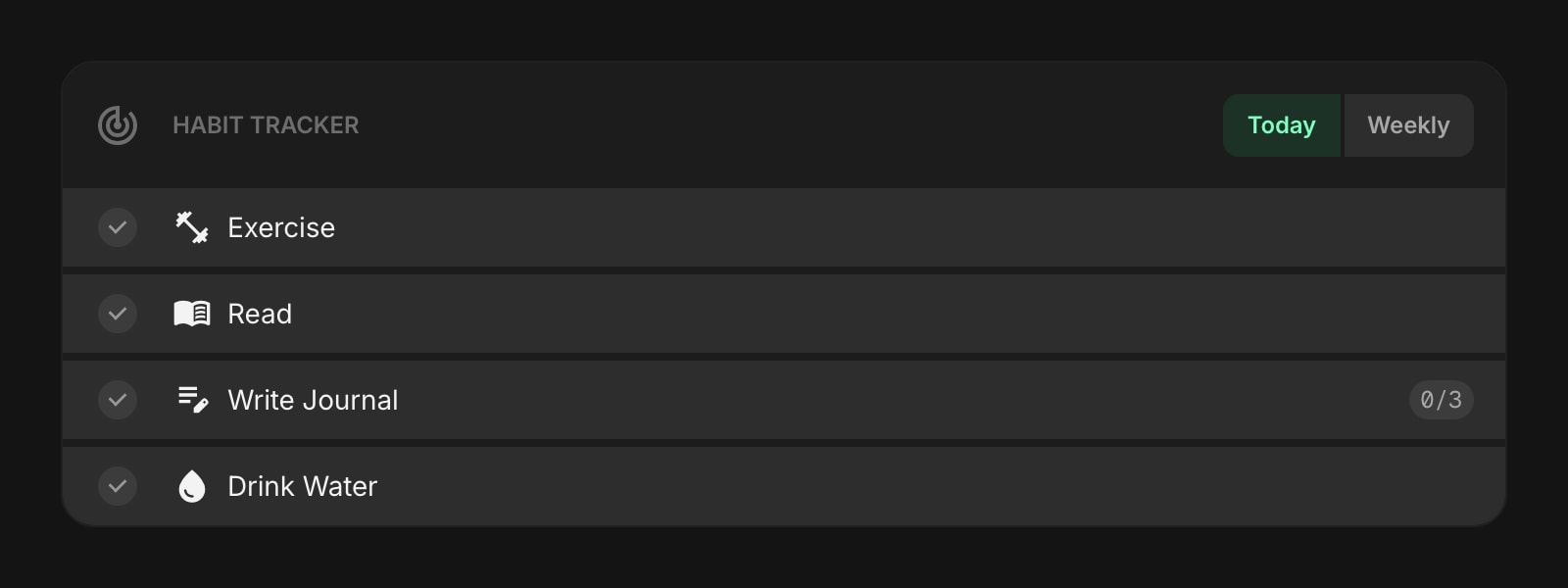
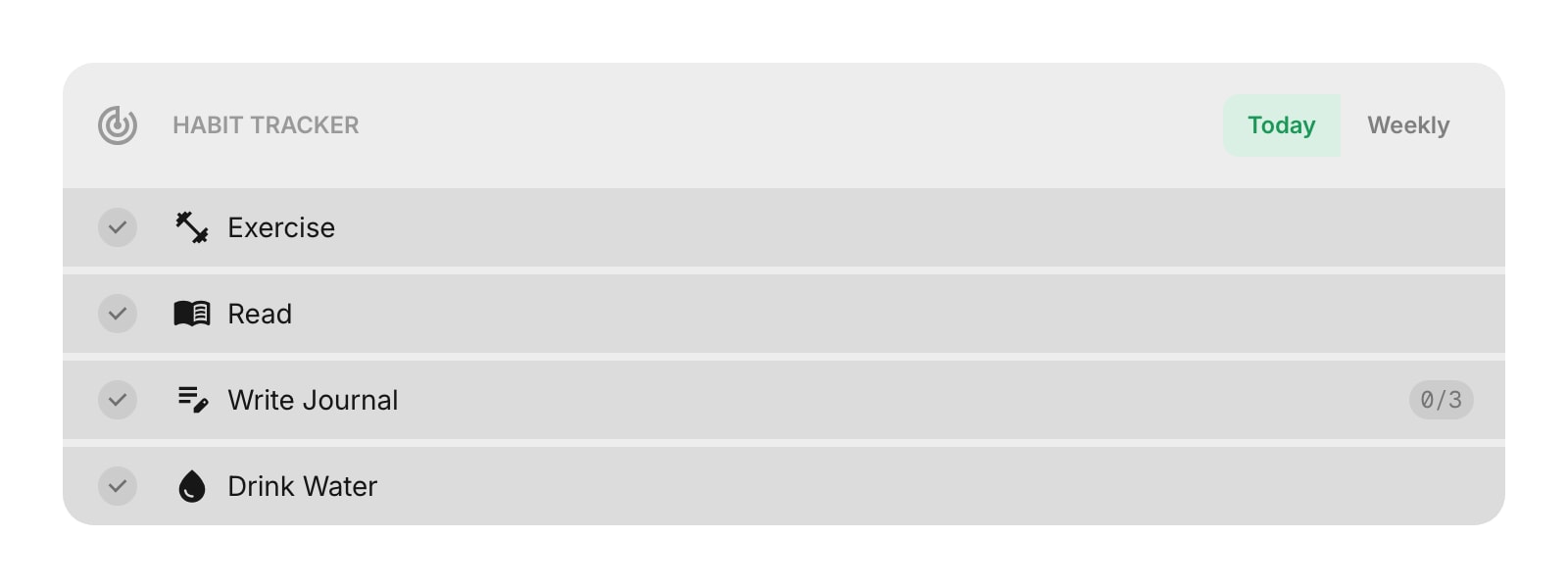
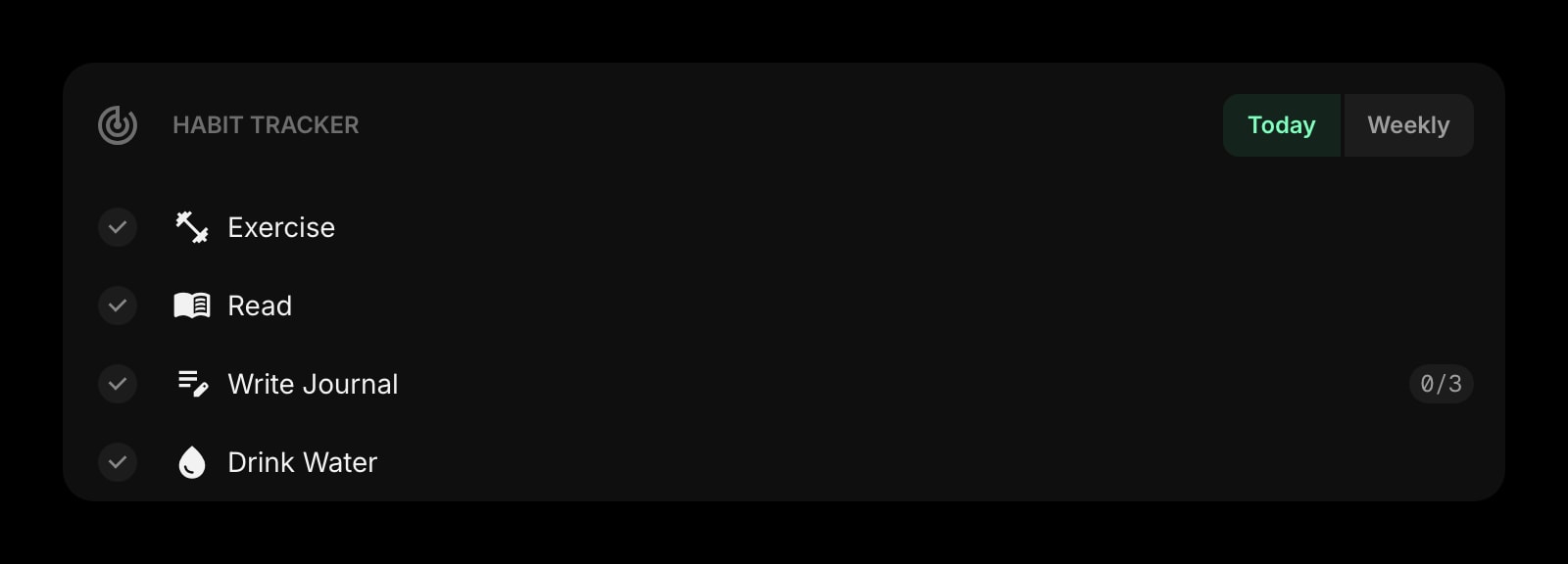
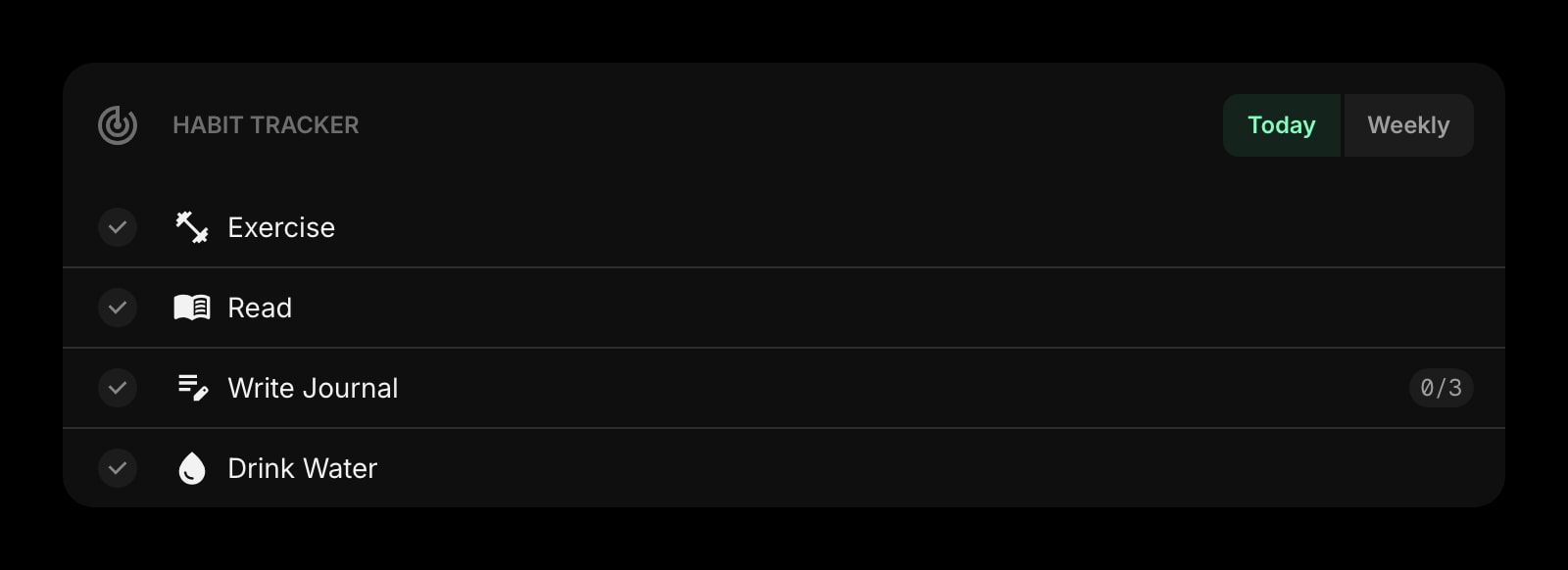
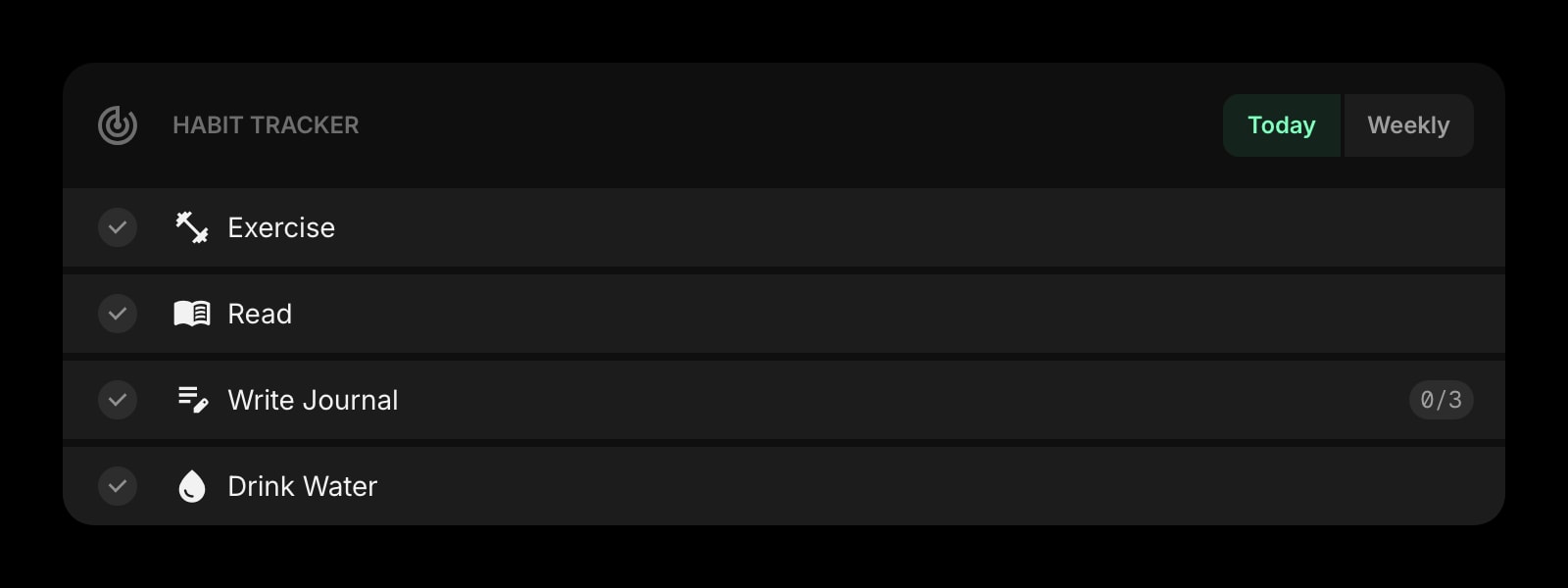
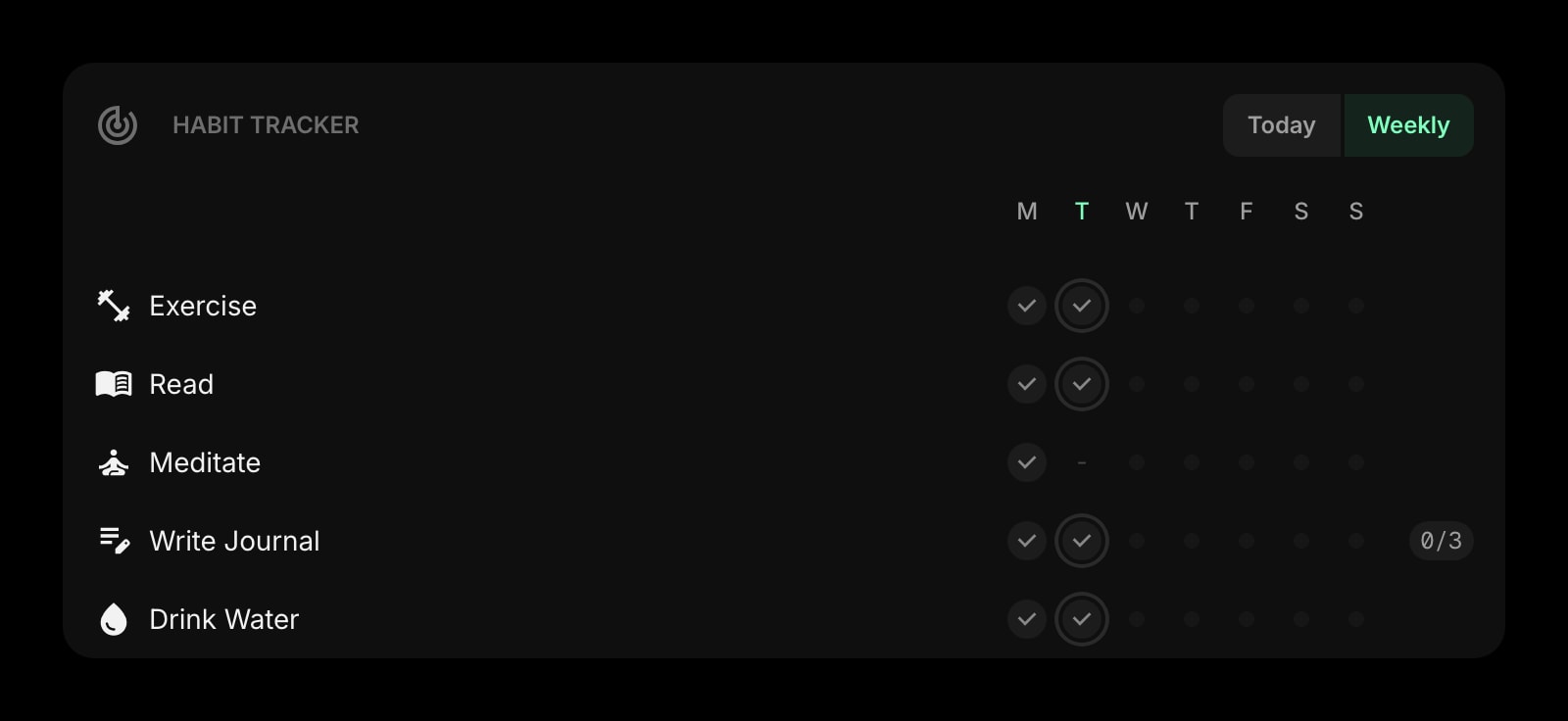
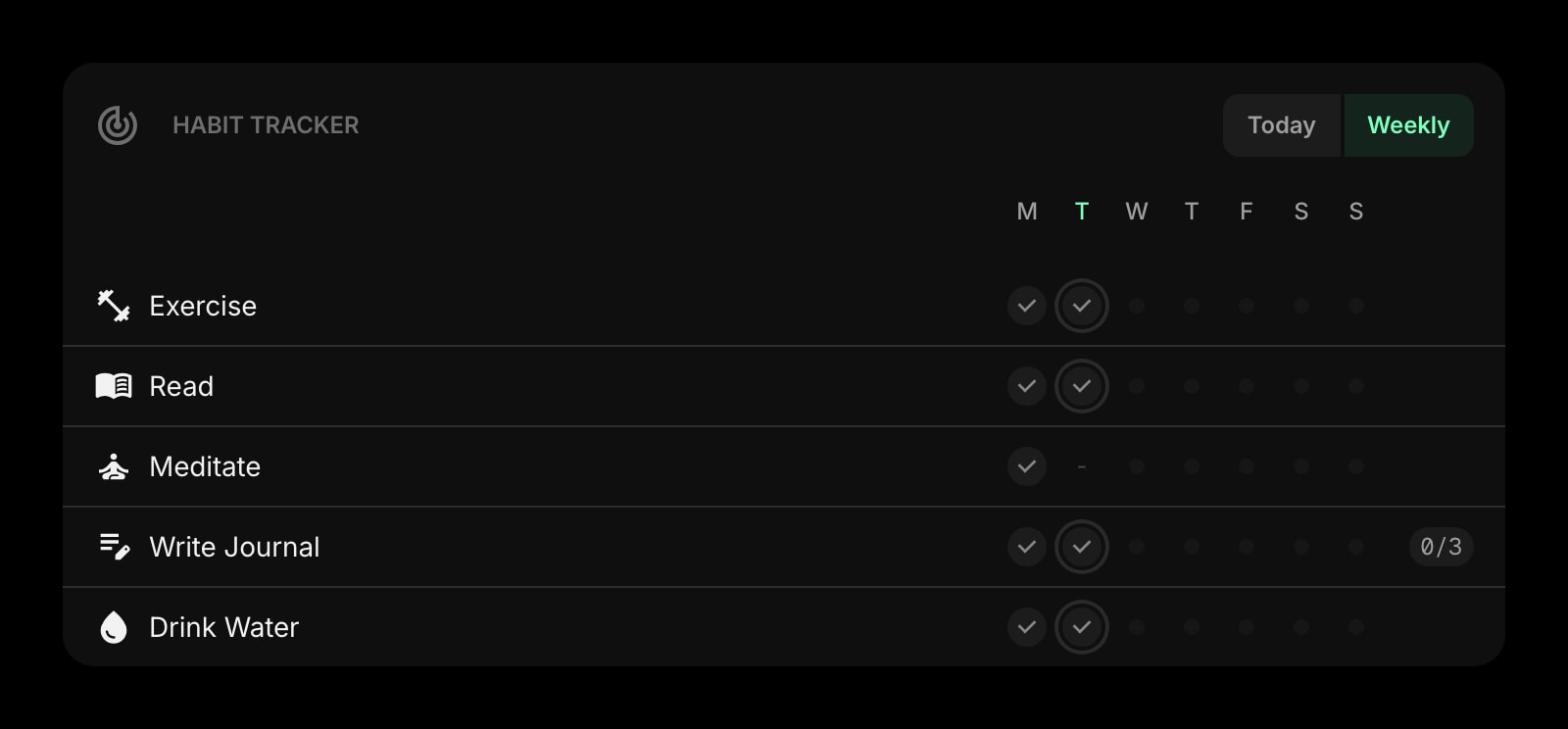
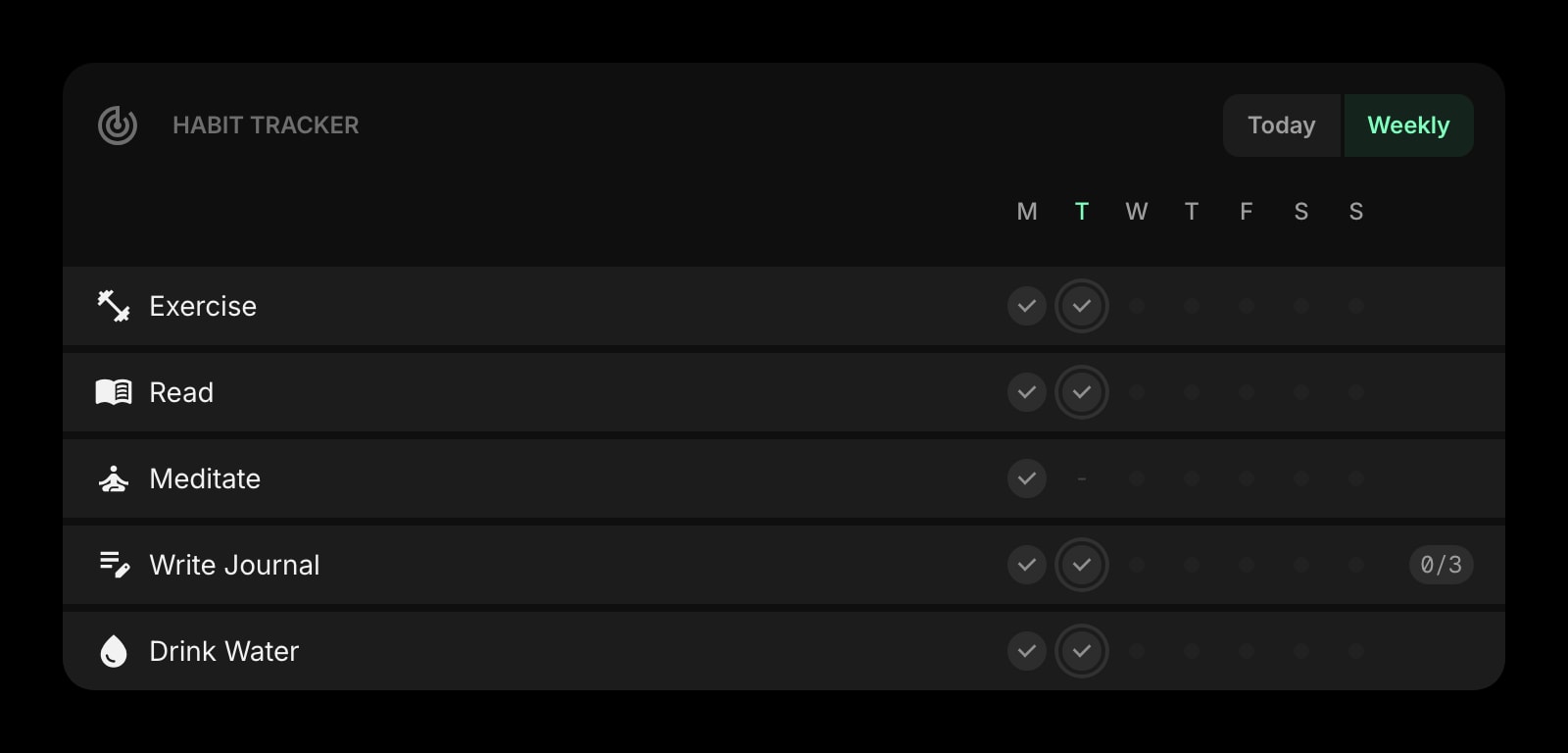
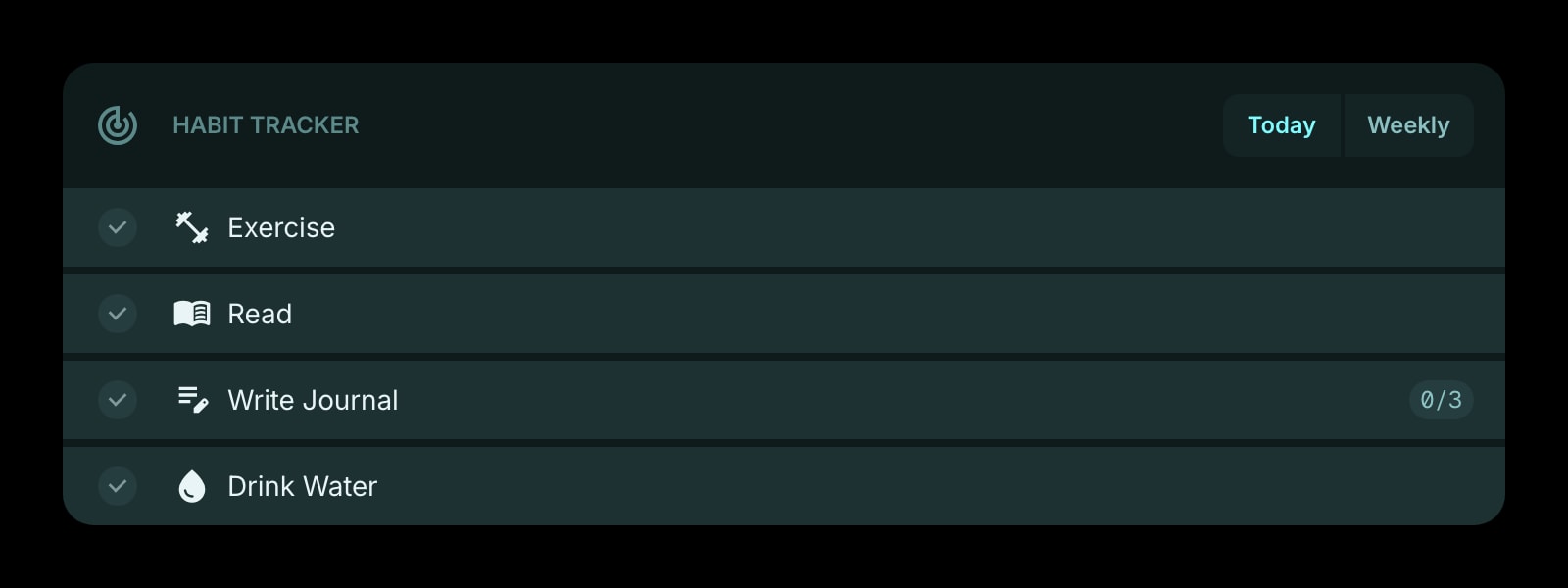
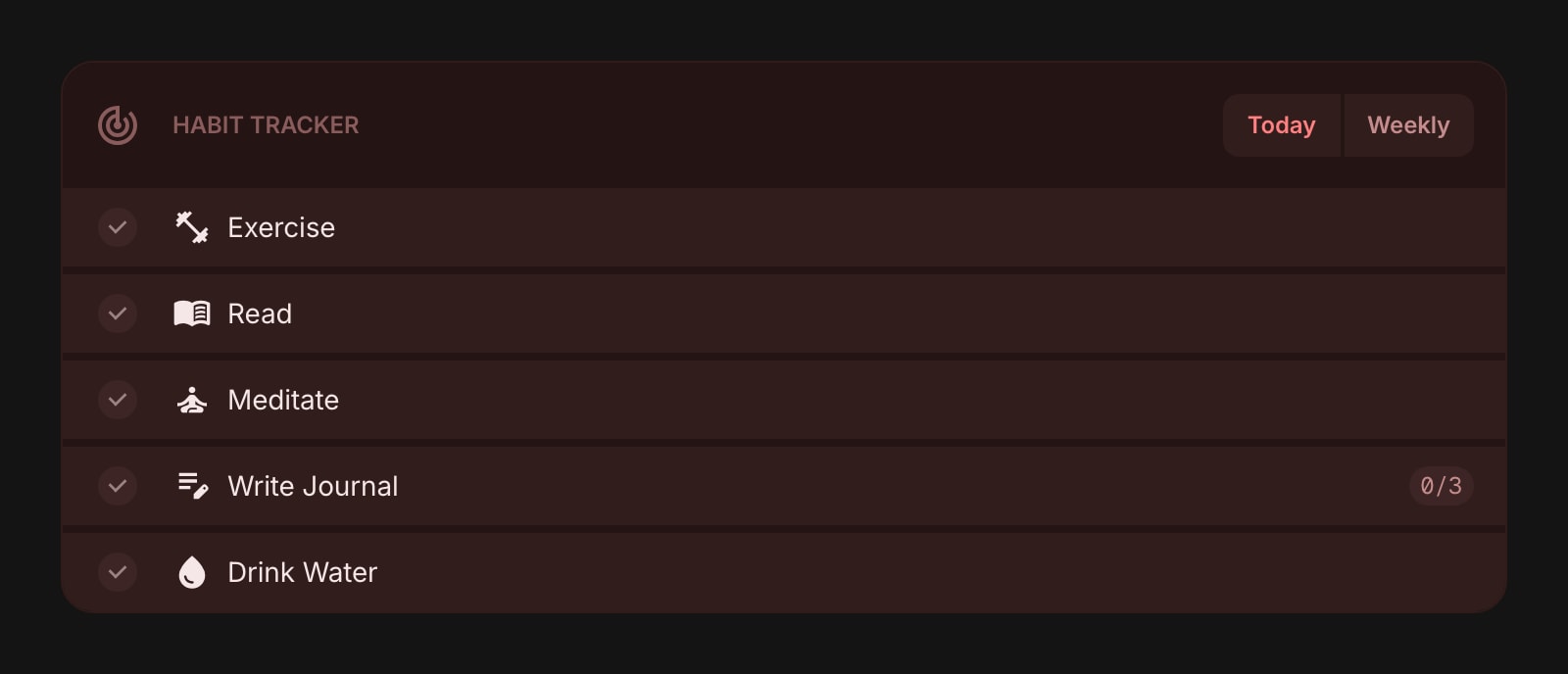
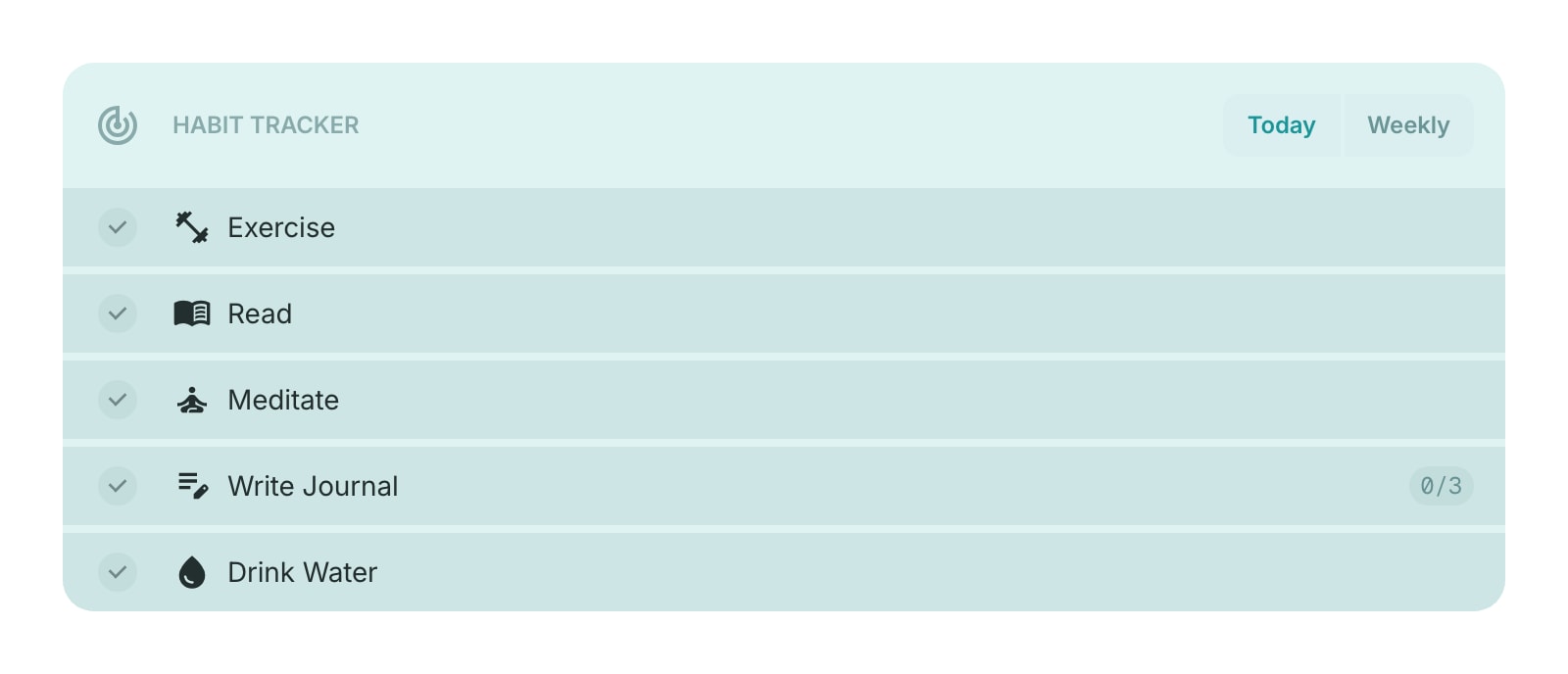
The Habit Tracker widget helps you build and maintain daily habits. Add the habits you want to track, set how often you want to do them, and check them off each day. Switch between a today view and a weekly view to see your progress at a glance.
#How to Use
Click Add Habit to create your first habit. Give it a name, pick an icon, and choose how often you want to do it. Once added, simply click the checkbox next to a habit to mark it as done for today.
#Managing Habits
#Adding Habits
- In edit mode, click the + Add Habit button in the widget toolbar.
- You can also right-click (or tap and hold) an existing habit and choose Add Habit to create a new one.
- Each habit needs a name. You can also add an optional description, pick an icon, and set a schedule.
#Setting a Schedule
When adding or editing a habit, choose one of three frequency options:
- Daily - the habit appears every day
- Specific Days - pick which days of the week the habit is due (for example, Monday, Wednesday, and Friday)
- Times Per Week - set a weekly target (for example, 3 times per week) without specifying which days
#Editing Habits
Right-click (or tap and hold) a habit and choose Edit Habit. You can update the name, description, icon, and schedule.
#Reordering Habits
On desktop, drag and drop habits to rearrange them. You can also drag habits between multiple Habit Tracker widgets on the same page.
#Duplicating Habits
Right-click (or tap and hold) a habit and choose Duplicate Habit to create a copy.
#Deleting Habits
Right-click (or tap and hold) a habit and choose Delete Habit. You'll be asked to confirm before the habit and its history are removed.
#View Modes
#Today View
Shows only the habits that are due today. Each habit has a checkbox you can click to mark it as complete. When you finish all your habits for the day, you'll see an "All habits completed!" message.
Habits with a "times per week" schedule show a progress badge (like "2/5") so you can see how close you are to your weekly goal.
#Weekly View
Shows all your habits with a 7-day grid. Each column represents a day of the week. Click a cell to toggle completion for that specific day. You can check off past days you may have missed, but future days are not clickable.
A dash (—) appears on days when a habit is not scheduled.
#Widget Settings
- View - choose between Today (default) and Weekly view.
- Item Style - set the look of habit items: Clear, Outline, or Solid (default).
- Week Start - set the first day of the week to Sunday or Monday (default).
- Show View Toggle - show or hide the view switch buttons in the widget header. Turned on by default.
- Show Description - show or hide each habit's description beneath its name. Turned off by default.
- Show Completed Habits Today - in today view, show or hide habits that are already checked off. Turned on by default. Turn it off to focus on what's left to do.
#Tips
- Use "Specific Days" for habits tied to a routine (like workouts on gym days) and "Times Per Week" for flexible goals (like reading 4 times a week, any day).
- Turn off "Show Completed Today" to see only unfinished habits and stay focused.
- Add a short description to a habit (like a target or a reminder to yourself) and turn on "Show Description" to keep it in view.
- Old completion data is automatically cleaned up after 30 days to keep things tidy.
- Drag habits between Habit Tracker widgets to organize them into categories.