- Dashboard
- Widgets
- AI Diary
- AI Humanizer
- AI Image
- Audio Editor
- Base64 / URL Encoder
- Calendar
- Canvas
- Collection
- Color Picker
- Container
- Countdown Timer
- Currency Converter
- Daily Quiz
- Daily Quote
- Daily Riddle
- Date & Time
- Embed
- GitHub Releases
- Google Calendar
- Habit Tracker
- Hacker News
- Image Compression
- IP Info
- JSON Formatter
- Links
- Markdown Editor
- News
- News Summary
- Notes
- Photo Frame
- Podcast
- Pomodoro Timer
- Product Hunt
- QR Code Generator
- Quick Answer
- Quick Note
- Regex Tester
- RSS Feed
- Search
- Spacer
- Stopwatch
- Story Snippet
- Stripe Sales
- Subreddit
- Substack
- t0ggles Focus
- t0ggles My Boards
- t0ggles My Tasks
- Tasks
- Text Diff
- Todo
- TradingView Advanced Chart
- TradingView Market Summary
- TradingView Mini Chart
- TradingView Symbol Overview
- TradingView Ticker Tape
- Translation
- Unit Converter
- Uptime Monitor
- Weather
- What If
- World Clock
- YouTube Channel
Todo Widget
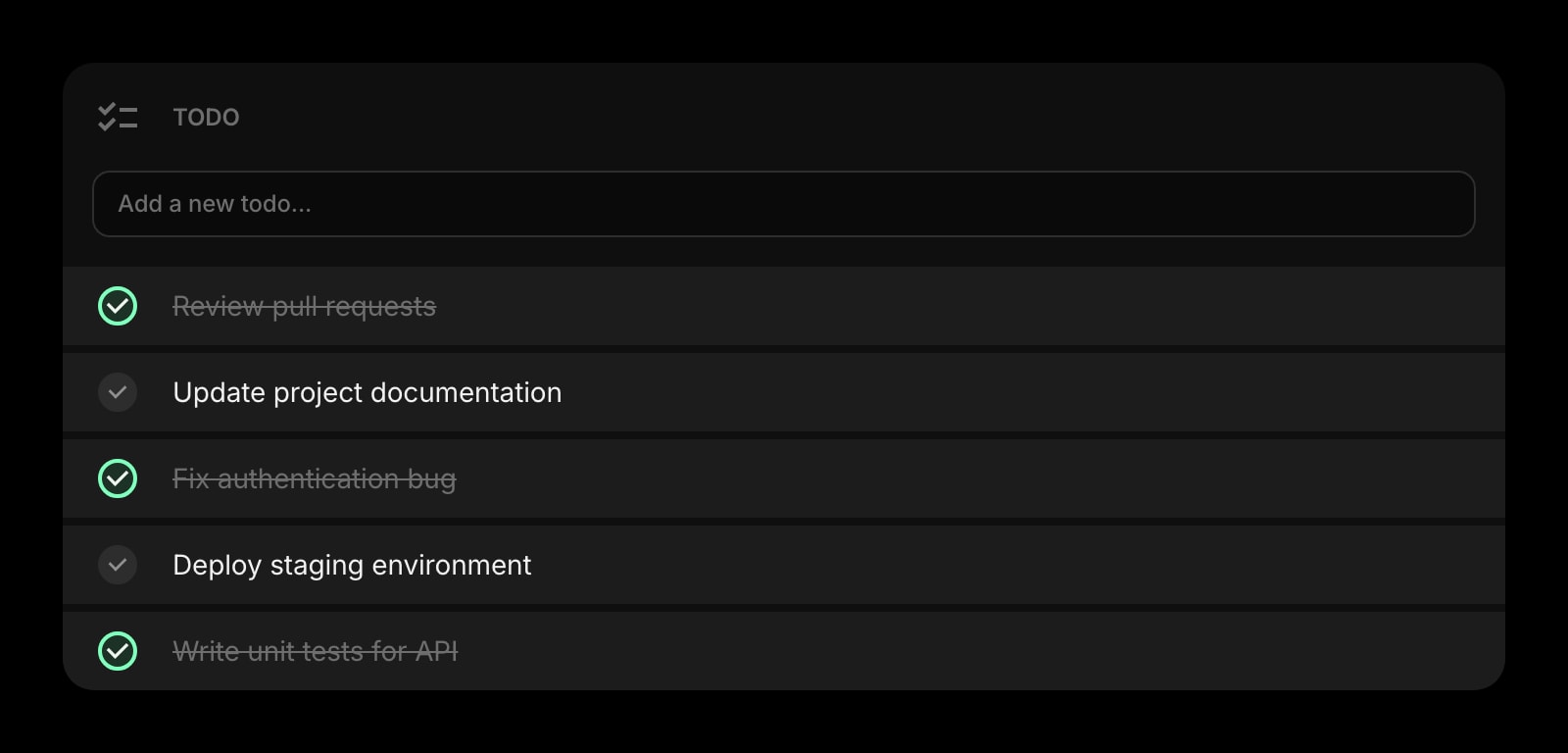
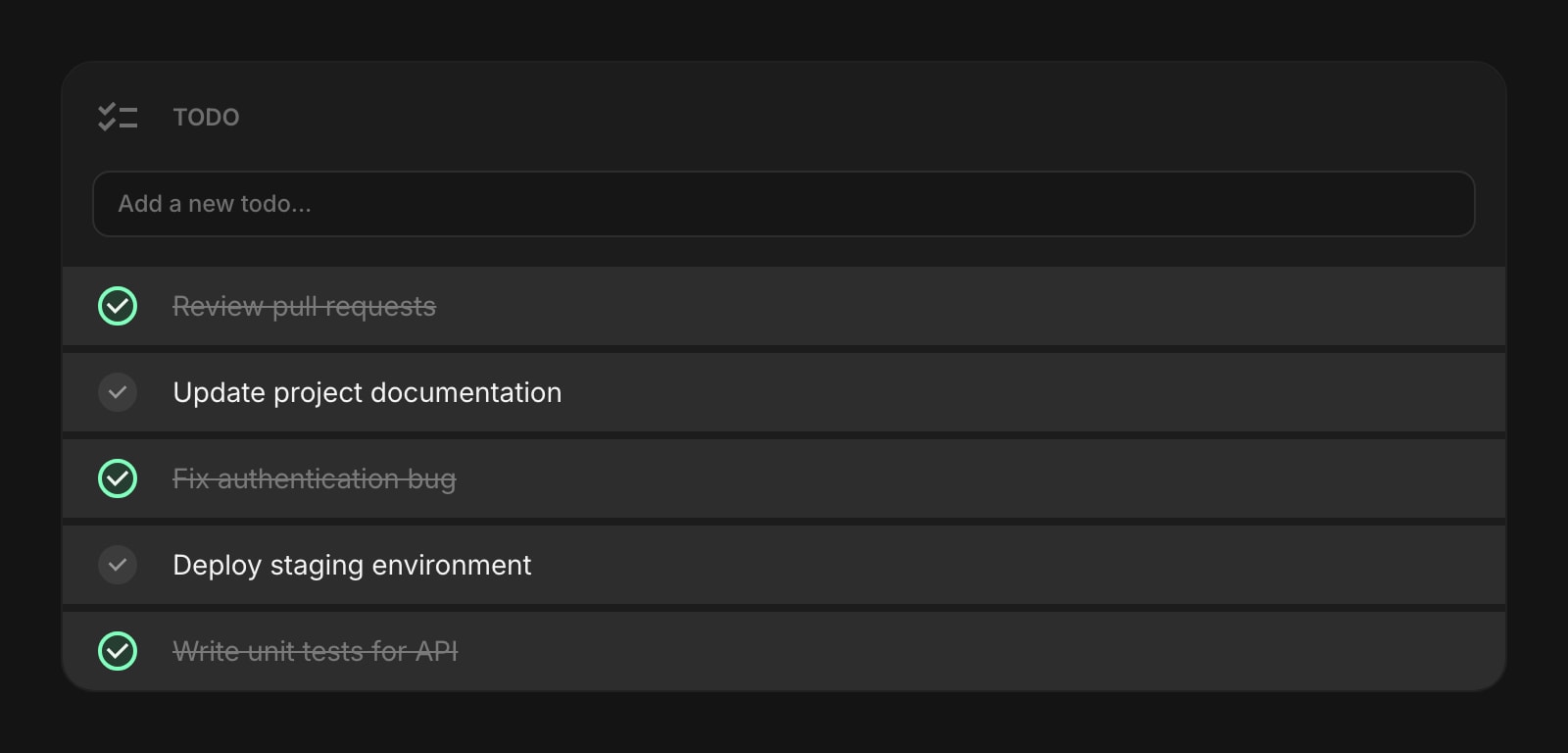
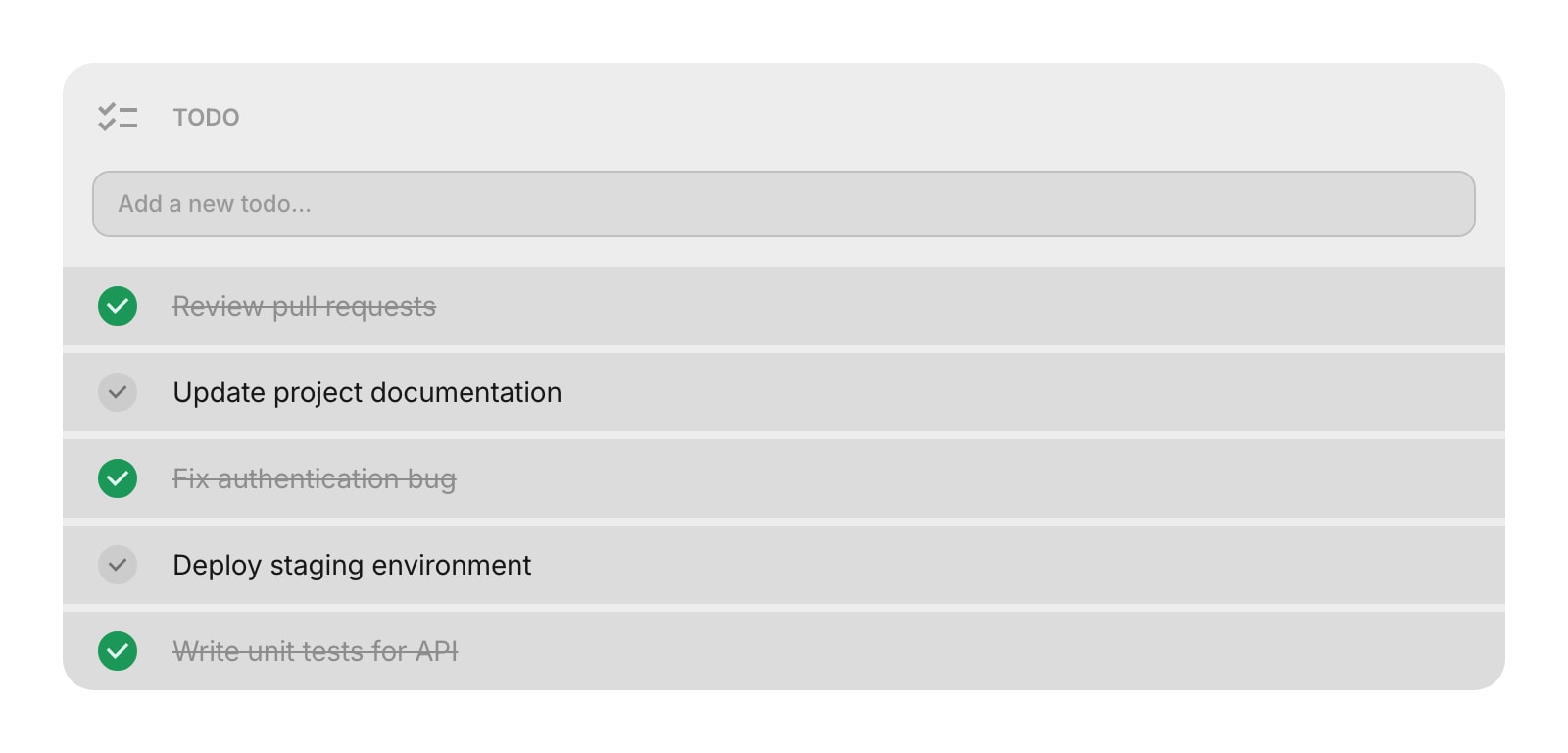
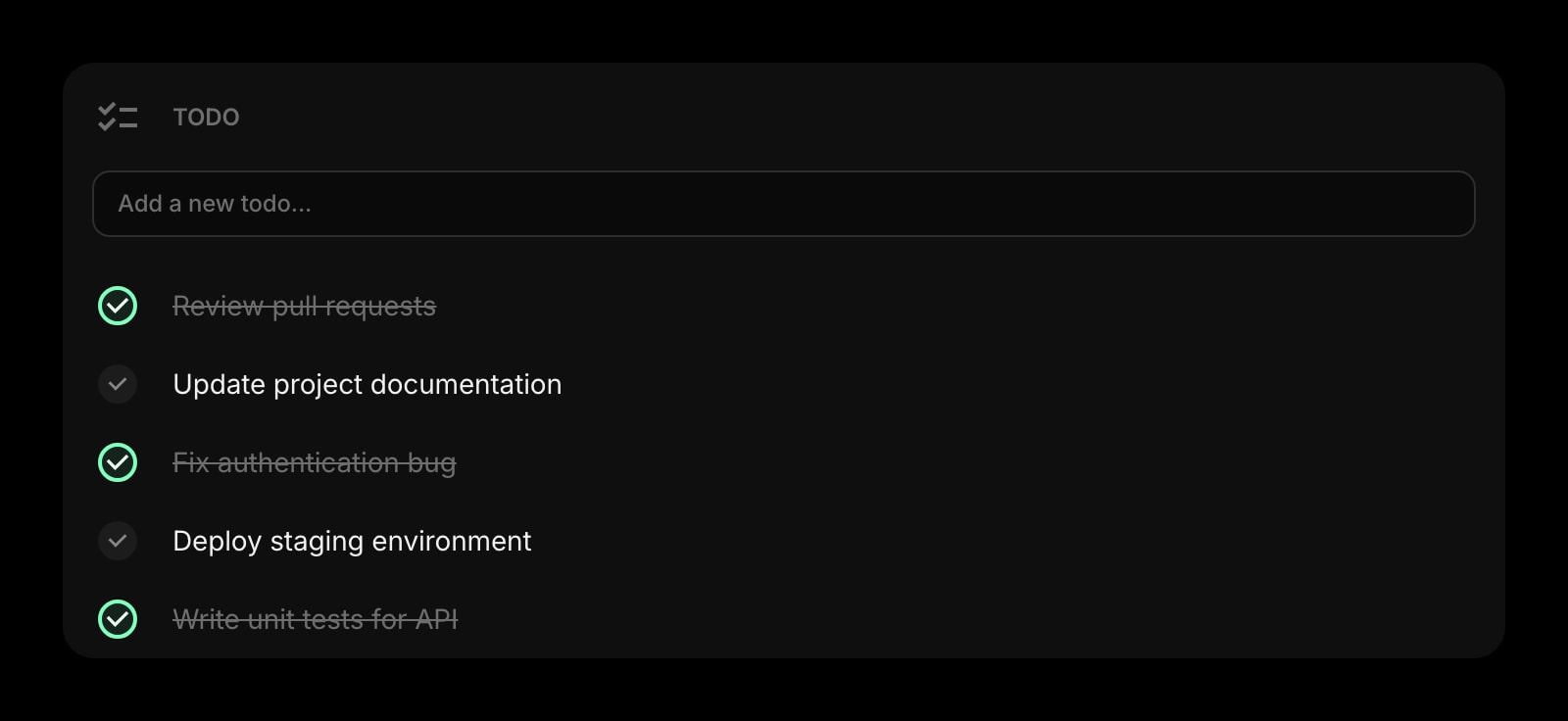
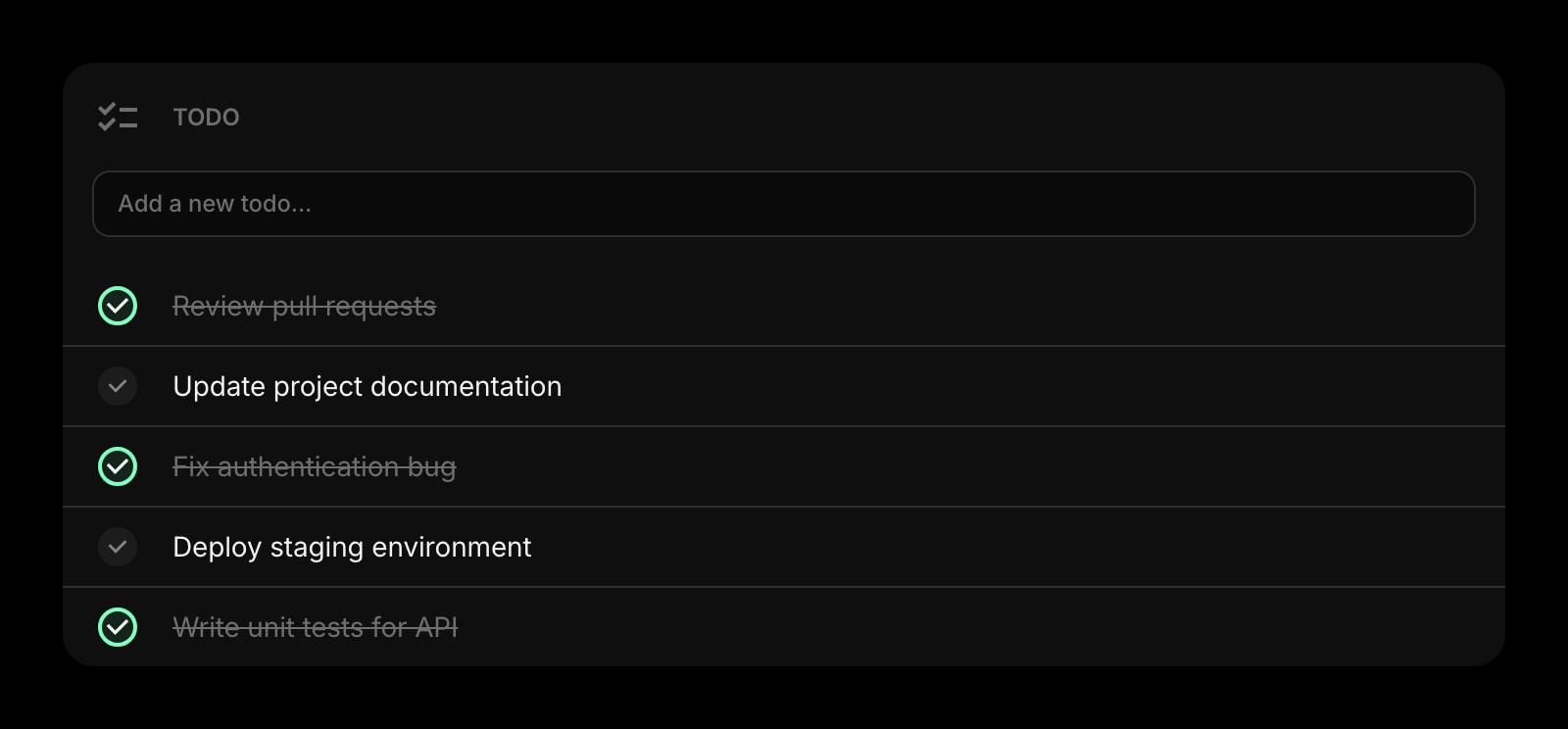
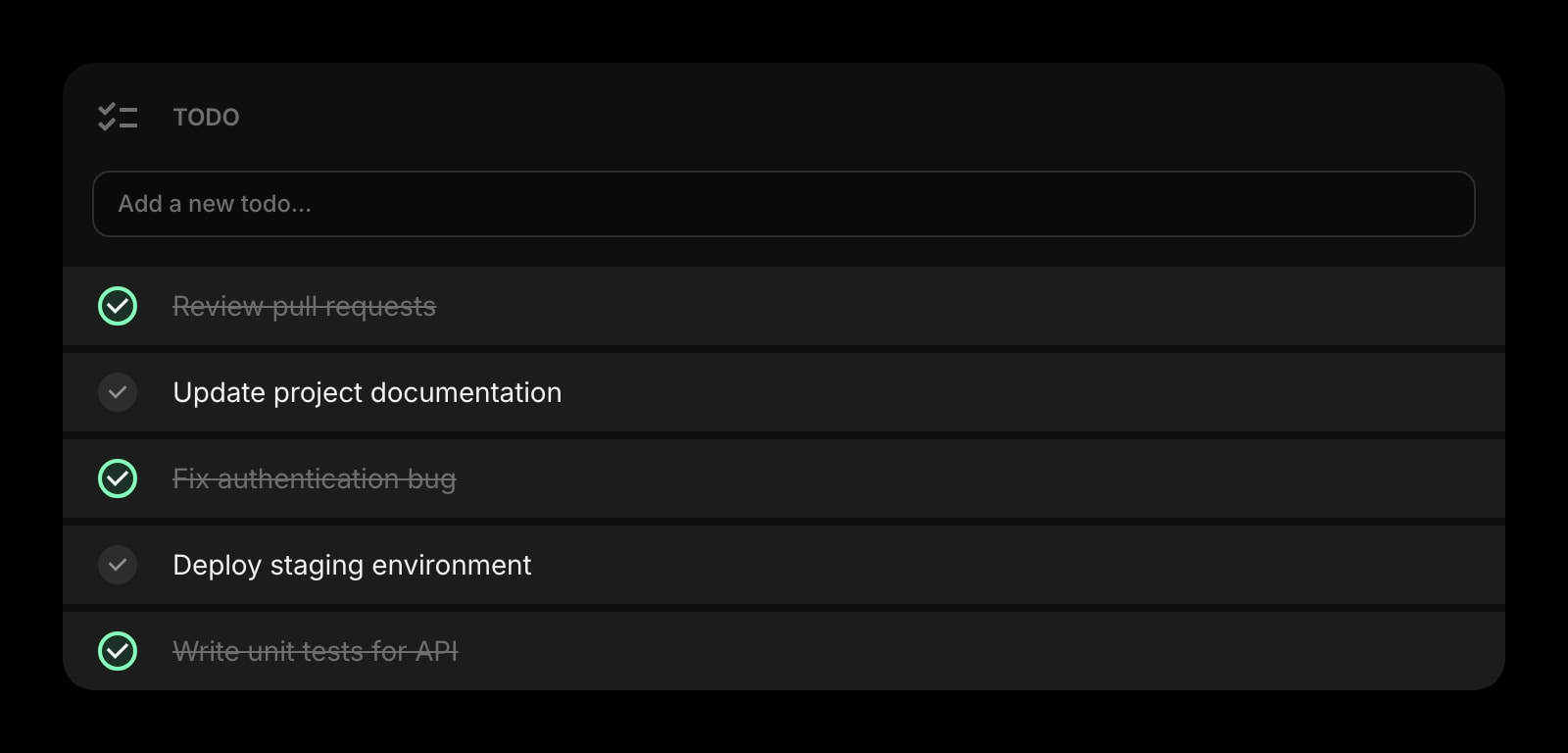
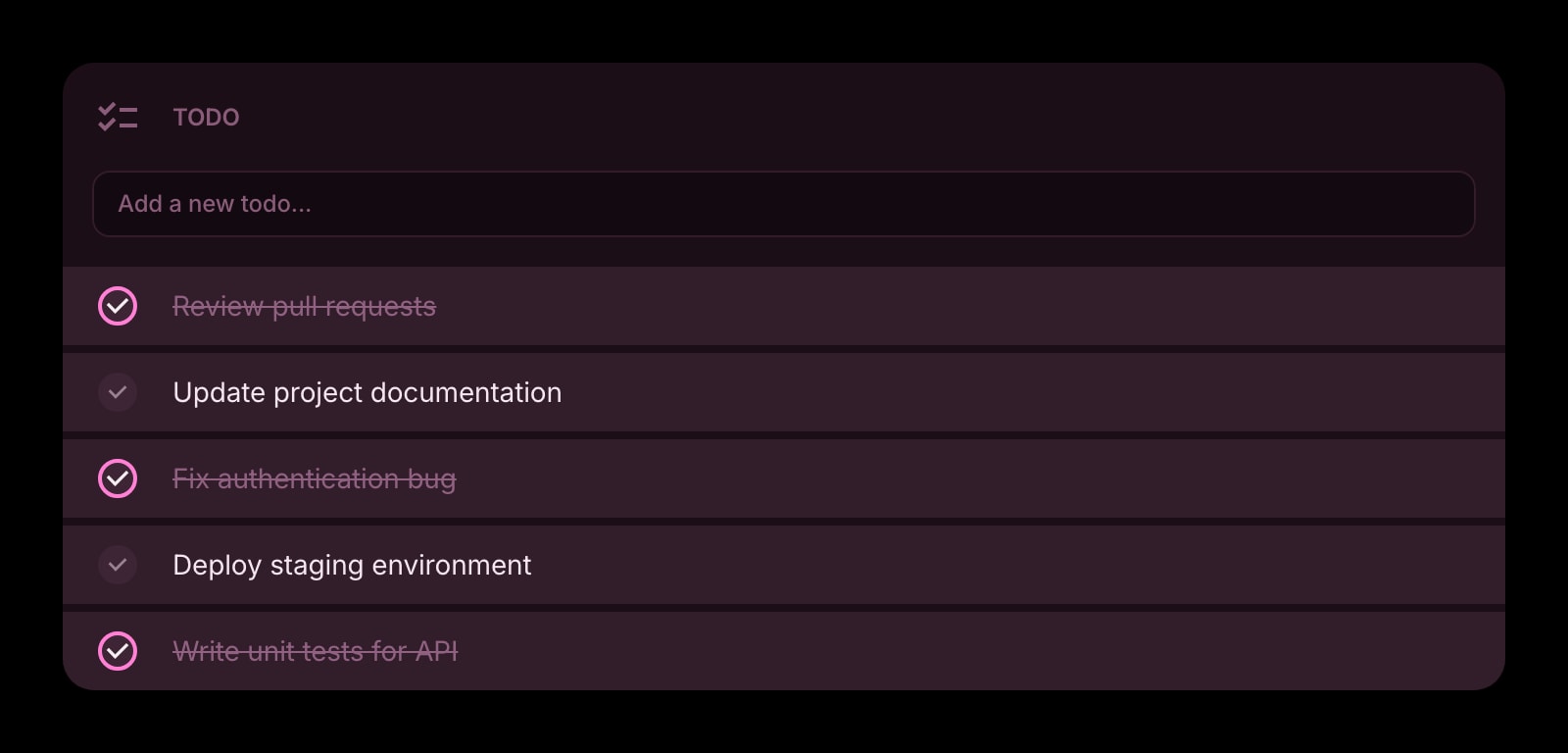


The Todo widget is a simple task list for managing your daily priorities. Add items, check them off as you go, and keep everything organized with drag and drop. It's a quick, no-fuss way to stay on top of what needs to get done.
Installing on a specific browser? See the step-by-step guides: Todo widget for Chrome, Todo widget for Firefox, Todo widget for Safari, or Todo widget for Edge.
#How to Use
Type a task into the input field at the top and press Enter. Your todo appears in the list with a checkbox. Click the checkbox to mark it as done. Click it again to uncheck it.
To edit a todo, click on its text. The text becomes editable - make your changes and press Enter to save, or press Escape to cancel. If you clear the text completely, the todo is automatically deleted.
#Managing Todos
#Adding Todos
Type in the "Add a new todo..." field at the top of the widget and press Enter. The input stays focused so you can quickly add several items in a row.
#Editing Todos
Click on a todo's text to edit it inline. You can also right-click (or tap and hold) a todo and choose Edit Todo.
#Reordering Todos
On desktop, drag and drop todos to rearrange them. You can also drag todos between multiple Todo widgets on the same page.
#Completing Todos
Click the checkbox next to any todo to mark it as complete. Completed items can optionally show a strikethrough style and be moved to the bottom of the list.
#Duplicating Todos
Right-click (or tap and hold) a todo and choose Duplicate Todo to create a copy.
#Deleting Todos
Right-click (or tap and hold) a todo and choose Delete Todo. You'll be asked to confirm before it's removed.
#Clearing Completed
Right-click (or tap and hold) the widget and choose Clear Completed to remove all checked-off todos at once. This option only appears when you have completed items.
#Widget Settings
- Item Style - set the look of todo items: Clear, Outline, or Solid (default).
- Show Completed - show or hide completed todos in the list. Turned on by default. Turn it off to see only what's left to do.
- Strikethrough Completed - add a line through completed todo text. Turned on by default.
- Move Completed to Bottom - automatically move checked-off items to the bottom of the list so unfinished todos stay at the top. Turned off by default.
#Tips
- Turn on "Move Completed to Bottom" to keep your active tasks front and center.
- Use "Clear Completed" regularly to keep your list clean after finishing a batch of tasks.
- Drag todos between multiple Todo widgets to sort them into categories - for example, "Work" and "Personal" lists.
- Your todos are saved automatically, so you can close your dashboard and come back to find everything right where you left it.