- Dashboard
- Widgets
- AI Diary
- AI Humanizer
- AI Image
- Audio Editor
- Base64 / URL Encoder
- Calendar
- Canvas
- Collection
- Color Picker
- Container
- Countdown Timer
- Currency Converter
- Daily Quiz
- Daily Quote
- Daily Riddle
- Date & Time
- Embed
- GitHub Releases
- Google Calendar
- Habit Tracker
- Hacker News
- Image Compression
- IP Info
- JSON Formatter
- Links
- Markdown Editor
- News
- News Summary
- Notes
- Photo Frame
- Podcast
- Pomodoro Timer
- Product Hunt
- QR Code Generator
- Quick Answer
- Quick Note
- Regex Tester
- RSS Feed
- Search
- Spacer
- Stopwatch
- Story Snippet
- Stripe Sales
- Subreddit
- Substack
- t0ggles Focus
- t0ggles My Boards
- t0ggles My Tasks
- Tasks
- Text Diff
- Todo
- TradingView Advanced Chart
- TradingView Market Summary
- TradingView Mini Chart
- TradingView Symbol Overview
- TradingView Ticker Tape
- Translation
- Unit Converter
- Uptime Monitor
- Weather
- What If
- World Clock
- YouTube Channel
Stripe Sales Widget
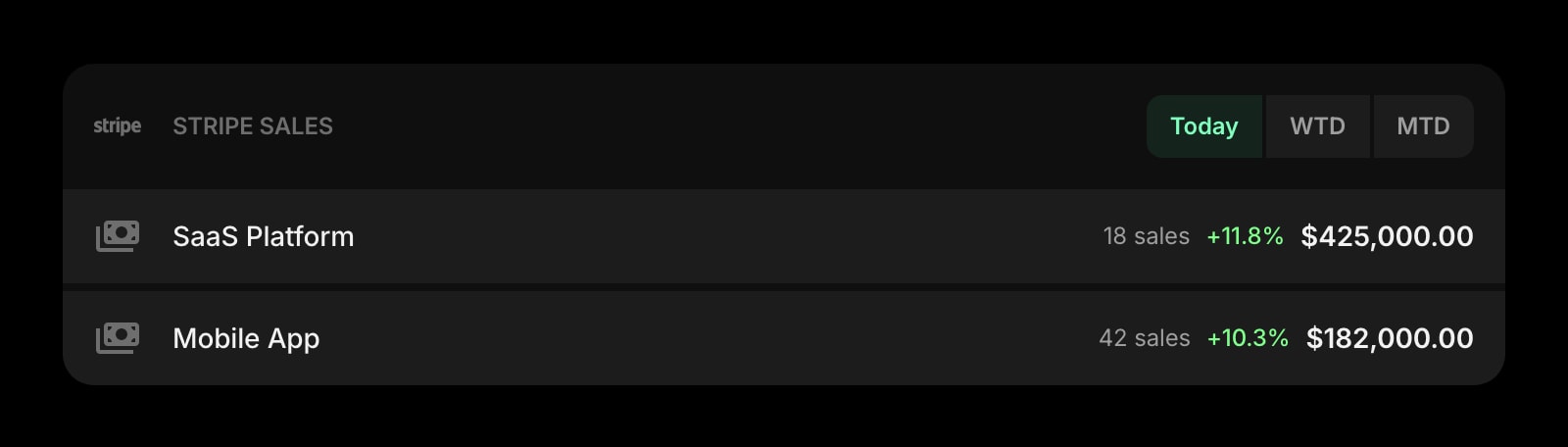
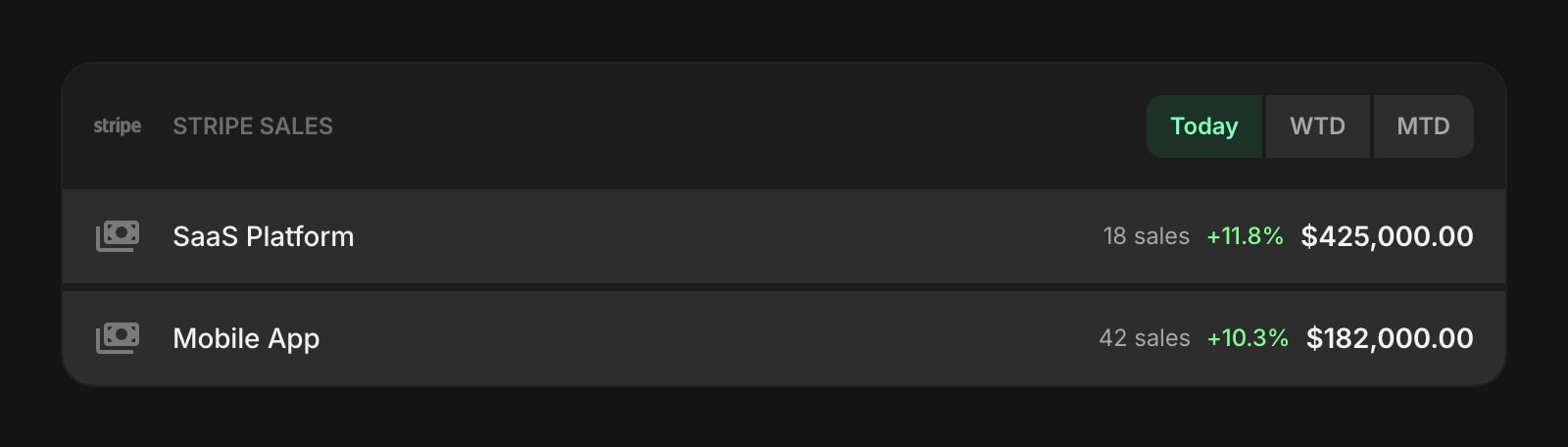
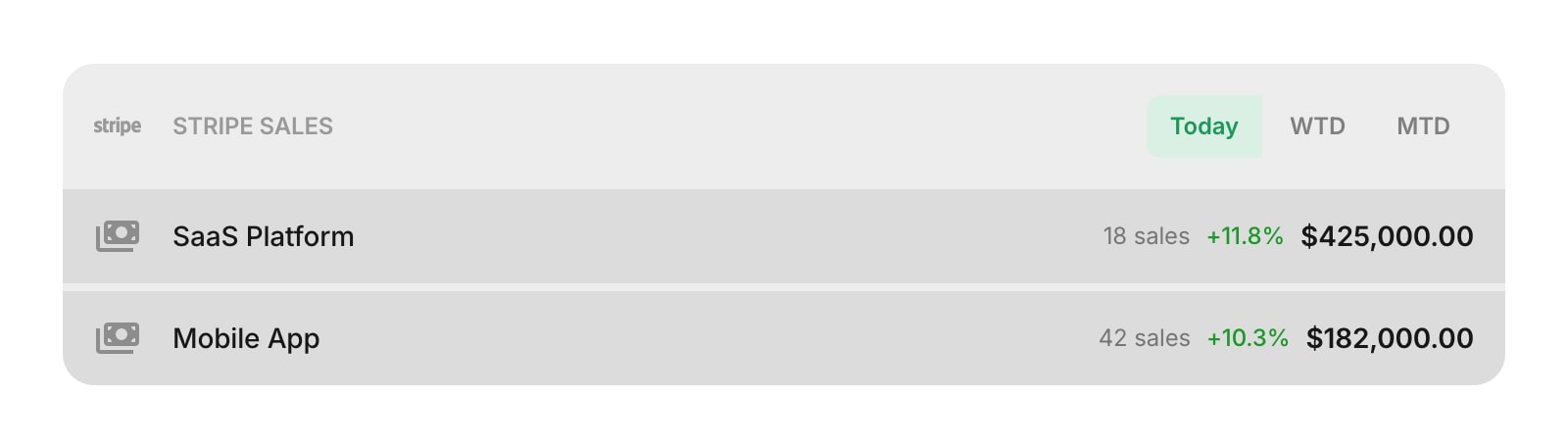
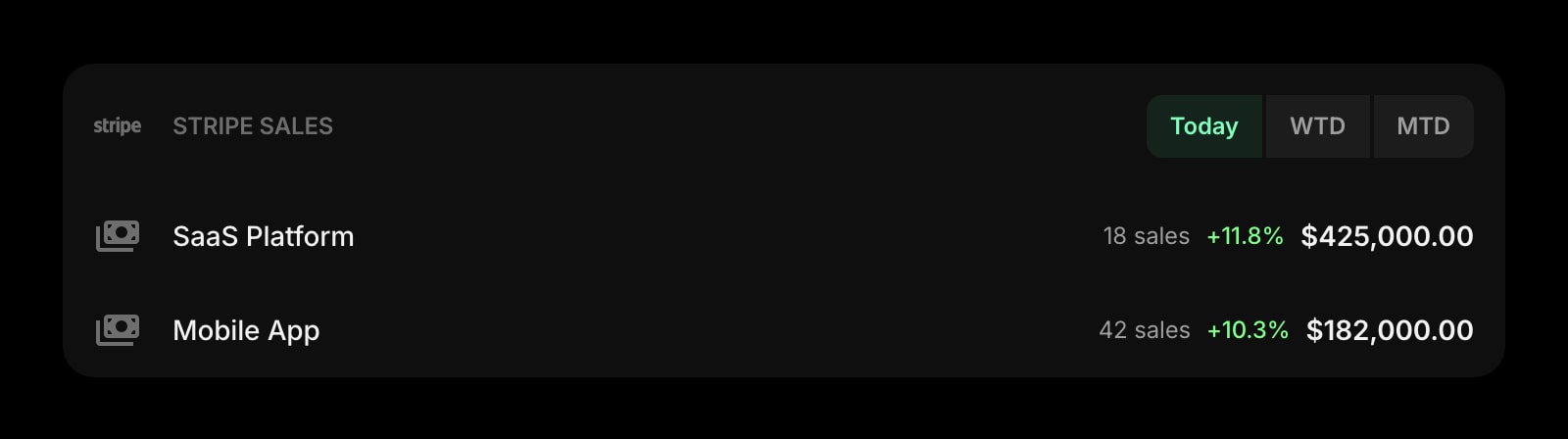
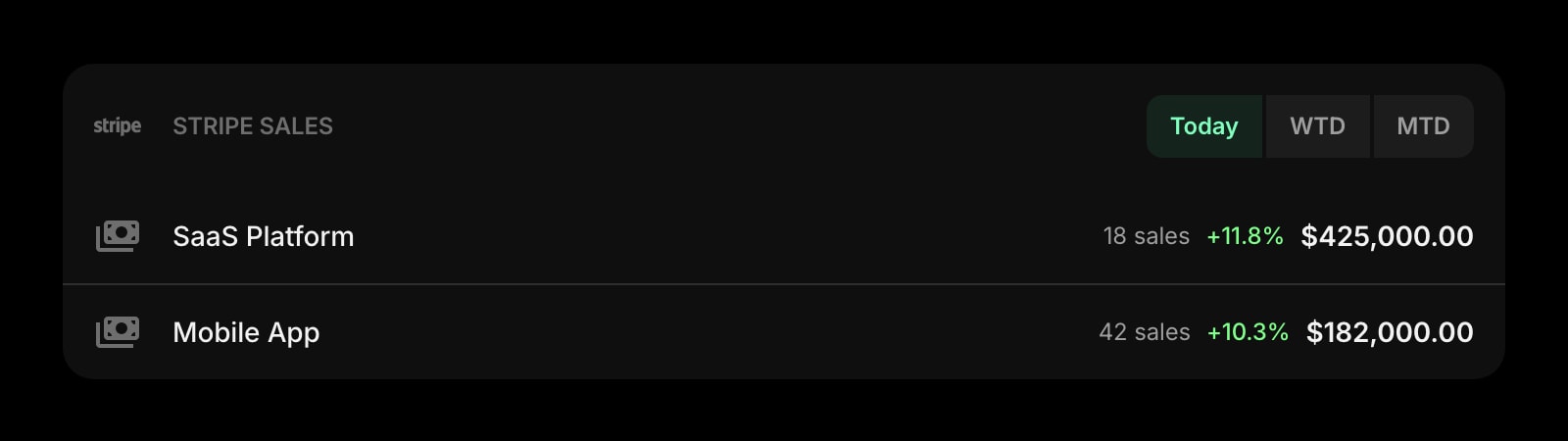
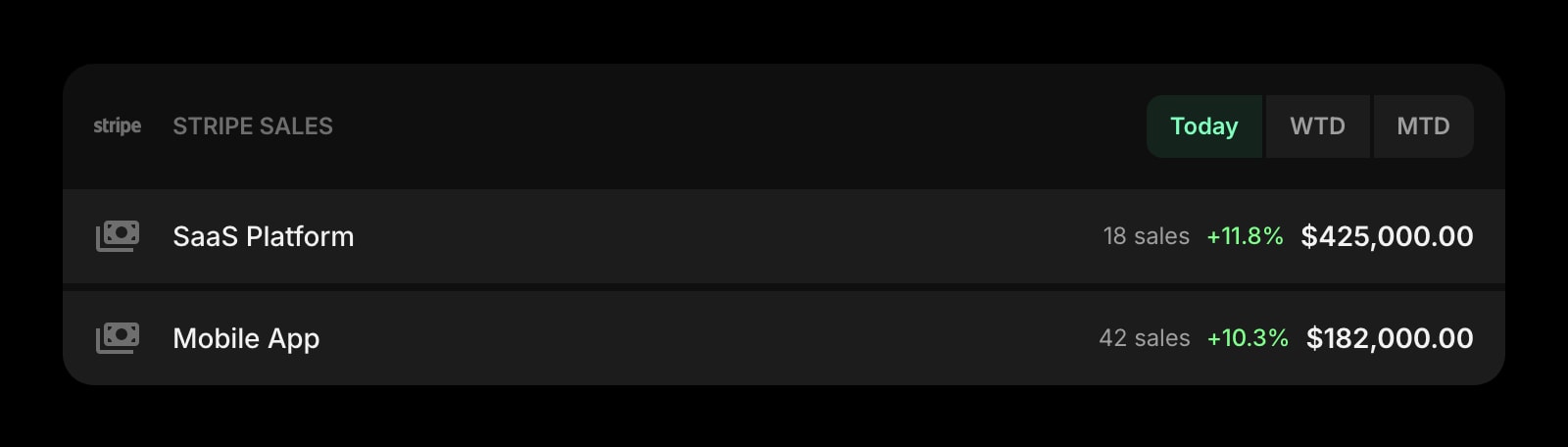
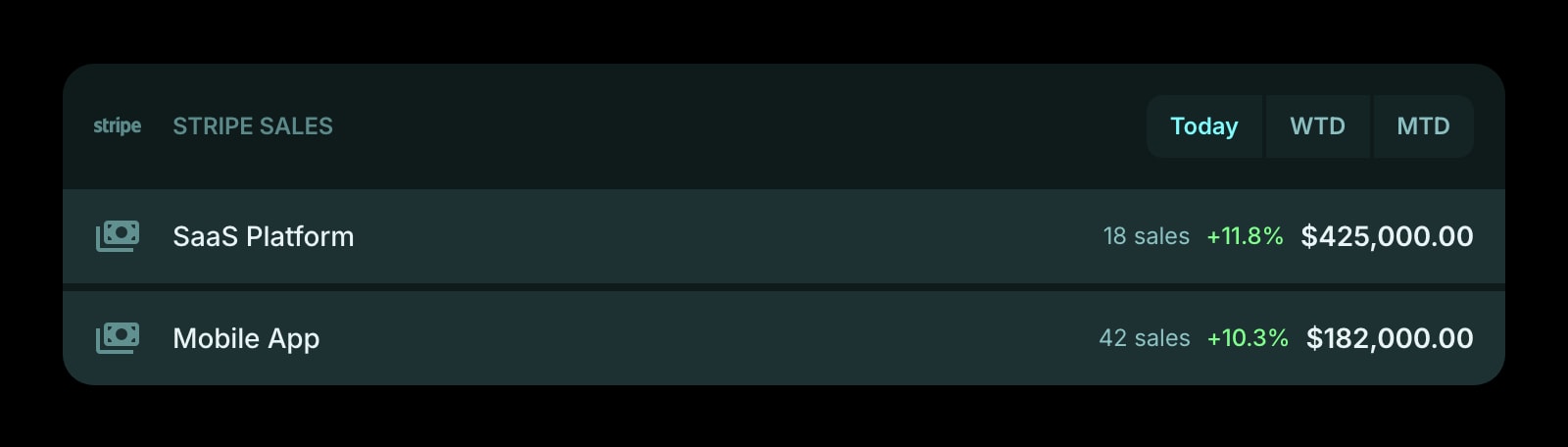
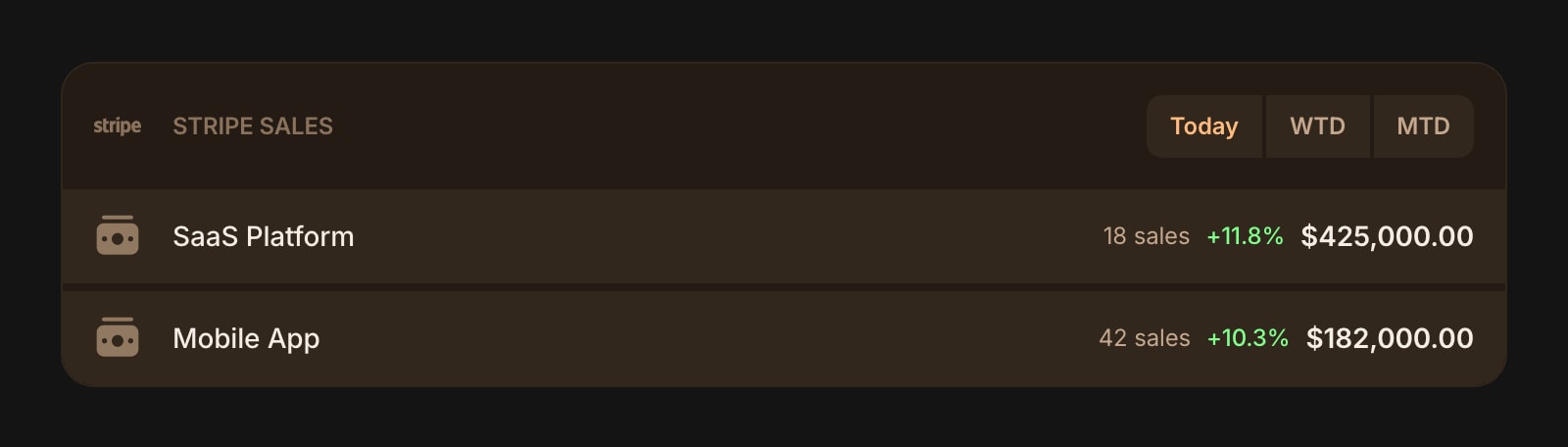
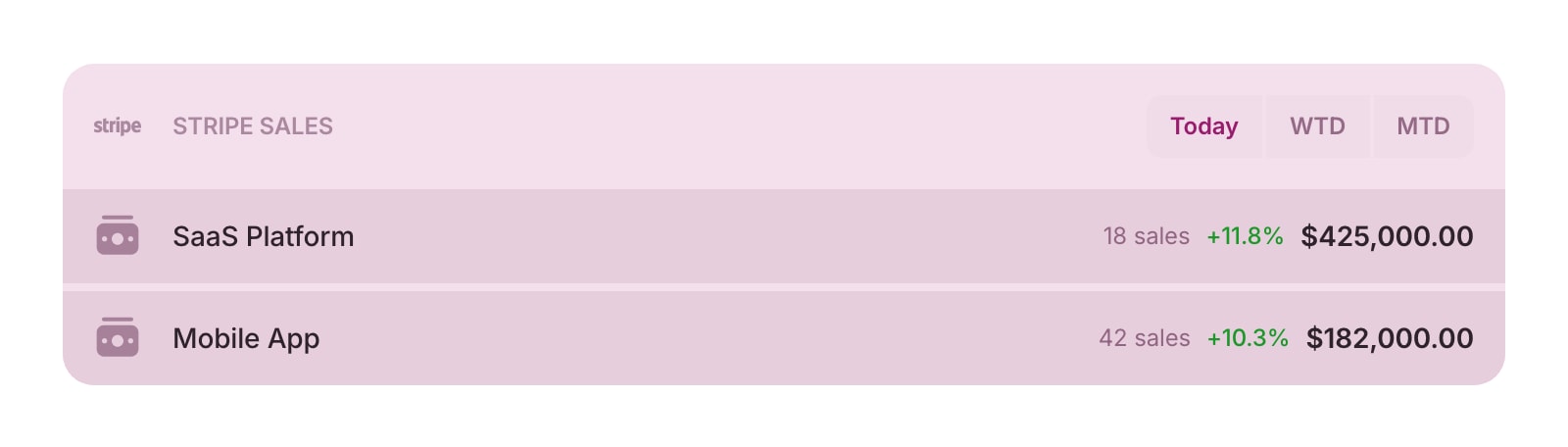
The Stripe Sales widget lets you monitor your Stripe revenue directly on your dashboard. Add one or more Stripe accounts and see sales totals for today, this week, or this month - complete with change percentages compared to the previous period.
#How to Use
#Adding a Stripe Account
Click Add Stripe Account (or use the + Add Account button in edit mode) to connect your Stripe account. You'll need to provide:
- Icon - an optional custom icon or image for this account
- Name - a label for the account (like "My SaaS Product")
- API Key - a Stripe restricted API key with read-only access to Balance Transactions and Charges
The widget validates your API key with Stripe before saving. Once connected, your sales data appears immediately.
#Viewing Sales Data
Use the period selector at the top to switch between:
- Today - sales since midnight
- WTD - week-to-date sales (since Monday)
- MTD - month-to-date sales (since the 1st of the month)
Each account shows:
- Sales amount - total revenue for the selected period
- Sales count - number of transactions
- Change indicator - percentage change compared to the previous period (green for growth, red for decline)
When you have two or more accounts, a Total row at the bottom sums the sales amount, transaction count, and change percentage across all accounts for the selected period. Accounts with different currencies are totaled separately per currency.
#Refreshing Data
Sales data is cached for 15 minutes. Right-click (or tap and hold) an account and choose Refresh to fetch the latest numbers. Data also refreshes automatically when you open your dashboard.
#Managing Accounts
#Adding More Accounts
In edit mode, click the + Add Account button in the widget toolbar. You can also right-click (or tap and hold) an existing account and choose Add Account to insert a new one after it.
#Editing an Account
Right-click (or tap and hold) an account and choose Edit Account. You can update the name, icon, or API key. Leave the API key field empty to keep the current key.
#Reordering Accounts
On desktop, drag and drop accounts to rearrange them. You can also drag accounts between multiple Stripe Sales widgets.
#Deleting an Account
Right-click (or tap and hold) an account and choose Delete Account. You'll be asked to confirm before it's removed.
#Widget Settings
- Item Style - choose the look of each account card: Clear, Outline, or Solid (default).
- Show Image - display the account icon or image. Turned on by default.
- Show Total - display the Total row at the bottom when the widget has two or more accounts. Turned on by default.
#Tips
- Create a restricted API key in your Stripe Dashboard with read-only access to Balance Transactions and Charges - this keeps your account secure.
- Add multiple accounts to track different products or businesses side by side.
- Use the period selector to quickly compare daily versus monthly performance.