- Dashboard
- Widgets
- AI Diary
- AI Humanizer
- AI Image
- Audio Editor
- Base64 / URL Encoder
- Calendar
- Canvas
- Collection
- Color Picker
- Container
- Countdown Timer
- Currency Converter
- Daily Quiz
- Daily Quote
- Daily Riddle
- Date & Time
- Embed
- GitHub Releases
- Google Calendar
- Habit Tracker
- Hacker News
- Image Compression
- IP Info
- JSON Formatter
- Links
- Markdown Editor
- News
- News Summary
- Notes
- Photo Frame
- Podcast
- Pomodoro Timer
- Product Hunt
- QR Code Generator
- Quick Answer
- Quick Note
- Regex Tester
- RSS Feed
- Search
- Spacer
- Stopwatch
- Story Snippet
- Stripe Sales
- Subreddit
- Substack
- t0ggles Focus
- t0ggles My Boards
- t0ggles My Tasks
- Tasks
- Text Diff
- Todo
- TradingView Advanced Chart
- TradingView Market Summary
- TradingView Mini Chart
- TradingView Symbol Overview
- TradingView Ticker Tape
- Translation
- Unit Converter
- Uptime Monitor
- Weather
- What If
- World Clock
- YouTube Channel
Embed Widget
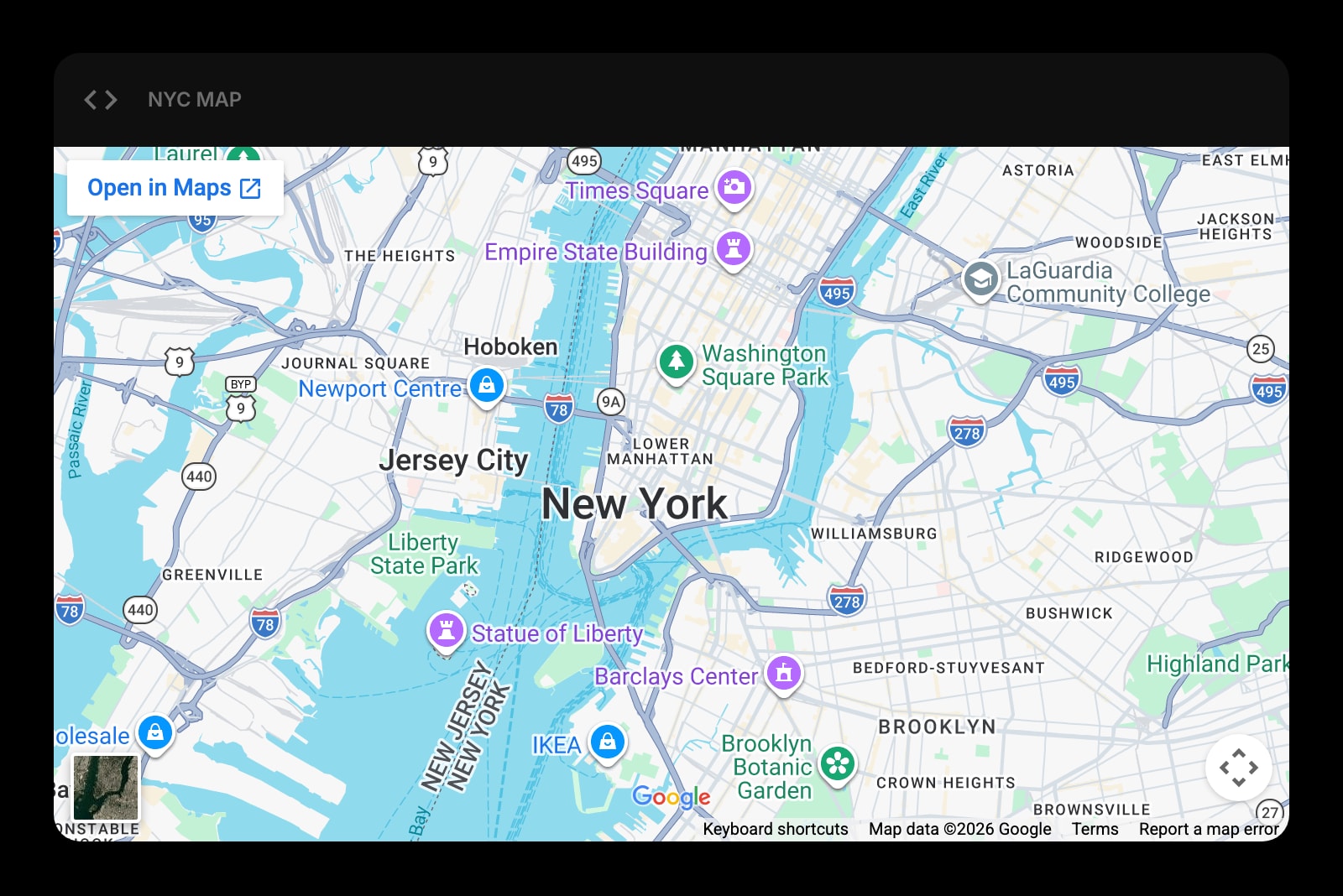
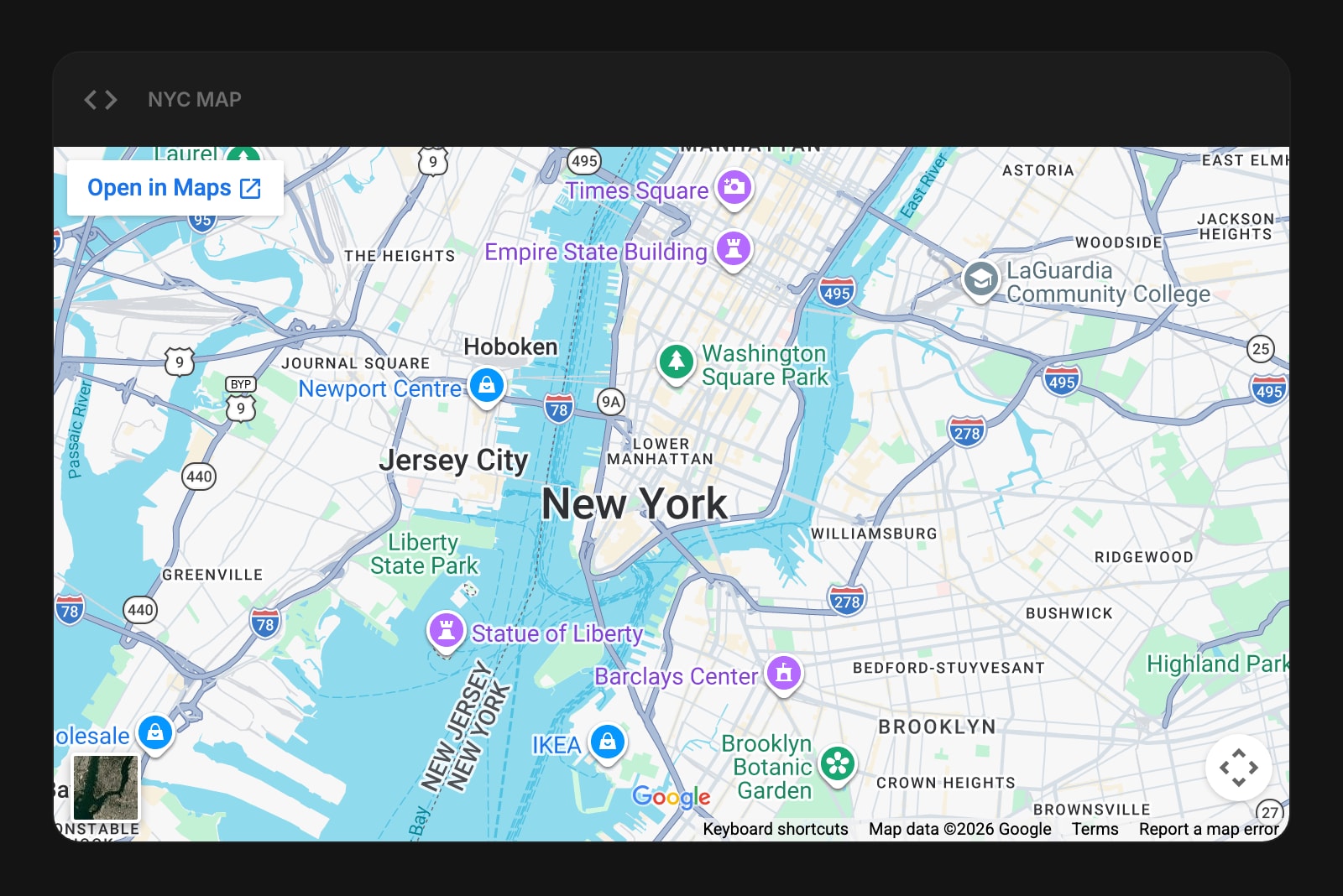
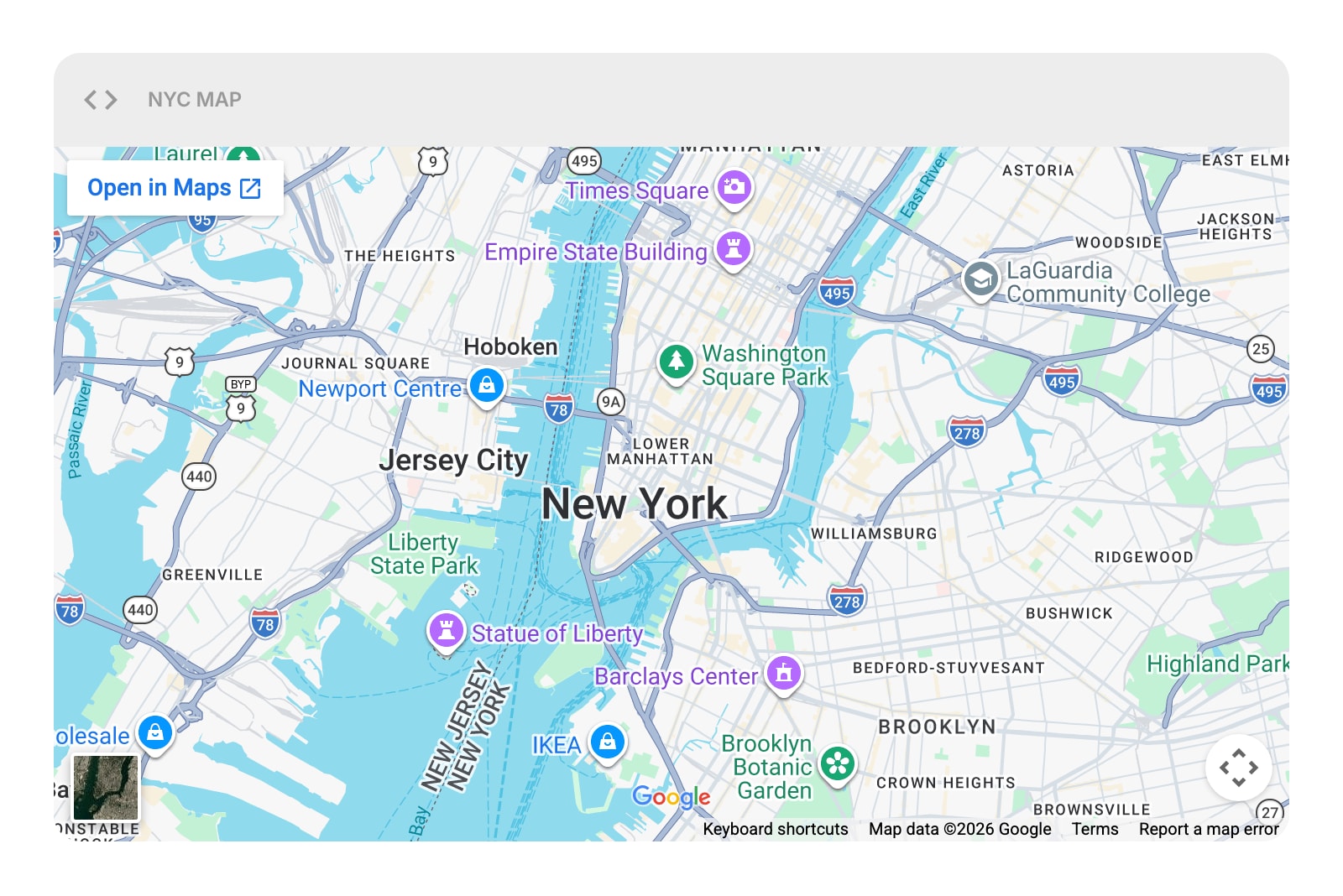
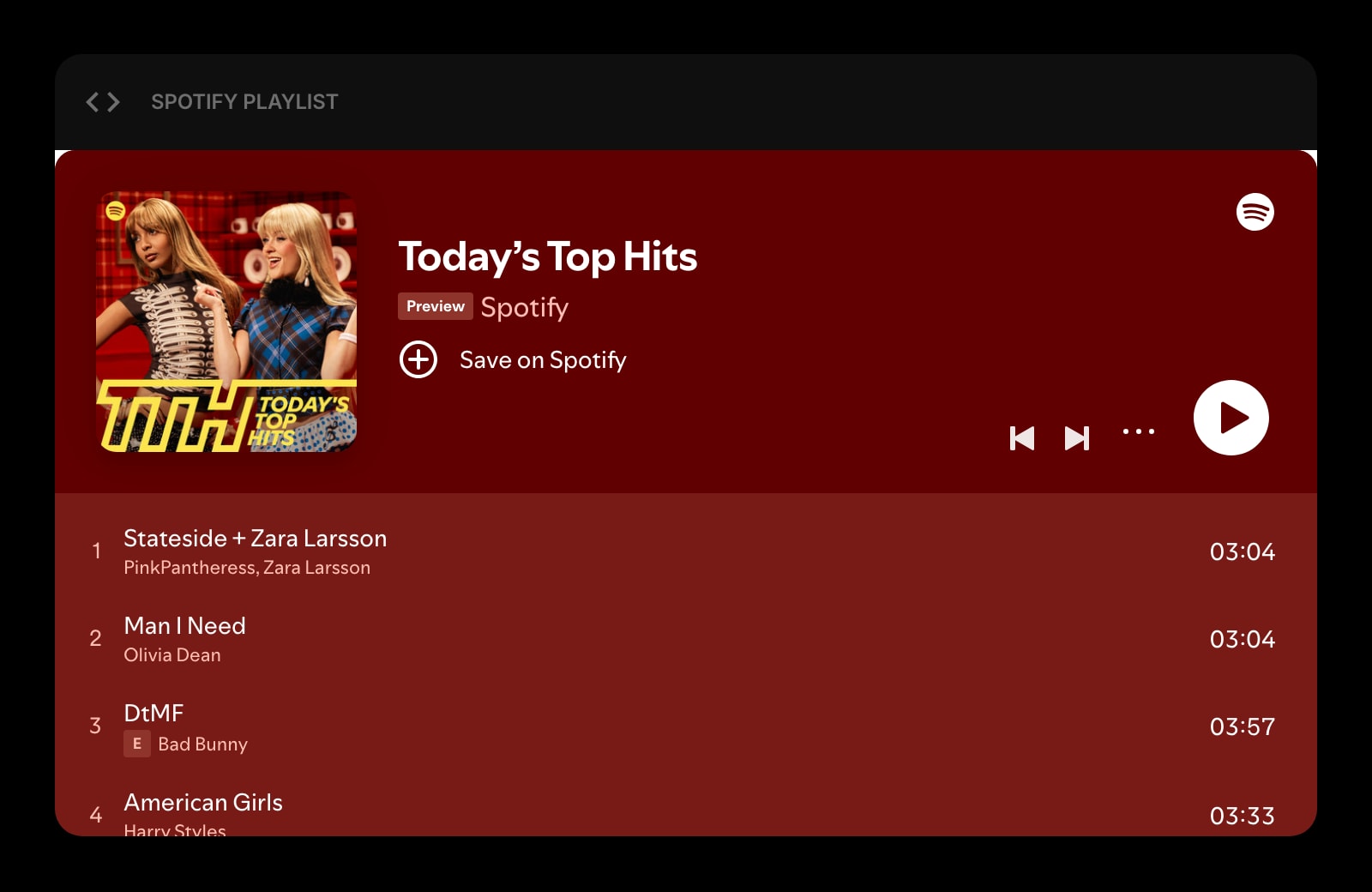
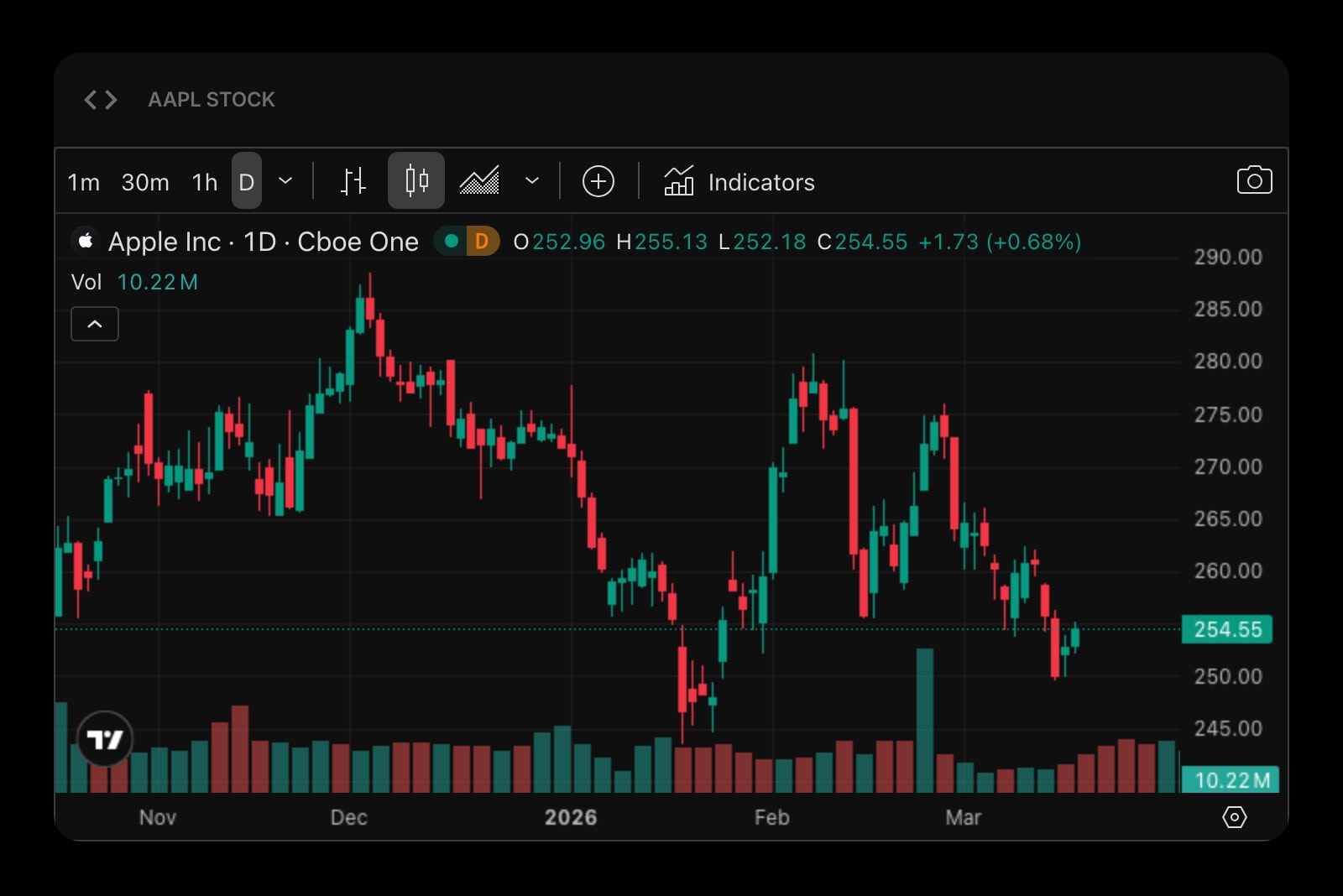
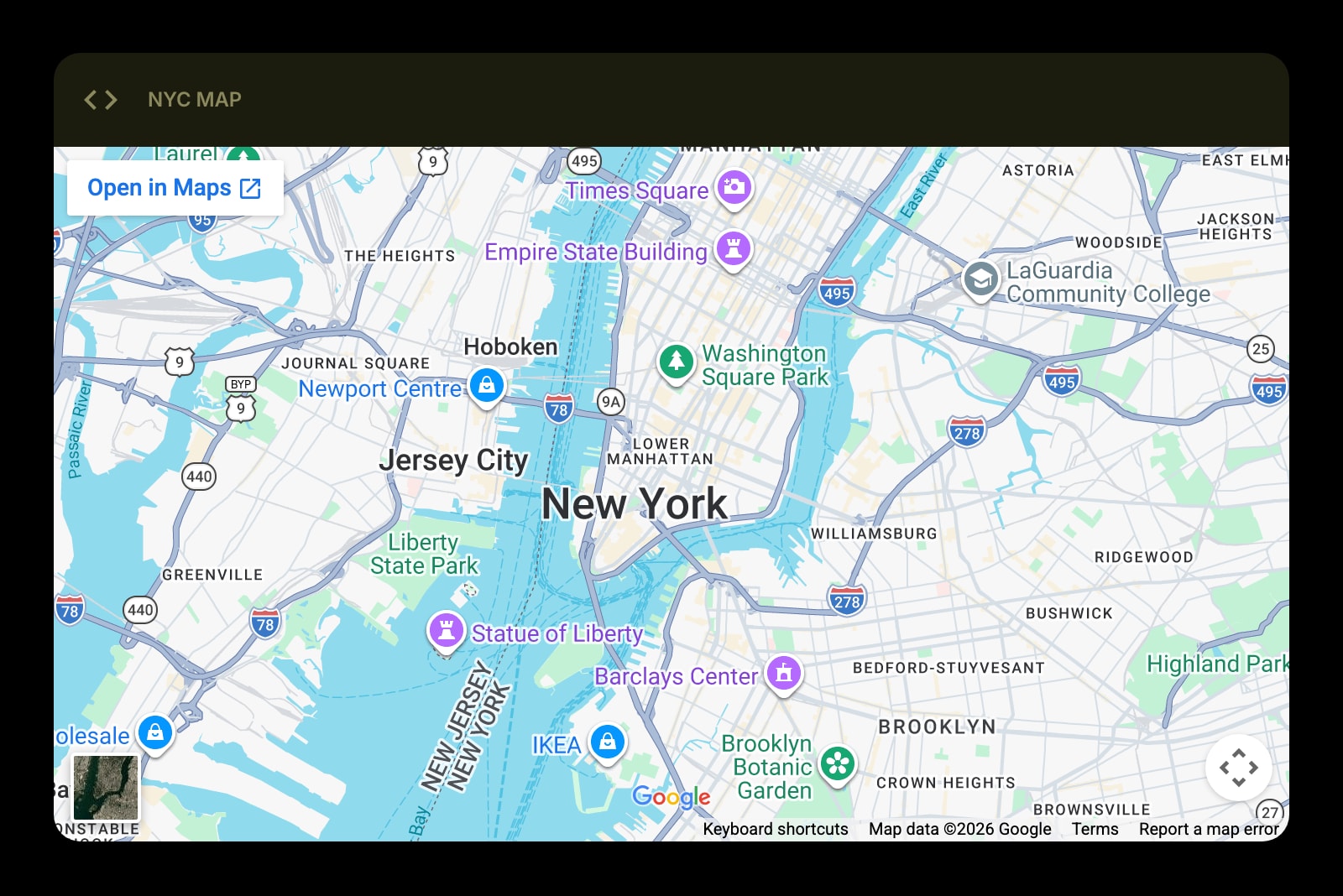


The Embed widget lets you place external web content or custom HTML right on your dashboard. Use it to embed Google Maps, Spotify playlists, stock charts, or anything else that works in an iframe.
#How to Use
#URL Mode
- Open the widget settings and make sure Mode is set to URL.
- Enter the URL you want to embed - for example, a Google Maps embed link or a Spotify playlist URL.
- Click Save or press Enter. The content loads inside the widget.
#HTML Mode
- Open the widget settings and switch Mode to HTML.
- Paste your custom HTML code into the text area.
- Click Save. Your HTML renders inside the widget.
To edit the content later, open the widget settings and change the URL or HTML code.
#Use Cases
- Maps - embed a Google Maps view of a favorite location
- Music - add a Spotify or SoundCloud player
- Finance - display a TradingView stock chart
- Dashboards - embed external monitoring tools or analytics panels
- Custom HTML - add any custom content you want
#Widget Settings
- Mode - choose between URL (embed a website, default) and HTML (embed custom HTML code).
- URL - the web address to embed (only shown in URL mode).
- Sizing - control the aspect ratio: Custom (set a specific height), 16:9 (widescreen), or 1:1 (square). Custom is the default.
- Height - set the widget height in pixels, from 100 to 2000 (only shown when Sizing is set to Custom). Default is 400px.
#Tips
- Use 16:9 sizing for video embeds and maps - it matches most content well.
- Not all websites allow embedding. If a site blocks iframes, you'll see a blank or error inside the widget.
- HTML mode is more restricted for security - it allows scripts but not popups or form submissions.