- Dashboard
- Widgets
- AI Diary
- AI Humanizer
- AI Image
- Audio Editor
- Base64 / URL Encoder
- Calendar
- Canvas
- Collection
- Color Picker
- Container
- Countdown Timer
- Currency Converter
- Daily Quiz
- Daily Quote
- Daily Riddle
- Date & Time
- Embed
- GitHub Releases
- Google Calendar
- Habit Tracker
- Hacker News
- Image Compression
- IP Info
- JSON Formatter
- Links
- Markdown Editor
- News
- News Summary
- Notes
- Photo Frame
- Podcast
- Pomodoro Timer
- Product Hunt
- QR Code Generator
- Quick Answer
- Quick Note
- Regex Tester
- RSS Feed
- Search
- Spacer
- Stopwatch
- Story Snippet
- Stripe Sales
- Subreddit
- Substack
- t0ggles Focus
- t0ggles My Boards
- t0ggles My Tasks
- Tasks
- Text Diff
- Todo
- TradingView Advanced Chart
- TradingView Market Summary
- TradingView Mini Chart
- TradingView Symbol Overview
- TradingView Ticker Tape
- Translation
- Unit Converter
- Uptime Monitor
- Weather
- What If
- World Clock
- YouTube Channel
Edit Mode
Edit mode lets you rearrange widgets, open their settings, and add items - all without accidentally clicking links or triggering other widget actions.
#Turning Edit Mode On and Off
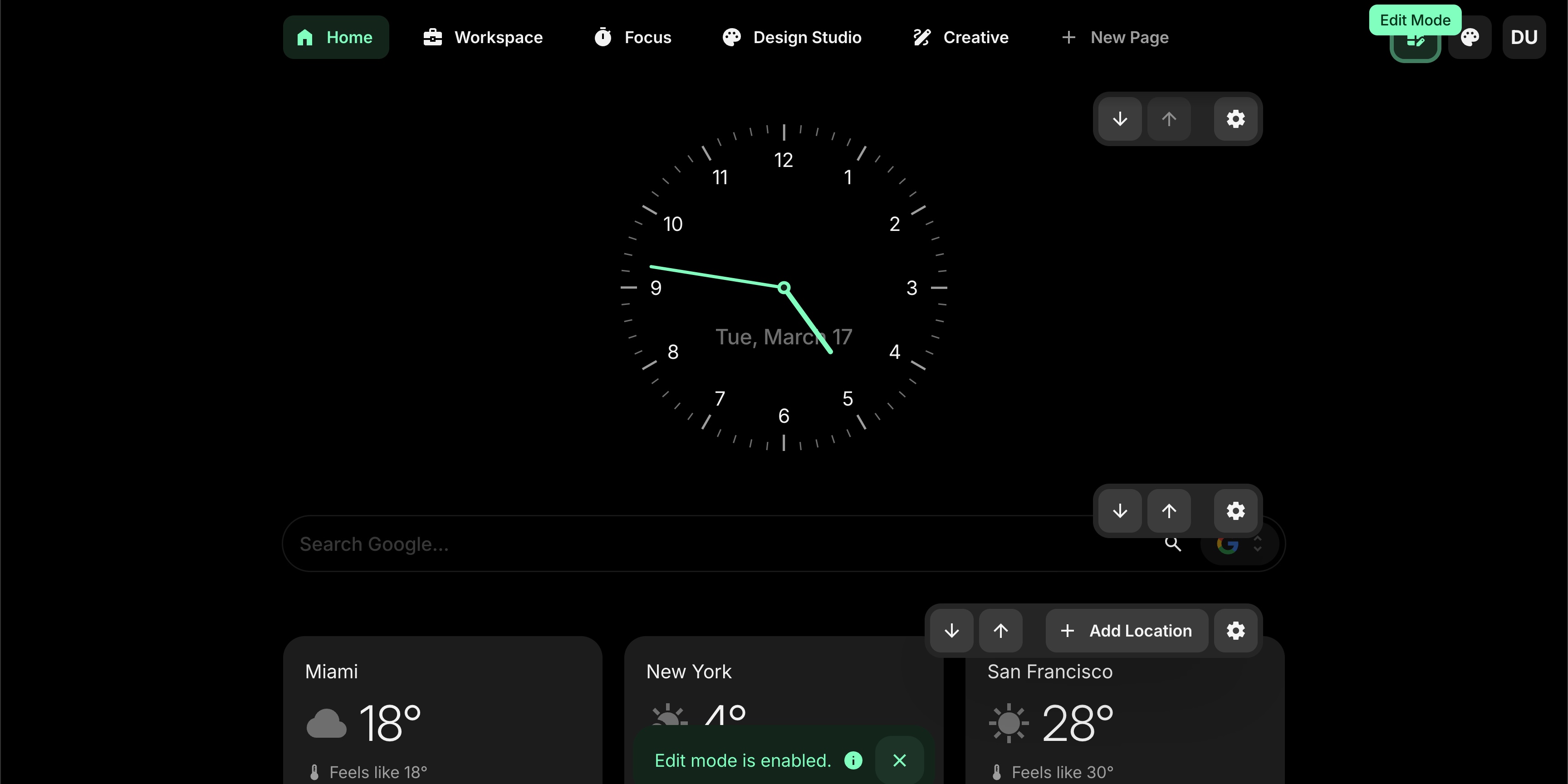
Click the edit icon in the top navigation bar to toggle edit mode. The icon lights up in your accent color when edit mode is active.
#Widget Toolbar
When edit mode is on, a small toolbar appears at the top-right corner of each widget with three buttons:
- Move Down - moves the widget one position down
- Move Up - moves the widget one position up
- Settings - opens the widget settings panel
The move buttons are disabled when a widget is already at the top or bottom of the page.
#Adding Items
Some widgets support adding items directly from edit mode. When a widget supports this, an extra button appears in the toolbar - for example, + Add Link on a Links widget, + Add Item on a Todo widget, or + Add Clock on a World Clock widget.
#Important Note
While edit mode is on, normal widget interactions are paused. For example, links won't open when clicked, and interactive elements won't respond. This is by design - it lets you freely drag, rearrange, and edit without accidentally triggering actions. Turn off edit mode to use your widgets normally again.