
Todo Widget for Edge
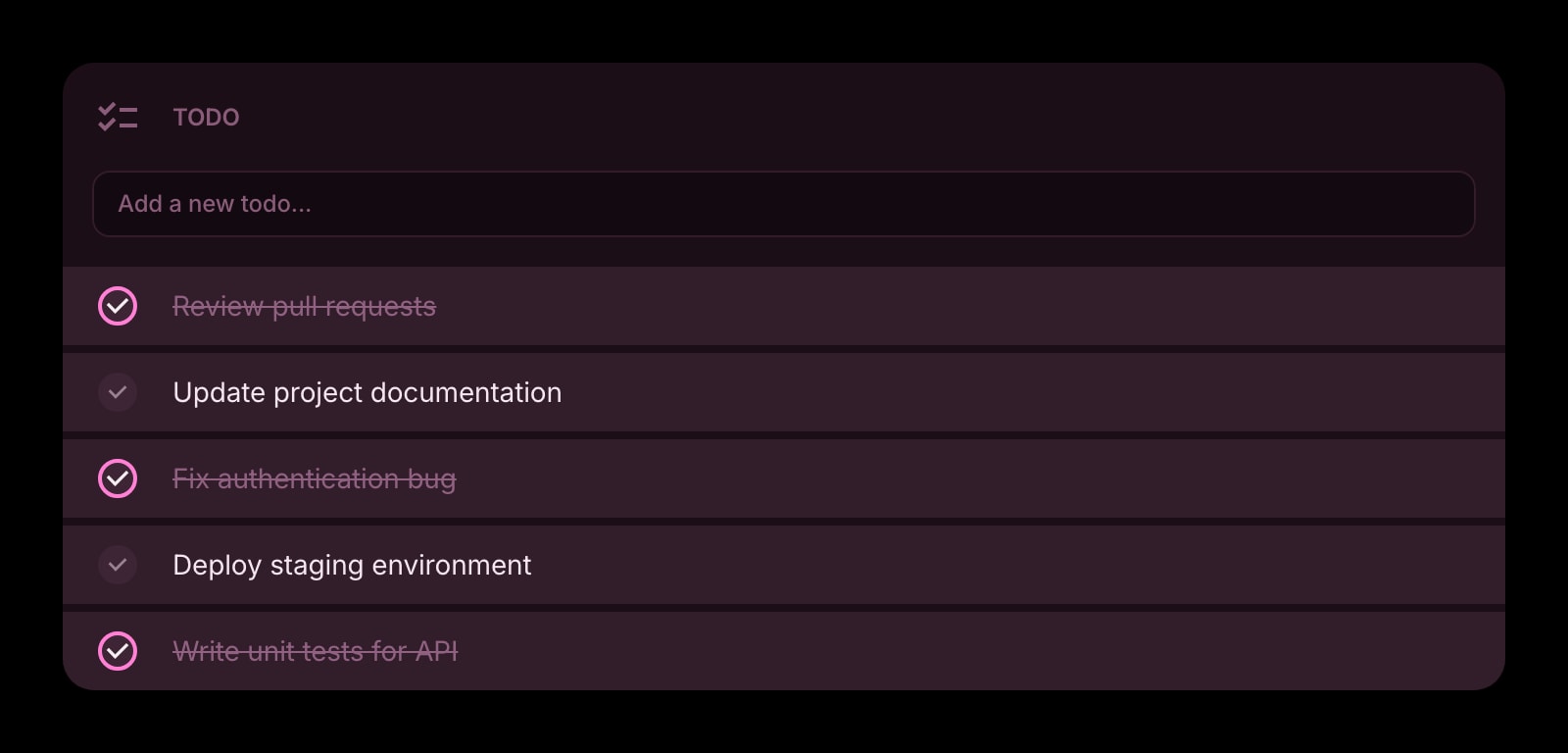
A checklist on every Microsoft Edge new tab — the browser most work PCs open by default. Type a task, press Enter, and it is there on the next Ctrl+T, and on Edge or any other browser at home.
Install on Edge
The Edge-specific flow, start to finish.
- 1Open the Start Page HQ listing on the Chrome Web Store in Edge. Click "Allow extensions from other stores" on the banner, then "Get", and approve the new-tab permission.
- 2Press Ctrl+T. Confirm if Edge asks whether to keep the new page. The dashboard replaces the MSN page.
- 3Click the gear icon in the bottom right and choose Add Widget → Todo.
- 4Click into the widget and type. Enter adds the task and moves to a fresh line; keep typing to add the next.
- 5In the widget settings, choose whether finished tasks get struck through, hidden, or moved to the bottom. Drag tasks to reorder them.
What Todo Does
A short tour of the widget. Already sold? Skip ahead.
- Inline entry with Enter — no add button, no dialog.
- Completed items struck through, hidden, or dropped to the bottom.
- Drag-and-drop ordering, including bringing a done task back.
- A separate list on each dashboard page: Work, Home, Side Project.
- Clear, outline, or solid styling.
Notes for Edge Users
Edge is the default browser on most Windows work machines, which makes its new tab the most-opened screen of the working day and, by default, the busiest — MSN headlines, sponsored quick links, a Bing box. Nothing on that page can hold a task. The Todo widget puts the list exactly where those headlines were, so the thing you open forty times a day is also the thing that remembers what you were doing. The list is stored on your Start Page HQ account, not in the Edge profile, so it is there on the personal laptop at home, whichever browser that is.
Two Edge-specific points. First, Edge has no Start Page HQ listing of its own; it installs the Chrome Web Store build, which Edge runs natively once you allow extensions from other stores. Second, on a managed work Edge that switch can be greyed out by policy, and extension installs may be blocked altogether. In that case the same list is available with no install at all: open startpagehq.com, sign in, and the hosted dashboard shows the identical Todo widget, kept in step with the extension on any machine where you could install it.
Other Widgets You Might Add
Pair the Todo widget with these. One install gets you all of them.
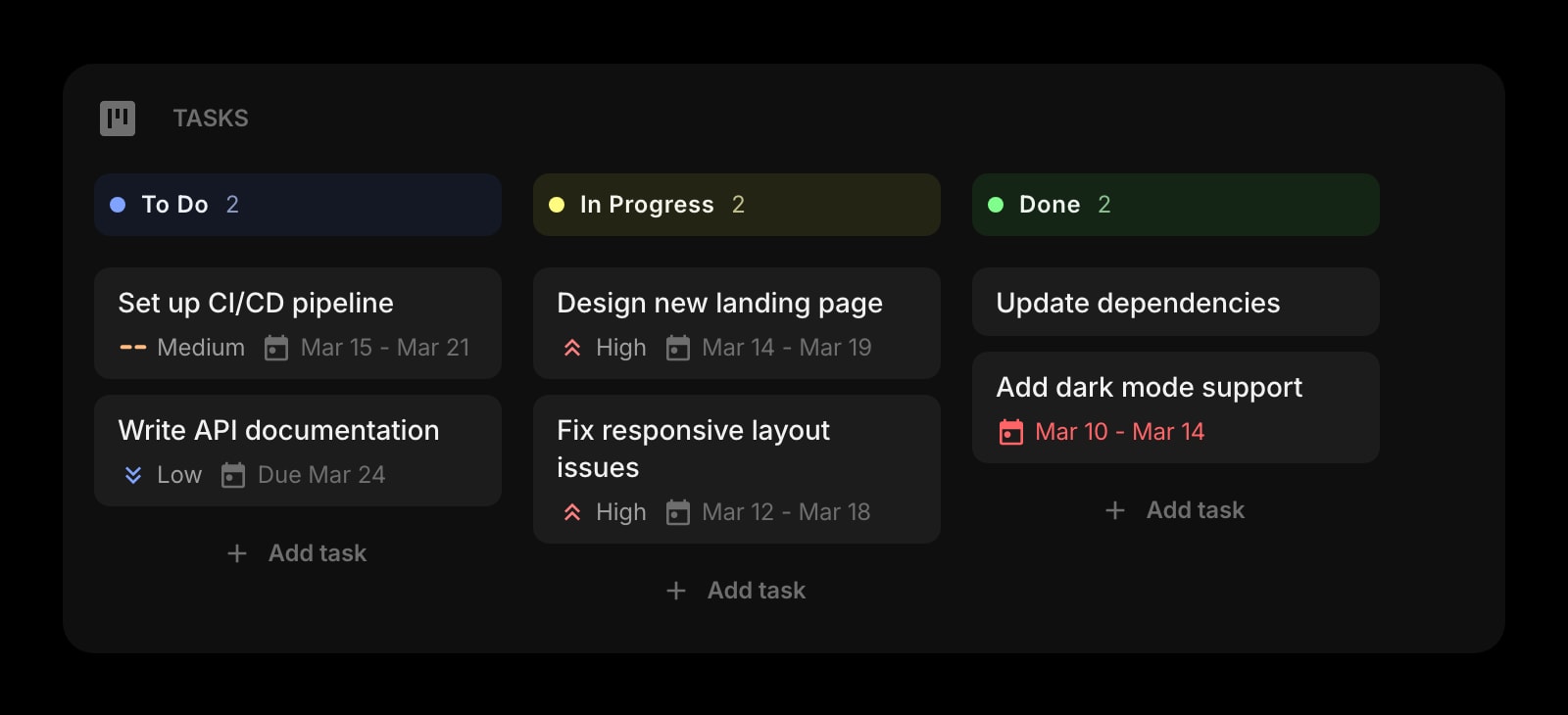
Tasks (Kanban)
A board with columns for the work that has stages.
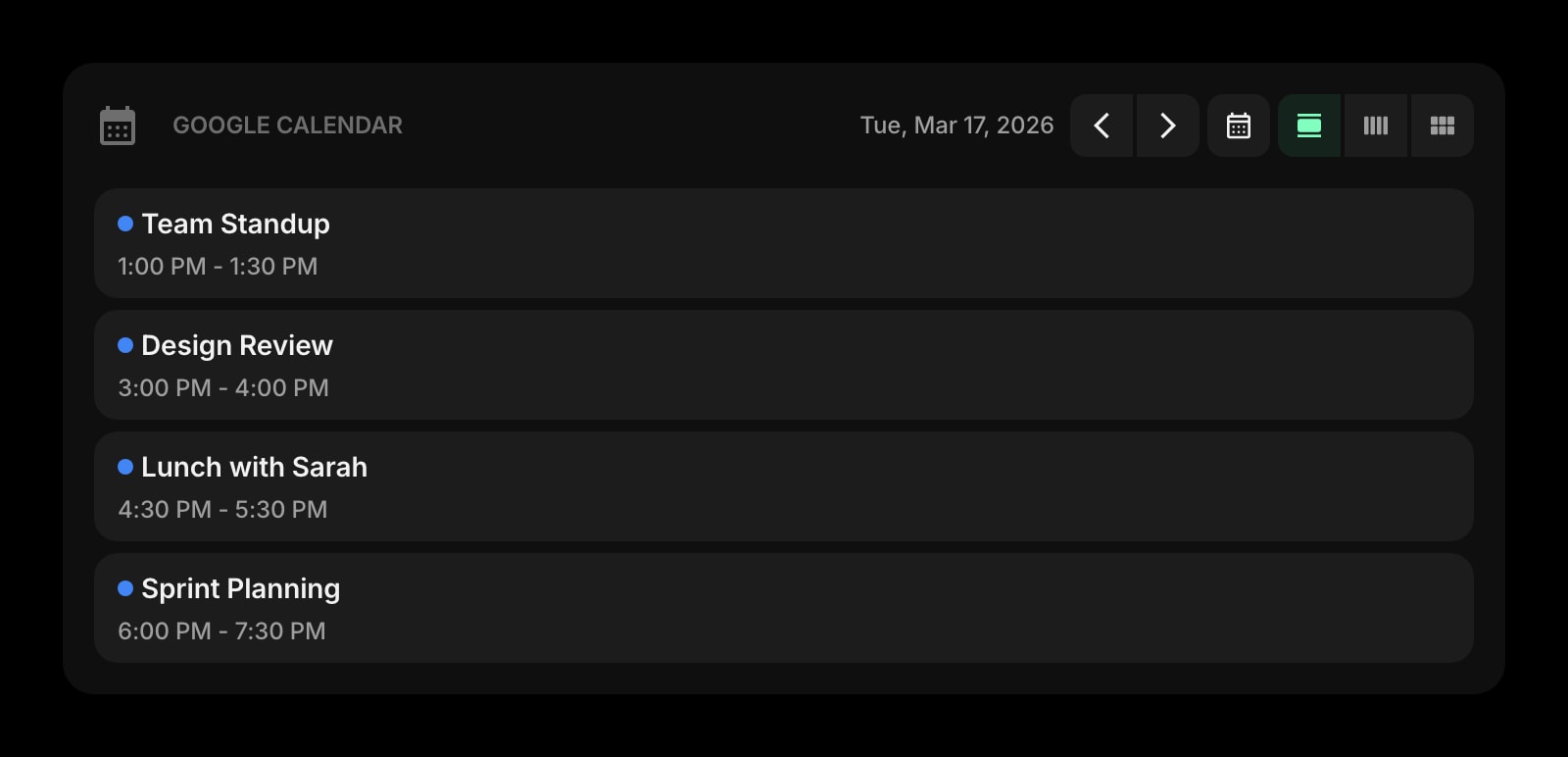
Google Calendar
The meetings the tasks have to fit around, on the same tab.
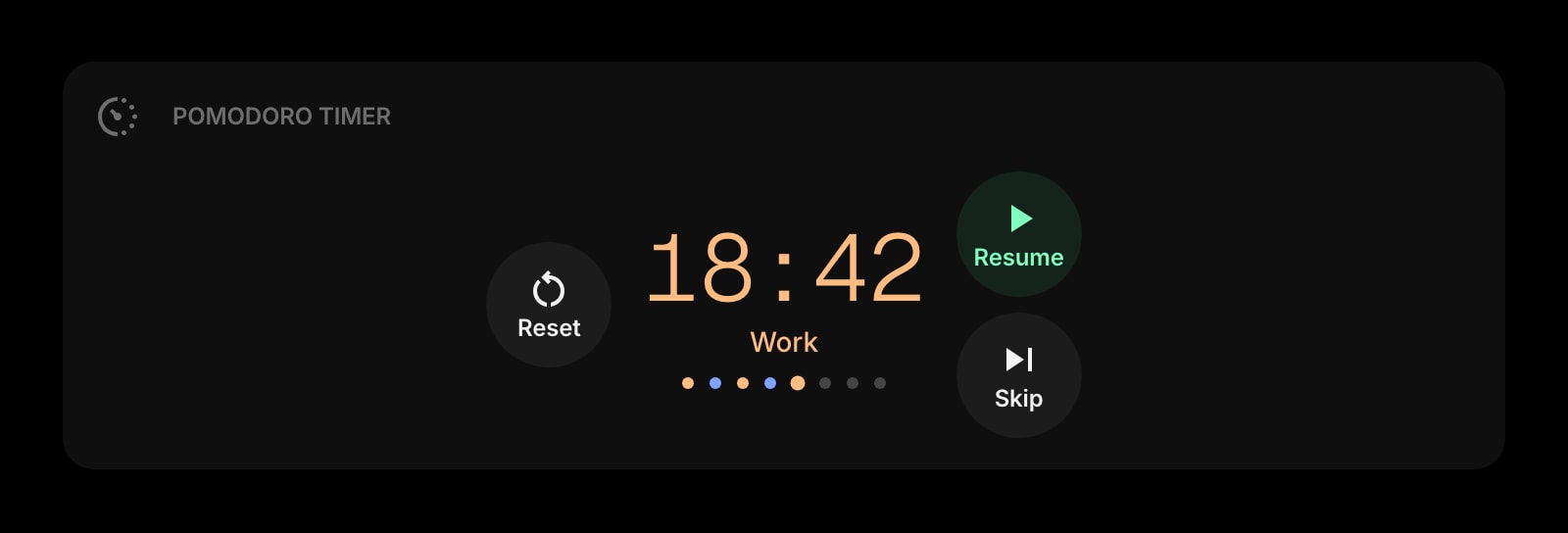
Pomodoro Timer
A timer on the top item before the rest of the list gets a look.
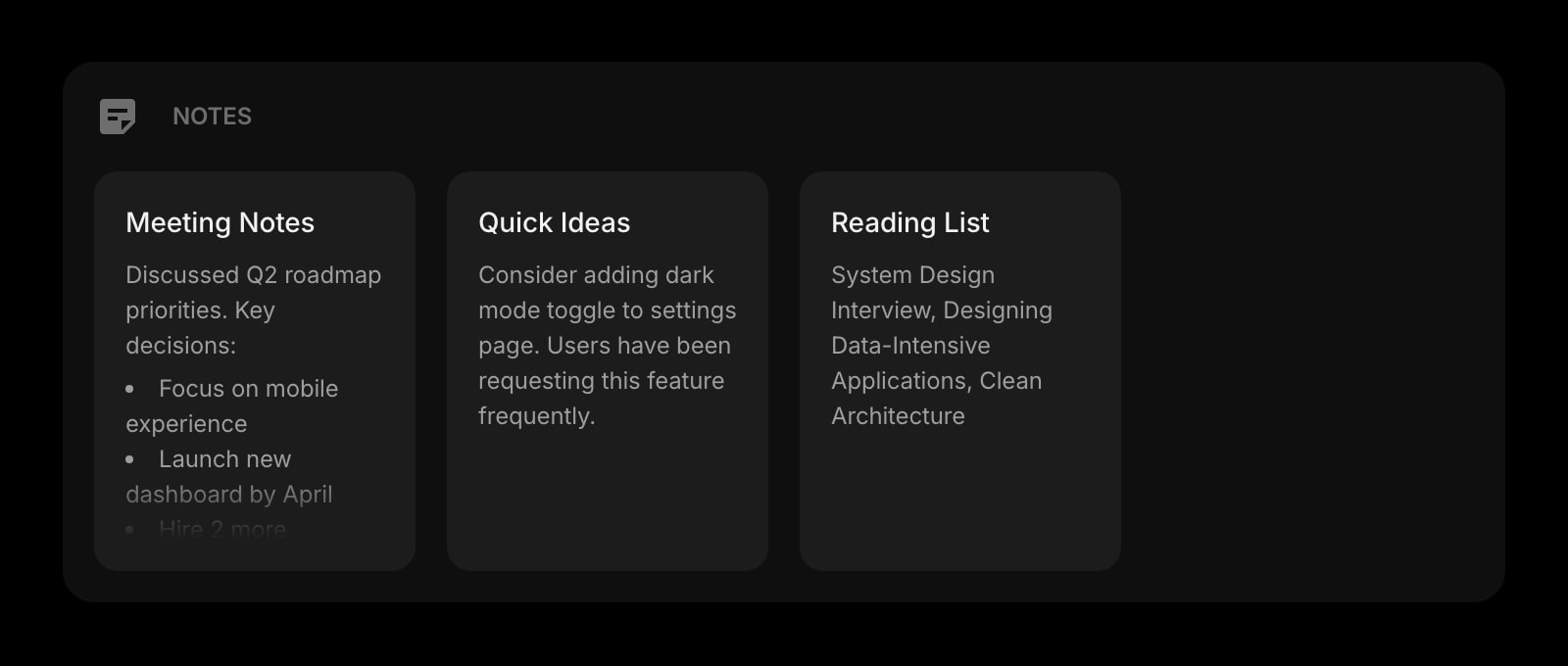
Notes
The full write-up behind a one-line task.
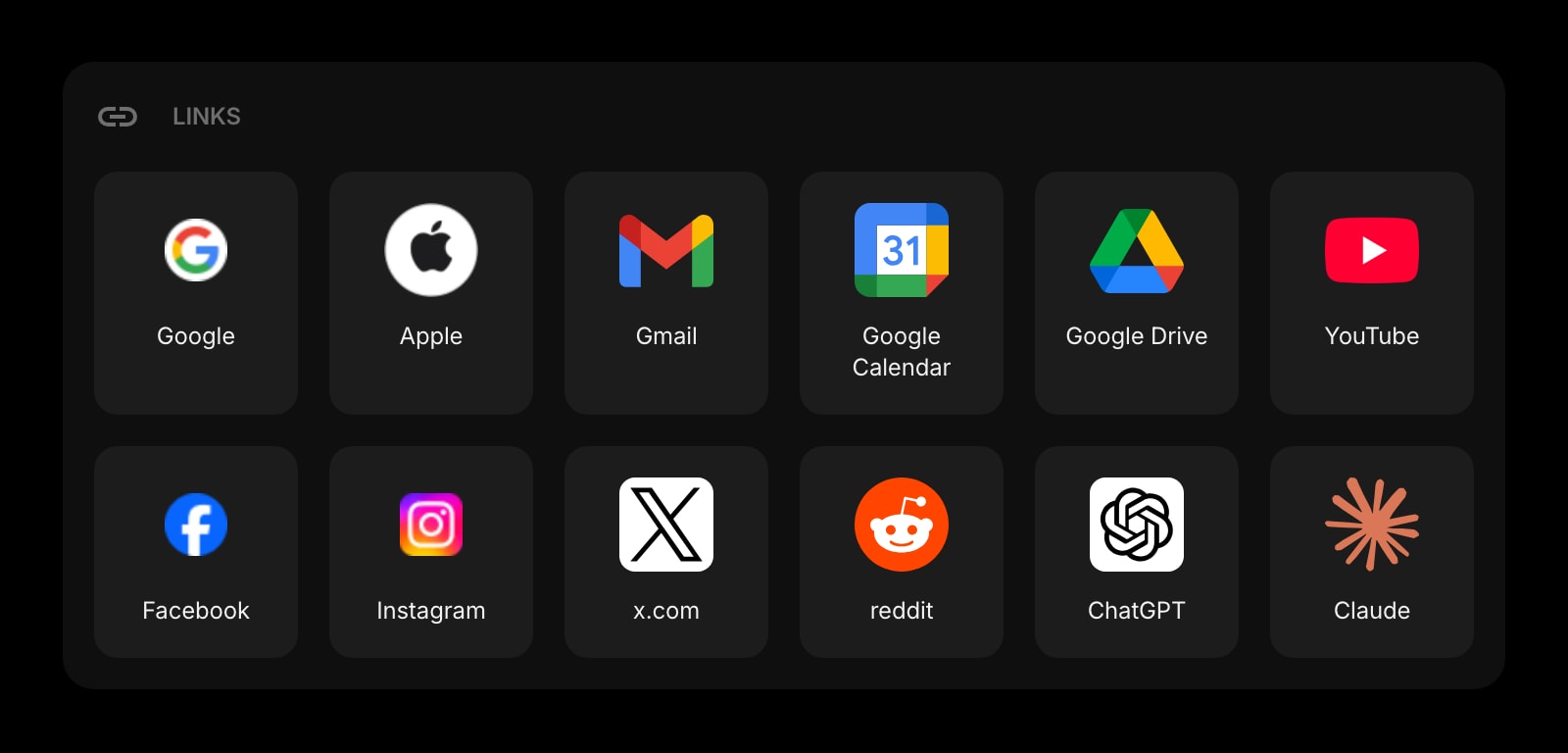
Links
Shortcuts to the tools the tasks happen in, without sponsored tiles.
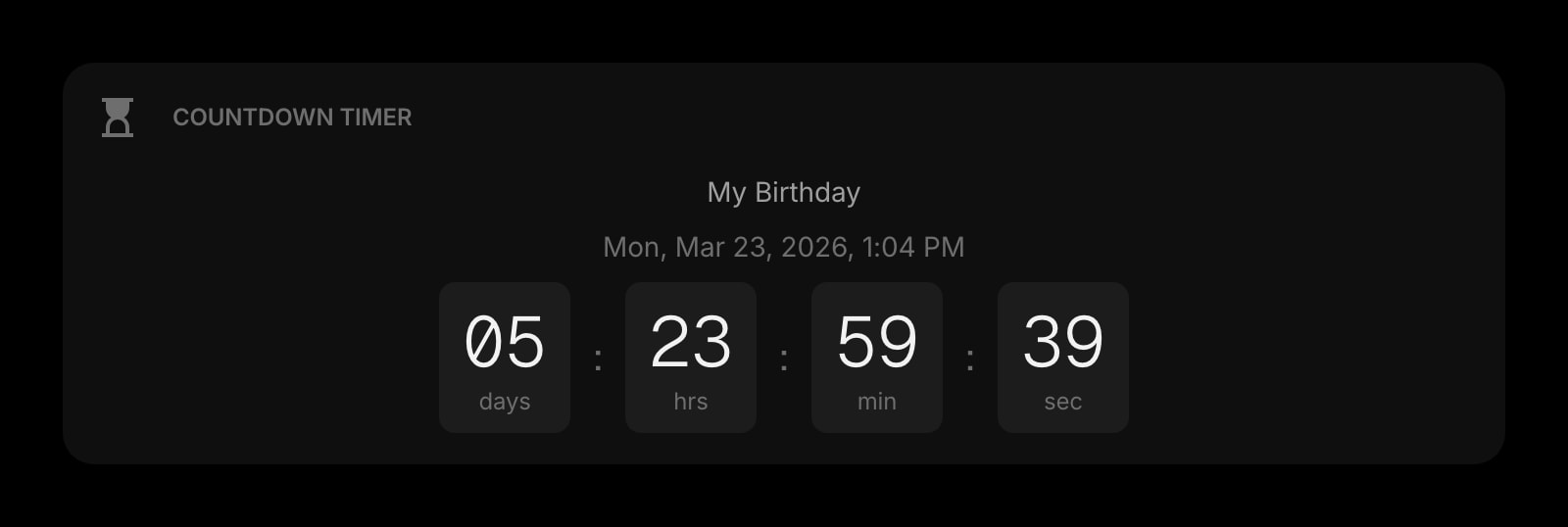
Countdown Timer
The deadline the list is working towards, counting down beside it.
The Todo widget is one of 50+ in Start Page HQ. Tasks, notes, RSS, AI tools, dev utilities — the same install gives you all of them. Start free with 8 widgets on a page, or lift every limit at $4/month, $24/year, or $48 lifetime.
Frequently Asked Questions
Yes, without the extension. Open startpagehq.com in Edge and sign in; the hosted web app shows the same dashboard and the same Todo widget. It is kept in sync with the extension on any machine where you can install it, so the list is one list either way.
Edge runs Chrome Web Store extensions natively — Microsoft built that in. After you click "Allow extensions from other stores" once, the listing installs into Edge like any Edge add-on, and it shows up at edge://extensions. It is the same build, with nothing missing.
Yes. The list lives on your Start Page HQ account, not in the Edge profile, so it appears on any browser you sign into — Edge, Chrome, Firefox, Safari, or the web app. Edge profile sync is not needed and is not used.
Yes. Put a Todo widget on a Work page and another on a Personal page of the dashboard. One click on the new tab switches pages, and each list stays its own.
Add the Todo Widget to Edge
Free plan, no credit card — see plans or try the demo without installing.