Todo Widget for Safari
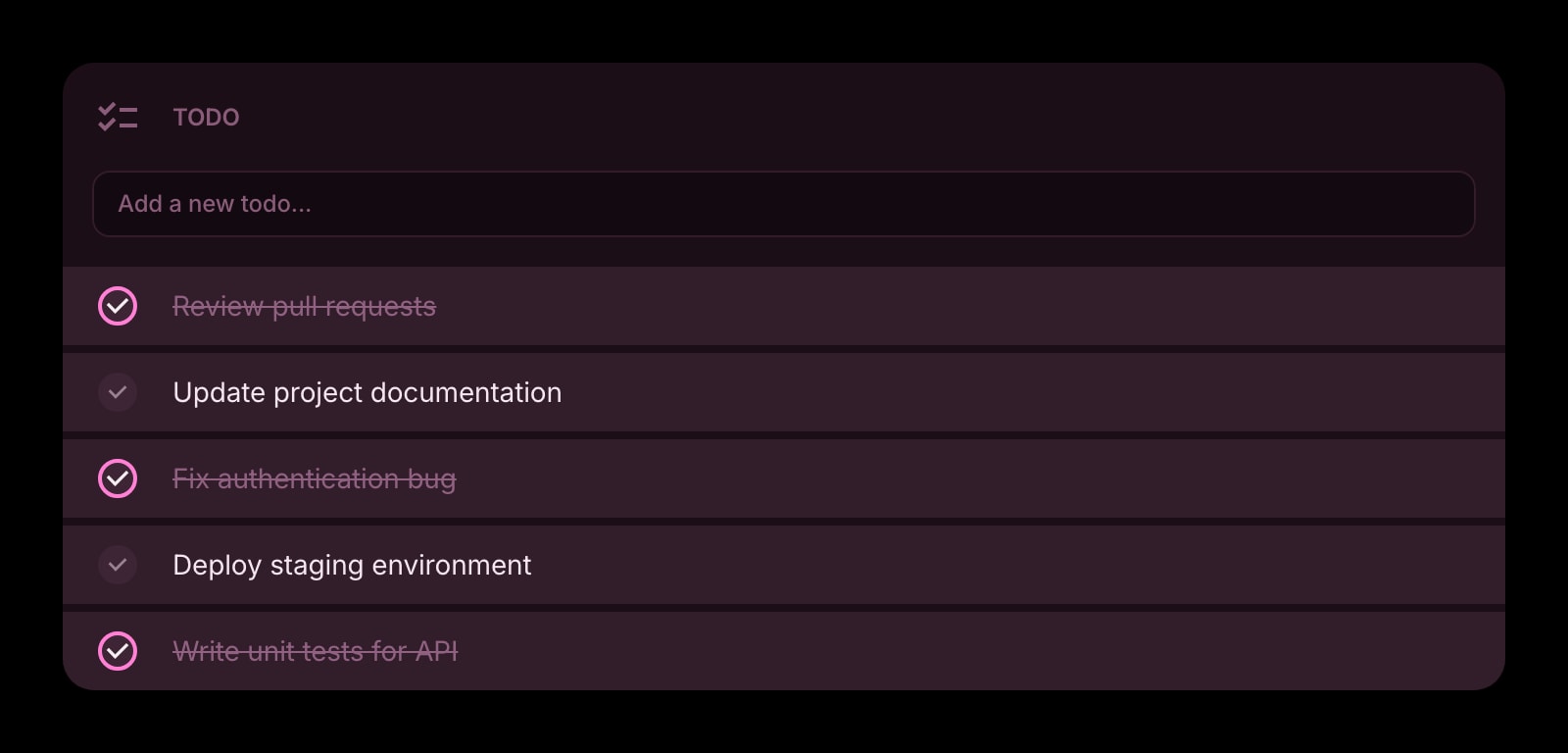
A checklist on every Safari new tab, from the App Store. Write it on the Mac in the morning, tick it off in Safari on the iPhone through the day — the same list, no Reminders app in between.
Install on Safari
The Safari-specific flow, start to finish.
- 1Install Start Page HQ from the Mac App Store and open it once. Turn it on under Safari → Settings → Extensions and allow the permissions it asks for.
- 2Press Cmd+T. The dashboard opens where the Start Page used to be. Click the gear icon in the bottom right and choose Add Widget → Todo.
- 3Click into the widget and type. Enter saves the task and starts the next line, so a list of ten is ten lines of typing.
- 4Decide in the widget settings what finished tasks do: strikethrough, disappear, or sink to the bottom. Drag to reorder.
- 5On iPhone or iPad, install the same app, enable it under Settings → Safari → Extensions, and sign in. Tap a task to check it off; the Mac shows the change on its next tab.
What Todo Does
A short tour of the widget. Already sold? Skip ahead.
- Type and press Enter — no add button, no modal.
- Finished tasks struck through, hidden, or moved to the bottom, your choice.
- Drag-and-drop ordering, including reviving a done task.
- Separate lists on separate dashboard pages.
- Clear, outline, or solid card styles.
Notes for Safari Users
Safari is the one browser whose new tab genuinely follows you from desk to pocket, and Apple only uses that for Favorites and Reading List. The Todo widget uses it for the list. The Start Page HQ app on the App Store installs the Safari extension on macOS 12.4 and later and on iOS and iPadOS 15 and later, so the list you write on the Mac is on the phone the next time Safari opens a tab — no Reminders, no Notes, no third-party app to keep in sync, and the tasks live on your account rather than in iCloud, which also means they reach Chrome or Firefox at work if you sign in there.
On the Mac, the Safari extension shares your sign-in with the Start Page HQ app through the Keychain, which is how an in-app purchase made in the iOS app lands on the same account as the list. And since the tasks are stored on the account, clearing Safari website data or reinstalling the app does not touch them — sign in and the list is back. If you ever want the Start Page again, untick the extension in Safari settings; the list keeps waiting on the account.
Other Widgets You Might Add
Pair the Todo widget with these. One install gets you all of them.
Tasks (Kanban)
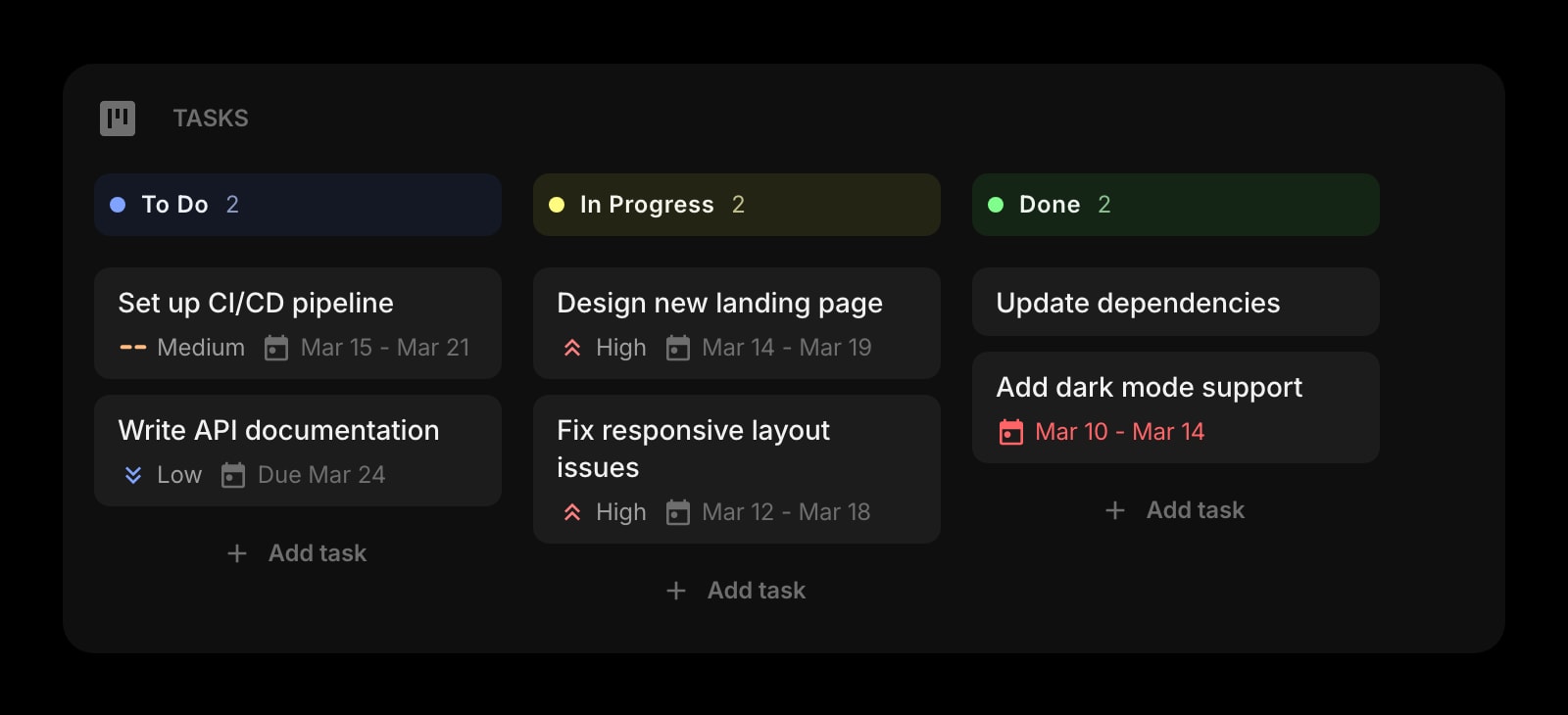
A board for work with stages, next to the flat list for everything else.
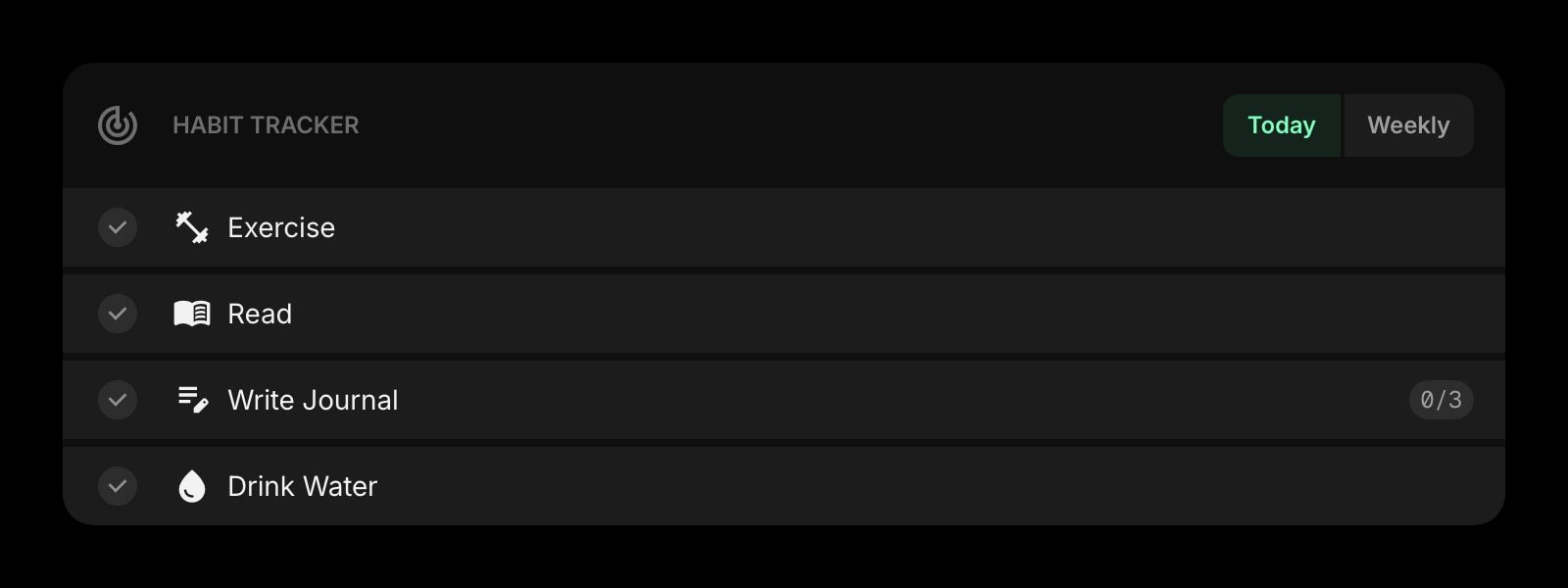
Habit Tracker
For the daily things that should never be retyped into a todo list.
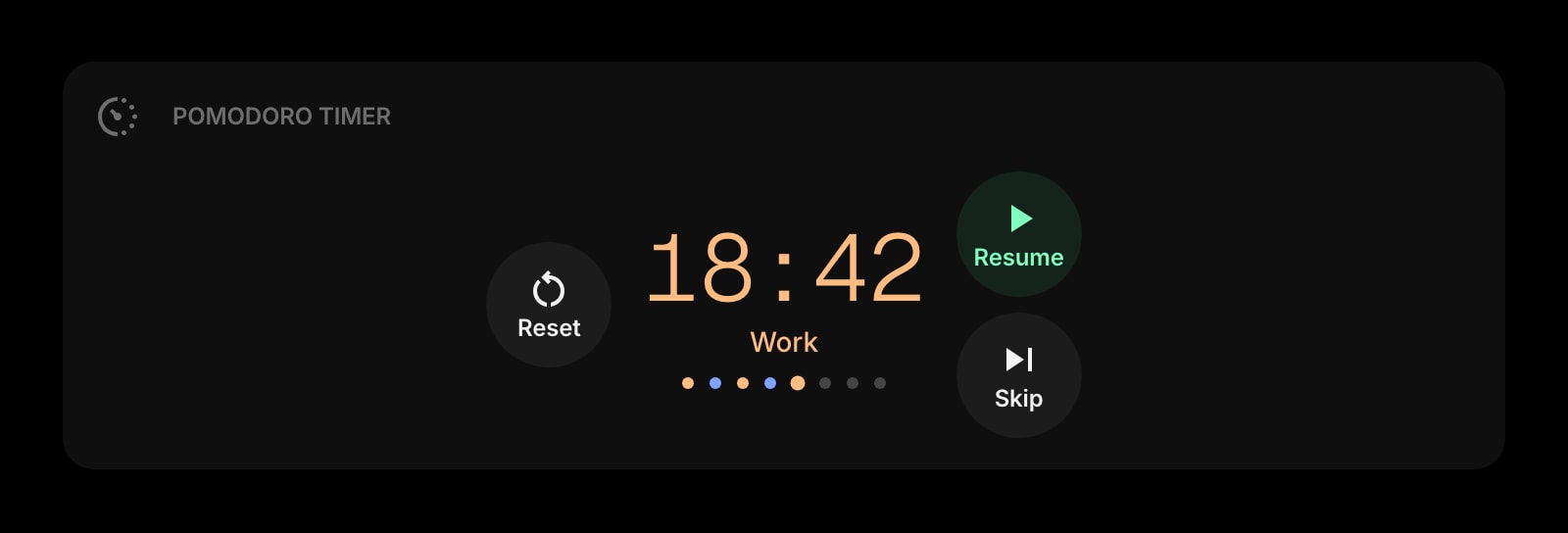
Pomodoro Timer
Twenty-five minutes on the top task before looking at the rest.
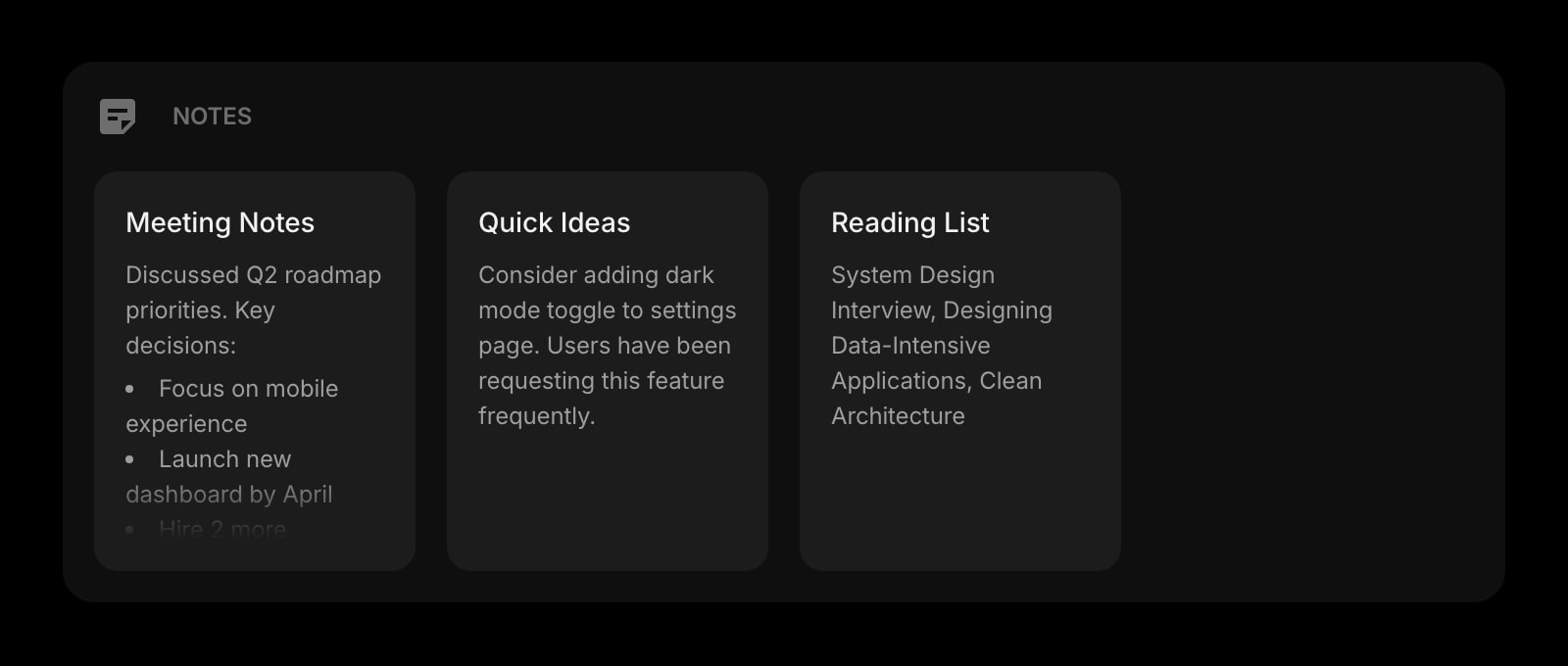
Notes
The paragraph behind a one-line task, in a widget beside it.
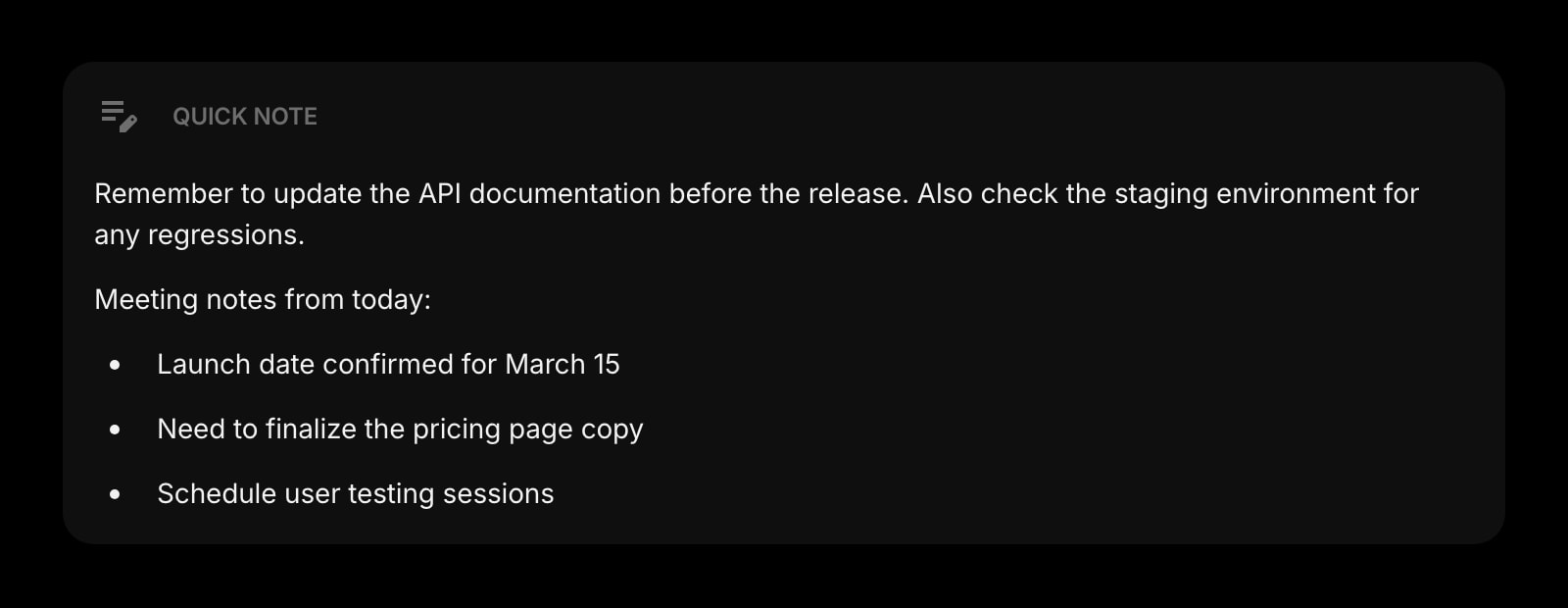
Quick Note
A scratchpad for what is not a task yet.
Links
The favorites grid from Safari's Start Page, kept next to the list.
The Todo widget is one of 50+ in Start Page HQ. Tasks, notes, RSS, AI tools, dev utilities — the same install gives you all of them. Start free with 8 widgets on a page, or lift every limit at $4/month, $24/year, or $48 lifetime.
Frequently Asked Questions
Yes. Install the same App Store app on the phone, enable it under Settings → Safari → Extensions, and sign in. Safari's new tab shows the dashboard and the same list, and a task ticked off on the phone is ticked off on the Mac.
No — through your Start Page HQ account. That is why it works between Safari on a Mac and Safari on an iPhone without any iCloud setting, and also reaches Chrome, Firefox, Edge, and the hosted web app if you use those elsewhere.
On the Mac: open the app once, then tick Start Page HQ under Safari → Settings → Extensions and allow its permissions. On iOS: Settings app → Safari → Extensions, switch it on, set to Allow. Open a new tab and the dashboard is there.
No. Tasks are stored on your account, not in Safari. Clearing website data may sign the dashboard out; sign back in and the list is unchanged.
Add the Todo Widget to Safari
Free plan, no credit card — see plans or try the demo without installing.