Calendar Widget for Chrome
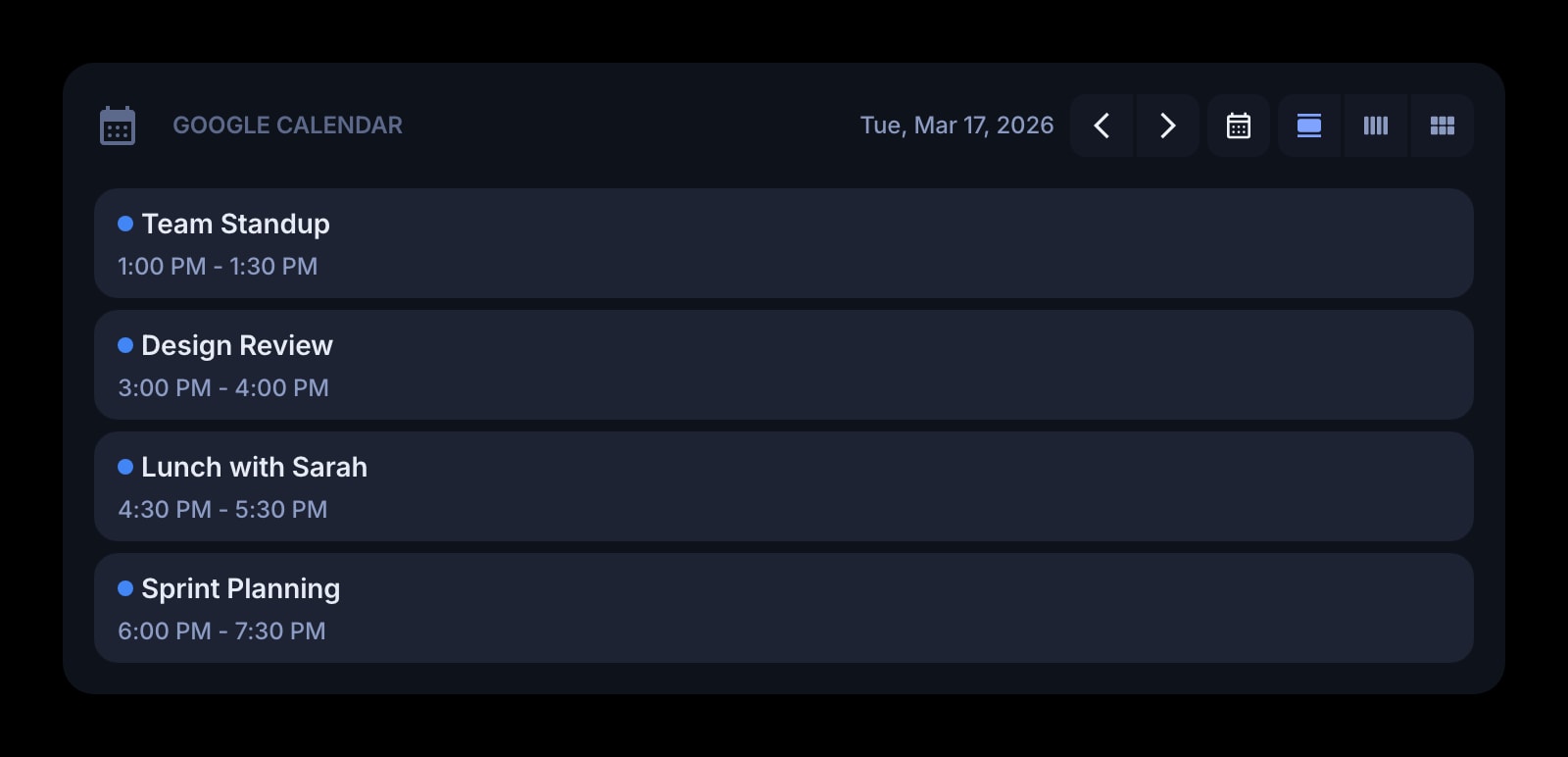
Your Google Calendar on every Chrome new tab — today's schedule, tomorrow's meetings, all-day blocks — without flipping to calendar.google.com between tasks.
Install on Chrome
The Chrome-specific flow, start to finish.
- 1Install Start Page HQ from the Chrome Web Store. The dashboard replaces Chrome's default new tab page after install.
- 2Open a new tab. Click the gear icon in the bottom-right and choose Add Widget → Google Calendar.
- 3Click "Connect Google Calendar" inside the widget. Chrome opens Google's OAuth screen — sign in (or pick from your already-signed-in Google accounts) and grant read-only calendar access. The popup closes itself when authorisation completes.
- 4Choose which calendar to display (your primary or any shared calendar) and pick a view: day, week, or month.
- 5Optional: turn off Show Location and Show All-Day Events if your calendar is dense and you only want timed meetings on the new tab page.
What Calendar Does
A short tour of the widget. Already sold? Skip ahead.
- Pulls events from your Google Calendar — primary plus any shared calendars you can read.
- Day, week, or month view per widget instance, so you can pin two on the same page.
- Toggle event time, location, and all-day blocks on or off.
- Choose Sun- or Mon-start weeks.
- Read-only — the widget never modifies events. Click an event to open it in Google Calendar in a new tab.
Notes for Chrome Users
Chrome's tight integration with Google accounts is the easiest path for this widget: if you're already signed into Google in Chrome, the Connect flow opens the OAuth picker pre-populated with your accounts and a single click finishes setup. The Start Page HQ extension does not piggy-back on Chrome's signed-in identity automatically — you still go through Google's OAuth screen, but it takes one click instead of typing your password.
If you use Chrome profiles (work / personal), each profile is its own Chrome user and its own Start Page HQ install. Connect a different Google account in the Calendar widget on each profile — your work profile shows the work calendar, your personal profile shows your personal one. The accounts don't cross over even when both profiles are open at once.
Other Widgets You Might Add
Pair the Calendar widget with these. One install gets you all of them.
Date & Time
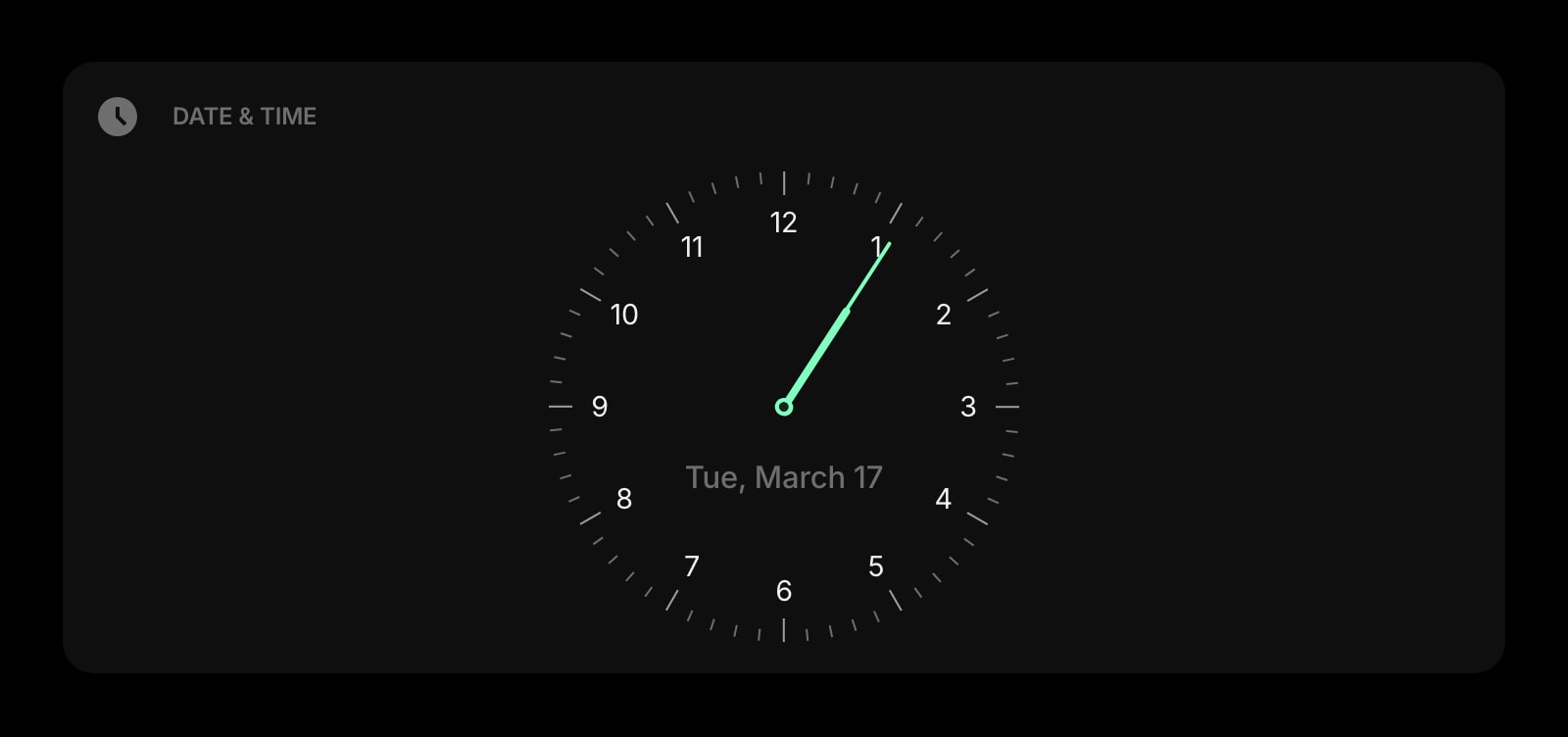
A clock and date next to your calendar — the orientation pair you reach for first thing in the morning.
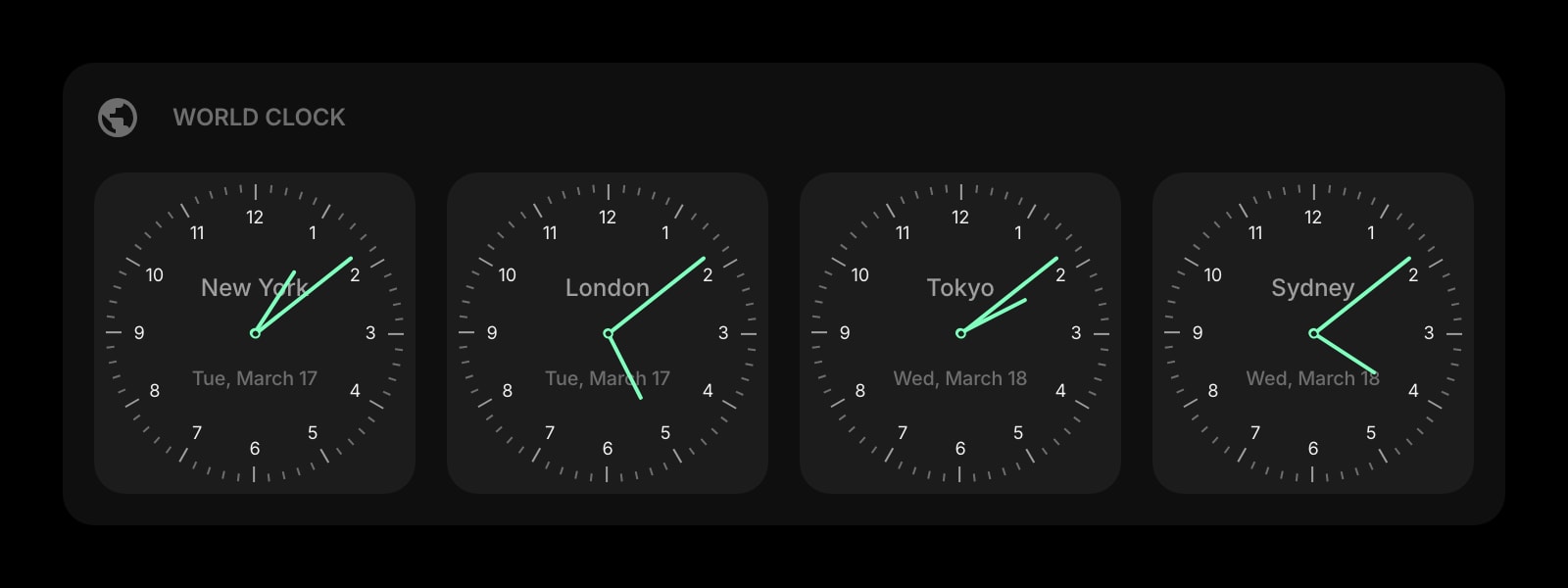
World Clock
For meetings across timezones — see Sydney 4pm and London 9am next to your calendar grid.
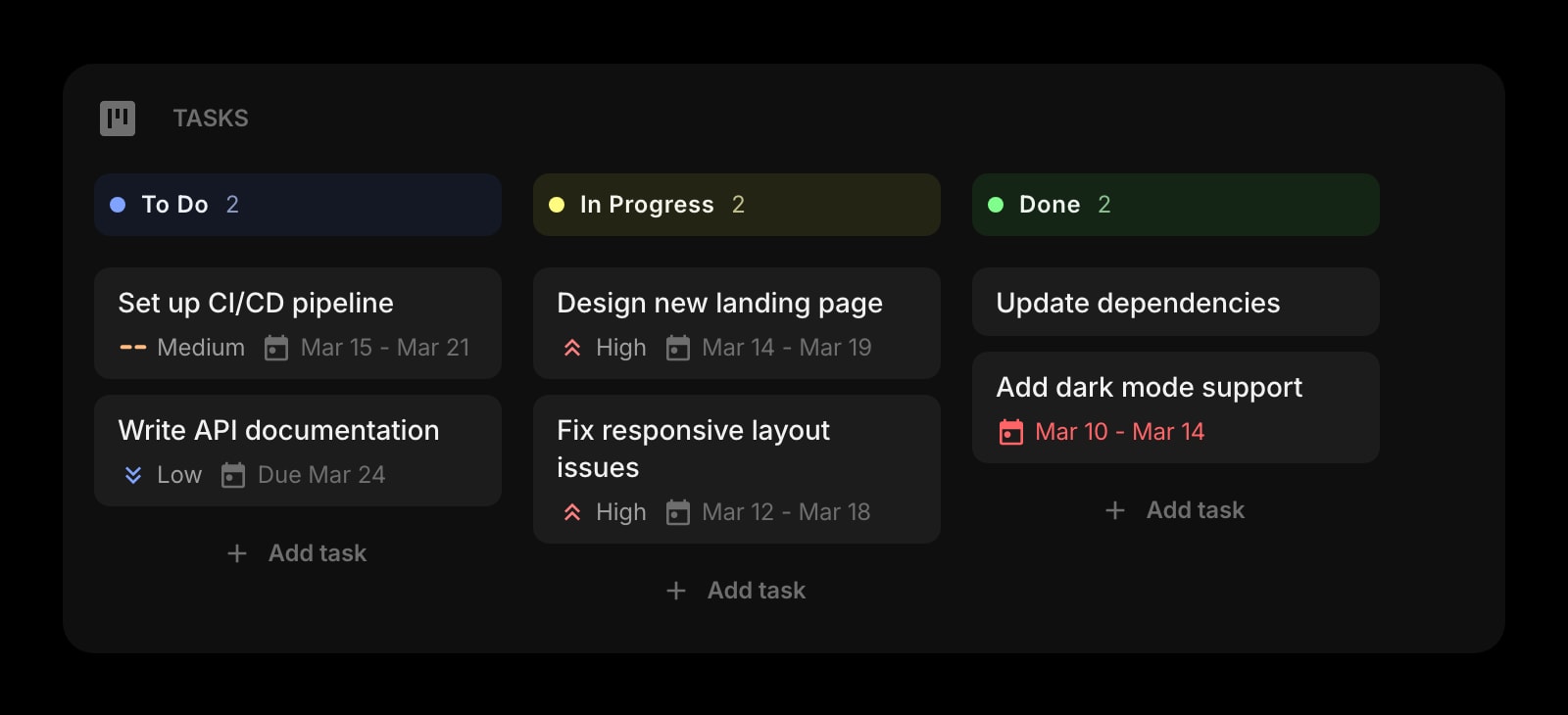
Tasks (Kanban)
What needs to happen between meetings — drag cards across columns next to today's schedule.
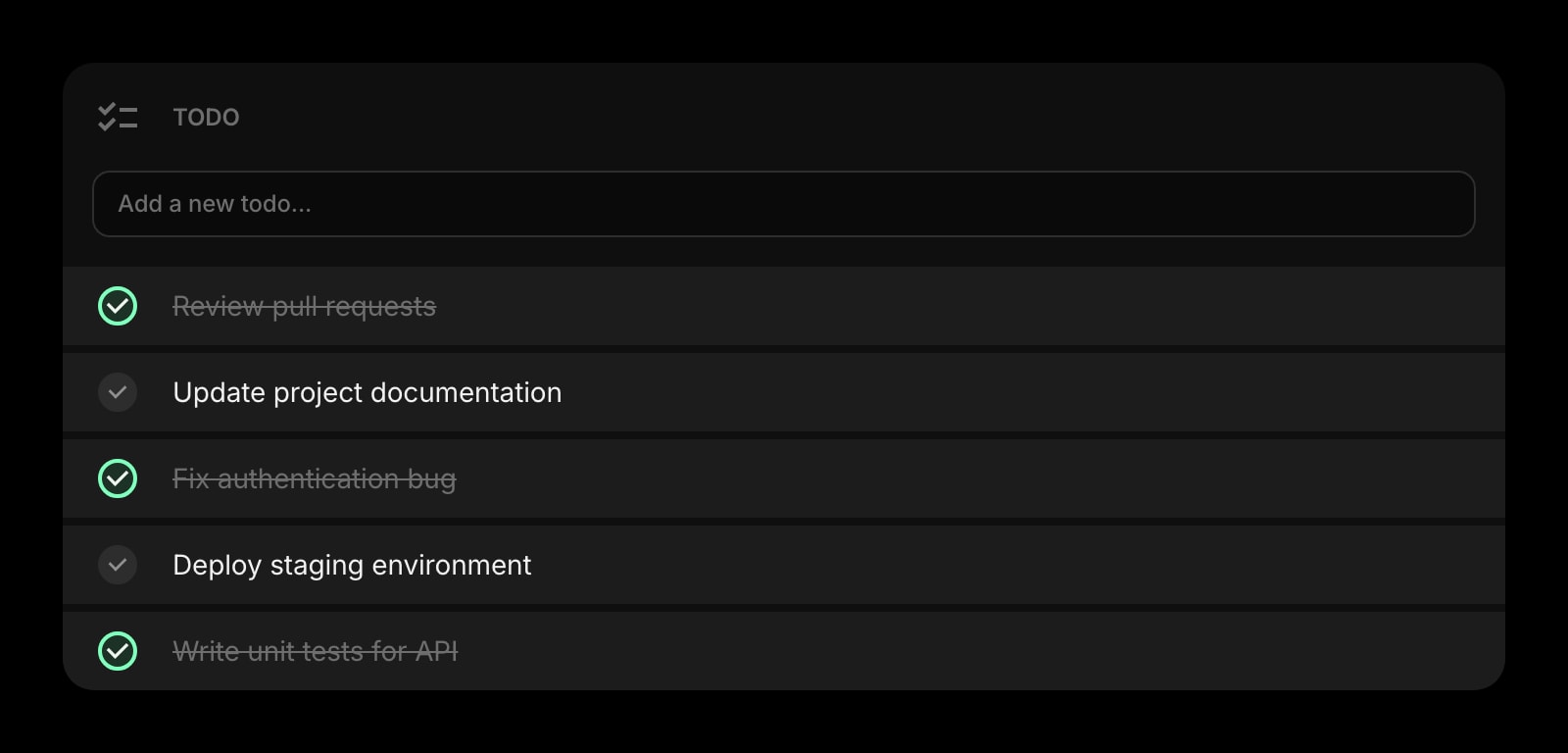
Todo
A flat list for things that need to happen today, sized to fit beside the calendar.
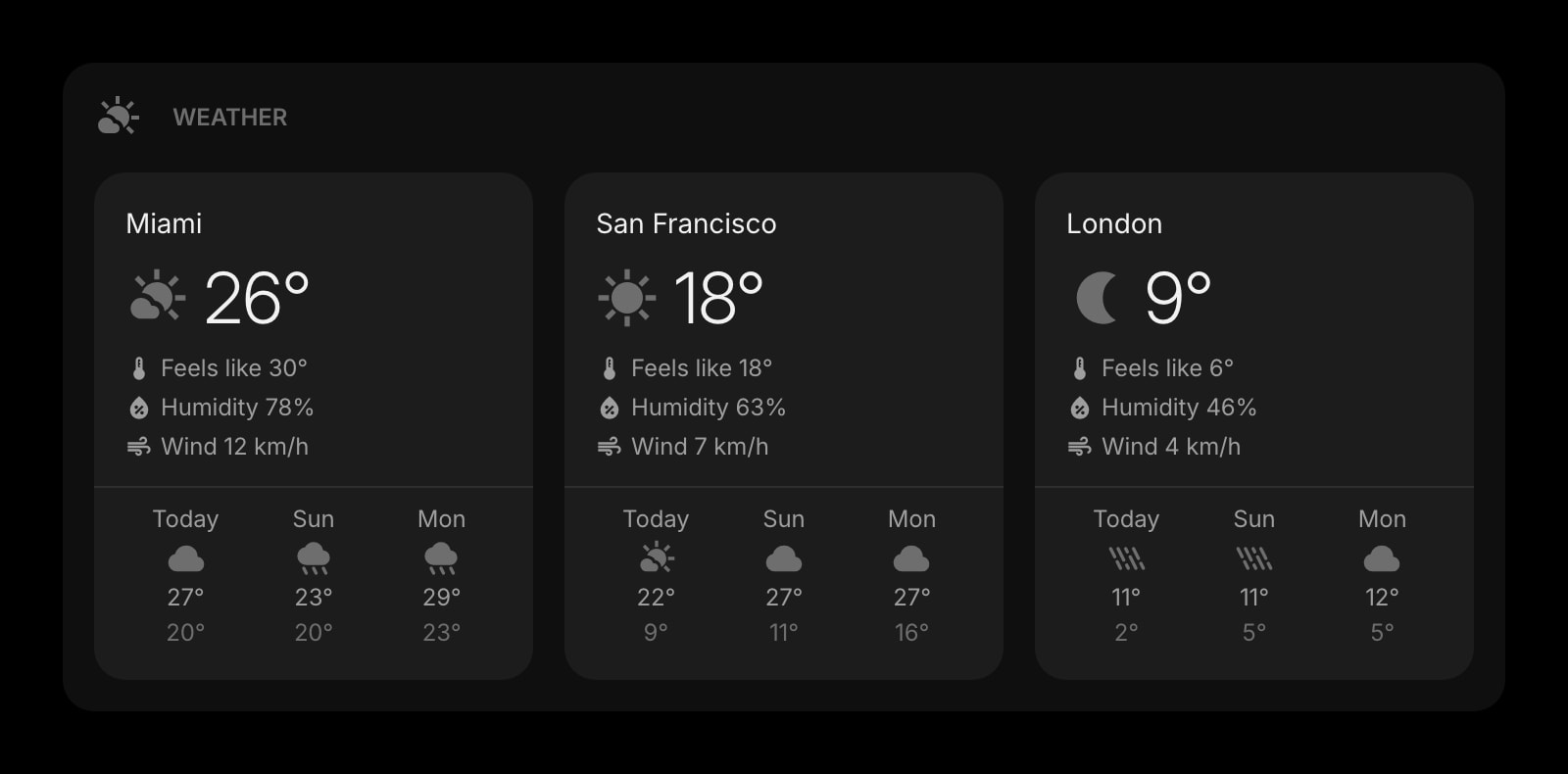
Weather
Pair the day's schedule with the day's forecast. One glance, two facts.
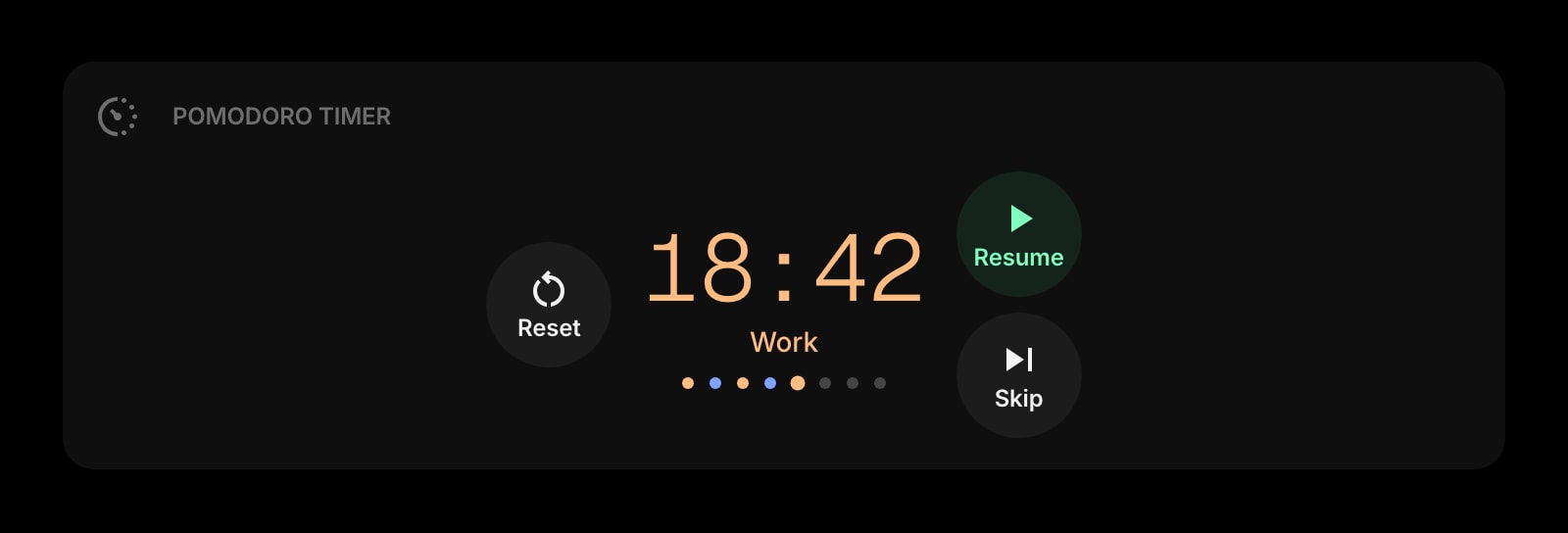
Pomodoro Timer
For focus blocks between meetings — the timer counts down while the calendar shows what's next.
The Calendar widget is one of 50+ in Start Page HQ. Tasks, notes, RSS, AI tools, dev utilities — the same install gives you all of them. Start free with 8 widgets on a page, or lift every limit at $4/month, $24/year, or $48 lifetime.
Frequently Asked Questions
Yes. Google Calendar is one of the 8 premium widgets, and connecting an outside account is a paid capability, so this widget needs a plan: $4/month, $24/year, or $48 one-time. The extension and the dashboard themselves are free — a free account covers 55 of the 63 widget types on 1 page, Date & Time and World Clock included. The demo at startpagehq.com/demo runs the Calendar widget on sample events with no signup.
Chrome being signed into Google doesn't automatically grant third-party extensions access to your data — that's a deliberate Chrome / Google security boundary. The OAuth flow is what gives the Calendar widget read access to your events, scoped to read-only and revocable from your Google account at any time.
Yes — and they stay separate. Each Chrome profile installs Start Page HQ independently and the Calendar widget connects to whichever Google account you authorise inside that profile. Your work profile can show the work calendar while your personal profile shows the personal one, even with both windows open simultaneously.
Yes. After connecting, you pick which calendar to display per widget instance — primary or any shared calendar your Google account can read. Pin two Calendar widgets on the same page (one per calendar) if you want both visible at once.
Not currently — the widget is read-only. Clicking an event opens it in Google Calendar in a new tab, which is where editing happens. Read-only also means the OAuth scope is narrower, which most users prefer.
Add the Calendar Widget to Chrome
Free plan, no credit card — see plans or try the demo without installing.