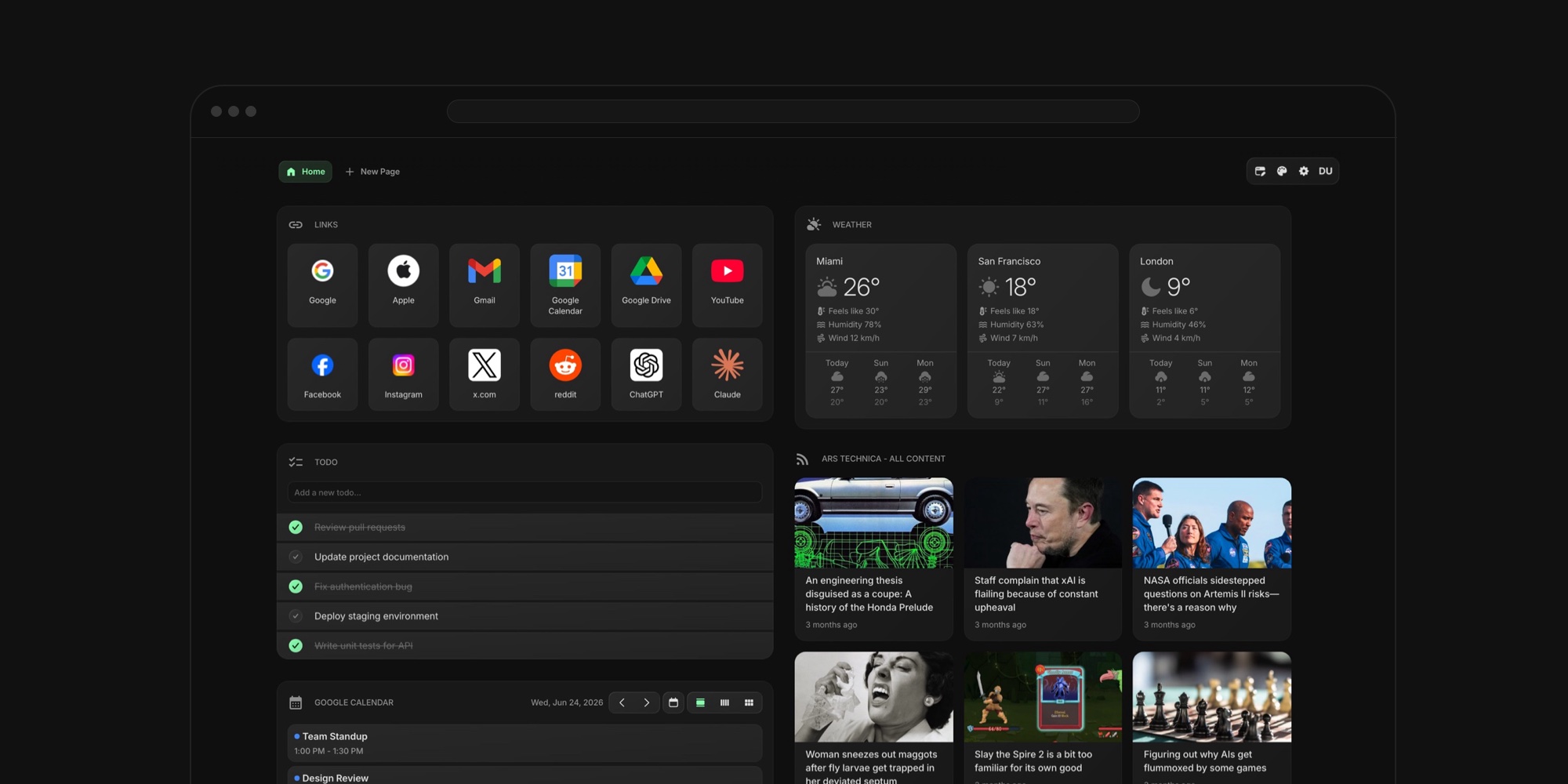
Turn Your New Tab Into a Personal Dashboard
You open a new tab somewhere between fifty and a hundred times a day. Multiply that across a year and the new tab page is one of the most-viewed screens in your life - and by default it shows a search box and a row of faded thumbnails. This guide is about reclaiming that screen: how to turn your new tab into a personal dashboard that shows your links, tasks, calendar, feeds, and weather the moment the browser opens. Not in theory - we will build a real setup, widget by widget, and end with ready-made layouts for different kinds of work.
#What Is a Browser Dashboard?
A browser dashboard is a new tab page that works like the home screen on your phone: a grid of widgets showing live information - today's events, your todo list, headlines from sources you chose, the weather - plus one-click shortcuts to the places you go every day. Instead of a blank page that exists only to be typed into, every tab opens onto a snapshot of your day.
The idea is not new. People have always built personal dashboards - a Notion homepage, a pinned tab full of bookmarks, a second monitor with a calendar on it. What makes a personal dashboard in your browser different is where it lives. Every other dashboard has to be visited: you remember it exists, you navigate to it, and most days you do not. The new tab page is the one screen that appears on its own, dozens of times a day, in the natural gaps between tasks. You do not go to it - it comes to you.
That placement is the whole trick. A calendar you see forty times a day does not get forgotten. A todo list that greets every tab does not go stale. The habit you are building on already exists; you are just changing what the habit shows you.
#What You Need Before You Start
No major browser can do this natively. Chrome's built-in customization stops at backgrounds and shortcut tiles, Edge only lets you subtract things from Microsoft's page, Firefox ships a small fixed set of native widgets, and Safari's Start Page is a list of sections you can toggle. We cover each browser's native ceiling in the guides to customizing the new tab in Chrome, Edge, Firefox, and Safari - but the short version is that a real dashboard needs a new tab extension.
Any widget-based new tab extension can follow the shape of this walkthrough, and our tested roundup of the best new tab extensions compares the options honestly. The build below uses Start Page HQ, which we make, so the disclosure is on the table: it has a free plan (1 page, 8 widgets, cross-device sync, no credit card) and paid tiers that lift the caps at $3.99 a month, $25 a year, or $49 once for lifetime, with 63+ widgets and native extensions for Chrome, Firefox, Safari, and Edge plus a hosted web app. You can follow along on the free plan - the Google Calendar widget and your own feed URLs are the two steps that need a paid one - or in the live demo without installing or signing up.
Install the extension, open a new tab, and you have an empty grid. Time to fill it.
#Build a Real Dashboard, Widget by Widget
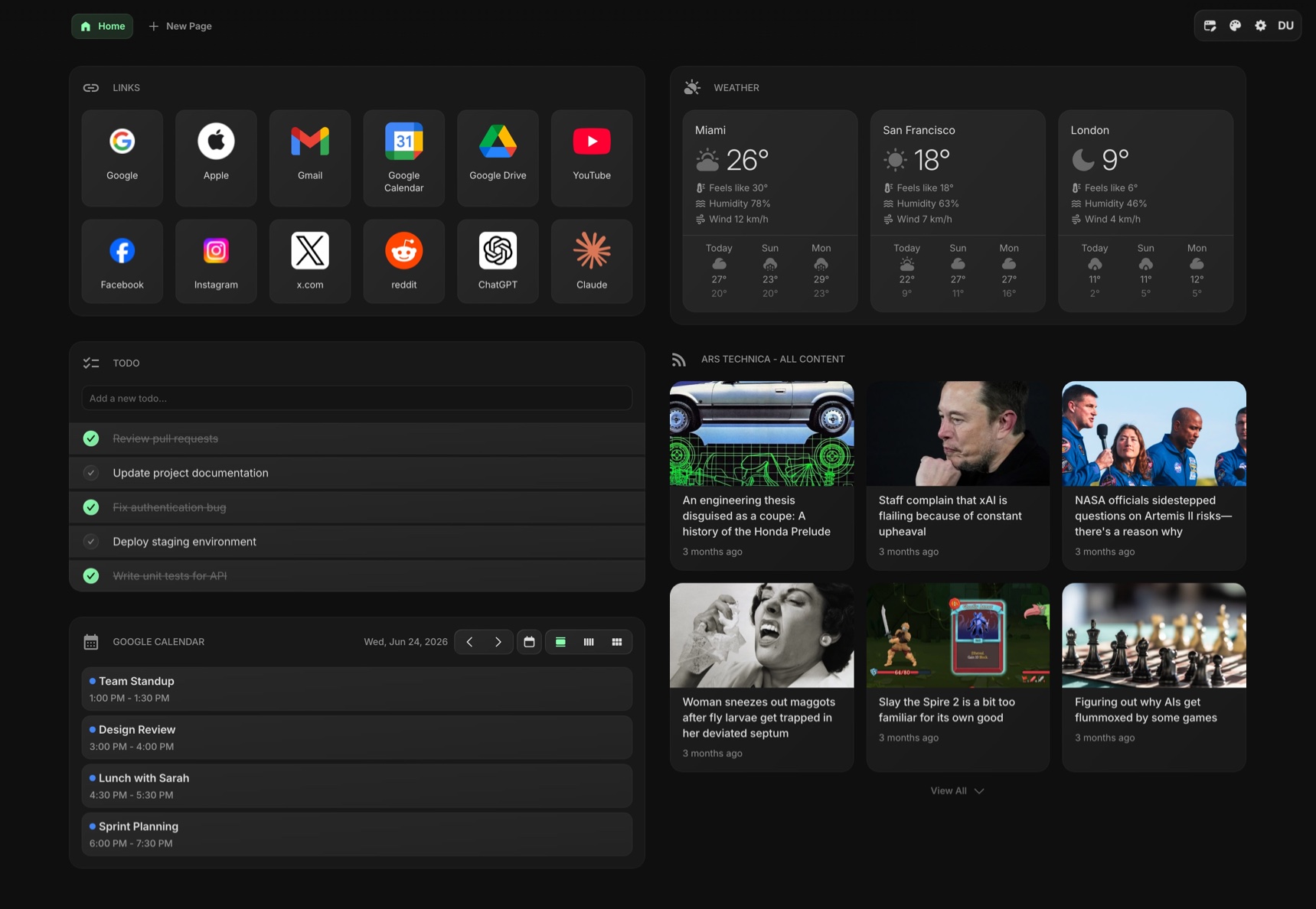
A good first dashboard needs five things: shortcuts, tasks, a calendar, feeds, and weather. Add each one from the widget picker, drag it where you want it, and resize it by its edges. The whole build takes about ten minutes.
#Start With Links
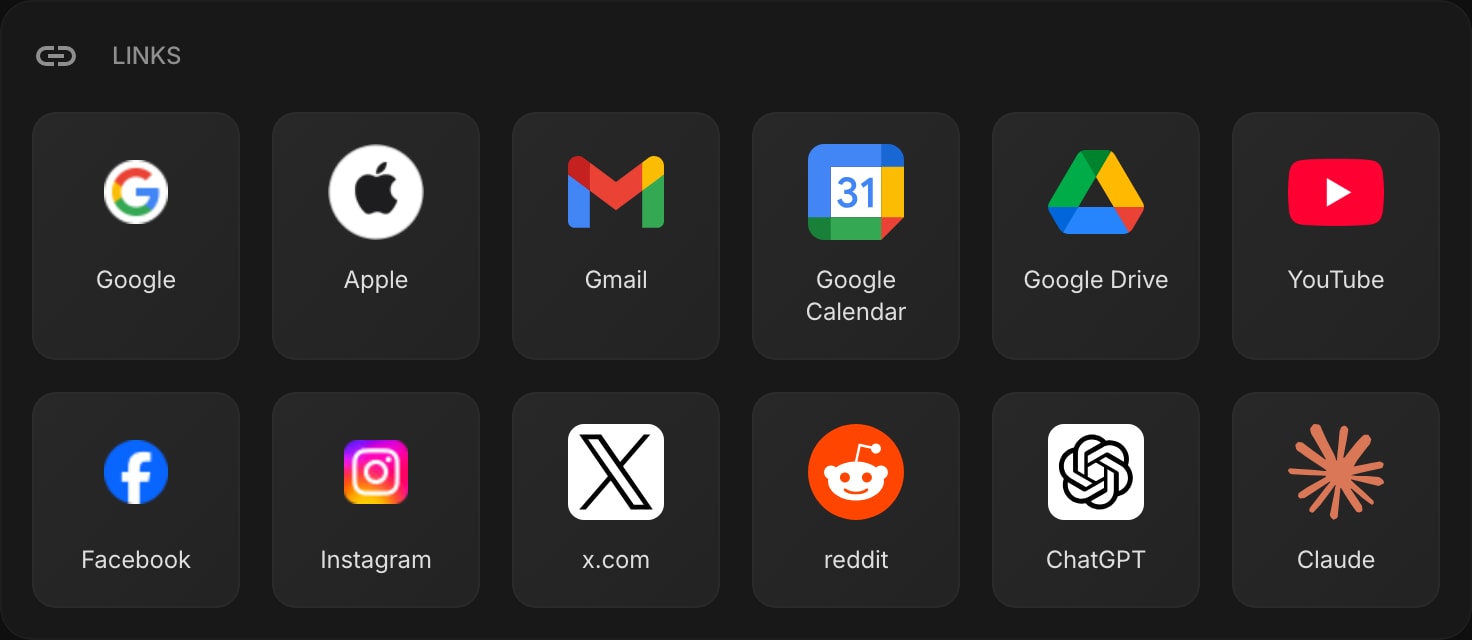
Shortcuts are the foundation, because getting places faster is the first thing a dashboard pays back. Add a Links widget and fill it with the ten or so places you visit daily: mail, docs, your project tool, banking, whatever your real rotation is. Unlike the browser's auto-generated thumbnails, these do not shuffle themselves based on history - the same icon is in the same spot every time, which is what lets muscle memory take over. Put this widget in the top-left corner, where your eyes land first.
#Add a Todo List and a Task Board
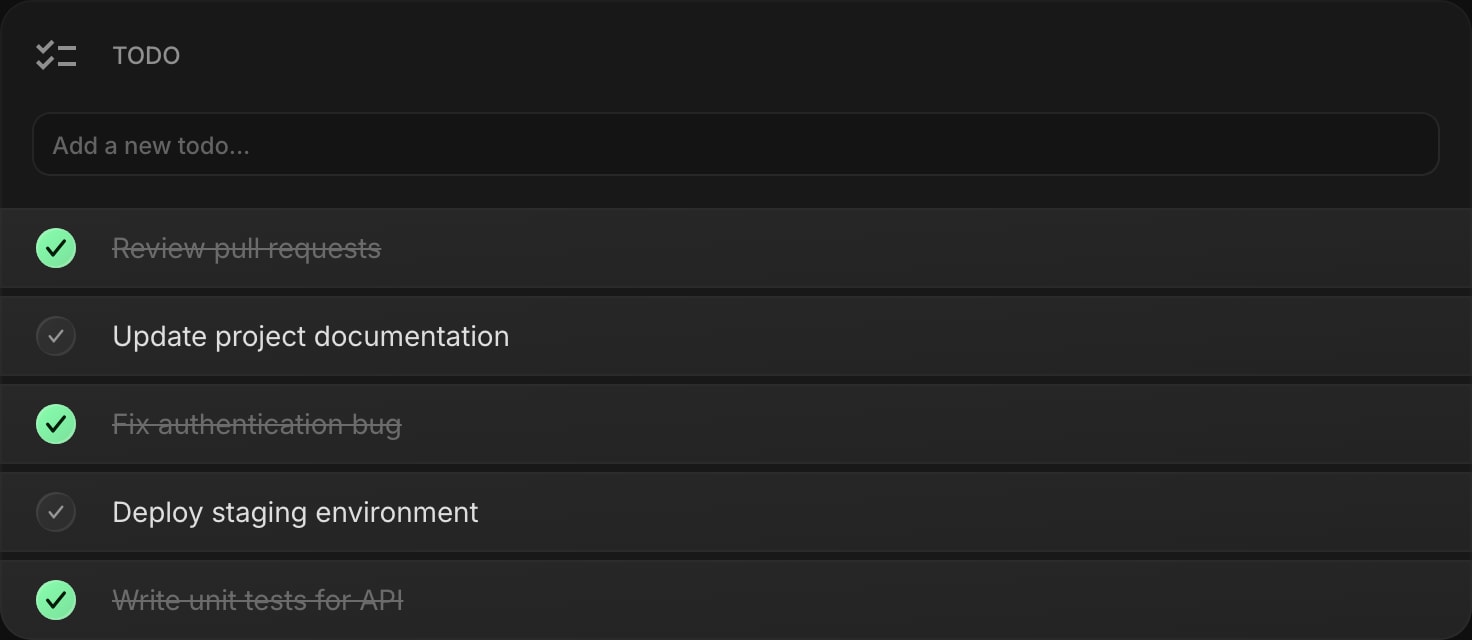
This is the widget that changes how the page feels, because it puts your actual work on the screen. A simple todo list covers the daily churn: type a task, check it off, watch the list shrink.
If your work has more shape than a flat list, a Kanban-style task board gives you columns for backlog, in progress, and done, with priorities and due dates on each card.
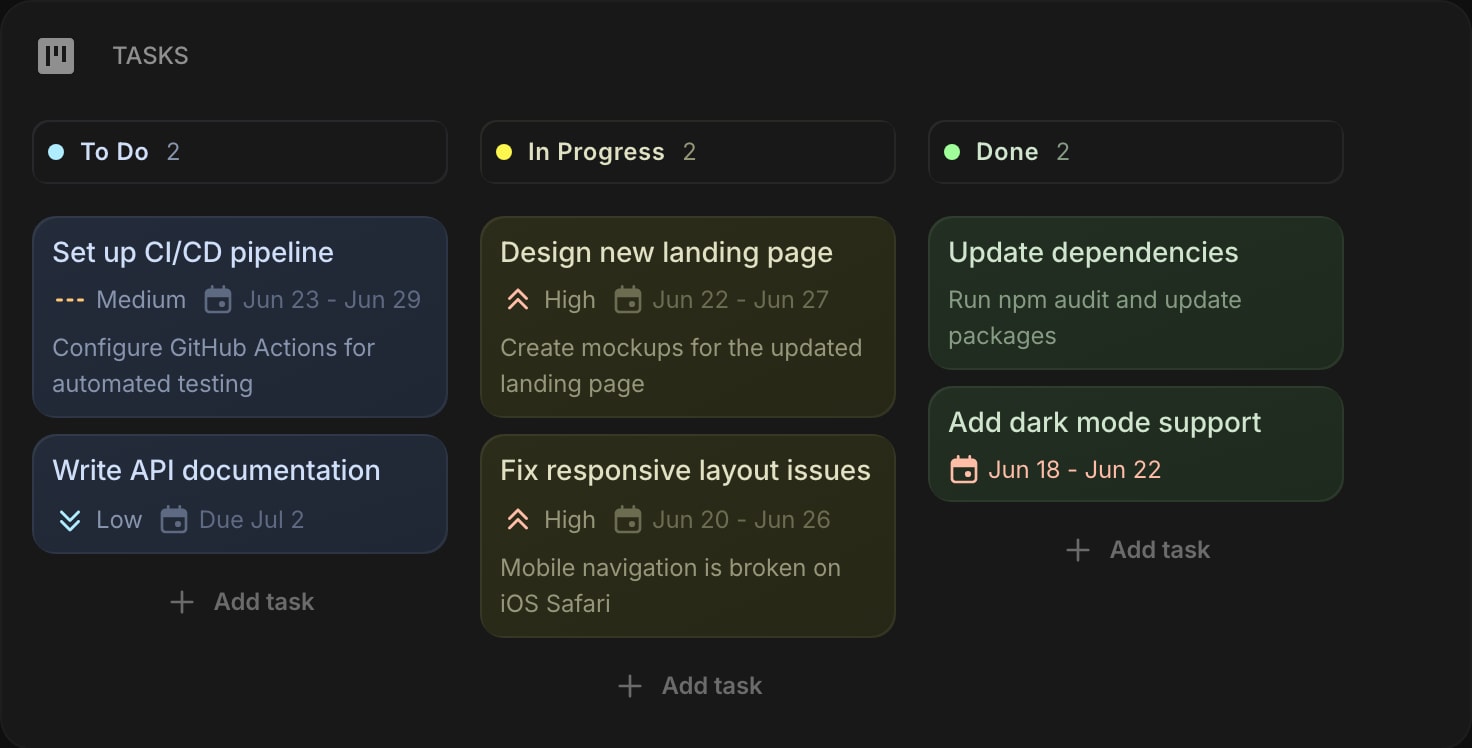
Either way, the effect is the same - the thing you were avoiding is now printed on every tab you open, which is gentler than a notification and much harder to ignore. Our full guide to putting your todo list on your new tab page goes deeper on the settings, placement, and the two-list habit that keep it working.
#Put Your Calendar Next to Your Tasks
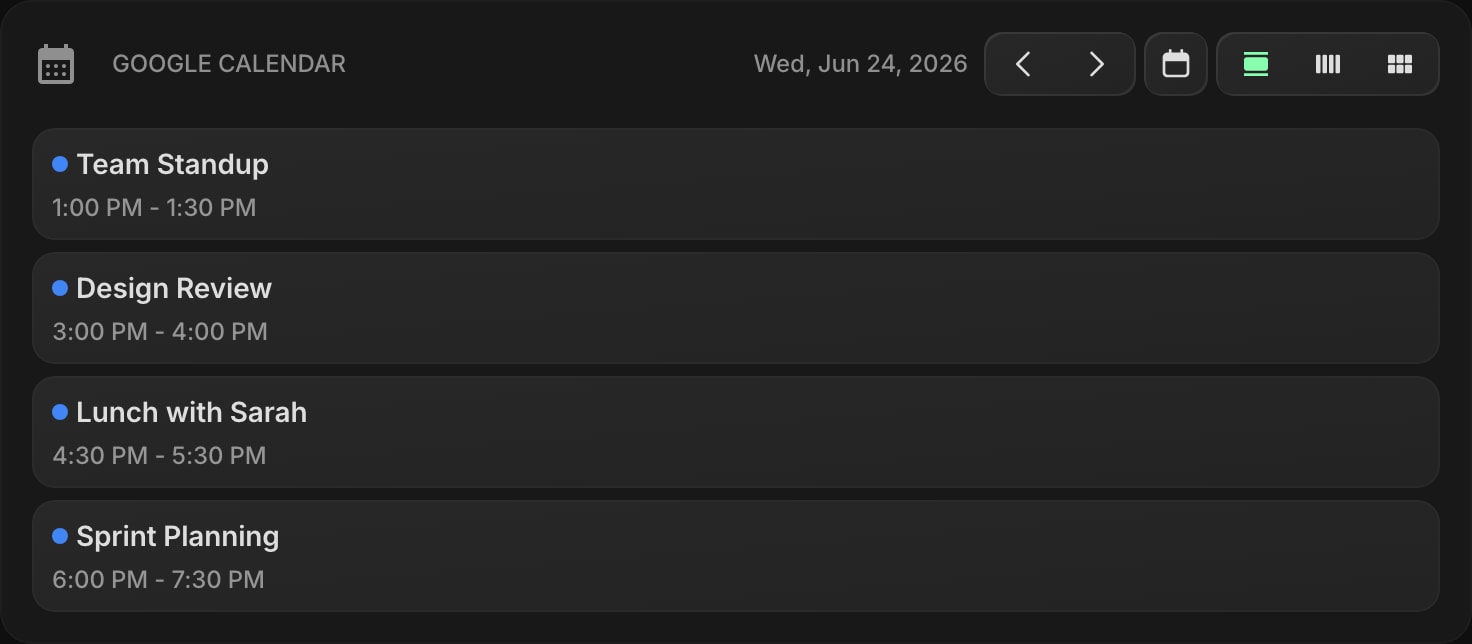
Add the Google Calendar widget, connect your account, and your next meetings appear beside your task list. This pairing is the productive core of the whole dashboard: what you need to do and where you need to be, in one glance, with no app switch. If you keep several calendars - work, personal, a shared family one - they merge into one view, and a date and time widget above them anchors the page. Our full guide to seeing your calendar on every new tab goes deeper on views, settings, and placement.
#Swap the Algorithm for RSS Feeds
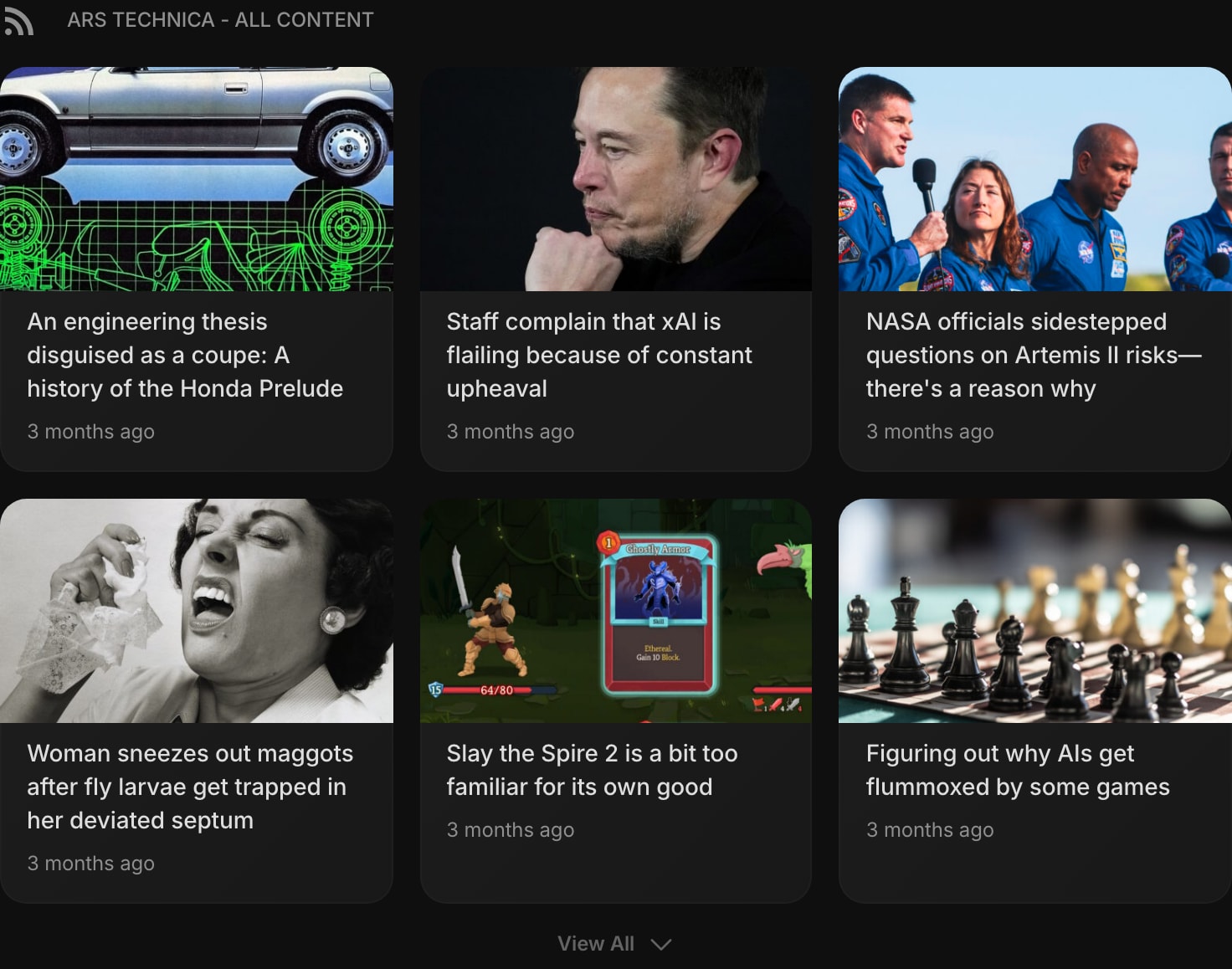
Most people check news in the gaps between tasks anyway - the difference is whether an algorithm picks the headlines or you do. Add a Feed widget and point it at the RSS feeds of sites you genuinely read: a few blogs, a news site, a subreddit, a newsletter archive. You get the headlines on every new tab and read the full story in one click. It is the same impulse that opens social media, redirected at sources you chose on purpose. Our dedicated guide to putting RSS feeds on your new tab page goes deeper on picking sources and keeping the layout glanceable.
#Finish With Weather and a Clock
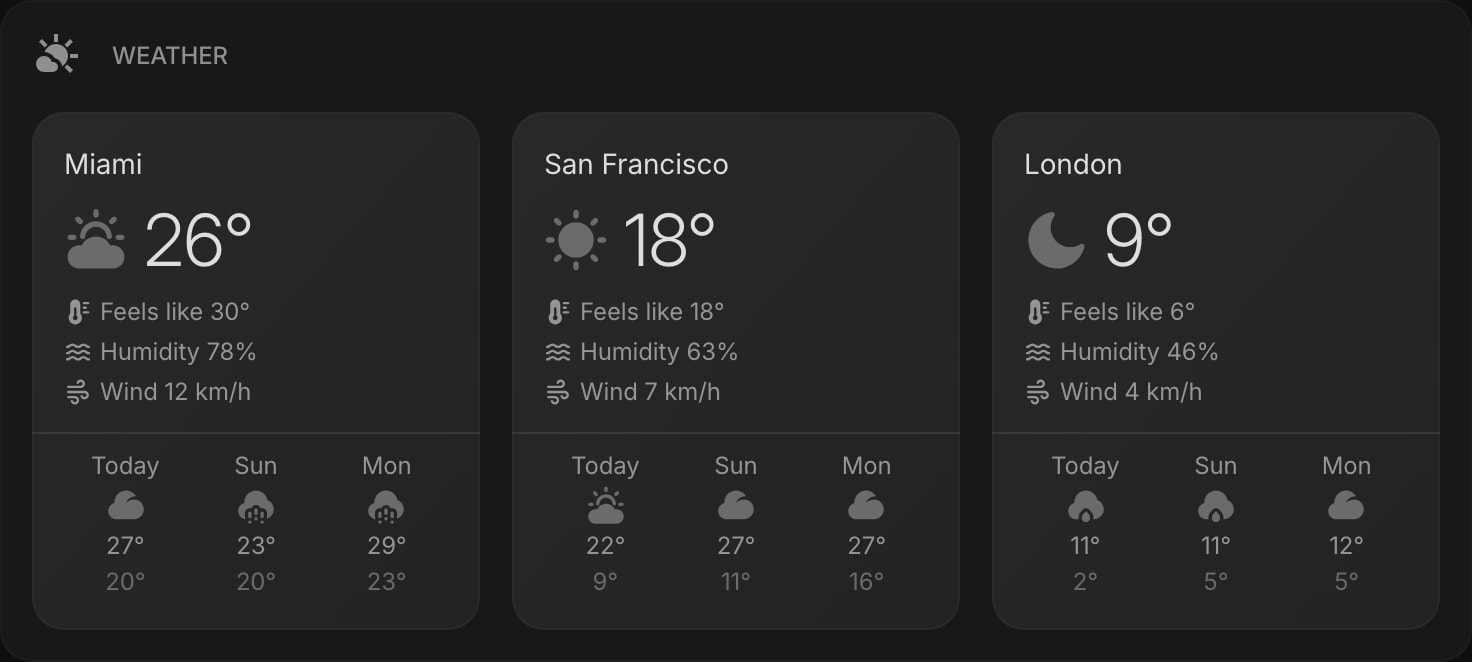
Small widgets round the page out. A Weather widget shows current conditions and the forecast for your city, or several cities at once - the single most-checked piece of information there is, now zero clicks away. If you work with people in other time zones, a world clock spares you the mental arithmetic. These are the widgets nobody installs an extension for, and the ones everyone keeps. Our guide to adding weather to your new tab page goes deeper on cities, card styles, and placement.
#Set a Wallpaper Last
Once the widgets are in place, give the page a background. In Start Page HQ, open the appearance settings and turn on Wallpaper: there are 29 built-in options, split between scenic photography and soft abstract gradients, or you can upload any image of your own. The widgets react automatically - they pick up a frosted-glass blur and a slightly see-through fill so text stays readable over the image, in both light and dark schemes.
Do this last rather than first. A background chosen around the layout you actually built beats a layout squeezed around a photo, and the difference between a dashboard that looks assembled and one that looks designed is usually this one step. The wallpaper is part of your account settings, so it follows you to every browser and device you sign in on.
#A Browser Homepage With Calendar and Tasks
A quick detour, because the terms get mixed up (our guide to what a start page is covers the full taxonomy): the new tab page is what opens when you press the plus button, and the homepage is what the browser loads at startup or when you click the home button. If what you are really after is a browser homepage with calendar and tasks on it, the dashboard you just built covers both jobs. The extension owns the new tab automatically, and you can point your browser's homepage or startup setting at the same page - with Start Page HQ, the hosted web app at startpagehq.com works as a homepage in any browser, even one where you have not installed the extension. Same grid, same widgets, both doors.
#How to Make Your New Tab Page Productive
Building the dashboard is the easy half. Keeping it useful comes down to a few rules:
- Everything visible at a glance. If you have to scroll, the dashboard has failed at its one job. Shrink widgets or cut them until the whole page fits on screen.
- One page per mode. Do not cram work and life onto one grid. Build separate pages - Work, Personal, News - and switch between them with a click. Your morning-coffee page and your deep-work page should not look the same.
- Earn the top-left. The corner your eyes hit first should hold the thing you act on most, usually links or tasks. Weather and clocks live at the edges.
- Prune monthly. A widget you have stopped reading is decoration. Every few weeks, remove one thing you no longer look at - a dashboard stays productive by staying honest.
#Steal a Setup: Dashboards by How You Work
The five-widget build above is a starting point, not a destination. The fastest way to a dashboard that fits is to start from one built for how you spend your day:
- Developers - repo links, a task board, GitHub release feeds, Hacker News, and a JSON formatter in reach. Full setup on the new tab for developers page.
- Remote workers - calendar, world clocks for the team's time zones, tasks, and links to the meeting tools. See the remote workers setup.
- Students - class schedule, assignment todo list, a Pomodoro timer, and research links, laid out on the students page.
- Writers - a distraction-light page with notes, a word-count-friendly editor, and feeds from writers you follow: the writers setup.
- Product managers - task board, calendar, and feeds from your industry, arranged on the product managers page.
- Crypto investors - price charts, currency conversion, and market news, per the crypto investors setup.
- Founders - metrics, Stripe sales, tasks, and news in one view: the founders page.
- Minimalists - proof a dashboard does not have to be busy: a clock, one row of links, one list, on the minimalists page.
Each page shows a full example layout and the widgets behind it, ready to adapt.
#The Screen You See Most Deserves the Most
The new tab page is prime real estate that almost everyone leaves empty. Ten minutes of setup turns it into a new tab dashboard that shows your day - links, tasks, calendar, feeds, weather - every time the browser opens, and if you work across machines or browsers, the same page can follow you everywhere.
You can build the whole thing on the free plan: 1 page, 8 widgets, sync across every browser and device, no credit card. Or follow along in the live demo first, which is pre-loaded with pages and widgets and needs no account.