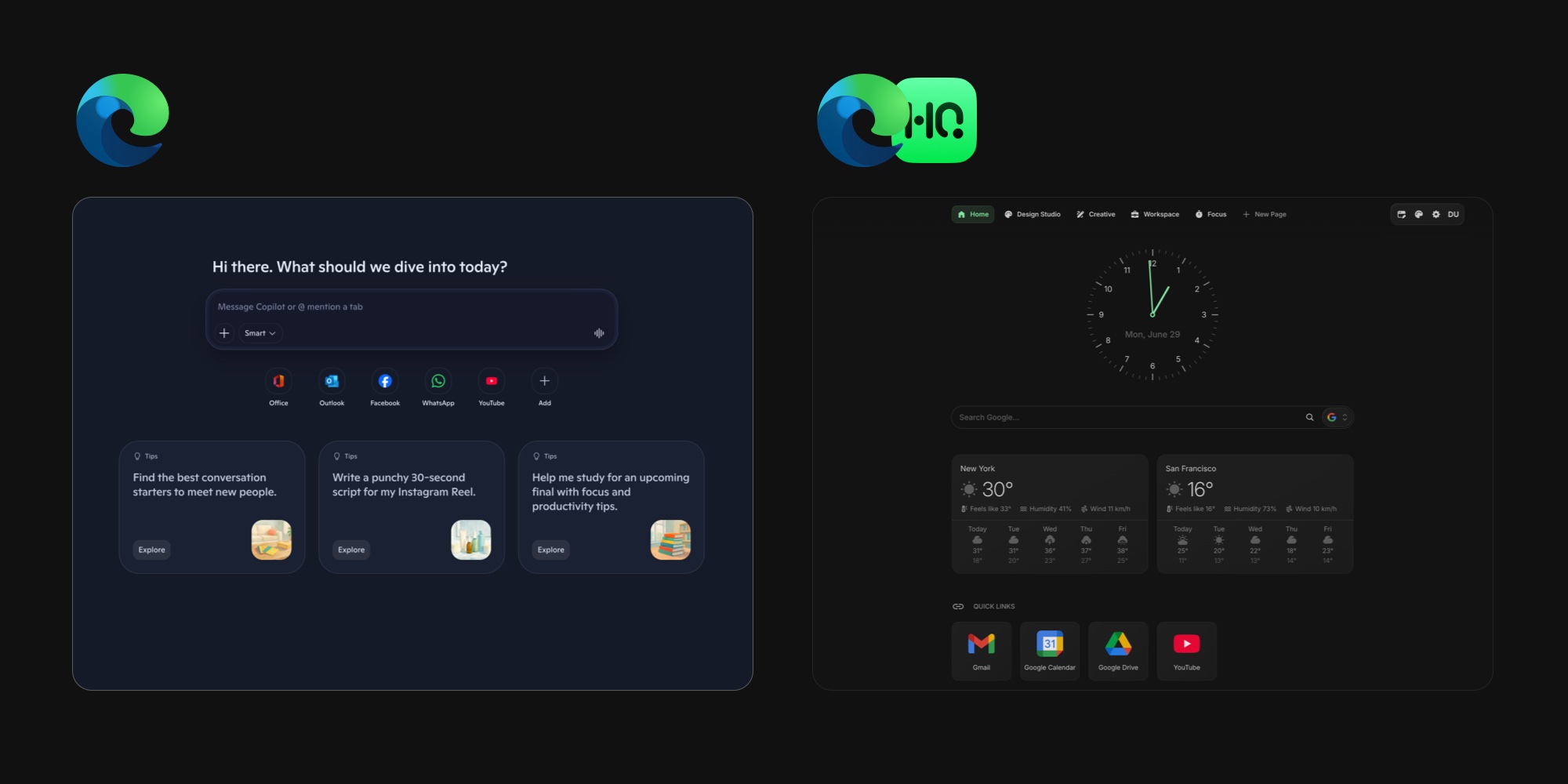
How to Clean Up Microsoft Edge's New Tab Page
Open a new tab in Microsoft Edge and you get the busiest default page of any major browser: a search box, a grid of shortcuts, the weather, and beneath it all the MSN news feed - an endless scroll of headlines, celebrity stories, and sponsored posts. No new tab page generates more "how do I turn this off" searches, and for good reason. This guide covers how to clean up Edge's new tab page from top to bottom: how to turn off the MSN feed and the rest of the clutter with Edge's own settings, what to do about the new Copilot new tab page, and how to replace the screen entirely with a page you control.
#How to Turn Off the MSN Feed in Edge
The feed is the first thing most people want gone, and the switch is on the page itself.
- Open a new tab in Edge.
- Click the gear icon in the top-right corner of the page to open Page settings.
- Turn off Show feed.
The headlines disappear immediately, leaving the search box, shortcuts, and background.
One caveat: Microsoft reshuffles this panel often, so it does not look identical in every version. Older builds show layout presets - Focused, Inspirational, Informational, and Custom - with a content dropdown instead of a plain toggle. Whatever your copy of Edge shows, the setting you want is the one that controls "feed" or "content". Set it to off or hidden and the news is gone.
#Hide Quick Links, Weather, and the Background
The same Page settings panel controls everything else on the page:
- Quick links - the shortcut tiles under the search box. Toggle them off entirely, or keep them and prune: hover over a tile, click the three dots, and remove the ones you do not want, including the sponsored tiles Edge adds on its own.
- Show weather - the forecast chip in the corner of the page.
- Background - the daily image. Turn it off for a plain page, or keep the image of the day if it is the one part you like.
Two minutes in this panel takes the page from a news portal to something close to calm.
#Reroute the Search Box Away From Bing
Even with the feed off, the search box in the middle of the page sends every query to Bing regardless of your default search engine. Edge will not remove the box, but it can hand your typing to the address bar instead: go to Settings → Privacy, search, and services → Address bar and search, and set Search on new tabs uses search box or address bar to Address bar. Typing on a new tab now goes through whatever search engine you actually chose.
#Edge's New Copilot New Tab Page
There is a bigger change underway in 2026: Microsoft is replacing the feed-first layout altogether. The Copilot new tab page, generally available since Edge 148 in May 2026 and still rolling out in stages, swaps the wall of headlines for a Copilot prompt box with suggested prompts, quick links, and an optional Discover feed of curated stories further down. Because the rollout is staged by version, account, and region, your new tab may look completely different from a coworker's.
If your complaint was the headlines, the Copilot page is quieter by default. But it trades a news feed for an AI prompt box, and it is still Microsoft deciding what the screen is for. To switch it off, click the gear icon on the new tab page, choose Manage Copilot new tab page (it opens edge://settings/ai), and turn off Copilot new tab page. Edge returns to the classic page, where the Show feed toggle above applies again.
#How to Set a Custom Homepage in Edge (It Is Not the New Tab Page)
People searching for how to set a custom homepage in Edge often actually want a custom new tab page. Edge treats them as separate settings, all under Settings → Start, home, and new tabs:
- When Edge starts - what opens at launch. Choose Open these pages and add any web address you like.
- Home button - the page the house icon loads. Point it at any URL.
- New tab page - what appears on every new tab. Here Edge only offers a Customize button that opens the same Page settings panel. There is no field for a custom web address and no blank-page option.
So launch pages and the Home button can go anywhere, but the new tab itself is the one screen Edge reserves for its own page. Pointing it somewhere else is exactly what an extension does.
#Where Edge's Built-In Cleanup Hits a Ceiling
Edge's native options are subtraction only. You can hide the feed, the tiles, and the background, but you cannot add anything of your own:
- No widgets. There is no native way to put your calendar, a todo list, notes, or an RSS feed of your own sources on the page. The weather chip is the entire catalog.
- The page is still Microsoft's. The search box (or Copilot prompt) stays put, the layout is fixed, and the options move around as Microsoft revises the page.
- No blank page, no custom URL. The cleanest you can get natively is an empty-ish page that still belongs to Edge.
- Nothing follows you. Your cleanup applies to Edge on that profile. It does nothing for the Chrome, Firefox, or Safari you use elsewhere.
If a quiet background and a row of shortcuts are all you want, stop here - the toggles above get you there. If you want the new tab to do real work, you need an extension.
#How to Replace Edge's New Tab Page With an Extension
Edge supports new tab extensions from two stores, and installing takes a minute.
- Open the Edge Add-ons store or the Chrome Web Store - Edge runs Chrome extensions too. The first time you visit the Chrome store, click Allow extensions from other stores in the banner at the top.
- Search for a new tab extension, either by the kind of page you want - a "new tab dashboard" - or by a specific tool's name.
- Click Get (or Add to Chrome) and confirm. The permission that matters is the one saying the extension can change or replace your new tab page.
- Open a new tab. Edge may ask once whether to keep the new page - confirm, and the extension's page appears from then on.
To switch back or change which extension owns the new tab, open edge://extensions and disable or remove the one you do not want. If two new-tab extensions are enabled, the most recently enabled one usually wins, so turn the others off.
Not sure which to install? Our tested roundup of the best new tab extensions compares the main options honestly, including free and open-source ones like Tabliss that run in Edge.
#Replace the MSN Feed With Feeds You Choose
Turning the feed off solves half the problem. The better fix is a page where the content is yours. Once a widget-based extension owns the new tab, you add widgets from a picker and arrange them on a grid, and the space MSN used to fill becomes:
- An RSS feed of the sources you actually read - the direct replacement for MSN's headlines, minus everything you did not ask for.
- A calendar showing your real upcoming events.
- A todo list and notes for the day's actual work.
- A Links widget for shortcuts without sponsored tiles, and weather where you put it.
With Start Page HQ you get 63+ widgets in total, including Kanban boards, world clocks, currency conversion, and developer tools. In Edge you install it from the Chrome Web Store - the same listing covers both browsers - and because it ships native extensions for Edge, Chrome, Firefox, and Safari plus a hosted web app, the dashboard you build syncs across every browser and device you sign into. If Edge is your work browser and something else is your home browser, our guide to syncing your new tab across browsers shows how to land on the same page everywhere.
Edge's image of the day is the one native touch worth keeping, and you do not lose it. Start Page HQ has 29 wallpapers of its own plus custom upload, so you can pick a background and keep it instead of getting whatever Bing served that morning, with widgets rendering as frosted glass over the top.
#Recommended Setups
There is no single right layout - the point of replacing the page is matching it to how you work. A few setups that hold up well in Edge:
- Minimal and focused. A good background, a clock, and one row of links. The calm the native toggles almost reach, with nothing Microsoft added.
- Work dashboard. Edge is the default browser on most work Windows machines, which makes its new tab prime real estate: links, a todo list, your calendar, and the weather in one view. Our guide to turning your new tab into a personal dashboard builds that setup step by step, and the remote workers page shows a full example.
- News and reading. RSS feeds and a news summary, so the headlines on your new tab are ones you picked. If you want a focus-first page instead, see how a widget grid compares in our Momentum alternative breakdown.
- Developer command center. Repo and dashboard links, a Pomodoro timer, and a JSON formatter within reach - the developers page has a full setup.
The strongest version keeps each setup on its own page and switches between them with a click, instead of cramming everything onto one screen.
#Try It on Your Own New Tab
Edge's settings can mute the MSN feed, and the Copilot page can be switched off, but the cleanest outcome the native route offers is an emptier version of Microsoft's page. To turn the screen into a real new tab dashboard with your own feeds, widgets, and sync across browsers, the extension route is the way there.
Using other browsers too? There are companion guides to customizing Chrome's new tab page, customizing Firefox's new tab page, and customizing Safari's Start Page.
The fastest way to see how a widget dashboard feels is to start free: 1 page, 8 widgets, sync across every browser and device, no credit card. If you would rather look before signing up, the live demo comes pre-loaded with pages and widgets.