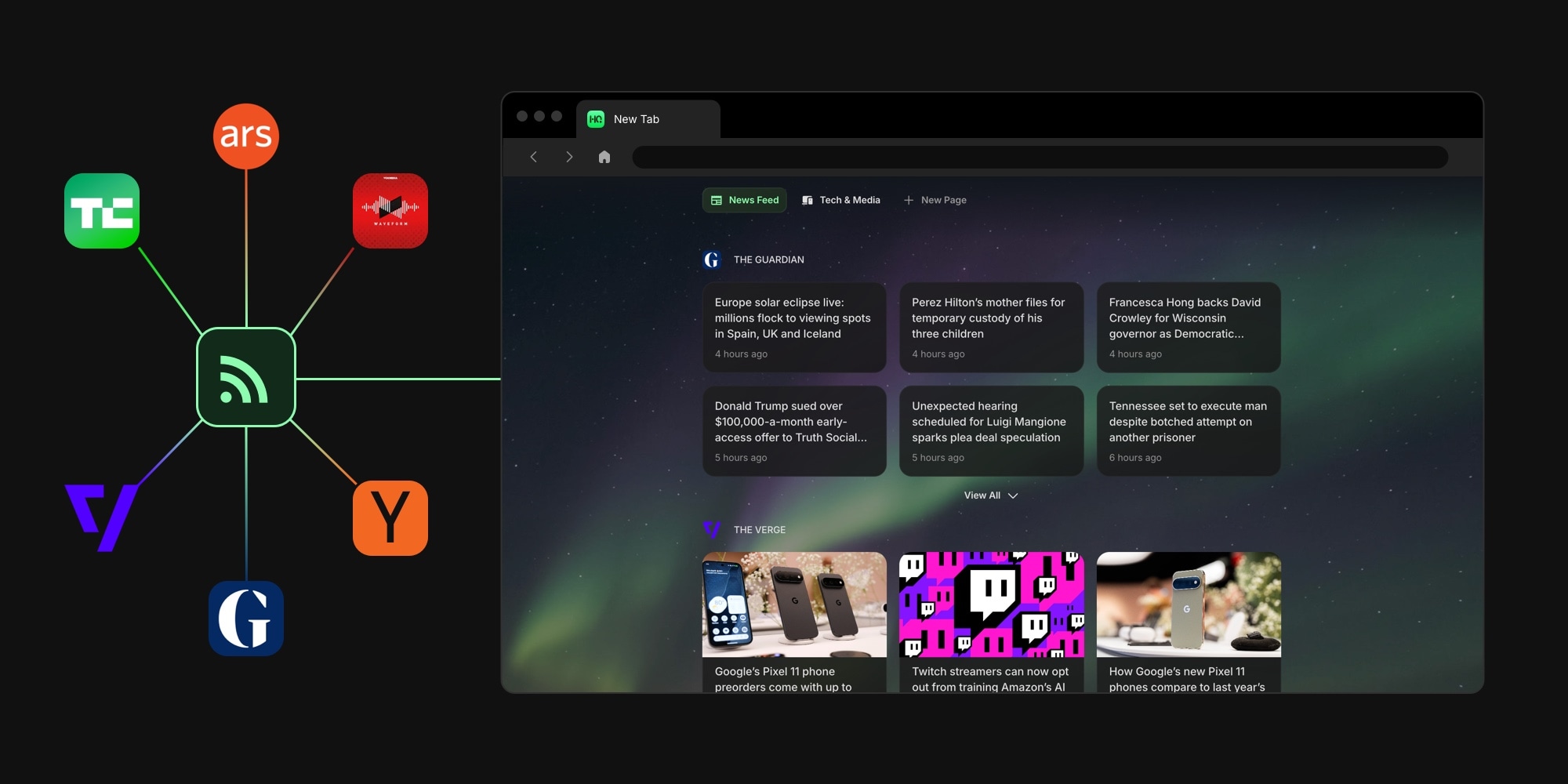
How to Put RSS Feeds on Your New Tab Page
Every feed reader has the same weakness: you have to remember to open it. RSS itself is still the best subscription mechanism the web ever produced - full control over your sources, no algorithm reordering them, no ads wedged between posts - but the habit quietly dies in an app you stop visiting. Putting RSS feeds on your new tab page fixes the habit problem at the root. The headlines appear on a screen you already open dozens of times a day, so checking your sources stops being a task you can forget.
This guide covers how to add an RSS feed widget to your new tab, where that beats a dedicated reader app (and where it honestly does not), and how to keep the result glanceable instead of noisy.
#Why Put RSS Feeds on Your New Tab Page
The case rests on frequency. You might open a feed reader once a day if you are disciplined. You open a new tab constantly, without deciding to. Anything placed there gets seen for free, no new habit required - a perfect match for following blogs and news sites, which is a glance-and-move-on loop anyway: scan the headlines, open the one story that matters, get back to work.
There is also the question of what fills that screen otherwise. Browsers increasingly ship their new tab with feeds you did not ask for - Edge's MSN news feed being the famous example (we wrote a whole guide on cleaning up Edge's new tab page). Replacing an algorithmic feed with an RSS feed keeps the same at-a-glance reading pattern but hands the source list back to you.
One honest caveat before the how-to. A new tab widget is for following your sources, not for processing them. If you track a hundred subscriptions with read states, tags, and search, a dedicated reader app is still the right tool - our Feedly vs Inoreader comparison covers the two biggest ones, and the Feedly and Inoreader pages look at lighter alternatives. The widget route wins when what you actually want is the latest headlines from a handful of sources you trust, visible all day. The two setups also combine well: a reader for deep catch-up, the new tab for ambient awareness.
#What an RSS Feed Widget Is
A quick definitions pass, because the pieces are easy to mix up. A new tab extension replaces your browser's default new tab screen with a customizable dashboard. An RSS feed widget is a block on that dashboard that renders a feed: titles, thumbnails, short previews, and publish times, as a grid or a list. Click a headline and the story opens in a new tab on the original site - the widget is a window, not a walled garden.
Because the widget lives on a dashboard, it sits next to whatever else you keep there - links, a todo list, a calendar - rather than owning the whole screen. Feeds refresh automatically when you open your dashboard, so the headlines are current without you managing anything.
#Add an RSS Feed Widget to Your New Tab
The walkthrough below uses Start Page HQ, which we make - that is the disclosure - and the same steps apply in spirit to any widget-based new tab extension from our best new tab extensions roundup that includes an RSS widget.
- Install a new tab extension. On Chrome, follow the step-by-step RSS widget for Chrome install guide - and if you want to reshape the whole tab, not just add feeds, our guide to customizing Chrome's new tab page covers the native settings and the extension route end to end. Firefox, Safari, and Edge have native extensions with their own install guides, and the same dashboard is reachable as a web app - your feeds sync across all of them.
- Add the Feed widget. Open the widget picker on a new tab, choose Feed, and drop it where you want it. The RSS Feed widget docs cover every setting mentioned here.
- Point it at a source. Enter a plain website URL -
https://theverge.comis enough. The widget discovers the site's RSS or Atom feed automatically, so you never have to hunt for an orange icon or a/feedpath. Or skip typing entirely and tap a preset: TechCrunch, Ars Technica, BBC News, NASA, The Guardian, and a dozen more are one click away.
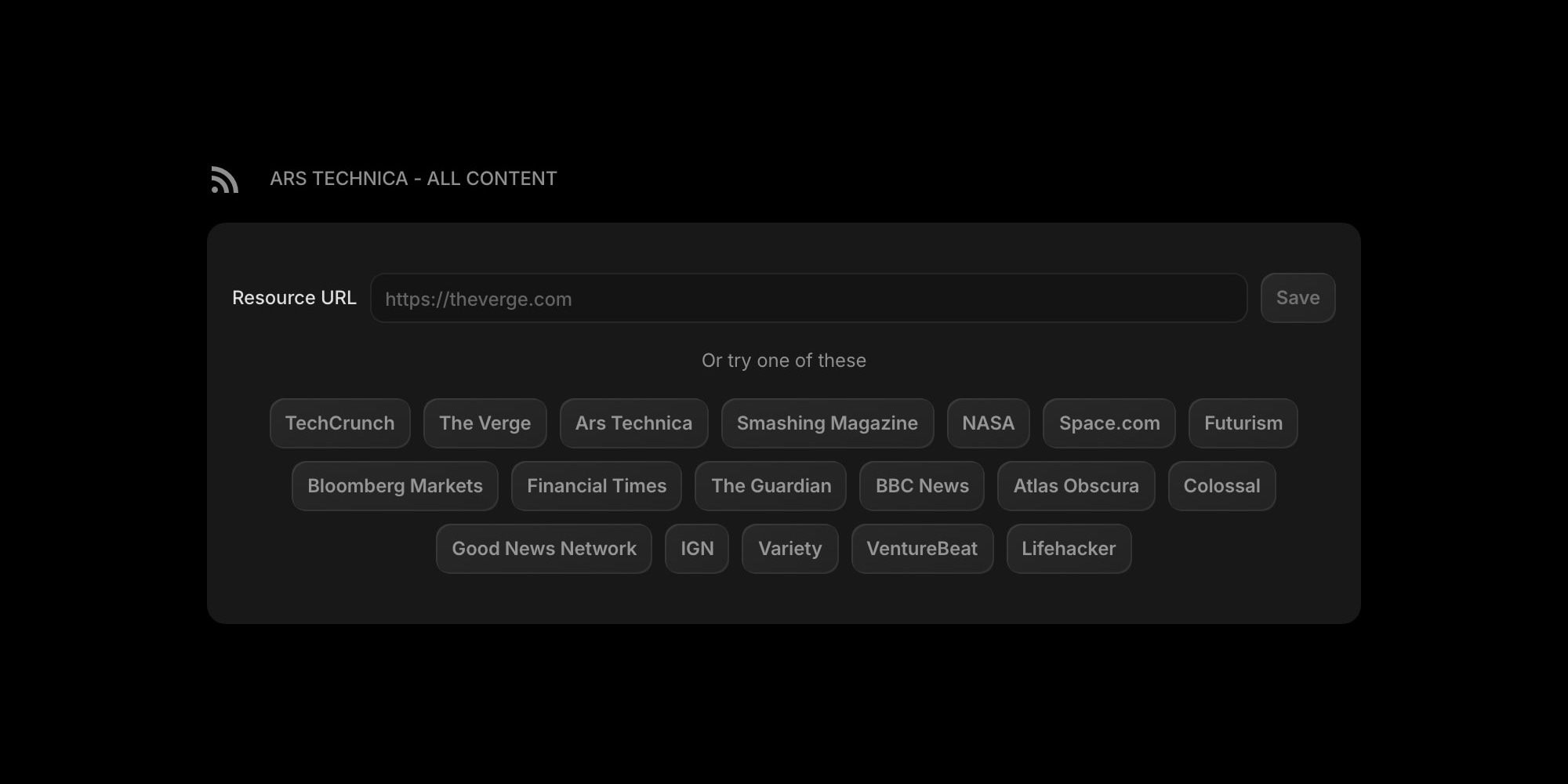
A pricing note, plainly: the free plan (1 page, 8 widgets, sync included, no credit card) ships with the preset sources, while pointing the widget at your own feed URLs takes a paid plan - $3.99 a month, $25 a year, or $49 once for lifetime. The live demo shows the Feed widget already filled with live headlines if you want to see it in action before signing up.
#Pick Sources Worth Seeing All Day
The widget shows whatever its feed publishes, so the source list is the whole game. What works well on a new tab:
- A few blogs you genuinely read - the personal blogs and small publications an algorithm would never surface.
- One news site, not five. Pick the outlet you would check anyway and let the rest go; five news feeds on one screen is how a dashboard becomes a doomscroll.
- Niche and slow feeds. A subreddit (Reddit publishes RSS for every community), a newsletter archive, a webcomic, a release feed for software you depend on. Low-volume sources are ideal here because each new item is actually news.
- One feed per widget, several widgets. Add a separate Feed widget per source instead of merging everything into one stream - you can see at a glance which source has something new, and drop the widget that stops earning its space. Developers who want release notes specifically can add the dedicated GitHub Releases widget beside their feeds, and there is a preset-based News widget for general headlines with zero setup.
#Keep It Glanceable
A new tab page with RSS feeds should read in about two seconds. Three settings do most of the work:
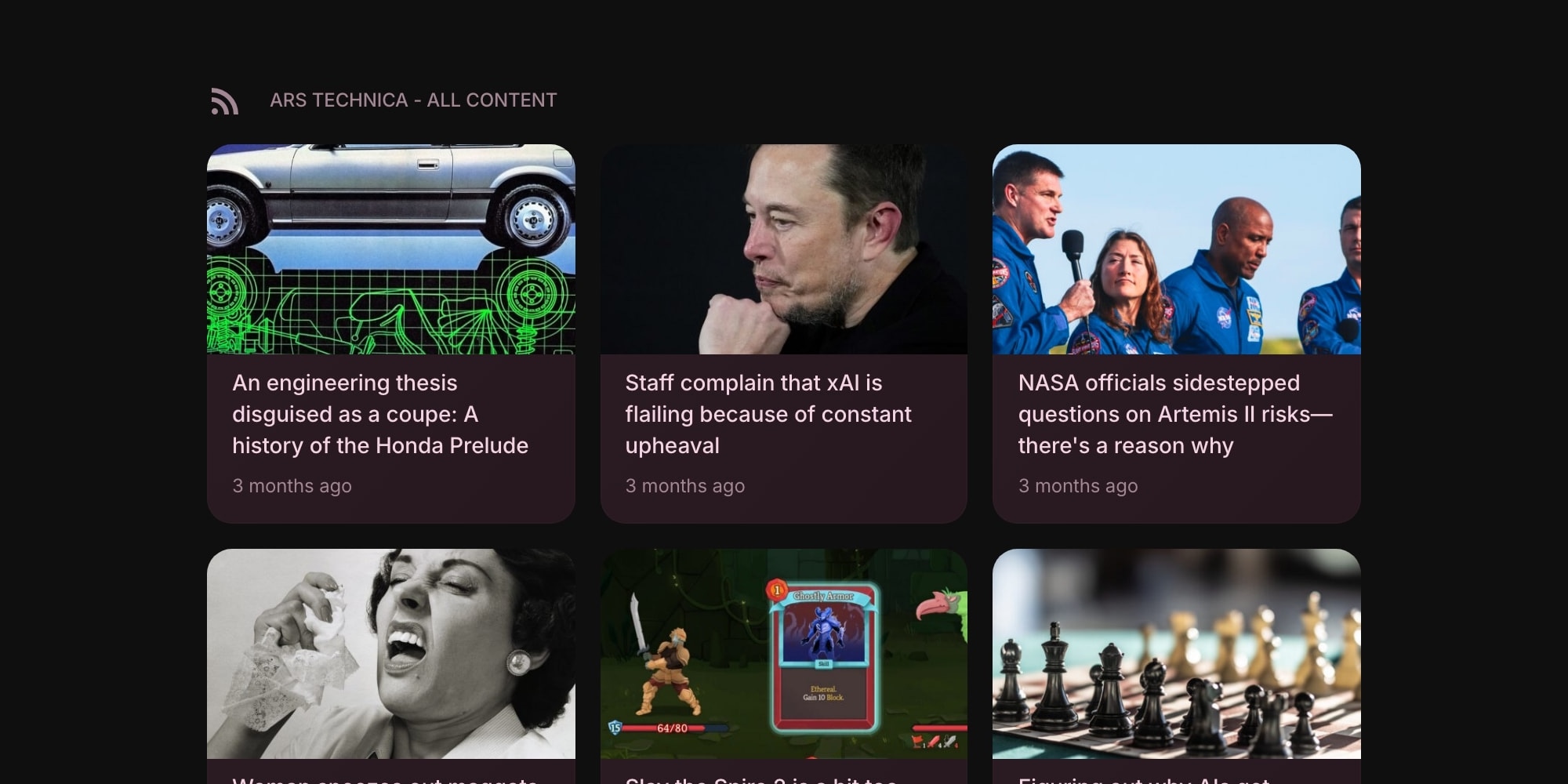
- Grid or list. Grid gives you a visual card layout with thumbnails - good for one or two feeds you enjoy browsing. List packs the same stories into compact text rows - better when several feeds share a page.
- Show Image toggle. Turning thumbnails off makes even the grid quieter. For a work dashboard, headlines alone are usually enough.
- Card style. Clear, Outline, or Solid card backgrounds tune how much the widget asserts itself against your wallpaper.
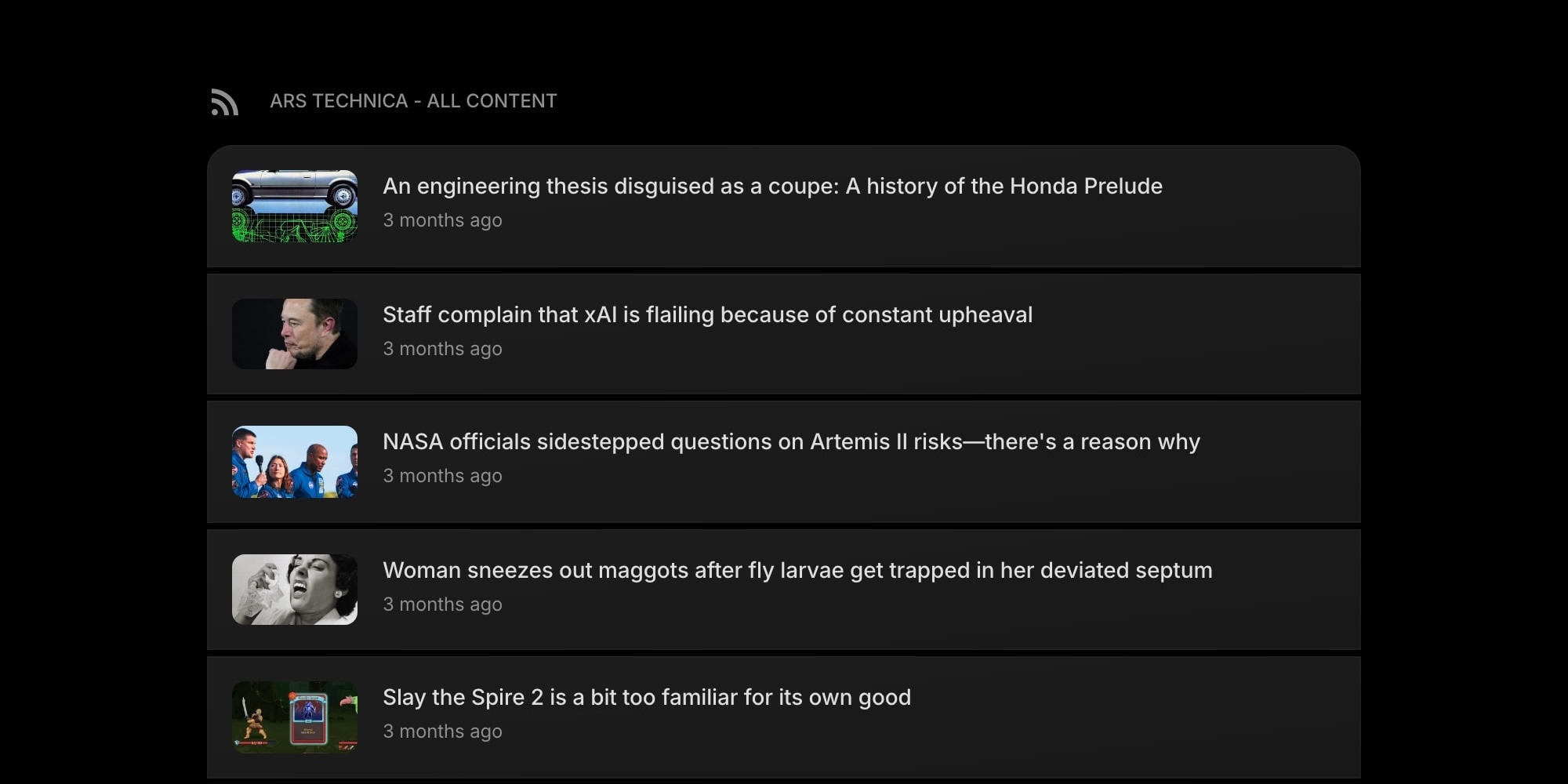
Placement matters as much as layout. Keep feeds away from the top-left corner - that spot belongs to the links and tasks you act on - and let headlines live in the periphery, where a glance catches them without demanding one. If you are building out the rest of the page too, our walkthrough of turning your new tab into a personal dashboard assembles the full setup widget by widget.
#Headlines You Chose, on Every Tab
RSS never stopped working; the apps we read it in just fell out of the daily path. Moving your feeds onto a customizable new tab dashboard puts them back into it - on the one screen guaranteed to appear all day, next to the other 63+ widgets that make that screen useful. Start with the free plan or open the live demo, add a Feed widget, and give your sources the spot your browser was wasting.