How to Customize Safari's Start Page (and Add Widgets)
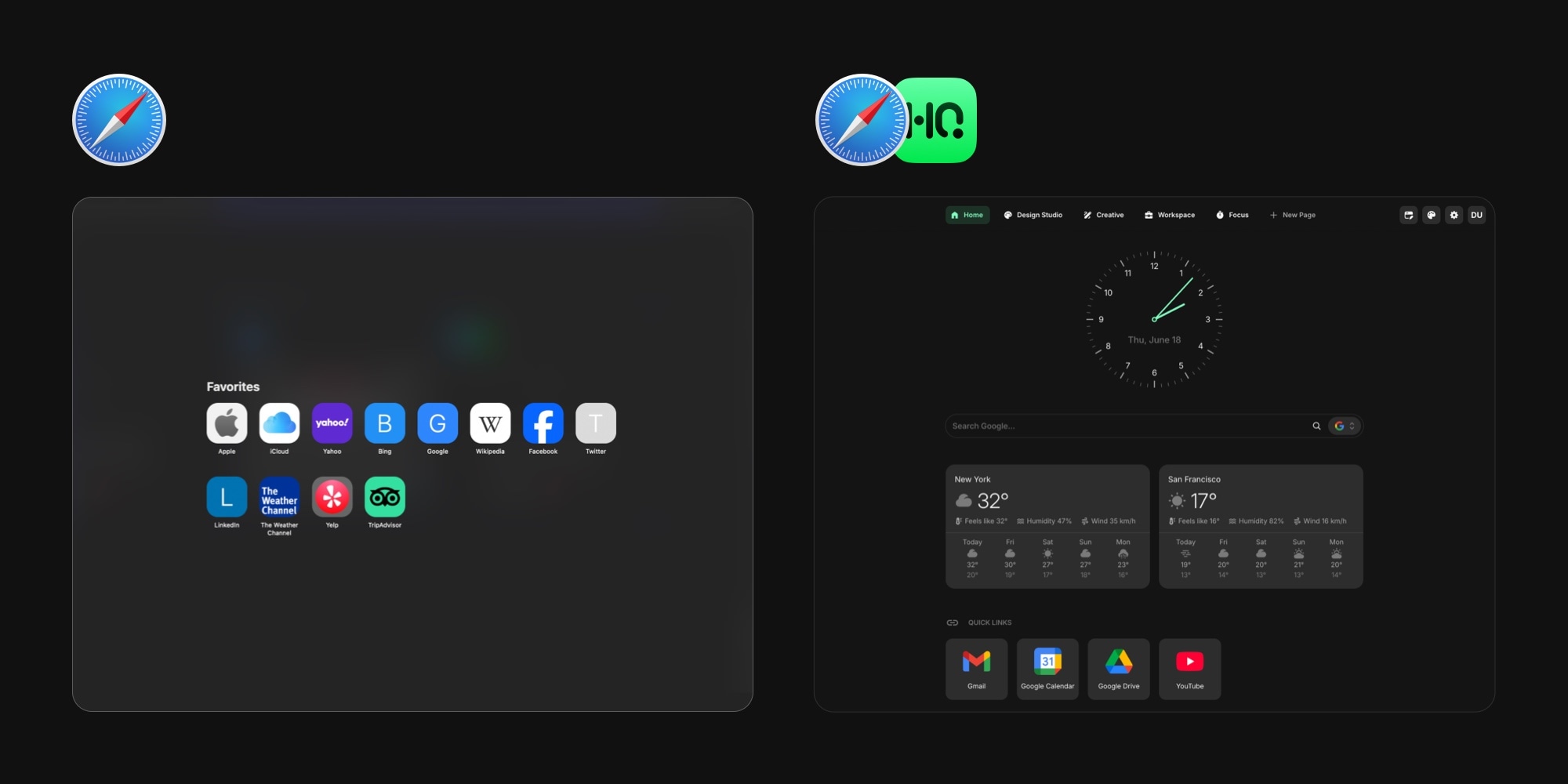
Open a new tab in Safari and you land on the Start Page - Apple's name for the screen Safari shows on every new tab and window. By default it is a grid of favorites and a few suggested sites. The moment you want more from that screen - the weather, your tasks, a calendar, a feed of what is happening - you run into what Safari will and will not let you change. This guide covers how to customize Safari's Start Page two ways: with the native options Apple ships on Mac and iPhone, and with a Safari extension that replaces the page so you can add real widgets.
#What You Can Customize in Safari's Start Page Natively
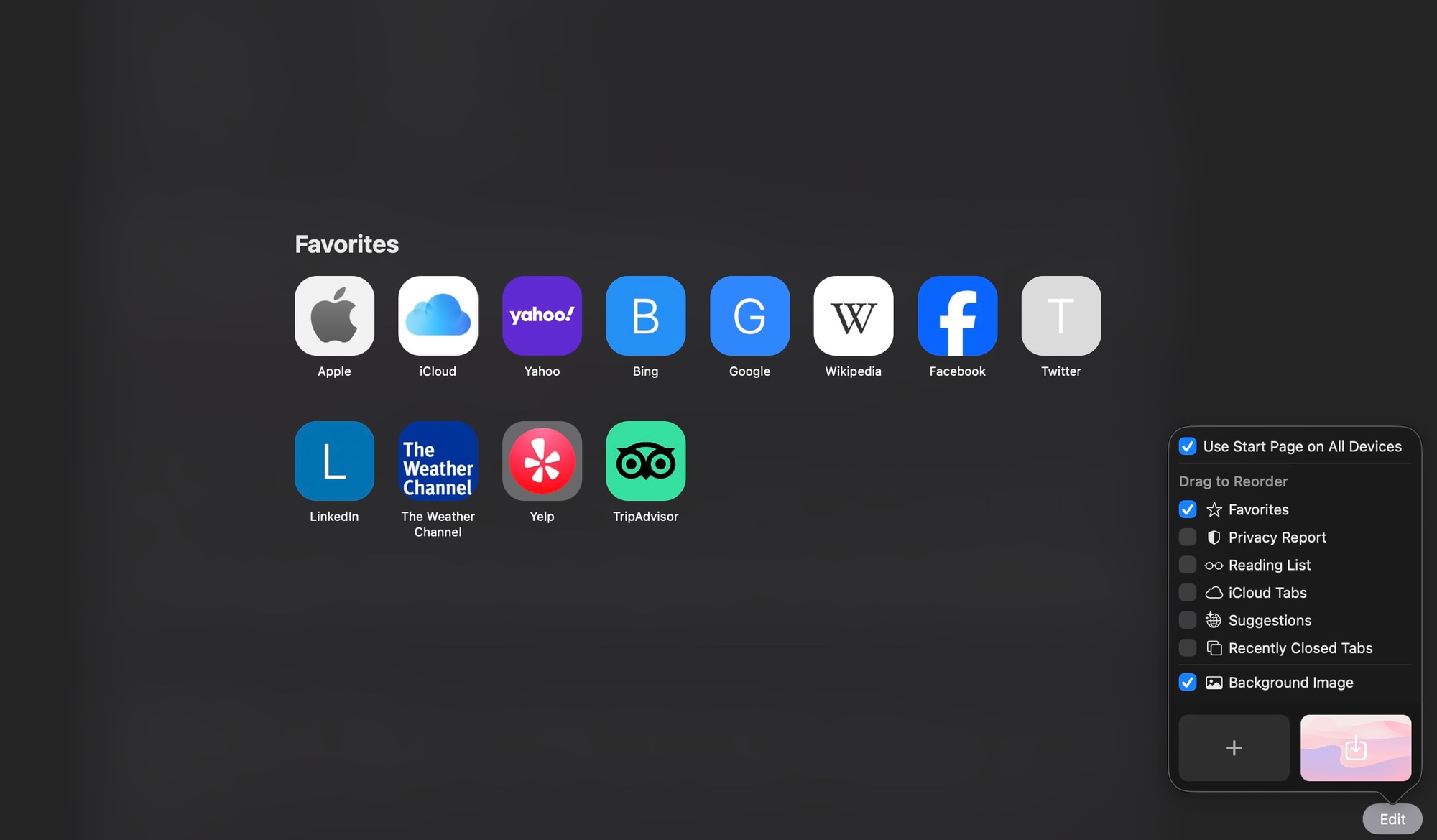
Safari gives you a real set of native options, and they are easy to miss because the controls hide in a corner. Open a new tab in Safari on your Mac and click the Edit button in the bottom-right corner of the Start Page. A panel opens with everything Safari lets you toggle.
#Set a Background Image
At the bottom of that panel, turn on Background Image. Safari ships a set of built-in wallpapers, and the picker lets you add your own photo from your Mac. The background applies to the Start Page only, so every new tab opens on the image you picked.
#Choose Which Sections Show
The rest of the panel is a short list of checkboxes for the blocks Safari can stack on the Start Page, with a Drag to Reorder handle so you can set the order they appear in:
- Favorites - the sites you save to your Favorites, shown as a grid of icons.
- Privacy Report - a summary of the trackers Safari has blocked.
- Reading List - articles you saved to read later.
- iCloud Tabs - tabs open on your other Apple devices.
- Suggestions - sites Safari surfaces from your history and what it thinks is relevant.
- Recently Closed Tabs - tabs you closed recently and might want back.
That is the whole list, and as the panel above shows, there is not much to it. Turn off the blocks you do not use and the Start Page gets calmer fast. Turn on Use Start Page on All Devices and Safari syncs these choices to your iPhone and iPad through iCloud.
#Make Safari Open to the Start Page
If a new tab opens to something other than the Start Page, fix it in Safari → Settings → General. Set both New windows open with and New tabs open with to Start Page. The same menu has a Homepage field and an Empty Page option, in case you actually want one of those instead.
#How to Customize the Safari Start Page on iPhone and iPad
The Start Page works much the same on iOS and iPadOS, which is part of why Safari users care about it - it is the one new tab page that follows you between a Mac and a phone. Open a new tab in Safari on your iPhone, scroll to the bottom of the Start Page, and tap Edit. You get the same kind of toggles as the Mac - Favorites, Privacy Report, Reading List, iCloud Tabs, Suggestions, and a Background Image you can set from your photo library. Turn on Use Start Page on All Devices and the layout matches what you set on your Mac.
#Where Safari's Built-In Start Page Hits a Ceiling
Apple's native Start Page is genuinely nicer than Chrome's bare new tab, and for a lot of people a favorites grid on a good background is enough. It runs out of room the moment you want the new tab to do work, not just look tidy:
- No widgets. There is no native way to put the weather, a todo list, a calendar, notes, or an RSS feed on the Start Page. Every section is a row of links or an Apple-defined block.
- A fixed set of blocks. You can show, hide, and reorder Apple's sections, but that is the limit - you cannot add your own or arrange free-form widgets on a grid. You get the handful of blocks Apple ships, stacked in one column.
- Links only. Favorites are bookmarks. They get you to a site fast; they do not show information at a glance.
- One Start Page for everything. There is no way to keep a separate setup for work and another for personal use. Everyone gets the single Start Page.
If a clean favorites grid on a nice background is all you are after, stop here - the native settings cover it. If you want the new tab to actually be a dashboard, you need an extension.
#Why Most New Tab Extensions Skip Safari
Here is the catch Safari users hit, and it is the reason this guide exists: most of the popular new tab extensions never shipped a Safari version. Tabliss, one of the best-known minimal new tab tools, runs on Chrome, Firefox, and Edge and has no Safari extension at all. People search for "Tabliss for Safari" and come up empty. If that was your search, our Tabliss alternative page covers what to use instead, and the Tabliss vs Bonjourr comparison is worth a look, since Bonjourr is one of the few free options that does run on Safari.
The reason is technical: Safari distributes extensions through the App Store rather than a web store, which adds a build and review step that many small projects skip. The upside for you is that the Safari extensions that do exist had to clear Apple's bar to ship.
#How to Replace Safari's Start Page With an Extension
A Safari new tab extension comes packaged inside an app you install from the App Store, then enable in Safari's settings.
On a Mac:
- Install Start Page HQ from the Mac App Store.
- Open Safari → Settings → Extensions and turn on the extension's checkbox.
- Allow the permissions it requests so it can render your new tab.
- Open a new tab. The dashboard now appears instead of Safari's Start Page.
On an iPhone or iPad:
- Install Start Page HQ from the App Store.
- Open the Settings app, go to Safari → Extensions, and enable it.
- Set its permission to Allow so it can load on new tabs.
To switch back at any time, turn the extension off in the same Safari settings and the native Start Page returns. Nothing is locked in.
#How to Add Widgets to Safari's New Tab
Adding widgets is the entire reason to go the extension route, since Safari has no native widget system for the Start Page. Once a widget-based extension owns the new tab, you add widgets from a picker and arrange them on a grid, the way you lay out a phone home screen.
The widgets Safari users reach for first are usually:
- A weather widget so the forecast is there the moment you open the browser.
- A calendar that shows your next events.
- A todo list or a Kanban board you can clear through the day.
- An RSS feed to pull news and blogs into one place.
- Notes and a Links widget for shortcuts that go beyond the favorites grid.
With Start Page HQ you get 63+ widgets on top of those, including world clocks, currency conversion, a Pomodoro timer, and developer tools. Because it ships native extensions for Safari, Chrome, Firefox, and Edge plus a hosted web app, the dashboard you build on your Mac syncs to Safari on your iPhone and to any other browser you sign into - something the native Start Page does only for its own favorites and toggles, never for widgets. For the full field of options, including the free ones, our roundup of the best new tab extensions compares them honestly, and if you also use Chrome there is a companion guide to customizing Chrome's new tab page.
The background image is covered as well. Start Page HQ ships 29 wallpapers and takes a photo of your own, the same way Safari's picker does, and the widgets turn to frosted glass over it. Since it travels with your account, the wallpaper you set on your Mac shows up on your iPhone too.
#Recommended Safari Start Page Setups
There is no single right layout - a customizable new tab is the whole point. A few that hold up well:
- Minimal. A background image, a clock, and one row of links. The calm of Apple's Start Page, plus a widget or two it cannot do.
- Daily dashboard. Links, a todo list, your calendar, and the weather on one page, so the shape of the day is visible the second a tab opens.
- News and reading. RSS feeds and a news summary so you skim headlines without opening five sites - a real upgrade on Safari's Reading List block.
- Cross-device. The same page on your Mac and iPhone, so what you set up at your desk is waiting on your phone.
The strongest version keeps each setup on its own page and switches between them with a click, instead of cramming everything onto one screen.
#Try It on Your Own Start Page
Safari's native Start Page gets you a nice background and a clean favorites grid, and Apple syncs that much across your devices. To turn the new tab into a real new tab dashboard with widgets, multiple pages, and sync across every browser you use, the extension route is the way there.
The fastest way to see how it feels is to start free: 1 page, 8 widgets, sync across every browser and device, no credit card. If you would rather not sign up yet, the live demo is pre-loaded with pages and widgets you can poke at.