How to Customize Chrome's New Tab Page (2026 Guide)
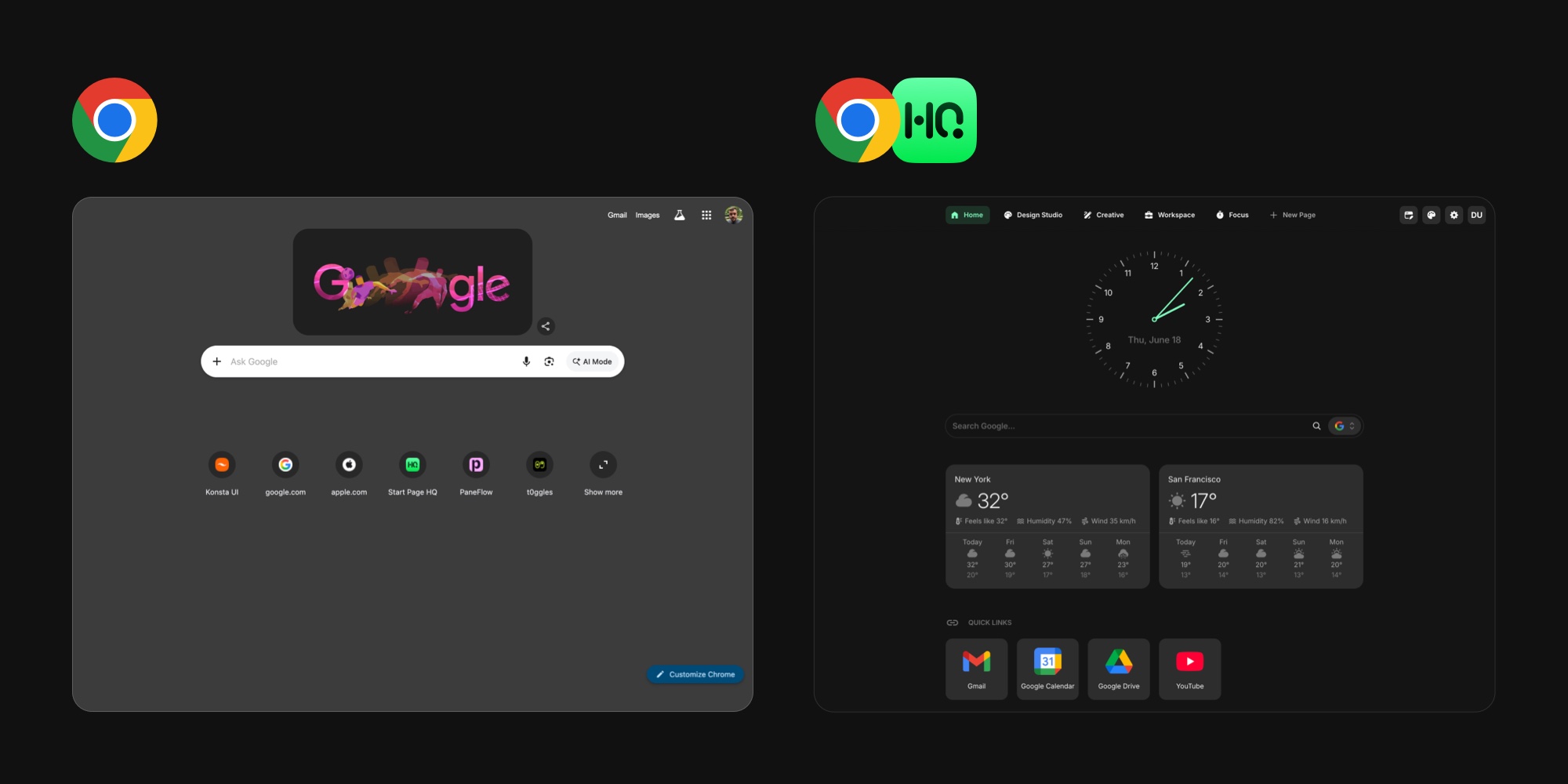
Open a new tab in Chrome and you get a search box, a row of shortcuts, and not much else. The moment you want more from that screen - your tasks, the weather, your calendar, a feed of what is happening - you run into the limits of what Chrome does on its own. This guide covers how to customize Chrome's new tab page two ways: with the built-in settings Chrome ships, and with a custom new tab extension that changes the page entirely so you can add real widgets.
#What You Can Change in Chrome's New Tab Page Natively
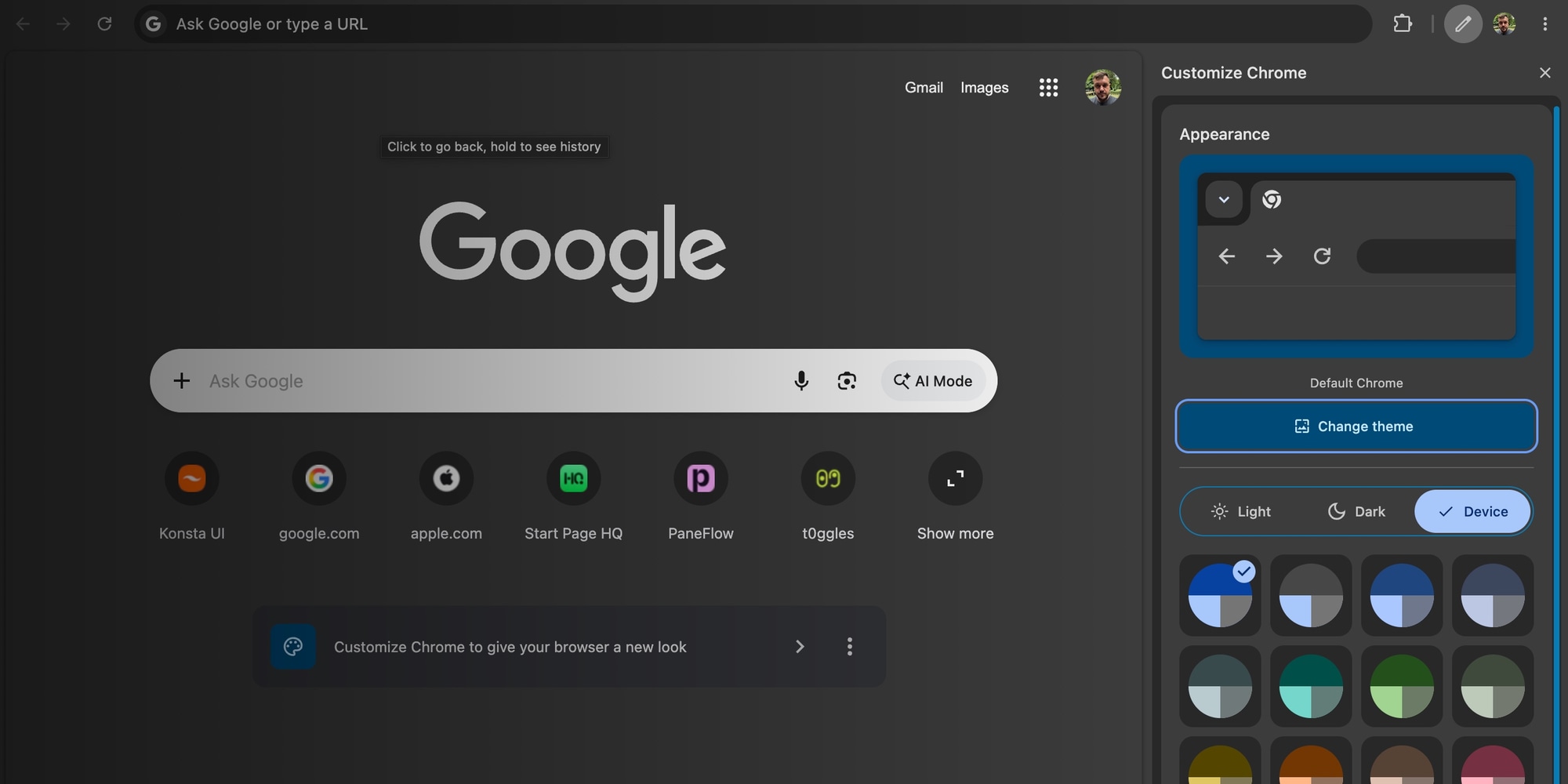
Chrome has a built-in panel for this. Open a new tab and click the Customize Chrome button (the pencil icon) in the bottom-right corner. A side panel opens on the right with everything Chrome lets you personalize, grouped under an Appearance section.
#Change the Background and Theme
In the side panel, the Appearance section gives you a Light / Dark / Device mode toggle and a grid of preset color shades - the color applies to the toolbar and the new tab together, so the whole browser matches.
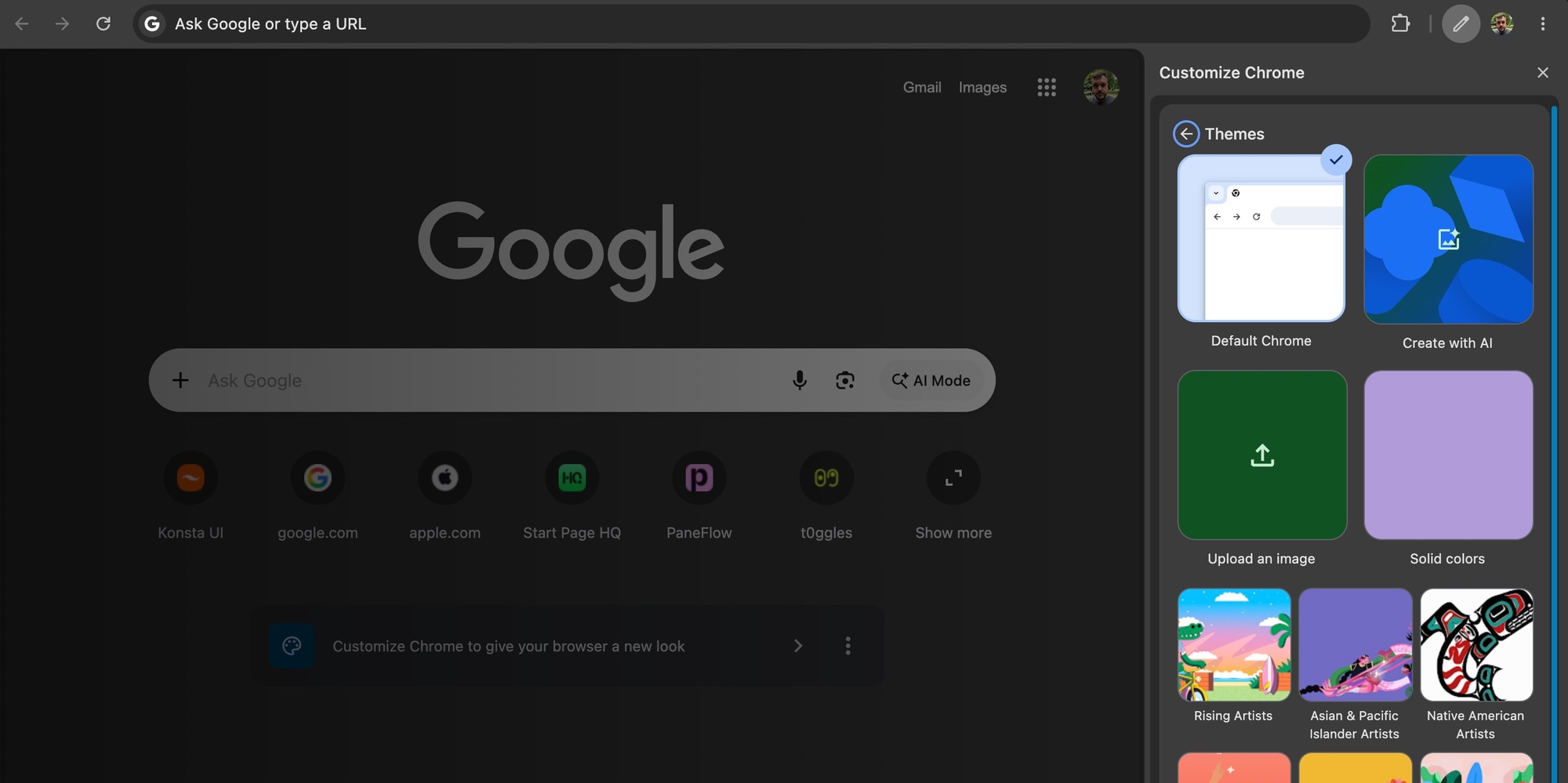
For backgrounds, open Change theme. You can pick from Chrome's theme collections - curated photo and artist series - or choose Upload an image to use a photo from your computer, including an animated GIF. Solid colors covers the flat-background crowd, and turning on Refresh daily inside a collection rotates the image so the page looks fresh each morning.
Newer Chrome versions also offer Create with AI at the top of the theme picker: choose a subject, style, mood, and color, and Chrome generates a background for you. It is desktop-only and rolling out by region, so do not worry if your copy of Chrome does not show it yet.
#Add or Hide Shortcuts
Shortcuts are the icons under the search box. Open Shortcuts in the panel and choose My shortcuts to curate your own set, or Most visited sites to let Chrome fill them automatically from your history. Prefer a cleaner page? Turn off the Show shortcuts toggle and they disappear entirely. Chrome caps custom shortcuts at 10, which is the first wall many people hit.
#Turn Cards On or Off
Cards are the small content tiles Chrome surfaces below the shortcuts - recipe ideas, shopping cart reminders, quick links to recent Google Drive files, and similar. Open Cards in the panel to pick which ones show, or switch off Show cards to remove them completely. For a lot of people, hiding cards is the single biggest cleanup.
That is the full extent of Chrome's native personalization: a background, a color, up to 10 shortcuts, and a few optional cards.
#How to Set a Custom Homepage in Chrome (It Is Not the New Tab Page)
People often search for how to set a custom homepage in Chrome when what they actually want is a custom new tab page. Chrome treats three things separately, and it helps to know which one you are changing.
- New tab page - what appears every time you open a tab. You personalize it with the Customize Chrome panel above, but Chrome will not let you point it at an arbitrary web address from Settings.
- Homepage - the page that loads when you click the Home button. Go to Settings → Appearance, turn on Show home button, and enter any custom web address.
- Startup pages - what opens when Chrome launches. Go to Settings → On startup, choose Open a specific page or set of pages, and add the URLs you want.
So you can absolutely set a custom homepage and custom startup pages to any site through Settings. The new tab page is the one screen Chrome keeps for itself, and pointing it at something else is exactly what an extension does.
#What chrome://newtab and chrome-native://newtab Actually Are
While we are on URLs, a common point of confusion. Chrome's new tab page has an internal address: on desktop it is chrome://newtab (which resolves to chrome://new-tab-page), and on Android it is chrome-native://newtab/. If you have ever seen one of these in the address bar - or accidentally searched for it, which is how a lot of people land on this page - that is all it is: Chrome's internal name for the new tab screen, not a website.
Two practical consequences follow from that:
- You cannot visit it like a normal link. The address only works inside Chrome itself, so you cannot open it from another browser, send it to someone, or set it as a homepage anywhere else.
- There are no hidden settings behind the URL. All of Chrome's new tab settings live in the Customize Chrome panel covered above on desktop, and in the Customize new tab page menu on Android (more on that below). Typing the URL by hand just opens the same page your plus button does.
The only way to make that internal address show something different is the extension route below.
#Where Chrome's Built-In Options Hit a Ceiling
Chrome's native customization is fine for a tidier, better-looking page. It runs out of room fast once you want the new tab to be useful:
- No widgets. There is no native way to add weather, tasks, notes, a calendar, or an RSS feed to the new tab.
- A fixed layout. You get a background, shortcuts, and cards in that arrangement. You cannot move blocks around or build your own grid.
- The search box stays put. The Google search box and branding are fixed and cannot be removed or replaced.
- One page for everything. You cannot keep a separate setup for work and another for personal use - there is only the single default page.
If all you want is a nicer background and a clean row of links, the native settings are enough and you can stop here. If you want the new tab to do real work, you need an extension.
#How to Change the New Tab Page on Chrome With an Extension
Changing Chrome's new tab page to something else entirely is straightforward, and Chrome has a dedicated permission for it. A custom new tab extension replaces the default screen with its own page the moment a tab opens.
- Open the Chrome Web Store and search for a new tab extension. Searching for a "new tab dashboard" or a specific tool by name both work.
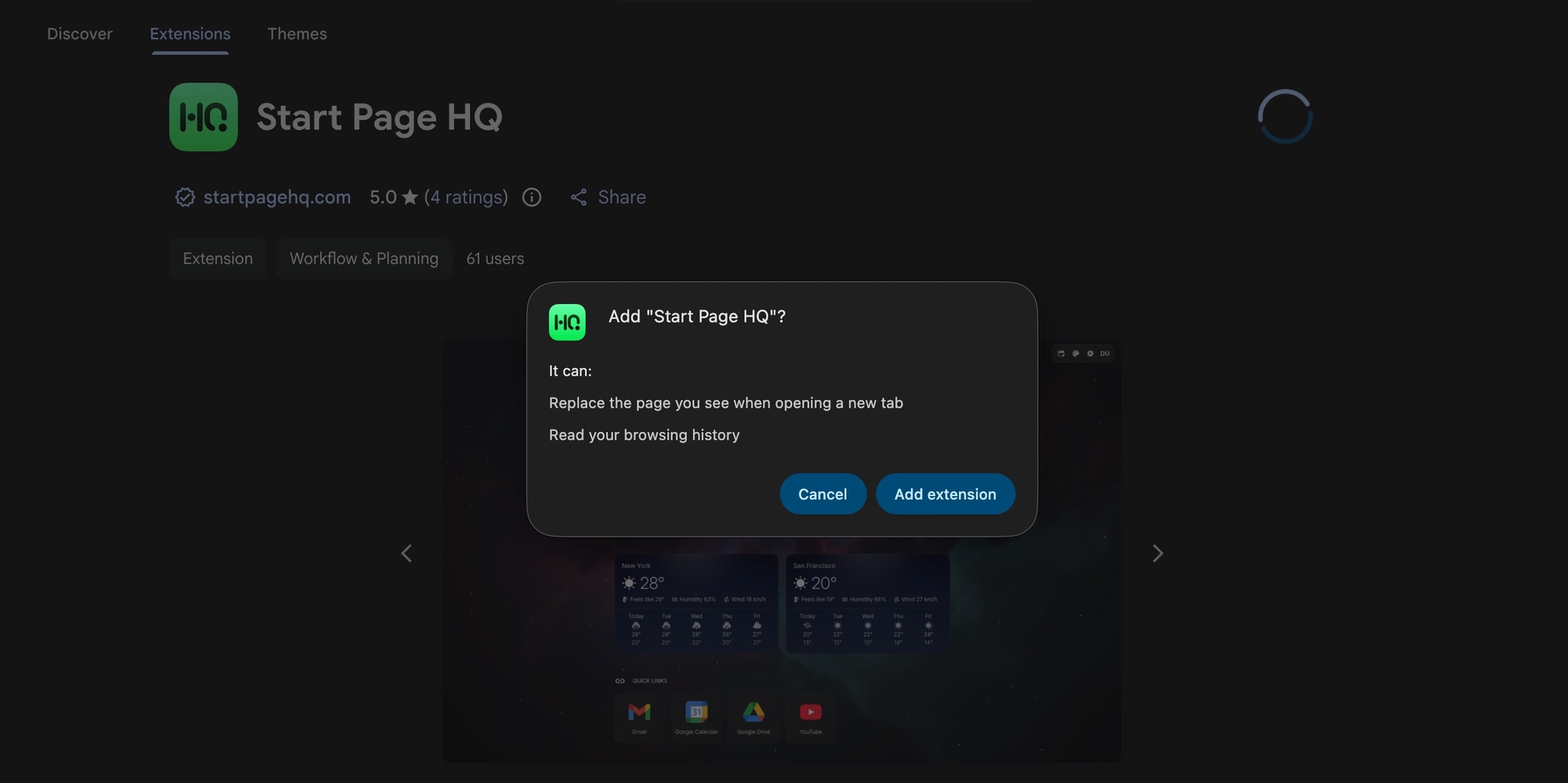
- Click Add to Chrome, then Add extension in the confirmation dialog. Chrome will tell you the extension can "Replace the page you see when opening a new tab" - that permission is precisely what lets it take over the screen.
- Open a new tab. The extension's page now appears instead of Chrome's default.
- Customize from there using the extension's own settings.
To switch back or change which extension owns the new tab, go to chrome://extensions and disable or remove the one you do not want. If you install more than one new-tab extension, the most recently enabled one usually wins, so disable the others to avoid a tug-of-war over the page.
Not sure which to install? Our tested roundup of the best new tab extensions compares the main options honestly, including the free and open-source ones.
#How to Add Widgets to Chrome
Adding widgets to Chrome is the whole reason to go the extension route, since Chrome has no native widget system. Once a widget-based extension owns the new tab, you add widgets from a picker and arrange them on a grid, the same way you would lay out a phone home screen.
The widgets people reach for first on a Chrome new tab are usually:
- A weather widget for Chrome so the forecast is there the moment you open the browser.
- A calendar widget for Chrome that shows your next Google Calendar events.
- A todo widget for Chrome for a checklist you can clear through the day.
- An RSS widget for Chrome to pull news and blogs into one feed.
- A Pomodoro timer for Chrome for focused work sessions.
With Start Page HQ you get 63+ widgets on top of those, including Links for shortcuts that beat Chrome's 10-icon cap, Kanban tasks, notes, world clocks, currency conversion, and developer tools. Because it ships native extensions for Chrome, Firefox, Safari, and Edge plus a hosted web app, the dashboard you build syncs across every device and browser you sign into, which the native page cannot do.
You do not give up the look, either. Start Page HQ has its own wallpapers - 29 built in, or upload any image you like - and the widgets turn to frosted glass over the background, so you keep the polish of Customize Chrome and gain a page that actually does something. Unlike Chrome's themes, the wallpaper you pick follows you to Firefox, Safari, and Edge.
#Recommended Setups
There is no single right layout - the point of a customizable page is to match how you work. A few setups that hold up well:
- Minimal and focused. A clean background, a clock, and one row of links. Most of the calm you get from Chrome's native page, minus the cards.
- Productivity dashboard. Links, a todo list, your calendar, and the weather on one page, so the day's shape is visible the second a tab opens. Our guide to turning your new tab into a personal dashboard builds this exact setup widget by widget, and the Momentum alternative breakdown shows how a widget grid compares to a focus-first page.
- News and reading. RSS feeds and a news summary so you skim headlines without opening five sites.
- Developer command center. Repo and dashboard links, a Pomodoro timer, and a JSON formatter within reach. See the developers page for a full example.
The strongest version of this keeps each setup on its own page and switches between them with a click, instead of cramming everything onto one screen.
#Chrome's New Tab Settings on Android and iPhone
Everything above - the Customize Chrome panel and the extension route alike - is desktop Chrome. On mobile there is one honest limitation: Chrome for Android and iPhone does not support extensions, so the new tab page cannot be replaced there.
What Android Chrome does allow natively: open a new tab, tap the three-dot menu, and choose Customize new tab page. That is where the Discover feed toggle lives, so if the feed of articles under the search box is the thing you want gone, turn it off there.
The closest thing to a custom new tab on mobile is the homepage setting. In Chrome's Settings → Homepage on Android you can enter any address, and pointing it at a dashboard web app like startpagehq.com puts the same page you built on desktop one tap away on your phone - our guide to getting the same new tab page in every browser covers that cross-device setup in full.
#Try It on Your Own New Tab
Chrome's native settings will get you a nicer background and a clean set of shortcuts. To turn the new tab into a real new tab dashboard with widgets, multiple pages, and sync across browsers, the extension route is the only way there.
The free plan is the fastest way to see how it feels on your own new tab: 1 page, 8 widgets, sync across every browser and device, no credit card. Not ready to sign up? The live demo is pre-loaded with pages and widgets you can poke at without an account.