How to See Your Calendar on Every New Tab
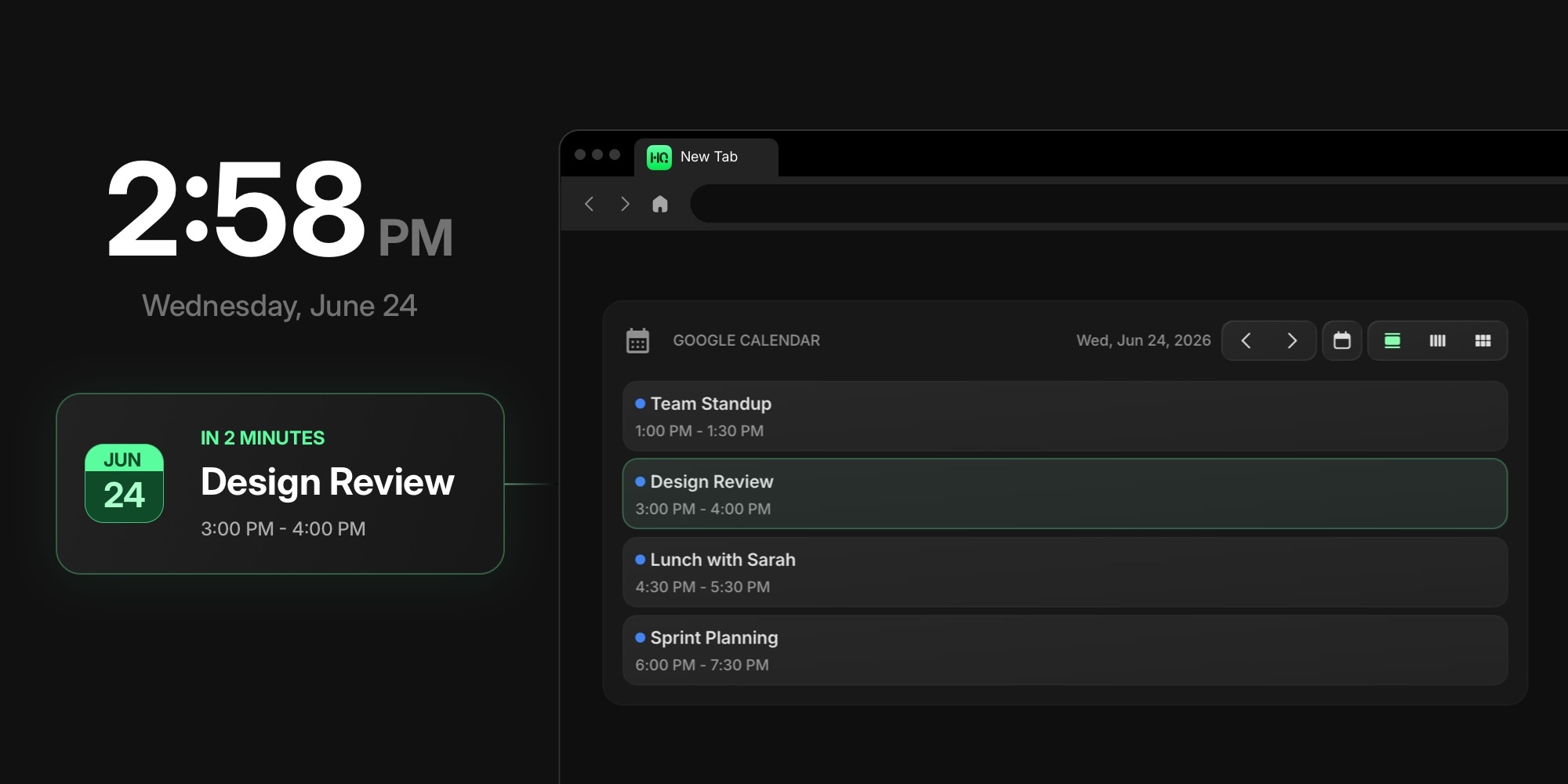
Your calendar already knows where you need to be. The problem is that it lives in another tab you have to remember to check, which is exactly how a 2 PM meeting ambushes you at 1:58. A new tab page with a calendar on it removes the remembering: your schedule appears on the screen you already open dozens of times a day, so the next meeting is simply visible instead of waiting to be looked up.
This guide covers how to put your calendar on every new tab: the routes available, how to add a Google Calendar widget to a new tab dashboard, and which view and settings keep it readable at a glance.
#Why Put a Calendar on Your New Tab Page
The argument is frequency. You check calendar.google.com when you decide to, which on a busy day is exactly when you forget to. You open a new tab constantly, without deciding to - and anything placed there gets seen for free. A calendar you see forty times a day cannot sneak an event past you.
There is also what sits beside it. On a widget dashboard, the calendar lands next to your task list, and that pairing - what you need to do and where you need to be, in one glance - is the productive core of a good new tab page. Our walkthrough of turning your new tab into a personal dashboard builds that full setup widget by widget; this guide zooms in on the calendar piece.
#The Ways to Get a Calendar on a New Tab
Three routes, honestly compared:
- Chrome's own calendar card. Chrome has been rolling out an agenda card on its default new tab page, but only for Google Workspace accounts - personal Google accounts do not get it, and it shows a slim agenda rather than a real calendar. If you are exploring what Chrome allows natively, our guide to customizing Chrome's new tab page covers the built-in settings and where they stop.
- Single-purpose calendar tab extensions. These replace the entire new tab with a full-screen Google Calendar. Committing the whole screen to one app is a real choice, but it means every tab opens on your schedule and nothing else - no links, tasks, or notes.
- A calendar widget on a dashboard. A widget-based new tab extension gives the calendar one block of the screen and leaves the rest for the other things worth glancing at. This is the route the rest of this guide walks through, and our tested roundup of the best new tab extensions compares the tools that can do it.
#Add a Google Calendar Widget to Your New Tab
The walkthrough uses Start Page HQ, which we make - that is the disclosure - and the same steps apply in spirit to any widget dashboard with a calendar integration.
- Install a new tab extension. On Chrome, the step-by-step calendar widget for Chrome install guide gets you there in about two minutes. Firefox, Safari, and Edge have native extensions with their own install guides, and the same dashboard runs as a web app - your setup syncs across all of them.
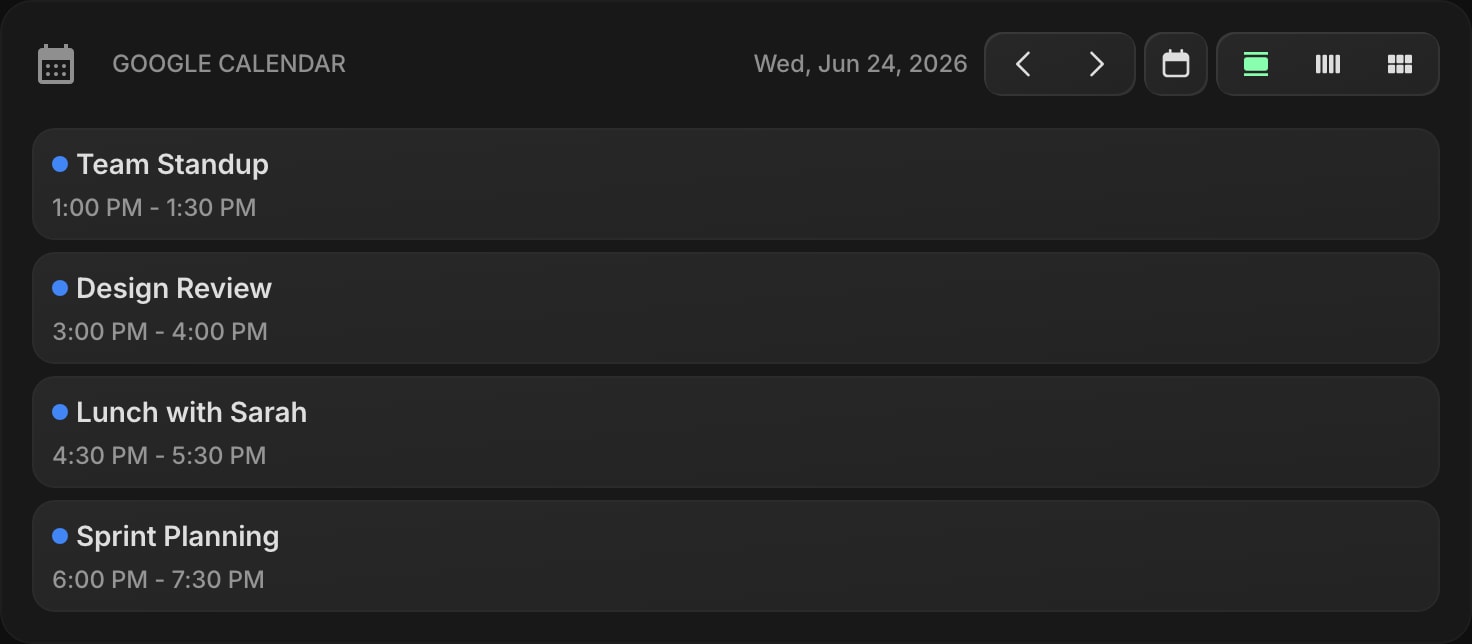
- Add the Google Calendar widget. Open the widget picker on a new tab, choose Google Calendar, and drop it where you want it. The Google Calendar widget docs cover every setting mentioned below.
- Connect your account. Click Connect Google Calendar, approve access, and pick which of your calendars the widget should show. Your events appear immediately, and clicking any of them opens the full event in Google Calendar.
If you juggle work and personal calendars on separate Google accounts, connect both: the account is chosen per widget, so a work calendar and a personal one can sit side by side as two widgets on the same page.
A pricing note, plainly: Google Calendar is one of the 8 premium widgets, so it takes a paid plan - $3.99 a month, $25 a year, or $49 once for lifetime. The free plan (1 page, 8 widgets, sync included, no credit card) ships with the simpler Calendar widget instead - dates and views with today highlighted, no account and no events. And the live demo shows the Google Calendar widget already filled with sample events, no signup needed.
#Pick the View That Matches How You Plan
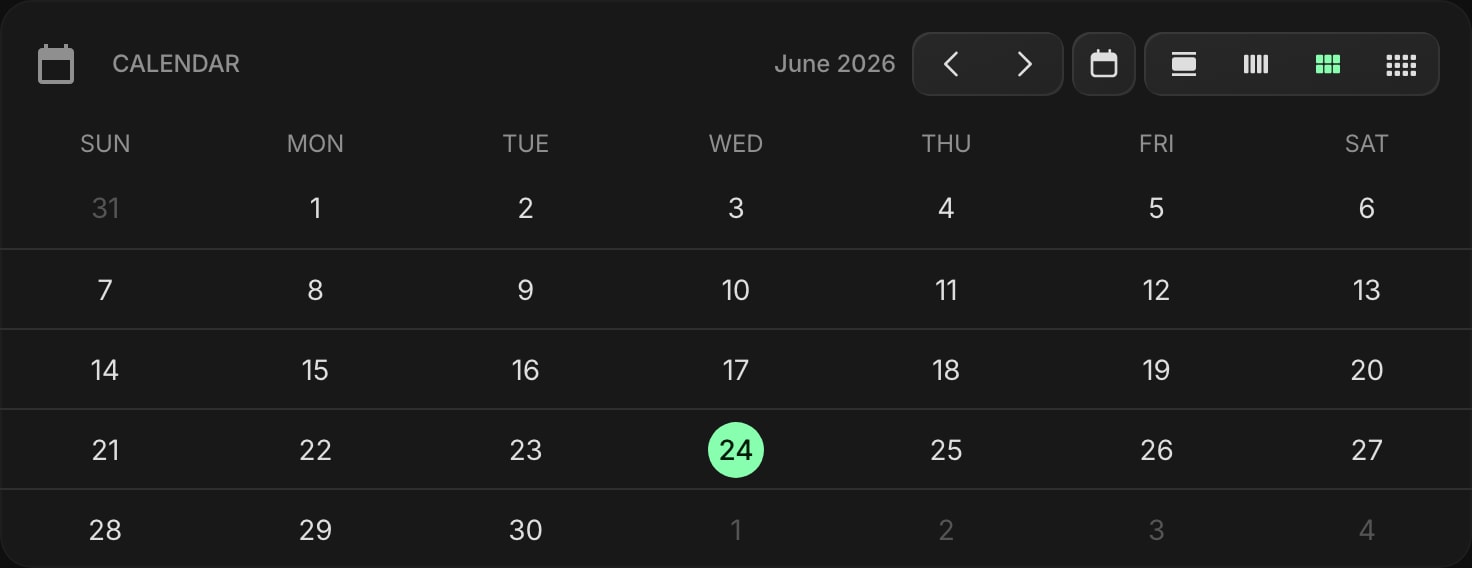
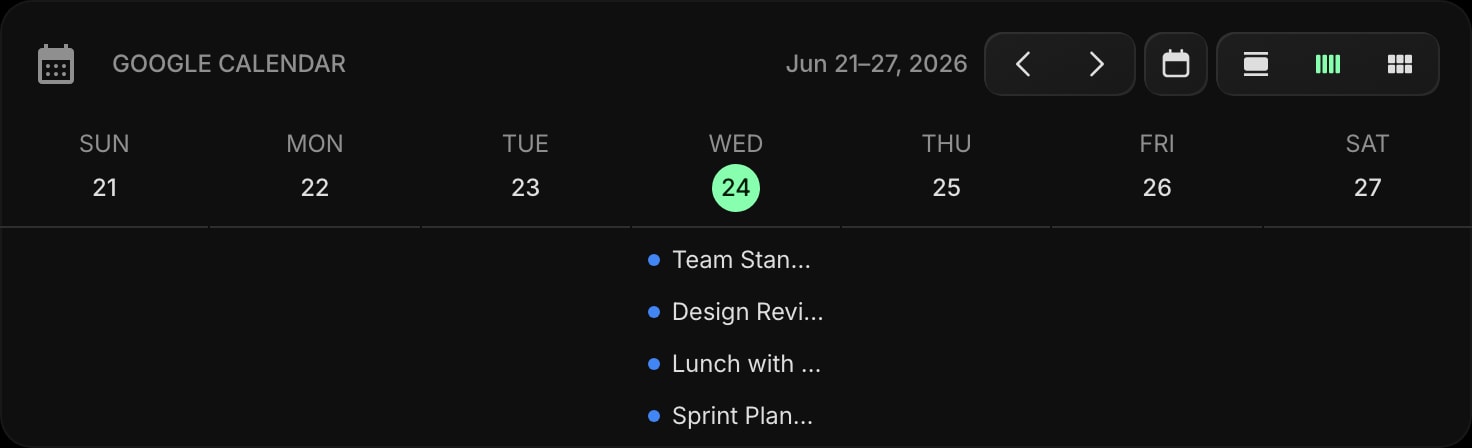
The widget has three views, and the right one depends on what a glance should answer:
- Day view answers "what is next?" - a simple list of today's events with times. The default, and the best fit for most dashboards.
- Week view answers "what does the week look like?" - seven columns with events spread across them. Good for planners who think in weeks.
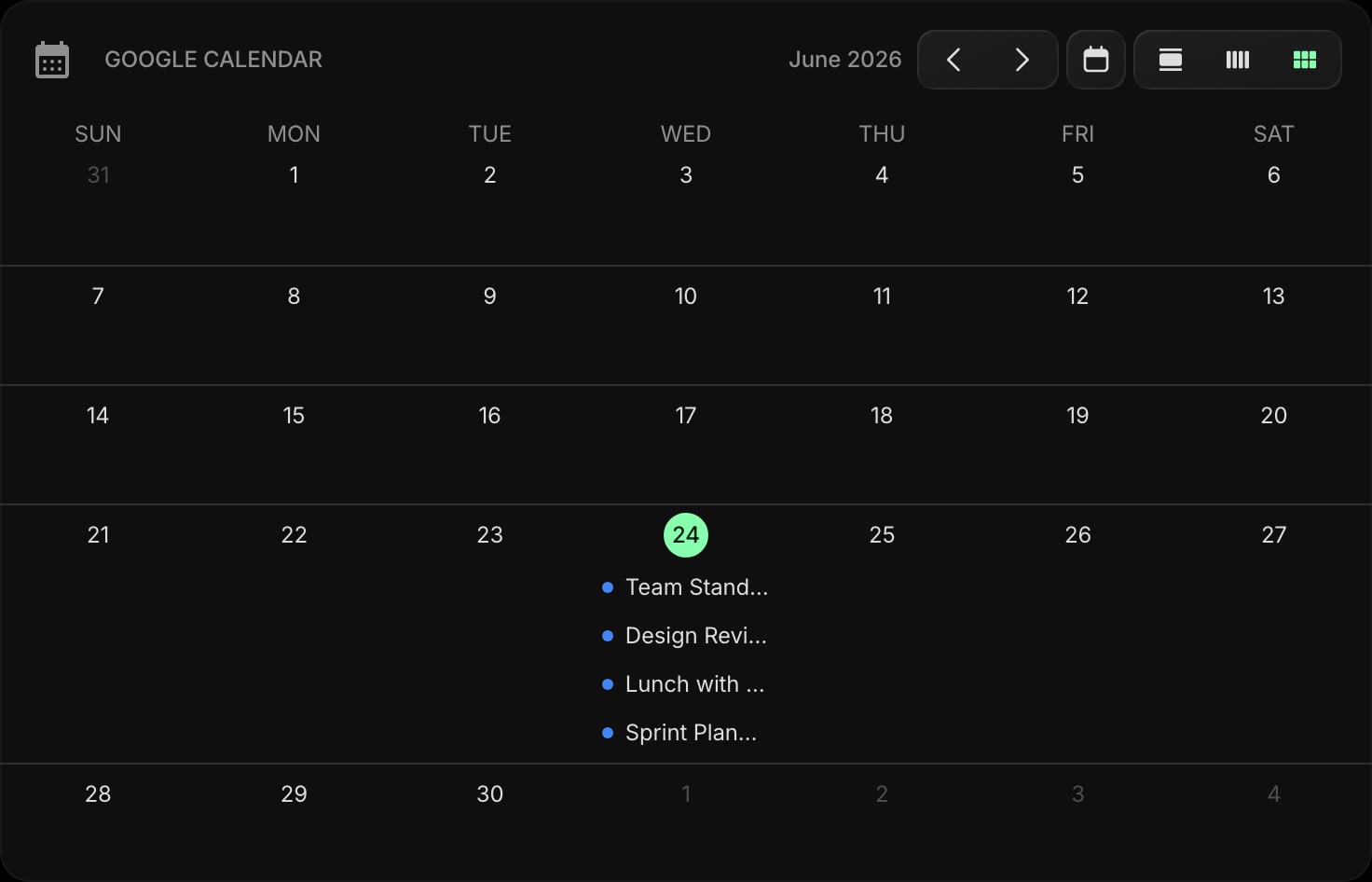
- Month view answers "when is that thing?" - the classic full grid. Best as a larger widget, where day cells have room to breathe.
A few settings sharpen whichever view you pick. Show Event Time is on by default and worth keeping. Show Location stays off unless you commute between meetings. Show All-Day Events keeps birthdays and deadlines pinned above the day. And Week Starts On flips between Sunday and Monday to match your region.
#Make It Part of the Day's First Glance
Placement makes the difference between a calendar you see and one you scroll past. Keep the widget near the top of the page, next to a todo list - that pairing is the whole point - with a date and time widget anchoring the corner above them. Day view in a compact widget covers most setups; give month view real estate or skip it.
This layout carries across jobs, not just desks. Remote workers pair the calendar with world clocks so meetings land in the right time zone, and product managers put it beside the task board that fills the rest of the day. Events are cached locally, so the schedule renders instantly when a tab opens and refreshes in the background.
#Your Schedule, Zero Clicks Away
A calendar only prevents surprises if you actually see it, and no screen gets seen more than the new tab. Put your schedule on a customizable new tab dashboard and it shares the page with the other 63+ widgets that shape your day - tasks, links, notes, feeds. Start on the free plan or open the live demo, connect your calendar, and let the next meeting find you for a change.