How to Customize Firefox's New Tab Page
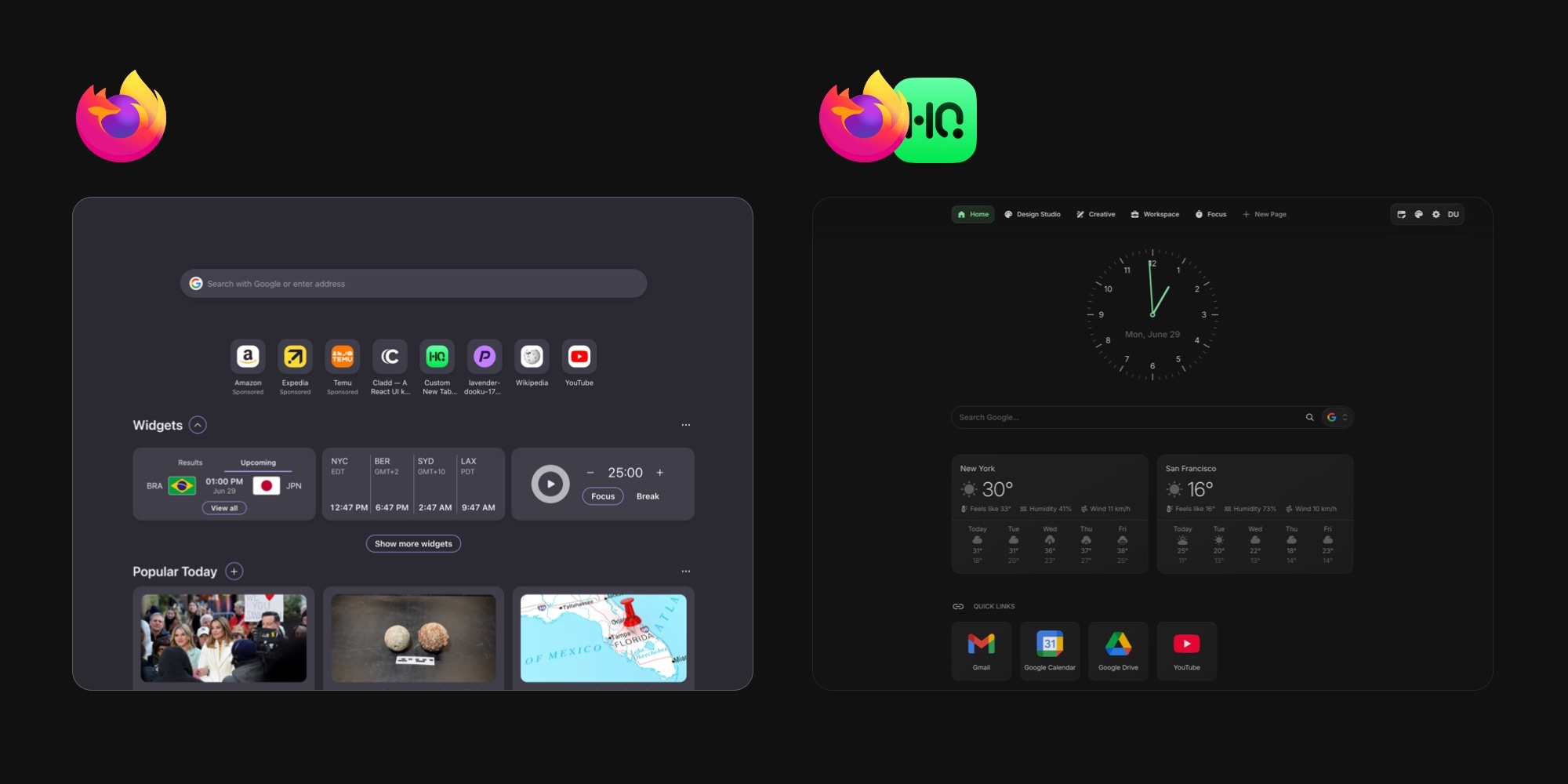
Open a new tab in Firefox and you get more than you used to - a search bar, a row of shortcuts, the local weather, a feed of stories, and, as of mid-2026, a strip of built-in widgets like a focus timer and a world clock. That is genuinely useful, but it still stops short of a real dashboard: the moment you want your own calendar, an RSS feed of your sources, notes, or a layout you control, you hit the ceiling. This guide covers how to customize Firefox's new tab page two ways - with the settings and widgets Firefox ships, and with an extension that replaces the page so you can build a full dashboard.
#What You Can Customize in Firefox's New Tab Page Natively
Firefox keeps its controls in one place. Open a new tab and click the pencil icon in the bottom-right corner of the page. A panel slides in from the right with four sections - Wallpapers, Shortcuts, Widgets, and Stories - plus a link to the deeper settings.
#Set a Wallpaper or Background Color
This is Firefox's best-looking native trick, and it is fairly recent. In the panel, turn on Wallpapers and pick from the built-in categories - Firefox, Abstract, Celestial, and Photographs. If none of those fit, choose Add an image to upload a photo from your computer, or open Colors to set a custom background color instead. The wallpaper applies to every new tab, so the page looks the way you want it each time it opens.
#Manage Shortcuts
Shortcuts are the site icons under the search bar - Firefox fills them from the sites you visit and pin, and some slots may show sponsored entries. In the panel, toggle Shortcuts on or off, and use the Number of rows dropdown to show one row up to four. You can pin a site so it stays put, or remove ones you do not want. Switch the section off entirely for a barer page.
#Use Firefox's Built-In Widgets
This is the newest and biggest change to the page. Around the 2026 World Cup, Firefox started putting real widgets on the new tab, and the customize panel now has a Widgets toggle with a Manage widgets button. The set Firefox ships is small but genuinely useful:
- Lists - simple checklists, up to 10 lists of 100 items each, with a copy-to-clipboard export.
- Focus Timer - a countdown for work sessions, preset to the 25-minute-focus, 5-minute-break Pomodoro rhythm and adjustable from there.
- Clocks - a world clock for up to four time zones, each with its own nickname, in 12- or 24-hour format.
- Sports - live scores, fixtures, and results, launched around the 2026 World Cup, with the option to follow specific teams.
- Weather - the same forecast that sits in the corner, expandable to a larger card with a short-term outlook.
Each widget has a three-dot menu to resize it, move it left or right, or hide it. A few are still experimental and roll out through Firefox Labs in stages, so depending on your version and region you may not see all of them yet. One thing worth knowing up front: Firefox stores this widget data locally and does not sync it, so your lists and timers stay on that one copy of Firefox.
#Tidy the Stories Feed
Below the widgets sits the story feed - labeled Stories in the customize panel and headed Popular Today on the page. It dropped the old "Recommended by Pocket" branding after Mozilla shut Pocket down in July 2025. It now shows Personalized stories based on your activity, with a Manage topics button to steer what appears. Toggle Stories off for a cleaner page. The related Sponsored stories and Sponsored shortcuts options live one click deeper, under Manage more settings, next to a Recent activity toggle.
#How to Set a Custom Homepage in Firefox (It Is Not the New Tab Page)
People searching for how to set a custom homepage in Firefox often actually want a custom new tab page. Firefox, like Chrome, treats these as separate settings, and it helps to know which one you are changing. Both live in Settings → Home (type about:preferences#home in the address bar to jump straight there).
- Homepage and new windows - the page that loads with the Home button and each new window. Set it to Firefox Home (Default), Custom URLs to point at any site you like, or Blank Page.
- New tabs - what appears on every new tab. Firefox only offers Firefox Home (Default) or Blank Page here. There is no native field for a custom web address.
So you can send your homepage and new windows to any URL through Settings, but the new tab itself is the one screen Firefox keeps for its own page. Pointing the new tab at something else is exactly what an extension does.
#Where Firefox's Built-In Options Hit a Ceiling
Firefox's native page is the most capable of any major browser's, and the new widgets close part of the gap. It still runs out of room the moment you want a real dashboard rather than a tidier default screen:
- A fixed, curated set of widgets. You get Firefox's handful - lists, a timer, clocks, sports, and weather - and that is the whole catalog. There is no native way to add a calendar with your own events, an RSS feed of your sources, notes, currency conversion, or developer tools.
- A fixed layout. The widgets sit in a strip below your shortcuts, in an order Firefox controls. You cannot build a free-form grid or lay the page out the way you want.
- Some of it is experimental. Several widgets roll out through Firefox Labs in stages and by region, so the page is not the same for everyone yet.
- No sync. Firefox keeps your widget data local, so your lists and timers do not follow you to another computer, let alone to Chrome, Safari, or Edge. Mozilla states this plainly in its own docs.
- One page for everyone. There is no way to keep a separate setup for work and another for personal use - everyone gets the single Firefox Home.
- The search bar and branding stay put, and the stories feed shows what Firefox picks, not your own content.
If a wallpaper, a row of shortcuts, and Firefox's built-in widgets cover what you need, stop here - the native page is genuinely good now. If you want a dashboard you fully control, one that follows you across browsers and devices, you need an extension.
#How to Replace Firefox's New Tab Page With an Extension
Firefox has a dedicated permission for taking over the new tab, and installing is quick.
- Open Firefox Add-ons (addons.mozilla.org) and search for a new tab extension, either by the kind of page you want - a "new tab dashboard" - or by a specific tool's name.
- Click Add to Firefox, then Add in the confirmation prompt. Firefox lists what the extension can access and confirms it can replace your new tab page, which is the permission that lets it own the screen.
- Open a new tab. The extension's page now appears instead of Firefox Home.
- Customize from there using the extension's own settings.
To switch back or change which extension owns the new tab, open about:addons, then disable or remove the one you do not want. If you install more than one new-tab extension, the most recently enabled one usually wins, so turn the others off to avoid a tug-of-war over the page.
Not sure which to install? Our tested roundup of the best new tab extensions compares the main options honestly, including the free and open-source ones that run on Firefox like Tabliss and Momentum.
#How to Add Widgets to Firefox
Firefox's built-in widgets cover the basics - a timer, lists, clocks. An extension is how you get the widgets Firefox skips, and a layout you actually control. Once a widget-based extension owns the new tab, you add widgets from a picker and arrange them freely on a grid, the way you lay out a phone home screen.
The widgets Firefox users reach for that the native set does not cover:
- A calendar showing your real upcoming events, not just the time.
- An RSS feed of your own sources, instead of a recommended-stories feed.
- Notes and a richer Links widget for shortcuts that go beyond the four-row cap.
- A Kanban board for work that goes well past a simple checklist, alongside a todo list and weather on the same page.
With Start Page HQ you get 63+ widgets in total, including world clocks, currency conversion, a Pomodoro timer, and developer tools. You install it from Firefox Add-ons, and because it ships native extensions for Firefox, Chrome, Safari, and Edge plus a hosted web app, the dashboard you build syncs across every browser and device you sign into - exactly the thing Firefox keeps local. If you also use other browsers, our guide to syncing your new tab across browsers shows how to land on the same page everywhere.
The wallpaper comes with you. Start Page HQ has its own backgrounds - 29 built in, plus custom upload, the same two options Firefox gives you - and widgets render as frosted glass on top so the page stays readable. The difference is that this wallpaper is part of your synced setup rather than a local Firefox preference.
#Recommended Setups
There is no single right layout - matching the page to how you work is the whole point of a customizable new tab. A few setups that hold up well:
- Minimal and focused. A good wallpaper, a clock, and one row of links. The calm of Firefox Home, plus a widget or two it cannot do.
- Productivity dashboard. Links, a todo list, your calendar, and the weather on one page, so the shape of the day is visible the second a tab opens.
- News and reading. RSS feeds and a news summary so you skim your own headlines, a real upgrade on Firefox's Stories feed.
- Developer command center. Repo and dashboard links, a Pomodoro timer, and a JSON formatter within reach.
The strongest version keeps each setup on its own page and switches between them with a click, instead of cramming everything onto one screen.
#Try It on Your Own New Tab
Firefox's native settings get you a nice wallpaper, a clean set of shortcuts, and a small strip of built-in widgets, and that is more than most browsers ship. To turn the new tab into a real new tab dashboard with the widgets Firefox skips, multiple pages, and sync across browsers, the extension route is the way there.
If you came from Chrome or use it alongside Firefox, there is a companion guide to customizing Chrome's new tab page, plus guides for cleaning up Microsoft Edge's new tab page and customizing Safari's Start Page. For the built-in pages head to head, see Chrome new tab vs Firefox new tab.
The fastest way to see how it feels is to start on the free plan: 1 page, 8 widgets, sync across every browser and device, no credit card. Prefer to look around first? The live demo is pre-loaded with pages and widgets and needs no account.