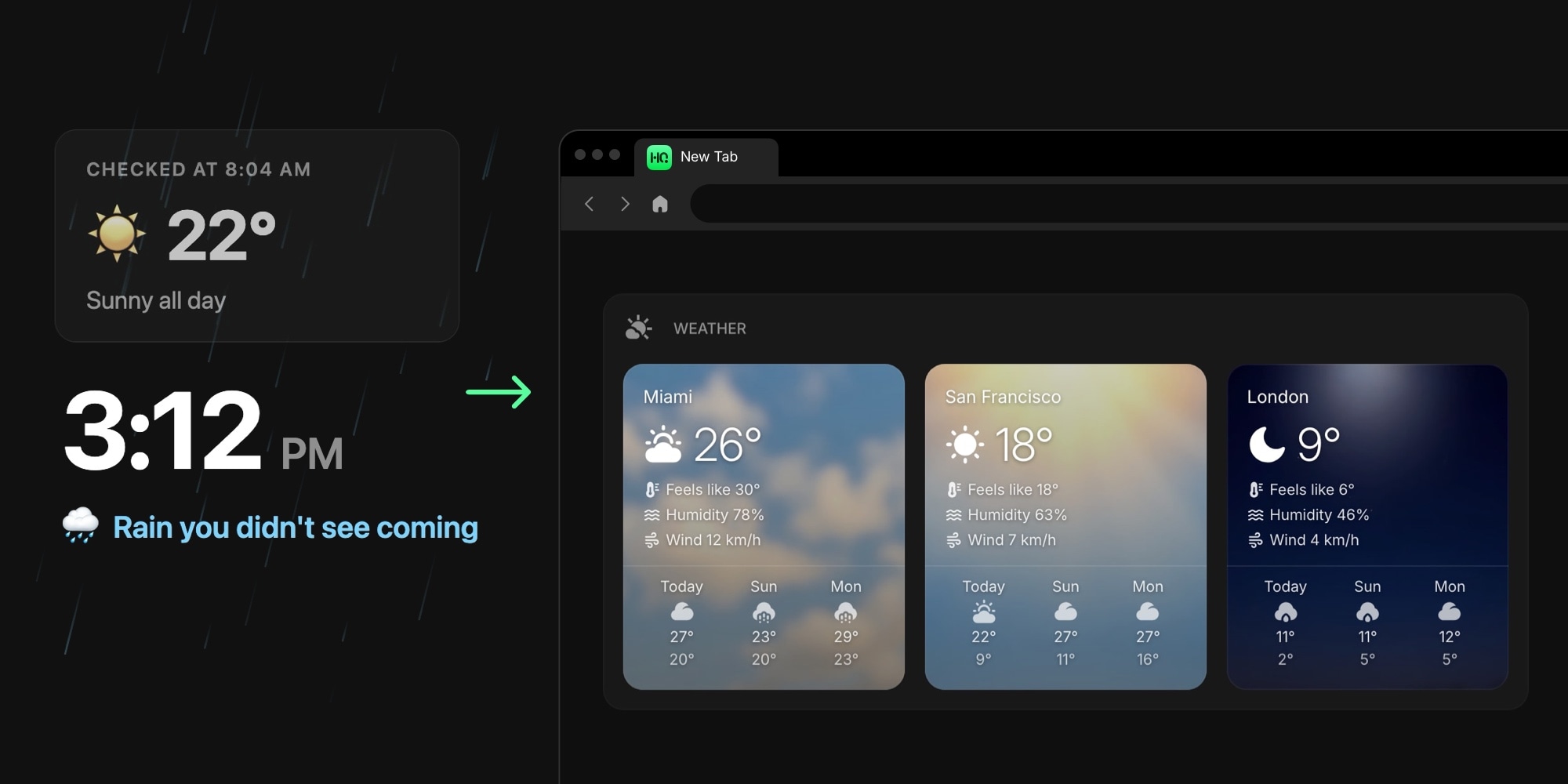
How to Add Weather to Your New Tab Page
Weather is the most looked-up information there is, and the shortest-lived. You check the forecast on your phone at breakfast, and by the time the sky turns over the afternoon it is six hours stale - which is how rain keeps catching people who technically checked. A new tab page with weather on it ends the checking: current conditions and the forecast sit on the screen you already open dozens of times a day, so the 3 PM downpour stops being a surprise you dressed wrong for.
This guide covers how to add weather to your new tab: what browsers show natively and where that stops, how to add a weather widget to Chrome, Firefox, Safari, or Edge, and the settings that make a forecast readable in the half second a glance actually lasts.
#Why Put Weather on Your New Tab Page
The case is frequency, times effort. Weather is information you want many times a day and never want to work for - nobody opens a weather app for fun, they open it because a meeting, a run, or a school pickup depends on it. Every one of those lookups is an unlock, an app, a wait, a close. Put the same forecast on the new tab and the cost drops to zero: you were opening that screen anyway, and the weather is simply there, current, every time.
It also earns its place on a dashboard better than almost anything else. A forecast is the definition of glanceable - one number, one icon, done - so it fills the edge of the page without competing with your tasks and calendar for attention. Our walkthrough of turning your new tab into a personal dashboard builds that full setup widget by widget; this guide zooms in on the weather piece.
#The Ways to Get Weather on a New Tab
Three routes, honestly compared:
- What your browser shows natively. Edge has a Show weather toggle on its default new tab, and Firefox recently added a native Weather widget to its new tab set - our Edge and Firefox guides cover both. They work, with limits: one city, fixed placement, and no sync. Chrome's default new tab and Safari's Start Page show no weather at all.
- Keep a weather site or app in the loop. Dedicated services like AccuWeather go far deeper - radar, storm tracking, hour-by-hour precision - and are worth keeping for the days that need them. For the forty ordinary glances a day, though, they are ad-heavy pages you have to remember to visit; our AccuWeather alternatives page looks at why people move the daily forecast somewhere ambient instead.
- A weather widget on a dashboard. A widget-based new tab extension gives the forecast one block of the screen and leaves the rest for links, tasks, and everything else worth glancing at. This is the route the rest of this guide walks through, and our tested roundup of the best new tab extensions compares the tools that can do it.
#How to Add Weather to Your New Tab
The walkthrough uses Start Page HQ, which we make - that is the disclosure - and the steps translate to any widget dashboard with a weather widget.
- Install a new tab extension. On Chrome, the step-by-step weather widget for Chrome install guide gets you there in about two minutes. Firefox, Safari, and Edge have native extensions with their own install guides, and the same dashboard runs as a web app - your cities sync across all of them, so the setup follows you from work to home.
- Add the Weather widget. Open the widget picker on a new tab, choose Weather, and drop it where you want it. The Weather widget docs cover every setting mentioned below.
- Add a location. Click Add Location and type a city name - each result shows the city, region, and country, so the right Springfield is easy to pick. No geolocation prompt required, though the current-location button is there if you would rather let GPS fill it in. Save, and the widget fetches conditions and the forecast right away.
A pricing note, plainly: the Weather widget is on the free plan. Free means 1 page, 8 widgets, cross-device sync, and every browser extension, with no credit card - a real weather-plus-essentials setup costs nothing. And the live demo shows the widget running with live data before you sign up for anything.
#Make the Forecast Readable at a Glance
A weather widget earns its spot by answering questions faster than the phone app it replaced, and the settings decide which questions it answers:
- Temperature and Wind Speed come first: Celsius or Fahrenheit, km/h or mph. Thirty seconds, once, and every card reads in your language.
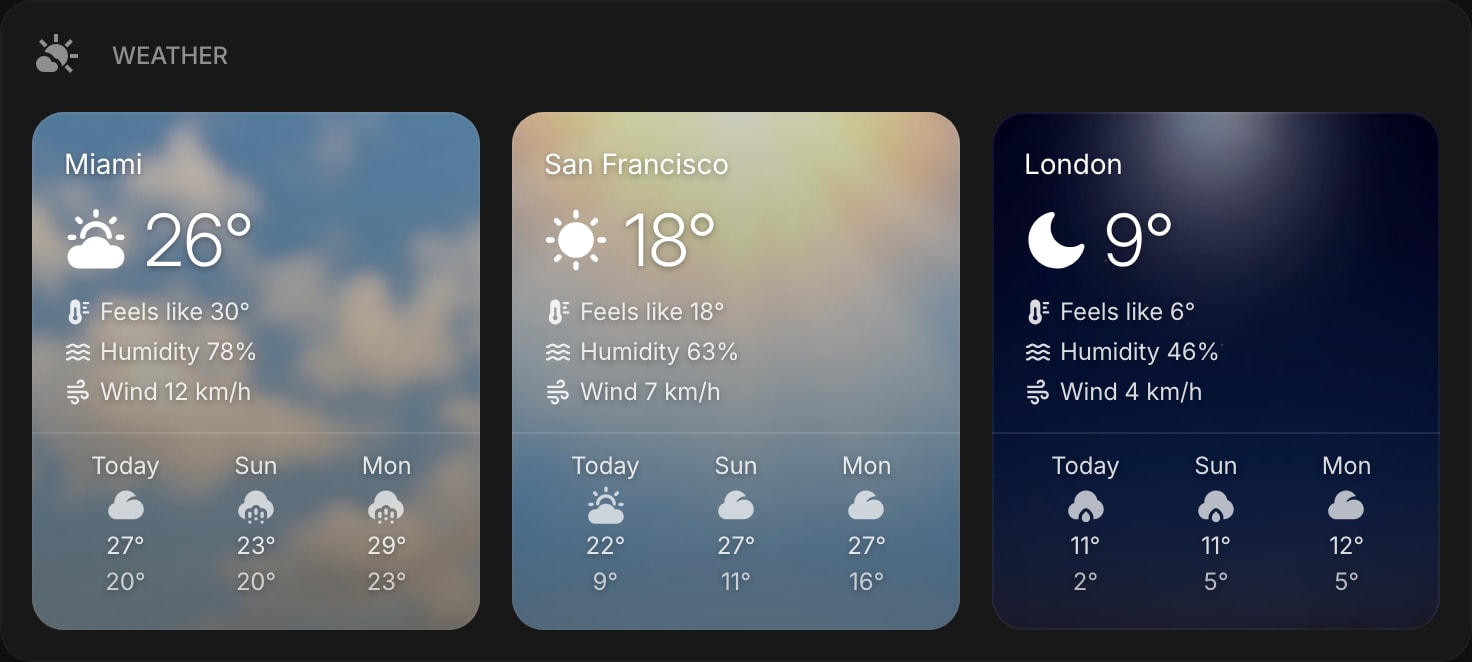
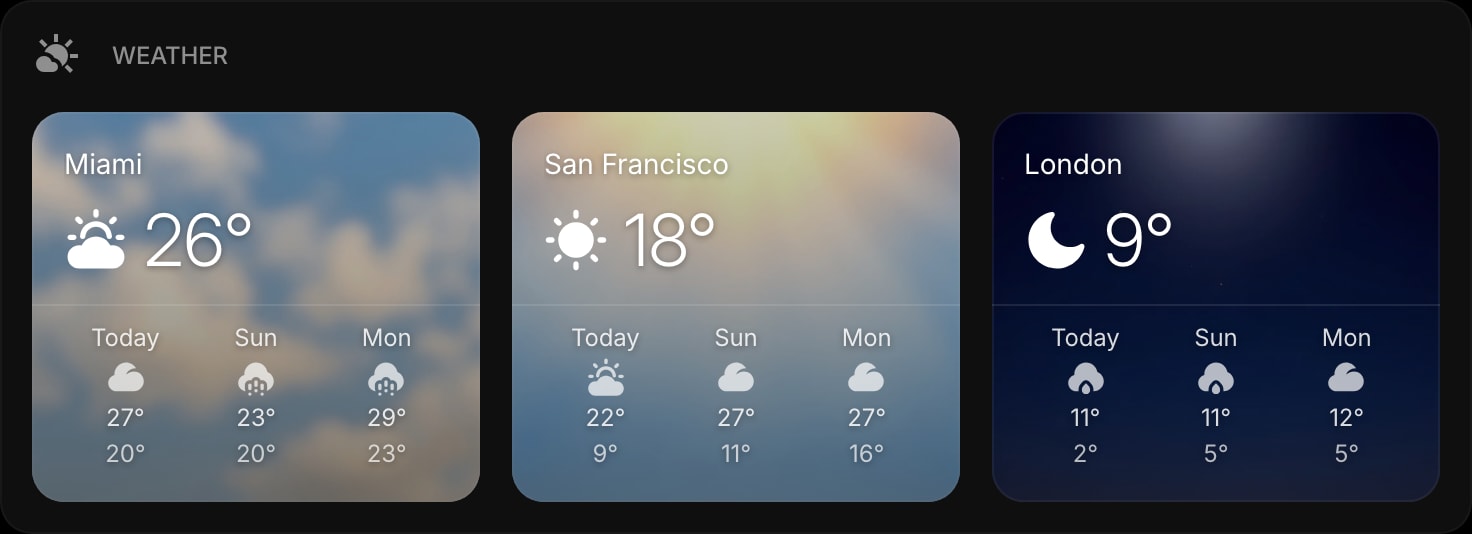
- Show Details adds feels-like temperature, humidity, and wind under the big number. Keep it on if "do I need a jacket" is really "how humid is it"; turn it off and the card shrinks to the essentials.
- Show Forecast and Forecast Days control the look ahead - 3 days by default, 5 or 7 if you plan further out. The forecast row scrolls sideways when the widget is narrow, so nothing gets cut off.
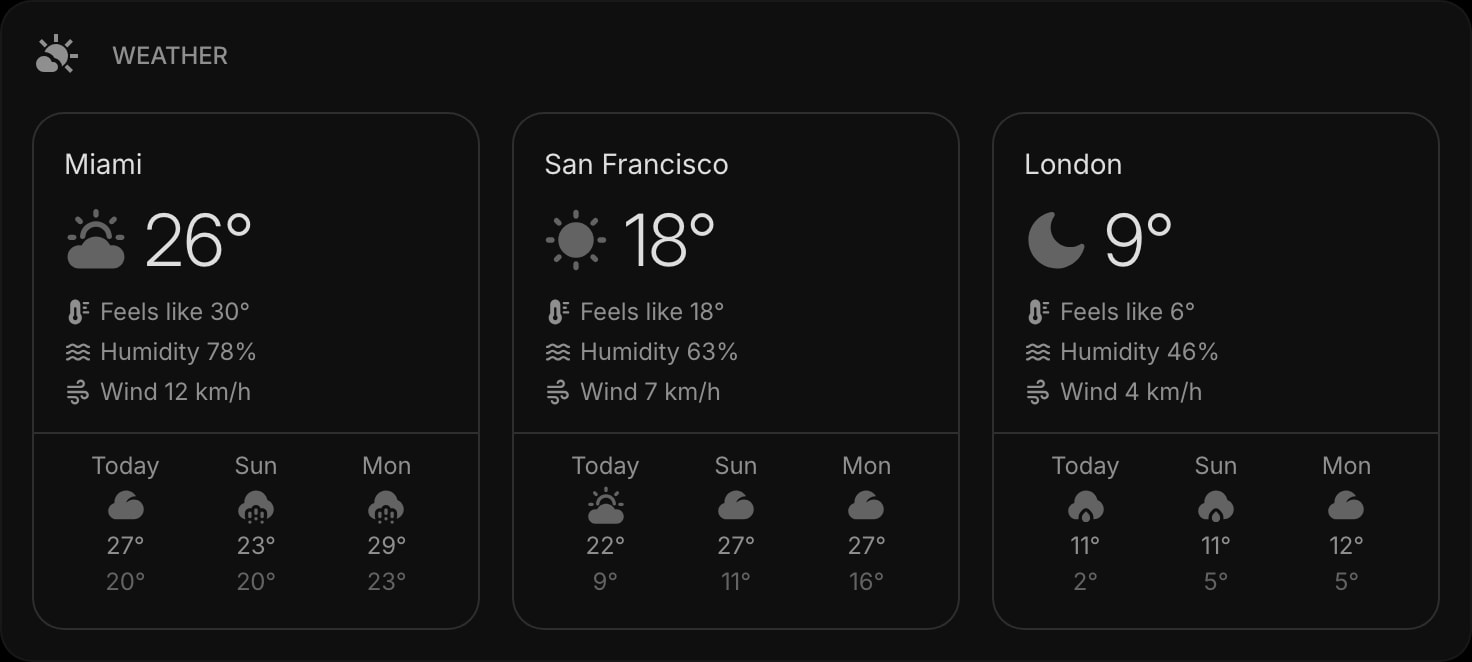
- Item Style sets the look of the cards: Clear, Outline, Solid, or Rich. Rich is the default and the show-off: each card gets an atmospheric background that matches conditions right now - golden haze for clear skies, falling rain streaks, drifting snow, with day and night variations - so you read the weather before you read a single number. Our post on rich widget styles shows the full effect.
The data takes care of itself: conditions refresh every 30 minutes automatically, and a right-click on any location shows when it was last updated. There is nothing to maintain - which is the whole point of ambient information.
#One City Is the Floor, Not the Ceiling
The widget holds as many locations as you give it, and that is where it quietly beats every native option. Add your city, then the one that matters next: where your team sits, where your parents live, where the flight lands on Friday. Cards drag to reorder, and a right-click edits, duplicates, or deletes a location - you can even drag cities between two Weather widgets if you want home and travel kept separate.
Remote workers get the most out of this: a colleague's weather next to a world clock tells you more about their 8 AM than the calendar does, and "how is the weather there" stops being small talk you have to fake.
#Where Weather Goes on the Page
Placement is the difference between ambient and ignored. Weather belongs at the edge of the dashboard - a corner or a side column - not the top-left, which is prime real estate your tasks and calendar should own. It pairs naturally with a date and time widget: together they anchor a corner that answers "when and what is it like out" in one glance, and neither ever needs a click.
Keep the widget one row tall with a 3-day forecast for most setups. Give it more room only if you added several cities and actually read them all.
#Never Get Rained on by Surprise Again
A forecast only helps if you see it after breakfast too, and no screen gets seen more than the new tab. Put the weather on a customizable new tab dashboard and it shares the page with the other 63+ widgets that shape your day - links, tasks, calendar, feeds. Start on the free plan or open the live demo, add your city and one more, and let the 3 PM rain become something you dressed for.