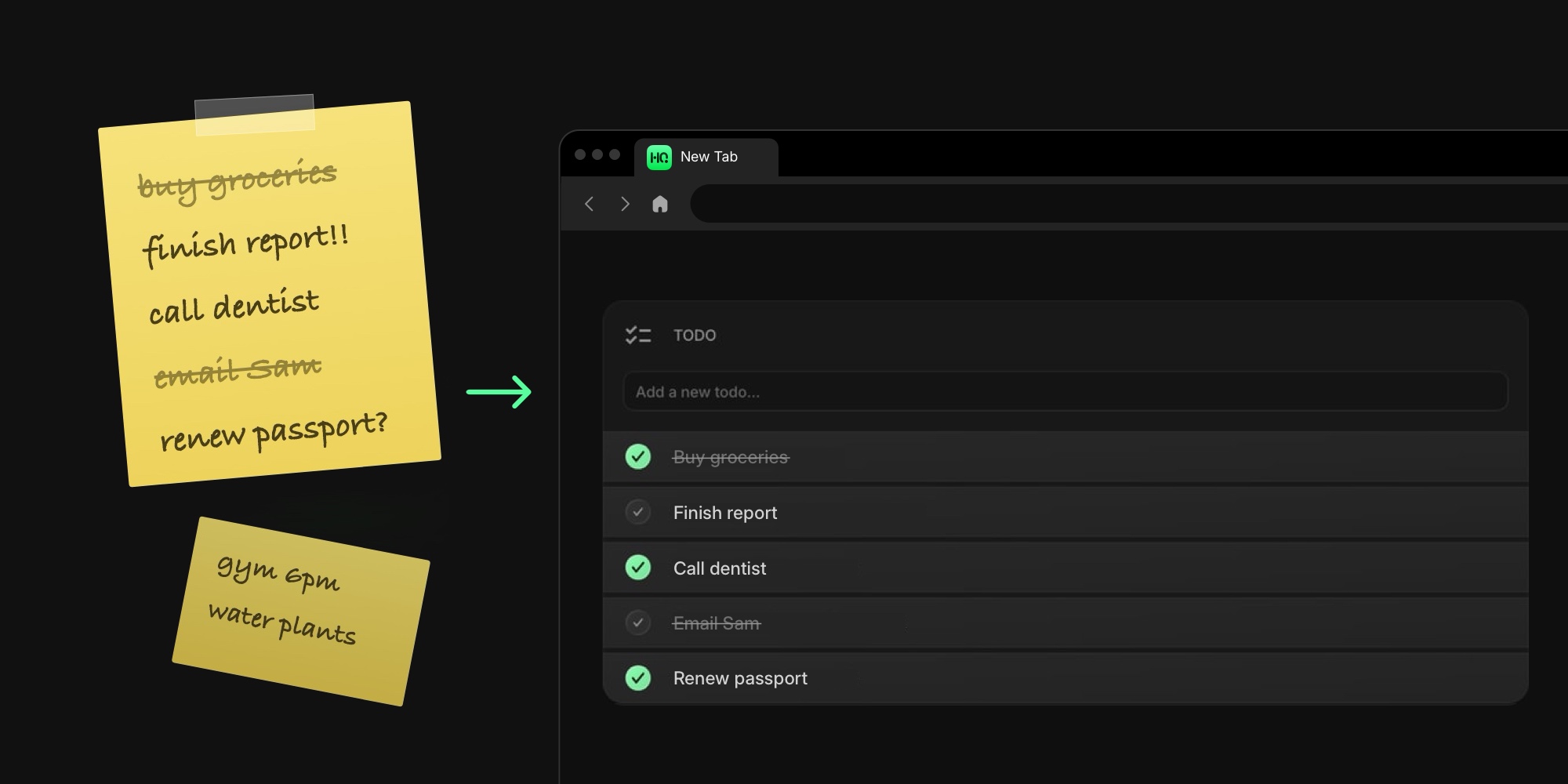
Put Your Todo List on Your New Tab Page
Every todo list fails the same way: not because you stopped caring, but because you stopped looking. The list lives in an app you have to remember to open, and remembering was the exact job you hired the list for. A new tab page with a todo list fixes the loop by moving your tasks to the one screen you already open dozens of times a day. You do not check the list anymore; the list checks in with you.
This guide covers how to put a todo list on every new tab: the routes available, how to add a free todo widget to Chrome, Firefox, Safari, or Edge, and the settings that keep the list working instead of silting up.
#Why Your Todo List Belongs on Your New Tab Page
The old solution to this problem was a sticky note on the monitor bezel, and it worked for one reason: you could not avoid it. Every glance at the screen was a glance at the note. Its digital descendants traded that visibility for features - projects, labels, reminders - and quietly lost the part that mattered. A task app in a pinned tab is still a tab you have to click.
The new tab is where the visibility comes back. You open one to search, to check something, to start almost anything, without ever deciding to. Put your tasks there and they get seen forty times a day for free, which is forty small nudges no notification can match. It is the sticky note again, except it syncs, reorders, and never falls behind the desk.
#The Ways to Get a Todo List on a New Tab
Three routes, honestly compared:
- Keep a dedicated task app open. Tools like Todoist or Microsoft To Do are genuinely better at big task systems: projects, due dates, shared lists, an inbox on your phone. If you run one and it works, keep it - the new tab route complements it as the daily view. But if the app only gets opened when guilt strikes, our Todoist alternatives and Microsoft To Do alternatives pages look at why people move their daily list somewhere more visible.
- A full-tab todo extension. Some extensions replace the entire new tab with a task manager. Your list is unmissable, but so is the cost: every tab opens onto tasks and nothing else - no links, calendar, notes, or feeds.
- A todo widget on a dashboard. A widget-based new tab extension gives your list one block of the screen and leaves the rest for everything else worth glancing at. This is the route the rest of this guide walks through, and our tested roundup of the best new tab extensions compares the tools that can do it.
#Add a Todo Widget to Your New Tab
The walkthrough uses Start Page HQ, which we make - that is the disclosure - and the steps translate to any widget dashboard with a task list.
- Install a new tab extension. On Chrome, the step-by-step todo widget for Chrome install guide gets you there in about two minutes. Firefox, Safari, and Edge have native extensions with their own install guides, and the same dashboard runs as a web app - your list syncs across all of them, so a task added at work is waiting at home.
- Add the Todo widget. Open the widget picker on a new tab, choose Todo, and drop it where you want it. The Todo widget docs cover every detail mentioned below.
- Type your first task and press Enter. The input stays focused, so you can empty your head in one burst - five tasks, five Enters. Click a checkbox to complete a task, click a task's text to edit it inline, and drag to reorder.
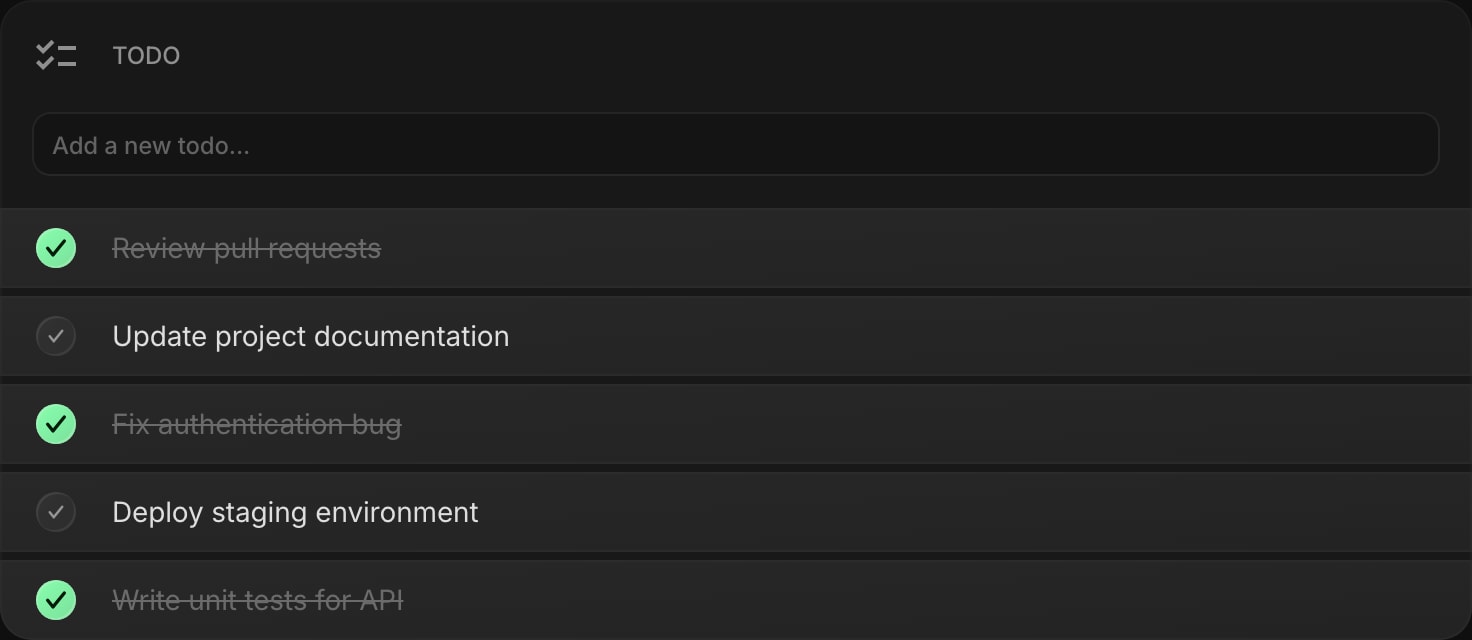
A pricing note, plainly: the Todo widget is on the free plan. Free means 1 page, 8 widgets, cross-device sync, and every browser extension, with no credit card - enough for a real todo-list-plus-essentials setup. And the live demo shows the whole dashboard working before you sign up for anything.
#Settings That Keep the List Honest
A visible list can still go stale, so the widget's settings are built around keeping it truthful:
- Move Completed to Bottom is the one to turn on first. Checked-off items sink, unfinished work stays at the top, and the first line of the widget is always your actual next task.
- Show Completed works the opposite shift: turn it off and done items vanish entirely, leaving only what is left. Keep it on if crossing things out is the reward that keeps you going - Strikethrough Completed is on by default for exactly that reason.
- Clear Completed, in the widget's right-click menu, wipes the checked items in one move. A Friday ritual worth having.
- Item Style switches tasks between Clear, Outline, and Solid looks to match the rest of your page.
One habit beats every setting: run two lists. Add a second Todo widget, name one Work and one Personal, and drag tasks between them - the widget supports moving todos across lists on the same page. Errands stop camouflaging deadlines.
#When a Checklist Is Not Enough
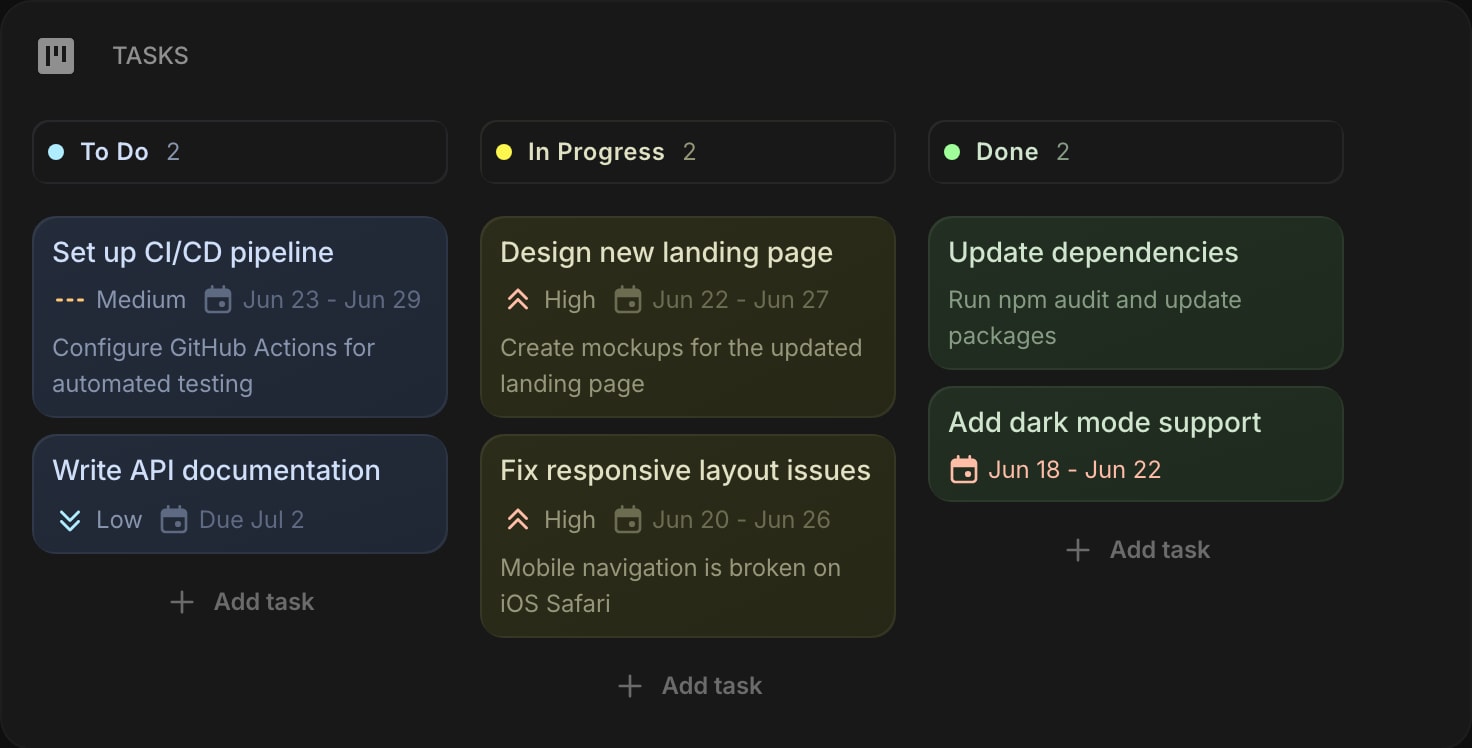
A flat list covers the daily churn. When tasks start having stages - waiting on review, blocked, in progress - the checkbox stops telling the whole story. That is the point to swap in the Tasks widget, a Kanban board with columns, priorities, and due dates on each card, still living on the same new tab. Tasks is one of the 8 premium widgets, so it takes a paid plan: $4 a month, $24 a year, or $48 once for lifetime.
#Where the List Goes on the Page
Placement decides whether the list gets read or scrolled past. Top-left is the first place eyes land, so that is where the todo list belongs, with your calendar beside it - what you need to do next to where you need to be is the pairing that makes a new tab page feel like a control panel. Our guide to turning your new tab into a personal dashboard builds the full setup around exactly that core.
The layout earns its keep in different lives. Students keep the assignment list next to a class schedule and a Pomodoro timer. And for ADHD brains, where out of sight is genuinely out of mind, a task list that resurfaces on every tab is not a convenience - it is the difference between a system that works and one that gets abandoned by Thursday.
#One Tab Away From Done
A todo list works exactly as hard as it is visible, and nothing is more visible than the new tab. Put your tasks on a customizable new tab dashboard and they share the page with the other 63+ widgets worth glancing at - calendar, links, notes, feeds. Start on the free plan or open the live demo, type in tomorrow's three tasks tonight, and let the list find you in the morning.