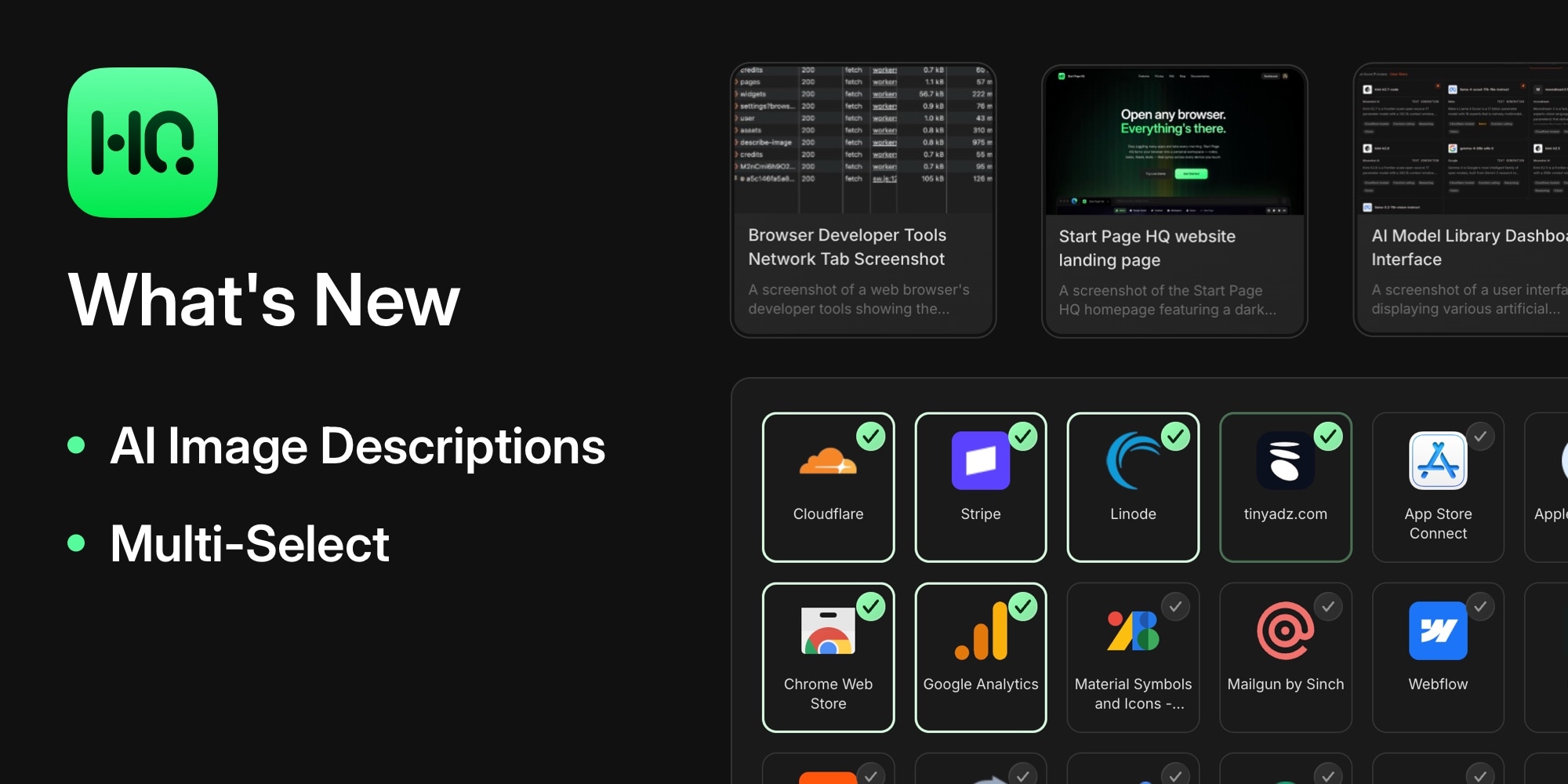
What's New in Start Page HQ: AI Image Descriptions and Multi-Select
Two new features just landed in Start Page HQ, and both are about spending less time on housekeeping. Images you save to a Collection now name and describe themselves with AI, and the Links, Collection, and Notes widgets let you select multiple items at once to duplicate, move, or delete them in a single action.
#AI Titles and Descriptions for Collection Images
Until now, saving an image to a Collection widget left you with a placeholder name - something like photo_2x.jpg, or whatever the page it came from happened to be called. Fine for one image, useless for a mood board with thirty of them.
Now, every image you add gets looked at by AI the moment it lands in your collection. It writes a short, meaningful title and a one-line description of what the image actually shows, so your collection stays searchable and readable without you typing a thing.
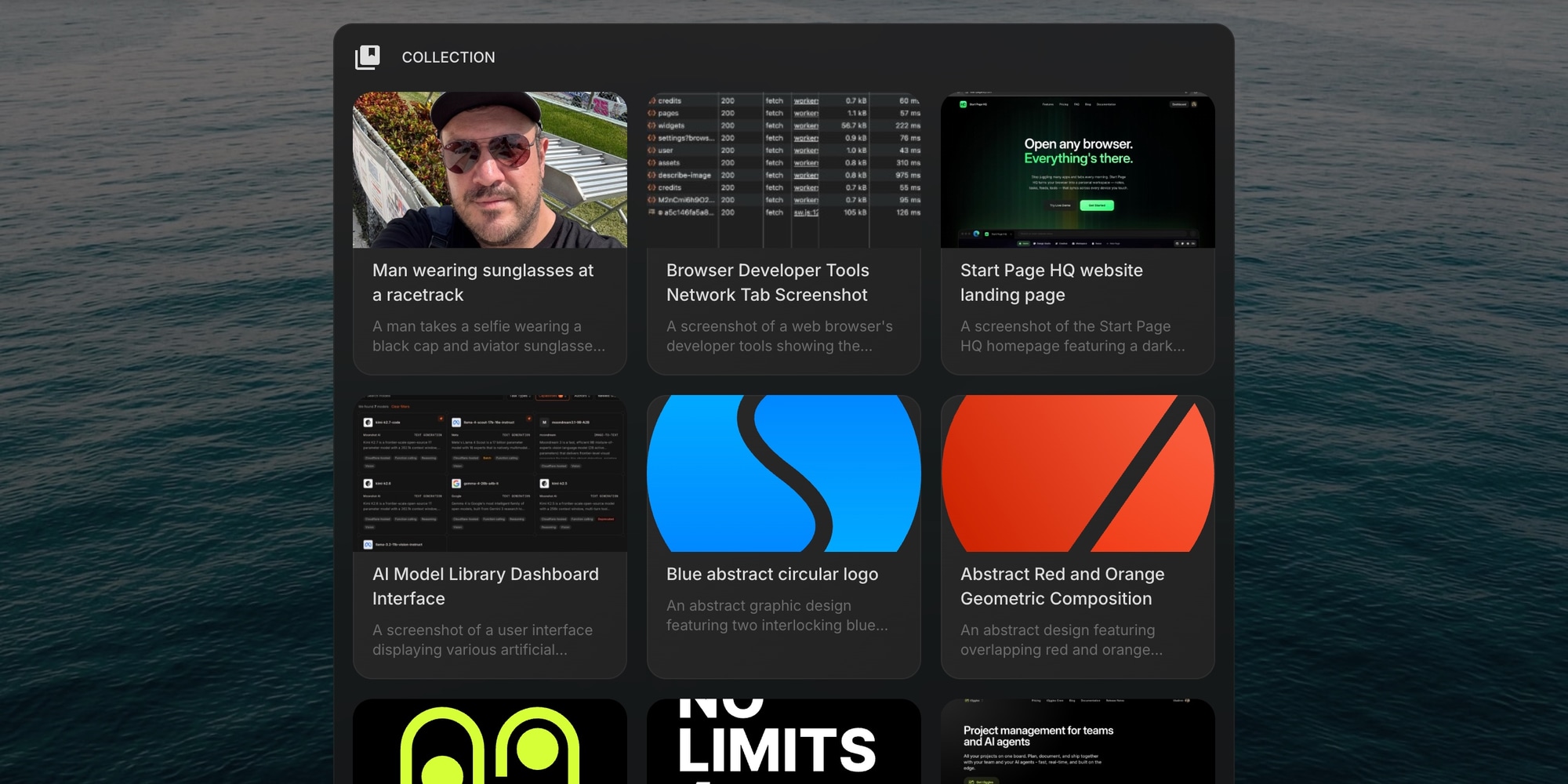
It works on every way an image can enter a collection:
- Drag and drop a file from your device
- Paste or drop an image URL into the widget
- Add an image in the item dialog
- Share from the browser extension while browsing the web
A few details worth knowing:
- The AI-written title and description are just a starting point. Both are fully editable - right-click the item and choose Edit Item to change them.
- It handles screenshots well, too - it reads the text in the image, so a saved screenshot gets a title that says what it is, not
Screenshot 2026-08-18.png. - Each described image uses 1 AI credit. Every plan comes with credits, including the free plan.
- It never gets in the way. If you are out of credits or the AI is unavailable, the image is saved normally, exactly as before.
#Multi-Select and Bulk Actions
Cleaning up a widget with 30 links used to mean 30 right-clicks. Not anymore. The Links, Collection, and Notes widgets now have a multi-select mode for acting on many items at once.
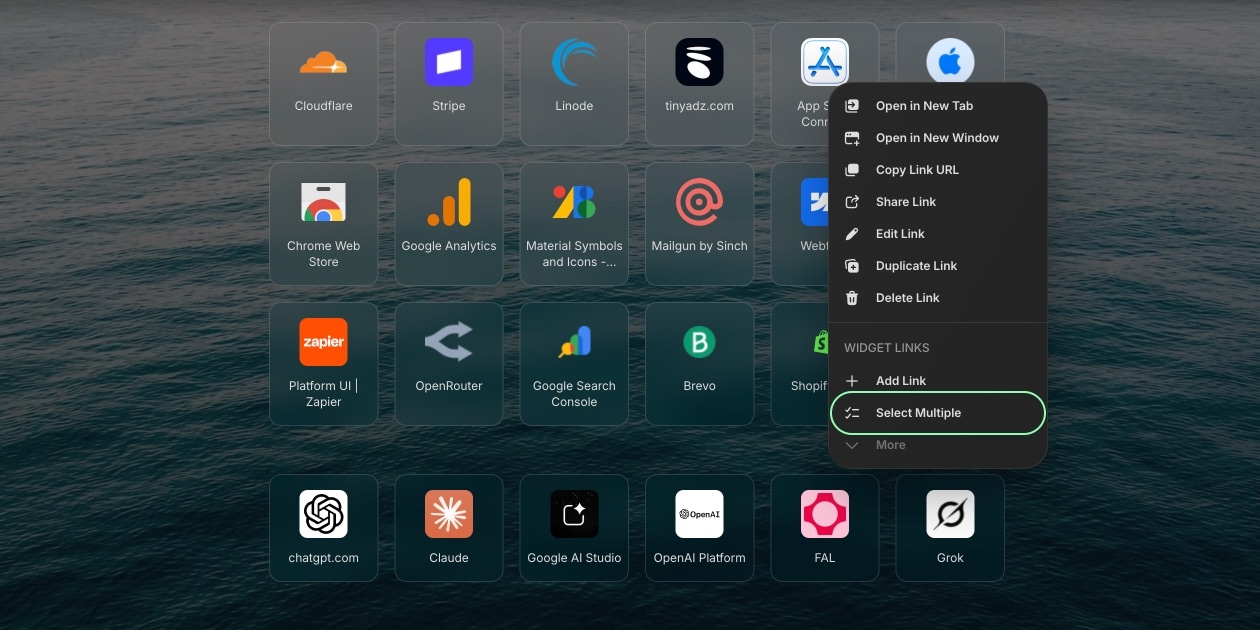
To start, right-click the widget (or any item in it) and choose Select Multiple. A checkbox appears on every item, and clicking an item toggles its selection.
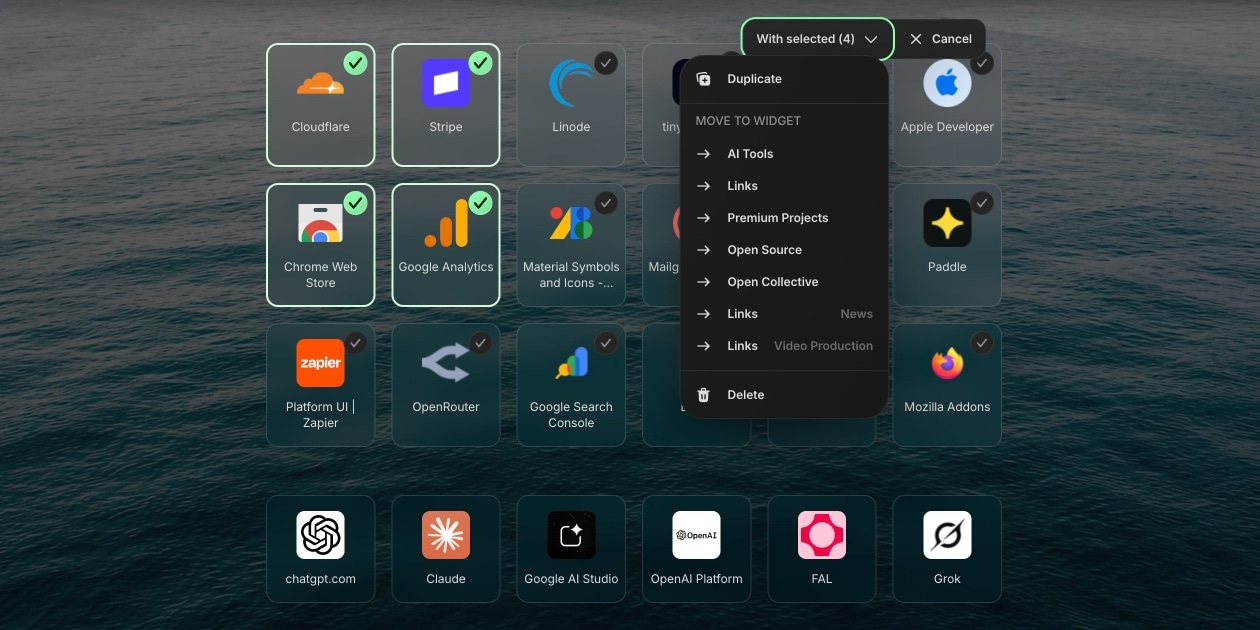
With items selected, the With selected menu at the top of the widget gives you three actions:
- Duplicate - copy all selected items in one go
- Move to Widget - send them to any other widget of the same type, including widgets on other pages. Reorganizing a giant Links widget into several smaller ones takes seconds now.
- Delete - remove them all at once, with a confirmation so a stray click never wipes your list
When you are done, any completed action exits selection mode automatically, or hit Cancel to leave without changes. It all works on mobile too - tap and hold to open the menu, then tap items to select them.
#Try It Out
Both features are live for everyone right now. Open your dashboard and drop an image into a Collection, or try Select Multiple on your busiest Links widget. Not using Start Page HQ yet? Start for free - the free plan includes the Links, Collection, and Notes widgets plus 50 AI credits to play with.
As always, a big part of the roadmap comes straight from user requests, and multi-select was one of the most asked-for features yet. Keep them coming.